Battery change HYUNDAI I30 2021 Owners Manual
[x] Cancel search | Manufacturer: HYUNDAI, Model Year: 2021, Model line: I30, Model: HYUNDAI I30 2021Pages: 659, PDF Size: 17.14 MB
Page 29 of 659
2-9
Safety system of your vehicle
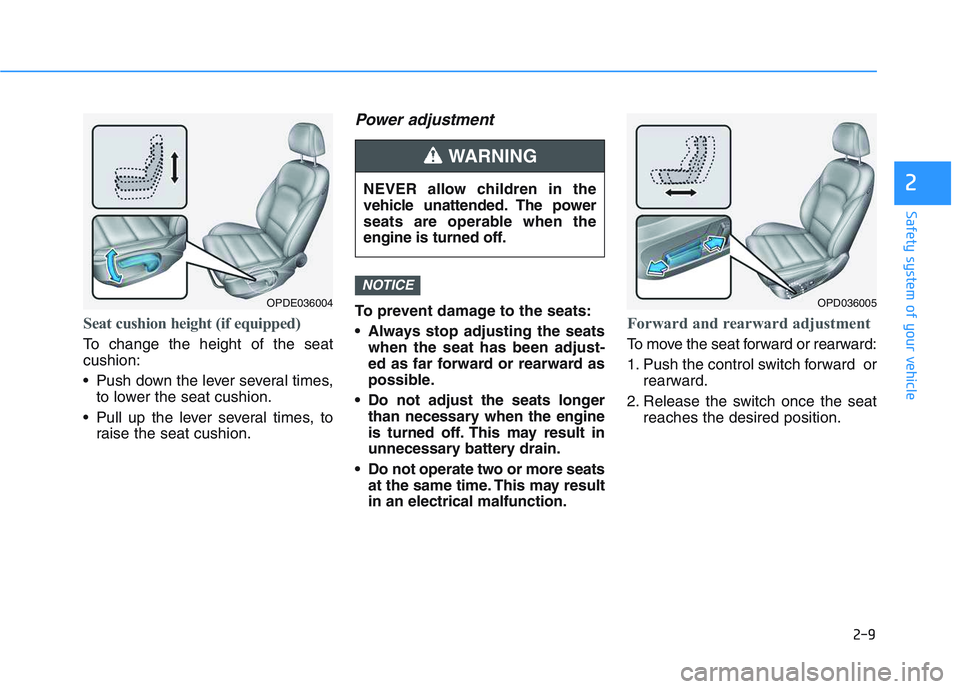
Seat cushion height (if equipped)
To change the height of the seat
cushion:
Push down the lever several times,to lower the seat cushion.
Pull up the lever several times, to raise the seat cushion.
Power adjustment
To prevent damage to the seats:
Always stop adjusting the seatswhen the seat has been adjust-
ed as far forward or rearward as
possible.
Do not adjust the seats longer than necessary when the engine
is turned off. This may result in
unnecessary battery drain.
Do not operate two or more seats at the same time. This may result
in an electrical malfunction.Forward and rearward adjustment
To move the seat forward or rearward:
1. Push the control switch forward or rearward.
2. Release the switch once the seat reaches the desired position.
NOTICE
2
OPDE036004
NEVER allow children in the
vehicle unattended. The power
seats are operable when the
engine is turned off.
WARNING
OPD036005
Page 128 of 659
3-126
Convenient features of your vehicle
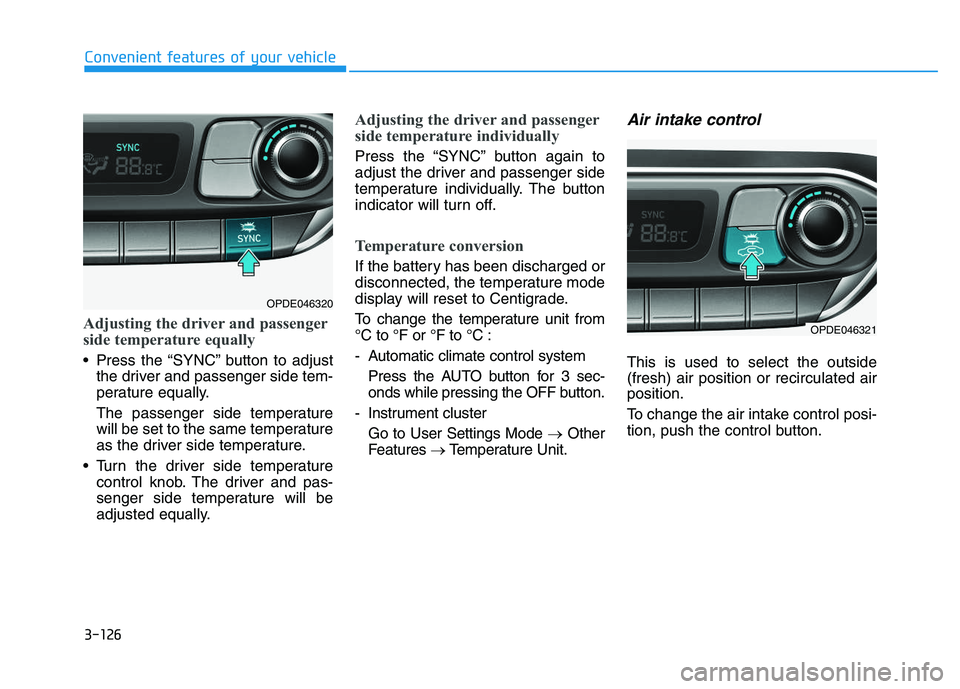
Adjusting the driver and passenger
side temperature equally
Press the “SYNC” button to adjustthe driver and passenger side tem-
perature equally.
The passenger side temperature
will be set to the same temperature
as the driver side temperature.
Turn the driver side temperature control knob. The driver and pas-
senger side temperature will be
adjusted equally.
Adjusting the driver and passenger
side temperature individually
Press the “SYNC” button again to
adjust the driver and passenger side
temperature individually. The button
indicator will turn off.
Temperature conversion
If the battery has been discharged or
disconnected, the temperature mode
display will reset to Centigrade.
To change the temperature unit from
°C to °F or °F to °C :
- Automatic climate control system
Press the AUTO button for 3 sec-
onds while pressing the OFF button.
- Instrument cluster Go to User Settings Mode →Other
Features →Temperature Unit.
Air intake control
This is used to select the outside
(fresh) air position or recirculated air
position.
To change the air intake control posi-
tion, push the control button.
OPDE046320
OPDE046321
Page 155 of 659
3-5
Convenient features of your vehicle
3
Remote key precautions
The remote key will not work if any of
the following occur:
The key is in the ignition switch.
You exceed the operating distance limit (about 30 m [90 feet]).
The remote key battery is weak.
Other vehicles or objects may be blocking the signal.
The weather is extremely cold.
The remote key is close to a radio transmitter such as a radio station
or an airport which can interfere
with normal operation of the remote
key.
When the remote key does not work
correctly, open and close the door
with the mechanical key. If you have a
problem with the remote key, it is rec-
ommended that you contact an
authorized HYUNDAI dealer.
If the remote key is in close proximity
to your mobile phone, the signal could
be blocked by your mobile phones
normal operational signals. This is especially important when the
phone is active such as making and
receiving calls, text messaging,
and/or sending/receiving emails.
Avoid placing the remote key and your
mobile phone in the same pants or
jacket pocket and always try to main-
tain an adequate distance between
the two devices.
Information
Changes or modifications not express-
ly approved by the party responsible
for compliance could void the user’s
authority to operate the equipment. If
the keyless entry system is inoperative
due to changes or modifications not
expressly approved by the party
responsible for compliance, it will not
be covered by your manufacturer’s
vehicle warranty.
Keep the remote key away from
electromagnetic materials that
blocks electromagnetic waves to
the key surface.
Battery replacement
If the remote key is not working prop-
erly, try replacing the battery with a
new one.
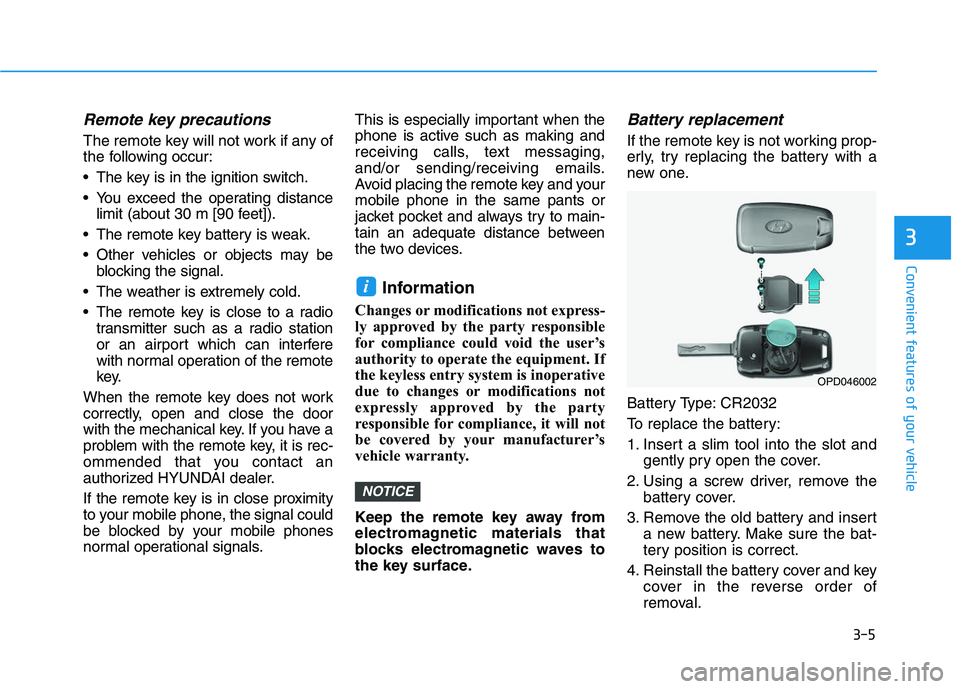
Battery Type: CR2032
To replace the battery:
1. Insert a slim tool into the slot and
gently pry open the cover.
2. Using a screw driver, remove the battery cover.
3. Remove the old battery and insert a new battery. Make sure the bat-
tery position is correct.
4. Reinstall the battery cover and key cover in the reverse order of
removal.
NOTICE
i
OPD046002
Page 159 of 659
3-9
Convenient features of your vehicle
3
Smart key precautions
The smart key will not work if any of
the following occur:
The smart key is close to a radiotransmitter such as a radio station
or an airport which can interfere
with normal operation of the trans-
mitter.
The smart key is near a mobile two way radio system or a cellular
phone.
Another vehicle’s smart key is being operated close to your vehi-
cle.
When the smart key does not work
correctly, open and close the door
with the mechanical key. If you have
a problem with the smart key, it is
recommended that you contact an
authorized HYUNDAI dealer.
If the smart key is in close proximity
to your mobile phone, the signal
could be blocked by your mobile
phones normal operational signals.
This is especially important when the
phone is active such as making and
receiving calls, text messaging,
and/or sending/receiving emails. Avoid placing the smart key and your
mobile phone in the same pants or
jacket pocket and always try to main-
tain an adequate distance between
the two devices.
Information
Changes or modifications not express-
ly approved by the party responsible
for compliance could void the user’s
authority to operate the equipment. If
the keyless entry system is inoperative
due to changes or modifications not
expressly approved by the party
responsible for compliance, it will not
be covered by your manufacturer’s
vehicle warranty.
Keep the smart key away from
electromagnetic materials that
blocks electromagnetic waves to
the key surface.
Battery replacement
If the Smart Key is not working prop-
erly, try replacing the battery with a
new one.
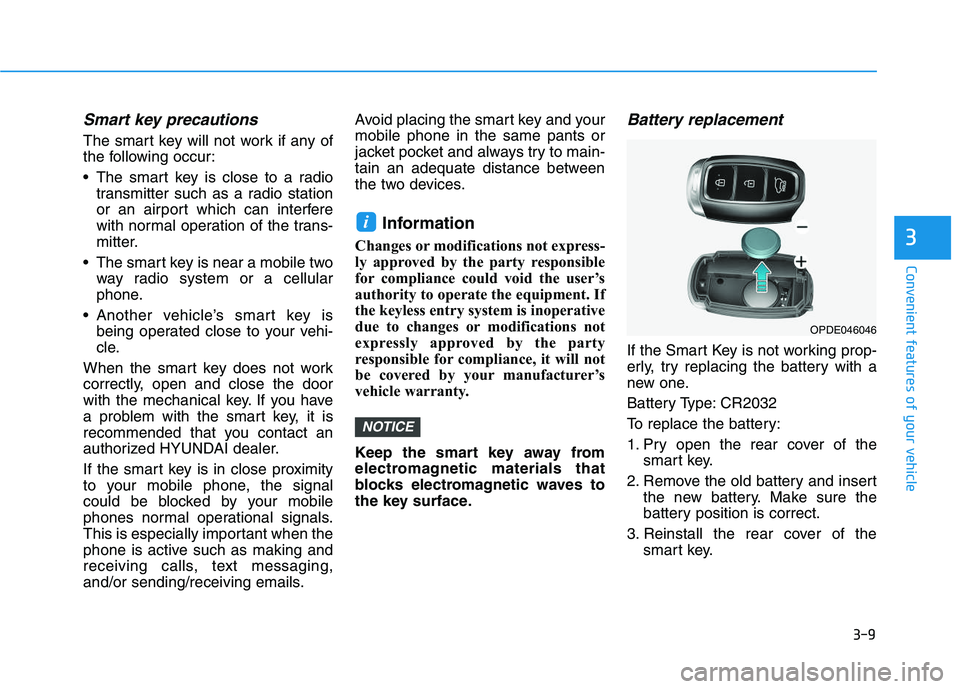
Battery Type: CR2032
To replace the battery:
1. Pry open the rear cover of the
smart key.
2. Remove the old battery and insert the new battery. Make sure the
battery position is correct.
3. Reinstall the rear cover of the smart key.
NOTICE
i
OPDE046046
Page 215 of 659
3-65
Convenient features of your vehicle
3
LCD display messages
Shift to P (for smart key systemand automatic transmission/dual clutch transmission)
This warning message is displayed if
you try to turn off the engine without
the shift lever in P (Park) position.
At this time, the Engine Start/Stop
button turns to the ACC position (If
you press the Engine Start/Stop but-
ton once more, it will turn to the ON
position).
Low Key Battery (for smart key system)
This warning message is displayed if
the battery of the smart key is dis-
charged while changing the Engine
Start/Stop button while changing to
the OFF position.
Press START button while turn-ing wheel (for smart key sys-tem)
This warning message is displayed if
the steering wheel does not unlock
normally when the Engine Start/Stop
button is pressed.
You should press the Engine Start/Stop
button while turning the steering wheel
right and left.
Steering wheel not locked(for smart key system)
This warning message is displayed if
the steering wheel is not locked while
the Engine Start/Stop button changes
to the OFF position.
Check Steering Wheel LockSystem (for smart key system)
This warning message is displayed if
the steering wheel does not lock nor-
mally while the Engine Start/Stop but-
ton changes to the OFF position.
Press brake pedal to start engine(for smart key system and auto-matic transmission/dual clutchtransmission)
This warning message is displayed if
the Engine Start/Stop button changes
to the ACC position twice by pressing
the button repeatedly without depress-
ing the brake pedal.
You can start the vehicle by depressing
the brake pedal.
Press clutch pedal to startengine (for smart key systemand manual transmission)
This warning message is displayed if
the Engine Start/Stop button is in the
ACC position twice by pressing the
button repeatedly without depressing
the clutch pedal.
Depress the clutch pedal to start the
engine.
Page 229 of 659
3-79
Convenient features of your vehicle
3
The trip computer is a microcomput-
er-controlled driver information sys-
tem that displays information related
to driving.
Information
Some driving information stored in the
trip computer (for example Average
Vehicle Speed) resets if the battery is
disconnected.
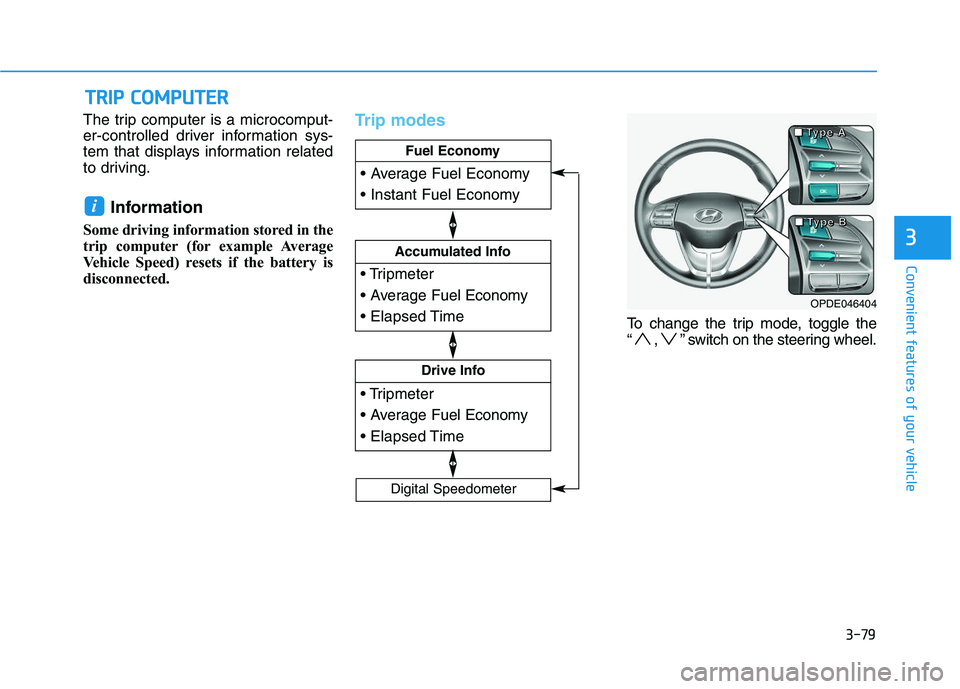
Trip modes
To change the trip mode, toggle the
“ , ” switch on the steering wheel.
i
T
T R
R I
I P
P
C
C O
O M
M P
P U
U T
T E
E R
R
Drive Info
Accumulated Info
Fuel Economy
Digital Speedometer
OPDE046404
■
■
■
■
T
T
T
T
y
y
y
y
p
p
p
p
e
e
e
e
A
A
A
A
■
■
■
■
T
T
T
T
y
y
y
y
p
p
p
p
e
e
e
e
B
B
B
B
Page 250 of 659
4-18
Multimedia System
Operating the device while driv- ing could lead to accidents due
to a lack of attention to external
surroundings. First park the
vehicle before operating the
device.
Adjust the volume to levels that allow the driver to hear sounds
from outside of the vehicle.
Driving in a state where external
sounds cannot be heard may
lead to accidents.
Pay attention to the volume set- ting when turning the device on.
A sudden output of extreme vol-
ume upon turning the device on
could lead to hearing impair-
ment. (Adjust the volume to a
suitable levels before turning off
the device.)
If you want to change the position of device installation, please
inquire with your place of pur-
chase or service maintenance
center. Technical expertise is
required to install or disassem-
ble the device.
(Continued)(Continued)
Turn on the car ignition before
using this device. Do not oper-
ate the audio system for long
periods of time with the ignition
turned off as such operations
may lead to battery discharge.
Do not subject the device to severe shock or impact. Direct
pressure onto the front side of
the monitor may cause damage
to the LCD or touch screen.
When cleaning the device, make sure to turn off the device and
use a dry and smooth cloth.
Never use tough materials,
chemical cloths, or solvents
(alcohol, benzene, thinners,
etc.). As such materials may
damage the device panel or
cause color/quality deteriora-
tion.
Do not place beverages close to the audio system. Spilling bever-
ages may lead to system mal-
function.
In case of product malfunction, please contact your place of pur-
chase or After Service center.
(Continued)(Continued)
an electromagnetic environment
may result in noise interference.
NOTICE
Page 251 of 659
![HYUNDAI I30 2021 Owners Manual 4-19
Multimedia System
4
Information on status icons
Icons showing audio status are shown
in the upper-right corner of the screen.
Radio
FM/AM (with RDS)
Switching between FM and AM
Press the [RADIO]](/img/35/56146/w960_56146-250.png "HYUNDAI I30 2021 Owners Manual 4-19
Multimedia System
4
Information on status icons
Icons showing audio status are shown
in the upper-right corner of the screen.
Radio
FM/AM (with RDS)
Switching between FM and AM
Press the [RADIO]")
4-19
Multimedia System
4
Information on status icons
Icons showing audio status are shown
in the upper-right corner of the screen.
Radio
FM/AM (with RDS)
Switching between FM and AM
Press the [RADIO]button on the
audio system to switch between
FM and AM.
Searching stations
Press the [SEEK/TRACK] button to
search stations.
Presets
Save up to 36 frequently used sta-
tions.
1. Press and hold the desired slot from 1 through 36. This saves the
current station in the selected slot.
If the slot is empty, simply press-
ing saves the station to the slot.
2. To save in slots numbered 7 or higher, press the [PRESET]but-
ton to move to the previous/next
page and save.
To listen to a preset station, press
the desired station in the list.
Menu
Press the [MENU]button, and select
the desired function.
List: A list of all available stations in the current location of the vehicle is
displayed. Press the desired sta-
tion.
Traffic Announcement (TA): Enable or disable Traffic Announcements.
Sound Settings: Audio sound set- tings can be changed.
Scan: All available stations are played for five seconds each.
IconDescription
MuteMute engaged
BatteryRemaining battery life of
a connected Bluetooth®
device
Handsfree +
Audio stream-
ing connectionBluetooth®Handsfree
call and audio streaming
available
Handsfree
connectionBluetooth®Handsfree
call available
Bluetaooth®
audio streamingBluetooth®audio
streaming available
Downloading
contactsDownloading contacts
through Bluetooth®wire-
less communications
Downloading
call historyDownloading call history
through Bluetooth® wire-
less communications
Line busyPhone call in progress
Mute micMic muted during a
call (caller cannot
hear your voice)
Phone signal
strengthDisplay the phone signal
strength for a cell phone
connected by Bluetooth
®
Page 258 of 659
4-26
Multimedia System
Information
- Using the iPod®Devices
• To use the audio system’s iPod
®con-
trol function, use the dedicated
cable provided with your iPod
®.
• Connecting the iPod
®to the vehicle
during play may result in a loud
noise that lasts about one to two sec-
onds. Connect the iPod
®to the vehi-
cle after stopping or pausing play.
• Connect the iPod
®with the vehicle
in the ACC ON state to begin charg-
ing.
• When connecting the iPod
®cable,
be sure to fully push the cable into
the port.
• When EQ effects are enabled simul- taneously on external devices, such
as iPod
®s and the audio system, the
EQ effects may overlap, causing
sound quality deterioration or dis-
tortion. Deactivate the EQ function
for all external devices, if possible.
• Noise may occur when your iPod
®
or the AUX port is connected.
Disconnect and store separately
when not in use. (Continued)(Continued)
• There may be noise if the audio sys-
tem is used with an iPod
®or AUX
external device connected to the
power jack. In these cases, discon-
nect the iPod
®or external device
from the power jack.
• Play may be interrupted, or device malfunctions may occur depending
on the characteristics of your
iPod
®/iPhone®.
• Play may fail if your iPhone
®is con-
nected through both Bluetooth®and
USB. In this case, select Dock con-
nector or Bluetooth
®on your
iPhone®to change the sound output
settings.
• If your software version does not support the communication proto-
col or your iPod
®is not recognized
due to device failure, anomalies or
defects, iPod
®mode cannot be used.
• iPod
®nano (5th generation) devices
may not be recognized if the battery
is low. Charge sufficiently before
use.
(Continued)(Continued)
• The search and song play order in
the iPod
®device may be different
from the search order in the audio
system.
• If the iPod
®has failed due to an
internal defect, please reset the
iPod
®(consult your iPod®manual).
• Depending on the software version, the iPod
®may fail to sync with the
system. If the media is removed or
disconnected before recognition, the
previous mode may not be restored
(iPad
®cannot be charged).
• Cables other than the 1-meter cable provided with iPod
®/iPhone®prod-
ucts may not be recognized.
• When other music apps are used on your iPod
®, the system sync func-
tion may fail due to malfunction of
the iPod
®application.
i
Page 279 of 659
4-47
Multimedia System
4
Operating the device while driv-ing could lead to accidents due
to a lack of attention to external
surroundings. First park the
vehicle before operating the
device.
Adjust the volume to levels that allow the driver to hear sounds
from outside of the vehicle.
Driving in a state where external
sounds cannot be heard may
lead to accidents.
Pay attention to the volume set- ting when turning the device on.
A sudden output of extreme vol-
ume upon turning the device on
could lead to hearing impair-
ment. (Adjust the volume to a
suitable levels before turning off
the device.)
If you want to change the posi- tion of device installation,
please inquire with your place of
purchase or service mainte-
nance center. Technical expert-
ise is required to install or dis-
assemble the device.
(Continued)(Continued)
Turn on the car ignition before
using this device. Do not oper-
ate the audio system for long
periods of time with the ignition
turned off as such operations
may lead to battery discharge.
Do not subject the device to severe shock or impact. Direct
pressure onto the front side of
the monitor may cause damage
to the LCD or touch screen.
When cleaning the device, make sure to turn off the device and
use a dry and smooth cloth.
Never use tough materials,
chemical cloths, or solvents
(alcohol, benzene, thinners,
etc.). As such materials may
damage the device panel or
cause color/quality deterioration
Do not place beverages close to the audio system. Spilling bever-
ages may lead to system mal-
function.
(Continued)(Continued)
In case of product malfunction,
please contact your place of pur-
chase or After Service center.
Placing the audio system within an electromagnetic environment
may result in noise interference.
NOTICE