sim HYUNDAI I30 2021 User Guide
[x] Cancel search | Manufacturer: HYUNDAI, Model Year: 2021, Model line: I30, Model: HYUNDAI I30 2021Pages: 659, PDF Size: 17.14 MB
Page 236 of 659
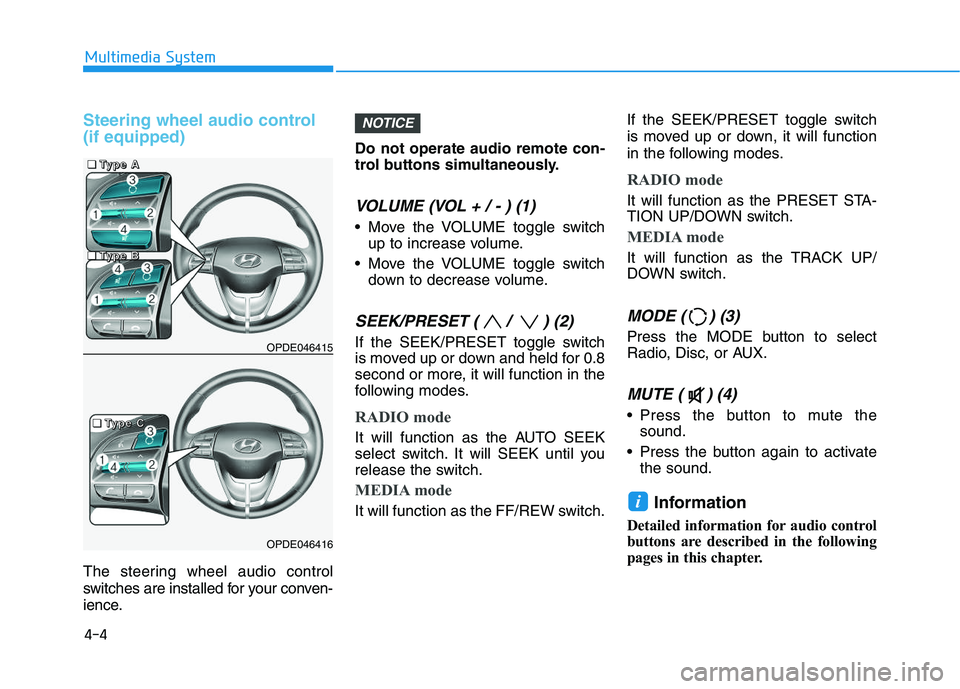
Steering wheel audio control
(if equipped)
The steering wheel audio control
switches are installed for your conven-
ience.Do not operate audio remote con-
trol buttons simultaneously.
VOLUME (VOL + / - ) (1)
Move the VOLUME toggle switch
up to increase volume.
Move the VOLUME toggle switch down to decrease volume.
SEEK/PRESET ( / ) (2)
If the SEEK/PRESET toggle switch
is moved up or down and held for 0.8
second or more, it will function in the
following modes.
RADIO mode
It will function as the AUTO SEEK
select switch. It will SEEK until you
release the switch.
MEDIA mode
It will function as the FF/REW switch. If the SEEK/PRESET toggle switch
is moved up or down, it will function
in the following modes.
RADIO mode
It will function as the PRESET STA-
TION UP/DOWN switch.
MEDIA mode
It will function as the TRACK UP/
DOWN switch.
MODE ( ) (3)
Press the MODE button to select
Radio, Disc, or AUX.
MUTE ( ) (4)
Press the button to mute the
sound.
Press the button again to activate the sound.
Information
Detailed information for audio control
buttons are described in the following
pages in this chapter.
i
NOTICE
OPDE046415
OPDE046416
4-4
Multimedia System
■
■
■
■
T
T
T
T
y
y
y
y
p
p
p
p
e
e
e
e
A
A
A
A
■
■
■
■
T
T
T
T
y
y
y
y
p
p
p
p
e
e
e
e
C
C
C
C
■
■
■
■
T
T
T
T
y
y
y
y
p
p
p
p
e
e
e
e
B
B
B
B
Page 251 of 659
![HYUNDAI I30 2021 User Guide 4-19
Multimedia System
4
Information on status icons
Icons showing audio status are shown
in the upper-right corner of the screen.
Radio
FM/AM (with RDS)
Switching between FM and AM
Press the [RADIO]](/img/35/56146/w960_56146-250.png "HYUNDAI I30 2021 User Guide 4-19
Multimedia System
4
Information on status icons
Icons showing audio status are shown
in the upper-right corner of the screen.
Radio
FM/AM (with RDS)
Switching between FM and AM
Press the [RADIO]")
4-19
Multimedia System
4
Information on status icons
Icons showing audio status are shown
in the upper-right corner of the screen.
Radio
FM/AM (with RDS)
Switching between FM and AM
Press the [RADIO]button on the
audio system to switch between
FM and AM.
Searching stations
Press the [SEEK/TRACK] button to
search stations.
Presets
Save up to 36 frequently used sta-
tions.
1. Press and hold the desired slot from 1 through 36. This saves the
current station in the selected slot.
If the slot is empty, simply press-
ing saves the station to the slot.
2. To save in slots numbered 7 or higher, press the [PRESET]but-
ton to move to the previous/next
page and save.
To listen to a preset station, press
the desired station in the list.
Menu
Press the [MENU]button, and select
the desired function.
List: A list of all available stations in the current location of the vehicle is
displayed. Press the desired sta-
tion.
Traffic Announcement (TA): Enable or disable Traffic Announcements.
Sound Settings: Audio sound set- tings can be changed.
Scan: All available stations are played for five seconds each.
IconDescription
MuteMute engaged
BatteryRemaining battery life of
a connected Bluetooth®
device
Handsfree +
Audio stream-
ing connectionBluetooth®Handsfree
call and audio streaming
available
Handsfree
connectionBluetooth®Handsfree
call available
Bluetaooth®
audio streamingBluetooth®audio
streaming available
Downloading
contactsDownloading contacts
through Bluetooth®wire-
less communications
Downloading
call historyDownloading call history
through Bluetooth® wire-
less communications
Line busyPhone call in progress
Mute micMic muted during a
call (caller cannot
hear your voice)
Phone signal
strengthDisplay the phone signal
strength for a cell phone
connected by Bluetooth
®
Page 252 of 659
![HYUNDAI I30 2021 User Guide 4-20
Multimedia System
DAB/FM (with DAB)
Switching between DAB/FM and AM
Press the [RADIO]button on the
audio system to switch between
DAB/FM and AM.
Searching stations
Press the [SEEK/TRACK] button](/img/35/56146/w960_56146-251.png "HYUNDAI I30 2021 User Guide 4-20
Multimedia System
DAB/FM (with DAB)
Switching between DAB/FM and AM
Press the [RADIO]button on the
audio system to switch between
DAB/FM and AM.
Searching stations
Press the [SEEK/TRACK] button")
4-20
Multimedia System
DAB/FM (with DAB)
Switching between DAB/FM and AM
Press the [RADIO]button on the
audio system to switch between
DAB/FM and AM.
Searching stations
Press the [SEEK/TRACK] button to
search stations.
Presets
Save up to 36 frequently used sta-
tions.
1. Press and hold the desired slot from 1 through 36. This saves the
current station in the selected slot.
If the slot is empty, simply press-
ing saves the station to the slot.
2. To save in slots numbered 7 or higher, press the [PRESET]but-
ton to move to the previous/next
page and save.
To listen to a preset station, press
the desired station in the list.
Menu
Press the [MENU]button, and select
the desired function.
List: A list of all available stations in the current location of the vehicle is
displayed. Press the desired sta-
tion.
Traffic Announcement (TA): Enable or disable Traffic Announcements.
Region : Enable or disable auto- matic switching between regional
stations.
Sound Settings: Audio sound set- tings can be changed.
Scan: All available stations are played for five seconds each.
Manual tune FM : Search for fre- quencies manually.
Page 253 of 659
![HYUNDAI I30 2021 User Guide 4-21
Multimedia System
4
FM/AM (without RDS)
Switching between FM, AM
Press the [RADIO] button on the
audio system to switch between
FM and AM.
Searching stations
Press the [SEEK/TRACK] button to
se](/img/35/56146/w960_56146-252.png "HYUNDAI I30 2021 User Guide 4-21
Multimedia System
4
FM/AM (without RDS)
Switching between FM, AM
Press the [RADIO] button on the
audio system to switch between
FM and AM.
Searching stations
Press the [SEEK/TRACK] button to
se")
4-21
Multimedia System
4
FM/AM (without RDS)
Switching between FM, AM
Press the [RADIO] button on the
audio system to switch between
FM and AM.
Searching stations
Press the [SEEK/TRACK] button to
search stations.
Presets
Save up to 36 frequently used sta-
tions.
1. Press and hold the desired slot from 1 through 36. This saves the
current station in the selected slot.
If the slot is empty, simply press-
ing saves the station to the slot.
2. To save in slots numbered 7 or higher, press the [PRESET] but-
ton to move to the previous/next
page and save.
To listen to a preset station, press
the desired station in the list.
Menu
Press the [MENU]button, and select
the desired function.
List: A list of all available stations in the current location of the vehicle is
displayed. Press the desired sta-
tion. Select [Refresh] to update the
list of available stations.
Scan: All stations available in the current location of the vehicle are
played for five seconds each.
Sound Settings: Audio sound set- tings can be changed.
Media
Information
- Using MP3
Supported audio formats
File formats other than the for-
mats above may not be recog-
nized or playable. Information
such as filename may not be dis-
played.
NOTICE
i
Page 254 of 659
4-22
Multimedia System
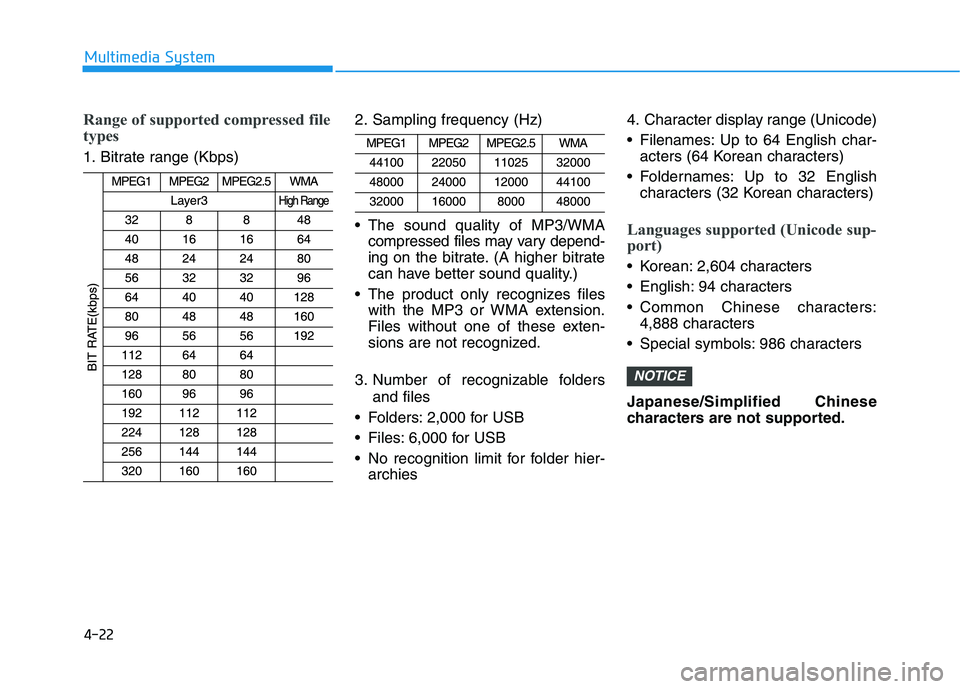
Range of supported compressed file
types
1. Bitrate range (Kbps)2. Sampling frequency (Hz)
The sound quality of MP3/WMA
compressed files may vary depend-
ing on the bitrate. (A higher bitrate
can have better sound quality.)
The product only recognizes files with the MP3 or WMA extension.
Files without one of these exten-
sions are not recognized.
3. Number of recognizable folders and files
Folders: 2,000 for USB
Files: 6,000 for USB
No recognition limit for folder hier- archies 4. Character display range (Unicode)
Filenames: Up to 64 English char-
acters (64 Korean characters)
Foldernames: Up to 32 English characters (32 Korean characters)
Languages supported (Unicode sup-
port)
Korean: 2,604 characters
English: 94 characters
Common Chinese characters:4,888 characters
Special symbols: 986 characters
Japanese/Simplified Chinese
characters are not supported.
NOTICE
Page 256 of 659
4-24
Multimedia System
(Continued)
• DRM (Digital Rights Management) files cannot be played.
• SD-type USB memory, CF-type USB memory, and other USB mem-
ory devices that require adapters
for connection are not supported.
• Proper operation of USB HDDs or USB drives with connectors that
loosen due to vehicle vibrations is
not guaranteed. (iStick, etc.)
• USB products that are used as key chains or
cell phone accessories
may damage the USB
jack and affect proper
file playback. Please refrain from
use. Use only products with plug
connectors, as shown in the follow-
ing illustration.
• When MP3 devices or cell phones are connected simultaneously
through AUX, BT Audio and USB
modes, a popping noise or malfunc-
tion may occur.
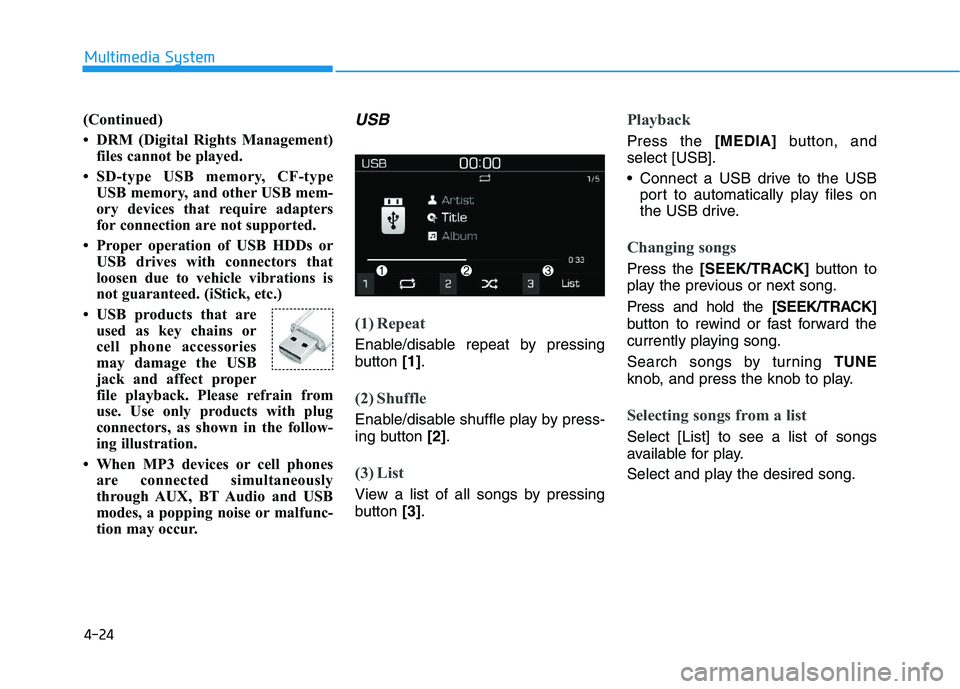
USB
(1) Repeat
Enable/disable repeat by pressing
button [1].
(2) Shuffle
Enable/disable shuffle play by press-
ing button [2].
(3) List
View a list of all songs by pressing
button [3].
Playback
Press the [MEDIA] button, and
select [USB].
• Connect a USB drive to the USB port to automatically play files on
the USB drive.
Changing songs
Press the [SEEK/TRACK] button to
play the previous or next song.
Press and hold the [SEEK/TRACK]
button to rewind or fast forward the
currently playing song.
Search songs by turning TUNE
knob, and press the knob to play.
Selecting songs from a list
Select [List] to see a list of songs
available for play.
Select and play the desired song.
Page 258 of 659
4-26
Multimedia System
Information
- Using the iPod®Devices
• To use the audio system’s iPod
®con-
trol function, use the dedicated
cable provided with your iPod
®.
• Connecting the iPod
®to the vehicle
during play may result in a loud
noise that lasts about one to two sec-
onds. Connect the iPod
®to the vehi-
cle after stopping or pausing play.
• Connect the iPod
®with the vehicle
in the ACC ON state to begin charg-
ing.
• When connecting the iPod
®cable,
be sure to fully push the cable into
the port.
• When EQ effects are enabled simul- taneously on external devices, such
as iPod
®s and the audio system, the
EQ effects may overlap, causing
sound quality deterioration or dis-
tortion. Deactivate the EQ function
for all external devices, if possible.
• Noise may occur when your iPod
®
or the AUX port is connected.
Disconnect and store separately
when not in use. (Continued)(Continued)
• There may be noise if the audio sys-
tem is used with an iPod
®or AUX
external device connected to the
power jack. In these cases, discon-
nect the iPod
®or external device
from the power jack.
• Play may be interrupted, or device malfunctions may occur depending
on the characteristics of your
iPod
®/iPhone®.
• Play may fail if your iPhone
®is con-
nected through both Bluetooth®and
USB. In this case, select Dock con-
nector or Bluetooth
®on your
iPhone®to change the sound output
settings.
• If your software version does not support the communication proto-
col or your iPod
®is not recognized
due to device failure, anomalies or
defects, iPod
®mode cannot be used.
• iPod
®nano (5th generation) devices
may not be recognized if the battery
is low. Charge sufficiently before
use.
(Continued)(Continued)
• The search and song play order in
the iPod
®device may be different
from the search order in the audio
system.
• If the iPod
®has failed due to an
internal defect, please reset the
iPod
®(consult your iPod®manual).
• Depending on the software version, the iPod
®may fail to sync with the
system. If the media is removed or
disconnected before recognition, the
previous mode may not be restored
(iPad
®cannot be charged).
• Cables other than the 1-meter cable provided with iPod
®/iPhone®prod-
ucts may not be recognized.
• When other music apps are used on your iPod
®, the system sync func-
tion may fail due to malfunction of
the iPod
®application.
i
Page 281 of 659
4-49
Multimedia System
4
Presets
Save up to 40 frequently used stations.
To listen to a preset, select the
desired station list.
Press and hold the desired slot from
1 through 40. This saves the current
station in the selected slot.
If the slot is empty, simply selecting
saves the station to the slot.
Menu
Select [Menu], and select the desired
function.
Traffic Announcement (TA): Enableor disable Traffic Announcements.
Scan: All available stations are played for five seconds each.
Sound Settings: Audio sound set- tings can be changed.
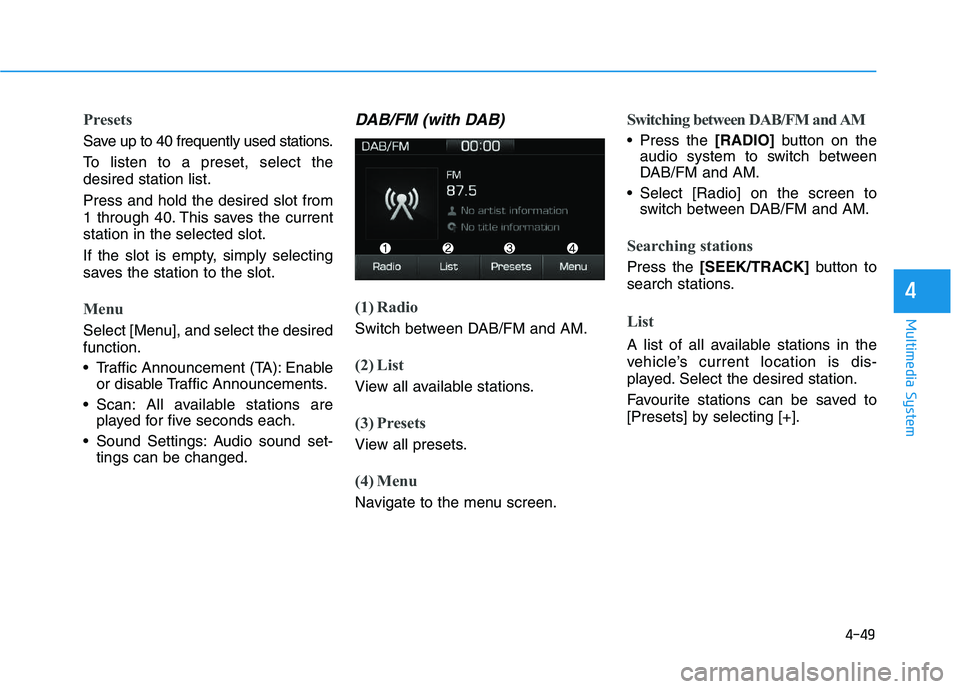
DAB/FM (with DAB)
(1) Radio
Switch between DAB/FM and AM.
(2) List
View all available stations.
(3) Presets
View all presets.
(4) Menu
Navigate to the menu screen.
Switching between DAB/FM and AM
Press the [RADIO]button on the
audio system to switch between
DAB/FM and AM.
Select [Radio] on the screen to switch between DAB/FM and AM.
Searching stations
Press the [SEEK/TRACK] button to
search stations.
List
A list of all available stations in the
vehicle’s current location is dis-
played. Select the desired station.
Favourite stations can be saved to
[Presets] by selecting [+].
Page 282 of 659
4-50
Multimedia System
Presets
Save up to 40 frequently used stations.
To listen to a preset, select the
desired station list.
Press and hold the desired slot from
1 through 40. This saves the current
station in the selected slot.
If the slot is empty, simply selecting
saves the station to the slot.
Menu
Select [Menu], and select the desired
function.
Traffic Announcement (TA): Enableor disable Traffic Announcements.
Region : Enable or disable auto- matic switching between regional
stations.
Scan: All available stations are played for five seconds each.
Sound Settings: Audio sound set- tings can be changed.
Manual tune FM : Search for fre- quencies manually.
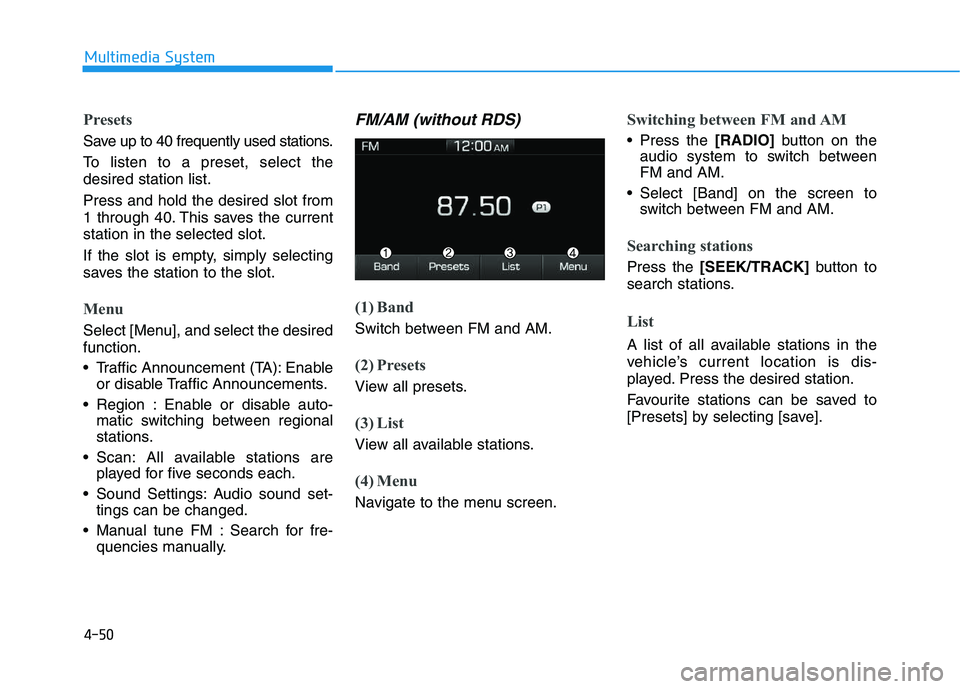
FM/AM (without RDS)
(1) Band
Switch between FM and AM.
(2) Presets
View all presets.
(3) List
View all available stations.
(4) Menu
Navigate to the menu screen.
Switching between FM and AM
Press the [RADIO]button on the
audio system to switch between
FM and AM.
Select [Band] on the screen to switch between FM and AM.
Searching stations
Press the [SEEK/TRACK] button to
search stations.
List
A list of all available stations in the
vehicle’s current location is dis-
played. Press the desired station.
Favourite stations can be saved to
[Presets] by selecting [save].
Page 283 of 659
4-51
Multimedia System
4
Presets
Save up to 40 frequently used stations.
To listen to a preset, Select the
desired station list.
Press and hold the desired slot from
1 through 40. This saves the current
station in the selected slot.
If the slot is empty, simply selecting
saves the station to the slot.
Menu
Select [Menu], and select the desired
function.
Scan: All available stations areplayed for five seconds each.
Sound Settings: Audio sound set- tings can be changed.
Media
Information
- Using MP3
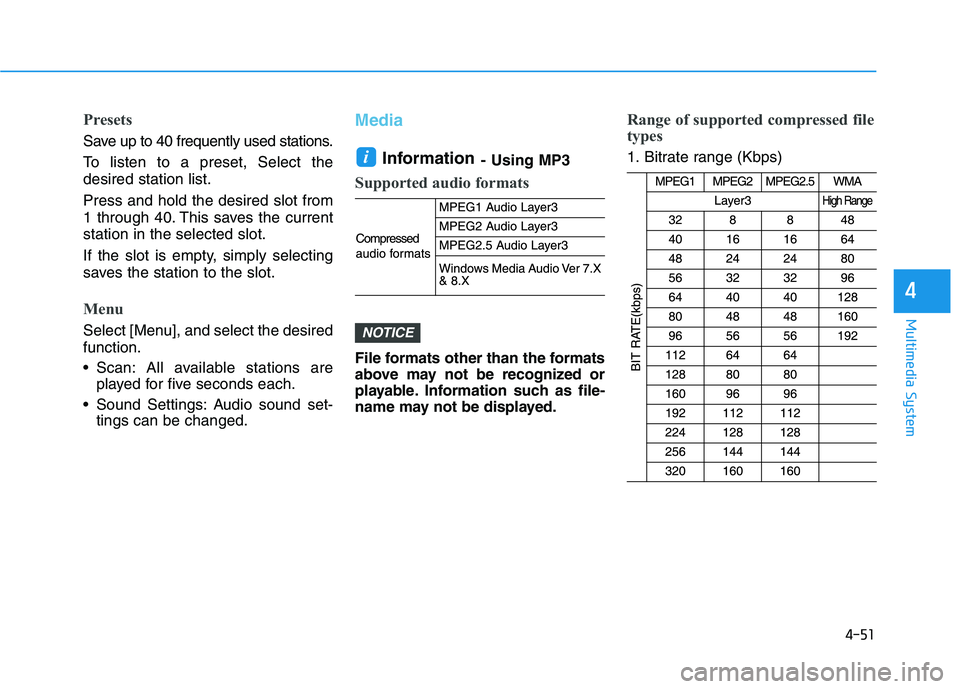
Supported audio formats
File formats other than the formats
above may not be recognized or
playable. Information such as file-
name may not be displayed.
Range of supported compressed file
types
1. Bitrate range (Kbps)
NOTICE
i