reset HYUNDAI I30 2023 Owner's Manual
[x] Cancel search | Manufacturer: HYUNDAI, Model Year: 2023, Model line: I30, Model: HYUNDAI I30 2023Pages: 533, PDF Size: 59.13 MB
Page 245 of 533
4-20
Multimedia System
Presets
Save up to 40 frequently used stations.
To listen to a preset, select the
desired station list.
Press and hold the desired slot from
1 through 40. This saves the current
station in the selected slot.
If the slot is empty, simply selecting
saves the station to the slot.
Menu
Select [Menu], and select the desired
function.
Scan: All available stations are
played for five seconds each.
Sound Settings: Audio sound set-
tings can be changed.
Media
Information
- Using MP3
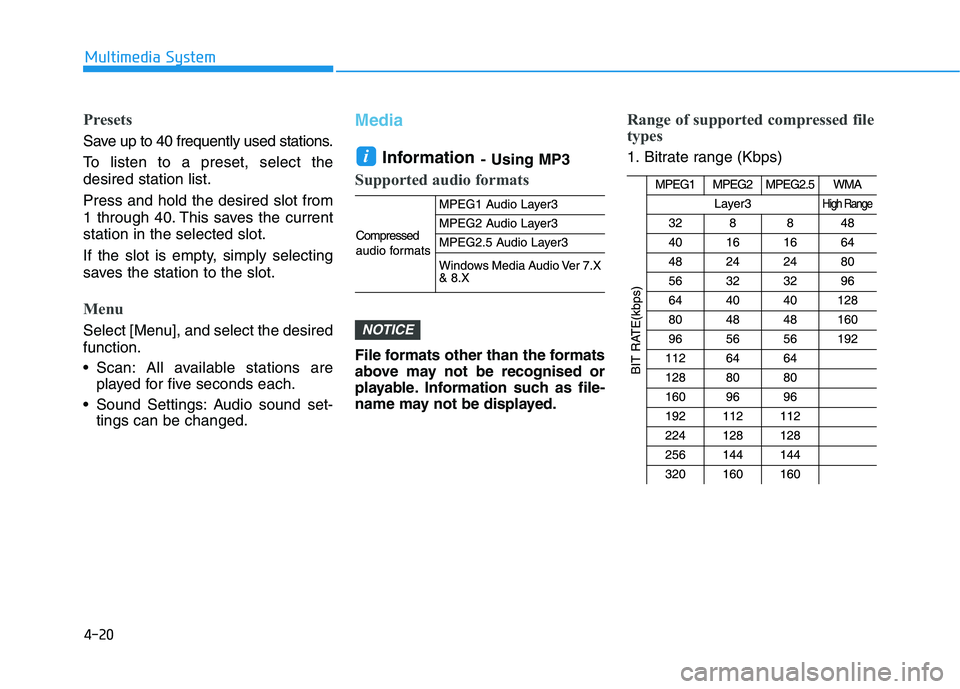
Supported audio formats
File formats other than the formats
above may not be recognised or
playable. Information such as file-
name may not be displayed.
Range of supported compressed file
types
1. Bitrate range (Kbps)
NOTICE
i
Page 250 of 533
4-25
Multimedia System
4
Information
- Using the iPod®Devices
• To use the audio system’s iPod
®con-
trol function, use the dedicated
cable provided with your iPod
®.
• Connecting the iPod
®to the vehicle
during play may result in a loud
noise that lasts about one to two sec-
onds. Connect the iPod
®to the vehi-
cle after stopping or pausing play.
• Connect the iPod
®with the vehicle in
the ACC ON state to begin charging.
• When connecting the iPod
®cable,
be sure to fully push the cable into
the port.
• When EQ effects are enabled simul-
taneously on external devices, such
as iPod
®s and the audio system, the
EQ effects may overlap, causing
sound quality deterioration or dis-
tortion. Deactivate the EQ function
for all external devices, if possible.
• Noise may occur when your iPod
®
or the AUX port is connected.
Disconnect and store separately
when not in use.
(Continued)(Continued)
• There may be noise if the audio sys-
tem is used with an iPod
®or AUX
external device connected to the
power jack. In these cases, discon-
nect the iPod
®or external device
from the power jack.
• Play may be interrupted, or device
malfunctions may occur depending
on the characteristics of your
iPod
®/iPhone®.
• Play may fail if your iPhone
®is con-
nected through both Bluetooth®and
USB. In this case, select Dock con-
nector or Bluetooth
®on your
iPhone®to change the sound output
settings.
• If your software version does not
support the communication proto-
col or your iPod
®is not recognised
due to device failure, anomalies or
defects, iPod
®mode cannot be used.
• iPod
®nano (5th generation) devices
may not be recognised if the battery is
low. Charge sufficiently before use.
(Continued)(Continued)
• The search and song play order in
the iPod
®device may be different
from the search order in the audio
system.
• If the iPod
®has failed due to an
internal defect, please reset the
iPod
®(consult your iPod®manual).
• Depending on the software version,
the iPod
®may fail to sync with the
system. If the media is removed or
disconnected before recognition, the
previous mode may not be restored
(iPad
®cannot be charged).
• Cables other than the 1-meter cable
provided with iPod
®/iPhone®prod-
ucts may not be recognised.
• When other music apps are used on
your iPod
®, the system sync func-
tion may fail due to malfunction of
the iPod
®application.
i
Page 265 of 533
![HYUNDAI I30 2023 Owners Manual 4-40
Multimedia System
Date/Time
Press the [SETUP]button on the
audio system ➟Select [Date/Time].
Set Time: Set the time displayed on
the audio screen.
Time Format: Choose between 12-
hour and 24-](/img/35/56144/w960_56144-264.png "HYUNDAI I30 2023 Owners Manual 4-40
Multimedia System
Date/Time
Press the [SETUP]button on the
audio system ➟Select [Date/Time].
Set Time: Set the time displayed on
the audio screen.
Time Format: Choose between 12-
hour and 24-")
4-40
Multimedia System
Date/Time
Press the [SETUP]button on the
audio system ➟Select [Date/Time].
Set Time: Set the time displayed on
the audio screen.
Time Format: Choose between 12-
hour and 24-hour time formats.
Set Date: Set the date displayed on
the audio screen.
Bluetooth (if equipped)
Press the [SETUP]button on the
audio system ➟Select [Bluetooth].
Connections: Control pairing, dele-
tion, connection and disconnection
of Bluetooth
®devices.
Auto Connection Priority: Set the
connection priority of Bluetooth
®
devices when the vehicle is start-
ed.
Download Contacts: Contacts can
be downloaded from connected
Bluetooth
®devices.
Information
• When paired devices are deleted,
the call history and contacts of the
device saved to the audio system are
deleted.
• For Bluetooth
®connections with
low connection priority, some time
may be required for the connection
to be established.
• Contacts can be downloaded only
from the currently connected
Bluetooth
®device.
• If no Bluetooth
®device is connected,
the Download Contacts button is
disabled.
System
Press the [SETUP]button on the
audio system ➟Select [System].
Memory Information: View My
Music memory usage.
Language: Change the user language.
Default: Reset the audio system.
Information
The system resets to the default val-
ues, and all saved data and settings
are lost.
Screen Saver
Set the information displayed when
the audio system is switched off or
the screen is turned off.
Press the [SETUP]button on the
audio system ➟Select [Screen
Saver].
Analog: An analog clock is dis-
played.
Digital: A digital clock is displayed.
None: No information is displayed.
Display Off
To prevent glare, the screen can be
turned off with the audio system in
operation.
Press the [SETUP]button on the
audio system ➟Select [Display Off].
Information
Use ‘Screen Saver’ to set the informa-
tion to be displayed when the screen is
turned off.
i
i
i
Page 267 of 533
5
Forward collision assist (FCA) system
(Front radar + Front camera) ............................5-76
System Setting and Activation.....................................5-76
FCA Warning Message and System Control ............5-78
FCA Sensor .......................................................................5-80
System Malfunction .......................................................5-82
Limitations of the System .............................................5-84
Lane keeping assist (LKA) system ....................5-88
LKA Operation..................................................................5-90
Warning Light and Message.........................................5-93
Limitations of the System .............................................5-94
LKA Function Change ...................................................5-95
Driver attention warning (DAW) system ..........5-96
System Setting and Activation.....................................5-96
Resetting the System .....................................................5-97
System Standby ...............................................................5-98
System Malfunction .......................................................5-98
Cruise control .....................................................5-100
Cruise Control operation .............................................5-100
Smart cruise control system (SCC) .................5-106
Smart Cruise Control Speed .......................................5-107
Smart Cruise Control Vehicle-to-Vehicle
Distance ...........................................................................5-112
Sensor to Detect Distance to the Vehicle
Ahead ...............................................................................5-115
To Adjust the Sensitivity of Smart Cruise
Control .............................................................................5-117
To Convert to Cruise Control Mode .........................5-117
Limitations of the System...........................................5-118
Special driving conditions .................................5-123
Hazardous driving conditions ....................................5-123
Rocking the vehicle ......................................................5-123
Smooth cornering .........................................................5-124
Driving at night ..............................................................5-124
Driving in the rain .........................................................5-124
Driving in flooded areas..............................................5-125
Highway driving .............................................................5-125
Reducing the risk of a rollover .................................5-126
Page 327 of 533
5-62
Driving your vehicle
D DR
RI
IV
VE
E
M
MO
OD
DE
E
I
IN
NT
TE
EG
GR
RA
AT
TE
ED
D
C
CO
ON
NT
TR
RO
OL
L
S
SY
YS
ST
TE
EM
M
(
(I
IF
F
E
EQ
QU
UI
IP
PP
PE
ED
D)
)
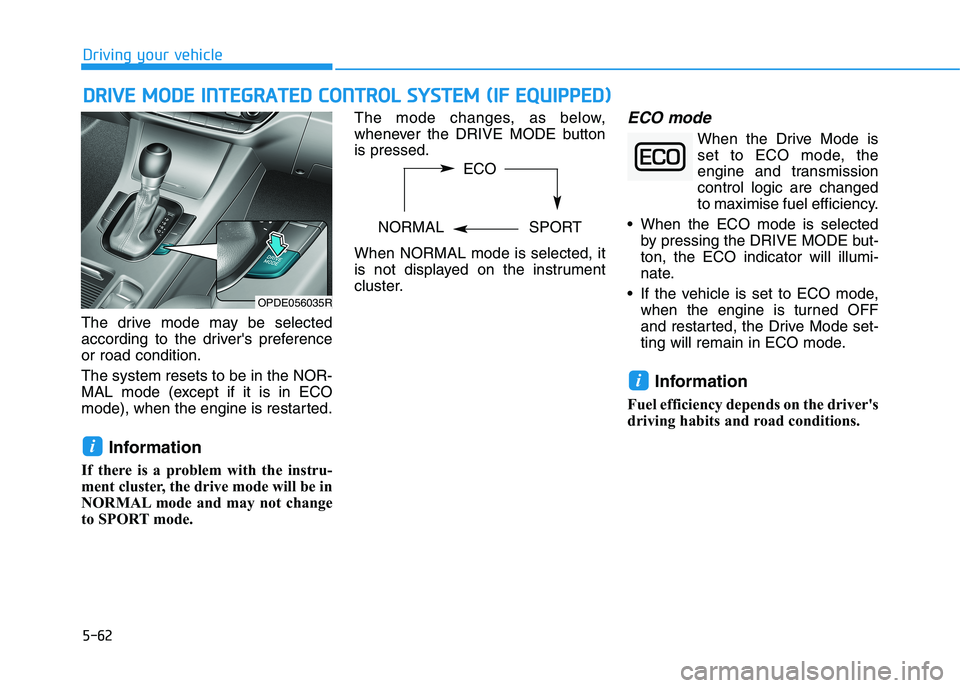
The drive mode may be selected
according to the driver's preference
or road condition.
The system resets to be in the NOR-
MAL mode (except if it is in ECO
mode), when the engine is restarted.
Information
If there is a problem with the instru-
ment cluster, the drive mode will be in
NORMAL mode and may not change
to SPORT mode. The mode changes, as below,
whenever the DRIVE MODE button
is pressed.
When NORMAL mode is selected, it
is not displayed on the instrument
cluster.
ECO mode
When the Drive Mode is
set to ECO mode, the
engine and transmission
control logic are changed
to maximise fuel efficiency.
When the ECO mode is selected
by pressing the DRIVE MODE but-
ton, the ECO indicator will illumi-
nate.
If the vehicle is set to ECO mode,
when the engine is turned OFF
and restarted, the Drive Mode set-
ting will remain in ECO mode.
Information
Fuel efficiency depends on the driver's
driving habits and road conditions.
i
i
OPDE056035R
ECO
NORMAL SPORT
Page 362 of 533
5-97
Driving your vehicle
5
The driver can monitor their driving
conditions on the LCD display.
The DAW screen will appear when
you select the Assist mode tab ( )
on the LCD display if the system is
activated. For more information,
refer to "LCD Display Modes" in
chapter 3.
The driver's attention level is dis-
played on the scale from 1 to 5.
The lower the number is, the more
inattentive the driver is.
The number decreases when the
driver does not take a break for a
certain period of time.
The number increases when the
driver attentively drives for a cer-
tain period of time.
When the driver turns on the sys-
tem whilst driving, it displays 'Last
Break time' and level.Take a break
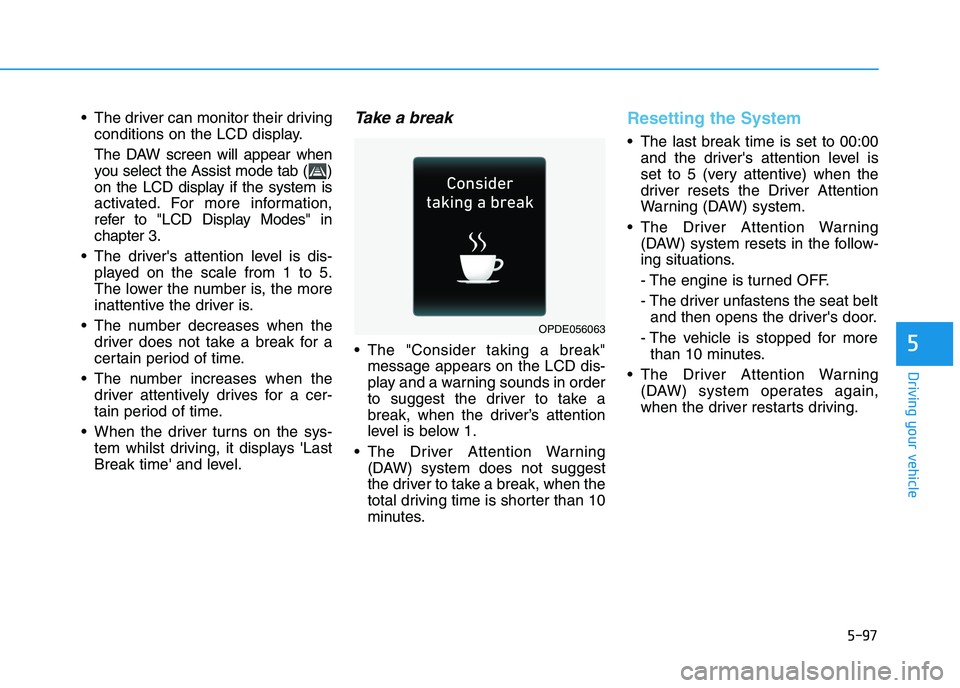
The "Consider taking a break"
message appears on the LCD dis-
play and a warning sounds in order
to suggest the driver to take a
break, when the driver’s attention
level is below 1.
The Driver Attention Warning
(DAW) system does not suggest
the driver to take a break, when the
total driving time is shorter than 10
minutes.
Resetting the System
The last break time is set to 00:00
and the driver's attention level is
set to 5 (very attentive) when the
driver resets the Driver Attention
Warning (DAW) system.
The Driver Attention Warning
(DAW) system resets in the follow-
ing situations.
- The engine is turned OFF.
- The driver unfastens the seat belt
and then opens the driver's door.
- The vehicle is stopped for more
than 10 minutes.
The Driver Attention Warning
(DAW) system operates again,
when the driver restarts driving.
OPDE056063
Page 370 of 533
5-105
Driving your vehicle
5
Information
Each of the above actions will cancel
Cruise Control operation (the SET
indicator light in the instrument clus-
ter will go off), but only pressing the
CRUISE button will turn the system
off. If you wish to resume Cruise
Control operation, push the toggle
switch up (RES+) located on your
steering wheel. You will return to your
previously preset speed, unless the
system was turned off using the
CRUISE button.
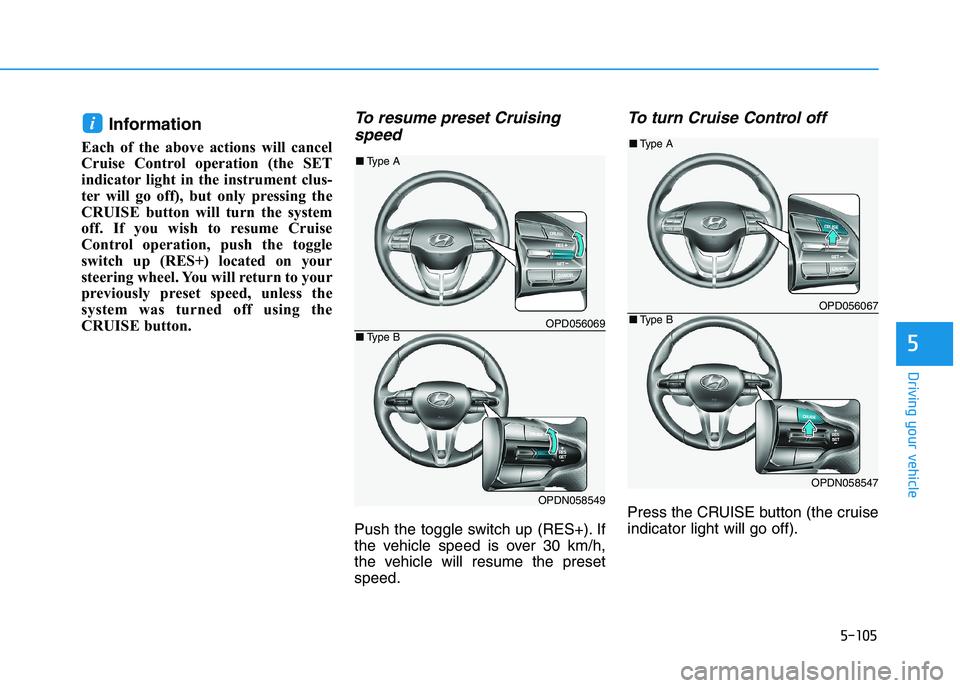
To resume preset Cruising
speed
Push the toggle switch up (RES+). If
the vehicle speed is over 30 km/h,
the vehicle will resume the preset
speed.
To turn Cruise Control off
Press the CRUISE button (the cruise
indicator light will go off).
i
OPD056069
OPDN058549
■Type A
■Type B
OPD056067
OPDN058547
■Type A
■Type B
Page 432 of 533
7
Maintenance
7
Maintenance
Engine compartment .............................................7-3
Maintenance services ...........................................7-5
Owner's responsibility ......................................................7-5
Owner maintenance precautions ..................................7-5
Owner maintenance ...............................................7-6
Owner maintenance schedule ........................................7-7
Scheduled maintenance services.........................7-9
Normal Maintenance Schedule
(Petrol Engine [1.6 T-GDI]) ..........................................7-10
Maintenance Under Severe Usage and
Low Mileage Conditions
(Petrol Engine [1.6 T-GDI]) ..........................................7-13
Normal Maintenance Schedule
(Petrol Engine [2.0 GDI])...............................................7-15
Maintenance Under Severe Usage and
Low Mileage Conditions
(Petrol Engine [2.0 GDI])...............................................7-18
Normal Maintenance Schedule (Diesel Engine) ......7-20
Maintenance Under Severe Usage and
Low Mileage Conditions (Diesel Engine) ...................7-23
Explanation of scheduled maintenance items .7-25
Engine oil ..............................................................7-28
Checking the engine oil level (Petrol engine) ..........7-28
Checking the engine oil level (Diesel Engine)..........7-29
Checking the engine oil and filter ..............................7-30
Engine coolant......................................................7-31
Checking the engine coolant level..............................7-31
Changing the engine coolant .......................................7-33
Brake/clutch fluid ................................................7-34
Checking the brake/clutch fluid level ........................7-34
Washer fluid .........................................................7-35
Checking the washer fluid level ..................................7-35
Parking brake .......................................................7-35
Checking the parking brake .........................................7-35
Fuel filter (For Diesel) ........................................7-36
Draining water from fuel filter ....................................7-36
Fuel filter cartridge replacement ................................7-36
Air cleaner ............................................................7-36
Filter replacement ...........................................................7-36
Climate control air filter .....................................7-38
Filter inspection ...............................................................7-38
Filter replacement ...........................................................7-38
Wiper blades .........................................................7-39
Blade inspection ..............................................................7-39
Blade replacement ..........................................................7-40
Battery...................................................................7-43
For best battery service................................................7-44
Battery capacity label ...................................................7-44
Battery recharging .........................................................7-44
Reset items .......................................................................7-46
7
Page 477 of 533
7-46
Maintenance
By jump starting
After a jump start from a good bat-
tery, drive the vehicle for 20-30 min-
utes before it is shutoff. The vehicle
may not restart if you shut it off
before the battery had a chance to
adequately recharge. See “Jump
Starting” in chapter 6 for more infor-
mation on jump starting procedures.
Information
An inappropriately disposed
battery can be harmful to
the environment and human
health. Dispose of the bat-
tery according to your local
law(s) or regulation.
Reset items
The following items may need to be
reset after the battery has been dis-
charged or the battery has been dis-
connected.
Auto up/down window
Sunroof
Trip computer
Climate control system
Clock
Audio system
i
Page 481 of 533

7-50
Maintenance
Disc brake pads should be inspected
for wear whenever tyres are rotated.
Information
The outside and inside of an unsym-
metrical tyre is distinguishable. When
installing an unsymmetrical tyre, be
sure to install the side marked "out-
side" facing the outside. If the side
marked "inside" is installed on the
outside, it will have a negative effect
on vehicle performance.
Wheel alignment and tyre bal-
ance
The wheels on your vehicle were
aligned and balanced carefully at the
factory to give you the longest tyre
life and best overall performance.
In most cases, you will not need to
have your wheels aligned again.
However, if you notice unusual tyre
wear or your vehicle pulling one way
or the other, the alignment may need
to be reset.
If you notice your vehicle vibrating
when driving on a smooth road, your
wheels may need to be rebalanced.
Incorrect wheel weights can dam-
age your vehicle’s aluminium
wheels. Use only approved wheel
weights.
NOTICE
i
CBGQ0706
ODH073802
■ With a full-size spare tyre (if equipped)
■Without a spare tyre
Do not use the compact spare
tyre for tyre rotation.
Do not mix bias ply and radial
ply tyres under any circum-
stances. This may cause
unusual handling characteris-
tics that may cause loss of
vehicle control resulting in an
accident.
WARNING