AUX HYUNDAI I30 2023 Owners Manual
[x] Cancel search | Manufacturer: HYUNDAI, Model Year: 2023, Model line: I30, Model: HYUNDAI I30 2023Pages: 533, PDF Size: 59.13 MB
Page 19 of 533
1-6
Your vehicle at a glance
I IN
NS
ST
TR
RU
UM
ME
EN
NT
T
P
PA
AN
NE
EL
L
O
OV
VE
ER
RV
VI
IE
EW
W
(
(I
II
I)
)
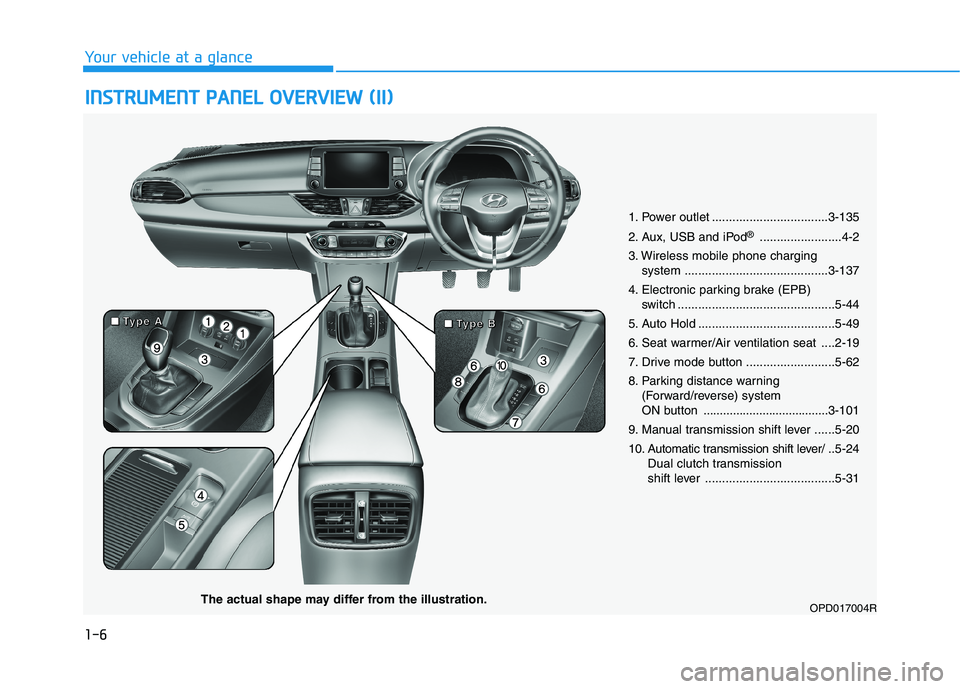
1. Power outlet ..................................3-135
2. Aux, USB and iPod
®........................4-2
3. Wireless mobile phone charging
system ..........................................3-137
4. Electronic parking brake (EPB)
switch ..............................................5-44
5. Auto Hold ........................................5-49
6. Seat warmer/Air ventilation seat ....2-19
7. Drive mode button ..........................5-62
8. Parking distance warning
(Forward/reverse) system
ON button ......................................3-101
9. Manual transmission shift lever ......5-20
10. Automatic transmission shift lever/ ..5-24
Dual clutch transmission
shift lever ......................................5-31
OPD017004RThe actual shape may differ from the illustration.
■ ■ ■ ■
T T T T
y y y y
p p p p
e e e e
A A A A
■ ■ ■ ■
T T T T
y y y y
p p p p
e e e e
B B B B
Page 226 of 533
Multimedia System
Multimedia system .................................................4-2
AUX, USB and iPod®port ................................................4-2
Antenna ...............................................................................4-3
Steering wheel audio controls .......................................4-4
Bluetooth
®Wireless Technology hands-free ...........4-5
Audio / Video / Navigation system (AVN) ..................4-5
How vehicle radio works .................................................4-5
Audio (With Touch Screen) ..................................4-9
Features of Your Audio .................................................4-10
Radio .................................................................................4-18
Media..................................................................................4-20
Phone .................................................................................4-31
Setup ..................................................................................4-39
4
Page 227 of 533
4-2
Multimedia System
Information
• If you install an aftermarket HID
headlamp, your vehicle’s audio and
electronic devices may malfunction.
• Prevent chemicals such as perfume,
cosmetic oil, sun cream, hand clean-
er, and air freshener from contacting
the interior parts because they may
cause damage or discolouration.
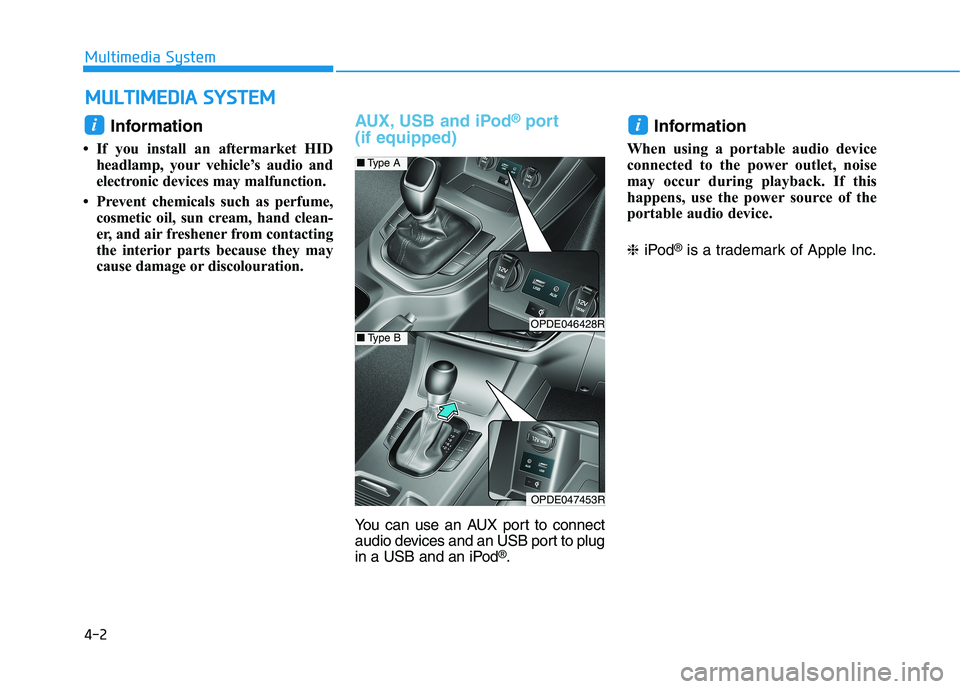
AUX, USB and iPod®port
(if equipped)
You can use an AUX port to connect
audio devices and an USB port to plug
in a USB and an iPod
®.
Information
When using a portable audio device
connected to the power outlet, noise
may occur during playback. If this
happens, use the power source of the
portable audio device.
❈iPod
®is a trademark of Apple Inc.
ii
M
MU
UL
LT
TI
IM
ME
ED
DI
IA
A
S
SY
YS
ST
TE
EM
M
OPDE046428R
OPDE047453R
■Type A
■Type B
Page 229 of 533
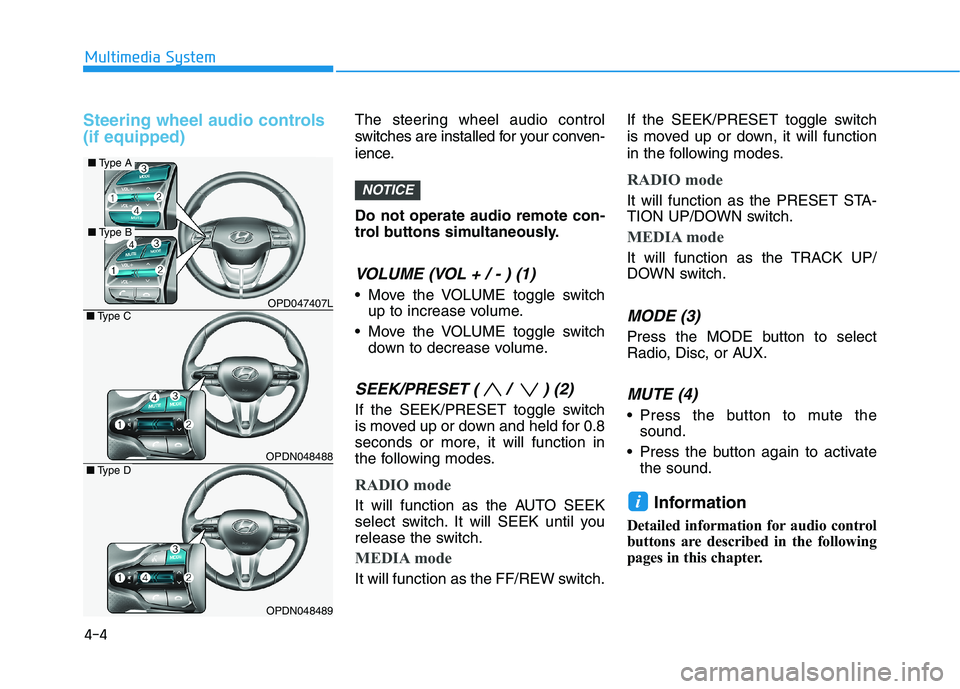
Steering wheel audio controls
(if equipped)The steering wheel audio control
switches are installed for your conven-
ience.
Do not operate audio remote con-
trol buttons simultaneously.
VOLUME (VOL + / - ) (1)
Move the VOLUME toggle switch
up to increase volume.
Move the VOLUME toggle switch
down to decrease volume.
SEEK/PRESET ( / ) (2)
If the SEEK/PRESET toggle switch
is moved up or down and held for 0.8
seconds or more, it will function in
the following modes.
RADIO mode
It will function as the AUTO SEEK
select switch. It will SEEK until you
release the switch.
MEDIA mode
It will function as the FF/REW switch.If the SEEK/PRESET toggle switch
is moved up or down, it will function
in the following modes.
RADIO mode
It will function as the PRESET STA-
TION UP/DOWN switch.
MEDIA mode
It will function as the TRACK UP/
DOWN switch.
MODE (3)
Press the MODE button to select
Radio, Disc, or AUX.
MUTE (4)
Press the button to mute the
sound.
Press the button again to activate
the sound.
Information
Detailed information for audio control
buttons are described in the following
pages in this chapter.
i
NOTICE
4-4
Multimedia System
OPD047407L
OPDN048488
OPDN048489
■Type C
■Type D
■Type A
■Type B
Page 236 of 533
![HYUNDAI I30 2023 Owners Manual 4-11
Multimedia System
4
(6)MEDIA
Select USB(iPod
®), AUX or My
Music.
Display the media menu when two
or more media are connected or
when the [MEDIA]button is
pressed in media mode.
(7) DISP
Turn](/img/35/56144/w960_56144-235.png "HYUNDAI I30 2023 Owners Manual 4-11
Multimedia System
4
(6)MEDIA
Select USB(iPod
®), AUX or My
Music.
Display the media menu when two
or more media are connected or
when the [MEDIA]button is
pressed in media mode.
(7) DISP
Turn")
4-11
Multimedia System
4
(6)MEDIA
Select USB(iPod
®), AUX or My
Music.
Display the media menu when two
or more media are connected or
when the [MEDIA]button is
pressed in media mode.
(7) DISP
Turn the display on or off.(8) SETUP
Access Display, Sound, Date/Time,
System, Screen Saver and Display
Off settings.
(9) TUNE knob
Turn to navigate through the sta-
tions/songs list.
Press to select an item.
■Type B
■Type A
Page 239 of 533
![HYUNDAI I30 2023 Owners Manual 4-14
Multimedia System
(6)MEDIA
Select USB(iPod
®), Bluetooth®(BT)
Audio, AUX or My Music.
Display the media menu when two
or more media are connected or
when the [MEDIA]button is
pressed in media](/img/35/56144/w960_56144-238.png "HYUNDAI I30 2023 Owners Manual 4-14
Multimedia System
(6)MEDIA
Select USB(iPod
®), Bluetooth®(BT)
Audio, AUX or My Music.
Display the media menu when two
or more media are connected or
when the [MEDIA]button is
pressed in media")
4-14
Multimedia System
(6)MEDIA
Select USB(iPod
®), Bluetooth®(BT)
Audio, AUX or My Music.
Display the media menu when two
or more media are connected or
when the [MEDIA]button is
pressed in media mode.
(7) PHONE
Start Bluetooth
®Phone mode.(8) SETUP
Access Display, Sound, Date/Time,
Bluetooth, System, Screen Saver
and Display Off settings.
(9) TUNE knob
Turn to navigate through the sta-
tions/songs list.
Press to select an item.■Type D
■Type C
Page 240 of 533
4-15
Multimedia System
4
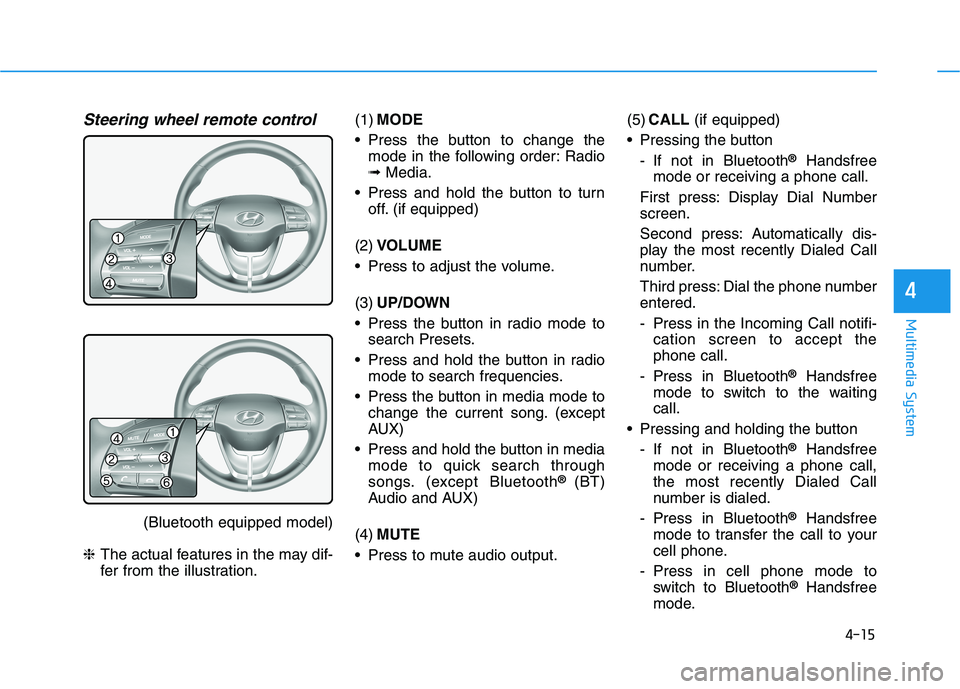
Steering wheel remote control
(Bluetooth equipped model)
❈The actual features in the may dif-
fer from the illustration.(1)MODE
Press the button to change the
mode in the following order: Radio
➟Media.
Press and hold the button to turn
off. (if equipped)
(2)VOLUME
Press to adjust the volume.
(3)UP/DOWN
Press the button in radio mode to
search Presets.
Press and hold the button in radio
mode to search frequencies.
Press the button in media mode to
change the current song. (except
AUX)
Press and hold the button in media
mode to quick search through
songs. (except Bluetooth
® (BT)
Audio and AUX)
(4)MUTE
Press to mute audio output.(5)CALL(if equipped)
Pressing the button
- If not in Bluetooth
®Handsfree
mode or receiving a phone call.
First press: Display Dial Number
screen.
Second press: Automatically dis-
play the most recently Dialed Call
number.
Third press: Dial the phone number
entered.
- Press in the Incoming Call notifi-
cation screen to accept the
phone call.
- Press in Bluetooth
®Handsfree
mode to switch to the waiting
call.
Pressing and holding the button
- If not in Bluetooth
®Handsfree
mode or receiving a phone call,
the most recently Dialed Call
number is dialed.
- Press in Bluetooth
®Handsfree
mode to transfer the call to your
cell phone.
- Press in cell phone mode to
switch to Bluetooth
®Handsfree
mode.
Page 247 of 533
4-22
Multimedia System
(Continued)
• Some USB devices are not recog-
nised due to compatibility issues.
• Do not touch the USB connections.
• Connecting and disconnecting USB
devices rapidly over a short period
of time can cause equipment failure.
• Abnormal sounds may be audible
when the USB device is disconnected.
• Turn the audio off before connecting
or disconnecting external USB
devices.
• Recognition may take longer
depending on the type, capacity or
file format of the external USB
device. This is not a product mal-
function.
• Use of USB devices for purposes
other than playing music files is pro-
hibited.
• Image display and video playback
are not supported.
• Use of USB accessories, including
charge and heat though the USB I/F,
can lead to reduced product per-
formance or malfunctions. Do not
use USB devices or accessories for
these purposes.
(Continued)(Continued)
• Use of aftermarket USB hubs and
extension cables can result in the
vehicle’s audio system failing to rec-
ognize your USB device. Connect
the USB device directly to the multi-
media port of your vehicle.
• When using high-capacity USB
devices with logical drive divisions,
only files saved on the highest level
logical drive can be played.
If applications are loaded on a USB
drive, file playback may fail.
• Some MP3 players, mobile phones,
digital cameras, etc. (USB devices
that are not recognised as mobile
storage) may not operate normally
when connected.
• USB charging may not be supported
by some mobile devices.
• Operation is guaranteed only for
standard (Metal Cover Type) USB
Memory drives.
• Operation of HDD, CF, SD and mem-
ory stick devices is not guaranteed.
• DRM (Digital Rights Management)
files cannot be played.
(Continued)(Continued)
• SD-type USB memory, CF-type
USB memory, and other USB mem-
ory devices that require adapters
for connection are not supported.
• Proper operation of USB HDDs or
USB drives with connectors that
loosen due to vehicle vibrations is
not guaranteed. (iStick, etc.)
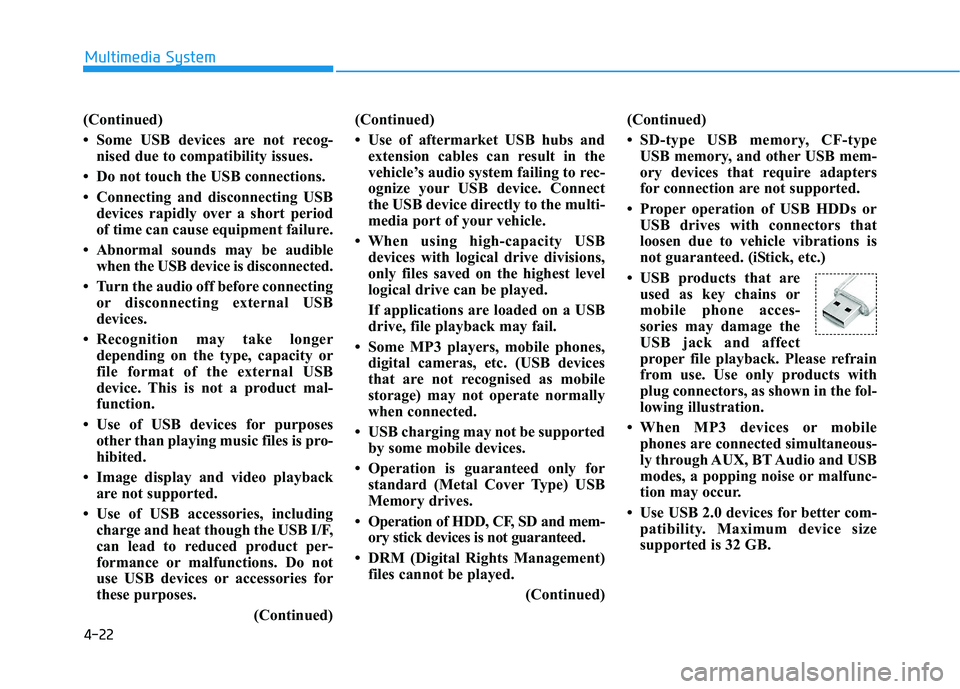
• USB products that are
used as key chains or
mobile phone acces-
sories may damage the
USB jack and affect
proper file playback. Please refrain
from use. Use only products with
plug connectors, as shown in the fol-
lowing illustration.
• When MP3 devices or mobile
phones are connected simultaneous-
ly through AUX, BT Audio and USB
modes, a popping noise or malfunc-
tion may occur.
• Use USB 2.0 devices for better com-
patibility. Maximum device size
supported is 32 GB.
Page 250 of 533
4-25
Multimedia System
4
Information
- Using the iPod®Devices
• To use the audio system’s iPod
®con-
trol function, use the dedicated
cable provided with your iPod
®.
• Connecting the iPod
®to the vehicle
during play may result in a loud
noise that lasts about one to two sec-
onds. Connect the iPod
®to the vehi-
cle after stopping or pausing play.
• Connect the iPod
®with the vehicle in
the ACC ON state to begin charging.
• When connecting the iPod
®cable,
be sure to fully push the cable into
the port.
• When EQ effects are enabled simul-
taneously on external devices, such
as iPod
®s and the audio system, the
EQ effects may overlap, causing
sound quality deterioration or dis-
tortion. Deactivate the EQ function
for all external devices, if possible.
• Noise may occur when your iPod
®
or the AUX port is connected.
Disconnect and store separately
when not in use.
(Continued)(Continued)
• There may be noise if the audio sys-
tem is used with an iPod
®or AUX
external device connected to the
power jack. In these cases, discon-
nect the iPod
®or external device
from the power jack.
• Play may be interrupted, or device
malfunctions may occur depending
on the characteristics of your
iPod
®/iPhone®.
• Play may fail if your iPhone
®is con-
nected through both Bluetooth®and
USB. In this case, select Dock con-
nector or Bluetooth
®on your
iPhone®to change the sound output
settings.
• If your software version does not
support the communication proto-
col or your iPod
®is not recognised
due to device failure, anomalies or
defects, iPod
®mode cannot be used.
• iPod
®nano (5th generation) devices
may not be recognised if the battery is
low. Charge sufficiently before use.
(Continued)(Continued)
• The search and song play order in
the iPod
®device may be different
from the search order in the audio
system.
• If the iPod
®has failed due to an
internal defect, please reset the
iPod
®(consult your iPod®manual).
• Depending on the software version,
the iPod
®may fail to sync with the
system. If the media is removed or
disconnected before recognition, the
previous mode may not be restored
(iPad
®cannot be charged).
• Cables other than the 1-meter cable
provided with iPod
®/iPhone®prod-
ucts may not be recognised.
• When other music apps are used on
your iPod
®, the system sync func-
tion may fail due to malfunction of
the iPod
®application.
i
Page 254 of 533
![HYUNDAI I30 2023 Owners Manual 4-29
Multimedia System
4
Repeat play
Select [Repeat] to enable or disable
‘Repeat all’, ‘Repeat current song’ or
‘Repeat category’ play.
Repeat all: All songs in the
playlist are repeated](/img/35/56144/w960_56144-253.png "HYUNDAI I30 2023 Owners Manual 4-29
Multimedia System
4
Repeat play
Select [Repeat] to enable or disable
‘Repeat all’, ‘Repeat current song’ or
‘Repeat category’ play.
Repeat all: All songs in the
playlist are repeated")
4-29
Multimedia System
4
Repeat play
Select [Repeat] to enable or disable
‘Repeat all’, ‘Repeat current song’ or
‘Repeat category’ play.
Repeat all: All songs in the
playlist are repeated.
Repeat current song: The cur-
rently playing song is repeated.
Repeat category: Repeat all
songs in the current category.
Information
The repeat play function is engaged,
depending on the operation of the con-
nected Bluetooth
®device.
Shuffle play
Select [Shuffle] to enable or disable
‘Shuffle’, ‘Shuffle category’ play.
Shuffle: Songs are played in
random order.
Shuffle category: Songs within
the current category are played in
random order.
Information
The shuffle function is engaged,
depending on the operation of the con-
nected Bluetooth
®device.
Menu
Select [Menu], and select the desired
function.
Connections: The currently connected
Bluetooth
®device can be changed.
Information: Detailed information on
the currently playing song is displayed.
Sound Settings: Audio sound set-
tings can be changed.
AUX
Running AUX
Press the [MEDIA]button, and
select [AUX].
Connect the external device connec-
tion jack to the AUX terminal to run
AUX.
(1) Sound Settings: Audio sound set-
tings can be changed.
i
i