audio HYUNDAI I800 2016 User Guide
[x] Cancel search | Manufacturer: HYUNDAI, Model Year: 2016, Model line: I800, Model: HYUNDAI I800 2016Pages: 419, PDF Size: 9.23 MB
Page 195 of 419
4121
Features of your vehicle
✽NOTICE - USING THE USB
DEVICE
• To use an external USB device, make
sure the device is not connected when
starting up the vehicle. Connect the
device after starting up.
• If you start the engine when the USB
device is connected, it may damage
the USB device. (USB flashdrives are
very sensitive to electric shock.)
• If the engine is started up or turned
off whilst the external USB device is
connected, the external USB device
may not work.
• The System may not play inauthentic
MP3 or WMA files.
1) It can only play MP3 files with the
compression rate between 8Kbps ~
320Kbps.
2) It can only play WMA music files
with the compression rate between
8Kbps ~ 320Kbps.
• Take precautions for static electricity
when connecting or disconnecting the
external USB device.
• An encrypted MP3 PLAYER is not
recognizable.
(Continued)(Continued)
• Depending on the condition of the
external USB device, the connected
external USB device can be unrecog-
nizable.
• When the formatted byte/sector set-
ting of External USB device is not
either 512BYTE or 2048BYTE, then
the device will not be recognized.
• Use only a USB device formatted to
FAT 12/16/32.
• USB devices without USB I/F authen-
tication may not be recognizable.
• Make sure the USB connection termi-
nal does not come in contact with the
human body or other objects.
• If you repeatedly connect or discon-
nect the USB device in a short period
of time, it may break the device.
• You may hear a strange noise when
connecting or disconnecting a USB
device.
(Continued)(Continued)
• If you disconnect the external USB
device during playback in USB mode,
the external USB device can be dam-
aged or may malfunction. Therefore,
disconnect the external USB device
when the audio is turned off or in
another mode. (e.g, Radio, CD)
• Depending on the type and capacity of
the external USB device or the type of
the files stored in the device, there is a
difference in the time taken for recog-
nition of the device.
• Do not use the USB device for purpos-
es other than playing music files.
• Playing videos through the USB is not
supported.
• Use of USB accessories such as recharg-
ers or heaters using USB I/F may lower
performance or cause trouble.
(Continued)
procarmanuals.com
Page 196 of 419
Features of your vehicle
122 4
(Continued)
• If you use devices such as a USB hub
purchased separately, the vehicle’s
audio system may not recognize the
USB device. In that case, connect the
USB device directly to the multimedia
terminal of the vehicle.
• If the USB device is divided by logical
drives, only the music files on the
highest-priority drive are recognized
by car audio.
• Devices such as MP3 Player/ Mobile
phone/Digital camera can be unrecog-
nizable by standard USB I/F can be
unrecognizable.
• Charging through the USB may not
be supported in some mobile devices.
• USB HDD or USB types liable to con-
nection failures due to vehicle vibra-
tions are not supported. (i-stick type)
• Some non-standard USB devices
(METAL COVER TYPE USB) can be
unrecognizable.
(Continued)(Continued)
• Some USB flash memory readers
(such as CF, SD, micro SD, etc.) or
external-HDD type devices can be
unrecognizable.
• Music files protected by DRM (DIGI-
TAL RIGHTS MANAGEMENT) are
not recognizable.
• The data in the USB memory may be
lost whilst using this audio. Always
back up important data on a personal
storage device.
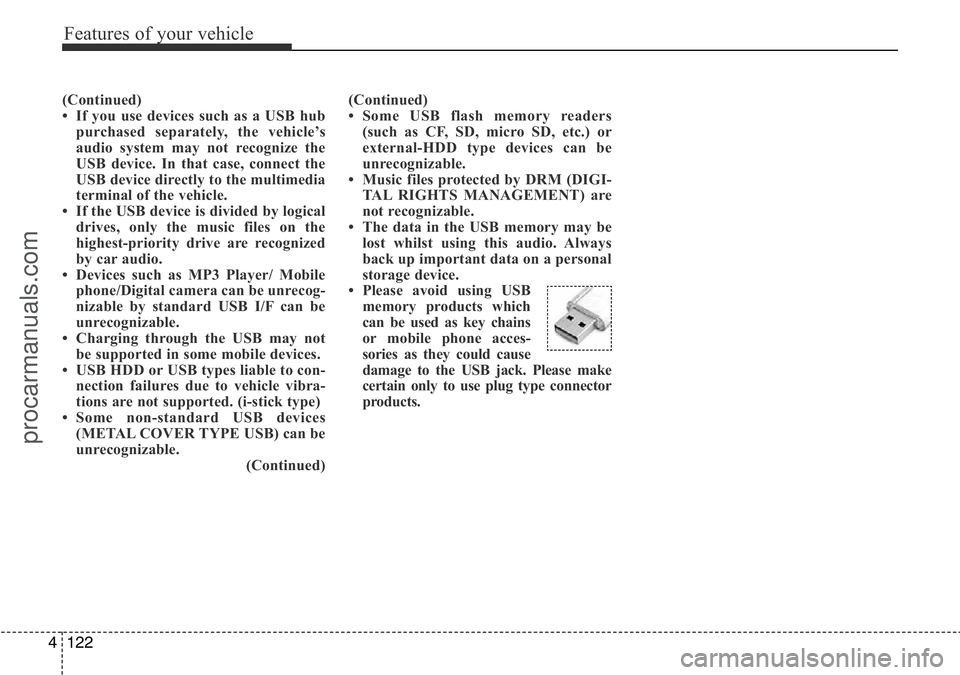
• Please avoid using USB
memory products which
can be used as key chains
or mobile phone acces-
sories as they could cause
damage to the USB jack. Please make
certain only to use plug type connector
products.
procarmanuals.com
Page 197 of 419
4123
Features of your vehicle
✽NOTICE - USING THE iPod®
DEVICE
• Some iPod®models may not support
communication protocol and files may
not properly play.
Supported iPod
®models:
- iPod®Mini
- iPod®4th (Photo) ~ 6th (Classic)
generation
- iPod
®Nano 1st~4th generation
- iPod®Touch 1st~2nd generation
• The order of search or playback of
songs in the iPod
®can be different
from the order searched in the audio
system.
• If the iPod
®disabled due to its own
malfunction, reset the iPod®. (Reset:
Refer to iPod®manual)
• An iPod®may not operate normally
on low battery.
(Continued)(Continued)
• Some iPod
®devices, such as the
iPhone®, can be connected through
the Bluetooth®Wireless Technology
interface. The device must have audio
Bluetooth
®Wireless Technology capa-
bility (such as for stereo headphone
Bluetooth
®Wireless Technology ). The
device can play, but it will not be con-
trolled by the audio system.
• To use iPod
®features within the
audio, use the cable provided upon
purchasing an iPod
®d device.
• Skipping or improper operation may
occur depending on the characteris-
tics of your iPod
®/iPhone®device.
• If your iPhone®is connected to both
the Bluetooth®Wireless Technology
and USB, the sound may not be prop-
erly played. In your iPhone
®, select
the Dock connector orBluetooth®
Wireless Technology to change the
sound output (source).
(Continued)(Continued)
• When connecting
iPod®with theiPod®Power Cable, insert the connec-
tor to the multimedia socket complete-
ly. If not inserted completely, communi-
cations between
iPod®and audio may
be interrupted.
• When adjusting the sound effects of
the
iPod®and the audio system, the
sound effects of both devices will over-
lap and might reduce or distort the
quality of the sound.
• Deactivate (turn off) the equalizer
function of an
iPod®when adjusting
the audio system’s volume, and turn
off the equalizer of the audio system
when using the equalizer of an
iPod®.
• When not using iPod®with car audio,
detach the iPod®cable from iPod®.
Otherwise, iPod®may remain in
accessory mode, and may not work
properly.
procarmanuals.com
Page 198 of 419
Features of your vehicle
124 4
✽NOTICE - USING THE
Bluetooth®Wireless Technology
MOBILE PHONE
• Do not use a mobile phone or perform
Bluetooth®Wireless Technology settings
(e.g. pairing a phone) whilst driving.
• Some Bluetooth
®Wireless Technology -
enabled phones may not be recognized by
the system or fully compatible with the
system.
• Before using Bluetooth
®Wireless
Technology related features of the
audio system, refer your phone’s User’s
Manual for phone-side Bluetooth
®
Wireless Technology operations.
• The phone must be paired to the audio
system to use Bluetooth
®Wireless
Technology related features.
• You will not be able to use the hands-
free feature when your phone (in the
car) is outside of the mobile service area
(e.g. in a tunnel, in a underground, in a
mountainous area, etc.).
(Continued)(Continued)
• If the mobile phone signal is poor or
the vehicles interior noise is too loud, it
may be difficult to hear the other per-
son’s voice during a call.
• Do not place the phone near or inside
metallic objects, otherwise communi-
cations with Bluetooth
®Wireless
Technology system or mobile service
stations can be disturbed.
• Whilst a phone is connected through
Bluetooth
®Wireless Technology your
phone may discharge quicker than
usual for additional Bluetooth
®Wireless
Technology-related operations.
• Some mobile phones or other devices
may cause interference noise or mal-
function to audio system. In this case,
store the device in a different location
may resolve the condition.
• Phone contact names should be saved
in English or they may not be displayed
correctly.
(Continued)(Continued)
• If Priority is set upon vehicle
ignition(IGN/ACC ON), the Bluetooth
®
Wireless Technology phone will be
automatically connected.
Even if you are outside, the Bluetooth
®
Wireless Technology phone will be
automatically connected once you are
in the vicinity of the vehicle.
If you do not want automatic
Bluetooth
®Wireless Technology con-
nection, turn the Bluetooth®Wireless
Technology feature off.
• The hands-free call volume and quali-
ty may differ depending on the mobile
phone type.
•Bluetooth
®Wireless Technology features
can be used only when the mobile phone
has been paired and connected with the
device. For more information on pairing
and connecting Bluetooth
®Wireless
Technology enabled mobile phones,
refer to the “Phone Setup” section.
(Continued)
procarmanuals.com
Page 199 of 419
4125
Features of your vehicle
(Continued)
• When a Bluetooth®Wireless Technology
mobile phone is connected, a ( ) icon
will appear at the top of the screen. If
a ( ) icon is not displayed, this indi-
cates that a Bluetooth
®Wireless
Technology enabled device has not
been connected. You must connect the
device before use. For more informa-
tion on Bluetooth
®Wireless Technology
mobile phones, refer to the “Phone
Setup” section.
• Pairing and connecting a Bluetooth
®
Wireless Technology enabled mobile
phone will work only when the
Bluetooth
®Wireless Technology option
within your mobile phone has been
turned on. (Methods of turning on the
Bluetooth
®Wireless Technology
enabled feature may differ depending
on the mobile phone.)
(Continued)(Continued)
• In some mobile phones, starting the
ignition whilst talking through
Bluetooth
®Wireless Technology
enabled handsfree call will result in
the call becoming disconnected.
(Switch the call back to your mobile
phone when starting the ignition.)
• Some features may not be supported in
some Bluetooth
®Wireless Technology
mobile phone and devices.
•Bluetooth
®Wireless Technology
enabled operation may be unstable
depending on the communication state.
• Placing the audio system within an
electromagnetic environment may
result in noise interference.
procarmanuals.com
Page 201 of 419
4127
Features of your vehicle
SYSTEM CONTROLLERS AND
FUNCTIONS
❈Display and settings may differ
depending on the selected audio.
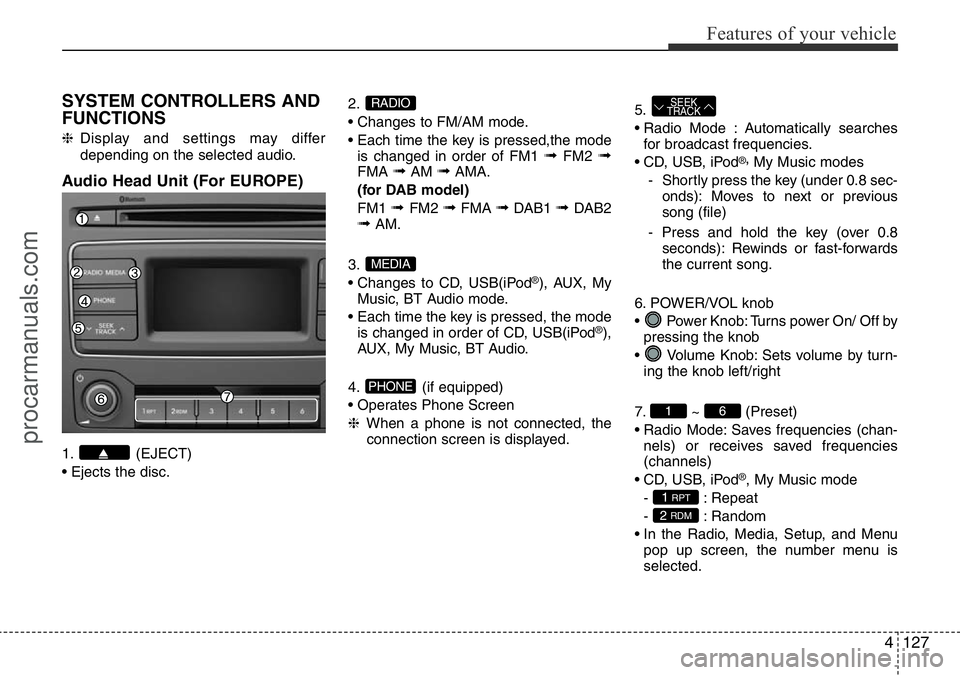
Audio Head Unit (For EUROPE)
1. (EJECT)
• Ejects the disc.2.
• Changes to FM/AM mode.
• Each time the key is pressed,the mode
is changed in order of FM1
➟FM2 ➟FMA ➟AM ➟AMA.
(for DAB model)
FM1
➟ FM2 ➟FMA ➟DAB1 ➟ DAB2➟AM.
3.
• Changes to CD, USB(iPod
®), AUX, My
Music, BT Audio mode.
• Each time the key is pressed, the mode
is changed in order of CD, USB(iPod
®),
AUX, My Music, BT Audio.
4. (if equipped)
• Operates Phone Screen
❈When a phone is not connected, the
connection screen is displayed.5.
• Radio Mode : Automatically searches
for broadcast frequencies.
• CD, USB, iPod
®,My Music modes
- Shortly press the key (under 0.8 sec-
onds): Moves to next or previous
song (file)
- Press and hold the key (over 0.8
seconds): Rewinds or fast-forwards
the current song.
6. POWER/VOL knob
• Power Knob: Turns power On/ Off by
pressing the knob
• Volume Knob: Sets volume by turn-
ing the knob left/right
7. ~ (Preset)
• Radio Mode: Saves frequencies (chan-
nels) or receives saved frequencies
(channels)
• CD, USB, iPod
®, My Music mode
- : Repeat
- : Random
• In the Radio, Media, Setup, and Menu
pop up screen, the number menu is
selected.
2 RDM
1 RPT
61
SEEK
TRACK
PHONE
MEDIA
RADIO
procarmanuals.com
Page 202 of 419
Features of your vehicle
128 4
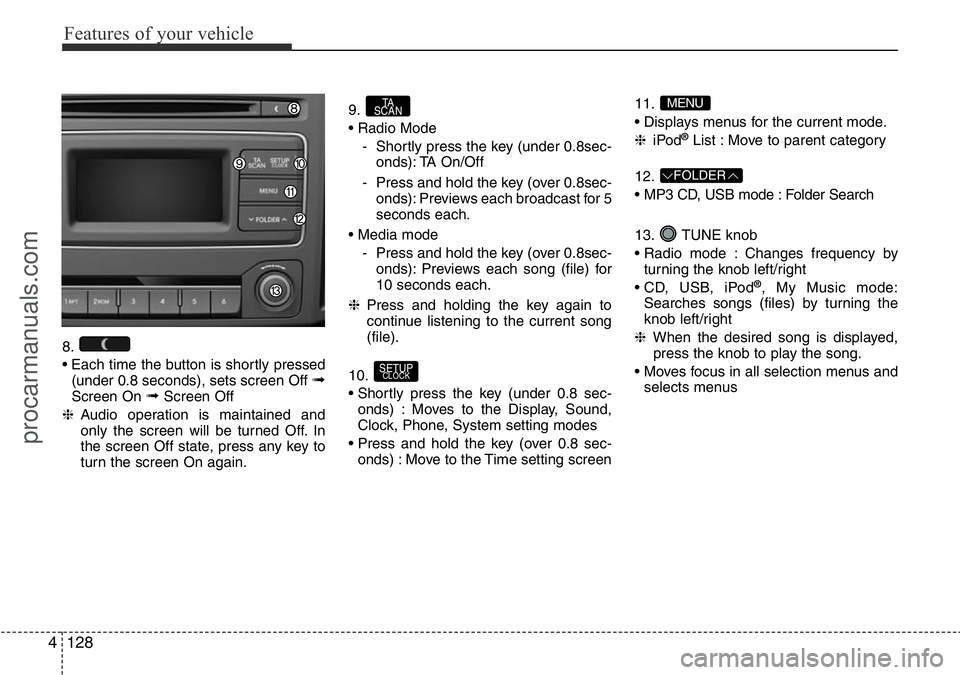
8.
• Each time the button is shortly pressed
(under 0.8 seconds), sets screen Off
➟Screen On ➟Screen Off
❈Audio operation is maintained and
only the screen will be turned Off. In
the screen Off state, press any key to
turn the screen On again.9.
• Radio Mode
- Shortly press the key (under 0.8sec-
onds): TA On/Off
- Press and hold the key (over 0.8sec-
onds): Previews each broadcast for 5
seconds each.
• Media mode
- Press and hold the key (over 0.8sec-
onds): Previews each song (file) for
10 seconds each.
❈Press and holding the key again to
continue listening to the current song
(file).
10.
• Shortly press the key (under 0.8 sec-
onds) : Moves to the Display, Sound,
Clock, Phone, System setting modes
• Press and hold the key (over 0.8 sec-
onds) : Move to the Time setting screen11.
• Displays menus for the current mode.
❈iPod
®List : Move to parent category
12.
• MP3 CD, USB mode : Folder Search
13. TUNE knob
• Radio mode : Changes frequency by
turning the knob left/right
• CD, USB, iPod
®, My Music mode:
Searches songs (files) by turning the
knob left/right
❈When the desired song is displayed,
press the knob to play the song.
• Moves focus in all selection menus and
selects menus
FOLDER
MENU
SETUPCLOCK
TA
SCAN
procarmanuals.com
Page 204 of 419
Features of your vehicle
130 4
SYSTEM CONTROLLERS AND
FUNCTIONS
❈Display and settings may differ
depending on the selected audio.
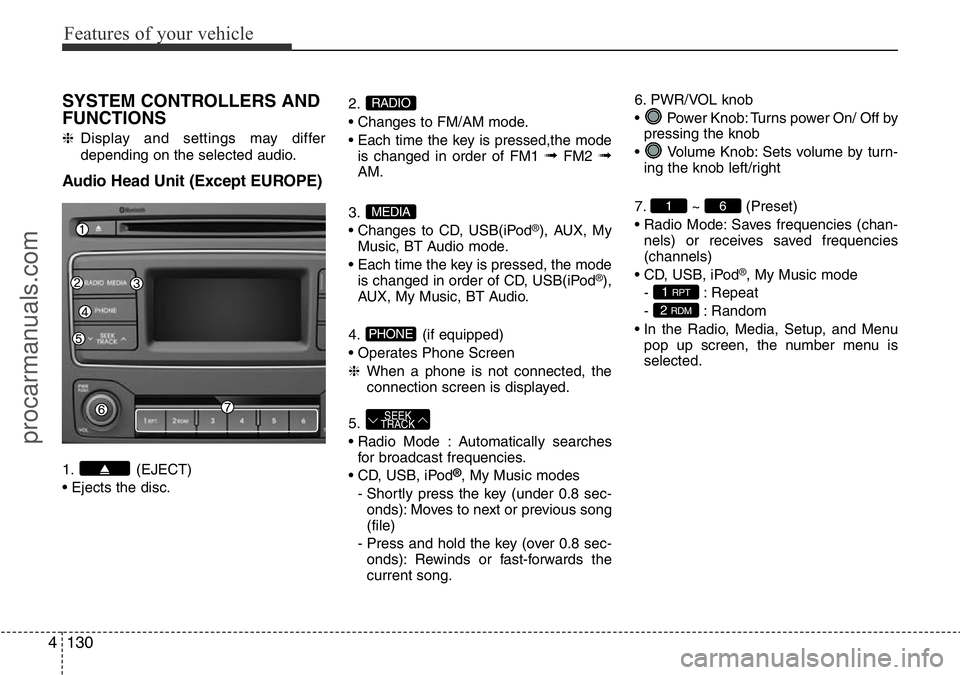
Audio Head Unit (Except EUROPE)
1. (EJECT)
• Ejects the disc.2.
• Changes to FM/AM mode.
• Each time the key is pressed,the mode
is changed in order of FM1
➟FM2 ➟AM.
3.
• Changes to CD, USB(iPod
®), AUX, My
Music, BT Audio mode.
• Each time the key is pressed, the mode
is changed in order of CD, USB(iPod
®),
AUX, My Music, BT Audio.
4. (if equipped)
• Operates Phone Screen
❈When a phone is not connected, the
connection screen is displayed.
5.
• Radio Mode : Automatically searches
for broadcast frequencies.
• CD, USB, iPod
®, My Music modes
- Shortly press the key (under 0.8 sec-
onds): Moves to next or previous song
(file)
- Press and hold the key (over 0.8 sec-
onds): Rewinds or fast-forwards the
current song.6. PWR/VOL knob
• Power Knob: Turns power On/ Off by
pressing the knob
• Volume Knob: Sets volume by turn-
ing the knob left/right
7. ~ (Preset)
• Radio Mode: Saves frequencies (chan-
nels) or receives saved frequencies
(channels)
• CD, USB, iPod
®, My Music mode
- : Repeat
- : Random
• In the Radio, Media, Setup, and Menu
pop up screen, the number menu is
selected.
2 RDM
1 RPT
61
SEEK
TRACK
PHONE
MEDIA
RADIO
procarmanuals.com
Page 205 of 419
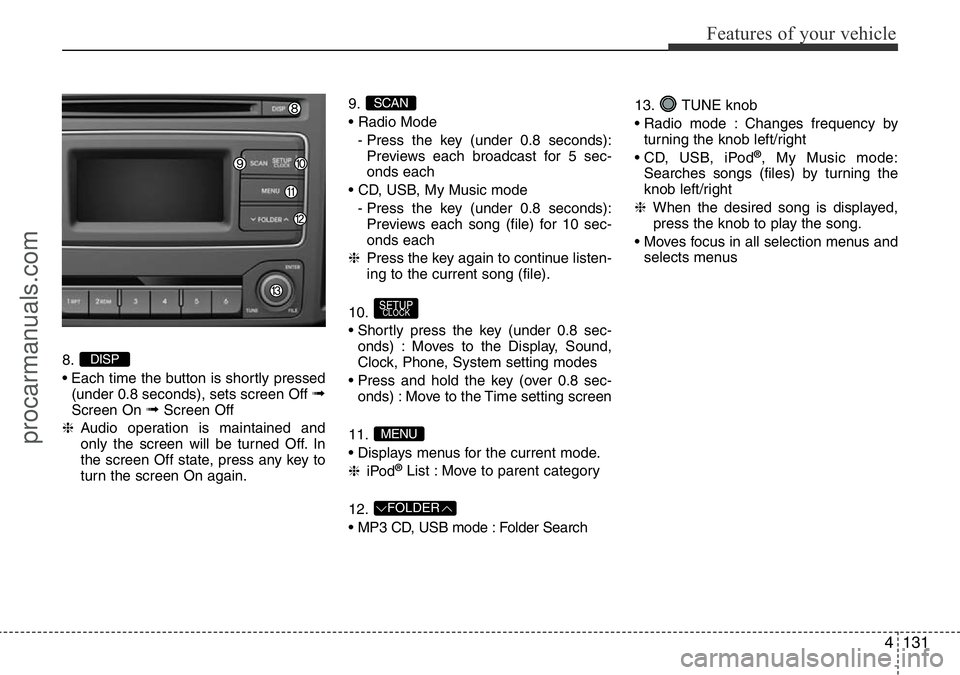
4131
Features of your vehicle
8.
• Each time the button is shortly pressed
(under 0.8 seconds), sets screen Off
➟Screen On ➟Screen Off
❈Audio operation is maintained and
only the screen will be turned Off. In
the screen Off state, press any key to
turn the screen On again.9.
• Radio Mode
- Press the key (under 0.8 seconds):
Previews each broadcast for 5 sec-
onds each
• CD, USB, My Music mode
- Press the key (under 0.8 seconds):
Previews each song (file) for 10 sec-
onds each
❈Press the key again to continue listen-
ing to the current song (file).
10.
• Shortly press the key (under 0.8 sec-
onds) : Moves to the Display, Sound,
Clock, Phone, System setting modes
• Press and hold the key (over 0.8 sec-
onds) : Move to the Time setting screen
11.
• Displays menus for the current mode.
❈iPod
®List : Move to parent category
12.
• MP3 CD, USB mode : Folder Search13. TUNE knob
• Radio mode : Changes frequency by
turning the knob left/right
• CD, USB, iPod
®, My Music mode:
Searches songs (files) by turning the
knob left/right
❈When the desired song is displayed,
press the knob to play the song.
• Moves focus in all selection menus and
selects menus
FOLDER
MENU
SETUPCLOCK
SCAN
DISP
procarmanuals.com
Page 207 of 419
![HYUNDAI I800 2016 User Guide 4133
Features of your vehicle
Sound Settings
Press the key Select [Sound]
through TUNE knob or key
Select menu through TUNE knob
Audio Settings (For Van)
This menu allows you to set the â€](/img/35/57914/w960_57914-206.png "HYUNDAI I800 2016 User Guide 4133
Features of your vehicle
Sound Settings
Press the key Select [Sound]
through TUNE knob or key
Select menu through TUNE knob
Audio Settings (For Van)
This menu allows you to set the â€")
4133
Features of your vehicle
Sound Settings
Press the key Select [Sound]
through TUNE knob or key
Select menu through TUNE knob
Audio Settings (For Van)
This menu allows you to set the ‘Bass,
Middle, Treble’ and the Sound Balance.
Select [Audio Settings] Select menu
through TUNE knob Turn TUNE
knob left/right to set
• Bass, Middle, Treble : Selects the sound
tone.
• Balance : Moves the sound balance.
• Default : Restores default settings.
❈Return : Whilst adjusting values, re-
pressing the TUNE knob will
restore the parent menu.Audio Settings (For Wagon)
This menu allows you to set the ‘Bass,
Middle, Treble’ and the Sound Fader and
Balance.
Select [Audio Settings] Select menu
through TUNE knob Turn TUNE
knob left/right to set
• Bass, Middle, Treble : Selects the sound
tone.
• Fader, Balance : Moves the sound fader
and balance.
• Default : Restores default settings.
❈Return : Whilst adjusting values, re-
pressing the TUNE knob will
restore the parent menu.
Speed Dependent Volume Control
This feature is used to automatically con-
trol the volume level according to the
speed of the vehicle.
Select [Speed Dependent Vol.] Set in
[On/Off] of
TUNEknob
2 RDM
SETUPCLOCK
procarmanuals.com