lock HYUNDAI I800 2016 Repair Manual
[x] Cancel search | Manufacturer: HYUNDAI, Model Year: 2016, Model line: I800, Model: HYUNDAI I800 2016Pages: 419, PDF Size: 9.23 MB
Page 213 of 419
![HYUNDAI I800 2016 Repair Manual 4139
Features of your vehicle
System Settings
Press the keySelect [System]
Memory Information
(if equipped)
Displays currently used memory and
total system memory.
Select [Memory Information] OK
The c](/img/35/57914/w960_57914-212.png "HYUNDAI I800 2016 Repair Manual 4139
Features of your vehicle
System Settings
Press the keySelect [System]
Memory Information
(if equipped)
Displays currently used memory and
total system memory.
Select [Memory Information] OK
The c")
4139
Features of your vehicle
System Settings
Press the keySelect [System]
Memory Information
(if equipped)
Displays currently used memory and
total system memory.
Select [Memory Information] OK
The currently used memory is displayed
on the left side whilst the total system
memory is displayed on the right side.
SETUPCLOCK
procarmanuals.com
Page 214 of 419
![HYUNDAI I800 2016 Repair Manual Features of your vehicle
140 4
Phone Settings
Press the keySelect [Phone]
(For EUROPE)
Press the keySelect [Phone]
(Except EUROPE)Pair Phone
Select [Pair Phone] Set through
TUNE knob
➀Search for dev](/img/35/57914/w960_57914-213.png "HYUNDAI I800 2016 Repair Manual Features of your vehicle
140 4
Phone Settings
Press the keySelect [Phone]
(For EUROPE)
Press the keySelect [Phone]
(Except EUROPE)Pair Phone
Select [Pair Phone] Set through
TUNE knob
➀Search for dev")
Features of your vehicle
140 4
Phone Settings
Press the keySelect [Phone]
(For EUROPE)
Press the keySelect [Phone]
(Except EUROPE)Pair Phone
Select [Pair Phone] Set through
TUNE knob
➀Search for device names as displayed
on your mobile phone and connect.
➁Input the passkey displayed on the
screen. (Passkey : 0000)
❈The device name and passkey will be
displayed on the screen for up to 3
minutes. If pairing is not completed
within the 3 minutes, the mobile phone
pairing process will automatically be
canceled.
➂ Pairing completion is displayed.
❈In some mobile phones, pairing will
automatically be followed by connec-
tion.
❈It is possible to pair up to five
Bluetooth®
Wireless Technology enabled mobile
phones.
SETUPCLOCK
SETUPCLOCKCAUTION
To pair a Bluetooth®Wireless
Technology enabled mobile phone,
authentication and connection
processes are first required. As a
result, you cannot pair your mobile
phone whilst driving the vehicle.
First park your vehicle before use.
procarmanuals.com
Page 218 of 419
![HYUNDAI I800 2016 Repair Manual Features of your vehicle
144 4
Bluetooth®Wireless
Technology System Off
This feature is used when you do not
wish to use the Bluetooth®Wireless
Technology system.
Select [Bluetooth System Off] Set
t](/img/35/57914/w960_57914-217.png "HYUNDAI I800 2016 Repair Manual Features of your vehicle
144 4
Bluetooth®Wireless
Technology System Off
This feature is used when you do not
wish to use the Bluetooth®Wireless
Technology system.
Select [Bluetooth System Off] Set
t")
Features of your vehicle
144 4
Bluetooth®Wireless
Technology System Off
This feature is used when you do not
wish to use the Bluetooth®Wireless
Technology system.
Select [Bluetooth System Off] Set
through TUNE knob
❈If a phone is already connected, dis-
connect the currently connected
phone and turn the
Bluetooth®
Wireless Technology system off.
Using the Bluetooth®Wireless
Technology System
To use Bluetooth®Wireless Technology
when the system is currently off, follow
these next steps.
• Turning On
Bluetooth®Wireless
Technology through the Key
Press the key Screen Guidance
❈Moves to the screen where
Bluetooth®Wireless Technology func-
tions can be used and displays guid-
ance.• Turning On
Bluetooth®Wireless
Technology through the Key
Press the key Select [Phone]
➀A screen asking whether to turn on
Bluetooth®Wireless Technology will be
displayed.
➁On the screen, select to turn on
Bluetooth®Wireless Technology and
display guidance.
❈I f the
Bluetooth®Wireless Technologysys-
tem is turned on, the system will auto-
matically try to connect the most
recently connected
Bluetooth®Wireless
Technologymobile phone.
YES
SETUPCLOCK
SETUPCLOCK
PHONE
PHONE
CAUTION
Bluetooth®Wireless Technology
connection may become intermit-
tently disconnected in some mobile
phones. Follow these next steps to
try again.
1) Turn the Bluetooth
®Wireless
Technology function within the
mobile phone ON/OFF and try to
connect again.
2) Turn the mobile phone power
ON/OFF and try to connect
again.
3) Completely remove the mobile
phone battery, reboot, and then
try to connect again.
4) Reboot the audio system and try
to connect again
5) Delete all paired devices in your
mobile phone and the audio sys-
tem and pair again for use.
procarmanuals.com
Page 232 of 419
Features of your vehicle
158 4
Bluetooth®Wireless
Technology AUDIO
(If equipped)
What is Bluetooth®Wireless
Technology?
Bluetooth®Wireless Technology allows
devices to be connected in a short dis-
tance, including hands-free devices,
stereo headsets, wireless remote con-
trollers, etc. For more information, visit
the
Bluetooth®Wireless Technology web-
site at www.Bluetooth.com
Before using Bluetooth®Wireless
Technology audio features
•
Bluetooth®Wireless Technology audio
may not be supported depending on the
compatibility of your
Bluetooth®Wireless
Technologymobile phone.
• In order to use
Bluetooth®Wireless
Technology audio, you must first pair
and connect the
Bluetooth®Wireless
Technology mobile phone.• The Bluetooth
®word mark and logos are
registered trademarks owned by
Bluetooth
®SIG, Inc. and any use of such
marks is under license. Other trade-
marks and trade names are those of
their respective owners. A Bluetooth
®
enabled cell phone is required to useBluetooth®Wireless Technology
•
Bluetooth®Wireless Technology audio
can be used only when the [Audio
Streaming] of Phone is turned On.
❈Setting
Bluetooth®Wireless
Technology Audio Streaming : Press
the key Select [Phone]
through the tune knob Select [Audio
Streaming] through the TUNE
knob Set /
Starting Bluetooth®Wireless
Technology Audio
• Press the key to change the
mode in order of CD ➟USB ➟AUX ➟My Music ➟BT Audio.
• If BT Audio is selected,
Bluetooth®
Wireless Technology audio will start
playing.
❈Audio may not automatically start
playing in some mobile phones.
MEDIA
OffOn
SETUPCLOCK
procarmanuals.com
Page 238 of 419
Features of your vehicle
164 4
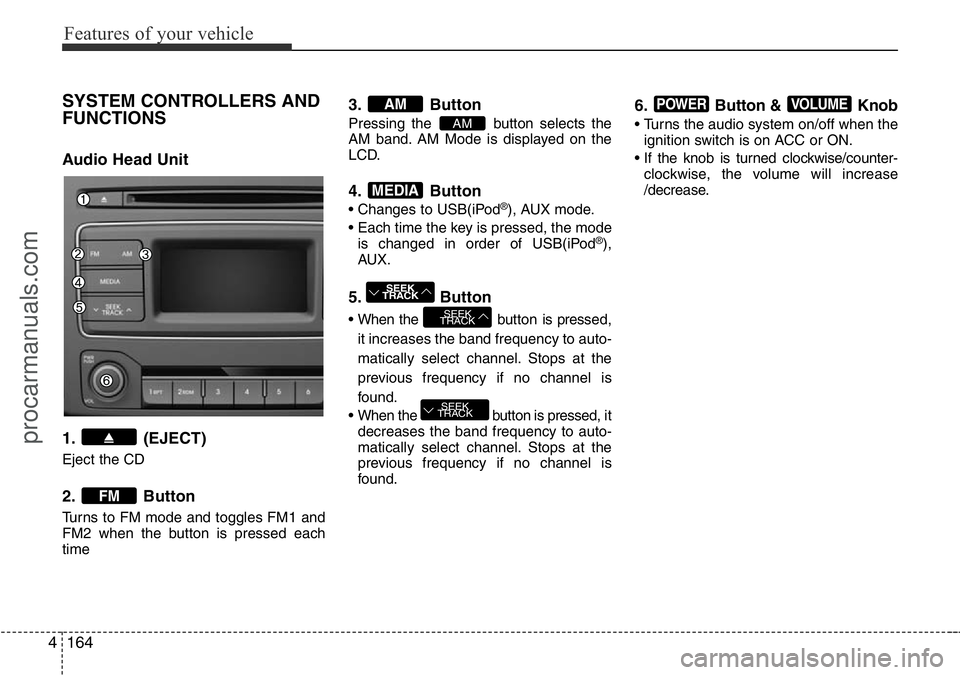
SYSTEM CONTROLLERS AND
FUNCTIONS
Audio Head Unit
1. (EJECT)
Eject the CD
2. Button
Turns to FM mode and toggles FM1 and
FM2 when the button is pressed each
time
3. Button
Pressing the button selects the
AM band. AM Mode is displayed on the
LCD.
4. Button
• Changes to USB(iPod®), AUX mode.
• Each time the key is pressed, the mode
is changed in order of USB(iPod
®),
AUX.
5. Button
• When the button is pressed,
it increases the band frequency to auto-
matically select channel. Stops at the
previous frequency if no channel is
found.
• When the button is pressed, it
decreases the band frequency to auto-
matically select channel. Stops at the
previous frequency if no channel is
found.
6. Button & Knob
• Turns the audio system on/off when the
ignition switch is on ACC or ON.
• If the knob is turned clockwise/counter-
clockwise, the volume will increase
/decrease.
VOLUMEPOWER
SEEK
TRACK
SEEK
TRACK
SEEK
TRACK
MEDIA
AM
AM
FM
procarmanuals.com
Page 239 of 419
4165
Features of your vehicle
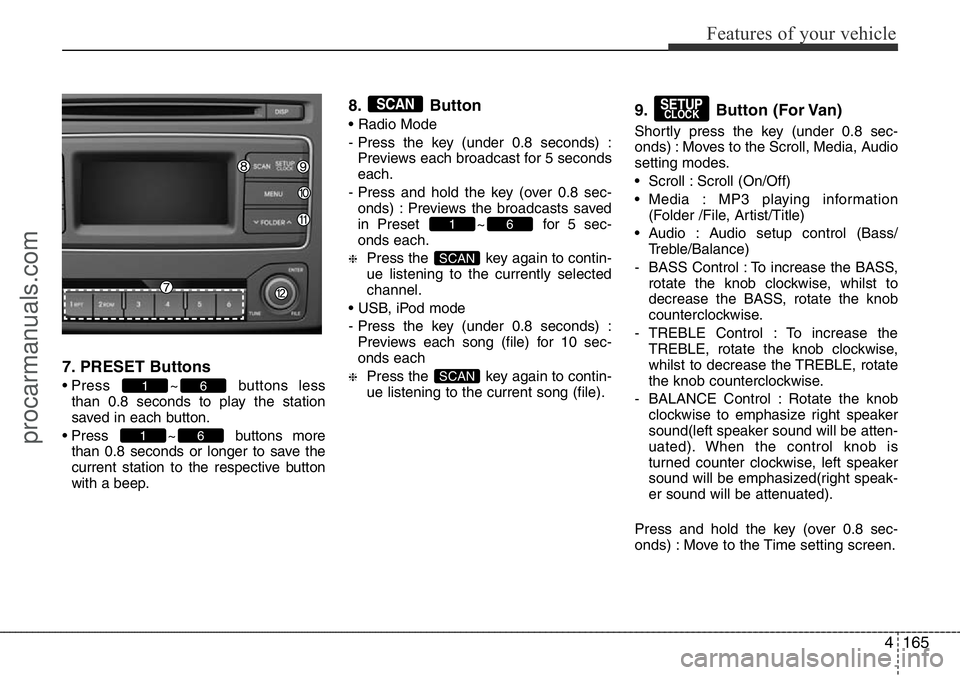
7. PRESET Buttons
• Press ~ buttons less
than 0.8 seconds to play the station
saved in each button.
• Press ~ buttons more
than 0.8 seconds or longer to save the
current station to the respective button
with a beep.
8. Button
• Radio Mode
- Press the key (under 0.8 seconds) :
Previews each broadcast for 5 seconds
each.
- Press and hold the key (over 0.8 sec-
onds) : Previews the broadcasts saved
in Preset ~ for 5 sec-
onds each.
❈Press the key again to contin-
ue listening to the currently selected
channel.
• USB, iPod mode
- Press the key (under 0.8 seconds) :
Previews each song (file) for 10 sec-
onds each
❈Press the key again to contin-
ue listening to the current song (file).
9. Button (For Van)
Shortly press the key (under 0.8 sec-
onds) : Moves to the Scroll, Media, Audio
setting modes.
• Scroll : Scroll (On/Off)
• Media : MP3 playing information
(Folder /File, Artist/Title)
• Audio : Audio setup control (Bass/
Treble/Balance)
- BASS Control : To increase the BASS,
rotate the knob clockwise, whilst to
decrease the BASS, rotate the knob
counterclockwise.
- TREBLE Control : To increase the
TREBLE, rotate the knob clockwise,
whilst to decrease the TREBLE, rotate
the knob counterclockwise.
- BALANCE Control : Rotate the knob
clockwise to emphasize right speaker
sound(left speaker sound will be atten-
uated). When the control knob is
turned counter clockwise, left speaker
sound will be emphasized(right speak-
er sound will be attenuated).
Press and hold the key (over 0.8 sec-
onds) : Move to the Time setting screen.
SETUPCLOCK
SCAN
SCAN
61
SCAN
61
61
procarmanuals.com
Page 240 of 419
Features of your vehicle
166 4
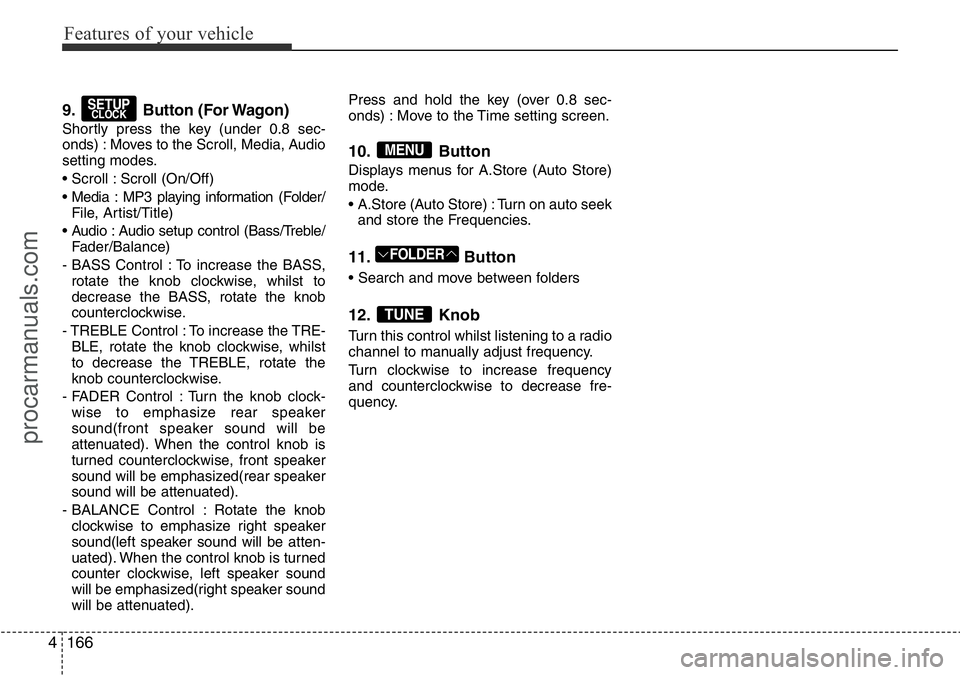
9. Button (For Wagon)
Shortly press the key (under 0.8 sec-
onds) : Moves to the Scroll, Media, Audio
setting modes.
• Scroll : Scroll (On/Off)
• Media : MP3 playing information (Folder/
File, Artist/Title)
• Audio : Audio setup control (Bass/Treble/
Fader/Balance)
- BASS Control : To increase the BASS,
rotate the knob clockwise, whilst to
decrease the BASS, rotate the knob
counterclockwise.
- TREBLE Control : To increase the TRE-
BLE, rotate the knob clockwise, whilst
to decrease the TREBLE, rotate the
knob counterclockwise.
- FADER Control : Turn the knob clock-
wise to emphasize rear speaker
sound(front speaker sound will be
attenuated). When the control knob is
turned counterclockwise, front speaker
sound will be emphasized(rear speaker
sound will be attenuated).
- BALANCE Control : Rotate the knob
clockwise to emphasize right speaker
sound(left speaker sound will be atten-
uated). When the control knob is turned
counter clockwise, left speaker sound
will be emphasized(right speaker sound
will be attenuated).Press and hold the key (over 0.8 sec-
onds) : Move to the Time setting screen.
10. Button
Displays menus for A.Store (Auto Store)
mode.
• A.Store (Auto Store) : Turn on auto seek
and store the Frequencies.
11. Button
• Search and move between folders
12. Knob
Turn this control whilst listening to a radio
channel to manually adjust frequency.
Turn clockwise to increase frequency
and counterclockwise to decrease fre-
quency.
TUNE
FOLDER
MENU
SETUPCLOCK
procarmanuals.com
Page 244 of 419
Features of your vehicle
170 4
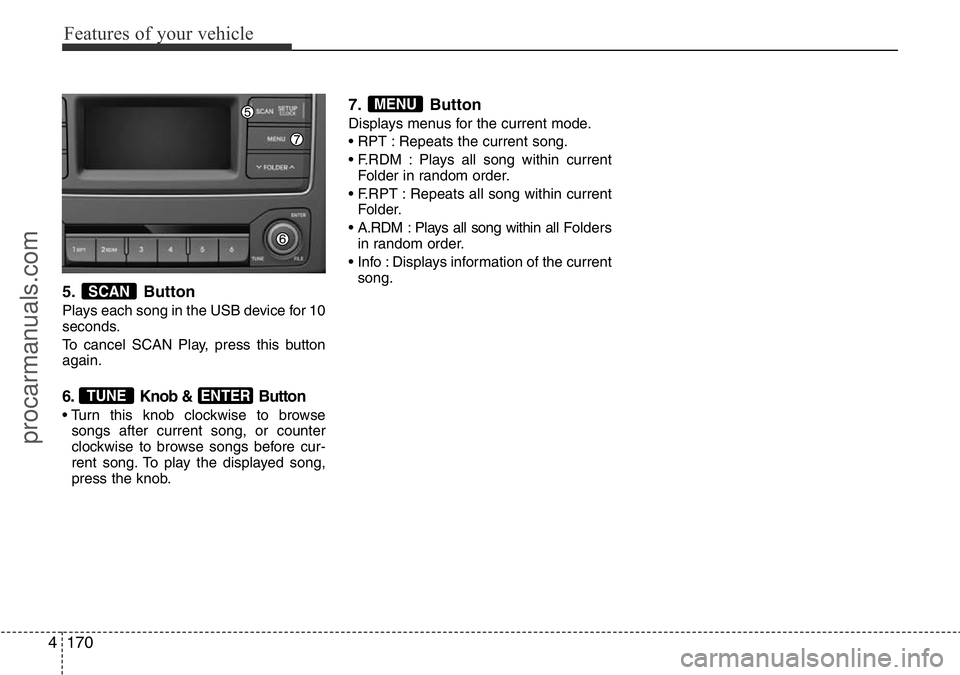
5. Button
Plays each song in the USB device for 10
seconds.
To cancel SCAN Play, press this button
again.
6. Knob & Button
• Turn this knob clockwise to browse
songs after current song, or counter
clockwise to browse songs before cur-
rent song. To play the displayed song,
press the knob.
7. Button
Displays menus for the current mode.
• RPT : Repeats the current song.
• F.RDM : Plays all song within current
Folder in random order.
• F.RPT : Repeats all song within current
Folder.
• A.RDM : Plays all song within all Folders
in random order.
• Info : Displays information of the current
song.
MENU
ENTERTUNE
SCAN
procarmanuals.com
Page 246 of 419
5.Knob & Button
When you rotate the knob clockwise, it
will display the songs (category) ahead
of the song currently played (category in
the same level).
Also, when you rotate the knob counter-
clockwise, it will display the songs (cate-
gory) before the song currently played
(category in the same level).
To listen to the song displayed in the
song category, press the button to play
the selected song.
AUX
This feature is used to play external
MEDIA currently connected with the AUX
terminal.
AUX mode will automatically start when
an external device becomes connected.
If an external device is already connect-
ed, you can also press the key to
change to AUX mode.
❈AUX mode cannot be started unless
there is an external device connected
to the AUX terminal.
AUX
ENTERTUNE
4 172
Features of your vehicle
procarmanuals.com
Page 247 of 419
5
Before driving / 5-3
Key positions / 5-5
Starting the engine / 5-7
Manual transmission / 5-10
Automatic transmission / 5-13
Brake system / 5-20
Cruise control system / 5-31
Locking differential / 5-37
Economical operation / 5-38
Special driving conditions / 5-40
Winter motoring / 5-45
Trailer towing / 5-49
Vehicle weight / 5-58
Driving your vehicle
procarmanuals.com