cluster HYUNDAI IONIQ 5 2023 Service Manual
[x] Cancel search | Manufacturer: HYUNDAI, Model Year: 2023, Model line: IONIQ 5, Model: HYUNDAI IONIQ 5 2023Pages: 680, PDF Size: 48.22 MB
Page 195 of 680
5
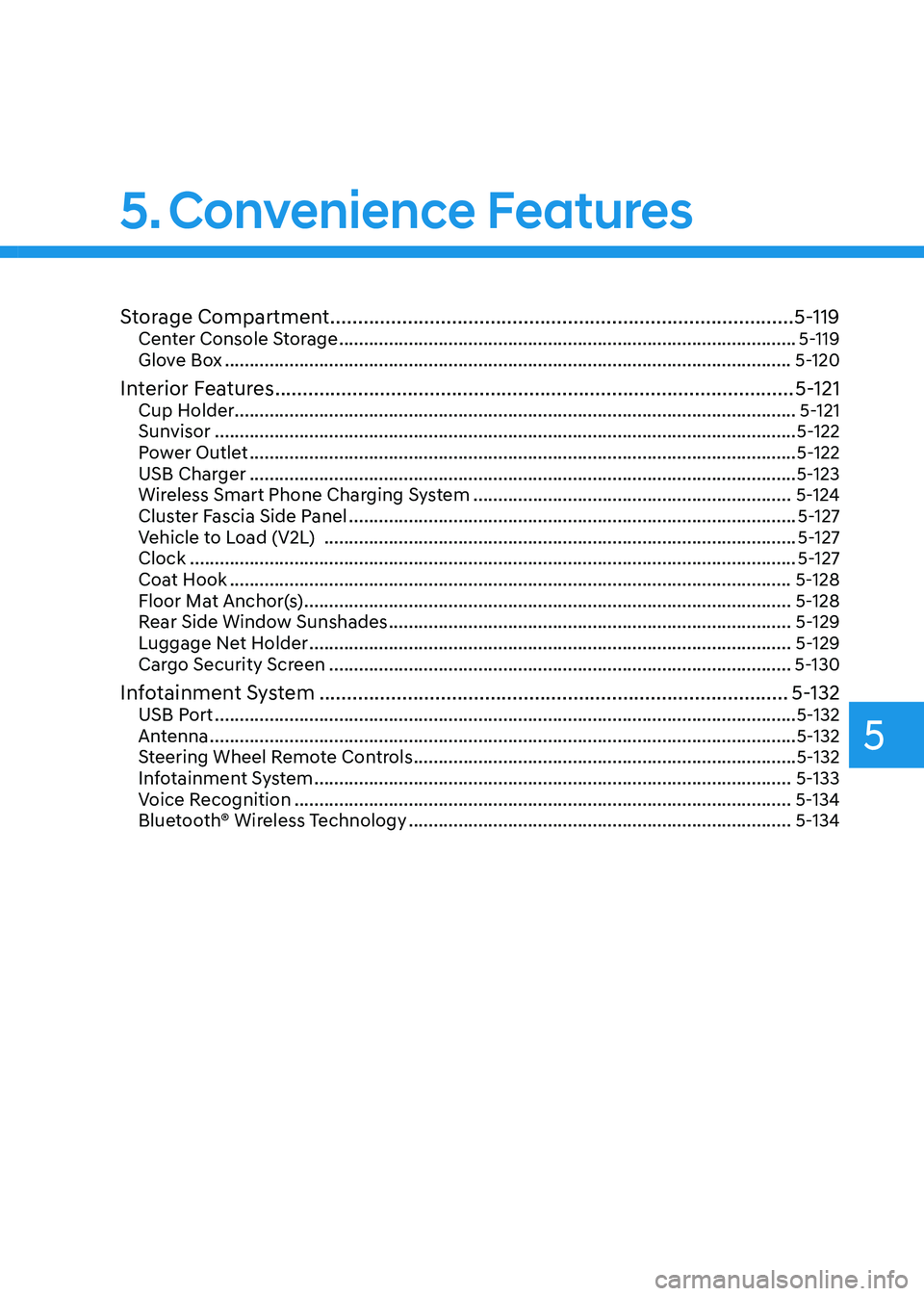
Storage Compartment .................................................................................... 5-119
Center Console Storage ............................................................................................ 5-119
Glove Box .................................................................................................................. 5-120
Interior Features .............................................................................................. 5-121
Cup Holder ................................................................................................................. 5-121
Sunvisor ..................................................................................................................... 5-122
Power Outlet .............................................................................................................. 5-122
USB Charger .............................................................................................................. 5-123
Wireless Smart Phone Charging System ................................................................5-124
Cluster Fascia Side Panel .......................................................................................... 5-127
Vehicle to Load (V2L) ............................................................................................... 5-127
Clock .......................................................................................................................... 5-127
Coat Hook ................................................................................................................. 5-128
Floor Mat Anchor(s) .................................................................................................. 5-128
Rear Side Window Sunshades ................................................................................. 5-129
Luggage Net Holder ................................................................................................. 5-129
Cargo Security Screen ............................................................................................. 5-130
Infotainment System ..................................................................................... 5-132
USB Port ..................................................................................................................... 5-132
Antenna ...................................................................................................................... 5-132
Steering Wheel Remote Controls ............................................................................. 5-132
Infotainment System ................................................................................................ 5-133
Voice Recognition .................................................................................................... 5-134
Bluetooth® Wireless Technology ............................................................................. 5-134
5. Convenience Features
Page 200 of 680
Convenience Features
5-8
When you set the Two Press Unlock function
1. Make sure you have the smart key in your possession.
2. Touch the touch sensor on the door handle(engraved part) or press the
Door Unlock button (2) on the smart
key. The driver’s door handle will
pop out and the driver’s door will be
unlocked.
3. Touch the touch sensor on the door handle(engraved part) or press the
Door Unlock button (2) on the smart
key within 4 seconds again. All door
handles will pop out and the doors will
be unlocked and the hazard warning
lights will blink twice and the chime will sound.
4. After unlocking the doors, the doors
will automatically re-lock after 30 seconds unless a door is opened. Two Press Unlock Feature
The priority for unlocking the driver door
only, or unlocking all the doors with
one press may be adjusted in the User
Settings menu in the LCD cluster display.
The Two Press Unlock feature, when
enabled, will require the user to press
the door unlock button once for driver
door only and twice for unlocking all the
doors.
Select or Deselect the Two Press Unlock
Feature in the User Settings menu in the
LCD cluster display. The option can be
found under the following menu:
USER SETTINGS → DOOR →TWO PRESS
UNLOCK
The Two Press Unlock Feature can also
be enabled or disabled by pressing
the door lock and unlock buttons
simultaneously on the Key FOB:
Press and hold both the DOOR LOCK
button and the DOOR UNLOCK button
simultaneously until the hazard warning
lights blink.
This will enable or disable the Two Press
Unlock feature. Repeat this procedure to enable/disable the mode again.
Page 207 of 680
05
5-15
hyundai Digital Key (if equipped)
Digital Key Application
To use Hyundai Digital Key mobile app,
you should install Hyundai digital key
application. Search ‘Hyundai digital key’
in the Google Play Store and download
the app. Please refer to the detailed
manual of the digital key app. The option
can be found under the following app menu:
Menu → Application Info → Tutorial
Please note the manual before using the app.
à This service is only available for
Android smartphones. Please confirm
supported/compatible devices on our
website.
WARNING
For used vehicle
If any of the digital key (smartphone key
or card key) is already registered when
you press ON button after unlocking the
doors, the message ‘Digital key(s) active’
appears on the instrument cluster once.
If you buy a used vehicle, you should
confirm the message and delete the
registered smartphone key and card key.
In addition, please notify the Hyundai
Customer Care Center.
If the card key does not work properly,
please delete the card key and register
the smartphone key and re-register the
card key.
For vehicle maintenance
If you need to have your Digital Key
System repaired or replaced please
ensure your Smartphone Key is still
active. You may have to pair your phone again.
In the case, re-initialize your Digital Keys
using the Hyundai Digital Key mobile app. Digital key (smartphone) NFC
function
You can use the Digital Key NFC (Near
Field Communication) function after turn
your smartphone NFC settings on. And
you should unlock & turn on smartphone
screen to use it.
à To change the NFC mode of the
smartphone, please refer to the
smartphone manual or contact
to the customer service center of
smartphone manufacturers.
Page 208 of 680
Convenience Features
5-16
Digital key (smartphone)
Hyundai Digital Key (Smartphone) Pairing
1. Turn the vehicle on with the Smart key
and make sure to keep the smart key
inside the vehicle during digital key
registration.
ONE1051272N
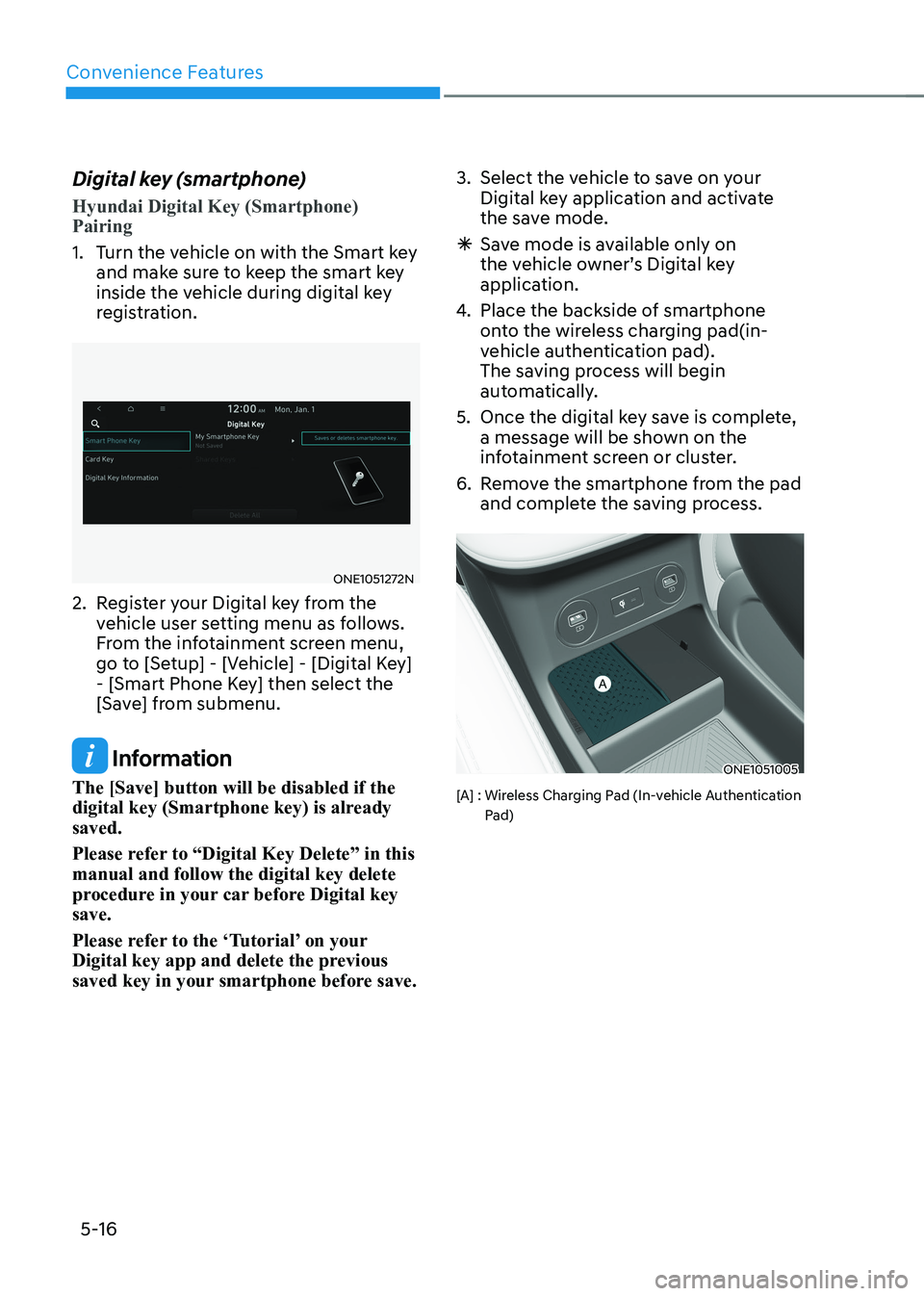
2. Register your Digital key from the vehicle user setting menu as follows.
From the infotainment screen menu,
go to [Setup] - [Vehicle] - [Digital Key]
- [Smart Phone Key] then select the
[Save] from submenu.
Information
The [Save] button will be disabled if the
digital key (Smartphone key) is already saved.
Please refer to “Digital Key Delete” in this manual and follow the digital key delete
procedure in your car before Digital key save.
Please refer to the ‘Tutorial’ on your
Digital key app and delete the previous
saved key in your smartphone before save. 3. Select the vehicle to save on your
Digital key application and activate
the save mode.
à Save mode is available only on
the vehicle owner’s Digital key
application.
4. Place the backside of smartphone
onto the wireless charging pad(in-
vehicle authentication pad).
The saving process will begin
automatically.
5. Once the digital key save is complete, a message will be shown on the
infotainment screen or cluster.
6. Remove the smartphone from the pad and complete the saving process.ONE1051005
[A] : Wireless Charging Pad (In-vehicle Authentication Pad)
Page 209 of 680
05
5-17
Hyundai Digital Key (Smartphone Key) Deletion
1. Turn the vehicle on with the Smart key and make sure to keep the smart
key inside the vehicle during delete
process.
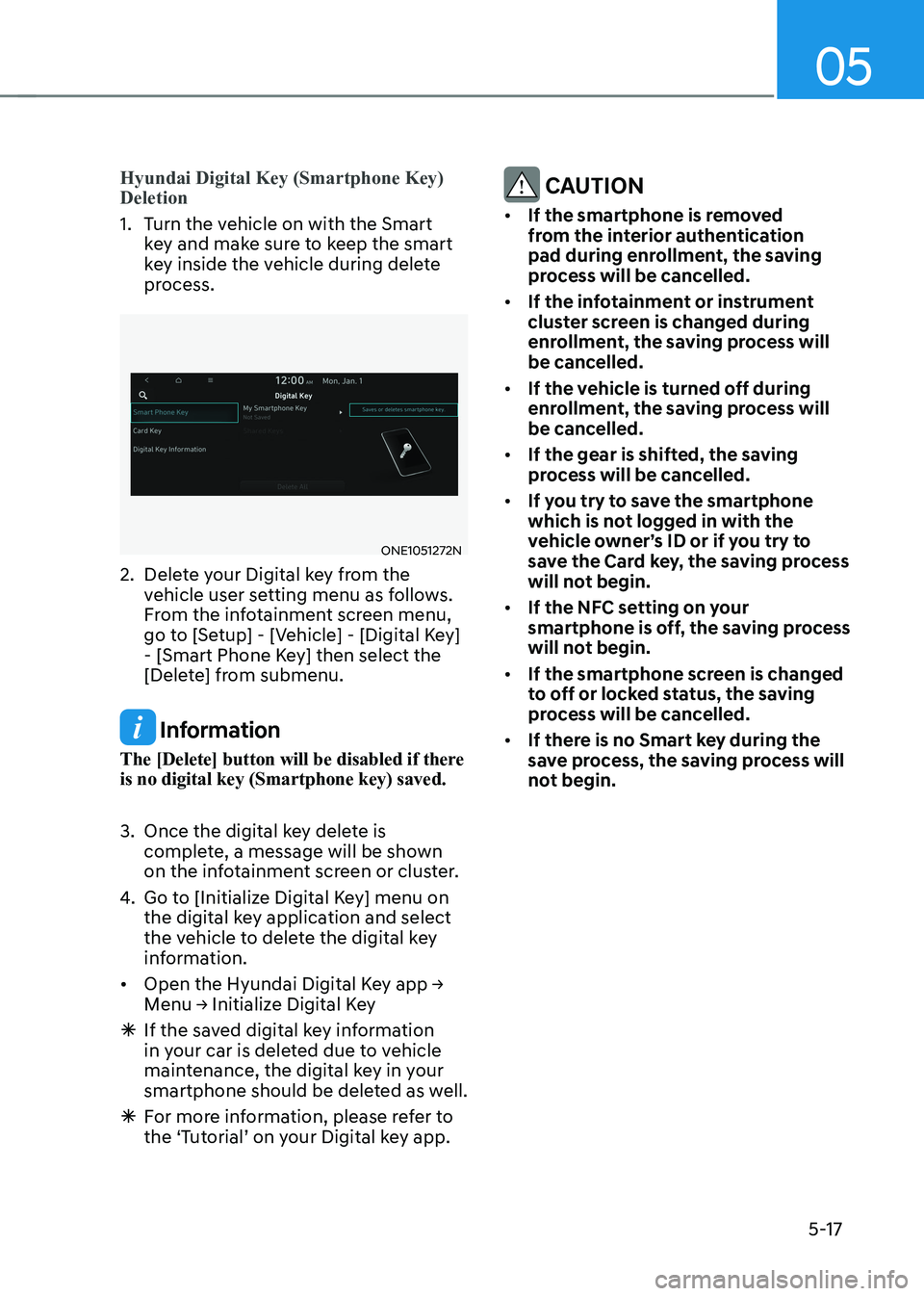
ONE1051272N
2. Delete your Digital key from the vehicle user setting menu as follows.
From the infotainment screen menu,
go to [Setup] - [Vehicle] - [Digital Key]
- [Smart Phone Key] then select the
[Delete] from submenu.
Information
The [Delete] button will be disabled if there is no digital key (Smartphone key) saved.
3. Once the digital key delete is complete, a message will be shown
on the infotainment screen or cluster.
4. Go to [Initialize Digital Key] menu on
the digital key application and select
the vehicle to delete the digital key
information.
• Open the Hyundai Digital Key app → Menu → Initialize Digital Key
à If the saved digital key information
in your car is deleted due to vehicle
maintenance, the digital key in your
smartphone should be deleted as well.
à For more information, please refer to
the ‘Tutorial’ on your Digital key app.
CAUTION
• If the smartphone is removed
from the interior authentication
pad during enrollment, the saving
process will be cancelled.
• If the infotainment or instrument
cluster screen is changed during
enrollment, the saving process will
be cancelled.
• If the vehicle is turned off during
enrollment, the saving process will
be cancelled.
• If the gear is shifted, the saving
process will be cancelled.
• If you try to save the smartphone
which is not logged in with the
vehicle owner’s ID or if you try to
save the Card key, the saving process
will not begin.
• If the NFC setting on your
smartphone is off, the saving process
will not begin.
• If the smartphone screen is changed
to off or locked status, the saving
process will be cancelled.
• If there is no Smart key during the
save process, the saving process will
not begin.
Page 214 of 680
Convenience Features
5-22
CAUTION
• Do not leave the registered digital
key (smartphone) and card key in
your vehicle. Please carry around
your keys all the times.
• If you happen to lose your digital
key (smartphone) or card key
registered as a main user’s key, you
should immediately delete the key
on the vehicle’s key menu. For more
information, refer to the Digital Key
Deletion in this chapter.
• If you registered your digital key
(smartphone) or card key in the
vehicle, a message appears on the
instrument cluster and let you know
the key is registered.
(Message: Digital key(s) active.)
• If you buy a used vehicle, you should
confirm the message and delete the
registered smartphone key and card
key. In this case, you should carry
your smart key.
• If you keep place the NFC card
of the digital key on the interior
authentication pad (wireless
charger) while driving, it may cause a
malfunction of the NFC card.
• You should remove your NFC card
of the digital key on the interior
authentication pad after turning on the engine.
• Hyundai digital key app may not
work properly when the NFC or
Bluetooth communication between
smartphone and car is not good. •
If the remote control operation
is executed where the mobile
connection is weak, Bluetooth
connection is poor due to lots of
Bluetooth devices or there is an
object such as metal or concrete, it
might be delayed or the operable
distance might decrease. Especially,
you should not cover the smartphone
with your hand or place other
devices which can cause frequency
interference. It may result in poor
performance.
• If the remote control function is not
activated, please use NFC function to
lock or unlock the doors
• You should be careful not to
press the remote control button
on the digital key (smartphone)
accidentally.
• If the digital key (smartphone) is
discharged or defective or you
cannot use the digital key since the
vehicle battery is discharged, use the
inside door lock button to lock all of
the doors.
Page 216 of 680
Convenience Features
5-24
Digital key (Card key)
Digital key (Card key) save
1. Install Hyundai digital key app in
main user’s smartphone and register
the digital key (smartphone). Please
refer to the registration method of the
digital key (smartphone).
2. Using the [Pair Card Key] menu on the digital key application, you can
activate the Card Key registration mode.
à NFC authentication : enter the NFC
authentication menu and contact the smartphone on the outside door handle.
à Bluetooth authentication : enter the
Bluetooth authentication menu and
press the [OK] button for activation.
If you activate the registration mode,
you should complete the Card saving
process within 5 minutes.
à If you have not registered the digital
key (smartphone), please register the
digital key (card key) with two smart
keys. 3. Register the NFC card key on the
User’s Settings menu after turning on
the vehicle.
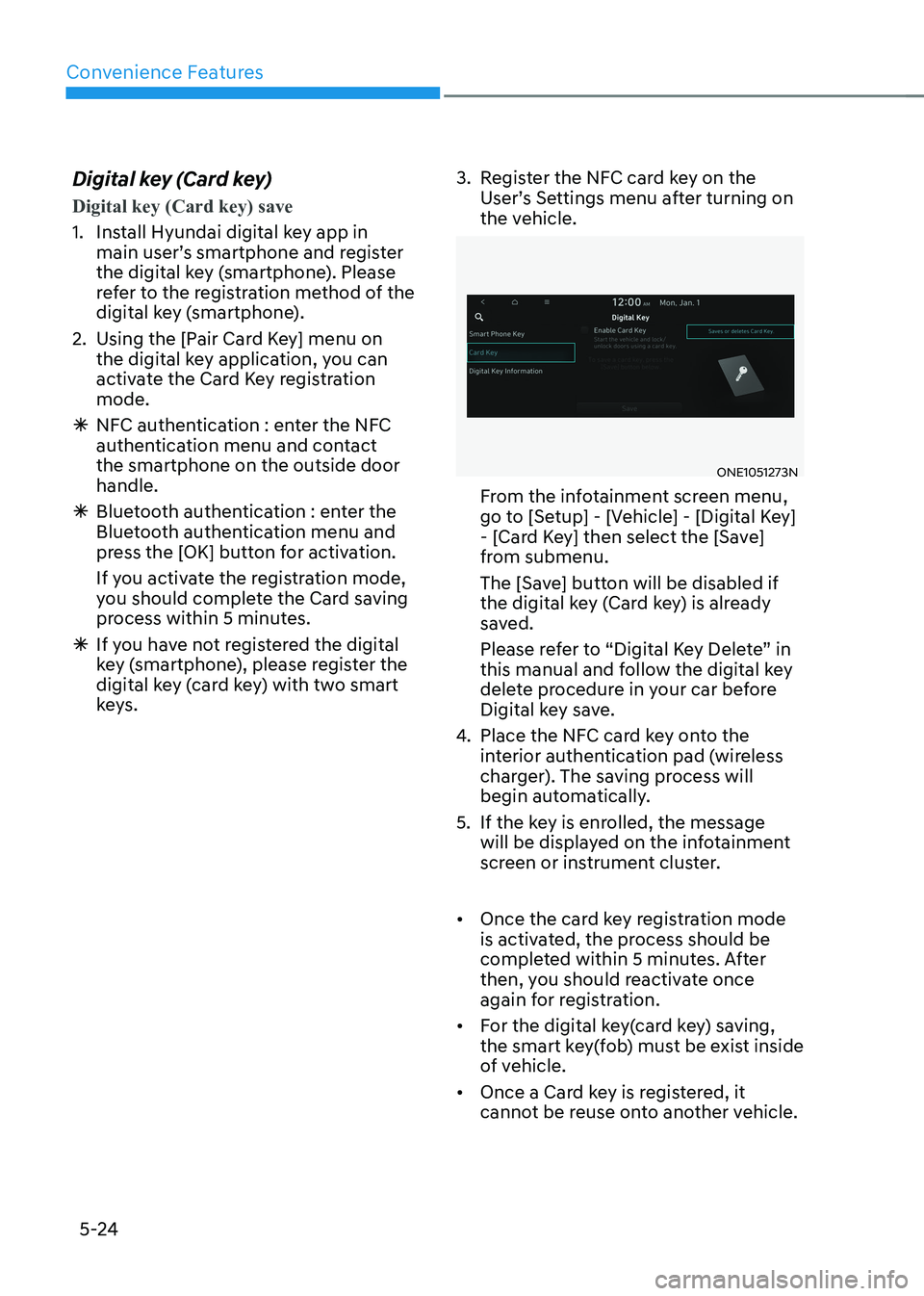
ONE1051273N
From the infotainment screen menu,
go to [Setup] - [Vehicle] - [Digital Key]
- [Card Key] then select the [Save]
from submenu.
The [Save] button will be disabled if
the digital key (Card key) is already
saved.
Please refer to “Digital Key Delete” in
this manual and follow the digital key
delete procedure in your car before
Digital key save.
4. Place the NFC card key onto the
interior authentication pad (wireless
charger). The saving process will
begin automatically.
5. If the key is enrolled, the message will be displayed on the infotainment
screen or instrument cluster.
• Once the card key registration mode
is activated, the process should be
completed within 5 minutes. After
then, you should reactivate once
again for registration.
• For the digital key(card key) saving,
the smart key(fob) must be exist inside
of vehicle.
• Once a Card key is registered, it
cannot be reuse onto another vehicle.
Page 221 of 680
05
5-29
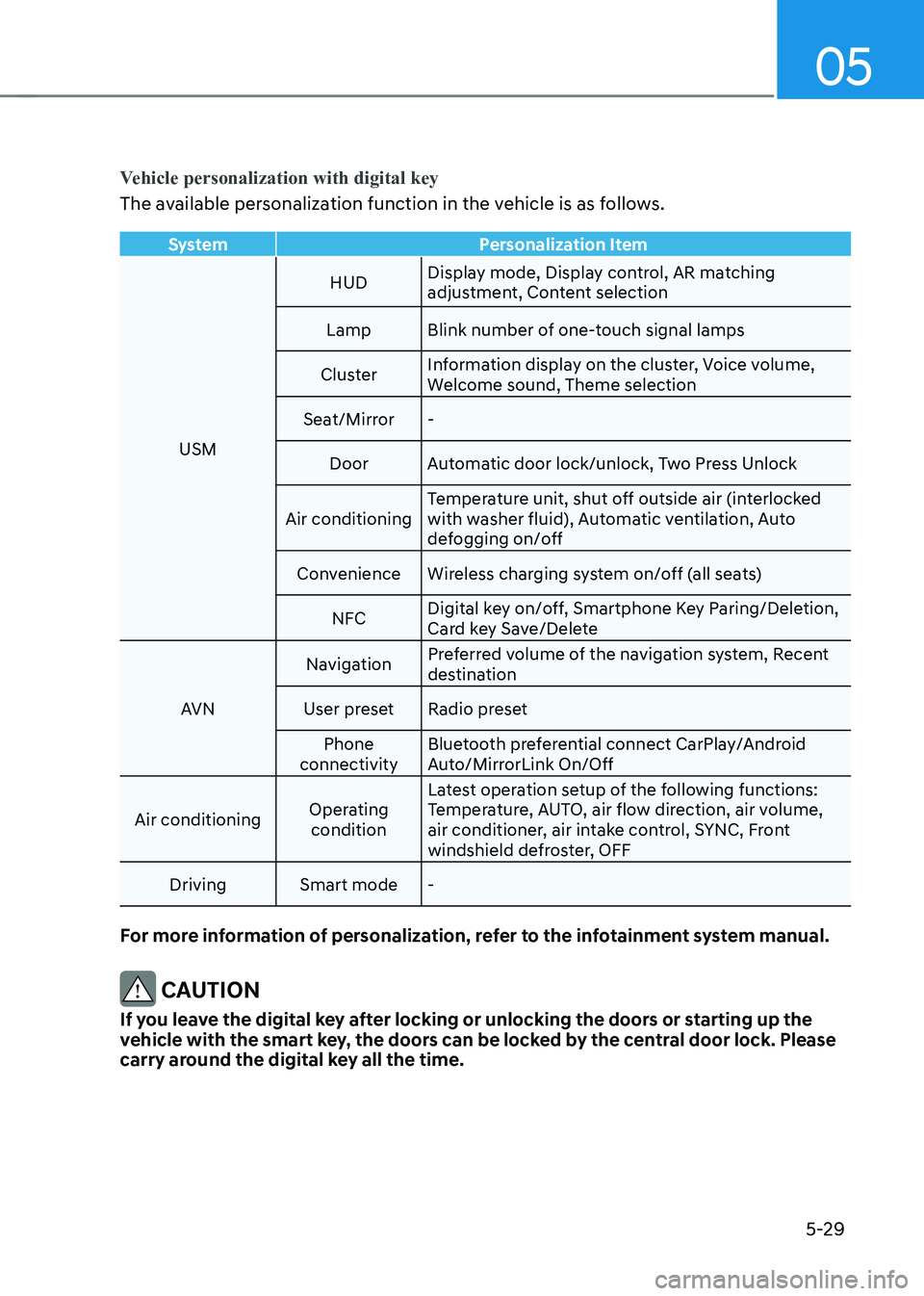
Vehicle personalization with digital key
The available personalization function in the vehicle is as follows.
SystemPersonalization Item
USMHUD
Display mode, Display control, AR matching
adjustment, Content selection
Lamp Blink number of one-touch signal lamps
Cluster Information display on the cluster, Voice volume,
Welcome sound, Theme selection
Seat/Mirror -
Door Automatic door lock/unlock, Two Press Unlock
Air conditioning Temperature unit, shut off outside air (interlocked
with washer fluid), Automatic ventilation, Auto
defogging on/off
Convenience Wireless charging system on/off (all seats)
NFC Digital key on/off, Smartphone Key Paring/Deletion,
Card key Save/Delete
AVN Navigation
Preferred volume of the navigation system, Recent
destination
User preset Radio preset Phone
connectivity Bluetooth preferential connect CarPlay/Android
Auto/MirrorLink On/Off
Air conditioning Operating
condition Latest operation setup of the following functions:
Temperature, AUTO, air flow direction, air volume,
air conditioner, air intake control, SYNC, Front
windshield defroster, OFF
Driving Smart mode -
For more information of personalization, refer to the infotainment system manual.
CAUTION
If you leave the digital key after locking or unlocking the doors or starting up the
vehicle with the smart key, the doors can be locked by the central door lock. Please
carry around the digital key all the time.
Page 230 of 680
Convenience Features
5-38
NOTICE
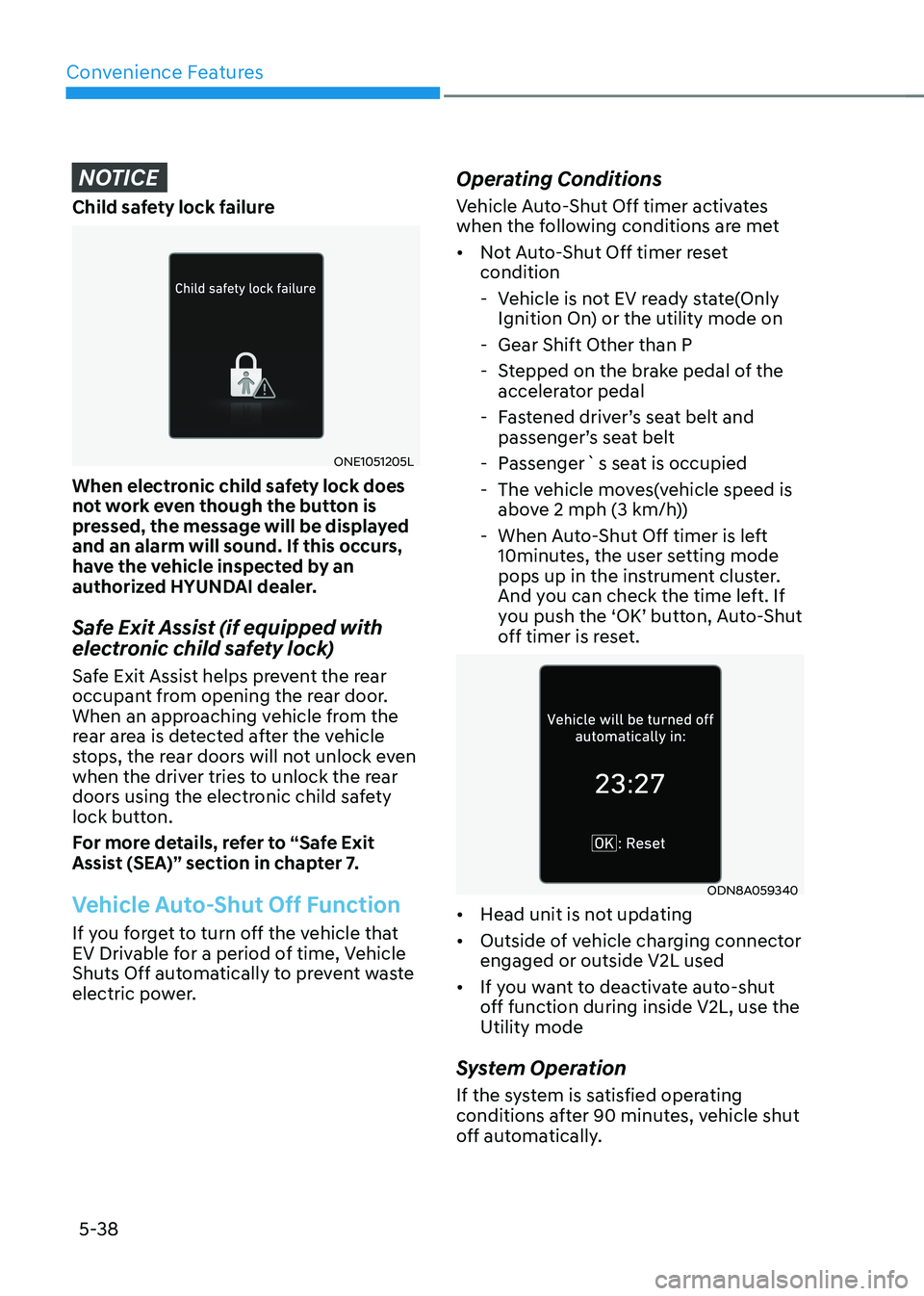
Child safety lock failure
ONE1051205L
When electronic child safety lock does
not work even though the button is
pressed, the message will be displayed
and an alarm will sound. If this occurs,
have the vehicle inspected by an
authorized HYUNDAI dealer.
Safe Exit Assist (if equipped with
electronic child safety lock)
Safe Exit Assist helps prevent the rear
occupant from opening the rear door.
When an approaching vehicle from the
rear area is detected after the vehicle
stops, the rear doors will not unlock even
when the driver tries to unlock the rear
doors using the electronic child safety
lock button.
For more details, refer to “Safe Exit
Assist (SEA)” section in chapter 7.
Vehicle Auto-Shut Off Function
If you forget to turn off the vehicle that
EV Drivable for a period of time, Vehicle
Shuts Off automatically to prevent waste
electric power. Operating Conditions
Vehicle Auto-Shut Off timer activates
when the following conditions are met •
Not Auto-Shut Off timer reset condition
- Vehicle is not EV ready state(Only Ignition On) or the utility mode on
- Gear Shift Other than P
- Stepped on the brake pedal of the accelerator pedal
- Fastened driver’s seat belt and passenger’s seat belt
- Passenger`s seat is occupied
- The vehicle moves(vehicle speed is above 2 mph (3 km/h))
- When Auto-Shut Off timer is left 10minutes, the user setting mode
pops up in the instrument cluster.
And you can check the time left. If
you push the ‘OK’ button, Auto-Shut
off timer is reset.
ODN8A059340
• Head unit is not updating
• Outside of vehicle charging connector engaged or outside V2L used
• If you want to deactivate auto-shut
off function during inside V2L, use the Utility mode
System Operation
If the system is satisfied operating
conditions after 90 minutes, vehicle shut
off automatically.
Page 236 of 680
Convenience Features
5-44
steering wheel
Electric Power Steering (EPS)
The system assists you with steering the
vehicle. If the vehicle is turned off or
if the power steering system becomes
inoperative, you may still steer the
vehicle, but it will require increased
steering effort.
Should you notice any change in the
effort required to steer during normal
vehicle operation, have the system
checked by an authorized HYUNDAI
dealer.
CAUTION
If Electric Power Steering does not
operate normally, the
warning light
and the message ‘Check motor driven
power steering’ will illuminate on the
instrument cluster. You may steer the
vehicle, but it will require increased
steering efforts. Take the vehicle to an
authorized HYUNDAI dealer and have
the system checked as soon as possible.
Information
The following symptoms may occur during normal vehicle operation: • The steering effort may be high
immediately after pressing the Start/Stop button to the ON position. This happens as the system performs
the EPS system diagnostics. When the
diagnostics are completed, the steering
wheel effort will return to its normal condition.
• When the battery voltage is low, you
might have to put more steering effort.
However, it is a temporary condition so
that it will return to normal condition
after charging the battery.
• A click noise may be heard from the
EPS relay after the Start/Stop button is
in the ON or OFF position.
• Motor noise may be heard when the
vehicle is at a stop or at a low driving speed.
• When you operate the steering wheel
in low temperatures, abnormal noise
may occur. If the temperature rises, the
noise will disappear. This is a normal condition.
• When an error is detected from EPS, the steering effort assist function will
not be activated in order to prevent
fatal accidents. Instrument cluster
warning lights may be on or the steering effort may be high. If these
symptoms occur, drive the vehicle to
a safe area as soon as it is safe to do so. Have the system checked by an
authorized HYUNDAI dealer as soon as possible.