phone Hyundai Ioniq Hybrid 2017 User Guide
[x] Cancel search | Manufacturer: HYUNDAI, Model Year: 2017, Model line: Ioniq Hybrid, Model: Hyundai Ioniq Hybrid 2017Pages: 553, PDF Size: 59.51 MB
Page 237 of 553
3-135
Convenient features of your vehicle
3
USB charger
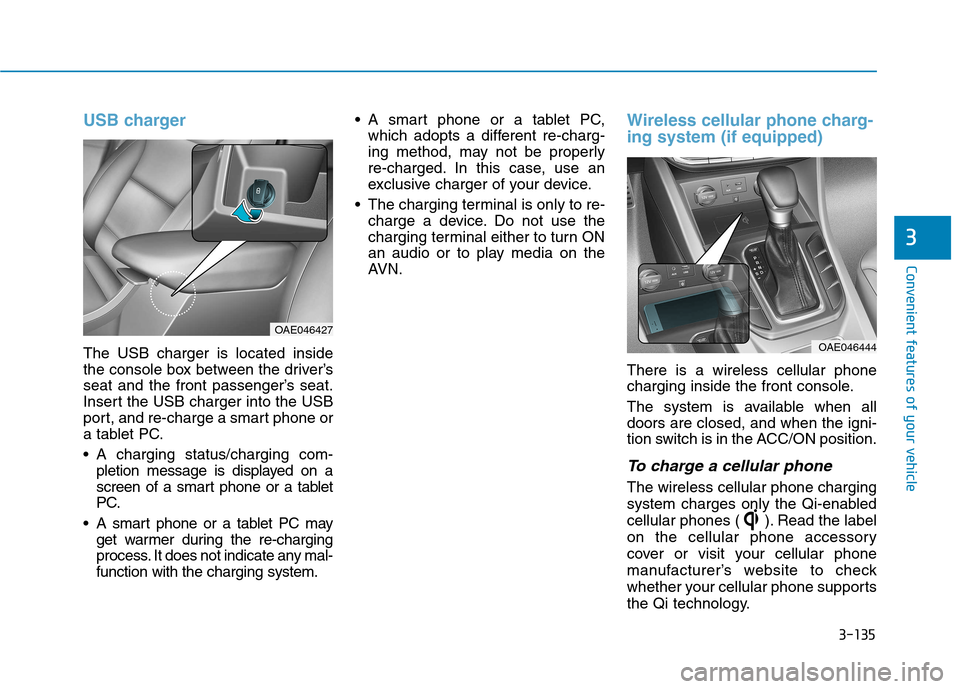
The USB charger is located inside
the console box between the driver’s
seat and the front passenger’s seat.
Insert the USB charger into the USB
port, and re-charge a smart phone or
a tablet PC.
A charging status/charging com-pletion message is displayed on a
screen of a smart phone or a tablet
PC.
A smart phone or a tablet PC may get warmer during the re-charging
process. It does not indicate any mal-function with the charging system. A smart phone or a tablet PC,
which adopts a different re-charg-
ing method, may not be properly
re-charged. In this case, use an
exclusive charger of your device.
The charging terminal is only to re- charge a device. Do not use the
charging terminal either to turn ON
an audio or to play media on the
AVN.
Wireless cellular phone charg- ing system (if equipped)
There is a wireless cellular phone
charging inside the front console.
The system is available when all doors are closed, and when the igni-
tion switch is in the ACC/ON position.
To charge a cellular phone
The wireless cellular phone charging
system charges only the Qi-enabled
cellular phones ( ). Read the label
on the cellular phone accessory
cover or visit your cellular phone
manufacturer’s website to check
whether your cellular phone supports
the Qi technology.
OAE046444
OAE046427
Page 238 of 553
3-136
Convenient features of your vehicle
The wireless charging process starts
when you put a Qi-enabled cellularphone on the wireless charging unit.
1. Remove other items, including thesmart key, from the wireless charg-
ing unit. If not, the wireless charg-
ing process may be interrupted.
2. The indicator illuminates in orange during the charging process. The
indicator color changes to green,when the charging process iscompleted.
3. You can turn ON or OFF the wire- less charging function in the user
settings mode on the instrument
cluster. (For further information,
refer to the “LCD Modes” in this
chapter.)
Slightly change the cellular phoneposition, when the cellular phone is
not being charged. Make sure that
the indicator illuminates in orange.
The indicator color may not change
to green in accordance with the cel-
lular phone type, even though the
charging process is completed. The
indicator blinks in orange for 10 sec-onds when there is a malfunctionwith the wireless charging system. In this case, temporarily stop the
charging process, and re-attempt to
wirelessly charge your cellular phoneagain.
The system warns you with a mes-
sage on the LCD display when you do
not take out the cellular phone fromthe wireless charging unit with thefront door open and the Engine
Start/Stop button in the OFF position.
The wireless cellular phone
charging system may not sup-
port certain cellular phones,
which are not verified for the Qi
specification ( ).
Locate your cell phone well in the middle of the wireless cellular
phone charging system. Even
when your cell phone locates
slightly to one side, the charging
speed may decrease.
The wireless charging process may temporarily stop, when a
smart key function operates (i.e.
starting the engine, opening the
doors, closing the doors). For certain cell phones, the indi-
cator color may not change to
green, even when the wireless
charging process is properlycompleted.
The wireless charging process may temporarily stop, when tempera-
ture abnormally increases inside
the wireless cellular phone charg-
ing system. The wireless charging
process restarts, when tempera-
ture falls to a proper level.
The wireless charging process may temporarily stop when there
is any metallic item, such as a
coin, between the wireless cellu-
lar phone charging system and a
cellular phone.
NOTICE
Page 242 of 553
Multimedia System
Multimedia system .................................................4-2Aux, USB and iPod ®®
port ................................................4-2
Antenna ...............................................................................4-2
Steering wheel audio control .........................................4-3
Bluetooth®®Wireless Technology hands-free ..........4-4
Audio / Video / Navigation system (AVN) ..................4-5
How vehicle radio works .................................................4-5
Audio (Without touch screen) .............................4-8 Feature of your audio......................................................4-9Radio .................................................................................4-16
Media..................................................................................4-18
Phone .................................................................................4-32
Setup ..................................................................................4-40
Declaration of conformity ..................................4-42 CE for EU ..........................................................................4-42
NCC for Taiwan ................................................................4-43
4
Page 245 of 553
Do not operate audio remote con-
trol buttons simultaneously.
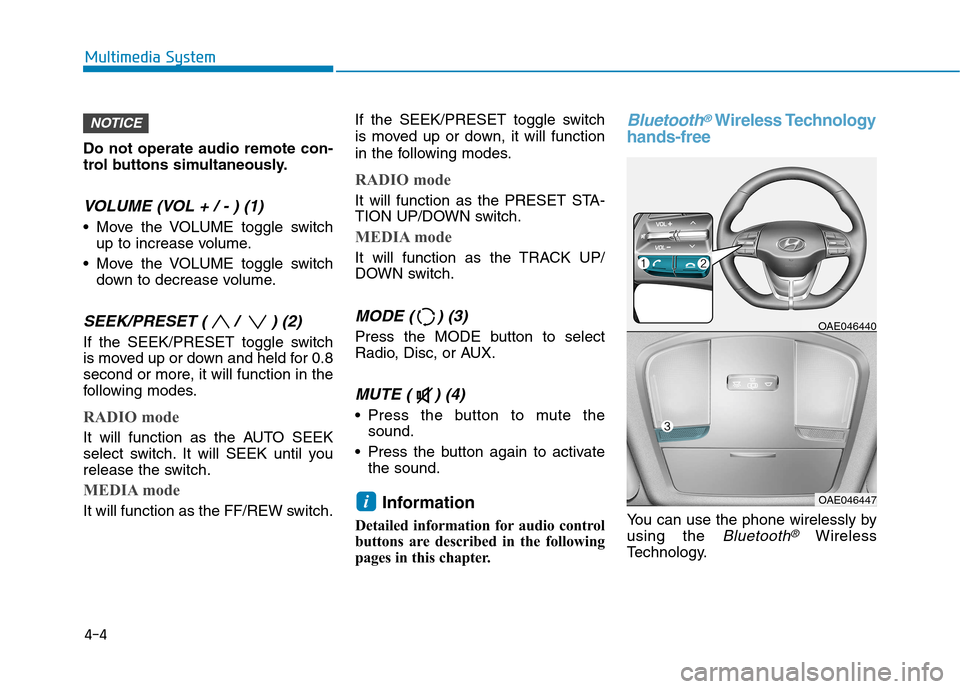
VOLUME (VOL + / - ) (1)
Move the VOLUME toggle switchup to increase volume.
Move the VOLUME toggle switch down to decrease volume.
SEEK/PRESET ( / ) (2)
If the SEEK/PRESET toggle switch
is moved up or down and held for 0.8
second or more, it will function in the
following modes.
RADIO mode
It will function as the AUTO SEEK
select switch. It will SEEK until you
release the switch.
MEDIA mode
It will function as the FF/REW switch. If the SEEK/PRESET toggle switch
is moved up or down, it will function
in the following modes.
RADIO mode
It will function as the PRESET STA-
TION UP/DOWN switch.
MEDIA mode
It will function as the TRACK UP/
DOWN switch.
MODE ( ) (3)
Press the MODE button to select
Radio, Disc, or AUX.
MUTE ( ) (4)
Press the button to mute the
sound.
Press the button again to activate the sound.
Information
Detailed information for audio control
buttons are described in the following
pages in this chapter.
Bluetooth®Wireless Technology
hands-free
You can use the phone wirelessly by using the
Bluetooth®Wireless
Technology.
OAE046440
OAE046447i
NOTICE
4-4
Multimedia System
Page 246 of 553
(1) Call / Answer button
(2) Call end button
(3) Microphone
Audio : For detailed information,refer to “AUDIO” in this chapter.
AVN : Detailed information for the
Bluetooth® Wireless Technology
hands-free is described in the man-
ual supplied separately.
Audio / Video / Navigation sys-
tem (AVN) (if equipped)
Detailed information for the AVN sys-
tem is described in a separately sup-
plied manual.
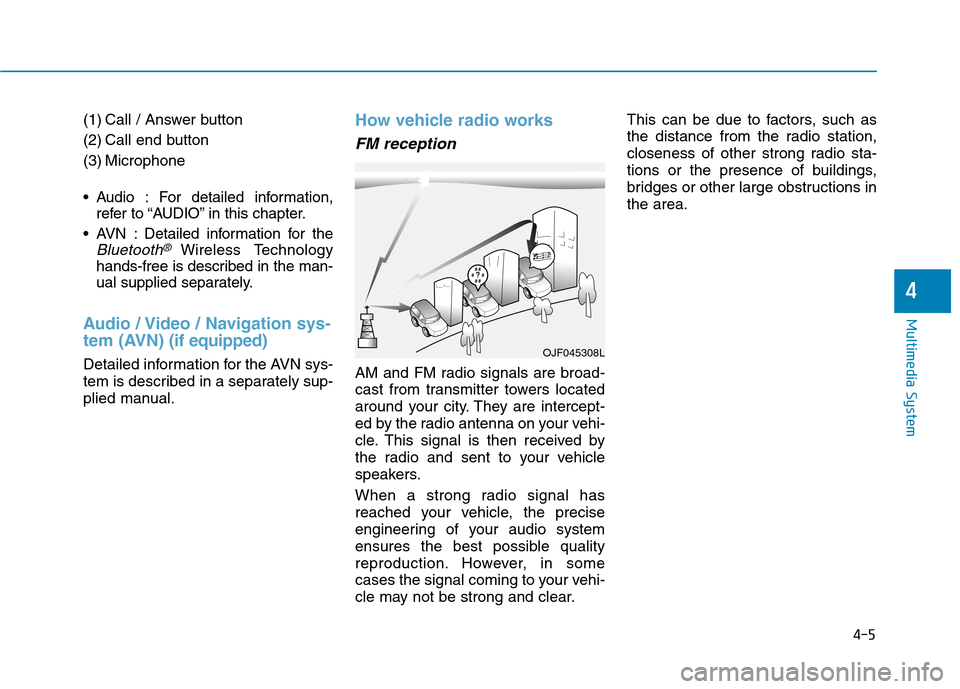
How vehicle radio works
FM reception
AM and FM radio signals are broad-
cast from transmitter towers located
around your city. They are intercept-
ed by the radio antenna on your vehi-
cle. This signal is then received by
the radio and sent to your vehicle
speakers.
When a strong radio signal has
reached your vehicle, the precise
engineering of your audio system
ensures the best possible quality
reproduction. However, in some
cases the signal coming to your vehi-
cle may not be strong and clear. This can be due to factors, such as
the distance from the radio station,
closeness of other strong radio sta-
tions or the presence of buildings,
bridges or other large obstructions inthe area.
OJF045308L
4-5
Multimedia System
4
Page 248 of 553
4-7
Multimedia System
4
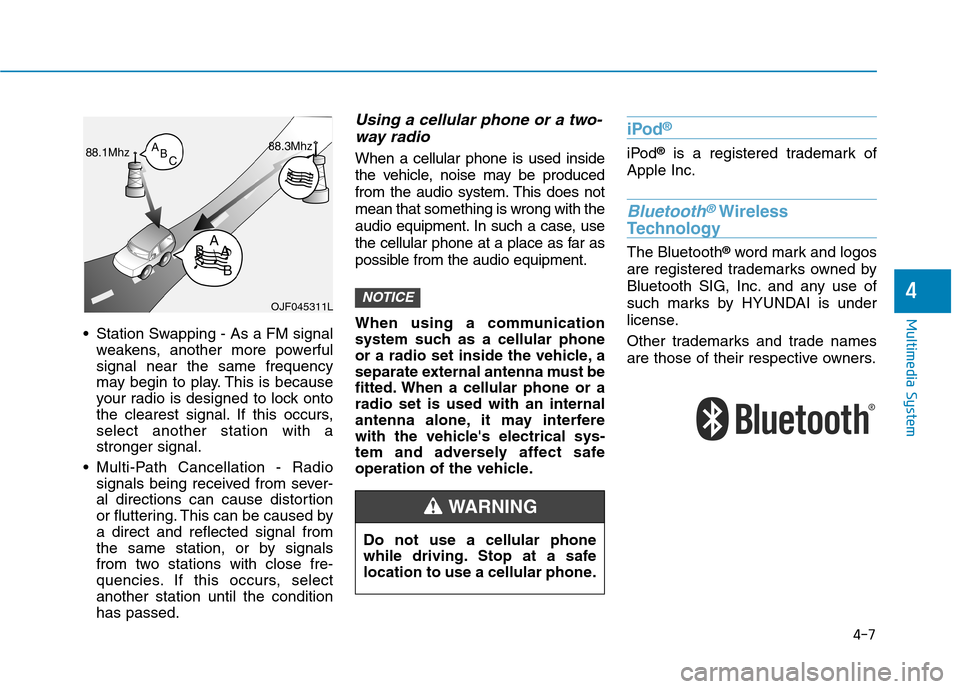
Station Swapping - As a FM signalweakens, another more powerful signal near the same frequency
may begin to play. This is because
your radio is designed to lock onto
the clearest signal. If this occurs,select another station with astronger signal.
Multi-Path Cancellation - Radio signals being received from sever-
al directions can cause distortion
or fluttering. This can be caused bya direct and reflected signal from
the same station, or by signals
from two stations with close fre-
quencies. If this occurs, selectanother station until the conditionhas passed.
Using a cellular phone or a two-
way radio
When a cellular phone is used inside
the vehicle, noise may be produced
from the audio system. This does notmean that something is wrong with the
audio equipment. In such a case, use
the cellular phone at a place as far as
possible from the audio equipment.
When using a communication
system such as a cellular phone
or a radio set inside the vehicle, a
separate external antenna must be
fitted. When a cellular phone or aradio set is used with an internal
antenna alone, it may interfere
with the vehicle's electrical sys-
tem and adversely affect safe
operation of the vehicle.
iPod ®
iPod
®
is a registered trademark of
Apple Inc.
Bluetooth®Wireless
Technology
The Bluetooth ®
word mark and logos
are registered trademarks owned by
Bluetooth SIG, Inc. and any use of
such marks by HYUNDAI is under
license.
Other trademarks and trade names
are those of their respective owners.
NOTICEOJF045311L
Do not use a cellular phone
while driving. Stop at a safe
location to use a cellular phone.
WARNING
Page 250 of 553
4-9
Multimedia System
4
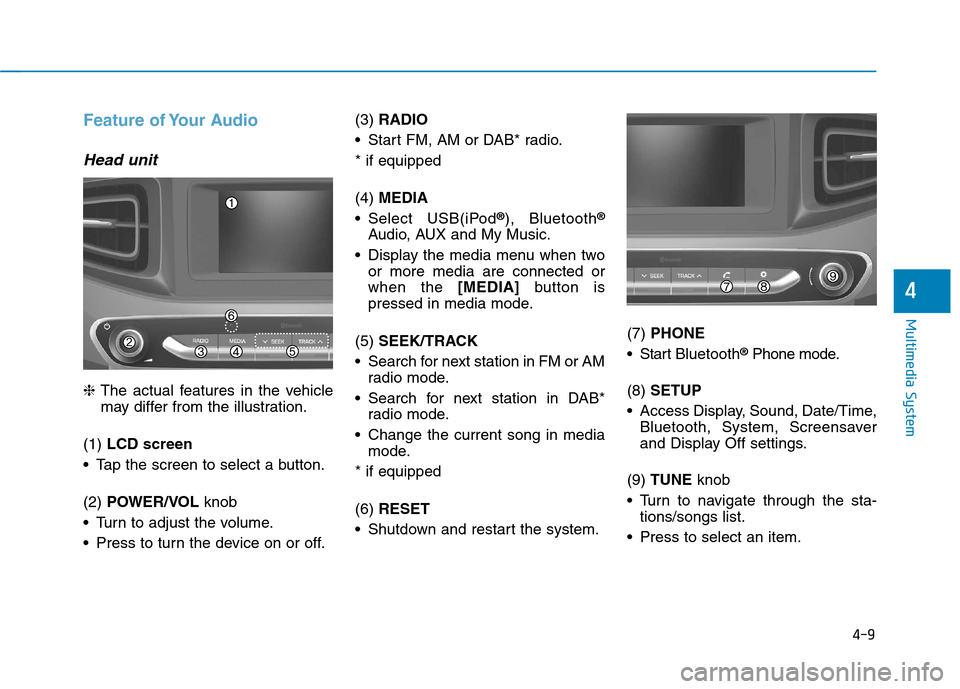
Feature of Your Audio
Head unit
❈The actual features in the vehicle
may differ from the illustration.
(1) LCD screen
Tap the screen to select a button. (2) POWER/VOL knob
Turn to adjust the volume.
Press to turn the device on or off. (3)
RADIO
Start FM, AM or DAB* radio.* if equipped (4) MEDIA
Select USB(iPod ®
), Bluetooth ®
Audio, AUX and My Music.
Display the media menu when two or more media are connected or when the [MEDIA]button is
pressed in media mode.
(5) SEEK/TRACK
Search for next station in FM or AM radio mode.
Search for next station in DAB* radio mode.
Change the current song in media mode.
* if equipped (6) RESET
Shutdown and restart the system. (7)
PHONE
Start Bluetooth ®
Phone mode.
(8) SETUP
Access Display, Sound, Date/Time, Bluetooth, System, Screensaver
and Display Off settings.
(9) TUNE knob
Turn to navigate through the sta- tions/songs list.
Press to select an item.
Page 253 of 553
4-12
Multimedia System
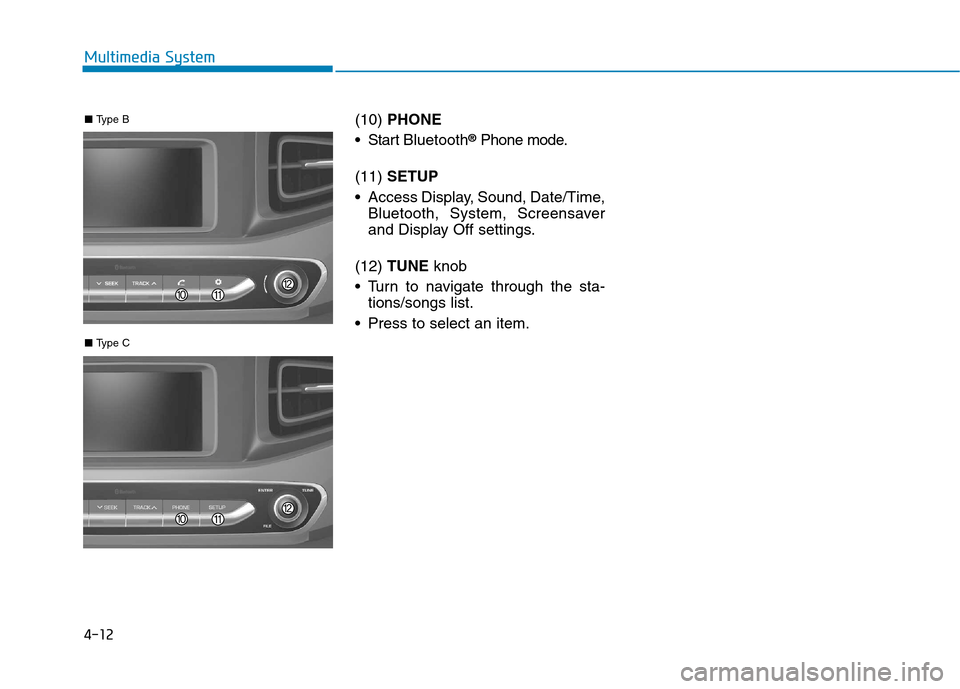
(10) PHONE
Start Bluetooth ®
Phone mode.
(11) SETUP
Access Display, Sound, Date/Time, Bluetooth, System, Screensaver
and Display Off settings.
(12) TUNE knob
Turn to navigate through the sta- tions/songs list.
Press to select an item.
■ Type C
■ Type B
Page 254 of 553
4-13
Multimedia System
4
Multimedia System
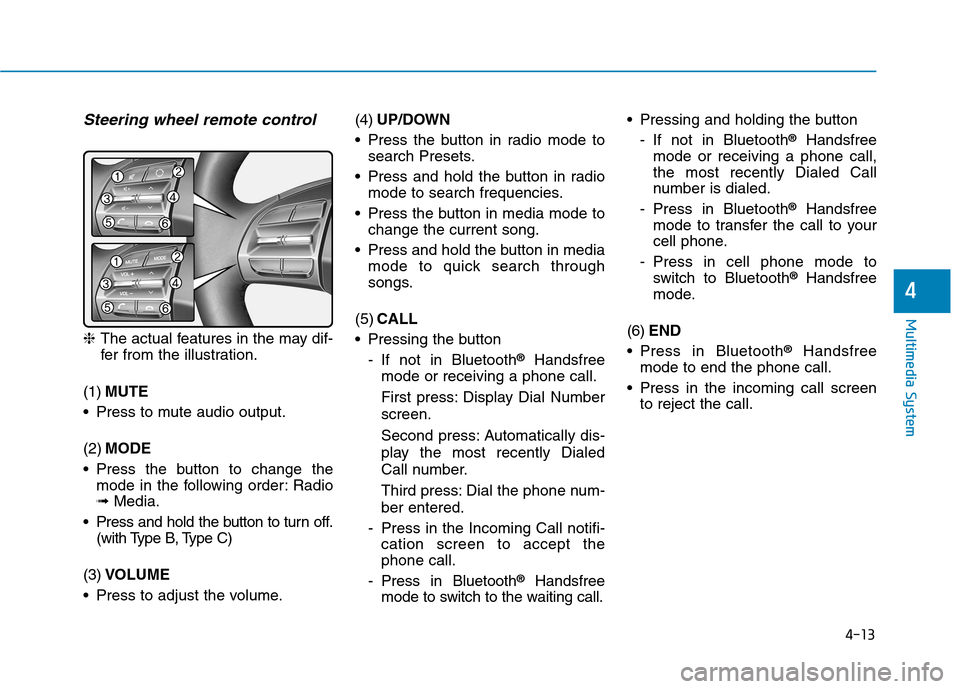
Steering wheel remote control
❈The actual features in the may dif-
fer from the illustration.
(1) MUTE
Press to mute audio output. (2) MODE
Press the button to change the mode in the following order: Radio ➟ Media.
Press and hold the button to turn off. (with Type B, Type C)
(3) VOLUME
Press to adjust the volume. (4)
UP/DOWN
Press the button in radio mode to search Presets.
Press and hold the button in radio mode to search frequencies.
Press the button in media mode to change the current song.
Press and hold the button in media mode to quick search through
songs.
(5) CALL
Pressing the button
- If not in Bluetooth ®
Handsfree
mode or receiving a phone call.
First press: Display Dial Number screen.
Second press: Automatically dis-
play the most recently Dialed
Call number.
Third press: Dial the phone num- ber entered.
- Press in the Incoming Call notifi- cation screen to accept the phone call.
- Press in Bluetooth ®
Handsfree
mode to switch to the waiting call. Pressing and holding the button
- If not in Bluetooth ®
Handsfree
mode or receiving a phone call,the most recently Dialed Call
number is dialed.
- Press in Bluetooth ®
Handsfree
mode to transfer the call to your
cell phone.
- Press in cell phone mode to switch to Bluetooth ®
Handsfree
mode.
(6) END
Press in Bluetooth ®
Handsfree
mode to end the phone call.
Press in the incoming call screen to reject the call.
Page 255 of 553
4-14
Multimedia System
Do not stare at the screen
while driving. Staring at the
screen for prolonged periodsof time could lead to trafficaccidents.
Do not disassemble, assem-
ble, or modify the audio sys-
tem. Such acts could result in
accidents, fire, or electric
shock.
Using the phone while driving
may lead to a lack of attentionof traffic conditions andincrease the likelihood of
accidents. Use the phone fea-
ture after parking the vehicle.
Heed caution not to spill water
or introduce foreign objects
into the device. Such acts
could lead to smoke, fire, or
product malfunction. (Continued)
WARNING(Continued)
Please refrain from use if the
screen is blank or no sound
can be heard as these signs
may indicate product mal func-
tion. Continued use in suchconditions could lead to acci-
dents (fires, electric shock) or
product malfunctions.
Do not touch the antenna dur- ing thunder or lightening as
such acts may lead to light-
ning induced electric shock.
Do not stop or park in park- ing-restricted areas to operate
the product. Such acts couldlead to traffic accidents.
Use the system with the vehi-
cle ignition turned on.
Prolonged use with the igni- tion turned off could result in
battery discharge.
Driving while distracted can
result in a loss of vehicle con-
trol that may lead to an acci-
dent, severe personal injury,
and death. The driver’s primary
responsibility is in the safe and
legal operation of a vehicle, and
use of any handheld devices,
other equipment, or vehicle sys-
tems which take the driver’s
eyes, attention and focus away
from the safe operation of a
vehicle or which are not permis-
sible by law should never beused during operation of the
vehicle.
WARNING