steering wheel Hyundai Ioniq Plug-in Hybrid 2018 Owner's Guide
[x] Cancel search | Manufacturer: HYUNDAI, Model Year: 2018, Model line: Ioniq Plug-in Hybrid, Model: Hyundai Ioniq Plug-in Hybrid 2018Pages: 589, PDF Size: 21.53 MB
Page 197 of 589
3-105
Convenient features of your vehicle
3
Range/Average fuel economy/Instant fuel economy
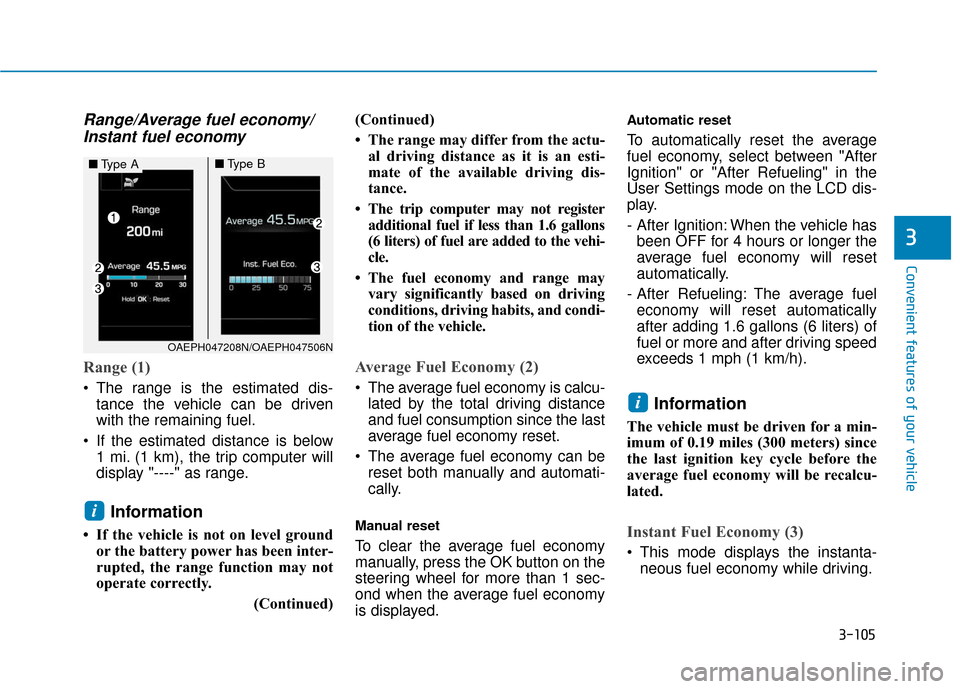
Range (1)
The range is the estimated dis-
tance the vehicle can be driven
with the remaining fuel.
If the estimated distance is below 1 mi. (1 km), the trip computer will
display "----" as range.
Information
• If the vehicle is not on level groundor the battery power has been inter-
rupted, the range function may not
operate correctly.
(Continued)(Continued)
• The range may differ from the actu-
al driving distance as it is an esti-
mate of the available driving dis-
tance.
• The trip computer may not register additional fuel if less than 1.6 gallons
(6 liters) of fuel are added to the vehi-
cle.
• The fuel economy and range may vary significantly based on driving
conditions, driving habits, and condi-
tion of the vehicle.
Average Fuel Economy (2)
The average fuel economy is calcu-lated by the total driving distance
and fuel consumption since the last
average fuel economy reset.
The average fuel economy can be reset both manually and automati-
cally.
Manual reset
To clear the average fuel economy
manually, press the OK button on the
steering wheel for more than 1 sec-
ond when the average fuel economy
is displayed.
Automatic reset
To automatically reset the average
fuel economy, select between "After
Ignition" or "After Refueling" in the
User Settings mode on the LCD dis-
play.
- After Ignition: When the vehicle hasbeen OFF for 4 hours or longer the
average fuel economy will reset
automatically.
- After Refueling: The average fuel economy will reset automatically
after adding 1.6 gallons (6 liters) of
fuel or more and after driving speed
exceeds 1 mph (1 km/h).
Information
The vehicle must be driven for a min-
imum of 0.19 miles (300 meters) since
the last ignition key cycle before the
average fuel economy will be recalcu-
lated.
Instant Fuel Economy (3)
This mode displays the instanta- neous fuel economy while driving.
i
i
OAEPH047208N/OAEPH047506N
■ Type A■Type B
Page 198 of 589
3-106
Convenient features of your vehicle
Tripmeter/Average vehicle speed/Timer
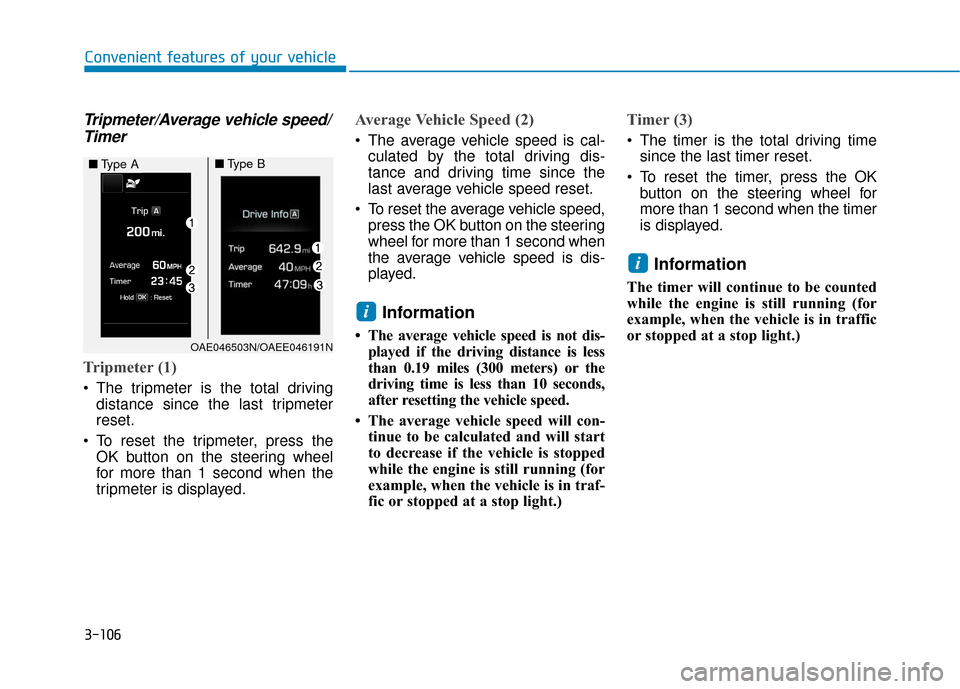
Tripmeter (1)
The tripmeter is the total driving
distance since the last tripmeter
reset.
To reset the tripmeter, press the OK button on the steering wheel
for more than 1 second when the
tripmeter is displayed.
Average Vehicle Speed (2)
The average vehicle speed is cal-culated by the total driving dis-
tance and driving time since the
last average vehicle speed reset.
To reset the average vehicle speed, press the OK button on the steering
wheel for more than 1 second when
the average vehicle speed is dis-
played.
Information
• The average vehicle speed is not dis-played if the driving distance is less
than 0.19 miles (300 meters) or the
driving time is less than 10 seconds,
after resetting the vehicle speed.
• The average vehicle speed will con- tinue to be calculated and will start
to decrease if the vehicle is stopped
while the engine is still running (for
example, when the vehicle is in traf-
fic or stopped at a stop light.)
Timer (3)
The timer is the total driving timesince the last timer reset.
To reset the timer, press the OK button on the steering wheel for
more than 1 second when the timer
is displayed.
Information
The timer will continue to be counted
while the engine is still running (for
example, when the vehicle is in traffic
or stopped at a stop light.)
i
i
OAE046503N/OAEE046191N
■ Type A■Type B
Page 202 of 589

3-110
Convenient features of your vehicle
To change the trip mode, toggle the
" , " switch on the steering wheel.
Range
The range is the estimated distance
the vehicle can be driven with the
remaining fuel in the fuel tank
(Gasoline) and high-voltage (hybrid)
battery (Electric).
If the estimated distance is below 1
mph (1 km/h), the trip computer will
display "---" as the range.
Information
• If the vehicle is not on level ground or the battery power has been inter-
rupted, the range function may not
operate correctly.
• The range may differ from the actu- al driving distance as it is an esti-
mate of the available driving dis-
tance.
• The trip computer may not register additional fuel if less than 1.6 gallons
(6 liters) of fuel are added to the vehi-
cle.
• The range may vary significantly based on driving conditions, driving
habits, and condition of the vehicle.
i
OAE046402OAEPH047534N/OAEPH047153N
■ Type A■Type B
■
■
■
■
T
T
T
T
y
y
y
y
p
p
p
p
e
e
e
e
A
A
A
A
■
■
■
■
T
T
T
T
y
y
y
y
p
p
p
p
e
e
e
e
B
B
B
B
■
■
■
■
T
T
T
T
y
y
y
y
p
p
p
p
e
e
e
e
C
C
C
C
Page 203 of 589

3-111
Convenient features of your vehicle
3
Range/Average fuel economy/Instant fuel economy
Range (1)
The range is the estimated dis-
tance the vehicle can be driven
with the remaining fuel.
If the estimated distance is below 1 mi. (1 km), the trip computer will
display "----" as range.
Information
• If the vehicle is not on level groundor the battery power has been inter-
rupted, the range function may not
operate correctly.
• The range may differ from the actu- al driving distance as it is an esti-
mate of the available driving dis-
tance.
• The trip computer may not register additional fuel if less than 1.6 gallons
(6 liters) of fuel are added to the vehi-
cle.
• The fuel economy and range may vary significantly based on driving
conditions, driving habits, and condi-
tion of the vehicle.
Average Fuel Economy (2)
The average fuel economy is cal-culated by the total driving dis-
tance and fuel consumption since
the last average fuel economy
reset.
The average fuel economy can be reset both manually and automati-
cally.
Manual reset
To clear the average fuel economy
manually, press the OK button on the
steering wheel for more than 1 sec-
ond when the average fuel economy
is displayed.
Automatic reset
To automatically reset the average
fuel economy, select between "After
Ignition" or "After Refueling" in the
User Settings mode on the LCD dis-
play.
- After Ignition: When the vehicle hasbeen OFF for 4 hours or longer the
average fuel economy will reset
automatically.
- After Refueling: The average fuel economy will reset automatically
after adding 1.6 gallons (6 liters) of
fuel or more and after driving speed
exceeds 1 mph (1 km/h).
Information
The vehicle must be driven for a mini-
mum of 0.19 miles (300 meters) since the
last ignition key cycle before the average
fuel economy will be recalculated.
i
i
■ Type A■Type B
OAEPH047208N/OAEPH047506N
Page 204 of 589

3-112
Convenient features of your vehicle
Instant Fuel Economy (3)
This mode displays the instanta-neous fuel economy while driving.
Tripmeter/Average vehiclespeed/Timer
Tripmeter (1)
The tripmeter is the total driving
distance since the last tripmeter
reset.
To reset the tripmeter, press the OK button on the steering wheel
for more than 1 second when the
tripmeter is displayed.
Average Vehicle Speed (2)
The average vehicle speed is cal-culated by the total driving dis-
tance and driving time since the
last average vehicle speed reset.
To reset the average vehicle speed, press the OK button on the steering
wheel for more than 1 second when
the average vehicle speed is dis-
played.
Information
• The average vehicle speed is not dis-played if the driving distance is less
than 0.19 miles (300 meters) or the
driving time is less than 10 seconds,
after resetting the vehicle speed.
• The average vehicle speed will con- tinue to be calculated and will start
to decrease if the vehicle is stopped
while the engine is still running (for
example, when the vehicle is in traf-
fic or stopped at a stop light.)
i
OAE046503N/OAEE046191N
■ Type A■Type B
Page 205 of 589

3-113
Convenient features of your vehicle
3
Timer (3)
The timer is the total driving timesince the last timer reset.
To reset the timer, press the OK button on the steering wheel for
more than 1 second when the timer
is displayed.
Information
The timer will continue to be counted
while the engine is still running (for
example, when the vehicle is in traffic
or stopped at a stop light.)
Digital speedometer
This message shows the speed of
the vehicle.
Drive Info display
At the end of each driving cycle, the
Driving Info message is displayed.
This display shows the trip distance
(1), average fuel economy (2), remain-
ing vehicle range (3), and charging
status (4).
This information is displayed for a few
seconds when you turn off the vehicle,
and then goes off automatically. The
information is calculated for each time
the vehicle is turned on.
Information
If sunroof open warning is displayed
in the cluster, the Driving Info mes-
sage will not be displayed.
i
i
OTLA045193/OAEE046153R
■ Type A■Type B
OAEPH047195N/OAEPH047538N
■Type A■Type B
Page 248 of 589
Multimedia System
Multimedia System.................................................4-2
AUX, USB and iPod®port ...............................................4-2
Antenna ........................................................................\
.......4-2
Steering Wheel Audio Controls ......................................4-3
Bluetooth®Wireless Technology Hands-Free ...........4-4
Audio (Display Audio) / Video /
Navigation System (AVN).................................................4-5
How Vehicle Audio Works ...............................................4-5
Features of Your Vehicle.................................................4-7
Audio (with Touch Screen) .................................4-10
Feature of Your Audio ...................................................4-11
Radio........................................................................\
...........4-16
SiriusXM ........................................................................\
....4-18
Media........................................................................\
..........4-19
Phone ........................................................................\
.........4-32
Siri ........................................................................\
...............4-40
Setup ........................................................................\
..........4-41
Declaration of Conformity ..................................4-44
FCC ........................................................................\
..............4-44
4
Page 250 of 589
4-3
Multimedia System
4
Roof antenna
The roof antenna receives both AM
and FM broadcast signals. Rotate
the roof antenna in a counterclock-
wise direction to remove it. Rotate it
in a clockwise direction to reinstall it. Before entering a place with a low
height clearance or a car wash,
remove the antenna by rotating it
counterclockwise. If not, the
antenna may be damaged.
When reinstalling your antenna, it is important that it is fully
tightened and adjusted to the
upright position to ensure prop-
er reception.
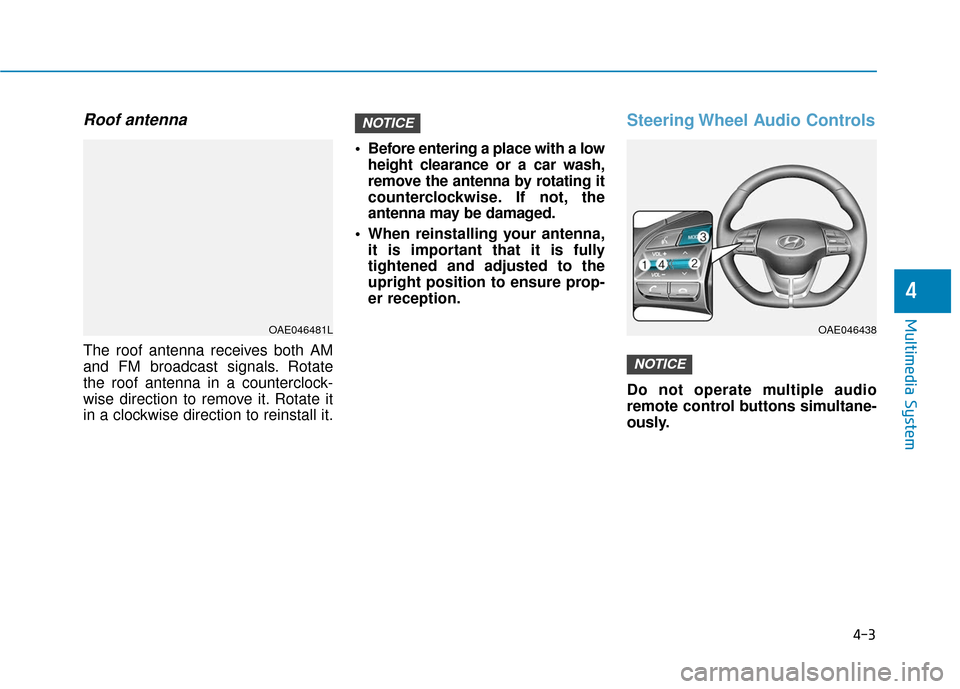
Steering Wheel Audio Controls
Do not operate multiple audio
remote control buttons simultane-
ously.
NOTICE
NOTICE
OAE046481LOAE046438
Page 260 of 589

4-13
Multimedia System
4
Steering wheel remote control
❈The actual image in the may differ
from the illustration.
(1) VOICE
- If Siri is not active: Starts Siri.
- If Siri is active: Re-starts Siri.
Siri is deactivated.
(2) MODE
Press the button to change the mode in the following order: Radio
➟ Media.
Press and hold the button to turn off. (3)
MUTE
Press to mute audio output.
When a call is active, mic volume is muted.
(4) VOLUME
Press to adjust the volume.
(5) UP/DOWN
Press the button in radio mode to search Presets.
Press and hold the button in radio mode to search frequencies.
Press the button in media mode to change the current song.
Press and hold the button in media mode to quick search through songs.
(6) CALL
Pressing the button - If not in
Bluetooth®Wireless
Technology Handsfree mode or
receiving a phone call.
First press: Display Dial Number
screen.
Second press: Automatically dis-
play the most recently Dialed
Call number. Third press: Dial the phone num-
ber entered.
- Press in the Incoming Call notifica- tion screen to accept the phone call.
- Press in
Bluetooth®Wireless
Technology Handsfree mode to
switch to the waiting call.
Pressing and holding the button (over 1.0 seconds)
- If not in
Bluetooth®Wireless
Technology Handsfree mode or
receiving a phone call, the most
recently Dialed Call number is
dialed.
- Press in
Bluetooth®Wireless
Technology Handsfree mode to
transfer the call to your cell
phone.
- Press in cell phone mode to switch to
Bluetooth®Wireless
Technology Handsfree mode.
(7) END
Press in
Bluetooth®Wireless
Technology Handsfree mode to
end the phone call.
Press in the incoming call screen to reject the call.
Page 281 of 589
4-34
Multimedia System
Even if your device supports
Bluetooth®Wireless Technology, a
Bluetooth®Wireless Technology con-
nection cannot be established if
the device’s
Bluetooth®Wireless
Technology function is switched off.
Search and connect with the
Bluetooth®Wireless Technology
function enabled.
Pair or connect
Bluetooth®Wireless
Technology de vices to the audio
system with the vehicle at a stand-
still.
If a
Bluetooth®Wireless Technology
connection is lost due to abnormal
conditions while a
Bluetooth®
Wireless Technology de vice is con-
nected (communication range
exceeded, device power OFF,
communication errors, etc.), the
disconnected
Bluetooth®Wireless
Technology de vice is searched for
and automatically reconnected.
If you want to disable the
Bluetooth®
Wireless Technology device auto-con-
nect function, turn the
Bluetooth®
Wireless Technology function OFF on
your device. Consult the user manu-
als for individual devices to see
whether
Bluetooth®Wireless
Technology is supported. Handsfree call quality and volume
may vary depending on the type of
Bluetooth®Wireless Technology
device.
Some
Bluetooth®Wireless
Technology de vices are subject to
intermittent
Bluetooth®Wireless
Technology connection failures. In
this case, use the following
method.
1) Turn the
Bluetooth®Wireless
Technology function off on your
Bluetooth®Wireless Technology
device ➟Turn it on and try again.
2) Delete the paired device from both the audio system and
Bluetooth®Wireless Technology
device, then pair again.
3) Power down your
Bluetooth®
Wireless Technology de vice ➟
Turn it on and try again.
4) Completely remove the battery from your
Bluetooth®Wireless
Technology de vice; reinsert it,
reboot, and attempt connection.
5) Restart the vehicle and reat- tempt connection.
Pairing a Bluetooth®Wireless
Technology device
Information on pairing Bluetooth®
Wireless Technology devices
Pairing refers to the process of pair-
ing
Bluetooth®Wireless Technology
cell phones or devices with the sys-
tem prior to connection. This is a nec-
essary procedure for
Bluetooth®
Wireless Technology connection and
usage.
Up to five devices can be paired.
Pairing Bluetooth
®device is not
allowed while vehicle is moving.
Pairing the first Bluetooth®Wireless
Technology device
Press the [PHONE] button on the
audio system or the [CALL] button
on the steering wheel remote control
➟ Search for the vehicle from the
Bluetooth®Wireless Technology
device, and pair ➟ Enter the passkey
on the
Bluetooth®Wireless Technology
device or approve passkey ➟
Bluetooth®Wireless Technologypair-
ing completed.