reset HYUNDAI IX20 2017 User Guide
[x] Cancel search | Manufacturer: HYUNDAI, Model Year: 2017, Model line: IX20, Model: HYUNDAI IX20 2017Pages: 456, PDF Size: 9.46 MB
Page 182 of 456
Features of your vehicle
104
4
INTERIOR FEATURES
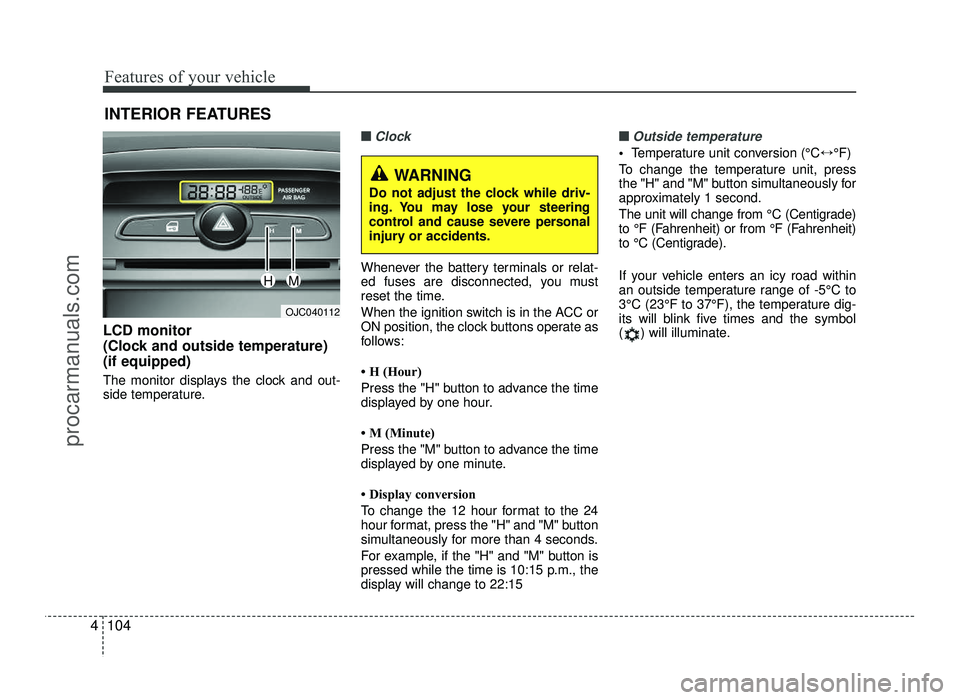
LCD monitor
(Clock and outside temperature)(if equipped)
The monitor displays the clock and out-
side temperature.
■■Clock
Whenever the battery terminals or relat-
ed fuses are disconnected, you must
reset the time.
When the ignition switch is in the ACC or
ON position, the clock buttons operate as
follows:
H (Hour)
Press the "H" button to advance the time
displayed by one hour.
M (Minute)
Press the "M" button to advance the time
displayed by one minute.
Display conversion
To change the 12 hour format to the 24
hour format, press the "H" and "M" button
simultaneously for more than 4 seconds.
For example, if the "H" and "M" button is
pressed while the time is 10:15 p.m., the
display will change to 22:15
■■Outside temperature
Temperature unit conversion (°C ↔°F)
To change the temperature unit, press
the "H" and "M" button simultaneously for
approximately 1 second.
The unit will change from °C (Centigrade)
to °F (Fahrenheit) or from °F (Fahrenheit)
to °C (Centigrade).
If your vehicle enters an icy road within
an outside temperature range of -5°C to
3°C (23°F to 37°F), the temperature dig-
its will blink five times and the symbol
( ) will illuminate.
OJC040112
WARNING
Do not adjust the clock while driv-
ing. You may lose your steering
control and cause severe personal
injury or accidents.
HM
procarmanuals.com
Page 199 of 456
4121
Features of your vehicle
✽✽NOTICE - USING THE
iPod ®
DEVICE
Some iPod models may not support communication protocol and files
may not properly play.
Supported iPod models:
- iPod Mini
- iPod 4th(Photo) ~ 6th(Classic)generation
- iPod Nano 1st~4th generation
- iPod Touch 1st~2nd generation
The order of search or playback of songs in the iPod can be different
from the order searched in the
audio system.
If the iPod disabled due to its own malfunction, reset the iPod. (Reset:
Refer to iPod manual)
An iPod may not operate normally on low battery.
Some iPod devices, such as the
iPhone, can be connected through the
Bluetooth ®
Wireless Technology inter-
face. The device must have audio
Bluetooth ®
Wireless Technology capa-
bility (such as for stereo headphone
Bluetooth ®
Wireless Technology). The
device can play, but it will not be con-
trolled by the audio system. (Continued)(Continued)
To use iPod features within the
audio, use the cable provided upon
purchasing an iPod device.
Skipping or improper operation may occur depending on the char-
acteristics of your iPod/Phone
device.
If your iPhone is connected to both the Bluetooth ®
Wireless Technology
and USB, the sound may not be
properly played. In your iPhone,
select the Dock connector or
Bluetooth ®
Wireless Technology to
change the sound output (source).
When connecting iPod with the iPod Power Cable, insert the con-
nector to the multimedia socket
completely. If not inserted com-
pletely, communications between
iPod and audio may be interrupted.
When adjusting the sound effects of the iPod and the audio system, the
sound effects of both devices will
overlap and might reduce or distort
the quality of the sound.
(Continued)(Continued)
Deactivate (turn off) the equalizer
function of an iPod when adjusting
the audio system’s volume, and
turn off the equalizer of the audio
system when using the equalizer of
an iPod.
When not using iPod with car
audio, detach the iPod cable from
iPod. Otherwise, iPod may remain
in accessory mode, and may not
work properly.
procarmanuals.com
Page 204 of 456
Features of your vehicle
126
4
SYSTEM CONTROLLERS AND FUNCTIONS
❈ Display and settings may differ
depending on the selected audio.
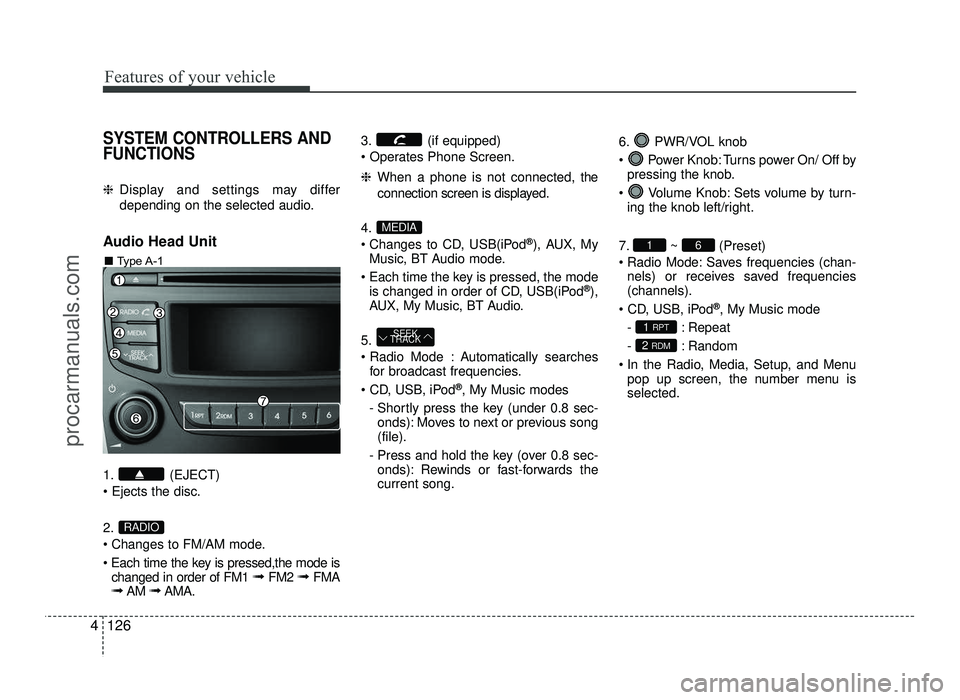
Audio Head Unit
1. (EJECT) 2.
Changes to FM/AM mode.
Each time the key is pressed,the mode is changed in order of FM1 ➟ FM2 ➟ FMA
➟ AM ➟AMA. 3. (if equipped)
❈
When a phone is not connected, the
connection screen is displayed.
4.
Changes to CD, USB(iPod ®
), AUX, My
Music, BT Audio mode.
Each time the key is pressed, the mode is changed in order of CD, USB(iPod ®
),
AUX, My Music, BT Audio.
5.
Automatically searches for broadcast frequencies.
®
, My Music modes
- Shortly press the key (under 0.8 sec- onds): Moves to next or previous song (file).
- Press and hold the key (over 0.8 sec- onds): Rewinds or fast-forwards thecurrent song. 6. PWR/VOL knob
Power Knob: Turns power On/ Off by
pressing the knob.
Volume Knob: Sets volume by turn- ing the knob left/right.
7. ~ (Preset)
Radio Mode: Saves frequencies (chan- nels) or receives saved frequencies (channels).
®
, My Music mode
- : Repeat
- : Random
In the Radio, Media, Setup, and Menu pop up screen, the number menu is selected.
2 RDM
1 RPT
61
SEEK
TRACK
MEDIA
RADIO
■ Type A-1
procarmanuals.com
Page 206 of 456
Features of your vehicle
128
4
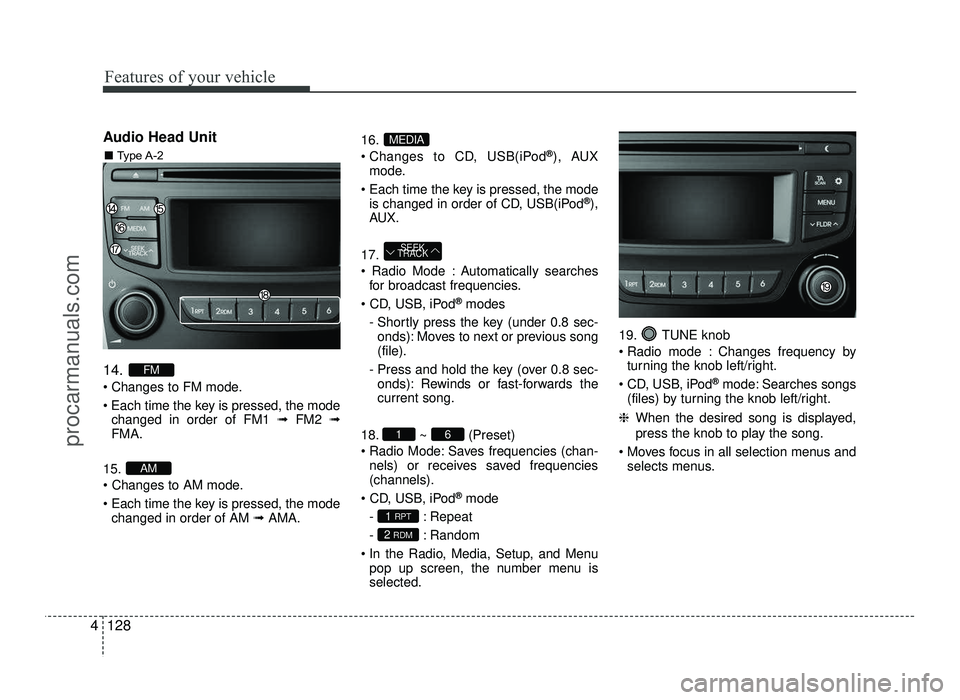
Audio Head Unit 14.
Changes to FM mode.
Each time the key is pressed, the mode
changed in order of FM1 ➟FM2 ➟
FMA.
15.
Each time the key is pressed, the mode changed in order of AM ➟AMA. 16.
Changes to CD, USB(iPod
®
), AUX
mode.
Each time the key is pressed, the mode is changed in order of CD, USB(iPod ®
),
AU X.
17.
Automatically searches for broadcast frequencies.
®
modes
- Shortly press the key (under 0.8 sec- onds): Moves to next or previous song (file).
- Press and hold the key (over 0.8 sec- onds): Rewinds or fast-forwards thecurrent song.
18. ~ (Preset)
Radio Mode: Saves frequencies (chan- nels) or receives saved frequencies(channels).
®
mode
- : Repeat
- : Random
In the Radio, Media, Setup, and Menu pop up screen, the number menu is selected. 19. TUNE knob
Radio mode : Changes frequency by
turning the knob left/right.
CD, USB, iPod ®
mode: Searches songs
(files) by turning the knob left/right.
❈ When the desired song is displayed,
press the knob to play the song.
Moves focus in all selection menus and selects menus.
2 RDM
1 RPT
61
SEEK
TRACK
MEDIA
AM
FM
■ Type A-2
procarmanuals.com
Page 214 of 456
Features of your vehicle
136
4
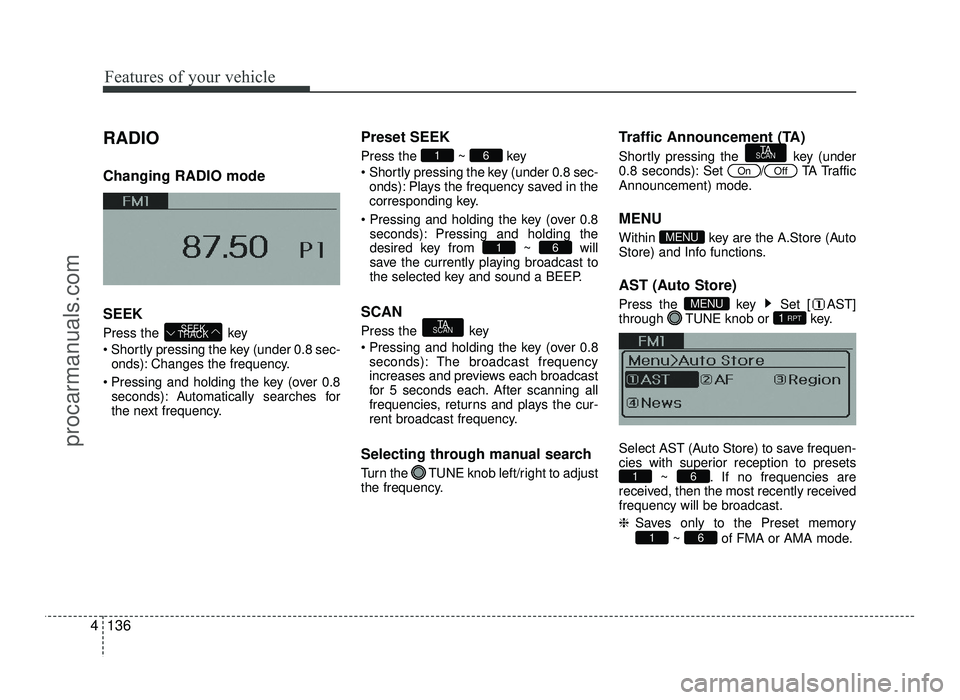
RADIO Changing RADIO mode SEEK
Press the key
Shortly pressing the key (under 0.8 sec-
onds): Changes the frequency.
Pressing and holding the key (over 0.8 seconds): Automatically searches for
the next frequency. Preset SEEK Press
the ~ key
Shortly pressing the key (under 0.8 sec- onds): Plays the frequency saved in the
corresponding key.
seconds): Pressing and holding thedesired key from ~ will
save the currently playing broadcast to
the selected key and sound a BEEP.
SCAN
Press the key
Pressing and holding the key (over 0.8 seconds): The broadcast frequency
increases and previews each broadcast
for 5 seconds each. After scanning all
frequencies, returns and plays the cur-
rent broadcast frequency.
Selecting through manual search
Turn the TUNE knob left/right to adjust
the frequency. Traffic Announcement (TA)
Shortly pressing the key (under
0.8 seconds): Set
/TA Traffic
Announcement) mode.
MENU
Within key are the A.Store (Auto
Store) and Info functions.
AST (Auto Store)
Press the key Set [ AST]
through TUNE knob or key.
Select AST (Auto Store) to save frequen-
cies with superior reception to presets ~ . If no frequencies are
received, then the most recently receivedfrequency will be broadcast. ❈ Saves only to the Preset memory
~ of FMA or AMA mode.
61
61
1 RPTMENU
MENU
OffOn
TA
SCAN
TA
SCAN
61
61
SEEK
TRACK
procarmanuals.com
Page 227 of 456
4149
Features of your vehicle
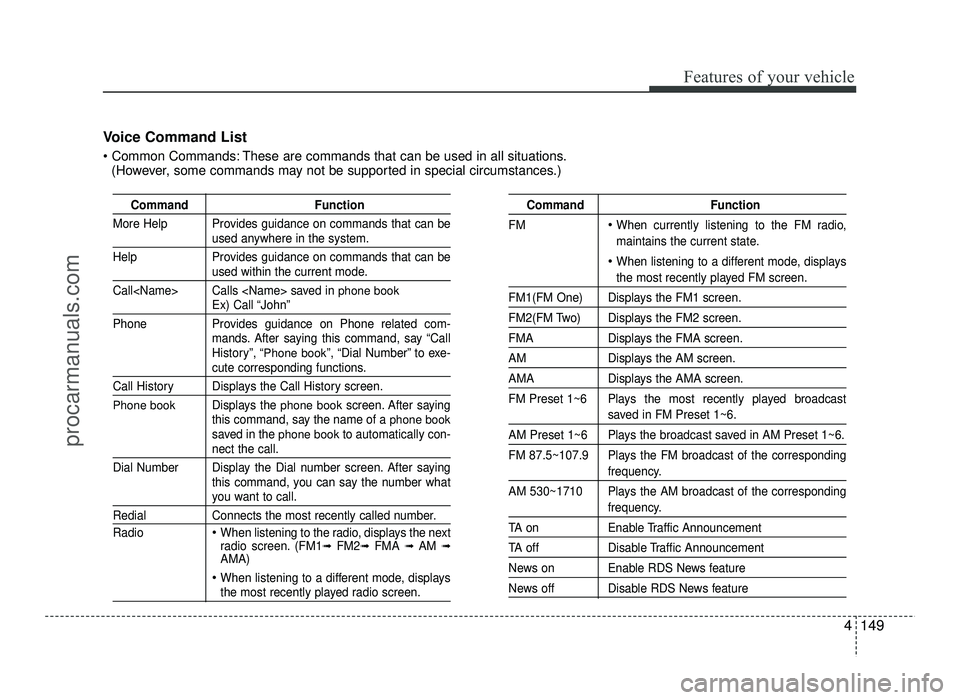
Command Function
More Help Provides guidance on commands that can be
used anywhere in the system.
Help Provides guidance on commands that can be
used within the current mode.
Call
phone bookEx) Call “John”
Phone Provides guidance on Phone related com- mands. After saying this command, say “Call
History”, “
Phone book”, “Dial Number” to exe-cute corresponding functions.
Call History Displays the Call History screen.
Phone bookDisplays the phone bookscreen. After saying
this command, say the name of a phone booksaved in the phone bookto automatically con-nect the call.
Dial Number Display the Dial number screen. After saying this command, you can say the number what
you want to call.
Redial Connects the most recently called number. Radio
When listening to the radio, displays the next
radio screen. (FM1 ➟
FM2 ➟FMA ➟ AM ➟
AMA)
When listening to a different mode, displaysthe most recently played radio screen.
Command Function
FM
When currently listening to the FM radio,
maintains the current state.
When listening to a different mode, displays
the most recently played FM screen.
FM1(FM One) Displays the FM1 screen.
FM2(FM Two) Displays the FM2 screen.
FMA Displays the FMA screen.
AM Displays the AM screen.
AMA Displays the AMA screen.
FM Preset 1~6 Plays the most recently played broadcast
saved in FM Preset 1~6.
AM Preset 1~6 Plays the broadcast saved in AM Preset 1~6.
FM 87.5~107.9 Plays the FM broadcast of the corresponding
frequency.
AM 530~1710 Plays the AM broadcast of the corresponding
frequency.
TA on Enable Traffic Announcement
TA off Disable Traffic Announcement
News on Enable RDS News feature
News off Disable RDS News feature
Voice Command List
These are commands that can be used in all situations. (However, some commands may not be supported in special circumstances.)
procarmanuals.com
Page 229 of 456
4151
Features of your vehicle
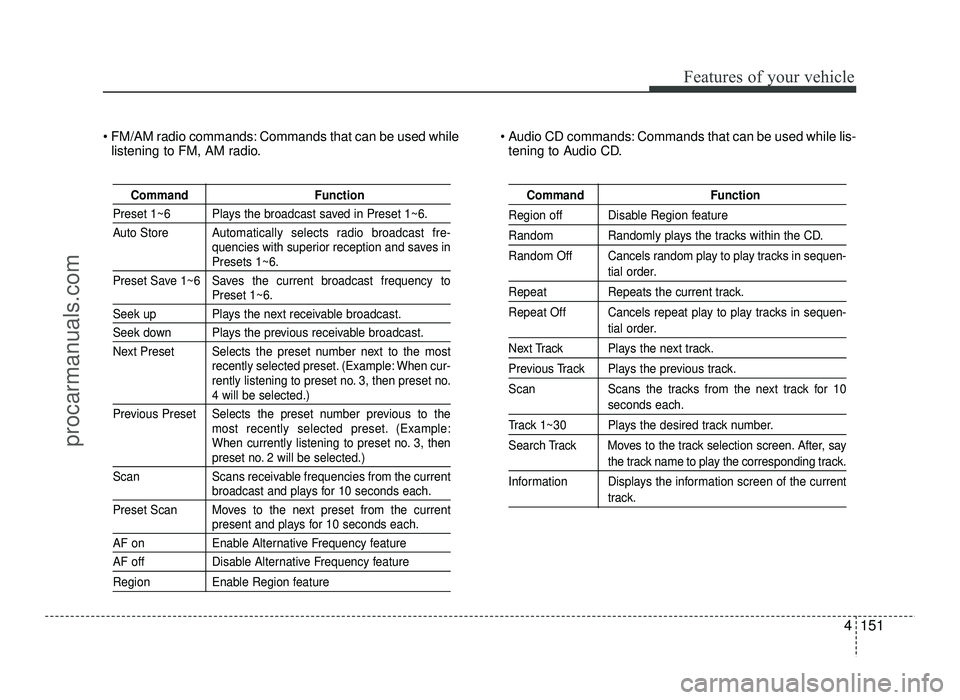
FM/AM radio commands: Commands that can be used whilelistening to FM, AM radio. Audio CD commands: Commands that can be used while lis-
tening to Audio CD.
Command Function
Preset 1~6 Plays the broadcast saved in Preset 1~6.
Auto Store A utomatically selects radio broadcast fre-
quencies with superior reception and saves in
Presets 1~6.
Preset Save 1~6 Saves the current broadcast frequency to
Preset 1~6.
Seek up Plays the next receivable broadcast.
Seek down Plays the previous receivable broadcast.
Next Preset Selects the preset number next to the most recently selected preset. (Example: When cur-
rently listening to preset no. 3, then preset no.
4 will be selected.)
Previous Preset Selects the preset number previous to the most recently selected preset. (Example:
When currently listening to preset no. 3, then
preset no. 2 will be selected.)
Scan Scans receivable frequencies from the current
broadcast and plays for 10 seconds each.
Preset Scan Moves to the next preset from the current
present and plays for 10 seconds each.
AF on Enable Alternative Frequency feature
AF off Disable Alternative Frequency feature
Region Enable Region feature
Command Function
Region off Disable Region feature
Random Randomly plays the tracks within the CD.
Random Off Cancels random play to play tracks in sequen-
tial order.
Repeat Repeats the current track.
Repeat Off Cancels repeat play to play tracks in sequen-
tial order.
Next Track Plays the next track.
Previous Track Plays the previous track.
Scan Scans the tracks from the next track for 10
seconds each.
Track 1~30 Plays the desired track number.
Search Track Moves to the track selection screen. After, say
the track name to play the corresponding track.
Information Displays the information screen of the current
track.
procarmanuals.com
Page 272 of 456
541
Driving your vehicle
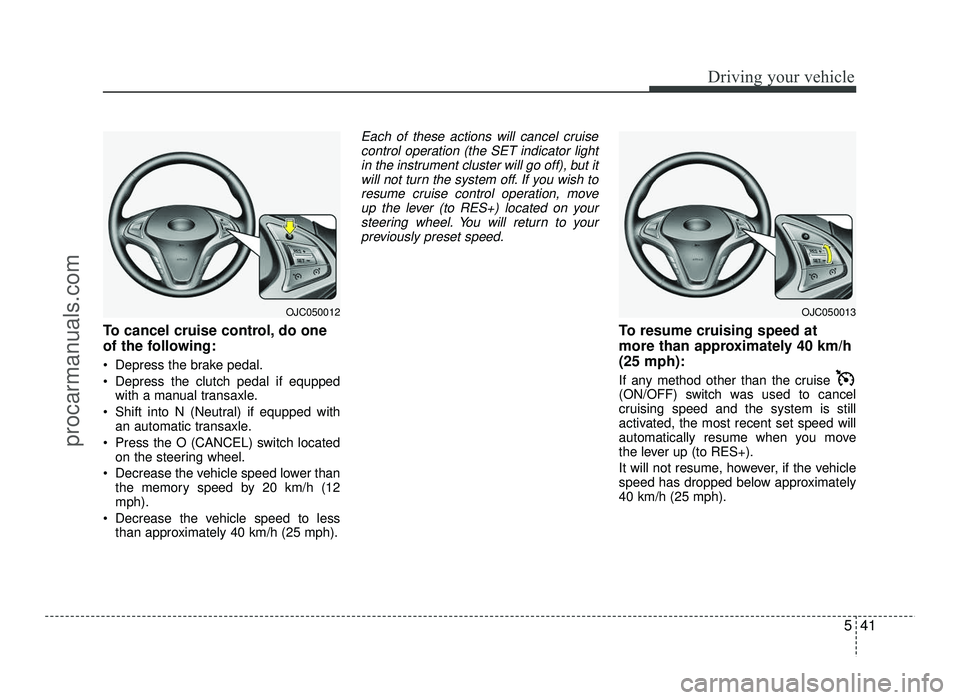
To cancel cruise control, do one
of the following:
Depress the brake pedal.
Depress the clutch pedal if equppedwith a manual transaxle.
Shift into N (Neutral) if equpped with an automatic transaxle.
Press the O (CANCEL) switch located on the steering wheel.
Decrease the vehicle speed lower than the memory speed by 20 km/h (12 mph).
Decrease the vehicle speed to less than approximately 40 km/h (25 mph).
Each of these actions will cancel cruise
control operation (the SET indicator light
in the instrument cluster will go off), but itwill not turn the system off. If you wish toresume cruise control operation, move
up the lever (to RES+) located on your steering wheel. You will return to your
previously preset speed.
To resume cruising speed at
more than approximately 40 km/h(25 mph):
If any method other than the cruise
(ON/OFF) switch was used to cancel
cruising speed and the system is still
activated, the most recent set speed will
automatically resume when you move
the lever up (to RES+).
It will not resume, however, if the vehicle
speed has dropped below approximately40 km/h (25 mph).
OJC050013OJC050012
procarmanuals.com
Page 274 of 456
543
Driving your vehicle
You can set the speed limit when you do
not want to drive over a specific speed.
If you drive over the preset speed limit,
the warning system operates (set speed
limit will blink and chime will sound) until
the vehicle speed returns within thespeed limit.
✽✽NOTICE
While speed limit control is in opera-
tion, the cruise control system cannot be
activated.
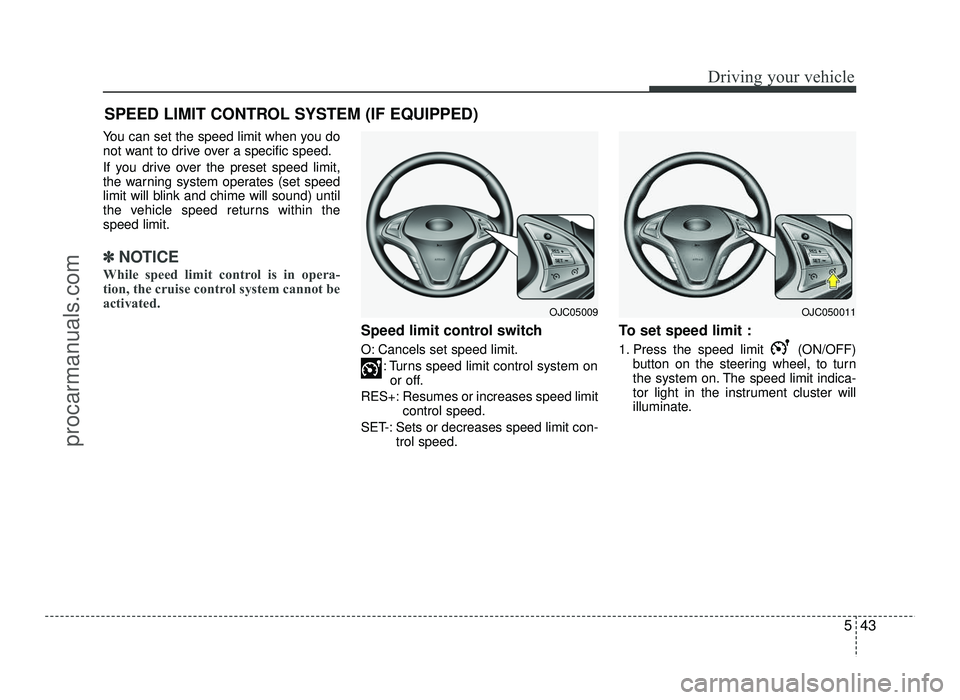
Speed limit control switch
O: Cancels set speed limit. : Turns speed limit control system onor off.
RES+: Resumes or increases speed limit control speed.
SET-: Sets or decreases speed limit con- trol speed. To set speed limit :
1. Press the speed limit (ON/OFF)
button on the steering wheel, to turn
the system on. The speed limit indica-
tor light in the instrument cluster will
illuminate.
SPEED LIMIT CONTROL SYSTEM (IF EQUIPPED)
OJC050011OJC05009
procarmanuals.com
Page 275 of 456
Driving your vehicle
44
5
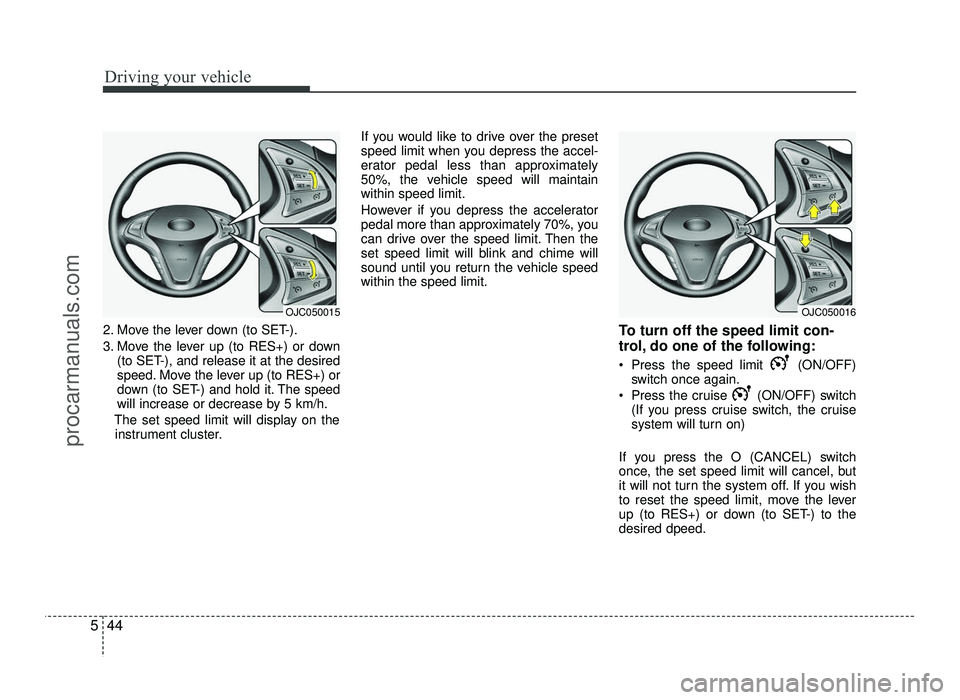
2. Move the lever down (to SET-).
3. Move the lever up (to RES+) or down
(to SET-), and release it at the desired
speed. Move the lever up (to RES+) or
down (to SET-) and hold it. The speed
will increase or decrease by 5 km/h.
The set speed limit will display on the instrument cluster. If you would like to drive over the preset
speed limit when you depress the accel-
erator pedal less than approximately
50%, the vehicle speed will maintainwithin speed limit.
However if you depress the accelerator
pedal more than approximately 70%, you
can drive over the speed limit. Then the
set speed limit will blink and chime will
sound until you return the vehicle speedwithin the speed limit.
To turn off the speed limit con-
trol, do one of the following:
Press the speed limit (ON/OFF)switch once again.
Press the cruise (ON/OFF) switch (If you press cruise switch, the cruise
system will turn on)
If you press the O (CANCEL) switch
once, the set speed limit will cancel, but
it will not turn the system off. If you wish
to reset the speed limit, move the lever
up (to RES+) or down (to SET-) to thedesired dpeed.
OJC050016OJC050015
procarmanuals.com