key HYUNDAI IX20 2017 Owner's Guide
[x] Cancel search | Manufacturer: HYUNDAI, Model Year: 2017, Model line: IX20, Model: HYUNDAI IX20 2017Pages: 456, PDF Size: 9.46 MB
Page 158 of 456
Features of your vehicle
80
4
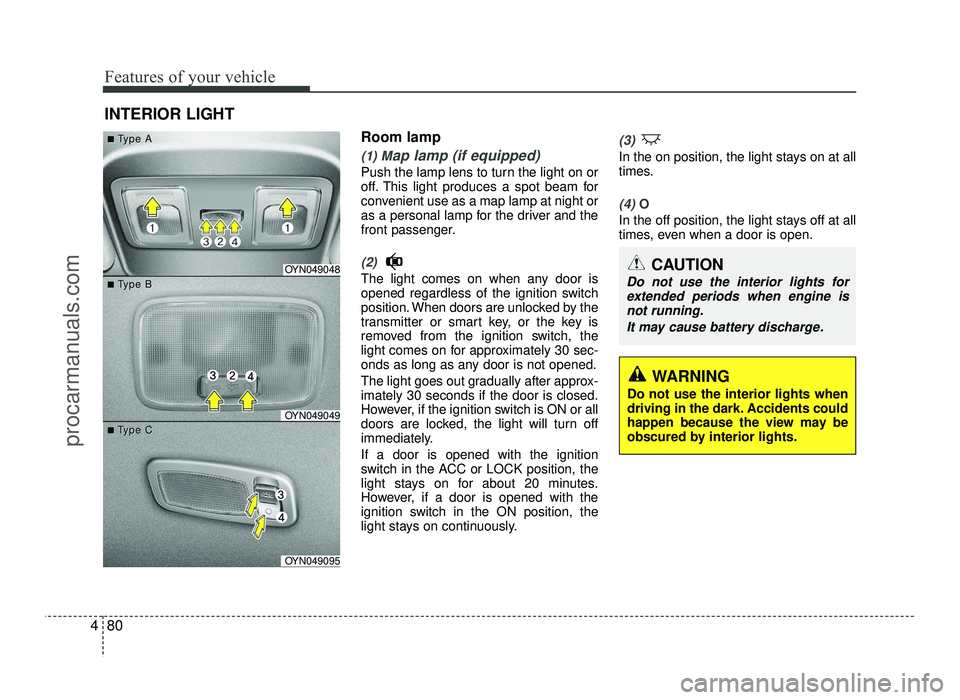
Room lamp
(1) Map lamp (if equipped)
Push the lamp lens to turn the light on or
off. This light produces a spot beam for
convenient use as a map lamp at night or
as a personal lamp for the driver and the
front passenger.
(2)
The light comes on when any door is
opened regardless of the ignition switch
position. When doors are unlocked by the
transmitter or smart key, or the key is
removed from the ignition switch, the
light comes on for approximately 30 sec-
onds as long as any door is not opened.
The light goes out gradually after approx- imately 30 seconds if the door is closed.
However, if the ignition switch is ON or all
doors are locked, the light will turn off
immediately. If a door is opened with the ignition
switch in the ACC or LOCK position, the
light stays on for about 20 minutes.
However, if a door is opened with the
ignition switch in the ON position, the
light stays on continuously.
(3)
In the on position, the light stays on at all
times.
(4) O
In the off position, the light stays off at all
times, even when a door is open.
INTERIOR LIGHT
CAUTION
Do not use the interior lights for
extended periods when engine isnot running.
It may cause battery discharge.OYN049048
OYN049049
OYN049095
■■TType Aype A
■■TType Bype B
■■TType Cype C
WARNING
Do not use the interior lights when
driving in the dark. Accidents could
happen because the view may be
obscured by interior lights.
procarmanuals.com
Page 198 of 456
Features of your vehicle
120
4
(Continued)
If the USB device is divided by log-
ical drives, only the music files on
the highest-priority drive are recog-
nized by car audio.
Devices such as MP3 Player/ Cellular phone/Digital camera can
be unrecognizable by standard
USB I/F can be unrecognizable.
Charging through the USB may not be supported in some mobile
devices.
USB HDD or USB types liable to connection failures due to vehicle
vibrations are not supported. (i-
stick type)
Some non-standard USB devices
(METAL COVER TYPE USB) can
be unrecognizable.
Some USB flash memory readers (such as CF, SD, micro SD, etc.) or
external-HDD type devices can be
unrecognizable.
Music files protected by DRM (DIGITAL RIGHTS MANAGE-
MENT) are not recognizable. (Continued)(Continued)
The data in the USB memory may be
lost while using this audio.
Always back up important data on
a personal storage device.
Please avoid using USB memory prod-
ucts which can be used
as key chains or cellu-
lar phone accessories
as they could cause damage to the
USB jack. Please make certain only
to use plug type connector prod-
ucts.
procarmanuals.com
Page 204 of 456
Features of your vehicle
126
4
SYSTEM CONTROLLERS AND FUNCTIONS
❈ Display and settings may differ
depending on the selected audio.
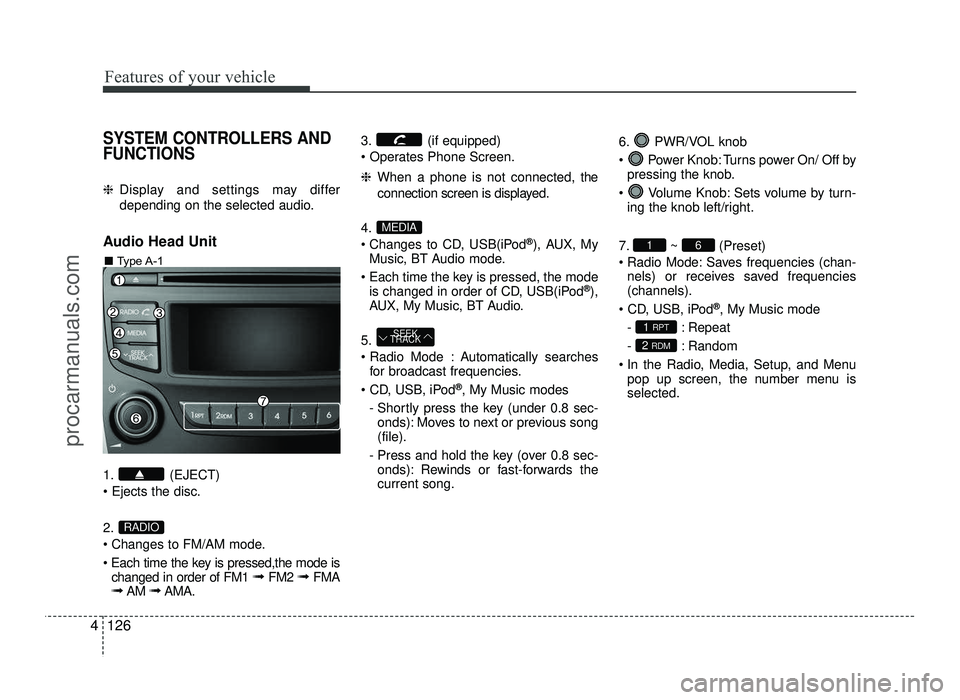
Audio Head Unit
1. (EJECT) 2.
Changes to FM/AM mode.
Each time the key is pressed,the mode is changed in order of FM1 ➟ FM2 ➟ FMA
➟ AM ➟AMA. 3. (if equipped)
❈
When a phone is not connected, the
connection screen is displayed.
4.
Changes to CD, USB(iPod ®
), AUX, My
Music, BT Audio mode.
Each time the key is pressed, the mode is changed in order of CD, USB(iPod ®
),
AUX, My Music, BT Audio.
5.
Automatically searches for broadcast frequencies.
®
, My Music modes
- Shortly press the key (under 0.8 sec- onds): Moves to next or previous song (file).
- Press and hold the key (over 0.8 sec- onds): Rewinds or fast-forwards thecurrent song. 6. PWR/VOL knob
Power Knob: Turns power On/ Off by
pressing the knob.
Volume Knob: Sets volume by turn- ing the knob left/right.
7. ~ (Preset)
Radio Mode: Saves frequencies (chan- nels) or receives saved frequencies (channels).
®
, My Music mode
- : Repeat
- : Random
In the Radio, Media, Setup, and Menu pop up screen, the number menu is selected.
2 RDM
1 RPT
61
SEEK
TRACK
MEDIA
RADIO
■ Type A-1
procarmanuals.com
Page 205 of 456
4127
Features of your vehicle
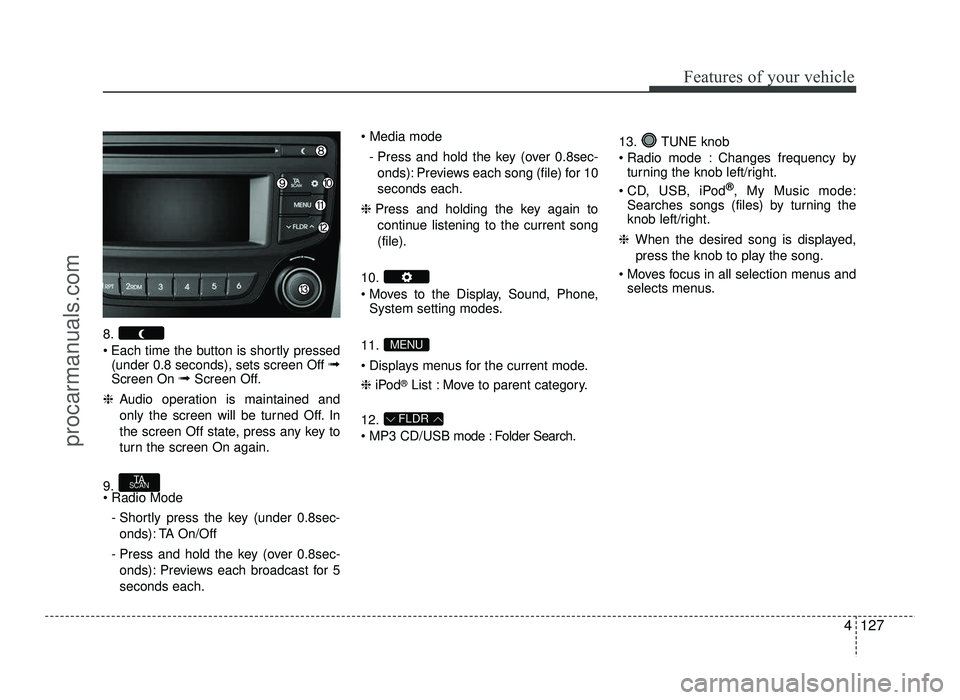
8.
Each time the button is shortly pressed(under 0.8 seconds), sets screen Off ➟
Screen On ➟Screen Off.
❈ Audio operation is maintained and
only the screen will be turned Off. In
the screen Off state, press any key to
turn the screen On again.
9. - Shortly press the key (under 0.8sec-onds): TA On/Off
- Press and hold the key (over 0.8sec- onds): Previews each broadcast for 5 seconds each.
- Press and hold the key (over 0.8sec-onds): Previews each song (file) for 10seconds each.
❈ Press and holding the key again to
continue listening to the current song(file).
10.
Moves to the Display, Sound, Phone, System setting modes.
11.
Displays menus for the current mode. ❈ iPod ®
List : Move to parent category.
12.
MP3 CD/USB mode : Folder Search. 13. TUNE knob
Radio mode : Changes frequency by
turning the knob left/right.
CD, USB, iPod ®
, My Music mode:
Searches songs (files) by turning the
knob left/right.
❈ When the desired song is displayed,
press the knob to play the song.
Moves focus in all selection menus and selects menus.
FLDR
MENU
TA
SCAN
procarmanuals.com
Page 206 of 456
Features of your vehicle
128
4
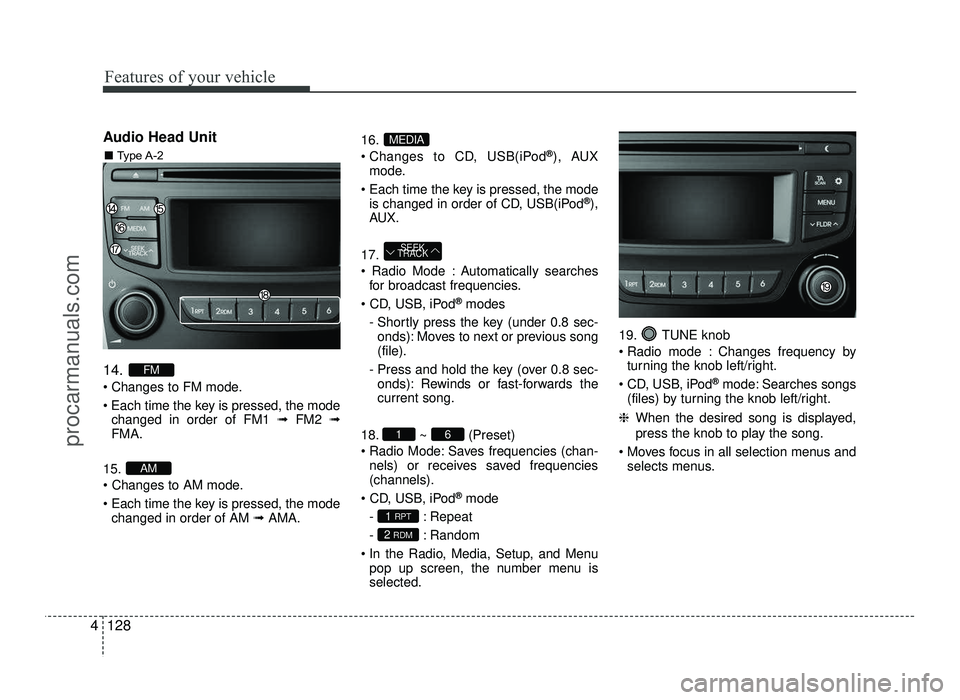
Audio Head Unit 14.
Changes to FM mode.
Each time the key is pressed, the mode
changed in order of FM1 ➟FM2 ➟
FMA.
15.
Each time the key is pressed, the mode changed in order of AM ➟AMA. 16.
Changes to CD, USB(iPod
®
), AUX
mode.
Each time the key is pressed, the mode is changed in order of CD, USB(iPod ®
),
AU X.
17.
Automatically searches for broadcast frequencies.
®
modes
- Shortly press the key (under 0.8 sec- onds): Moves to next or previous song (file).
- Press and hold the key (over 0.8 sec- onds): Rewinds or fast-forwards thecurrent song.
18. ~ (Preset)
Radio Mode: Saves frequencies (chan- nels) or receives saved frequencies(channels).
®
mode
- : Repeat
- : Random
In the Radio, Media, Setup, and Menu pop up screen, the number menu is selected. 19. TUNE knob
Radio mode : Changes frequency by
turning the knob left/right.
CD, USB, iPod ®
mode: Searches songs
(files) by turning the knob left/right.
❈ When the desired song is displayed,
press the knob to play the song.
Moves focus in all selection menus and selects menus.
2 RDM
1 RPT
61
SEEK
TRACK
MEDIA
AM
FM
■ Type A-2
procarmanuals.com
Page 207 of 456
![HYUNDAI IX20 2017 Owners Guide 4129
Features of your vehicle
SETUP
Display Settings
Press the key Select [Display]
through TUNE knob or key
Select menu through TUNE knobMode Pop up
[Mode Pop up] Changes selec- tion mode](/img/35/57916/w960_57916-206.png "HYUNDAI IX20 2017 Owners Guide 4129
Features of your vehicle
SETUP
Display Settings
Press the key Select [Display]
through TUNE knob or key
Select menu through TUNE knobMode Pop up
[Mode Pop up] Changes selec- tion mode")
4129
Features of your vehicle
SETUP
Display Settings
Press the key Select [Display]
through TUNE knob or key
Select menu through TUNE knobMode Pop up
[Mode Pop up] Changes selec- tion mode
During On state, press the or
key to display the mode
change pop up screen.
Scroll text
[Scroll text] Set /
Maintains scroll
: Scrolls only one (1) time.
Song Info
When playing an MP3 file, select the
desired display info from ‘Folder/File’ or
‘Album/Artist/Song’. Sound Settings
Press the key Select [Sound]
through TUNE knob or key
Select menu through TUNE knob
2
RDM
Off
On
OffOn
MEDIARADIO
On
1 RPT
procarmanuals.com
Page 209 of 456
![HYUNDAI IX20 2017 Owners Guide 4131
Features of your vehicle
Phone Settings (if equipped)
Press the key Select [Phone]
through TUNE knob or key
Select menu through TUNE knobPair Phone
Select [Pair Phone] Set through
TUNE](/img/35/57916/w960_57916-208.png "HYUNDAI IX20 2017 Owners Guide 4131
Features of your vehicle
Phone Settings (if equipped)
Press the key Select [Phone]
through TUNE knob or key
Select menu through TUNE knobPair Phone
Select [Pair Phone] Set through
TUNE")
4131
Features of your vehicle
Phone Settings (if equipped)
Press the key Select [Phone]
through TUNE knob or key
Select menu through TUNE knobPair Phone
Select [Pair Phone] Set through
TUNE knob
➀ Search for device names as displayed
on your mobile phone and connect.
➁ Input the passkey displayed on the
screen. (Passkey : 0000)
❈ The device name and passkey will be
displayed on the screen for up to 3
minutes. If pairing is not completed
within the 3 minutes, the mobile phone
pairing process will automatically becanceled.
➂ Pairing completion is displayed. ❈
In some mobile phones, pairing will
automatically be followed by connec-tion.
❈ It is possible to pair up to five
Bluetooth®Wireless Technology
enabled mobile phones.
Phone List The names of up to 5 paired phones will
be displayed.
A [ ] is displayed in front of the currently
connected phone. Select the desired name to setup the
selected phone.3
CAUTION
To pair a Bluetooth®Wireless
Technology enabled mobile phone,
authentication and connectionprocesses are first required. As aresult, you cannot pair your mobile
phone while driving the vehicle. First park your vehicle before use.
procarmanuals.com
Page 211 of 456
![HYUNDAI IX20 2017 Owners Guide 4133
Features of your vehicle
Select [Phone List] Select mobile
phone through TUNE knob Select[Delete] ➀Select the desired mobile phone.
➁ Delete the selected mobile phone.
➂ Deletion comp](/img/35/57916/w960_57916-210.png "HYUNDAI IX20 2017 Owners Guide 4133
Features of your vehicle
Select [Phone List] Select mobile
phone through TUNE knob Select[Delete] ➀Select the desired mobile phone.
➁ Delete the selected mobile phone.
➂ Deletion comp")
4133
Features of your vehicle
Select [Phone List] Select mobile
phone through TUNE knob Select[Delete] ➀Select the desired mobile phone.
➁ Delete the selected mobile phone.
➂ Deletion completion is displayed.
❈ When attempting to delete a currently
connected phone, the phone is firstdisconnected. Phone book Download
This feature is used to download phone
book and call histories into the audio sys-tem.
Select [Phone book Download] Select
through TUNE knob
Auto Download
When connecting a mobile phone, it is
possible to automatically download new
phone book and Call Histories.
Select [Auto Download] Set /
through TUNE knob Audio Streaming
Songs (files) saved in your
Bluetooth®
Wireless Technology enabled
mobile
phone can be played through the audio system.
Select [Audio Streaming] Set / through TUNE knob
Outgoing Volume
This is used to set the volume of your
voice as heard by the other party whileon a
Bluetooth®Wireless Technology
enabled handsfree call.
Select [Outgoing Volume] Set volume through
TUNEknob
❈ Even while on a call, the volume can
be changed by using the
key.
SEEK
TRACK
OffOn
OffOn
CAUTION
The download feature may not be
supported in some mobile phones.
If a different operation is performed
while phone book is being down-loaded, downloading will be discon-
tinued. Phone book already down-loaded will be saved.
When downloading new phone book, delete all previously savedphone book before starting down- load.
CAUTION
The Bluetooth®Wireless Technologyaudio streaming feature may not besupported in some mobile phones.
CAUTION
When you delete a mobile phone,
the mobile phone phone book willalso be erased.
For stable Bluetooth®Wireless
Technology communication, delete the
mobile phone from the audio andalso delete the audio from your
mobile phone.
procarmanuals.com
Page 212 of 456
![HYUNDAI IX20 2017 Owners Guide Features of your vehicle
134
4
Bluetooth®Wireless Technology
System Off
This feature is used when you do not wish to use the
Bluetooth®Wireless
Technologysystem.
Select [Bluetooth System Off] Set](/img/35/57916/w960_57916-211.png "HYUNDAI IX20 2017 Owners Guide Features of your vehicle
134
4
Bluetooth®Wireless Technology
System Off
This feature is used when you do not wish to use the
Bluetooth®Wireless
Technologysystem.
Select [Bluetooth System Off] Set")
Features of your vehicle
134
4
Bluetooth®Wireless Technology
System Off
This feature is used when you do not wish to use the
Bluetooth®Wireless
Technologysystem.
Select [Bluetooth System Off] Set
through TUNE knob ❈ If a phone is already connected, dis- connect the currently connected
phone and turn the
Bluetooth®
Wireless Technology system off. Using the
Bluetooth®Wireless
Technology System
To use
Bluetooth®Wireless Technology
when the system is currently off, follow
these next steps.
Turning On
Bluetooth®Wireless
Technology through the key
Press the key Screen Guidance ❈ Moves to the screen where
Bluetooth®
Wireless Technology functions can be
used and displays guidance.
Turning On
Bluetooth®Wireless
Technology through the key
Press the key Select [Phone]
through TUNE knob or key ➀ A screen asking whether to turn on
Bluetooth®Wireless Technologywill be
displayed.
➁ On the screen, select to turn on
Bluetooth®Wireless Technology and
display guidance. ❈
If the
Bluetooth®Wireless Technology
system is turned on, the system will
automatically try to connect the mostrecently connected
Bluetooth®Wireless
Technology mobile phone.
YES
3
CAUTION
Bluetooth®Wireless Technology
connection may become intermit-
tently disconnected in some mobilephones. Follow these next steps to try again.
1) Turn the Bluetooth
®Wireless
Technology function within the
mobile phone ON/OFF and try toconnect again.
2) Turn the mobile phone power ON/OFF and try to connectagain.
3) Completely remove the mobile phone battery, reboot, and thentry to connect again.
4) Reboot the audio system and try to connect again
5) Delete all paired devices in your mobile phone and the audio sys-
tem and pair again for use.
procarmanuals.com
Page 213 of 456
![HYUNDAI IX20 2017 Owners Guide 4135
Features of your vehicle
System Settings
Press the key Select [System]
through tune knob or (Type A-1)
key / (Type A-2) keySelect menu
through TUNE knob Memory Information (if equipped)
D](/img/35/57916/w960_57916-212.png "HYUNDAI IX20 2017 Owners Guide 4135
Features of your vehicle
System Settings
Press the key Select [System]
through tune knob or (Type A-1)
key / (Type A-2) keySelect menu
through TUNE knob Memory Information (if equipped)
D")
4135
Features of your vehicle
System Settings
Press the key Select [System]
through tune knob or (Type A-1)
key / (Type A-2) keySelect menu
through TUNE knob Memory Information (if equipped)
Displays currently used memory and
total system memory.
Select [Memory Information] OK
The currently used memory is displayed on the left side while the total system
memory is displayed on the right side.
VRS Mode (if equipped)
This feature is used to change voice
command feedback between Normal and
Expert modes.
Select [VRS Mode] Set through TUNE knob
Normal : This mode is for beginner
users and provides detailed instructions
during voice command operation. Expert : This mode is for expert users
and omits some information during
voice command operation. (When using
Expert mode, guidance instructions can
be heard through the [Help] or [Menu]
commands.
❈ May differ depending on the selected
audio.
Language
This menu is used to set the display and
voice recognition language.
Select [Language] Set through TUNE knob ❈ The system will reboot after the lan-
guage is changed.
❈ Language support by region
-
34
procarmanuals.com