set clock HYUNDAI IX35 2014 User Guide
[x] Cancel search | Manufacturer: HYUNDAI, Model Year: 2014, Model line: IX35, Model: HYUNDAI IX35 2014Pages: 1534, PDF Size: 39.76 MB
Page 658 of 1534
Features of your vehicle
168
4
Using the Bluetooth®Wireless
Technology System
To use
Bluetooth®Wireless Technology
when the system is currently off, follow
these next steps.
Turning On
Bluetooth®Wireless
Technology through the Key
Press the key Screen Guidance ❈ Moves to the screen where
Bluetooth®
Wireless Technology functions can be
used and displays guidance. Turning On
Bluetooth®Wireless
Technology through the Key
Press the key Select [Phone] ➀ A screen asking whether to turn on
Bluetooth®Wireless Technology will be
displayed.
➁ On the screen, select to turn on
Bluetooth®Wireless Technology and
display guidance.
❈ If the
Bluetooth®Wireless Technology
system is turned on, the system will
automatically try to connect the mostrecently connected
Bluetooth®Wireless
Technology mobile phone. YES
SETUP
CLOCK
SETUP
CLOCK
PHONE
PHONE
CAUTION
Bluetooth ®
Wireless Technology con-
nection may become intermittently
disconnected in some mobilephones. Follow these next steps totry again.
1) Turn the Bluetooth ®
Wireless
Technology function within the mobile phone ON/OFF and try to connect again.
2) Turn the mobile phone power ON/OFF and try to connect again.
3) Completely remove the mobile phone battery, reboot, and thentry to connect again.
4) Reboot the audio system and try to connect again
5) Delete all paired devices in your mobile phone and the audio sys-tem and pair again for use.
EL(FL) Eng 4B AUDIO.QXP 7/11/2013 11:20 AM Page 168
Page 659 of 1534
![HYUNDAI IX35 2014 User Guide 4 169
Features of your vehicle
System Settings
Press the key Select [System]Memory Information (if equipped)
Displays currently used memory and
total system memory.
Select [Memory Information] O](/img/35/56237/w960_56237-658.png "HYUNDAI IX35 2014 User Guide 4 169
Features of your vehicle
System Settings
Press the key Select [System]Memory Information (if equipped)
Displays currently used memory and
total system memory.
Select [Memory Information] O")
4 169
Features of your vehicle
System Settings
Press the key Select [System]Memory Information (if equipped)
Displays currently used memory and
total system memory.
Select [Memory Information] OK
The currently used memory is displayed on the left side while the total system
memory is displayed on the right side.Language
This menu is used to set the display
and voice recognition language.
Select [Language] Set through TUNE knob ❈
The system will reboot after the lan- guage is changed.
❈ Language support by region
-
SETUP
CLOCK
EL(FL) Eng 4B AUDIO.QXP 7/11/2013 11:20 AM Page 169
Page 669 of 1534
4 179
Features of your vehicle
Bluetooth®Wireless
Technology AUDIO (if equipped) What is
Bluetooth®Wireless
Technology?
Bluetooth®Wireless Technology allows
devices to be connected in a short dis-
tance, including hands-free devices,
stereo headsets, wireless remote con-
trollers, etc. For more information, visitthe
Bluetooth®Wireless Technology
website at
www.Bluetooth.com
Before using Bluetooth®Wireless
Technology audio features
Bluetooth®Wireless Technology audio
may not be supported depending on
the compatibility of your
Bluetooth®
Wireless Technology mobile phone.
In order to use
Bluetooth®Wireless
Technology audio, you must first pairand connect the
Bluetooth®Wireless
Technology mobile phone. The
Bluetooth®word mark and logos
are registered trademarks owned by
Bluetooth®SIG, Inc. and any use of
such marks is under license. Other
trademarks and trade names are those
of their respective owners. A
Bluetooth®
enabled cell phone is required to useBluetooth®Wireless Technology
Bluetooth®Wireless Technology audio
can be used only when the [Audio
Streaming] of Phone is turned On.
❈ Setting
Bluetooth®Wireless Technology
Audio Streaming : Press the
key Select [Phone] through the tuneknob Select [Audio Streaming] through
the TUNE knob Set / Starting
Bluetooth®Wireless
Technology Audio Press the key to change the mode in order of CD ➟ USB ➟ AUX ➟
My Music ➟ BT Audio.
If BT Audio is selected,
Bluetooth®
Wireless Technology audio will start
playing.
❈ Audio may not automatically start play-
ing in some mobile phones.
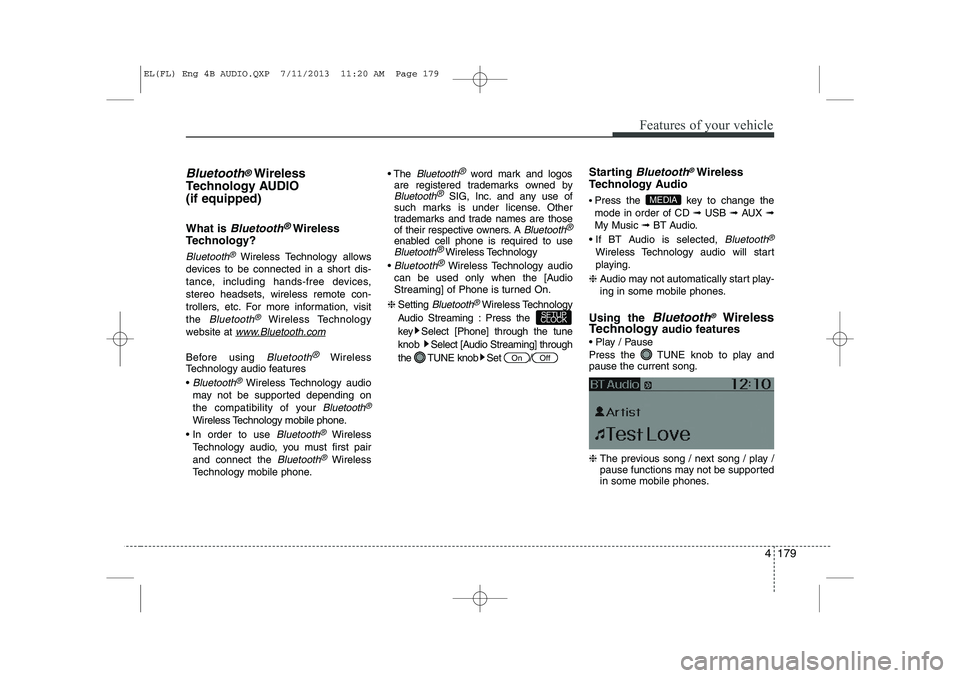
Using the
Bluetooth®Wireless
Technology audio features
Play / Pause
Press the TUNE knob to play and pause the current song. ❈ The previous song / next song / play /
pause functions may not be supported
in some mobile phones.
MEDIA
OffOn
SETUP
CLOCK
EL(FL) Eng 4B AUDIO.QXP 7/11/2013 11:20 AM Page 179
Page 675 of 1534
4 185
Features of your vehicle
VOICE COMMAND (if equipped)
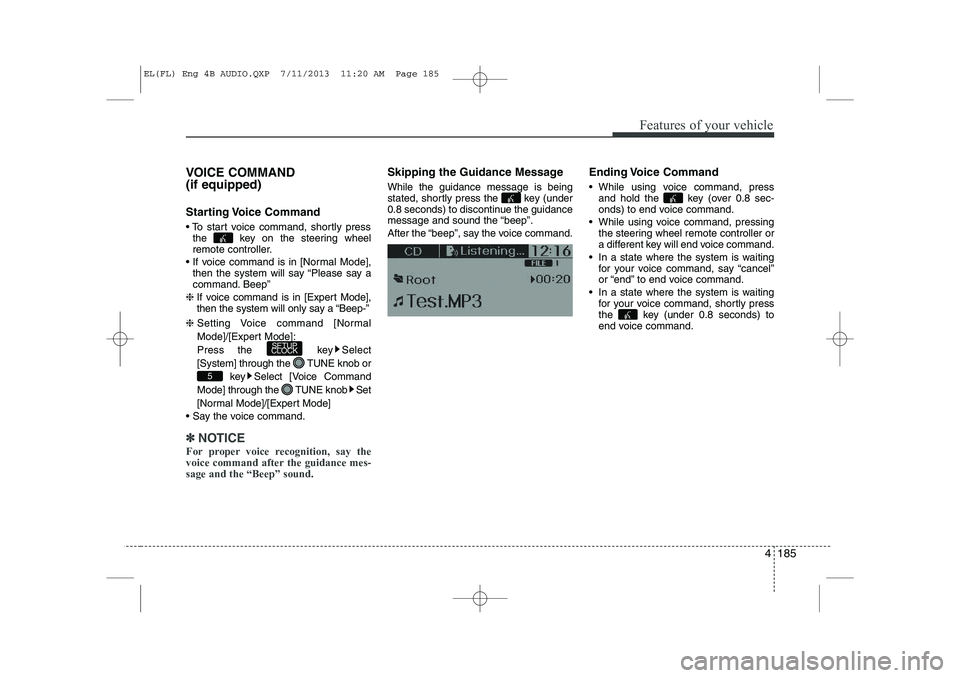
Starting Voice Command
To start voice command, shortly pressthe key on the steering wheel
remote controller.
If voice command is in [Normal Mode], then the system will say “Please say a
command. Beep”
❈ If voice command is in [Expert Mode],
then the system will only say a “Beep-”
❈ Setting Voice command [Normal
Mode]/[Expert Mode]:
Press the key Select
[System] through the TUNE knob or
key Select [Voice Command
Mode] through the TUNE knob Set
[Normal Mode]/[Expert Mode]
Say the voice command.
✽✽ NOTICE
For proper voice recognition, say the
voice command after the guidance mes-sage and the “Beep” sound.
Skipping the Guidance Message While the guidance message is being
stated, shortly press the key (under
0.8 seconds) to discontinue the guidance
message and sound the “beep”.
After the “beep”, say the voice command. Ending Voice Command
While using voice command, press
and hold the key (over 0.8 sec-
onds) to end voice command.
While using voice command, pressing the steering wheel remote controller or
a different key will end voice command.
In a state where the system is waiting for your voice command, say “cancel”
or “end” to end voice command.
In a state where the system is waiting for your voice command, shortly press
the key (under 0.8 seconds) to
end voice command.
5
SETUP
CLOCK
EL(FL) Eng 4B AUDIO.QXP 7/11/2013 11:20 AM Page 185
Page 685 of 1534
4 195
Features of your vehicle
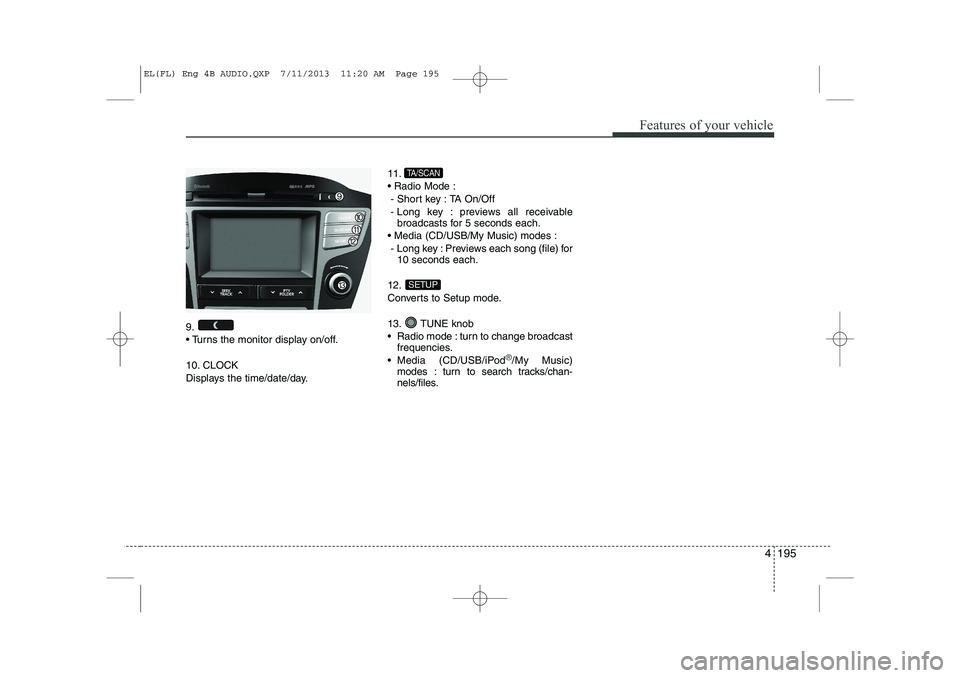
9.
Turns the monitor display on/off.
10. CLOCK
Displays the time/date/day.11. Radio Mode :
- Short key : TA On/Off
- Long key : previews all receivable broadcasts for 5 seconds each.
Media (CD/USB/My Music) modes : - Long key : Previews each song (file) for 10 seconds each.
12.
Converts to Setup mode.
13. TUNE knob
Radio mode : turn to change broadcast frequencies.
Media (CD/USB/iPod
®/My Music)
modes : turn to search tracks/chan-
nels/files.
SETUP
TA/SCAN
EL(FL) Eng 4B AUDIO.QXP 7/11/2013 11:20 AM Page 195
Page 743 of 1534
![HYUNDAI IX35 2014 User Guide 4 253
Features of your vehicle
SETUP
Starting Mode
Press the key to display the Setup screen.
You can select and control options relat-
ed to [Display], [Sound], [Clock/Day],[Phone] and [System].](/img/35/56237/w960_56237-742.png "HYUNDAI IX35 2014 User Guide 4 253
Features of your vehicle
SETUP
Starting Mode
Press the key to display the Setup screen.
You can select and control options relat-
ed to [Display], [Sound], [Clock/Day],[Phone] and [System].")
4 253
Features of your vehicle
SETUP
Starting Mode
Press the key to display the Setup screen.
You can select and control options relat-
ed to [Display], [Sound], [Clock/Day],[Phone] and [System].Display Settings
Adjusting the Brightness
Press the key Select
[Display] Select [Brightness]
Use the , buttons to adjust the
screen brightness or set the Brightness
on Automatic, Day, or Night mode.
Press the button to reset.
1) Automatic : Adjusts the brightness
automatically
2) Day : Always maintains the brightness on high
3) Night : Always maintains the bright- ness on low
Pop-up Mode
Press the key Select
[Display] Select [Pop-up Mode]
This feature is used to display the Pop-up
Mode screen when entering radio and
media modes.
When this feature is turned on, pressing
the or key will display
the Pop-up Mode screen.
✽✽ NOTICE
The media Pop-up Mode screen can be
displayed only when two or more mediamodes have been connected.
MEDIA RADIO
SETUP
Default
SETUP SETUP
EL(FL) Eng 4B AUDIO.QXP 7/11/2013 11:21 AM Page 253
Page 746 of 1534
![HYUNDAI IX35 2014 User Guide Features of your vehicle
256
4
Voice Recognition Setting
Press the key Select
[Sound] Select [Volume Dialogue]
Use the , buttons to adjust the
Volume Dialog.
Touch Screen Beep
Press the key Sel](/img/35/56237/w960_56237-745.png "HYUNDAI IX35 2014 User Guide Features of your vehicle
256
4
Voice Recognition Setting
Press the key Select
[Sound] Select [Volume Dialogue]
Use the , buttons to adjust the
Volume Dialog.
Touch Screen Beep
Press the key Sel")
Features of your vehicle
256
4
Voice Recognition Setting
Press the key Select
[Sound] Select [Volume Dialogue]
Use the , buttons to adjust the
Volume Dialog.
Touch Screen Beep
Press the key Select
[Sound] Select [Touch Screen Beep]
This feature is used to turn the touch
screen beep on/off. Clock/Day Setting
Setting
Press the key Select
[Clock/Day] Select [Clock Settings]
Use the , buttons to set the Hour,
Minutes and AM/PM setting.
✽✽
NOTICE
Press and hold the key (over 0.8 seconds) to display the Clock/ Day
screen.
CLOCK
SETUP
SETUP SETUP
EL(FL) Eng 4B AUDIO.QXP 7/11/2013 11:21 AM Page 256
Page 747 of 1534
![HYUNDAI IX35 2014 User Guide 4 257
Features of your vehicle
Day Setting
Press the key Select
[Clock/Day] Select [Day Settings]
Use the , buttons to set the Day,
Month and Year setting.
Time Format
Press the key Select
[Cl](/img/35/56237/w960_56237-746.png "HYUNDAI IX35 2014 User Guide 4 257
Features of your vehicle
Day Setting
Press the key Select
[Clock/Day] Select [Day Settings]
Use the , buttons to set the Day,
Month and Year setting.
Time Format
Press the key Select
[Cl")
4 257
Features of your vehicle
Day Setting
Press the key Select
[Clock/Day] Select [Day Settings]
Use the , buttons to set the Day,
Month and Year setting.
Time Format
Press the key Select
[Clock/Day] Select [Time Format]
This feature is used to change the clock
format between 12hr or 24hr.
Clock Display
Press the key Select
[Clock/Day] Select [Clock Display
(Power off)]
This feature is used to display a clock on the screen when the audio system is
turned off.SETUP SETUP SETUP
EL(FL) Eng 4B AUDIO.QXP 7/11/2013 11:21 AM Page 257
Page 748 of 1534
![HYUNDAI IX35 2014 User Guide Features of your vehicle
258
4
Automatic RDS Time
Press the key Select
[Clock/Day] Select [Automatic RDSTime]
This feature is used to set time automat-
ically by synchronizing with RDS.SETUP
EL(F](/img/35/56237/w960_56237-747.png "HYUNDAI IX35 2014 User Guide Features of your vehicle
258
4
Automatic RDS Time
Press the key Select
[Clock/Day] Select [Automatic RDSTime]
This feature is used to set time automat-
ically by synchronizing with RDS.SETUP
EL(F")
Features of your vehicle
258
4
Automatic RDS Time
Press the key Select
[Clock/Day] Select [Automatic RDSTime]
This feature is used to set time automat-
ically by synchronizing with RDS.SETUP
EL(FL) Eng 4B AUDIO.QXP 7/11/2013 11:21 AM Page 258
Page 849 of 1534
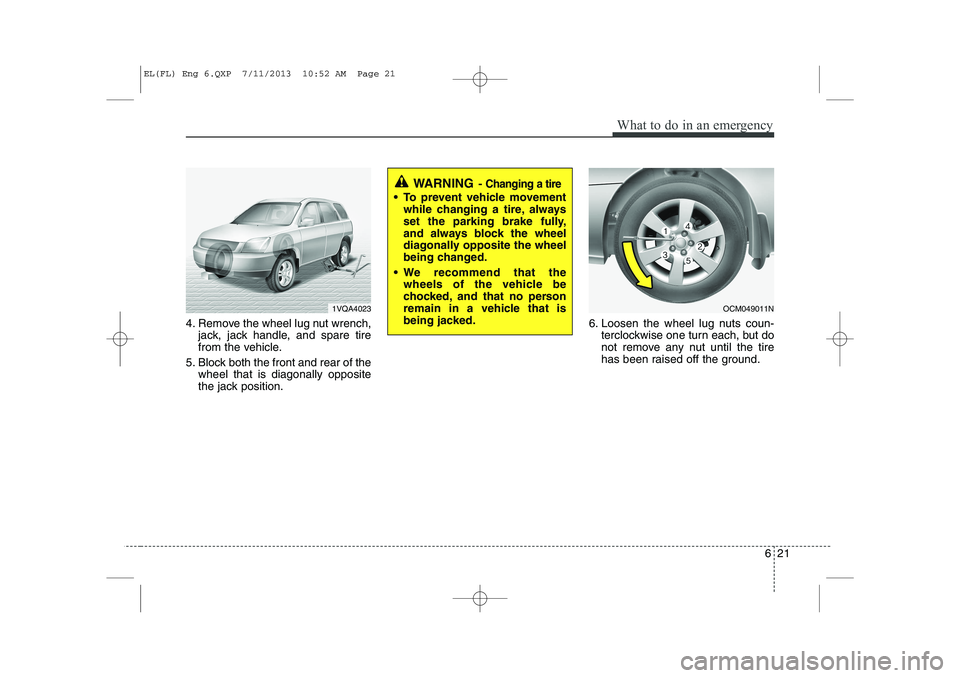
621
What to do in an emergency
4. Remove the wheel lug nut wrench,jack, jack handle, and spare tire
from the vehicle.
5. Block both the front and rear of the wheel that is diagonally opposite
the jack position. 6. Loosen the wheel lug nuts coun-
terclockwise one turn each, but do
not remove any nut until the tire
has been raised off the ground.
WARNING - Changing a tire
To prevent vehicle movement
while changing a tire, always
set the parking brake fully,
and always block the wheel
diagonally opposite the wheel
being changed.
We recommend that the wheels of the vehicle be
chocked, and that no person
remain in a vehicle that is
being jacked.
1VQA4023OCM049011N
EL(FL) Eng 6.QXP 7/11/2013 10:52 AM Page 21