key HYUNDAI IX35 2014 Owners Manual
[x] Cancel search | Manufacturer: HYUNDAI, Model Year: 2014, Model line: IX35, Model: HYUNDAI IX35 2014Pages: 1534, PDF Size: 39.76 MB
Page 1308 of 1534
4 237
Features of your vehicle
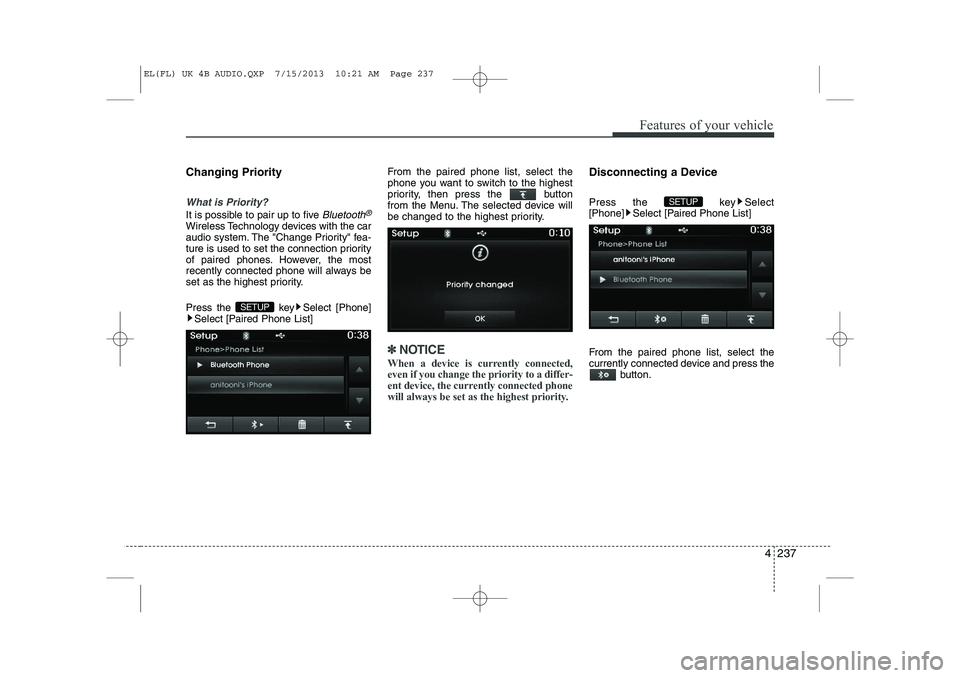
Changing Priority
What is Priority?
It is possible to pair up to five Bluetooth®
Wireless Technology devices with the car
audio system. The "Change Priority" fea-
ture is used to set the connection priority
of paired phones. However, the most
recently connected phone will always be
set as the highest priority.
Press the key Select [Phone]Select [Paired Phone List] From the paired phone list, select the
phone you want to switch to the highest
priority, then press the button
from the Menu. The selected device will
be changed to the highest priority.
✽✽
NOTICE
When a device is currently connected, even if you change the priority to a differ-
ent device, the currently connected phone
will always be set as the highest priority.
Disconnecting a Device
Press the key Select
[Phone] Select [Paired Phone List]
From the paired phone list, select the
currently connected device and press the button.
SETUP
SETUP
EL(FL) UK 4B AUDIO.QXP 7/15/2013 10:21 AM Page 237
Page 1309 of 1534
![HYUNDAI IX35 2014 Owners Manual Features of your vehicle
238
4
Deleting a Device
Press the key Select
[Phone] Select [Paired Phone List]
From the paired phone list, select the
device you want to delete and press the
button.✽â](/img/35/56237/w960_56237-1308.png "HYUNDAI IX35 2014 Owners Manual Features of your vehicle
238
4
Deleting a Device
Press the key Select
[Phone] Select [Paired Phone List]
From the paired phone list, select the
device you want to delete and press the
button.✽â")
Features of your vehicle
238
4
Deleting a Device
Press the key Select
[Phone] Select [Paired Phone List]
From the paired phone list, select the
device you want to delete and press the
button.✽✽NOTICE
Page 1310 of 1534
4 239
Features of your vehicle
USING Bluetooth®Wireless
Technology
Phone Menu Screen
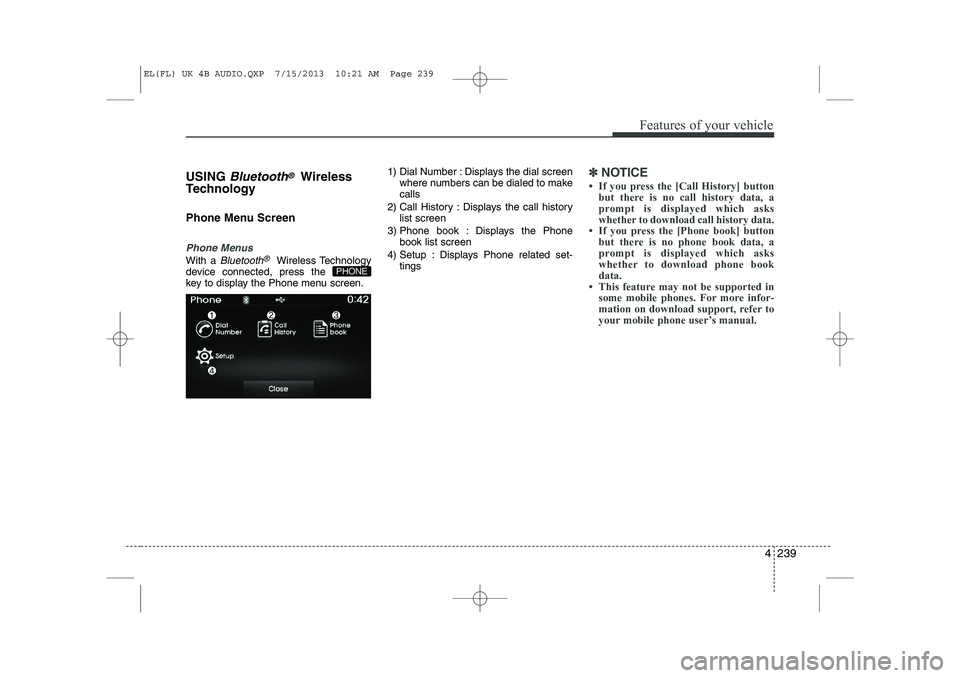
Phone Menus
With a Bluetooth®Wireless Technology
device connected, press the
key to display the Phone menu screen. 1) Dial Number : Displays the dial screen
where numbers can be dialed to makecalls
2) Call History : Displays the call history list screen
3) Phone book : Displays the Phone book list screen
4) Setup : Displays Phone related set- tings
✽✽NOTICE
Page 1311 of 1534
![HYUNDAI IX35 2014 Owners Manual Features of your vehicle
240
4
Calling by Dialing a Number
Press the key Select [Dial Number]
1) Dial Pad : Used to enter phone num-
ber
2) Call : If a number has been entered, calls the number If](/img/35/56237/w960_56237-1310.png "HYUNDAI IX35 2014 Owners Manual Features of your vehicle
240
4
Calling by Dialing a Number
Press the key Select [Dial Number]
1) Dial Pad : Used to enter phone num-
ber
2) Call : If a number has been entered, calls the number If")
Features of your vehicle
240
4
Calling by Dialing a Number
Press the key Select [Dial Number]
1) Dial Pad : Used to enter phone num-
ber
2) Call : If a number has been entered, calls the number If no number has
been entered, switches to call historyscreen
3) End : Deletes the entered phone num- ber
4) Delete : Deletes entered numbers one digit at a time Answering Calls
Answering a Call
Answering a call with a Bluetooth®
Wireless Technology device connected
will display the following screen.
1) Caller : Displays the other party’s
name when the incoming caller is
saved within your phone book
2) Incoming Number : Displays the incoming number
3) Accept : Accept the incoming call
4) Reject : Reject the incoming call
✽✽ NOTICE
Page 1312 of 1534
4 241
Features of your vehicle
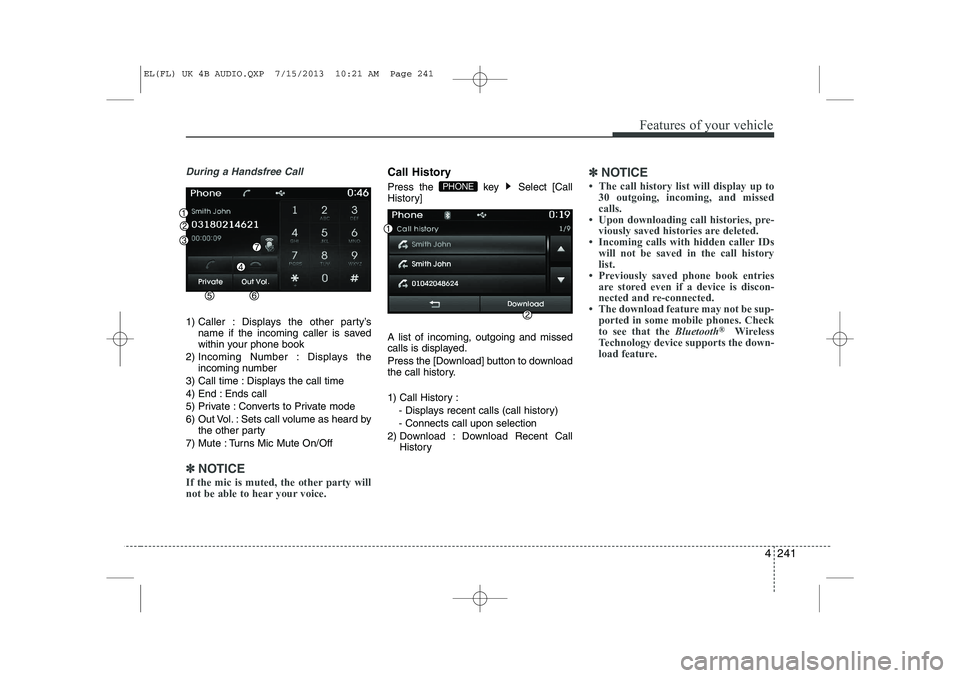
During a Handsfree Call
1) Caller : Displays the other party’sname if the incoming caller is saved
within your phone book
2) Incoming Number : Displays the incoming number
3) Call time : Displays the call time
4) End : Ends call
5) Private : Converts to Private mode
6) Out Vol. : Sets call volume as heard by the other party
7) Mute : Turns Mic Mute On/Off
✽✽ NOTICE
If the mic is muted, the other party will
not be able to hear your voice.
Call History
Press the key Select [Call
History] A list of incoming, outgoing and missed
calls is displayed.
Press the [Download] button to download
the call history.
1) Call History :
- Displays recent calls (call history) - Connects call upon selection
2) Download : Download Recent Call History✽✽NOTICE
Page 1313 of 1534
![HYUNDAI IX35 2014 Owners Manual Features of your vehicle
242
4
Phone Book
Press the key Select [Phone book]
The list of saved phone book entries is
displayed. Press the [Download] button
to download the call history.
1) Contact](/img/35/56237/w960_56237-1312.png "HYUNDAI IX35 2014 Owners Manual Features of your vehicle
242
4
Phone Book
Press the key Select [Phone book]
The list of saved phone book entries is
displayed. Press the [Download] button
to download the call history.
1) Contact")
Features of your vehicle
242
4
Phone Book
Press the key Select [Phone book]
The list of saved phone book entries is
displayed. Press the [Download] button
to download the call history.
1) Contact List :
- Displays downloaded phone bookentries
- Connects call upon selection
2) Download : Download phone book entries✽✽NOTICE
Page 1315 of 1534
Features of your vehicle
244
4
VOICE RECOGNITION
Using Voice Recognition
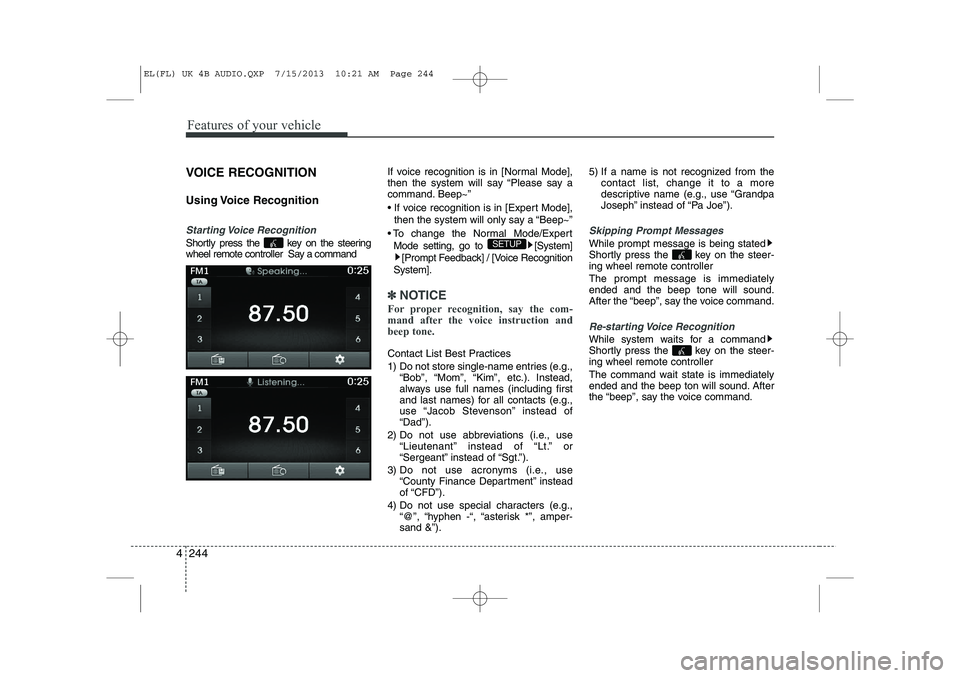
Starting Voice Recognition
Shortly press the key on the steering
wheel remote controller Say a command If voice recognition is in [Normal Mode],
then the system will say “Please say a
command. Beep~”
If voice recognition is in [Expert Mode],
then the system will only say a “Beep~”
To change the Normal Mode/Expert Mode setting, go to [System] [Prompt Feedback] / [Voice Recognition
System].
✽✽ NOTICE
For proper recognition, say the com-
mand after the voice instruction andbeep tone.
Contact List Best Practices
1) Do not store single-name entries (e.g., “Bob”, “Mom”, “Kim”, etc.). Instead,
always use full names (including first
and last names) for all contacts (e.g.,
use “Jacob Stevenson” instead of“Dad”).
2) Do not use abbreviations (i.e., use “Lieutenant” instead of “Lt.” or
“Sergeant” instead of “Sgt.”).
3) Do not use acronyms (i.e., use “County Finance Department” insteadof “CFD”).
4) Do not use special characters (e.g., “@”, “hyphen -“, “asterisk *”, amper-sand &”). 5) If a name is not recognized from the
contact list, change it to a more
descriptive name (e.g., use “Grandpa
Joseph” instead of “Pa Joe”).
Skipping Prompt Messages
While prompt message is being stated
Shortly press the key on the steer-
ing wheel remote controller The prompt message is immediately ended and the beep tone will sound.
After the “beep”, say the voice command.
Re-starting Voice Recognition
While system waits for a command
Shortly press the key on the steer-
ing wheel remote controller
The command wait state is immediately
ended and the beep ton will sound. After
the “beep”, say the voice command.
SETUP
EL(FL) UK 4B AUDIO.QXP 7/15/2013 10:21 AM Page 244
Page 1316 of 1534
4 245
Features of your vehicle
ENDING VOICE RECOGNITION
While Voice Recognition is operating
Press and hold the key on the steer-
ing wheel remote controller
✽✽NOTICE
Page 1317 of 1534
Features of your vehicle
246
4
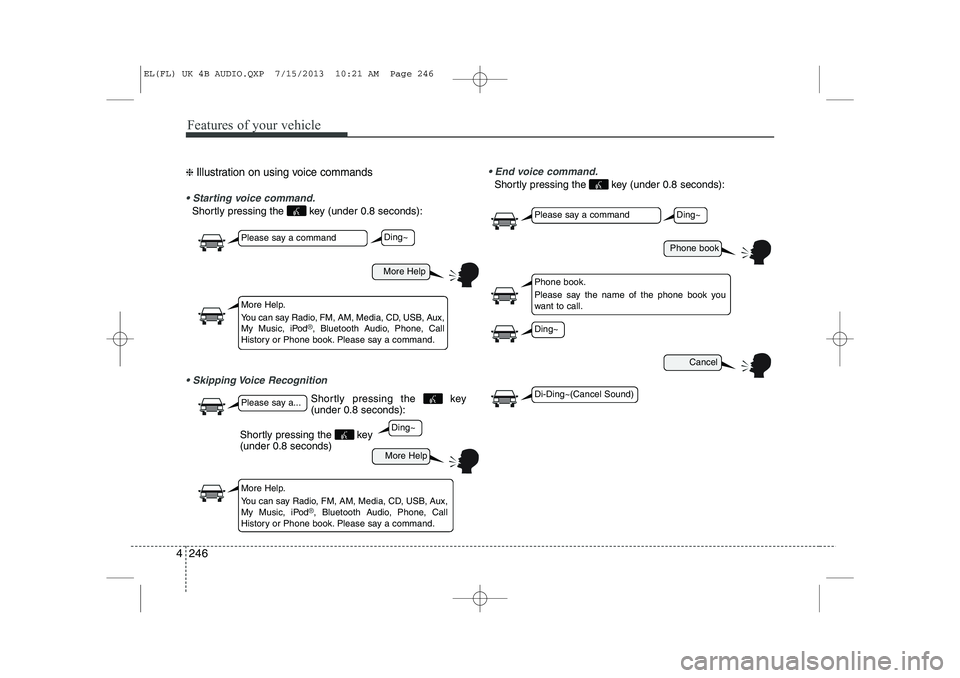
❈ Illustration on using voice commands
Starting voice command.
Shortly pressing the key (under 0.8 seconds):
Skipping Voice Recognition End voice command.
Shortly pressing the key (under 0.8 seconds):
More Help
More Help
Please say a command
Please say a...
More Help.
You can say Radio, FM, AM, Media, CD, USB, Aux,
My Music, iPod
®, Bluetooth Audio, Phone, Call
History or Phone book. Please say a command.
More Help.
You can say Radio, FM, AM, Media, CD, USB, Aux,
My Music, iPod
®, Bluetooth Audio, Phone, Call
History or Phone book. Please say a command.
Ding~
Ding~
Shortly pressing the key (under 0.8 seconds)
Phone book
Cancel
Please say a command
Phone book.
Please say the name of the phone book you
want to call.
Ding~
Di-Ding~(Cancel Sound)
Ding~
Shortly pressing the key (under 0.8 seconds):
EL(FL) UK 4B AUDIO.QXP 7/15/2013 10:21 AM Page 246
Page 1323 of 1534
![HYUNDAI IX35 2014 Owners Manual Features of your vehicle
252
4
SETUP
Starting Mode
Press the key to display the Setup screen.
You can select and control options relat-
ed to [Display], [Sound], [Clock/Day],[Phone] and [System].](/img/35/56237/w960_56237-1322.png "HYUNDAI IX35 2014 Owners Manual Features of your vehicle
252
4
SETUP
Starting Mode
Press the key to display the Setup screen.
You can select and control options relat-
ed to [Display], [Sound], [Clock/Day],[Phone] and [System].")
Features of your vehicle
252
4
SETUP
Starting Mode
Press the key to display the Setup screen.
You can select and control options relat-
ed to [Display], [Sound], [Clock/Day],[Phone] and [System]. Display Settings
Adjusting the Brightness
Press the key Select
[Display] Select [Brightness]
Use the , buttons to adjust the
screen brightness or set the Brightness
on Automatic, Day, or Night mode.
Press the button to reset.
1) Automatic : Adjusts the brightness
automatically
2) Day : Always maintains the brightness on high
3) Night : Always maintains the bright- ness on low
Pop-up Mode
Press the key Select
[Display] Select [Pop-up Mode]
This feature is used to display the Pop-up
Mode screen when entering radio and
media modes.
When this feature is turned on, pressing
the or key will display
the Pop-up Mode screen.
✽✽ NOTICE
The media Pop-up Mode screen can be
displayed only when two or more mediamodes have been connected.
MEDIA RADIO
SETUP
Default
SETUP SETUP
EL(FL) UK 4B AUDIO.QXP 7/15/2013 10:21 AM Page 252