phone HYUNDAI IX35 2014 Service Manual
[x] Cancel search | Manufacturer: HYUNDAI, Model Year: 2014, Model line: IX35, Model: HYUNDAI IX35 2014Pages: 1534, PDF Size: 39.76 MB
Page 737 of 1534
4 247
Features of your vehicle
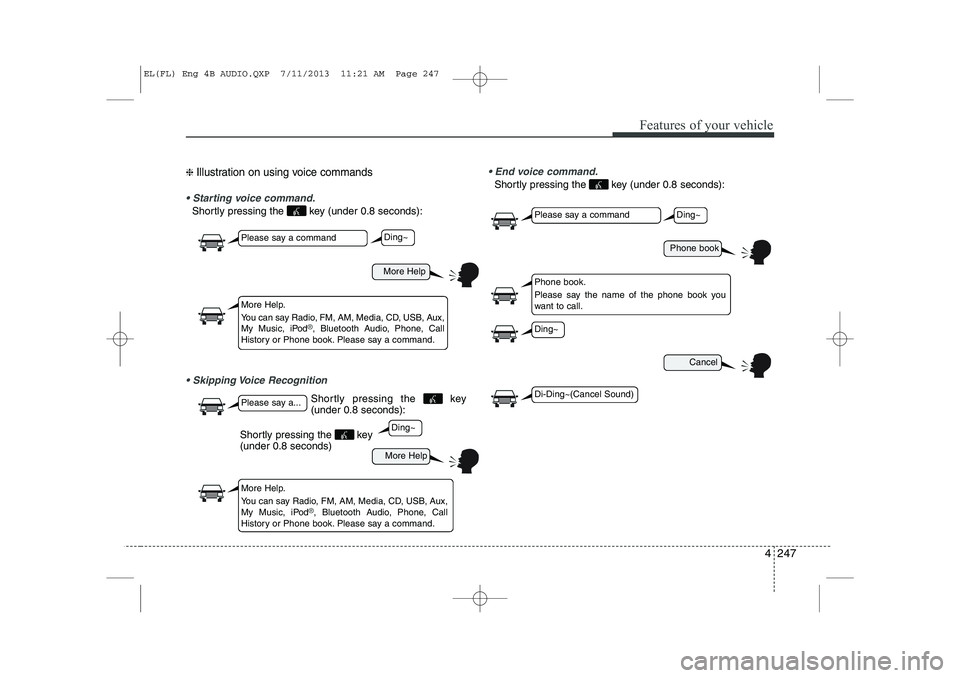
❈ Illustration on using voice commands
Starting voice command.
Shortly pressing the key (under 0.8 seconds):
Skipping Voice Recognition End voice command.
Shortly pressing the key (under 0.8 seconds):
More Help
More Help
Please say a command
Please say a...
More Help.
You can say Radio, FM, AM, Media, CD, USB, Aux,
My Music, iPod
®, Bluetooth Audio, Phone, Call
History or Phone book. Please say a command.
More Help.
You can say Radio, FM, AM, Media, CD, USB, Aux,
My Music, iPod
®, Bluetooth Audio, Phone, Call
History or Phone book. Please say a command.
Ding~
Ding~
Shortly pressing the key (under 0.8 seconds)
Phone book
Cancel
Please say a command
Phone book.
Please say the name of the phone book you
want to call.
Ding~
Di-Ding~(Cancel Sound)
Ding~
Shortly pressing the key (under 0.8 seconds):
EL(FL) Eng 4B AUDIO.QXP 7/11/2013 11:21 AM Page 247
Page 738 of 1534
Features of your vehicle
248
4
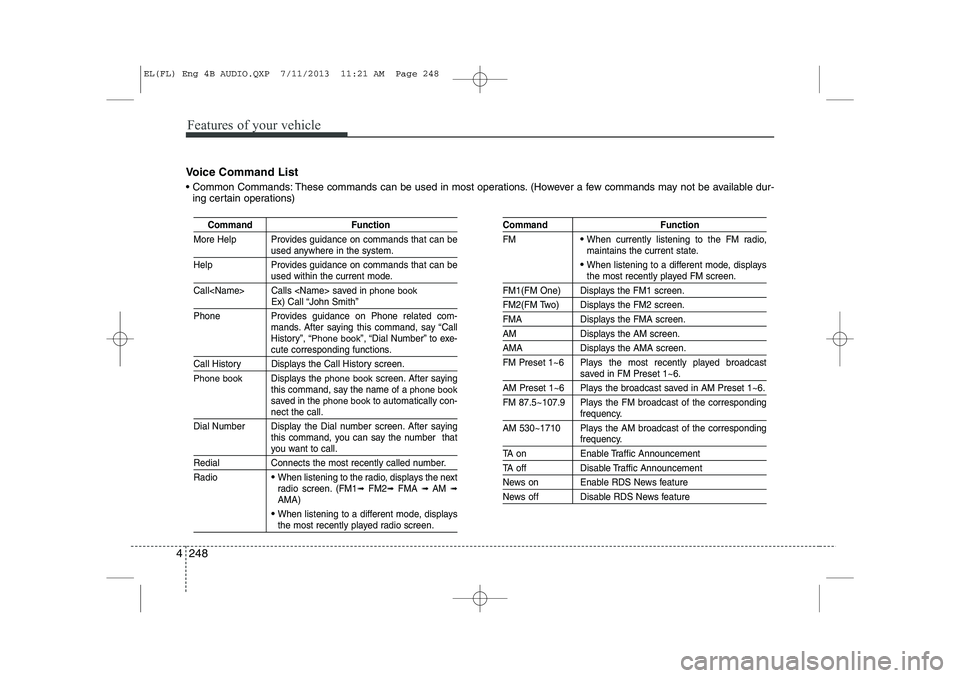
Voice Command List
Common Commands: These commands can be used in most operations. (However a few commands may not be available dur-
ing certain operations)
Command Function
More Help Provides guidance on commands that can be
used anywhere in the system.
Help Provides guidance on commands that can be
used within the current mode.
Call
phone bookEx) Call “John Smith”
Phone Provides guidance on Phone related com- mands. After saying this command, say “Call
History”, “
Phone book”, “Dial Number” to exe-cute corresponding functions.
Call History Displays the Call History screen.
Phone bookDisplays the phone bookscreen. After saying
this command, say the name of a phone booksaved in the phone bookto automatically con-nect the call.
Dial Number Display the Dial number screen. After saying this command, you can say the number that
you want to call.
Redial Connects the most recently called number. Radio
When listening to the radio, displays the next
radio screen. (FM1 ➟FM2 ➟FMA ➟ AM ➟
AMA)
When listening to a different mode, displaysthe most recently played radio screen.
Command Function FM
When currently listening to the FM radio,
maintains the current state.
When listening to a different mode, displaysthe most recently played FM screen.
FM1(FM One) Displays the FM1 screen.
FM2(FM Two) Displays the FM2 screen.
FMA Displays the FMA screen.
AM Displays the AM screen.
AMA Displays the AMA screen.
FM Preset 1~6 Plays the most recently played broadcast
saved in FM Preset 1~6.
AM Preset 1~6 Plays the broadcast saved in AM Preset 1~6.
FM 87.5~107.9 Plays the FM broadcast of the corresponding
frequency.
AM 530~1710 Plays the AM broadcast of the corresponding
frequency.
TA on Enable Traffic Announcement
TA off Disable Traffic Announcement
News on Enable RDS News feature
News off Disable RDS News feature
EL(FL) Eng 4B AUDIO.QXP 7/11/2013 11:21 AM Page 248
Page 742 of 1534
Features of your vehicle
252
4
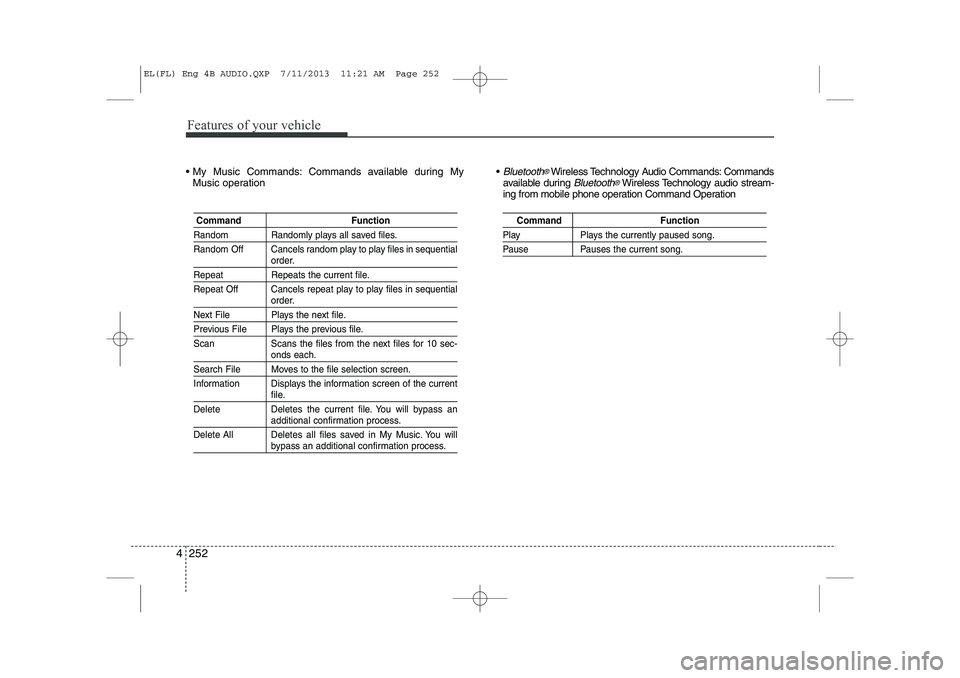
My Music Commands: Commands available during My
Music operation Bluetooth®Wireless Technology Audio Commands: Commands
available during Bluetooth®Wireless Technology audio stream-
ing from mobile phone operation Command Operation
Command Function
Random Randomly plays all saved files.
Random Off Cancels random play to play files in sequential
order.
Repeat Repeats the current file.
Repeat Off Cancels repeat play to play files in sequential
order.
Next File Plays the next file.
Previous File Plays the previous file.
Scan Scans the files from the next files for 10 sec-
onds each.
Search File Moves to the file selection screen.
Information Displays the information screen of the current
file.
Delete Deletes the current file. You will bypass an
additional confirmation process.
Delete All Deletes all files saved in My Music. You will
bypass an additional confirmation process.
Command Function
Play Plays the currently paused song.
Pause Pauses the current song.
EL(FL) Eng 4B AUDIO.QXP 7/11/2013 11:21 AM Page 252
Page 743 of 1534
![HYUNDAI IX35 2014 Service Manual 4 253
Features of your vehicle
SETUP
Starting Mode
Press the key to display the Setup screen.
You can select and control options relat-
ed to [Display], [Sound], [Clock/Day],[Phone] and [System].](/img/35/56237/w960_56237-742.png "HYUNDAI IX35 2014 Service Manual 4 253
Features of your vehicle
SETUP
Starting Mode
Press the key to display the Setup screen.
You can select and control options relat-
ed to [Display], [Sound], [Clock/Day],[Phone] and [System].")
4 253
Features of your vehicle
SETUP
Starting Mode
Press the key to display the Setup screen.
You can select and control options relat-
ed to [Display], [Sound], [Clock/Day],[Phone] and [System].Display Settings
Adjusting the Brightness
Press the key Select
[Display] Select [Brightness]
Use the , buttons to adjust the
screen brightness or set the Brightness
on Automatic, Day, or Night mode.
Press the button to reset.
1) Automatic : Adjusts the brightness
automatically
2) Day : Always maintains the brightness on high
3) Night : Always maintains the bright- ness on low
Pop-up Mode
Press the key Select
[Display] Select [Pop-up Mode]
This feature is used to display the Pop-up
Mode screen when entering radio and
media modes.
When this feature is turned on, pressing
the or key will display
the Pop-up Mode screen.
✽✽ NOTICE
The media Pop-up Mode screen can be
displayed only when two or more mediamodes have been connected.
MEDIA RADIO
SETUP
Default
SETUP SETUP
EL(FL) Eng 4B AUDIO.QXP 7/11/2013 11:21 AM Page 253
Page 749 of 1534
4 259
Features of your vehicle
Bluetooth®Wireless Technology
Setting The
Bluetooth®word mark and logos are
registered trademarks owned by
Bluetooth SIG, Inc. and any use of such
marks is under license. Other trademarks
and trade names are those of their
respective owners. A
Bluetooth®enabled
cell phone is required to use
Bluetooth®
wireless technology
Pairing a New Device
Press the key Select
[Phone] Select [Pair Phone]
Bluetooth®Wireless Technology devices
can be paired with the audio system.
For more information, refer to the “Pairing
through Phone Setup” section within
Bluetooth®Wireless Technology.
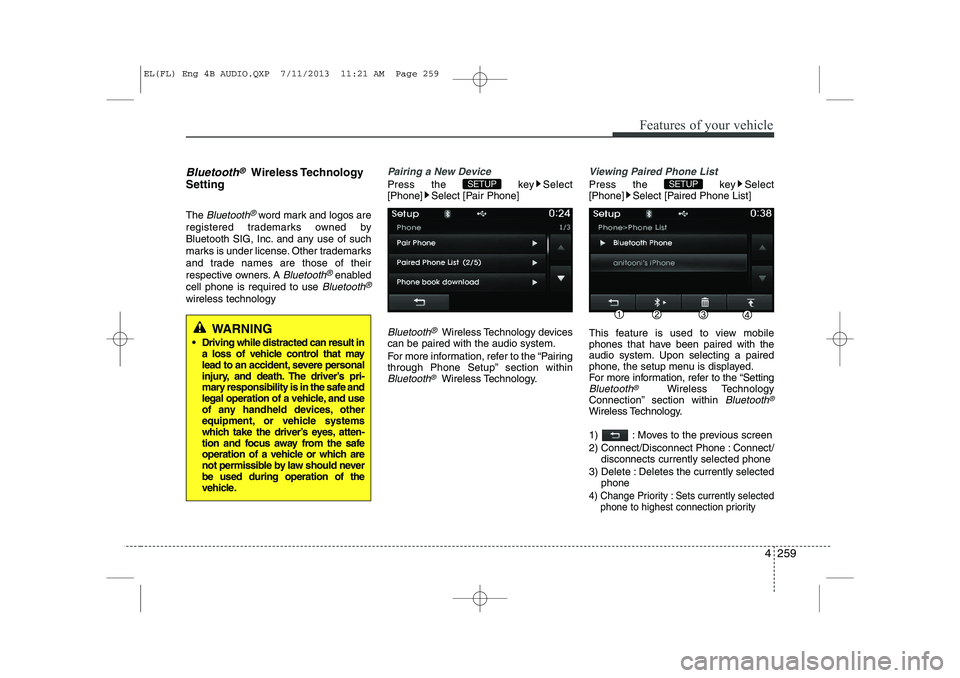
Viewing Paired Phone List
Press the key Select
[Phone] Select [Paired Phone List]
This feature is used to view mobile
phones that have been paired with the
audio system. Upon selecting a paired
phone, the setup menu is displayed.
For more information, refer to the “Setting
Bluetooth®Wireless Technology
Connection” section within Bluetooth®
Wireless Technology.
1) : Moves to the previous screen
2) Connect/Disconnect Phone : Connect/ disconnects currently selected phone
3) Delete : Deletes the currently selected phone
4) Change Priority : Sets currently selected
phone to highest connection priority
SETUP SETUP
WARNING
Driving while distracted can result in a loss of vehicle control that may
lead to an accident, severe personal
injury, and death. The driver’s pri-
mary responsibility is in the safe and
legal operation of a vehicle, and use
of any handheld devices, other
equipment, or vehicle systems
which take the driver’s eyes, atten-
tion and focus away from the safe
operation of a vehicle or which are
not permissible by law should neverbe used during operation of the
vehicle.
EL(FL) Eng 4B AUDIO.QXP 7/11/2013 11:21 AM Page 259
Page 750 of 1534
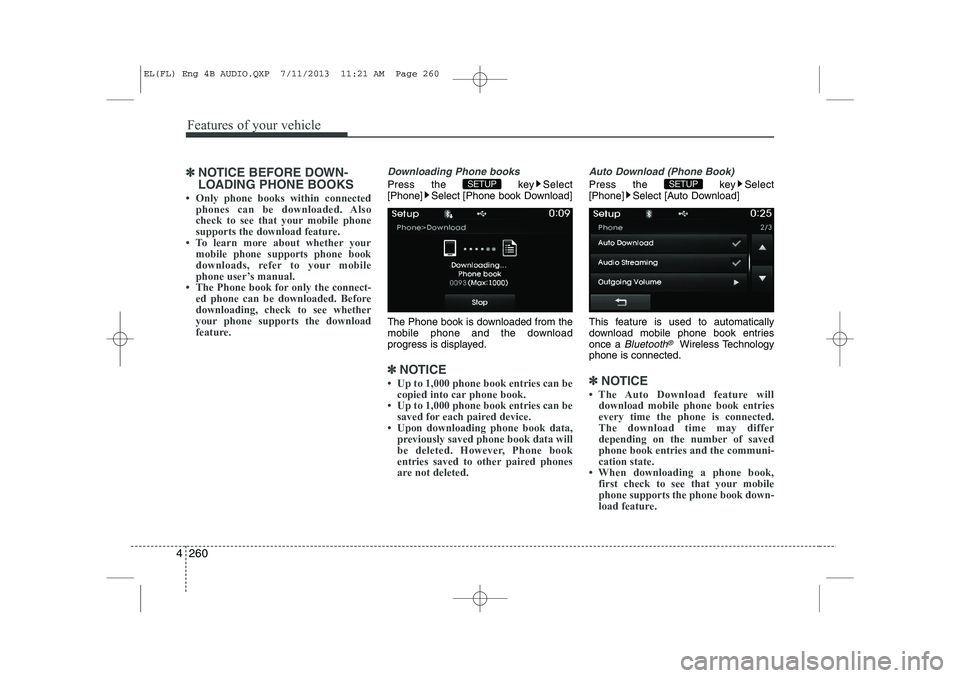
Features of your vehicle
260
4
✽✽
NOTICE BEFORE DOWN-
LOADING PHONE BOOKS
Page 751 of 1534
![HYUNDAI IX35 2014 Service Manual 4 261
Features of your vehicle
Audio Streaming
Press the key Select
[Phone] Select [Audio Streaming]
When Audio Streaming is turned on, you
can play music files saved in your
Bluetooth®Wireless T](/img/35/56237/w960_56237-750.png "HYUNDAI IX35 2014 Service Manual 4 261
Features of your vehicle
Audio Streaming
Press the key Select
[Phone] Select [Audio Streaming]
When Audio Streaming is turned on, you
can play music files saved in your
Bluetooth®Wireless T")
4 261
Features of your vehicle
Audio Streaming
Press the key Select
[Phone] Select [Audio Streaming]
When Audio Streaming is turned on, you
can play music files saved in your
Bluetooth®Wireless Technology device
through the audio system.
Outgoing Volume
Press the key Select
[Phone] Select [Outgoing Volume]
Use the , buttons to adjust the
outgoing volume level.
Turning Bluetooth System Off
Press the key Select
[Phone] Select [Bluetooth System Off] Once
Bluetooth®Wireless Technology is
turned off, Bluetooth®Wireless
Technology related features will not be
supported within the audio system.
✽✽ NOTICE
To turn Bluetooth ®
Wireless Technology
back on, go to [Phone] and
press “Yes”.
SETUP
SETUP
SETUP SETUP
CAUTION
Bluetooth ®
Wireless Technology
audio streaming may not be support-
ed in some Bluetooth ®
Wireless
Technology phones.
EL(FL) Eng 4B AUDIO.QXP 7/11/2013 11:21 AM Page 261
Page 1002 of 1534
23
Your vehicle at a glance
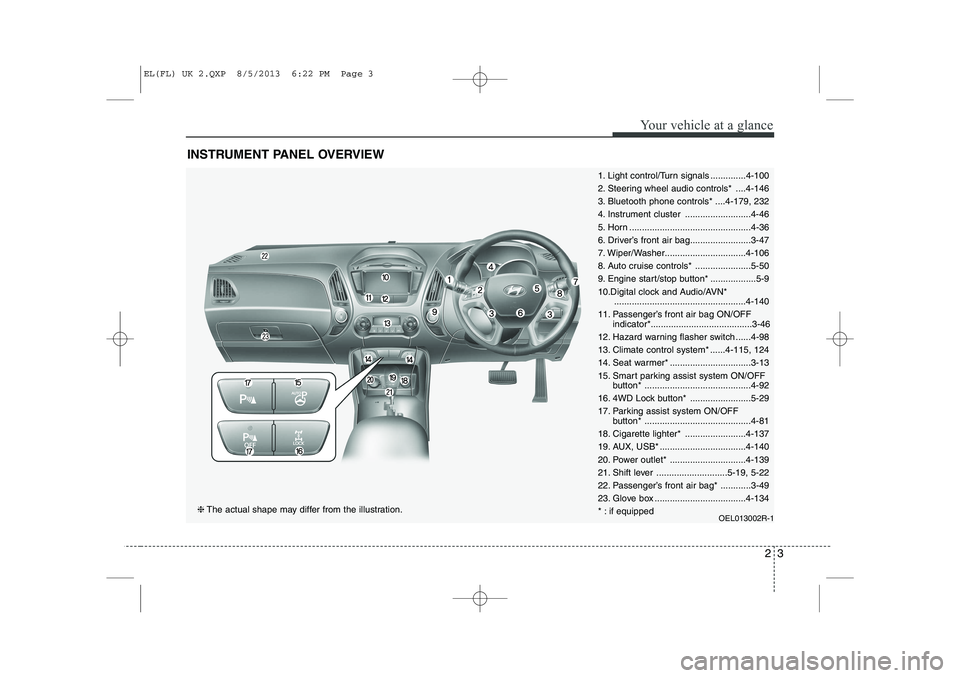
INSTRUMENT PANEL OVERVIEW
1. Light control/Turn signals ..............4-100
2. Steering wheel audio controls* ....4-146
3. Bluetooth phone controls* ....4-179, 232
4. Instrument cluster ..........................4-46
5. Horn ................................................4-36
6. Driver’s front air bag........................3-47
7. Wiper/Washer................................4-106
8. Auto cruise controls* ......................5-50
9. Engine start/stop button* ..................5-9
10.Digital clock and Audio/AVN*....................................................4-140
11. Passenger’s front air bag ON/OFF indicator*........................................3-46
12. Hazard warning flasher switch ......4-98
13. Climate control system* ......4-115, 124
14. Seat warmer* ................................3-13
15. Smart parking assist system ON/OFF button* ..........................................4-92
16. 4WD Lock button* ........................5-29
17. Parking assist system ON/OFF button* ..........................................4-81
18. Cigarette lighter* ........................4-137
19. AUX, USB* ..................................4-140
20. Power outlet* ..............................4-139
21. Shift lever ............................5-19, 5-22
22. Passenger’s front air bag* ............3-49
23. Glove box ....................................4-134
* : if equipped OEL013002R-1
❈The actual shape may differ from the illustration.
EL(FL) UK 2.QXP 8/5/2013 6:22 PM Page 3
Page 1100 of 1534
429
Features of your vehicle
(Continued)Use only portable plastic fuel
containers designed to carry and
store petrol.
Do not use mobile phones whilst refuelling. Electric current and/or
electronic interference from
mobile phones can potentially
ignite fuel vapours causing a fire.
When refuelling, always shut the engine off. Sparks produced byelectrical components related tothe engine can ignite fuel
vapours causing a fire. Once
refuelling is complete, check tomake sure the filler cap and filler
door are securely closed, before
starting the engine.
DO NOT use matches or a lighter and DO NOT SMOKE or leave a lit
cigarette in your vehicle whilst at
a gas station especially during
refuelling. Automotive fuel is
highly flammable and can, when
ignited, result in fire.
(Continued)(Continued)
If a fire breaks out during refu-elling, leave the vicinity of the
vehicle, and immediately contact
the manager of the gas stationand then contact the local fire
department. Follow any safety
instructions they provide.CAUTION
Make sure to refuel your vehicle
according to the "Fuel require-
ments" suggested in section 1.
If the fuel filler cap requires replacement, we recommend thatyou use parts for replacement
from a HYUNDAI authorisedrepairer. An incorrect fuel filler cap can result in a serious mal-function of the fuel system or
emission control system.
Do not spill fuel on the exterior surfaces of the vehicle. Any typeof fuel spilled on painted surfaces
may damage the paint.
After refuelling, make sure the fuel cap is installed securely toprevent fuel spillage in the eventof an accident.
EL(FL) UK 4A.QXP 8/5/2013 6:40 PM Page 29
Page 1154 of 1534
483
Features of your vehicle
Non-operational conditions
The rear parking assist system may not
operate properly when:
1. Moisture is frozen to the sensor. (It willoperate normally when the moisture has been cleared.)
2. The sensor is covered with foreign matter, such as snow or water, or the
sensor cover is blocked. (It will operate
normally when the material is removed
or the sensor is no longer blocked.)
3. Driving on uneven road surfaces. (unpaved roads, gravel, bumps, gradi-ent)
4. Objects generating excessive noise (vehicle horns, loud motorcycle
engines, or truck air brakes) are within
range of the sensor.
5. Heavy rain or water spray exists.
6. Wireless transmitters or mobile phones are within range of the sensor.
7. The sensor is covered with snow.
8. Trailer towing.
9. The place light the fluorescent lamp. The detecting range may decrease when:
1. The sensor is stained with foreign mat-
ter such as snow or water. (The sens-
ing range will return to normal when
removed.)
2. Outside air temperature is extremely hot or cold.
The following objects may not be recog-
nized by the sensor:
1. Sharp or slim objects such as ropes, chains or small poles.
2. Objects which tend to absorb the sen- sor frequency such as clothes, spongy
material or snow.
3. Undetectable objects smaller than 1 m (40 in.) in height and narrower than 14
cm (6 in.) in diameter.
Rear parking assist system precau-
tions
The rear parking assist system may not sound sequentially depending on the speed and shapes of the objectsdetected.
The rear parking assist system may malfunction if the vehicle bumperheight or sensor installation has been
modified or damaged. Any non-factory
installed equipment or accessories
may also interfere with the sensor per-
formance.
The sensor may not recognize objects less than 30 cm (11.8 in.) from the sen-
sor, or it may sense an incorrect dis-
tance. Use caution.
When the sensor is frozen or stained with snow, dirt, or water, the sensor
may be inoperative until the stains are
removed using a soft cloth.
Do not push, scratch or strike the sen- sor. Sensor damage could occur.
3. Undetectable objects smaller than 40 in. (1 m) in height and narrower than 6 in.
(14 cm) in diameter.
EL(FL) UK 4A.QXP 8/5/2013 6:42 PM Page 83