pairing phone HYUNDAI IX35 2014 Owners Manual
[x] Cancel search | Manufacturer: HYUNDAI, Model Year: 2014, Model line: IX35, Model: HYUNDAI IX35 2014Pages: 1534, PDF Size: 39.76 MB
Page 654 of 1534
![HYUNDAI IX35 2014 Owners Manual Features of your vehicle
164
4
Phone Setup (if eqipped)
Press the key Select [Phone] Pair Phone
Select [Pair Phone] Set through TUNE knob ➀
Search for device names as displayed
on your mobil](/img/35/56237/w960_56237-653.png "HYUNDAI IX35 2014 Owners Manual Features of your vehicle
164
4
Phone Setup (if eqipped)
Press the key Select [Phone] Pair Phone
Select [Pair Phone] Set through TUNE knob ➀
Search for device names as displayed
on your mobil")
Features of your vehicle
164
4
Phone Setup (if eqipped)
Press the key Select [Phone] Pair Phone
Select [Pair Phone] Set through TUNE knob ➀
Search for device names as displayed
on your mobile phone and connect.
➁ Input the passkey displayed on the
screen. (Passkey : 0000)
❈ The device name and passkey will be
displayed on the screen for up to 3
minutes. If pairing is not completed
within the 3 minutes, the mobile phone
pairing process will automatically becanceled. ➂
Pairing completion is displayed.
❈ In some mobile phones, pairing will
automatically be followed by connec-tion.
❈ It is possible to pair up to five
Bluetooth®Wireless Technology
enabled mobile phones.
SETUP
CLOCKCAUTION
To pair a Bluetooth®Wireless
Technology enabled mobile phone, authentication and connection processes are first required. As aresult, you cannot pair your mobile
phone while driving the vehicle.First park your vehicle before use.
EL(FL) Eng 4B AUDIO.QXP 7/11/2013 11:20 AM Page 164
Page 725 of 1534
4 235
Features of your vehicle
Pairing a Bluetooth®Wireless
Technology De vice
What is
Bluetooth®Wireless
Technology Pairing?
Pairing refers to the process of synchro-
nizing your
Bluetooth®Wireless
Technology phone or device with the car
audio system for connection. Pairing is
necessary to connect and use the
Bluetooth®Wireless Technology feature. Pairing Key / Key on
the Steering Remote Controller
When No Devices have been Paired
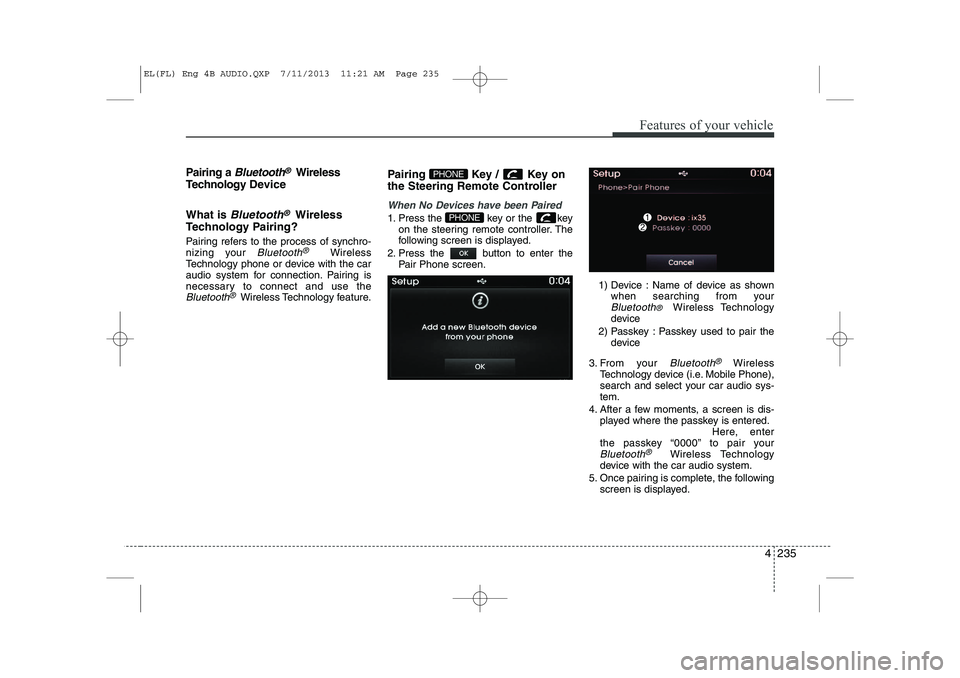
1. Press the key or the key
on the steering remote controller. The
following screen is displayed.
2. Press the button to enter the Pair Phone screen.
1) Device : Name of device as shownwhen searching from your
Bluetooth® Wireless Technology
device
2) Passkey : Passkey used to pair the device
3. From your
Bluetooth®Wireless
Technology device (i.e. Mobile Phone),
search and select your car audio sys-tem.
4. After a few moments, a screen is dis- played where the passkey is entered. Here, enter
the passkey “0000” to pair your
Bluetooth®Wireless Technology
device with the car audio system.
5. Once pairing is complete, the following screen is displayed.
PHONE
PHONE
EL(FL) Eng 4B AUDIO.QXP 7/11/2013 11:21 AM Page 235
Page 726 of 1534
Features of your vehicle
236
4
✽✽
NOTICE
If Bluetooth ®
Wireless Technology
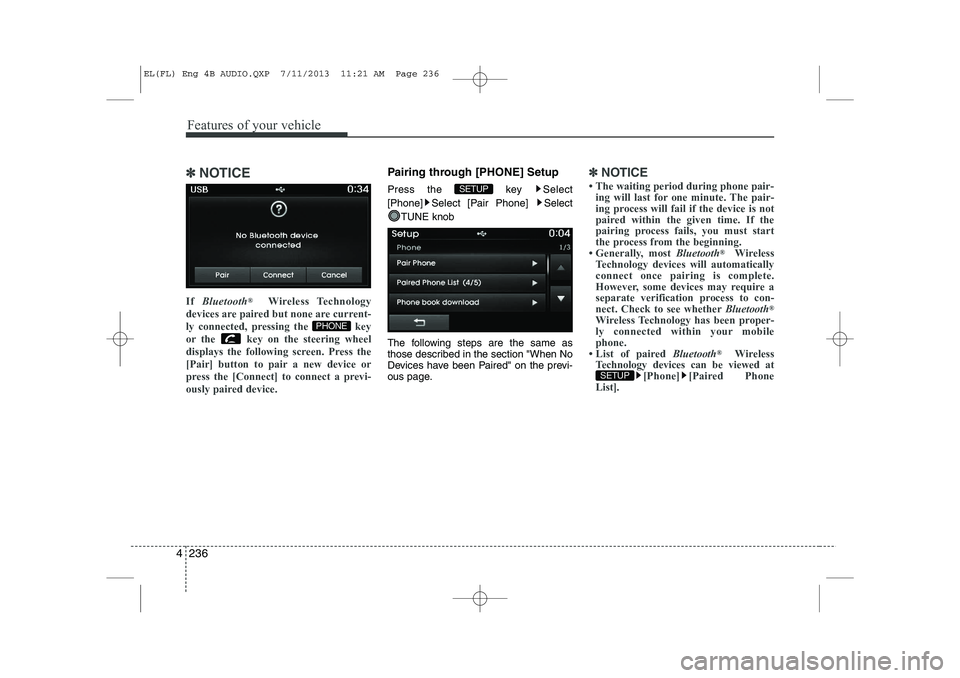
devices are paired but none are current-
ly connected, pressing the key
or the key on the steering wheel
displays the following screen. Press the
[Pair] button to pair a new device or
press the [Connect] to connect a previ-
ously paired device.Pairing through [PHONE] Setup
Press the key Select
[Phone] Select [Pair Phone] Select
TUNE knob
The following steps are the same as
those described in the section "When No
Devices have been Paired" on the previ-
ous page.✽✽ NOTICE
Page 749 of 1534
4 259
Features of your vehicle
Bluetooth®Wireless Technology
Setting The
Bluetooth®word mark and logos are
registered trademarks owned by
Bluetooth SIG, Inc. and any use of such
marks is under license. Other trademarks
and trade names are those of their
respective owners. A
Bluetooth®enabled
cell phone is required to use
Bluetooth®
wireless technology
Pairing a New Device
Press the key Select
[Phone] Select [Pair Phone]
Bluetooth®Wireless Technology devices
can be paired with the audio system.
For more information, refer to the “Pairing
through Phone Setup” section within
Bluetooth®Wireless Technology.
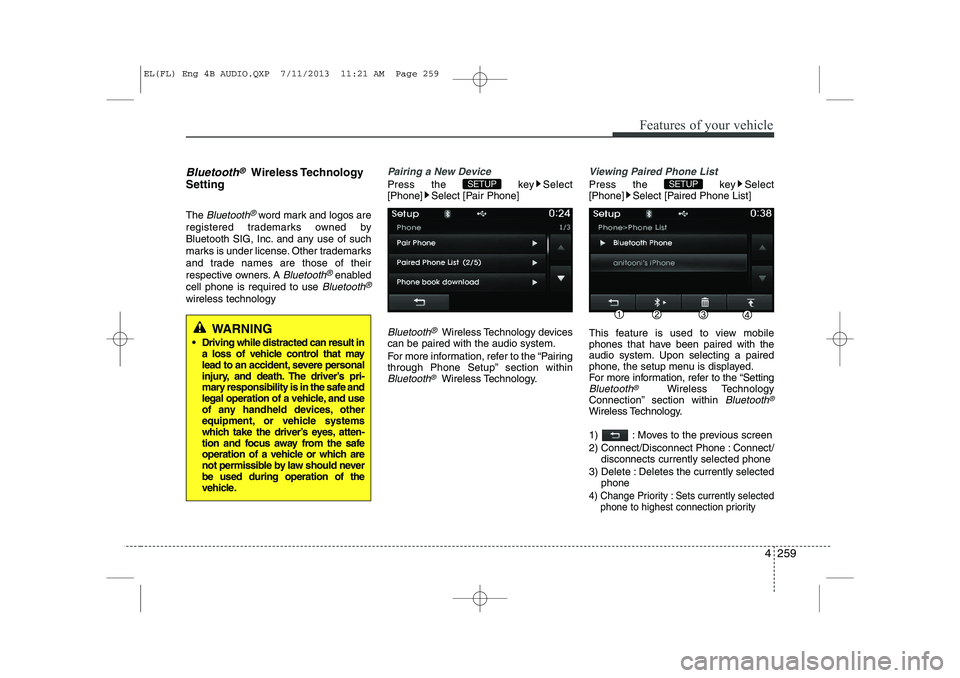
Viewing Paired Phone List
Press the key Select
[Phone] Select [Paired Phone List]
This feature is used to view mobile
phones that have been paired with the
audio system. Upon selecting a paired
phone, the setup menu is displayed.
For more information, refer to the “Setting
Bluetooth®Wireless Technology
Connection” section within Bluetooth®
Wireless Technology.
1) : Moves to the previous screen
2) Connect/Disconnect Phone : Connect/ disconnects currently selected phone
3) Delete : Deletes the currently selected phone
4) Change Priority : Sets currently selected
phone to highest connection priority
SETUP SETUP
WARNING
Driving while distracted can result in a loss of vehicle control that may
lead to an accident, severe personal
injury, and death. The driver’s pri-
mary responsibility is in the safe and
legal operation of a vehicle, and use
of any handheld devices, other
equipment, or vehicle systems
which take the driver’s eyes, atten-
tion and focus away from the safe
operation of a vehicle or which are
not permissible by law should neverbe used during operation of the
vehicle.
EL(FL) Eng 4B AUDIO.QXP 7/11/2013 11:21 AM Page 259
Page 1234 of 1534
![HYUNDAI IX35 2014 Owners Manual 4 163
Features of your vehicle
Phone Setup (if eqipped)
Press the key Select [Phone] Pair Phone
Select [Pair Phone] Set through TUNE knob ➀
Search for device names as displayed
on your mobile](/img/35/56237/w960_56237-1233.png "HYUNDAI IX35 2014 Owners Manual 4 163
Features of your vehicle
Phone Setup (if eqipped)
Press the key Select [Phone] Pair Phone
Select [Pair Phone] Set through TUNE knob ➀
Search for device names as displayed
on your mobile")
4 163
Features of your vehicle
Phone Setup (if eqipped)
Press the key Select [Phone] Pair Phone
Select [Pair Phone] Set through TUNE knob ➀
Search for device names as displayed
on your mobile phone and connect.
➁ Input the passkey displayed on the
screen. (Passkey : 0000)
❈ The device name and passkey will be
displayed on the screen for up to 3
minutes. If pairing is not completed
within the 3 minutes, the mobile phone
pairing process will automatically becanceled. ➂
Pairing completion is displayed.
❈ In some mobile phones, pairing will
automatically be followed by connec-tion.
❈ It is possible to pair up to five
Bluetooth®Wireless Technology
enabled mobile phones.
SETUP
CLOCKCAUTION
To pair a Bluetooth®Wireless
Technology enabled mobile phone, authentication and connection processes are first required. As aresult, you cannot pair your mobile
phone while driving the vehicle.First park your vehicle before use.
EL(FL) UK 4B AUDIO.QXP 7/15/2013 10:20 AM Page 163
Page 1305 of 1534
Features of your vehicle
234
4
Pairing a Bluetooth®Wireless
Technology De vice
What is
Bluetooth®Wireless
Technology Pairing?
Pairing refers to the process of synchro-
nizing your
Bluetooth®Wireless
Technology phone or device with the car
audio system for connection. Pairing is
necessary to connect and use the
Bluetooth®Wireless Technology feature. Pairing Key / Key on
the Steering Remote Controller
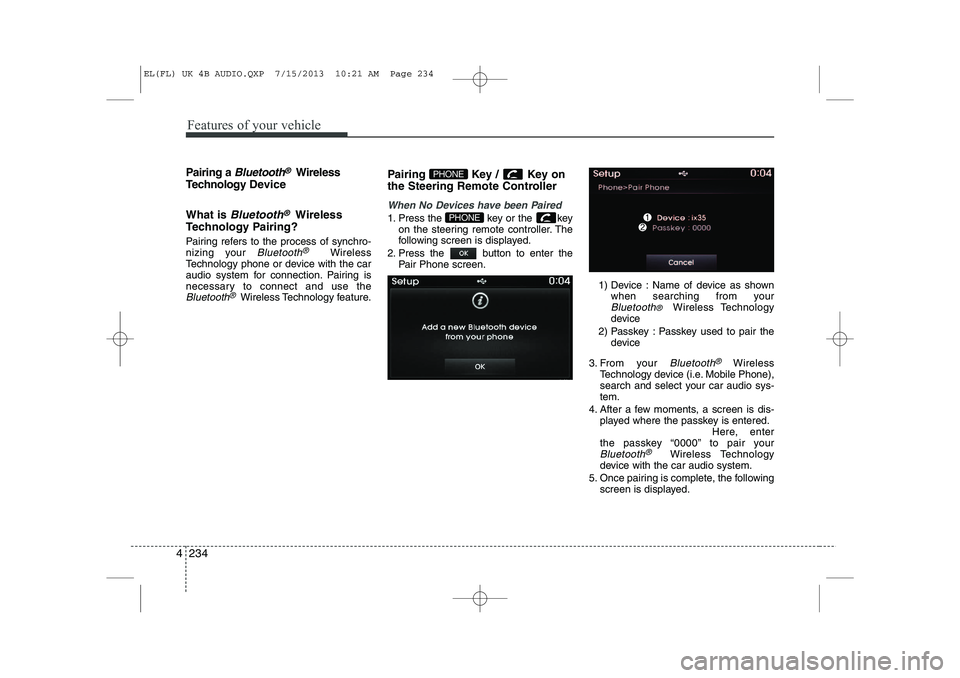
When No Devices have been Paired
1. Press the key or the key
on the steering remote controller. The
following screen is displayed.
2. Press the button to enter the Pair Phone screen.
1) Device : Name of device as shownwhen searching from your
Bluetooth® Wireless Technology
device
2) Passkey : Passkey used to pair the device
3. From your
Bluetooth®Wireless
Technology device (i.e. Mobile Phone),
search and select your car audio sys-tem.
4. After a few moments, a screen is dis- played where the passkey is entered. Here, enter
the passkey “0000” to pair your
Bluetooth®Wireless Technology
device with the car audio system.
5. Once pairing is complete, the following screen is displayed.
PHONE
PHONE
EL(FL) UK 4B AUDIO.QXP 7/15/2013 10:21 AM Page 234
Page 1306 of 1534
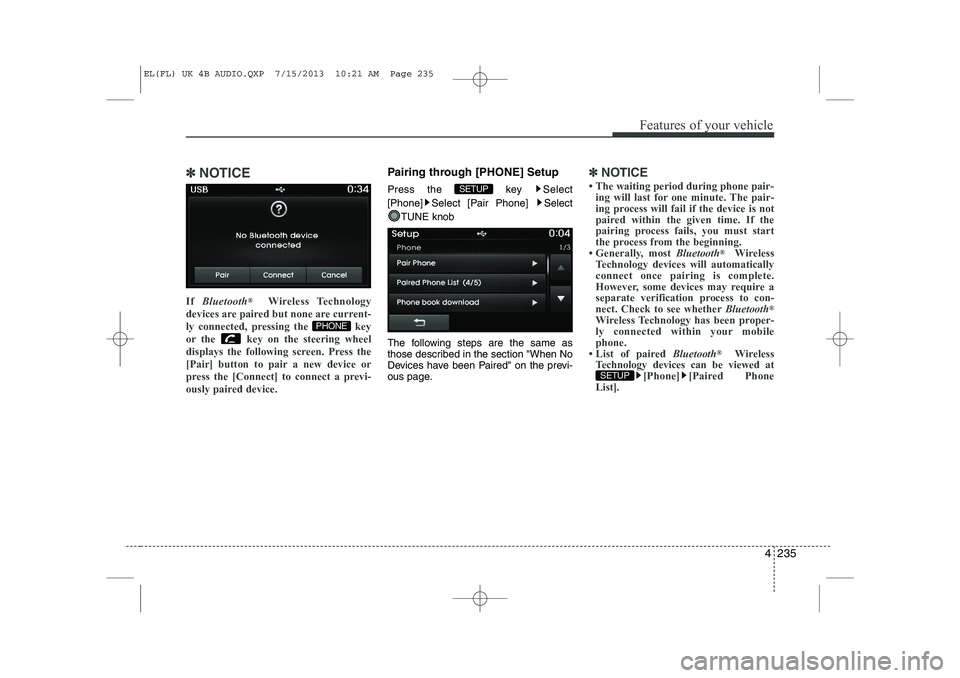
4 235
Features of your vehicle
✽✽NOTICE
If Bluetooth ®
Wireless Technology
devices are paired but none are current-
ly connected, pressing the key
or the key on the steering wheel
displays the following screen. Press the
[Pair] button to pair a new device or
press the [Connect] to connect a previ-
ously paired device.Pairing through [PHONE] Setup
Press the key Select
[Phone] Select [Pair Phone] Select
TUNE knob
The following steps are the same as
those described in the section "When No
Devices have been Paired" on the previ-
ous page.✽✽ NOTICE
Page 1329 of 1534

Features of your vehicle
258
4
Bluetooth®Wireless Technology
Setting The
Bluetooth®word mark and logos are
registered trademarks owned by
Bluetooth SIG, Inc. and any use of such
marks is under license. Other trademarks
and trade names are those of their
respective owners. A
Bluetooth®enabled
cell phone is required to use
Bluetooth®
wireless technology
Pairing a New Device
Press the key Select
[Phone] Select [Pair Phone]
Bluetooth®Wireless Technology devices
can be paired with the audio system.
For more information, refer to the “Pairing
through Phone Setup” section within
Bluetooth®Wireless Technology.
Viewing Paired Phone List
Press the key Select
[Phone] Select [Paired Phone List]
This feature is used to view mobile
phones that have been paired with the
audio system. Upon selecting a paired
phone, the setup menu is displayed.
For more information, refer to the “Setting
Bluetooth®Wireless Technology
Connection” section within Bluetooth®
Wireless Technology.
1) : Moves to the previous screen
2) Connect/Disconnect Phone : Connect/ disconnects currently selected phone
3) Delete : Deletes the currently selected phone
4) Change Priority : Sets currently selected
phone to highest connection priority
SETUP SETUP
WARNING
Driving while distracted can result in a loss of vehicle control that may
lead to an accident, severe personal
injury, and death. The driver’s pri-
mary responsibility is in the safe and
legal operation of a vehicle, and use
of any handheld devices, other
equipment, or vehicle systems
which take the driver’s eyes, atten-
tion and focus away from the safe
operation of a vehicle or which are
not permissible by law should neverbe used during operation of the
vehicle.
EL(FL) UK 4B AUDIO.QXP 7/15/2013 10:22 AM Page 258