set clock HYUNDAI IX35 2016 Owners Manual
[x] Cancel search | Manufacturer: HYUNDAI, Model Year: 2016, Model line: IX35, Model: HYUNDAI IX35 2016Pages: 550, PDF Size: 11.23 MB
Page 225 of 550
Features of your vehicle140
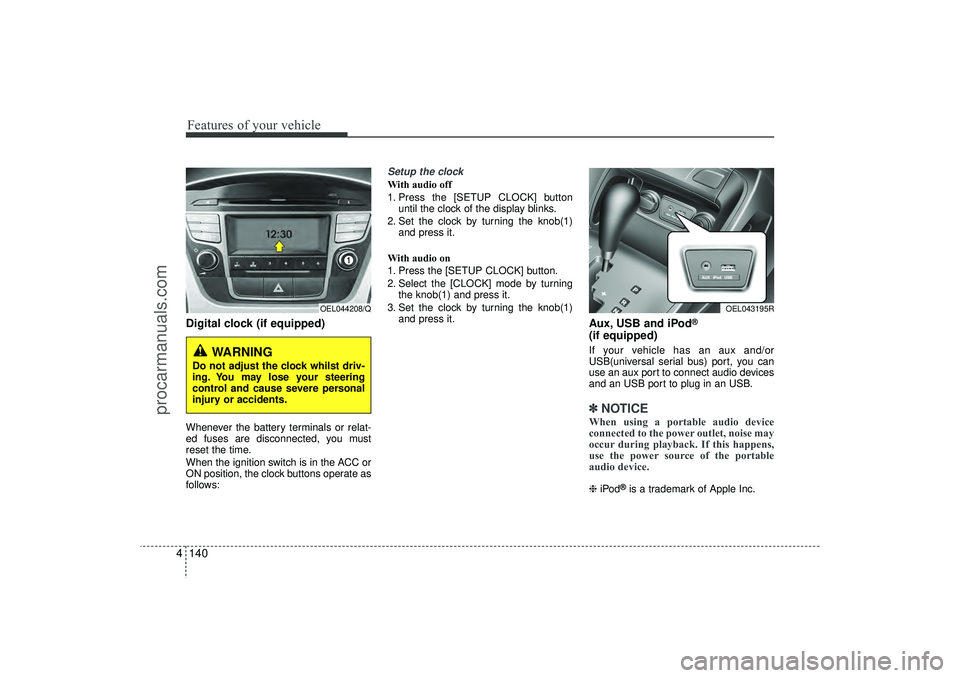
4Digital clock (if equipped)Whenever the battery terminals or relat-
ed fuses are disconnected, you must
reset the time.
When the ignition switch is in the ACC or
ON position, the clock buttons operate as
follows:
Setup the clockWith audio off
1. Press the [SETUP CLOCK] button
until the clock of the display blinks.
2. Set the clock by turning the knob(1) and press it.
With audio on
1. Press the [SETUP CLOCK] button.
2. Select the [CLOCK] mode by turning the knob(1) and press it.
3. Set the clock by turning the knob(1) and press it.
Aux, USB and iPod
®
(if equipped)If your vehicle has an aux and/or
USB(universal serial bus) port, you can
use an aux port to connect audio devices
and an USB port to plug in an USB.✽ ✽NOTICEWhen using a portable audio device
connected to the power outlet, noise may
occur during playback. If this happens,
use the power source of the portable
audio device. ❈ iPod
®is a trademark of Apple Inc.
WARNING
Do not adjust the clock whilst driv-
ing. You may lose your steering
control and cause severe personal
injury or accidents.
OEL044208/Q
OEL043195R
EL(FL) UK 4A.QXP 2/9/2015 9:09 PM Page 140
procarmanuals.com
Page 242 of 550
4 157
Features of your vehicle
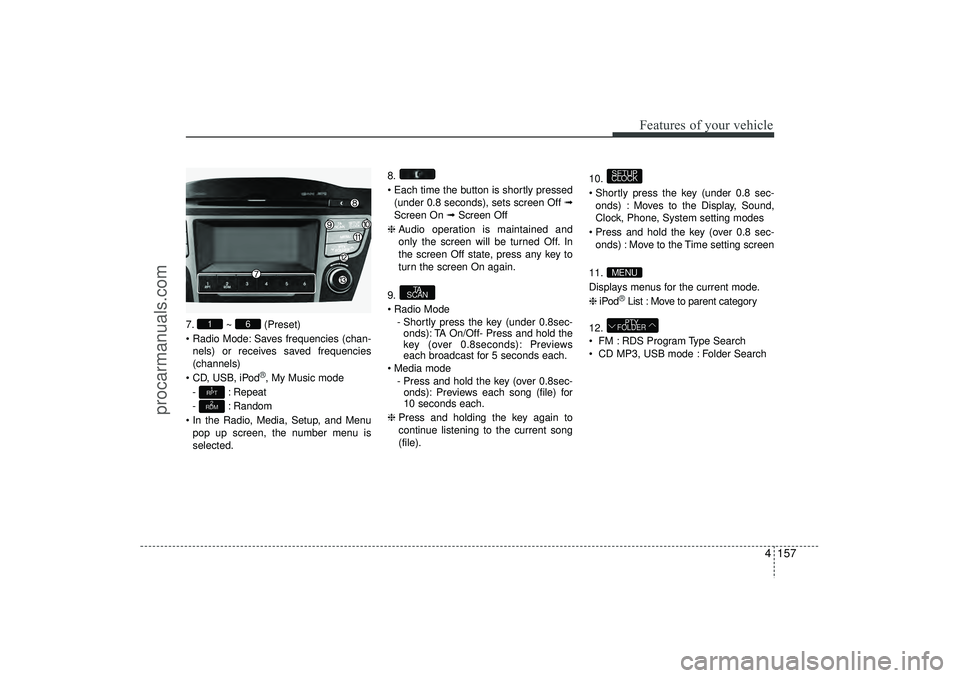
7.~ (Preset)
Radio Mode: Saves frequencies (chan- nels) or receives saved frequencies
(channels)
CD, USB, iPod
®, My Music mode
- : Repeat
- : Random
In the Radio, Media, Setup, and Menu pop up screen, the number menu is
selected. 8.
Each time the button is shortly pressed
(under 0.8 seconds), sets screen Off ➟
Screen On ➟ Screen Off
❈ Audio operation is maintained and
only the screen will be turned Off. In
the screen Off state, press any key to
turn the screen On again.
9.
Radio Mode - Shortly press the key (under 0.8sec-onds): TA On/Off- Press and hold the
key (over 0.8seconds): Previews
each broadcast for 5 seconds each.
Media mode - Press and hold the key (over 0.8sec-onds): Previews each song (file) for
10 seconds each.
❈ Press and holding the key again to
continue listening to the current song
(file). 10.
Shortly press the key (under 0.8 sec-
onds) : Moves to the Display, Sound,
Clock, Phone, System setting modes
Press and hold the key (over 0.8 sec- onds) : Move to the Time setting screen
11.
Displays menus for the current mode.
❈ iPod
®List : Move to parent category
12.
FM : RDS Program Type Search
CD MP3, USB mode : Folder SearchPTY
FOLDER
MENUSETUP
CLOCK
TA
SCAN
2
RDM1
RPT
6
1
EL(FL) UK 4B AUDIO.QXP 3/13/2015 4:19 PM Page 157
procarmanuals.com
Page 244 of 550
![HYUNDAI IX35 2016 Owners Manual 4 159
Features of your vehicle
SETUP - AC100ELEE, AC110ELEE
Display SettingsPress the key Select [Display]
through TUNE knob or key
Select menu through TUNE knob
Mode Pop up[Mode Pop up] Changes](/img/35/57921/w960_57921-243.png "HYUNDAI IX35 2016 Owners Manual 4 159
Features of your vehicle
SETUP - AC100ELEE, AC110ELEE
Display SettingsPress the key Select [Display]
through TUNE knob or key
Select menu through TUNE knob
Mode Pop up[Mode Pop up] Changes")
4 159
Features of your vehicle
SETUP - AC100ELEE, AC110ELEE
Display SettingsPress the key Select [Display]
through TUNE knob or key
Select menu through TUNE knob
Mode Pop up[Mode Pop up] Changes . selec-
tion mode
During On state, press the orkey to display the mode
change pop up screen.
When the pop up screen is displayed, use the TUNE knob or keys
~ to select the desired mode.Scroll text [Scroll text] Set / : Maintains scroll
: Scrolls only one (1) time.
Song InfoWhen playing an MP3 file, select the
desired display info from ‘Folder/File’ or
‘Album/Artist/Song’.
Sound SettingsPress the key Select [Sound]
through TUNE knob or key
Select menu through TUNE knob
2
RDM
SETUP
CLOCK
OffOn
Off
On
6
1
MEDIA
RADIOOn
1
RPT
SETUP
CLOCK
EL(FL) UK 4B AUDIO.QXP 3/13/2015 4:19 PM Page 159
procarmanuals.com
Page 246 of 550
![HYUNDAI IX35 2016 Owners Manual 4 161
Features of your vehicle
Clock SettingsPress the key Select [Clock]
through TUNE knob or key
Select menu through TUNE knob
Clock SettingsThis menu is used to set the time.
Select [Clock Sett](/img/35/57921/w960_57921-245.png "HYUNDAI IX35 2016 Owners Manual 4 161
Features of your vehicle
Clock SettingsPress the key Select [Clock]
through TUNE knob or key
Select menu through TUNE knob
Clock SettingsThis menu is used to set the time.
Select [Clock Sett")
4 161
Features of your vehicle
Clock SettingsPress the key Select [Clock]
through TUNE knob or key
Select menu through TUNE knob
Clock SettingsThis menu is used to set the time.
Select [Clock Settings] Set through
TUNE knob Press TUNE knob
❈ Adjust the number currently in focus to
set the [hour] and press the tune knob
to set the [minute].
Day SettingsThis menu is used to set the date.
Select [Day Settings] Set through
TUNE knob Press TUNE knob
❈ Adjust the number currently in focus to
make the settings and press the tune
knob to move to the next setting. (Set
in order of Year/Month/Day)
3
SETUP
CLOCK
EL(FL) UK 4B AUDIO.QXP 3/13/2015 4:19 PM Page 161
procarmanuals.com
Page 247 of 550
![HYUNDAI IX35 2016 Owners Manual Features of your vehicle162
4Time FormatThis function is used to set the 12/24
hour time format of the audio system.
Select [Time Format] Set 12Hr / 24Hr
through TUNE knobClock Display when Power is O](/img/35/57921/w960_57921-246.png "HYUNDAI IX35 2016 Owners Manual Features of your vehicle162
4Time FormatThis function is used to set the 12/24
hour time format of the audio system.
Select [Time Format] Set 12Hr / 24Hr
through TUNE knobClock Display when Power is O")
Features of your vehicle162
4Time FormatThis function is used to set the 12/24
hour time format of the audio system.
Select [Time Format] Set 12Hr / 24Hr
through TUNE knobClock Display when Power is OFFSelect [Clock Disp.(Pwr Off) Set /
through TUNE knob : Displays time/date on screen
: Turn off. Automatic RDS Time
This option is used to automatically set
the time by synchronizing with RDS.
Select [Automatic RDS Time] Set
/ through TUNE knob : Turn on Automatic Time
: Turn off.
OffOnOff
On
OffOnOff
On
EL(FL) UK 4B AUDIO.QXP 3/13/2015 4:19 PM Page 162
procarmanuals.com
Page 248 of 550
![HYUNDAI IX35 2016 Owners Manual 4 163
Features of your vehicle
Phone Setup (if eqipped) Press the key Select [Phone]
Pair PhoneSelect [Pair Phone] Set through
TUNE knob
➀ Search for device names as displayed
on your mobile phon](/img/35/57921/w960_57921-247.png "HYUNDAI IX35 2016 Owners Manual 4 163
Features of your vehicle
Phone Setup (if eqipped) Press the key Select [Phone]
Pair PhoneSelect [Pair Phone] Set through
TUNE knob
➀ Search for device names as displayed
on your mobile phon")
4 163
Features of your vehicle
Phone Setup (if eqipped) Press the key Select [Phone]
Pair PhoneSelect [Pair Phone] Set through
TUNE knob
➀ Search for device names as displayed
on your mobile phone and connect.
➁ Input the passkey displayed on the
screen. (Passkey : 0000)❈ The device name and passkey will be
displayed on the screen for up to 3
minutes. If pairing is not completed
within the 3 minutes, the mobile phone
pairing process will automatically be
cancelled.
\b Pairing completion is displayed.
❈In some mobile phones, pairing will
automatically be followed by connec-
tion.❈ It is possible to pair up to fiveBluetooth
®
Wireless Technology
enabled mobile phones.
SETUP
CLOCK
CAUTION
To pair a Bluetooth
®
Wireless
Technology enabled mobile phone, authentication and connection processes are first required. As aresult, you cannot pair your mobile phone whilst driving the vehicle.First park your vehicle before use.
EL(FL) UK 4B AUDIO.QXP 3/13/2015 4:19 PM Page 163
procarmanuals.com
Page 252 of 550
4 167
Features of your vehicle
Using the
Bluetooth
®Wireless
Technology System
To use
Bluetooth
®Wireless Technology
when the system is currently off, follow
these next steps.
Turning On Bluetooth
®
Wireless
Technology through the Key
Press the key Screen Guidance
❈ Moves to the screen where Bluetooth
®
Wireless Technology functions can be
used and displays guidance. Turning On
Bluetooth
®
Wireless
Technology through the Key
Press the key Select [Phone]
➀ A screen asking whether to turn on
Bluetooth
®Wireless Technology will be
displayed.
➁ On the screen, select to turn on
Bluetooth
®
Wireless Technology and
display guidance.
❈ If the
Bluetooth
®Wireless Technology
system is turned on, the system will
automatically try to connect the most
recently connected Bluetooth
®Wireless
Technology mobile phone.
YES
SETUP
CLOCK
SETUP
CLOCK
PHONE
PHONE
CAUTION
Bluetooth
®Wireless Technology con-
nection may become intermittently disconnected in some mobilephones. Follow these next steps totry again.
1) Turn the Bluetooth
®
Wireless
Technology function within the mobile phone ON/OFF and try to connect again.
2) Turn the mobile phone power ON/OFF and try to connect again.
3) Completely remove the mobile phone battery, reboot, and thentry to connect again.
4) Reboot the audio system and try to connect again
5) Delete all paired devices in your mobile phone and the audio sys-tem and pair again for use.
EL(FL) UK 4B AUDIO.QXP 3/13/2015 4:19 PM Page 167
procarmanuals.com
Page 253 of 550
![HYUNDAI IX35 2016 Owners Manual Features of your vehicle168
4System SettingsPress the key Select [System]
Memory Information
(if equipped)Displays currently used memory and
total system memory.
Select [Memory Information] OK
The c](/img/35/57921/w960_57921-252.png "HYUNDAI IX35 2016 Owners Manual Features of your vehicle168
4System SettingsPress the key Select [System]
Memory Information
(if equipped)Displays currently used memory and
total system memory.
Select [Memory Information] OK
The c")
Features of your vehicle168
4System SettingsPress the key Select [System]
Memory Information
(if equipped)Displays currently used memory and
total system memory.
Select [Memory Information] OK
The currently used memory is displayed
on the left side whilst the total system
memory is displayed on the right side.
Language
This menu is used to set the display
and voice recognition language.Select [Language] Set through
TUNE knob
❈ The system will reboot after the lan-
guage is changed.
❈ Language support by region
-
SETUP
CLOCK
EL(FL) UK 4B AUDIO.QXP 3/13/2015 4:19 PM Page 168
procarmanuals.com
Page 263 of 550
Features of your vehicle178
4Bluetooth
®Wireless
Technology AUDIO
(if equipped)
What is
Bluetooth
®Wireless
Technology?
Bluetooth
®Wireless Technology allows
devices to be connected in a short dis-
tance, including hands-free devices,
stereo headsets, wireless remote con-
trollers, etc. For more information, visit
the
Bluetooth
®
Wireless Technology
website at
www
.Bluetooth.com
Before using
Bluetooth
®
Wireless
Technology audio features
Bluetooth
®Wireless Technology audio
may not be supported depending on
the compatibility of your
Bluetooth
®
Wireless Technology mobile phone.
In order to use
Bluetooth
®
Wireless
Technology audio, you must first pair
and connect the
Bluetooth
®Wireless
Technology mobile phone. The
Bluetooth
®
word mark and logos
are registered trademarks owned by
Bluetooth
®
SIG, Inc. and any use of
such marks is under license. Other
trademarks and trade names are those
of their respective owners. A
Bluetooth
®
enabled cell phone is required to useBluetooth
®Wireless Technology
Bluetooth
®Wireless Technology audio
can be used only when the [Audio
Streaming] of Phone is turned On.
❈ Setting
Bluetooth
®Wireless Technology
Audio Streaming : Press the
key Select [Phone] through the tune
knob Select [Audio Streaming] through
the TUNE knob Set /
Starting
Bluetooth
®Wireless
Technology Audio
Press the key to change the
mode in order of CD ➟ USB ➟ AUX ➟
My Music ➟ BT Audio.
If BT Audio is selected,
Bluetooth
®
Wireless Technology audio will start
playing.
❈ Audio may not automatically start play-
ing in some mobile phones.Using the
Bluetooth
®
Wireless
Technology
audio features
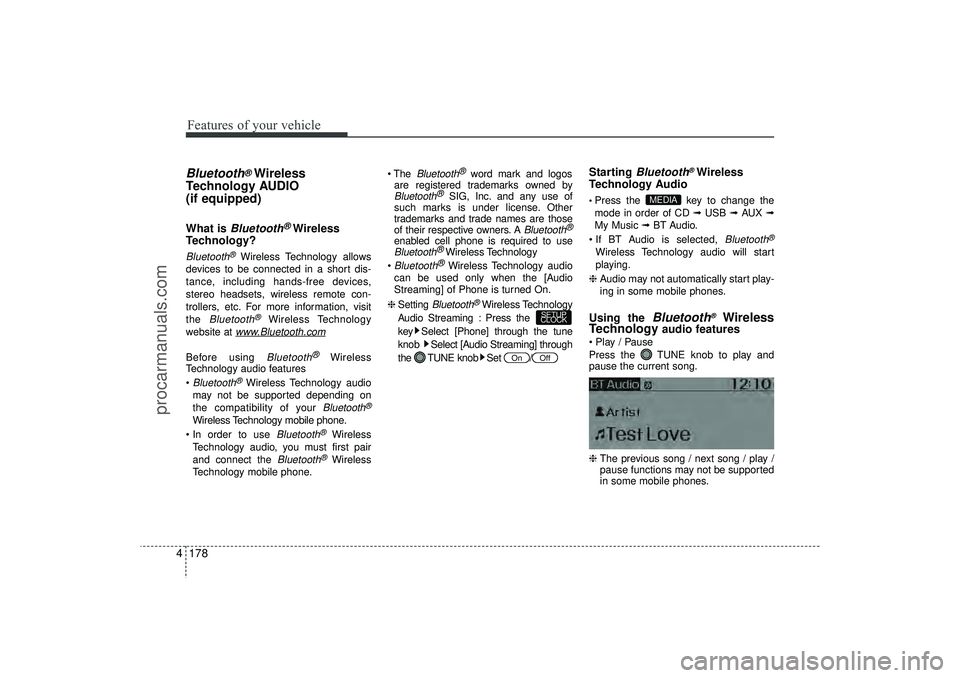
Play / Pause
Press the TUNE knob to play and
pause the current song.
❈ The previous song / next song / play /
pause functions may not be supported
in some mobile phones.
MEDIA
Off
On
SETUP
CLOCK
EL(FL) UK 4B AUDIO.QXP 3/13/2015 4:19 PM Page 178
procarmanuals.com
Page 269 of 550
Features of your vehicle184
4VOICE COMMAND
(if equipped)Starting Voice Command To start voice command, shortly press
the key on the steering wheel
remote controller.
If voice command is in [Normal Mode], then the system will say “Please say a
command. Beep”
❈ If voice command is in [Expert Mode],
then the system will only say a “Beep-”
❈ Setting Voice command [Normal
Mode]/[Expert Mode]:
Press the key Select
[System] through the TUNE knob or
key Select [Voice Command
Mode] through the TUNE knob Set
[Normal Mode]/[Expert Mode]
Say the voice command.✽ ✽ NOTICEFor proper voice recognition, say the
voice command after the guidance mes-
sage and the “Beep” sound.
Skipping the Guidance MessageWhilst the guidance message is being
stated, shortly press the key (under
0.8 seconds) to discontinue the guidance
message and sound the “beep”.
After the “beep”, say the voice command.
Ending Voice Command Whilst using voice command, press
and hold the key (over 0.8 sec-
onds) to end voice command.
Whilst using voice command, pressing the steering wheel remote controller or
a different key will end voice command.
In a state where the system is waiting for your voice command, say “cancel”
or “end” to end voice command.
In a state where the system is waiting for your voice command, shortly press
the key (under 0.8 seconds) to
end voice command.
5
SETUP
CLOCK
EL(FL) UK 4B AUDIO.QXP 3/13/2015 4:19 PM Page 184
procarmanuals.com