bluetooth HYUNDAI IX35 2016 User Guide
[x] Cancel search | Manufacturer: HYUNDAI, Model Year: 2016, Model line: IX35, Model: HYUNDAI IX35 2016Pages: 550, PDF Size: 9.92 MB
Page 266 of 550
4 181
Features of your vehicle
✽
✽NOTICE -
USING THE
Bluetooth
®Wireless Technology
MOBILE PHONE
• Do not use a mobile phone or perform Bluetooth® Wireless Technology set-
tings (e.g. pairing a phone) whilst
driving.
• Some Bluetooth
®Wireless Technology
-enabled phones may not be recog-
nized by the system or fully compati-
ble with the system.
• Before using Bluetooth
®
Wireless
Technology related features of the
audio system, refer your phone’s
User’s Manual for phone-side
Bluetooth
®Wireless Technology oper-
ations.
• The phone must be paired to the audio system to use Bluetooth
®Wireless
Technology related features.
• You will not be able to use the hands- free feature when your phone (in the
car) is outside of the mobile service
area (e.g. in a tunnel, in a under-
ground, in a mountainous area, etc.). (Continued)(Continued)
• If the mobile phone signal is poor or
the vehicles interior noise is too loud,
it may be difficult to hear the other
person’s voice during a call.
• Do not place the phone near or inside metallic objects, otherwise communi-
cations with Bluetooth
®
Wireless
Technology system or mobile service
stations can be disturbed.
• Whilst a phone is connected through Bluetooth
®Wireless Technology your
phone may discharge quicker than
usual for additional Bluetooth
®
Wireless Technology-related opera-
tions.
• Some mobile phones or other devices may cause interference noise or mal-
function to audio system. In this case,
store the device in a different location
may resolve the condition.
• Phone contact names should be saved in English or they may not be dis-
played correctly. (Continued)(Continued)
• If Priority is set upon vehicle igni-
tion(IGN/ACC ON), the Bluetooth
®
Wireless Technology phone will be
automatically connected.
Even if you are outside, the Bluetooth
®
Wireless Technology phone will be
automatically connected once you are
in the vicinity of the vehicle.
If you do not want automatic
Bluetooth
®Wireless Technology con-
nection, turn the Bluetooth
®Wireless
Technology feature off.
• The hands-free call volume and quali- ty may differ depending on the mobile
phone type.
• Bluetooth
®Wireless Technology fea-
tures can be used only when the
mobile phone has been paired and
connected with the device. For more
information on pairing and connect-
ing Bluetooth
®Wireless Technology
enabled mobile phones, refer to the
“Phone Setup” section. (Continued)
EL(FL) UK 4B AUDIO.QXP 3/13/2015 4:19 PM Page 181
Page 267 of 550
Features of your vehicle182
4(Continued)
• When a Bluetooth
®
Wireless
Technology mobile phone is connect-
ed, a ( ) icon will appear at the top of
the screen. If a ( ) icon is not dis-
played, this indicates that a Bluetooth
®
Wireless Technology enabled device
has not been connected. You must con-
nect the device before use. For more
information on Bluetooth
®Wireless
Technology mobile phones, refer to
the “Phone Setup” section.
• Pairing and connecting a Bluetooth
®
Wireless Technology enabled mobile
phone will work only when the
Bluetooth
®
Wireless Technology
option within your mobile phone has
been turned on. (Methods of turning
on the Bluetooth®Wireless Technology
enabled feature may differ depending
on the mobile phone.) (Continued)(Continued)
• In some mobile phones, starting the
ignition whilst talking through
Bluetooth
®
Wireless Technology
enabled handsfree call will result in
the call becoming disconnected.
(Switch the call back to your mobile
phone when starting the ignition.)
• Some features may not be supported in some Bluetooth
®
Wireless
Technology mobile phone and devices.
• Bluetooth
®
Wireless Technology
enabled operation may be unstable
depending on the communication
state.
• Placing the audio system within an electromagnetic environment may
result in noise interference.
EL(FL) UK 4B AUDIO.QXP 3/13/2015 4:19 PM Page 182
Page 268 of 550
4 183
Features of your vehicle
✽
✽NOTICE -
USING VOICE COM-
MAND
• The voice recognition feature of this
product supports recognition of the
commands listed within this user’s
manual.
• Whilst using voice recognition, oper- ating the steering remote control or
the device will terminate voice recog-
nition and allow you to manually
operate desired functions.
• Position the microphone above the head of the driver’s seat. For superior
performance, maintain good posture
when saying voice commands. (Continued)(Continued)
• Voice recognition may not function
properly due to outside noise. The fol-
lowing conditions can affect the per-
formance of Voice Recognition:
- When the windows and sunroof areopen
- When the heating/cooling system is on
- When passing a tunnel
- When driving on rugged and uneven roads
• After downloading Bluetooth
®
Wireless Technology phone book, the
system requires some times to convert
the phone book into voice informa-
tion. During this time, voice recogni-
tion may not operate properly.
• Upon inputting your phone book, spe- cial symbols and numbers cannot be
recognized by voice. For example, “#
John Doe%&” will be recognized as
“John Doe”.
EL(FL) UK 4B AUDIO.QXP 3/13/2015 4:19 PM Page 183
Page 270 of 550
4 185
Features of your vehicle
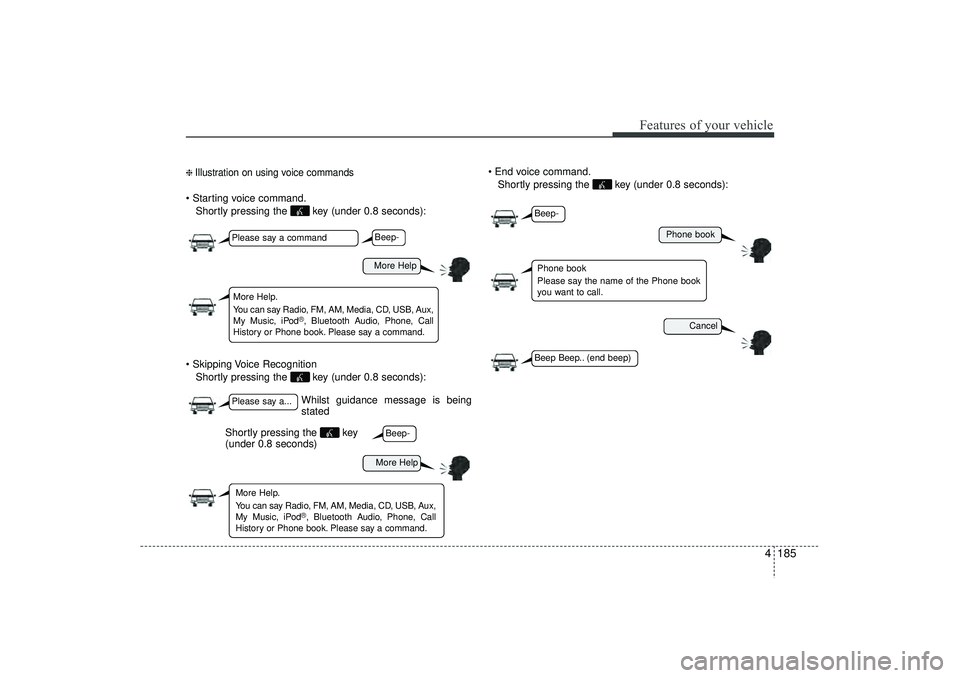
❈ Illustration on using voice commands Starting voice command.Shortly pressing the key (under 0.8 seconds):
Skipping Voice Recognition Shortly pressing the key (under 0.8 seconds): End voice command.
Shortly pressing the key (under 0.8 seconds):
Whilst guidance message is being
stated
More Help
Phone book
Cancel
More Help
Please say a commandPlease say a...More Help.
You can say Radio, FM, AM, Media, CD, USB, Aux,
My Music, iPod
®, Bluetooth A udio, Phone, Call
History or Phone book. Please say a command.
Phone book
Please say the name of the Phone book
you want to call.
More Help.
You can say Radio, FM, AM, Media, CD, USB, Aux,
My Music, iPod
®, Bluetooth A udio, Phone, Call
History or Phone book. Please say a command.
Beep-Beep-
Beep-Beep Beep.. (end beep)
Shortly pressing the key
(under 0.8 seconds)
EL(FL) UK 4B AUDIO.QXP 3/13/2015 4:19 PM Page 185
Page 272 of 550
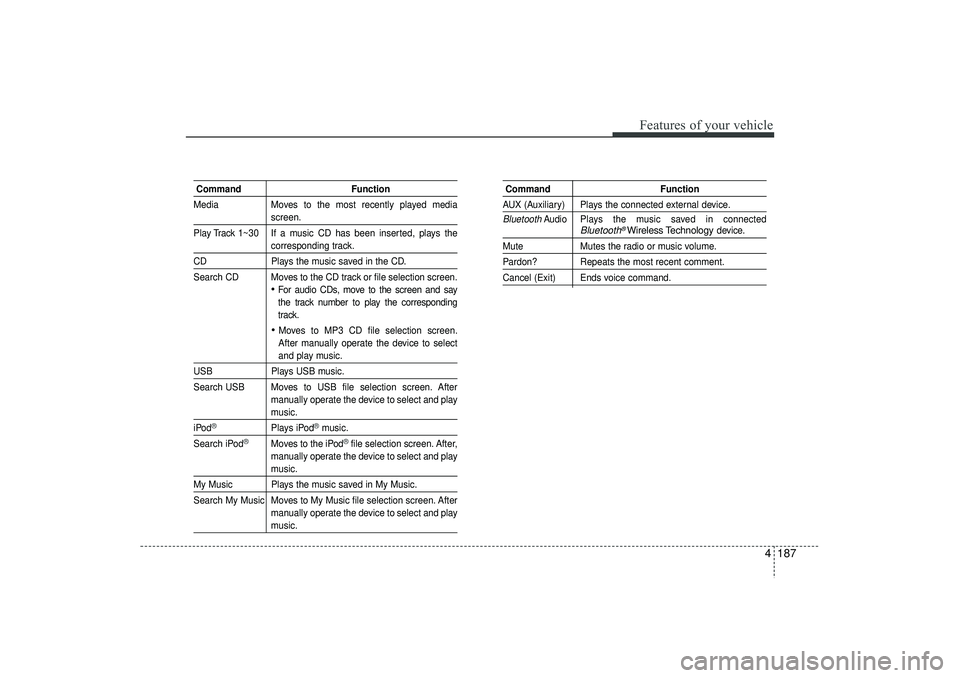
4 187
Features of your vehicle
CommandFunction
Media Moves to the most recently played media
screen.
Play Track 1~30 If a music CD has been inserted, plays thecorresponding track.
CD Plays the music saved in the CD.
Search CD Moves to the CD track or file selection screen.
For audio CDs, move to the screen and say
the track number to play the corresponding
track. Moves to MP3 CD file selection screen.
After manually operate the device to selectand play music.
USB Plays USB music.
Search USB Moves to USB file selection screen. After manually operate the device to select and play
music.
iPod
®
Plays iPod
®music.
Search iPod
®
Moves to the iPod
®file selection screen. After,
manually operate the device to select and play
music.
My Music Plays the music saved in My Music.
Search My Music Moves to My Music file selection screen. After manually operate the device to select and play
music.
Command FunctionAUX (Auxiliary) Plays the connected external device.Bluetooth
Audio Plays the music saved in connected
Bluetooth
®Wireless Technology
device.
Mute Mutes the radio or music volume.Pardon? Repeats the most recent comment.Cancel (Exit) Ends voice command.
EL(FL) UK 4B AUDIO.QXP 3/13/2015 4:19 PM Page 187
Page 275 of 550
Features of your vehicle190
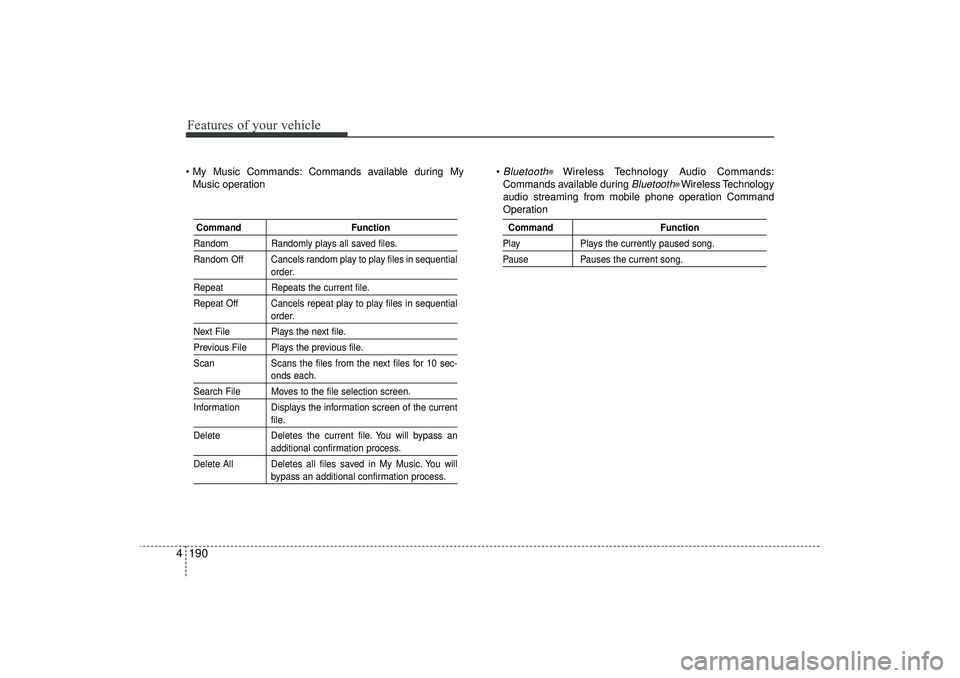
4 My Music Commands: Commands available during My
Music operation
Bluetooth
®
Wireless Technology Audio Commands:
Commands available during
Bluetooth
®Wireless Technology
audio streaming from mobile phone operation Command
Operation
Command FunctionRandom Randomly plays all saved files.
Random Off Cancels random play to play files in sequential
order.
RepeatRepeats the current file.
Repeat Off Cancels repeat play to play files in sequential
order.
Next File Plays the next file.Previous File Plays the previous file.
Scan Scans the files from the next files for 10 sec-
onds each.
Search File Moves to the file selection screen.
Information Displays the information screen of the current
file.
Delete Deletes the current file. You will bypass anadditional confirmation process.
Delete All Deletes all files saved in My Music. You willbypass an additional confirmation process.
Command FunctionPlayPlays the currently paused song.PausePauses the current song.
EL(FL) UK 4B AUDIO.QXP 3/13/2015 4:19 PM Page 190
Page 287 of 550
Features of your vehicle202
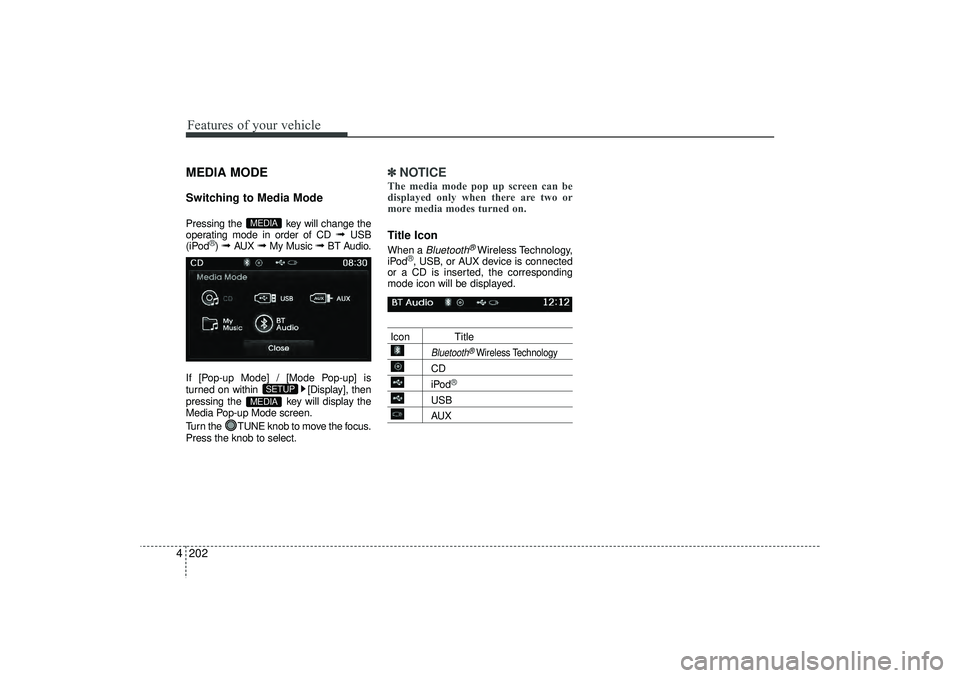
4MEDIA MODESwitching to Media ModePressing the key will change the
operating mode in order of CD
➟
USB
(iPod
®) ➟
AUX
➟
My Music
➟
BT Audio.
If [Pop-up Mode] / [Mode Pop-up] is
turned on within [Display], then
pressing the key will display the
Media Pop-up Mode screen.
Turn the TUNE knob to move the focus.
Press the knob to select.
✽ ✽ NOTICE The media mode pop up screen can be
displayed only when there are two or
more media modes turned on.Title Icon When a
Bluetooth
®Wireless Technology,
iPod
®, USB, or AUX device is connected
or a CD is inserted, the corresponding
mode icon will be displayed.
Icon Title
Bluetooth
®Wireless Technology
CDiPod
®
USBAUX
MEDIA
SETUP
MEDIA
EL(FL) UK 4B AUDIO.QXP 3/13/2015 4:19 PM Page 202
Page 304 of 550
4 219
Features of your vehicle
✽
✽NOTICE - USING THE iPod
®
DEVICE
• iPod
®
is a registered trademark of
Apple Inc.
• In order to use the iPod
®whilst oper-
ating the keys, you must use a dedi-
cated iPod
®cable. (the cable that is
supplied when purchasing
iPod
®/iPhone
®products)
• If the iPod
®is connected to the vehicle
whilst it is playing, a high pitch sound
could occur for approximately 1-2 sec-
onds immediately after connecting. If
possible, connect the iPod
®
to the
vehicle with the iPod
®
stopped/paused.
• During ACC ON state, connecting the iPod
®
through the iPod
®
cable will
charge the iPod
®
through the car
audio system.
• When connecting with the iPod
®
cable, make sure to fully insert the
jack to prevent communication inter-
ference. (Continued)(Continued)
• When the EQ features of an external
device, such as the iPod
®, and the audio
system are both active, EQ effects could
overlap and cause sound deterioration
and distortion. Whenever possible, turn
off the EQ feature within the external
device upon use by connecting with the
audio system.
• Noise may occur when an iPod
®
or
AUX device is connected. When such
devices are not being used, disconnect
the device for storage.
• When the iPod
®or AUX device power
is connected to the power jack, playing
the external device may result in noise.
In such cases, disconnect the power con-
nection before use.
• Skipping or improper operation may occur depending on the characteristics of
your iPod
®/iPhone
®device.
• If your iPhone is connected to both the Bluetooth
®
Wireless Technology and
USB, the sound may not be properly
played. In your
iPhone
®, select the
Dock connector or Bluetooth®Wireless
Technology to change the sound out-
put (source). (Continued)(Continued)
• iPod
®mode cannot be operated when
the iPod®cannot be recognized due to
the playing of versions that do not
support communication protocols,
cases of iPod
®abnormalities and
defects.
• For fifth generation iPod
®
Nano
devices, the iPod
®may not be recog-
nized when the battery level is low.
Please charge the iPod
®for use.
• Search/play orders shown within the iPod
®
device may differ with the
orders shown within the audio system.
• If the iPod
®malfunctions due to an
iPod
®device defect, reset the iPod
®
and try again. (To learn more, refer to
your iPod
®manual)
• Some iPod®s may not sync with the
System depending on its version. If
the Media is removed before the
Media is recognized, then the system
may not properly restore the previ-
ously operated mode. (iPad charging
is not supported.)
EL(FL) UK 4B AUDIO.QXP 3/13/2015 4:19 PM Page 219
Page 314 of 550
4 229
Features of your vehicle
✽
✽NOTICE - USING THE
Bluetooth
®Wireless
Technology Audio Mode
• Bluetooth
®Wireless Technology Audio
Mode can be used only when a
Bluetooth®Wireless Technology phone
has been connected.
• Bluetooth®Wireless Technology Audio
Mode will not be available when con-
necting mobile phones that do not
support this feature.
• Whilst Bluetooth
®
Wireless
Technology Audio is playing, if the
Bluetooth
®Wireless Technology phone
is connected, then the music will also
stop.
• Moving the Track up/down whilst playing Bluetooth
®
Wireless
Technology audio mode may result in
pop noises in some mobile phones.
• Bluetooth
®
Wireless Technology
streaming audio may not be support-
ed in some mobile phones. (Continued)(Continued)
• When returning to Bluetooth
®
Wireless Technology Audio mode
after ending a call, the mode may not
automatically restart in some mobile
phones.
• Receiving an incoming call or making an outgoing call whilst playing
Bluetooth
®Wireless Technology Audio
may result in audio interference.
EL(FL) UK 4B AUDIO.QXP 3/13/2015 4:19 PM Page 229
Page 315 of 550
Features of your vehicle230
4Bluetooth
®Wireless
Technology AUDIO MODE
Using
Bluetooth
®Wireless
Technology Audio Mode
Playing/Pausing Bluetooth
®Wireless
Technology
Audio
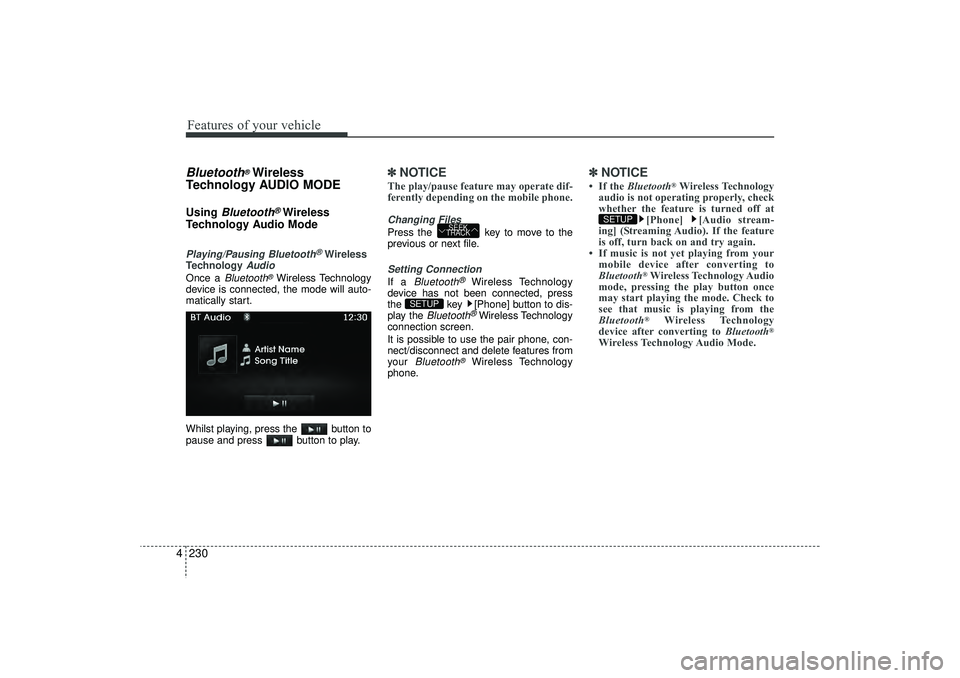
Once a
Bluetooth
®Wireless Technology
device is connected, the mode will auto-
matically start.
Whilst playing, press the button to
pause and press button to play.
✽ ✽ NOTICE The play/pause feature may operate dif-
ferently depending on the mobile phone.Changing FilesPress the key to move to the
previous or next file.Setting ConnectionIf a
Bluetooth
®
Wireless Technology
device has not been connected, press
the key [Phone] button to dis-
play the
Bluetooth
®Wireless Technology
connection screen.
It is possible to use the pair phone, con-
nect/disconnect and delete features from
your
Bluetooth
®
Wireless Technology
phone.
✽ ✽ NOTICE • If the Bluetooth
®Wireless Technology
audio is not operating properly, check
whether the feature is turned off at [Phone] [Audio stream-
ing] (Streaming Audio). If the feature
is off, turn back on and try again.
• If music is not yet playing from your mobile device after converting to
Bluetooth
®Wireless Technology Audio
mode, pressing the play button once
may start playing the mode. Check to
see that music is playing from the
Bluetooth®
Wireless Technology
device after converting to Bluetooth
®
Wireless Technology Audio Mode.SETUP
SETUP
SEEK
TRACK
EL(FL) UK 4B AUDIO.QXP 3/13/2015 4:19 PM Page 230