bluetooth HYUNDAI IX35 2016 Owner's Manual
[x] Cancel search | Manufacturer: HYUNDAI, Model Year: 2016, Model line: IX35, Model: HYUNDAI IX35 2016Pages: 550, PDF Size: 9.92 MB
Page 316 of 550
4 231
Features of your vehicle
Bluetooth
®Wireless Technology
Using
Bluetooth
®Wireless
Technology Handsfree
Bluetooth
®Wireless Technology refers to
a short-distance wireless networking
technology which uses a 2.4GHz ~
2.48GHz frequency to connect various
devices within a certain distance.
Supported within PCs, external devices,
Bluetooth
®
Wireless Technology
phones, PDAs, various electronic
devices, and automotive environments,
Bluetooth
®Wireless Technology allows
data to be transmitted at high speeds
without having to use a connector cable.
Bluetooth
®
Wireless Technology
Handsfree refers to a device which
allows the user to conveniently make
phone calls with
Bluetooth
®Wireless
Technology mobile phones through the
audio system.
CAUTION
Bluetooth
®Wireless Technology
Handsfree is a feature that enables drivers to practice safe driving.Connecting the car audio systemwith a Bluetooth
®
Wireless
Technology phone allows the user to conveniently make calls, receive calls, and manage the phone book.Before using the Bluetooth
®
Wireless Technology , carefullyread the contents of this user’s manual.
Excessive use or operations whilst driving may lead to negligent driv-ing practices and be the cause of accidents.
Do not operate the device exces- sively whilst driving.
Viewing the screen for prolonged periods of time is dangerous andmay lead to accidents. When driv- ing, view the screen only for shortperiods of time.
EL(FL) UK 4B AUDIO.QXP 3/13/2015 4:19 PM Page 231
Page 317 of 550
Features of your vehicle232
4✽
✽
NOTICE - USING UPON
CONNECTING
Bluetooth
®
Wireless Technology PHONE
• Before connecting the car audio sys-
tem with the mobile phone, check to
see that the mobile phone supports
Bluetooth
®Wireless Technology fea-
tures.
• Even if the phone supports Bluetooth
®
Wireless Technology, the phone will
not be found during device searches if
the phone has been set to hidden state
or the Bluetooth
®Wireless Technology
power is turned off. Disable the hid-
den state or turn on the Bluetooth
®
Wireless Technology power prior to
searching/connecting with the car
audio system. (Continued)(Continued)
• If you do not want to automatically
connect your Bluetooth
®
Wireless
Technology phone, try the following.
1. Turn off the Bluetooth®Wireless
Technology feature in your mobile
phone.
- For more information on Bluetooth
®
Wireless Technology features within
your mobile, refer to your mobile
phone user’s manual.
2. Turn off the Bluetooth
®Wireless
Technology feature in your car
audio system.
- To turn off the Bluetooth®Wireless
Technology feature in your car
audio system, go to >
[Phone] and [turn off] the
Bluetooth
®Wireless Technology fea-
ture.
• Park the vehicle when connecting the car audio system with your mobile
phone. (Continued)(Continued)
•
Bluetooth
®Wireless Technology con-
nection may become intermittently
disconnected in some mobile phones.
Follow these steps to try again.
1. Turn the Bluetooth
®
Wireless
Technology function within the
mobile phone off/on and try again.
2. Turn the mobile phone power Off/On and try again.
3 Completely remove the mobile phone battery, reboot, and then
again.
4. Reboot the audio system and try again.
5. Delete all paired devices, pair and try again.
• The Handsfree call volume and quali- ty may differ depending on the mobile
phone. (Continued)
SETUP
EL(FL) UK 4B AUDIO.QXP 3/13/2015 4:19 PM Page 232
Page 318 of 550
4 233
Features of your vehicle
(Continued)
•Bluetooth
®Wireless Technology fea-
tures supported within the vehicle are
as follows. Some features may not be
supported depending on your
Bluetooth®
Wireless Technology
device.
- Answering and placing Bluetooth
®
Wireless Technology Handsfree calls
- Menu operation during call (Switch to Private, Switch to call waiting,
Outgoing volume)
- Download Call History
- Download Mobile Phone book
- Phone book/Call History Auto Download
- Bluetooth
®
Wireless Technology
device auto connection - Bluetooth
®
Wireless Technology Audio
• It is possible to pair up to five Bluetooth
®
Wireless Technology
devices to the car system.
• Only one Bluetooth
®
Wireless
Technology device can be connected at
a time. (Continued)(Continued)
• Other devices cannot be paired whilst
a Bluetooth
®
Wireless Technology
device is already connected.
• When a Bluetooth
®
Wireless
Technology device is being connected,
the connection process cannot be can-
celled.
• Only Bluetooth
®Wireless Technology
Handsfree and Bluetooth
®Wireless
Technology audio related features will
operate within this system.
• Normal operation is possible only for devices that support Handsfree or
audio features, such as a Bluetooth
®
Wireless Technology mobile phone or
a Bluetooth
®
Wireless Technology
audio device.
• Only one function can be used at a time between the Bluetooth
®Wireless
Technology Handsfree and Bluetooth
®
Wireless Technology audio. (Whilst
playing Bluetooth
®
Wireless
Technology audio, streaming will end
upon entering the Bluetooth®Wireless
Technology phone screen.) (Continued)(Continued)
• If a connected Bluetooth
®Wireless
Technology device becomes discon-
nected for various reasons, such as
being out of range, turning the device
OFF, or a Bluetooth
®
Wireless
Technology communication error,
Bluetooth
®
Wireless Technology
devices are automatically searched
and connected.
• Placing the audio system within an electromagnetic environment may
result in noise interference.
EL(FL) UK 4B AUDIO.QXP 3/13/2015 4:19 PM Page 233
Page 319 of 550
Features of your vehicle234
4Pairing a
Bluetooth
®Wireless
Technology De vice
What is
Bluetooth
®
Wireless
Technology Pairing?
Pairing refers to the process of synchro-
nizing your
Bluetooth
®
Wireless
Technology phone or device with the car
audio system for connection. Pairing is
necessary to connect and use the
Bluetooth
®Wireless Technology feature.
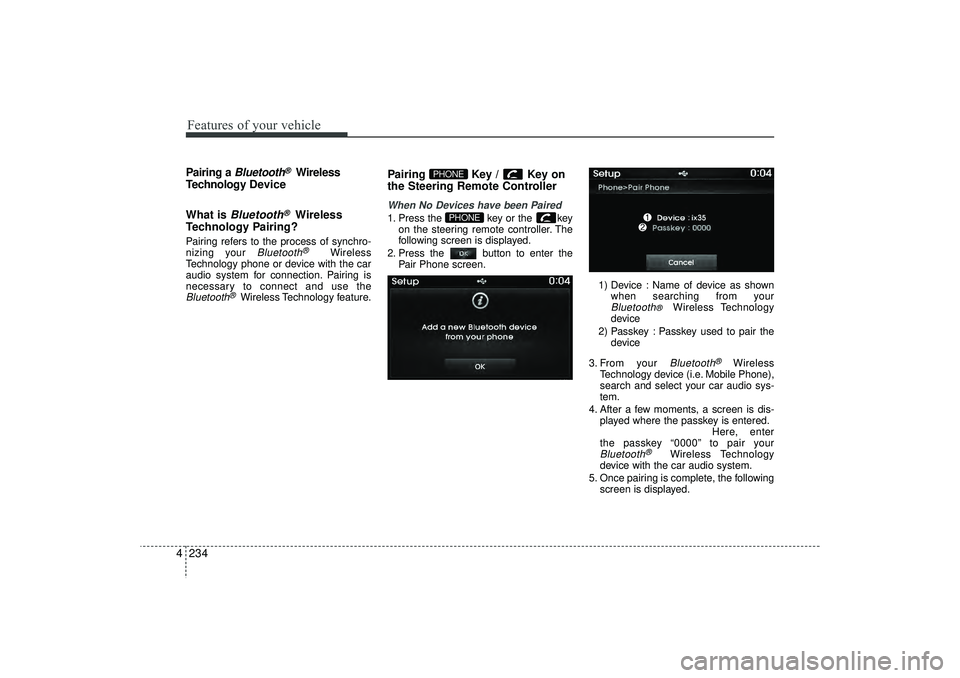
Pairing Key / Key on
the Steering Remote ControllerWhen No Devices have been Paired1. Press the key or the key on the steering remote controller. The
following screen is displayed.
2. Press the button to enter the Pair Phone screen.
1) Device : Name of device as shownwhen searching from your
Bluetooth
®
Wireless Technology
device
2) Passkey : Passkey used to pair the device
3. From your Bluetooth
®
Wireless
Technology device (i.e. Mobile Phone),
search and select your car audio sys-
tem.
4. After a few moments, a screen is dis- played where the passkey is entered. Here, enter
the passkey “0000” to pair your
Bluetooth
®
Wireless Technology
device with the car audio system.
5. Once pairing is complete, the following screen is displayed.
PHONE
PHONE
EL(FL) UK 4B AUDIO.QXP 3/13/2015 4:19 PM Page 234
Page 320 of 550
4 235
Features of your vehicle
✽
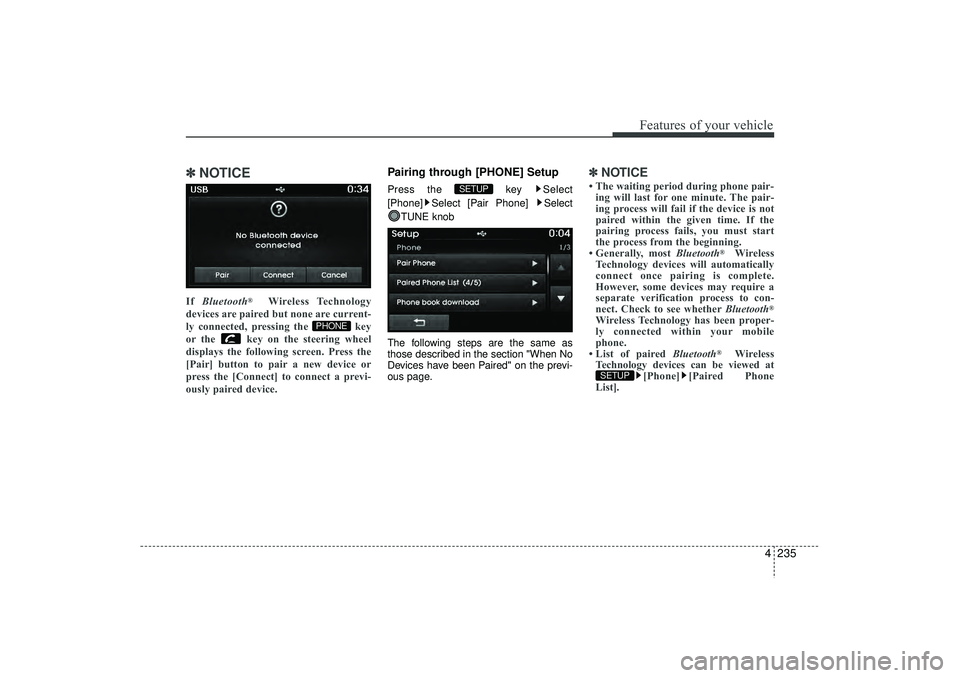
✽NOTICE If Bluetooth
®
Wireless Technology
devices are paired but none are current-
ly connected, pressing the key
or the key on the steering wheel
displays the following screen. Press the
[Pair] button to pair a new device or
press the [Connect] to connect a previ-
ously paired device.
Pairing through [PHONE] SetupPress the key Select
[Phone] Select [Pair Phone] Select TUNE knob
The following steps are the same as
those described in the section "When No
Devices have been Paired" on the previ-
ous page.
✽ ✽ NOTICE • The waiting period during phone pair-
ing will last for one minute. The pair-
ing process will fail if the device is not
paired within the given time. If the
pairing process fails, you must start
the process from the beginning.
• Generally, most Bluetooth
®
Wireless
Technology devices will automatically
connect once pairing is complete.
However, some devices may require a
separate verification process to con-
nect. Check to see whether Bluetooth
®
Wireless Technology has been proper-
ly connected within your mobile
phone.
• List of paired Bluetooth
®
Wireless
Technology devices can be viewed at [Phone] [Paired Phone
List].
SETUP
SETUP
PHONE
EL(FL) UK 4B AUDIO.QXP 3/13/2015 4:19 PM Page 235
Page 322 of 550
4 237
Features of your vehicle
Changing PriorityWhat is Priority?It is possible to pair up to five
Bluetooth
®
Wireless Technology devices with the car
audio system. The "Change Priority" fea-
ture is used to set the connection priority
of paired phones. However, the most
recently connected phone will always be
set as the highest priority.
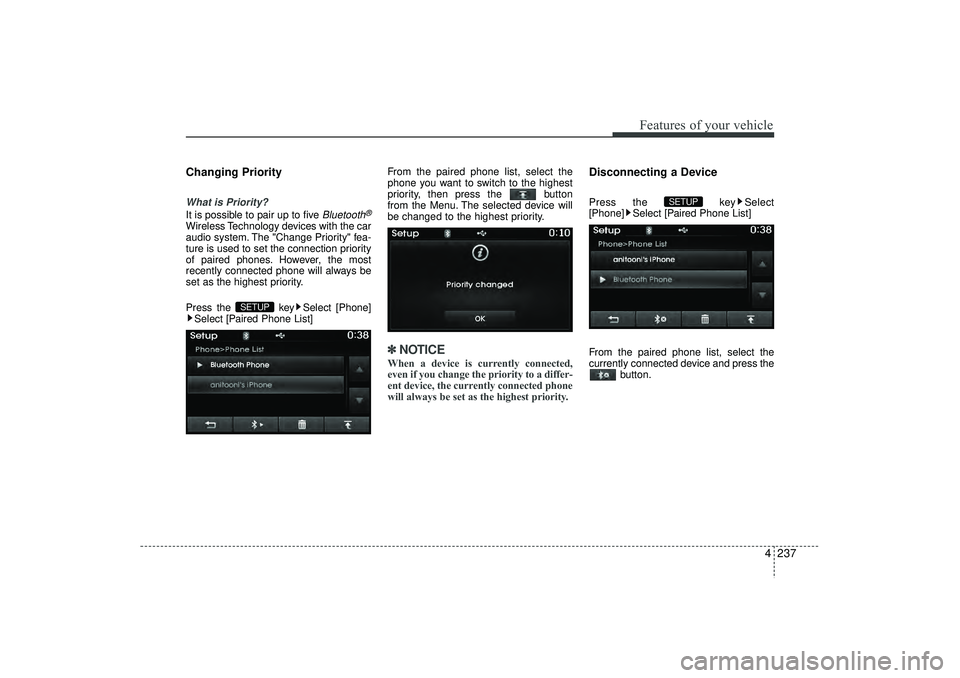
Press the key Select [Phone]Select [Paired Phone List] From the paired phone list, select the
phone you want to switch to the highest
priority, then press the button
from the Menu. The selected device will
be changed to the highest priority.
✽ ✽
NOTICE When a device is currently connected,
even if you change the priority to a differ-
ent device, the currently connected phone
will always be set as the highest priority.
Disconnecting a DevicePress the key Select
[Phone] Select [Paired Phone List]
From the paired phone list, select the
currently connected device and press the button.
SETUP
SETUP
EL(FL) UK 4B AUDIO.QXP 3/13/2015 4:19 PM Page 237
Page 323 of 550
![HYUNDAI IX35 2016 Owners Manual Features of your vehicle238
4Deleting a DevicePress the key Select
[Phone] Select [Paired Phone List]
From the paired phone list, select the
device you want to delete and press the button.
✽ ✽NOT](/img/35/56235/w960_56235-322.png "HYUNDAI IX35 2016 Owners Manual Features of your vehicle238
4Deleting a DevicePress the key Select
[Phone] Select [Paired Phone List]
From the paired phone list, select the
device you want to delete and press the button.
✽ ✽NOT")
Features of your vehicle238
4Deleting a DevicePress the key Select
[Phone] Select [Paired Phone List]
From the paired phone list, select the
device you want to delete and press the button.
✽ ✽NOTICE • When deleting the currently connect-
ed device, the device will automatical-
ly be disconnected to proceed with the
deleting process.
• If a paired Bluetooth
®
Wireless
Technology device is deleted, the
device’s call history and phone book
data will also be deleted.
• To re-use a deleted device, you must pair the device again.
SETUP
EL(FL) UK 4B AUDIO.QXP 3/13/2015 4:19 PM Page 238
Page 324 of 550
4 239
Features of your vehicle
USING
Bluetooth
®
Wireless
Technology
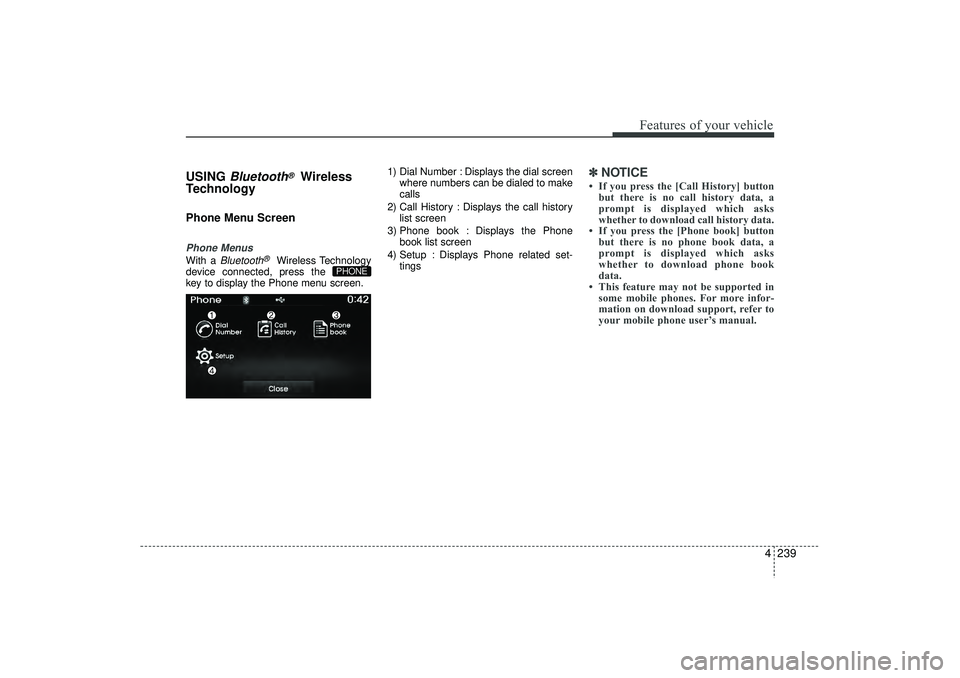
Phone Menu ScreenPhone MenusWith a
Bluetooth
®
Wireless Technology
device connected, press the
key to display the Phone menu screen. 1) Dial Number : Displays the dial screen
where numbers can be dialed to make
calls
2) Call History : Displays the call history list screen
3) Phone book : Displays the Phone book list screen
4) Setup : Displays Phone related set- tings
✽ ✽NOTICE • If you press the [Call History] button
but there is no call history data, a
prompt is displayed which asks
whether to download call history data.
• If you press the [Phone book] button but there is no phone book data, a
prompt is displayed which asks
whether to download phone book
data.
• This feature may not be supported in some mobile phones. For more infor-
mation on download support, refer to
your mobile phone user’s manual.
PHONE
EL(FL) UK 4B AUDIO.QXP 3/13/2015 4:19 PM Page 239
Page 325 of 550
![HYUNDAI IX35 2016 Owners Manual Features of your vehicle240
4Calling by Dialing a NumberPress the key Select [Dial
Number]
1) Dial Pad : Used to enter phone num-
ber
2) Call : If a number has been entered, calls the number If no nu](/img/35/56235/w960_56235-324.png "HYUNDAI IX35 2016 Owners Manual Features of your vehicle240
4Calling by Dialing a NumberPress the key Select [Dial
Number]
1) Dial Pad : Used to enter phone num-
ber
2) Call : If a number has been entered, calls the number If no nu")
Features of your vehicle240
4Calling by Dialing a NumberPress the key Select [Dial
Number]
1) Dial Pad : Used to enter phone num-
ber
2) Call : If a number has been entered, calls the number If no number has
been entered, switches to call history
screen
3) End : Deletes the entered phone num- ber
4) Delete : Deletes entered numbers one digit at a time
Answering CallsAnswering a CallAnswering a call with a
Bluetooth
®
Wireless Technology device connected
will display the following screen.
1) Caller : Displays the other party’sname when the incoming caller is
saved within your phone book
2) Incoming Number : Displays the incoming number
3) Accept : Accept the incoming call
4) Reject : Reject the incoming call
✽ ✽ NOTICE • When an incoming call pop-up is dis-
played, most Audio and SETUP mode
features are disabled. Only the call
volume will operate.
• The telephone number may not be properly displayed in some mobile
phones.
• When a call is answered with the mobile phone, the call mode will auto-
matically revert to Private mode.
PHONE
EL(FL) UK 4B AUDIO.QXP 3/13/2015 4:19 PM Page 240
Page 326 of 550
4 241
Features of your vehicle
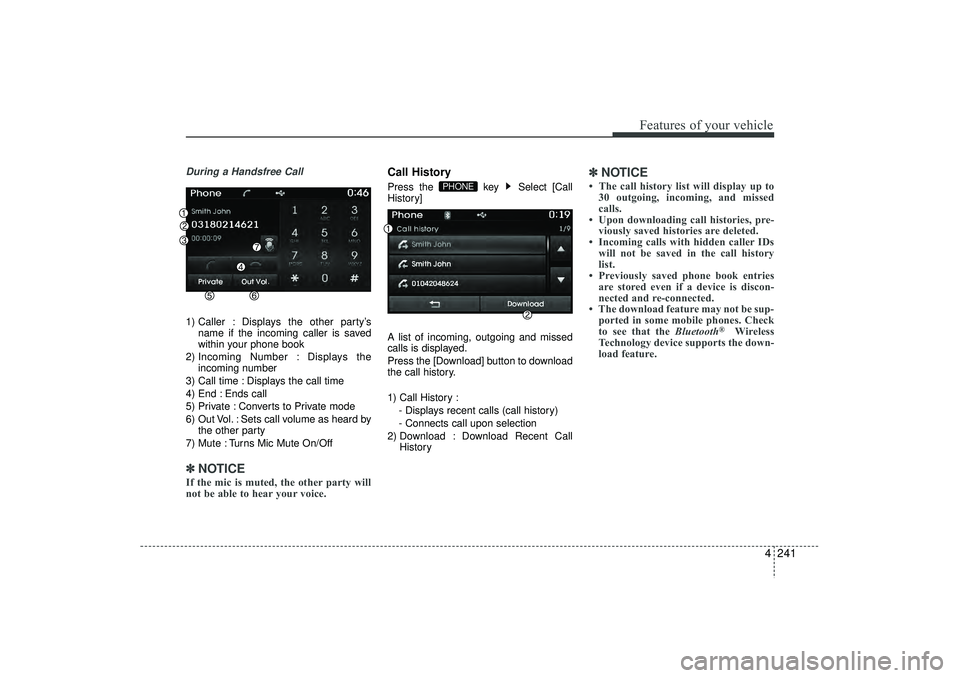
During a Handsfree Call1) Caller : Displays the other party’sname if the incoming caller is saved
within your phone book
2) Incoming Number : Displays the incoming number
3) Call time : Displays the call time
4) End : Ends call
5) Private : Converts to Private mode
6) Out Vol. : Sets call volume as heard by the other party
7) Mute : Turns Mic Mute On/Off✽ ✽ NOTICE If the mic is muted, the other party will
not be able to hear your voice.
Call HistoryPress the key Select [Call
History]
A list of incoming, outgoing and missed
calls is displayed.
Press the [Download] button to download
the call history.
1) Call History :
- Displays recent calls (call history)
- Connects call upon selection
2) Download : Download Recent Call History
✽ ✽NOTICE • The call history list will display up to
30 outgoing, incoming, and missed
calls.
• Upon downloading call histories, pre- viously saved histories are deleted.
• Incoming calls with hidden caller IDs will not be saved in the call history
list.
• Previously saved phone book entries are stored even if a device is discon-
nected and re-connected.
• The download feature may not be sup- ported in some mobile phones. Check
to see that the Bluetooth
®
Wireless
Technology device supports the down-
load feature.
PHONE
EL(FL) UK 4B AUDIO.QXP 3/13/2015 4:19 PM Page 241