reset HYUNDAI IX35 2016 User Guide
[x] Cancel search | Manufacturer: HYUNDAI, Model Year: 2016, Model line: IX35, Model: HYUNDAI IX35 2016Pages: 550, PDF Size: 9.92 MB
Page 152 of 550
467
Features of your vehicle
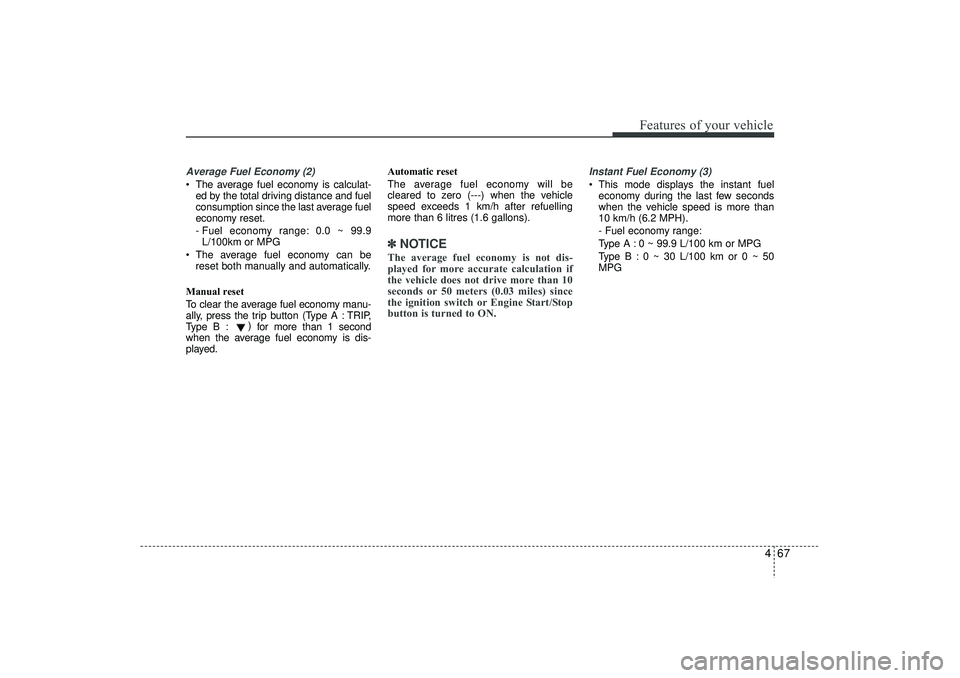
Average Fuel Economy (2) The average fuel economy is calculat-ed by the total driving distance and fuel
consumption since the last average fuel
economy reset.
- Fuel economy range: 0.0 ~ 99.9L/100km or MPG
The average fuel economy can be reset both manually and automatically.
Manual reset
To clear the average fuel economy manu-
ally, press the trip b utton (Type A : TRIP,
Type B : )
for more than 1 second
when the average fuel economy is dis-
played. Automatic reset
The average fuel economy will be
cleared to zero (---) when the vehicle
speed exceeds 1 km/h after refuelling
more than 6 litres (1.6 gallons).
✽ ✽
NOTICEThe average fuel economy is not dis-
played for more accurate calculation if
the vehicle does not drive more than 10
seconds or 50 meters (0.03 miles) since
the ignition switch or Engine Start/Stop
button is turned to ON.
Instant Fuel Economy (3) This mode displays the instant fuel
economy during the last few seconds
when the vehicle speed is more than
10 km/h (6.2 MPH).
- Fuel economy range:
Type A : 0 ~ 99.9 L/100 km or MPG
Type B : 0 ~ 30 L/100 km or 0 ~ 50
MPG
EL(FL) UK 4A.QXP 2/9/2015 9:05 PM Page 67
Page 213 of 550
Features of your vehicle128
4Adjusting the driver and passenger side
temperature individually
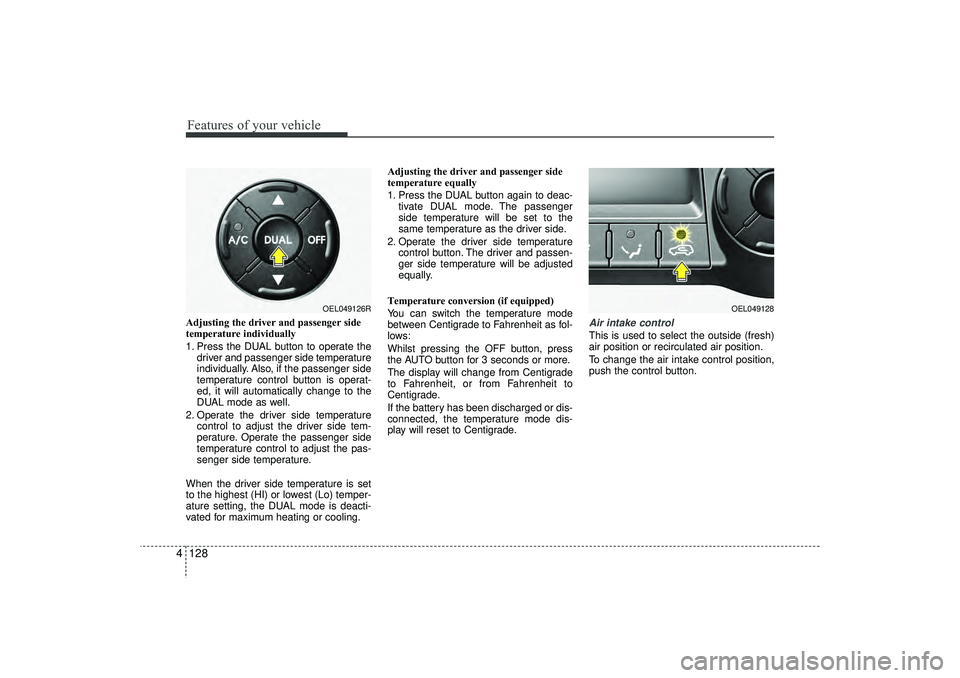
1. Press the DUAL button to operate the
driver and passenger side temperature
individually. Also, if the passenger side
temperature control button is operat-
ed, it will automatically change to the
DUAL mode as well.
2. Operate the driver side temperature control to adjust the driver side tem-
perature. Operate the passenger side
temperature control to adjust the pas-
senger side temperature.
When the driver side temperature is set
to the highest (HI) or lowest (Lo) temper-
ature setting, the DUAL mode is deacti-
vated for maximum heating or cooling. Adjusting the driver and passenger side
temperature equally
1. Press the DUAL button again to deac-
tivate DUAL mode. The passenger
side temperature will be set to the
same temperature as the driver side.
2. Operate the driver side temperature control button. The driver and passen-
ger side temperature will be adjusted
equally.
Temperature conversion (if equipped)
You can switch the temperature mode
between Centigrade to Fahrenheit as fol-
lows:
Whilst pressing the OFF button, press
the AUTO button for 3 seconds or more.
The display will change from Centigrade
to Fahrenheit, or from Fahrenheit to
Centigrade.
If the battery has been discharged or dis-
connected, the temperature mode dis-
play will reset to Centigrade.
Air intake controlThis is used to select the outside (fresh)
air position or recirculated air position.
To change the air intake control position,
push the control button.
OEL049126R
OEL049128
EL(FL) UK 4A.QXP 2/9/2015 9:08 PM Page 128
Page 225 of 550
Features of your vehicle140
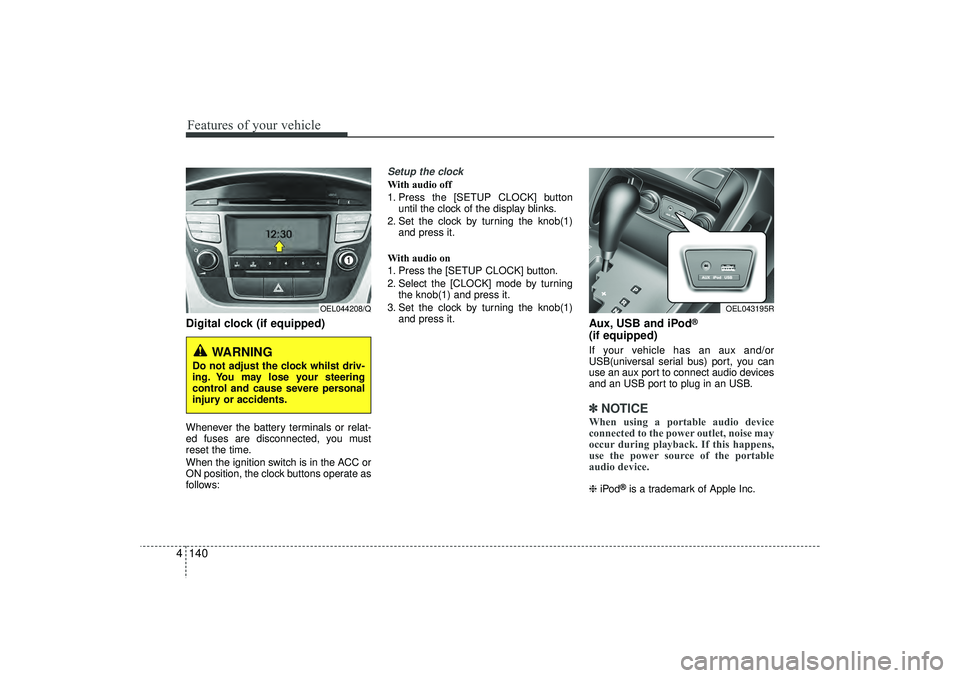
4Digital clock (if equipped)Whenever the battery terminals or relat-
ed fuses are disconnected, you must
reset the time.
When the ignition switch is in the ACC or
ON position, the clock buttons operate as
follows:
Setup the clockWith audio off
1. Press the [SETUP CLOCK] button
until the clock of the display blinks.
2. Set the clock by turning the knob(1) and press it.
With audio on
1. Press the [SETUP CLOCK] button.
2. Select the [CLOCK] mode by turning the knob(1) and press it.
3. Set the clock by turning the knob(1) and press it.
Aux, USB and iPod
®
(if equipped)If your vehicle has an aux and/or
USB(universal serial bus) port, you can
use an aux port to connect audio devices
and an USB port to plug in an USB.✽ ✽NOTICEWhen using a portable audio device
connected to the power outlet, noise may
occur during playback. If this happens,
use the power source of the portable
audio device. ❈ iPod
®is a trademark of Apple Inc.
WARNING
Do not adjust the clock whilst driv-
ing. You may lose your steering
control and cause severe personal
injury or accidents.
OEL044208/Q
OEL043195R
EL(FL) UK 4A.QXP 2/9/2015 9:09 PM Page 140
Page 231 of 550
Features of your vehicle146
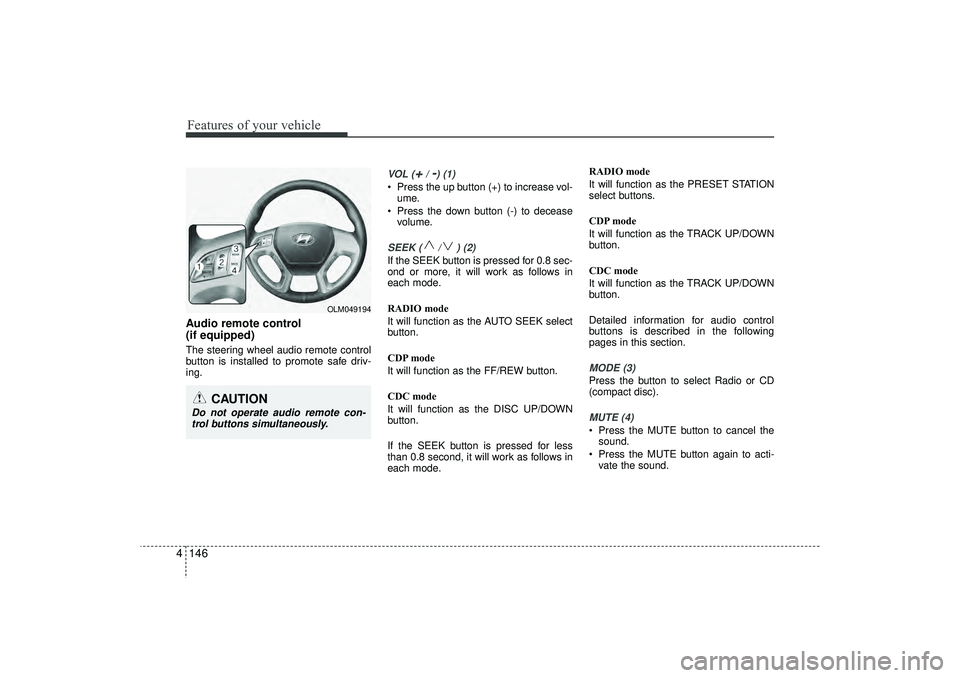
4Audio remote control
(if equipped) The steering wheel audio remote control
button is installed to promote safe driv-
ing.
VOL (
+/ -) (1)
• Press the up button (+) to increase vol-
ume.
Press the down button (-) to decease volume.SEEK ( / ) (2)If the SEEK button is pressed for 0.8 sec-
ond or more, it will work as follows in
each mode.
RADIO mode
It will function as the AUTO SEEK select
button.
CDP mode
It will function as the FF/REW button.
CDC mode
It will function as the DISC UP/DOWN
button.
If the SEEK button is pressed for less
than 0.8 second, it will work as follows in
each mode. RADIO mode
It will function as the PRESET STATION
select buttons.
CDP mode
It will function as the TRACK UP/DOWN
button.
CDC mode
It will function as the TRACK UP/DOWN
button.
Detailed information for audio control
buttons is described in the following
pages in this section.
MODE (3)Press the button to select Radio or CD
(compact disc).MUTE (4) Press the MUTE button to cancel the
sound.
Press the MUTE button again to acti- vate the sound.
CAUTION
Do not operate audio remote con-trol buttons simultaneously.
OLM049194
EL(FL) UK 4B AUDIO.QXP 3/13/2015 4:19 PM Page 146
Page 239 of 550
Features of your vehicle154
4✽
✽
NOTICE -
USING THE iPod
®
DEVICE
• Some iPod
®models may not sup-
port communication protocol and
files may not properly play.
Supported iPod
®models:
- iPod
®Mini
- iPod®4th (Photo) ~ 6th (Classic)
generation
- iPod®Nano 1st~4th generation
- iPod®Touch 1st~2nd generation
• The order of search or playback of songs in the iPod
®can be different
from the order searched in the
audio system.
• If the iPod
®
disabled due to its
own malfunction, reset the iPod
®.
(Reset: Refer to iPod
®manual)
• An iPod
®
may not operate nor-
mally on low battery. (Continued)(Continued)
• Some
iPod
®
devices, such as the
iPhone
®, can be connected through
the Bluetooth
®Wireless Technology
interface. The device must have
audio Bluetooth
®
Wireless
Technology capability (such as for
stereo headphone Bluetooth
®
Wireless Technology ). The device
can play, but it will not be con-
trolled by the audio system.
• To use iPod
®
features within the
audio, use the cable provided upon
purchasing an iPod
®d device.
• Skipping or improper operation may occur depending on the characteris-
tics of your iPod
®/iPhone
®device.
• If your iPhone
®is connected to both
the Bluetooth
®Wireless Technology
and USB, the sound may not be prop-
erly played. In your iPhone
®, select
the Dock connector or Bluetooth
®
Wireless Technology to change the
sound output (source). (Continued)
(Continued)
• When connecting
iPod
®
with the
iPod
®Power Cable, insert the connec-
tor to the multimedia socket complete-
ly. If not inserted completely, communi-
cations between
iPod
®and audio may
be interrupted.
• When adjusting the sound effects of the
iPod
®and the audio system, the
sound effects of both devices will over-
lap and might reduce or distort the
quality of the sound.
• Deactivate (turn off) the equalizer function of an
iPod
®when adjusting
the audio system’s volume, and turn
off the equalizer of the audio system
when using the equalizer of an
iPod
®.
• When not using
iPod
®with car audio,
detach the
iPod
®cable from
iPod
®.
Otherwise,
iPod
®
may remain in
accessory mode, and may not work
properly.
EL(FL) UK 4B AUDIO.QXP 3/13/2015 4:19 PM Page 154
Page 242 of 550
4 157
Features of your vehicle
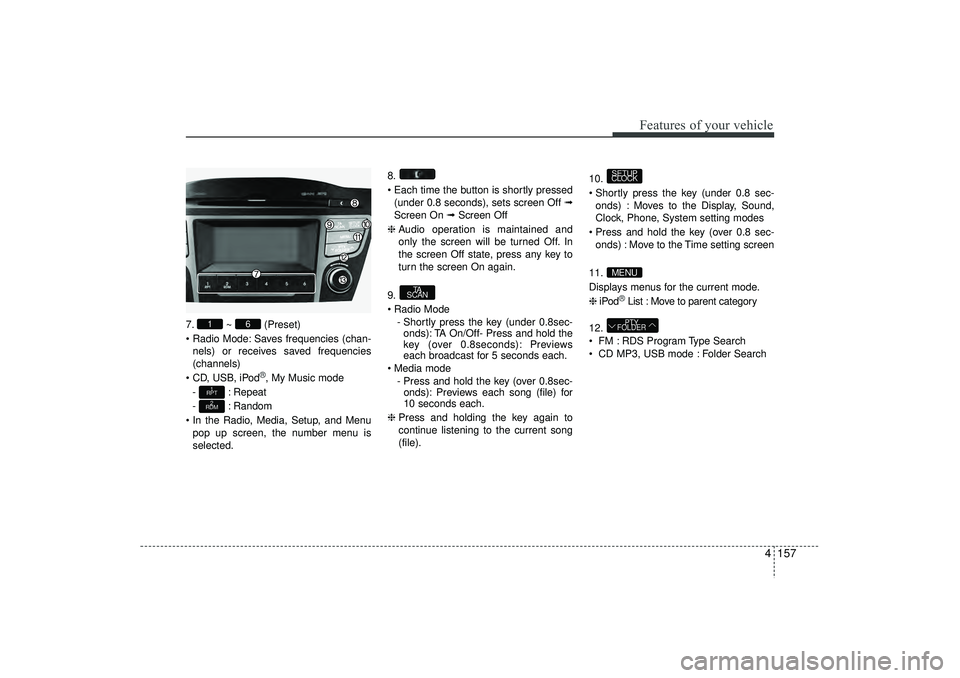
7.~ (Preset)
Radio Mode: Saves frequencies (chan- nels) or receives saved frequencies
(channels)
CD, USB, iPod
®, My Music mode
- : Repeat
- : Random
In the Radio, Media, Setup, and Menu pop up screen, the number menu is
selected. 8.
Each time the button is shortly pressed
(under 0.8 seconds), sets screen Off ➟
Screen On ➟ Screen Off
❈ Audio operation is maintained and
only the screen will be turned Off. In
the screen Off state, press any key to
turn the screen On again.
9.
Radio Mode - Shortly press the key (under 0.8sec-onds): TA On/Off- Press and hold the
key (over 0.8seconds): Previews
each broadcast for 5 seconds each.
Media mode - Press and hold the key (over 0.8sec-onds): Previews each song (file) for
10 seconds each.
❈ Press and holding the key again to
continue listening to the current song
(file). 10.
Shortly press the key (under 0.8 sec-
onds) : Moves to the Display, Sound,
Clock, Phone, System setting modes
Press and hold the key (over 0.8 sec- onds) : Move to the Time setting screen
11.
Displays menus for the current mode.
❈ iPod
®List : Move to parent category
12.
FM : RDS Program Type Search
CD MP3, USB mode : Folder SearchPTY
FOLDER
MENUSETUP
CLOCK
TA
SCAN
2
RDM1
RPT
6
1
EL(FL) UK 4B AUDIO.QXP 3/13/2015 4:19 PM Page 157
Page 254 of 550
4 169
Features of your vehicle
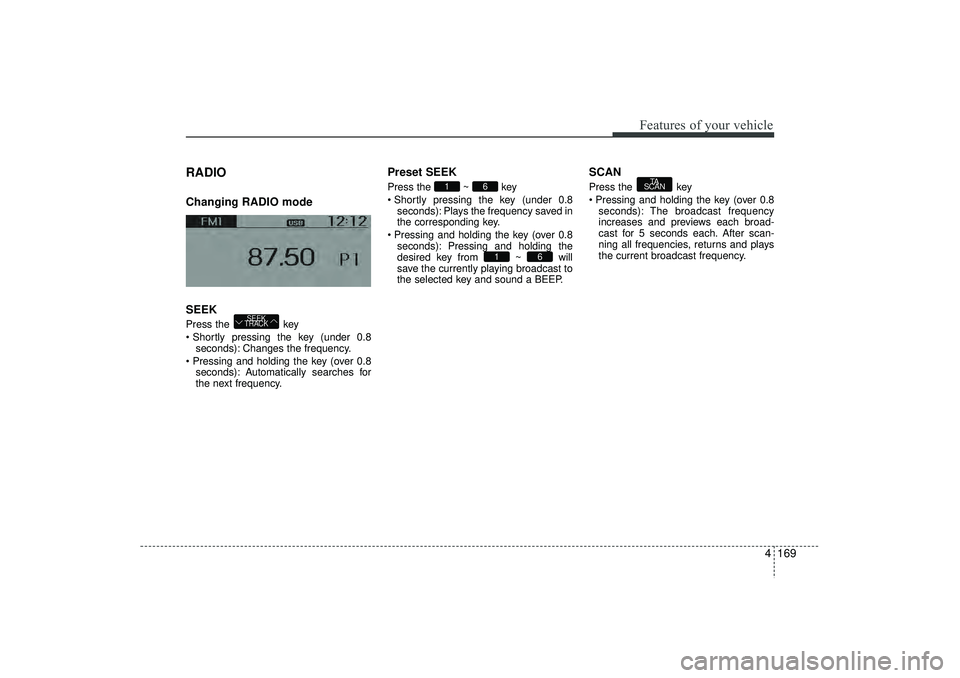
RADIO Changing RADIO mode
SEEKPress the key
Shortly pressing the key (under 0.8seconds): Changes the frequency.
Pressing and holding the key (over 0.8 seconds): Automatically searches for
the next frequency.
Preset SEEKPress the ~ key
Shortly pressing the key (under 0.8seconds): Plays the frequency saved in
the corresponding key.
Pressing and holding the key (over 0.8 seconds): Pressing and holding the
desired key from ~ will
save the currently playing broadcast to
the selected key and sound a BEEP.
SCANPress the key
Pressing and holding the key (over 0.8seconds): The broadcast frequency
increases and previews each broad-
cast for 5 seconds each. After scan-
ning all frequencies, returns and plays
the current broadcast frequency.
TA
SCAN
6
1
6
1
SEEK
TRACK
EL(FL) UK 4B AUDIO.QXP 3/13/2015 4:19 PM Page 169
Page 255 of 550
Features of your vehicle170
4Selecting through manual searchTurn the TUNE knob left/right to adjust
the frequency. AC100ELEE, AC110ELEE- FM : Changes by 50KHz
- AM : Changes by 9khzTraffic Announcement (TA)Shortly pressing the key (under
0.8 seconds): Set / TA Traffic
Announcement) mode.PTY Up/Down Press the key when
searching PTY in RDS Broadcasting
Program Type selection.
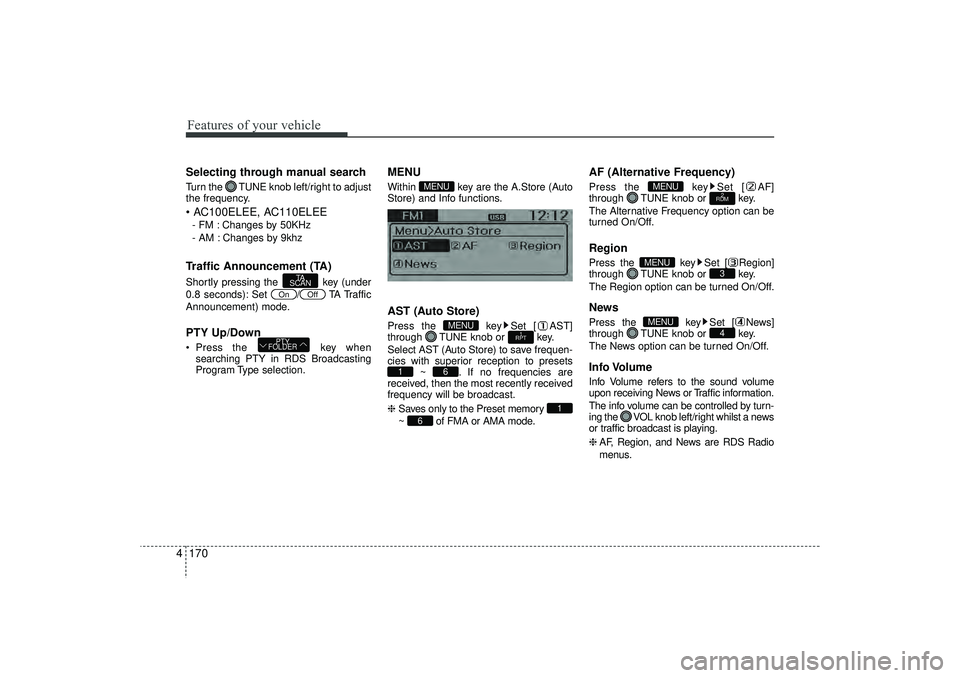
MENUWithin key are the A.Store (Auto
Store) and Info functions.AST (Auto Store)Press the key Set [ AST]
through TUNE knob or key.
Select AST (Auto Store) to save frequen-
cies with superior reception to presets ~ . If no frequencies are
received, then the most recently received
frequency will be broadcast.
❈ Saves only to the Preset memory
~ of FMA or AMA mode.
AF (Alternative Frequency)Press the key Set [ AF]
through TUNE knob or key.
The Alternative Frequency option can be
turned On/Off.RegionPress the key Set [ Region]
through TUNE knob or key.
The Region option can be turned On/Off.NewsPress the key Set [ News]
through TUNE knob or key.
The News option can be turned On/Off.Info VolumeInfo Volume refers to the sound volume
upon receiving News or Traffic information.
The info volume can be controlled by turn-
ing the VOL knob left/right whilst a news
or traffic broadcast is playing.
❈ AF, Region, and News are RDS Radio
menus.
4
MENU
3
MENU
2
RDM
MENU
6
1
6
1
1
RPT
MENU
MENU
PTY
FOLDER
Off
On
TA
SCAN
EL(FL) UK 4B AUDIO.QXP 3/13/2015 4:19 PM Page 170
Page 271 of 550
Features of your vehicle186
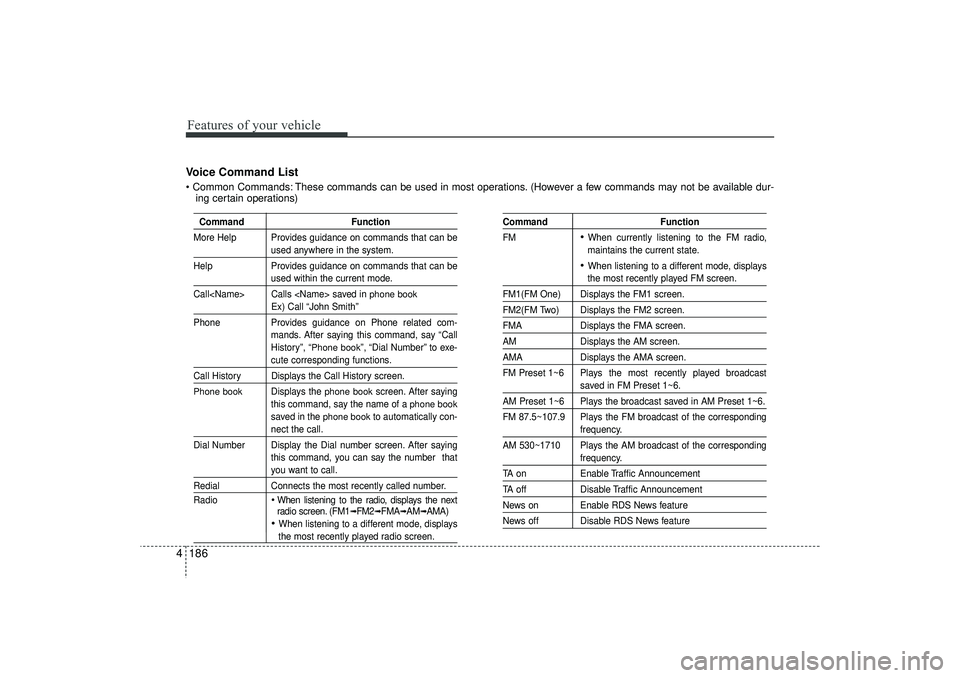
4Voice Command List Common Commands: These commands can be used in most operations. (However a few commands may not be available dur-
ing certain operations)
Command Function
More Help Provides guidance on commands that can be
used anywhere in the system.
Help Provides guidance on commands that can beused within the current mode.
Call
phone book
Ex) Call “John Smith”
Phone Provides guidance on Phone related com-
mands. After saying this command, say “Call
History”, “
Phone book
”, “Dial Number” to exe-
cute corresponding functions.
Call History Displays the Call History screen.Phone book
Displays the
phone book
screen. After saying
this command, say the name of a
phone book
saved in the
phone book
to automatically con-
nect the call.
Dial Number Display the Dial number screen. After saying this command, you can say the number thatyou want to call.
RedialConnects the most recently called number.
Radio
When listening to the radio, displays the next
radio screen. (FM1
➟FM2
➟FMA
➟AM
➟AMA)
When listening to a different mode, displaysthe most recently played radio screen.
Command Function
FM
When currently listening to the FM radio,
maintains the current state. When listening to a different mode, displaysthe most recently played FM screen.
FM1(FM One) Displays the FM1 screen.FM2(FM Two) Displays the FM2 screen.FMA Displays the FMA screen.AMDisplays the AM screen.AMADisplays the AMA screen.
FM Preset 1~6 Plays the most recently played broadcast
saved in FM Preset 1~6.
AM Preset 1~6 Plays the broadcast saved in AM Preset 1~6.
FM 87.5~107.9 Plays the FM broadcast of the corresponding
frequency.
AM 530~1710 Plays the AM broadcast of the correspondingfrequency.
TA on Enable Traffic AnnouncementTA offDisable Traffic AnnouncementNews on Enable RDS News featureNews off Disable RDS News feature
EL(FL) UK 4B AUDIO.QXP 3/13/2015 4:19 PM Page 186
Page 273 of 550
Features of your vehicle188
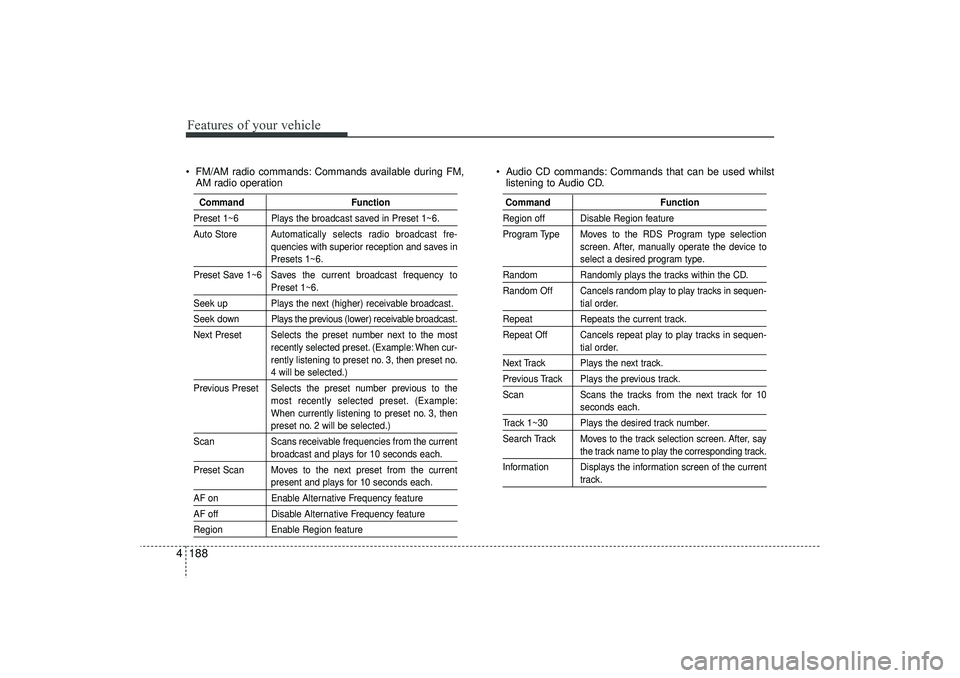
4 FM/AM radio commands: Commands available during FM,
AM radio operation Audio CD commands: Commands that can be used whilst
listening to Audio CD.
Command FunctionPreset 1~6 Plays the broadcast saved in Preset 1~6.
Auto Store Automatically selects radio broadcast fre-
quencies with superior reception and saves in
Presets 1~6.
Preset Save 1~6 Saves the current broadcast frequency toPreset 1~6.
Seek up Plays the next (higher) receivable broadcast.Seek down Plays the previous (lower) receivable broadcast.
Next Preset Selects the preset number next to the most recently selected preset. (Example: When cur-
rently listening to preset no. 3, then preset no.
4 will be selected.)
Previous Preset Selects the preset number previous to the most recently selected preset. (Example:
When currently listening to preset no. 3, thenpreset no. 2 will be selected.)
Scan Scans receivable frequencies from the currentbroadcast and plays for 10 seconds each.
Preset Scan Moves to the next preset from the currentpresent and plays for 10 seconds each.
AF on Enable Alternative Frequency featureAF offDisable Alternative Frequency featureRegionEnable Region feature
Command FunctionRegion off Disable Region feature
Program Type Moves to the RDS Program type selection
screen. After, manually operate the device to
select a desired program type.
Random Randomly plays the tracks within the CD.
Random Off Cancels random play to play tracks in sequen-
tial order.
Repeat Repeats the current track.
Repeat Off Cancels repeat play to play tracks in sequen-
tial order.
Next Track Plays the next track.Previous Track Plays the previous track.
Scan Scans the tracks from the next track for 10
seconds each.
Track 1~30 Plays the desired track number.
Search Track Moves to the track selection screen. After, say
the track name to play the corresponding track.
Information Displays the information screen of the currenttrack.
EL(FL) UK 4B AUDIO.QXP 3/13/2015 4:19 PM Page 188