reset HYUNDAI IX35 2016 Owner's Manual
[x] Cancel search | Manufacturer: HYUNDAI, Model Year: 2016, Model line: IX35, Model: HYUNDAI IX35 2016Pages: 550, PDF Size: 9.92 MB
Page 278 of 550
4 193
Features of your vehicle
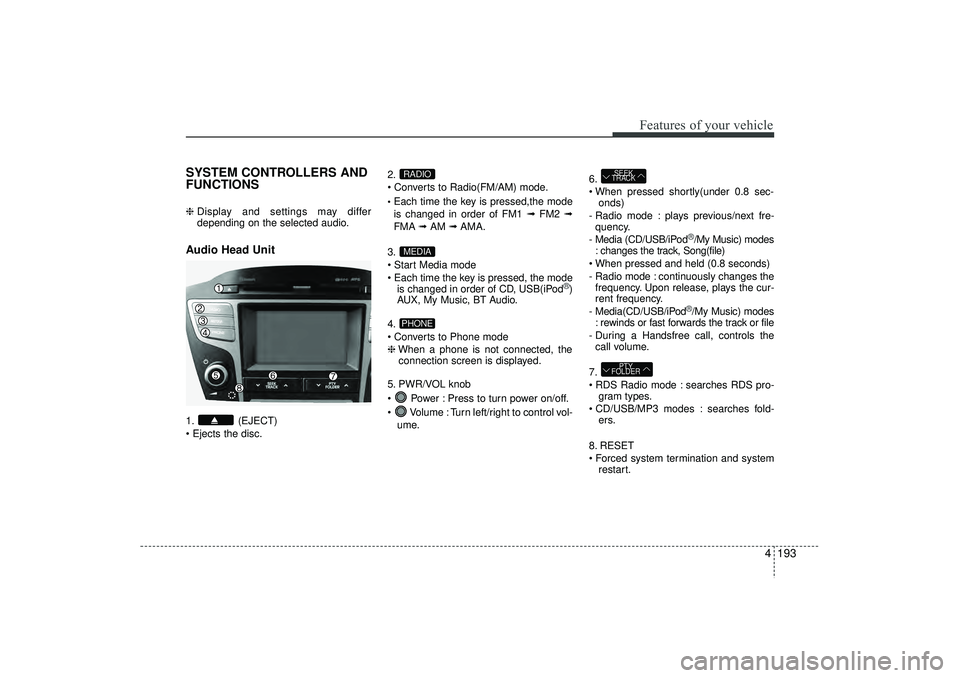
SYSTEM CONTROLLERS AND
FUNCTIONS ❈ Display and settings may differ
depending on the selected audio.Audio Head Unit 1. (EJECT)
Ejects the disc. 2.
Converts to Radio(FM/AM) mode.
Each time the key is pressed,the mode
is changed in order of FM1 ➟
FM2 ➟
FMA ➟AM ➟AMA.
3.
Start Media mode
Each time the key is pressed, the mode is changed in order of CD, USB(iPod
®)
AUX, My Music, BT Audio.
4.
Converts to Phone mode
❈ When a phone is not connected, the
connection screen is displayed.
5. PWR/VOL knob
Power : Press to turn power on/off.
Volume : Turn left/right to control vol- ume. 6.
When pressed shortly(under 0.8 sec-
onds)
- Radio mode : plays previous/next fre- quency.
- Media (CD/USB/iPod
®/My Music) modes
: changes the track, Song(file)
When pressed and held (0.8 seconds)
- Radio mode : continuously changes the frequency. Upon release, plays the cur-
rent frequency.
- Media(CD/USB/iPod®/My Music) modes
: rewinds or fast forwards the track or file
- During a Handsfree call, controls the call volume.
7.
RDS Radio mode : searches RDS pro- gram types.
CD/USB/MP3 modes : searches fold- ers.
8. RESET
Forced system termination and system restart.
PTY
FOLDERSEEK
TRACK
PHONEMEDIARADIO
EL(FL) UK 4B AUDIO.QXP 3/13/2015 4:19 PM Page 193
Page 280 of 550
![HYUNDAI IX35 2016 Owners Manual 4 195
Features of your vehicle
Radio Mode Basic Mode Screen1. Mode Display
Displays currently operating mode2. Frequency
Displays the current frequency
3. Preset
Displays current preset number [1] ~ [](/img/35/56235/w960_56235-279.png "HYUNDAI IX35 2016 Owners Manual 4 195
Features of your vehicle
Radio Mode Basic Mode Screen1. Mode Display
Displays currently operating mode2. Frequency
Displays the current frequency
3. Preset
Displays current preset number [1] ~ [")
4 195
Features of your vehicle
Radio Mode Basic Mode Screen1. Mode Display
Displays currently operating mode2. Frequency
Displays the current frequency
3. Preset
Displays current preset number [1] ~ [6]
4. Preset Display
Displays saved presets
5. Autostore
Automatically saves frequencies with
superior reception to Preset buttons
6. RDS Menu
Displays the RDS Menu
7. RDS Info
Displays RDS broadcast information
Switching to Radio ModePressing the key will change the
operating mode in order of FM1➟FM2
➟FMA
➟AM
➟AMA.
If [Pop-up Mode] is turned on within [Display], then pressing the
key will display the Radio Pop-
up Mode screen.
Turn the TUNE knob to move the
focus. Press the knob to select.
RADIOSETUP
RADIO
EL(FL) UK 4B AUDIO.QXP 3/13/2015 4:19 PM Page 195
Page 281 of 550
Features of your vehicle196
4Searching Radio FrequenciesUsing SeekPress the key to play the pre-
vious/next frequency.Using TUNETurn the TUNE knob to select the
desired frequency.
FM : Increases/decreased by 50kHz
AM : Increases/decreased by 9kHz
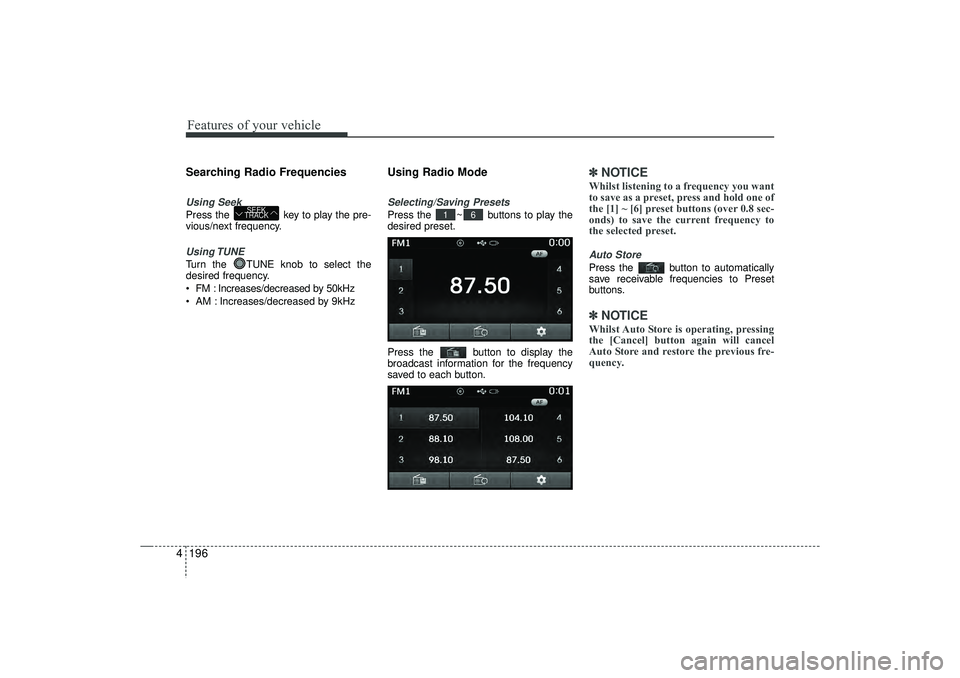
Using Radio ModeSelecting/Saving PresetsPress the ~ buttons to play the
desired preset.
Press the button to display the
broadcast information for the frequency
saved to each button.
✽ ✽
NOTICE Whilst listening to a frequency you want
to save as a preset, press and hold one of
the [1] ~ [6] preset buttons (over 0.8 sec-
onds) to save the current frequency to
the selected preset.Auto StorePress the button to automatically
save receivable frequencies to Preset
buttons.✽ ✽NOTICE Whilst Auto Store is operating, pressing
the [Cancel] button again will cancel
Auto Store and restore the previous fre-
quency.
6
1
SEEK
TRACK
EL(FL) UK 4B AUDIO.QXP 3/13/2015 4:19 PM Page 196
Page 304 of 550
4 219
Features of your vehicle
✽
✽NOTICE - USING THE iPod
®
DEVICE
• iPod
®
is a registered trademark of
Apple Inc.
• In order to use the iPod
®whilst oper-
ating the keys, you must use a dedi-
cated iPod
®cable. (the cable that is
supplied when purchasing
iPod
®/iPhone
®products)
• If the iPod
®is connected to the vehicle
whilst it is playing, a high pitch sound
could occur for approximately 1-2 sec-
onds immediately after connecting. If
possible, connect the iPod
®
to the
vehicle with the iPod
®
stopped/paused.
• During ACC ON state, connecting the iPod
®
through the iPod
®
cable will
charge the iPod
®
through the car
audio system.
• When connecting with the iPod
®
cable, make sure to fully insert the
jack to prevent communication inter-
ference. (Continued)(Continued)
• When the EQ features of an external
device, such as the iPod
®, and the audio
system are both active, EQ effects could
overlap and cause sound deterioration
and distortion. Whenever possible, turn
off the EQ feature within the external
device upon use by connecting with the
audio system.
• Noise may occur when an iPod
®
or
AUX device is connected. When such
devices are not being used, disconnect
the device for storage.
• When the iPod
®or AUX device power
is connected to the power jack, playing
the external device may result in noise.
In such cases, disconnect the power con-
nection before use.
• Skipping or improper operation may occur depending on the characteristics of
your iPod
®/iPhone
®device.
• If your iPhone is connected to both the Bluetooth
®
Wireless Technology and
USB, the sound may not be properly
played. In your
iPhone
®, select the
Dock connector or Bluetooth®Wireless
Technology to change the sound out-
put (source). (Continued)(Continued)
• iPod
®mode cannot be operated when
the iPod®cannot be recognized due to
the playing of versions that do not
support communication protocols,
cases of iPod
®abnormalities and
defects.
• For fifth generation iPod
®
Nano
devices, the iPod
®may not be recog-
nized when the battery level is low.
Please charge the iPod
®for use.
• Search/play orders shown within the iPod
®
device may differ with the
orders shown within the audio system.
• If the iPod
®malfunctions due to an
iPod
®device defect, reset the iPod
®
and try again. (To learn more, refer to
your iPod
®manual)
• Some iPod®s may not sync with the
System depending on its version. If
the Media is removed before the
Media is recognized, then the system
may not properly restore the previ-
ously operated mode. (iPad charging
is not supported.)
EL(FL) UK 4B AUDIO.QXP 3/13/2015 4:19 PM Page 219
Page 332 of 550
4 247
Features of your vehicle
Voice Command List Common Commands: These commands can be used in most operations. (However a few commands may not be available dur-ing certain operations)
Command Function
More Help Provides guidance on commands that can be
used anywhere in the system.
Help Provides guidance on commands that can beused within the current mode.
Call
phone book
Ex) Call “John Smith”
Phone Provides guidance on Phone related com- mands. After saying this command, say “Call
History”, “
Phone book
”, “Dial Number” to exe-
cute corresponding functions.
Call History Displays the Call History screen.Phone book
Displays the
phone book
screen. After saying
this command, say the name of a
phone book
saved in the
phone book
to automatically con-
nect the call.
Dial Number Display the Dial number screen. After saying this command, you can say the number thatyou want to call.
RedialConnects the most recently called number.
Radio
When listening to the radio, displays the next
radio screen. (FM1
➟FM2
➟FMA
➟ AM
➟
AMA) When listening to a different mode, displaysthe most recently played radio screen.
Command Function
FM
When currently listening to the FM radio,
maintains the current state. When listening to a different mode, displaysthe most recently played FM screen.
FM1(FM One) Displays the FM1 screen.FM2(FM Two) Displays the FM2 screen.FMA Displays the FMA screen.AMDisplays the AM screen.AMADisplays the AMA screen.
FM Preset 1~6 Plays the most recently played broadcast
saved in FM Preset 1~6.
AM Preset 1~6 Plays the broadcast saved in AM Preset 1~6.
FM 87.5~107.9 Plays the FM broadcast of the corresponding
frequency.
AM 530~1710 Plays the AM broadcast of the correspondingfrequency.
TA on Enable Traffic AnnouncementTA offDisable Traffic AnnouncementNews on Enable RDS News featureNews off Disable RDS News feature
EL(FL) UK 4B AUDIO.QXP 3/13/2015 4:19 PM Page 247
Page 334 of 550
4 249
Features of your vehicle
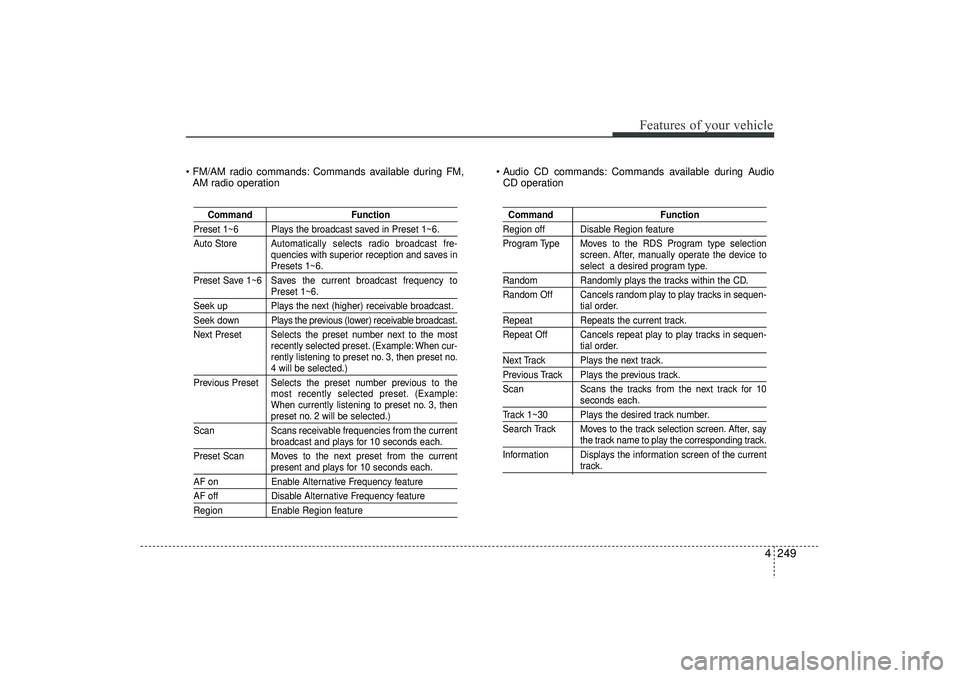
FM/AM radio commands: Commands available during FM,AM radio operation Audio CD commands: Commands available during Audio
CD operation
Command Function
Preset 1~6 Plays the broadcast saved in Preset 1~6.
Auto Store Automatically selects radio broadcast fre-
quencies with superior reception and saves in
Presets 1~6.
Preset Save 1~6 Saves the current broadcast frequency toPreset 1~6.
Seek up Plays the next (higher) receivable broadcast.Seek down Plays the previous (lower) receivable broadcast.
Next Preset Selects the preset number next to the most recently selected preset. (Example: When cur-
rently listening to preset no. 3, then preset no.
4 will be selected.)
Previous Preset Selects the preset number previous to the most recently selected preset. (Example:
When currently listening to preset no. 3, thenpreset no. 2 will be selected.)
Scan Scans receivable frequencies from the currentbroadcast and plays for 10 seconds each.
Preset Scan Moves to the next preset from the currentpresent and plays for 10 seconds each.
AF on Enable Alternative Frequency featureAF offDisable Alternative Frequency featureRegionEnable Region feature
Command FunctionRegion off Disable Region feature
Program Type Moves to the RDS Program type selection
screen. After, manually operate the device to
select a desired program type.
Random Randomly plays the tracks within the CD.
Random Off Cancels random play to play tracks in sequen-
tial order.
Repeat Repeats the current track.
Repeat Off Cancels repeat play to play tracks in sequen-
tial order.
Next Track Plays the next track.Previous Track Plays the previous track.
Scan Scans the tracks from the next track for 10
seconds each.
Track 1~30 Plays the desired track number.
Search Track Moves to the track selection screen. After, say
the track name to play the corresponding track.
Information Displays the information screen of the currenttrack.
EL(FL) UK 4B AUDIO.QXP 3/13/2015 4:19 PM Page 249
Page 337 of 550
![HYUNDAI IX35 2016 Owners Manual Features of your vehicle252
4SETUPStarting ModePress the key to display the
Setup screen.
You can select and control options relat-
ed to [Display], [Sound], [Clock/Day],
[Phone] and [System].
Displa](/img/35/56235/w960_56235-336.png "HYUNDAI IX35 2016 Owners Manual Features of your vehicle252
4SETUPStarting ModePress the key to display the
Setup screen.
You can select and control options relat-
ed to [Display], [Sound], [Clock/Day],
[Phone] and [System].
Displa")
Features of your vehicle252
4SETUPStarting ModePress the key to display the
Setup screen.
You can select and control options relat-
ed to [Display], [Sound], [Clock/Day],
[Phone] and [System].
Display SettingsAdjusting the BrightnessPress the key Select
[Display] Select [Brightness]
Use the , buttons to adjust the
screen brightness or set the Brightness
on Automatic, Day, or Night mode.
Press the button to reset.
1) Automatic : Adjusts the brightness automatically
2) Day : Always maintains the brightness on high
3) Night : Always maintains the bright- ness on low
Pop-up ModePress the key Select
[Display] Select [Pop-up Mode]
This feature is used to display the Pop-up
Mode screen when entering radio and
media modes.
When this feature is turned on, pressing
the or key will display
the Pop-up Mode screen.✽ ✽ NOTICE The media Pop-up Mode screen can be
displayed only when two or more media
modes have been connected.
MEDIA
RADIO
SETUP
Default
SETUP
SETUP
EL(FL) UK 4B AUDIO.QXP 3/13/2015 4:19 PM Page 252
Page 339 of 550
![HYUNDAI IX35 2016 Owners Manual Features of your vehicle254
4Sound SettingsSound SettingsPress the key Select
[Sound] Select [Audio Setting] Use the , , , buttons to
adjust the Fader/Balance settings.
Use the , buttons to adjust](/img/35/56235/w960_56235-338.png "HYUNDAI IX35 2016 Owners Manual Features of your vehicle254
4Sound SettingsSound SettingsPress the key Select
[Sound] Select [Audio Setting] Use the , , , buttons to
adjust the Fader/Balance settings.
Use the , buttons to adjust")
Features of your vehicle254
4Sound SettingsSound SettingsPress the key Select
[Sound] Select [Audio Setting] Use the , , , buttons to
adjust the Fader/Balance settings.
Use the , buttons to adjust the
Bass/Middle/Treble settings.
Press the button to reset.
SDVC (Speed Dependent Volume
Control)Press the key Select
[Sound] Select [Speed Dependent Vol.]
The volume level is controlled automati-
cally according to the vehicle speed.
SDVC can be set by selecting from
Off/Low/Mid/High.
SETUP
Default
SETUP
EL(FL) UK 4B AUDIO.QXP 3/13/2015 4:19 PM Page 254
Page 348 of 550
4 263
Features of your vehicle
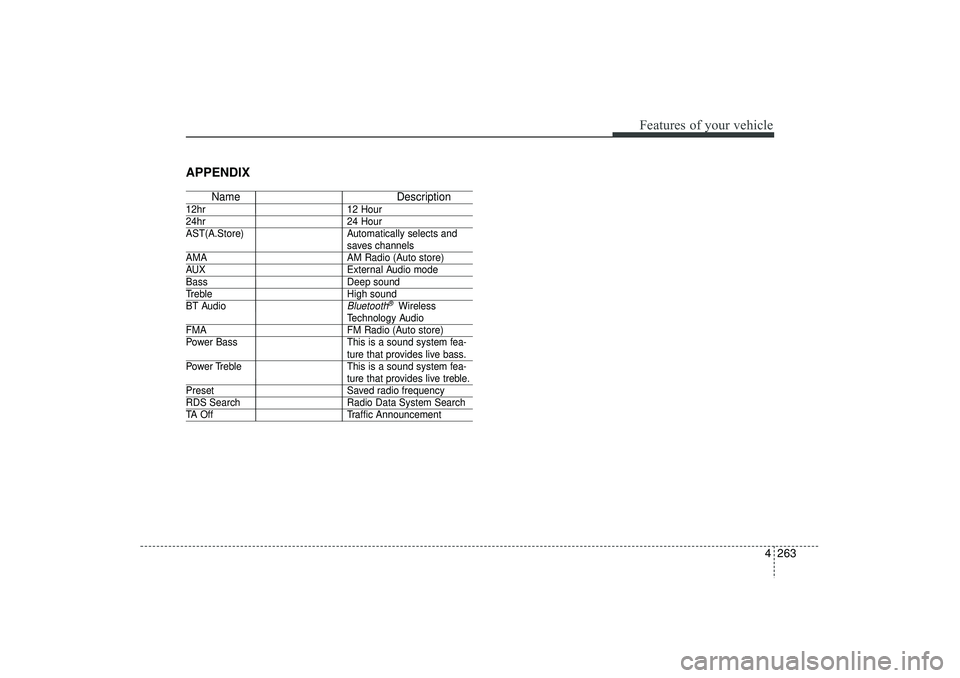
APPENDIX
NameDescription
12hr12 Hour24hr24 Hour
AST(A.Store) Automatically selects and
saves channels
AMA AM Radio (Auto store)AUXExternal Audio modeBassDeep soundTrebleHigh sound
BT Audio
Bluetooth
®Wireless
Technology Audio
FMA FM Radio (Auto store)
Power Bass This is a sound system fea-
ture that provides live bass.
Power Treble This is a sound system fea-ture that provides live treble.
Preset Saved radio frequencyRDS SearchRadio Data System SearchTA OffTraffic Announcement
EL(FL) UK 4B AUDIO.QXP 3/13/2015 4:19 PM Page 263
Page 401 of 550
553
Driving your vehicle
Each of these actions will cancel cruisecontrol operation (the SET indicator lightin the instrument cluster will go off), but itwill not turn the system off. If you wish to resume cruise control operation, moveup the lever (to RES+) located on yoursteering wheel. You will return to your previously preset speed.
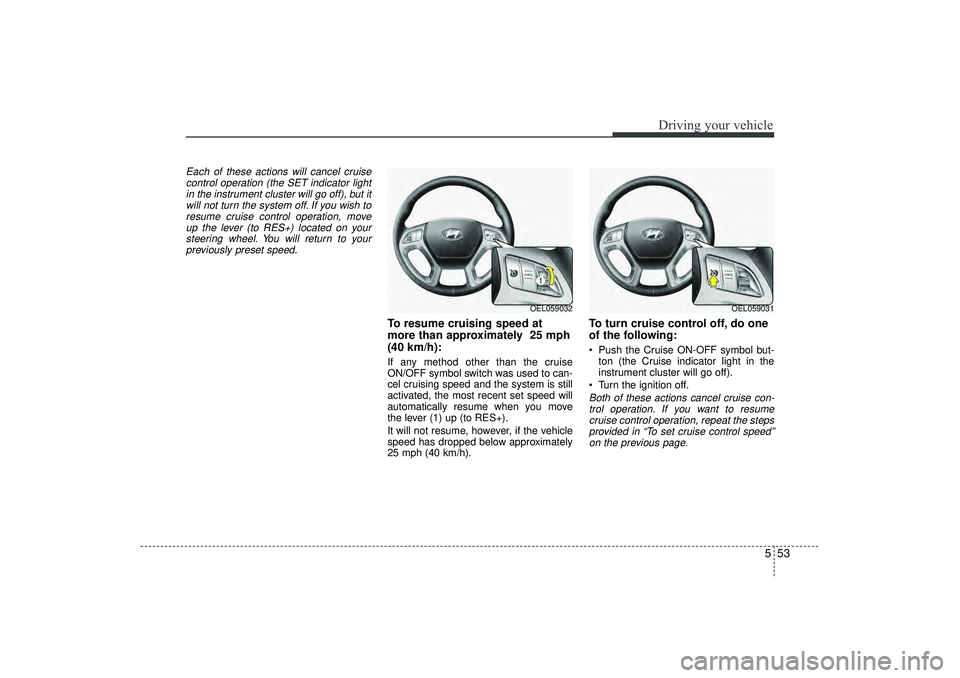
To resume cruising speed at
more than approximately 25 mph
(40 km/h):If any method other than the cruise
ON/OFF symbol switch was used to can-
cel cruising speed and the system is still
activated, the most recent set speed will
automatically resume when you move
the lever (1) up (to RES+).
It will not resume, however, if the vehicle
speed has dropped below approximately
25 mph (40 km/h).
To turn cruise control off, do one
of the following: Push the Cruise ON-OFF symbol but- ton (the Cruise indicator light in the
instrument cluster will go off).
Turn the ignition off.Both of these actions cancel cruise con- trol operation. If you want to resume cruise control operation, repeat the stepsprovided in “To set cruise control speed”on the previous page.
OEL059032
OEL059031
EL(FL) UK 5.QXP 12/16/2014 8:10 PM Page 53