display speed display Hyundai Kona 2019 Owner's Manual
[x] Cancel search | Manufacturer: HYUNDAI, Model Year: 2019, Model line: Kona, Model: Hyundai Kona 2019Pages: 485, PDF Size: 15.75 MB
Page 101 of 485
3-17
Convenient features of your vehicle
Automatic Door Lock and
Unlock Features
Your vehicle is equipped with fea-
tures that will automatically lock or
unlock your vehicle based on set-
tings you select in the LCD cluster
display.
Auto LOCK - Enable on Speed
When this feature is set in the LCD
cluster display, all the doors will be
locked automatically when the vehi-
cle exceeds 9 mph (15 kph).
Auto LOCK - Enable on Shift
When this feature is set in the LCD
cluster display, all the doors will be
locked automatically when the vehi-
cle is shifted out of P (PARK) while
the engine is running.
Auto UNLOCK - Enable on Shift
When this feature is set in the LCD
cluster display, all the doors will be
unlocked automatically when the
vehicle is shifted back into P (PARK).
For more information on these
features, refer to the LCD Display
section later in this chapter.
Additional Unlock SafetyFeature - Air Bag Deployment
As an additional safety feature, all
doors will be automatically unlocked
when an impact causes the air bags
to deploy.
Child-Protector Rear Door Locks
The child safety lock is provided to
help prevent children seated in the
rear from accidentally opening the
rear doors. The rear door safety locks
should be used whenever children
are in the vehicle.
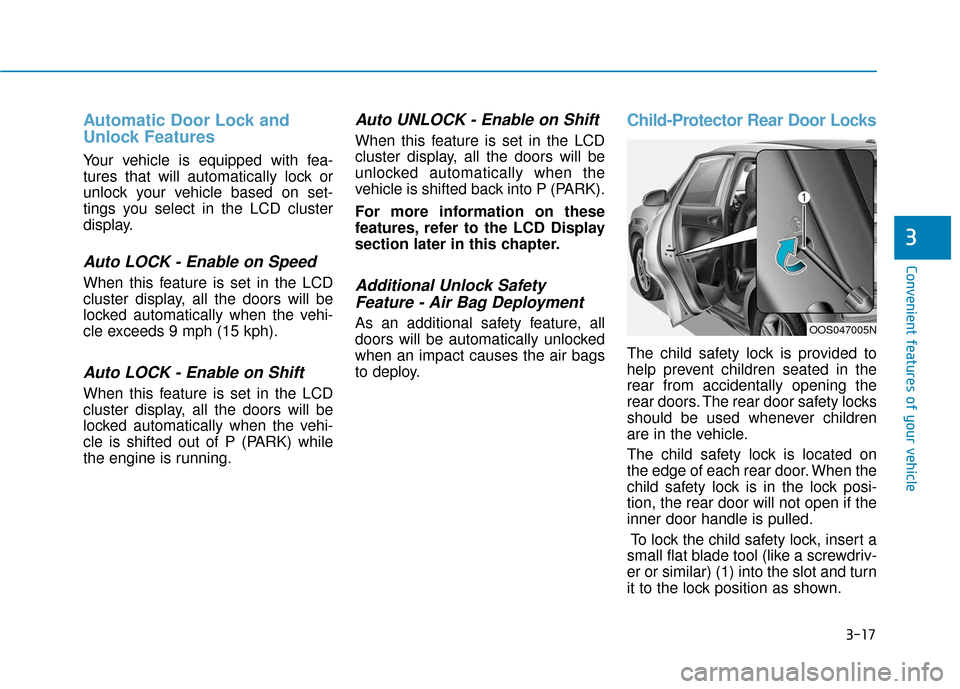
The child safety lock is located on
the edge of each rear door. When the
child safety lock is in the lock posi-
tion, the rear door will not open if the
inner door handle is pulled.
To lock the child safety lock, insert a
small flat blade tool (like a screwdriv-
er or similar) (1) into the slot and turn
it to the lock position as shown.
3
OOS047005N
Page 131 of 485
3-47
Convenient features of your vehicle
3
I
IN
N S
ST
T R
R U
U M
M E
EN
N T
T
C
C L
LU
U S
ST
T E
ER
R
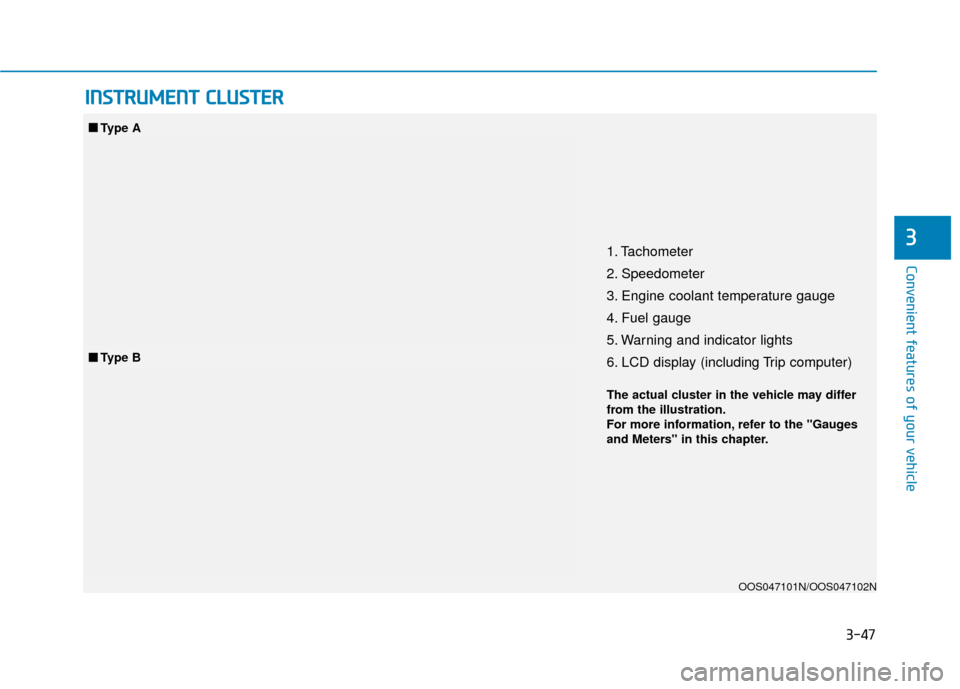
1. Tachometer
2. Speedometer
3. Engine coolant temperature gauge
4. Fuel gauge
5. Warning and indicator lights
6. LCD display (including Trip computer)
OOS047101N/OOS047102N
■ ■
Type A
■
■ Type B
The actual cluster in the vehicle may differ
from the illustration.
For more information, refer to the "Gauges
and Meters" in this chapter.
Page 152 of 485
3-68
Convenient features of your vehicle
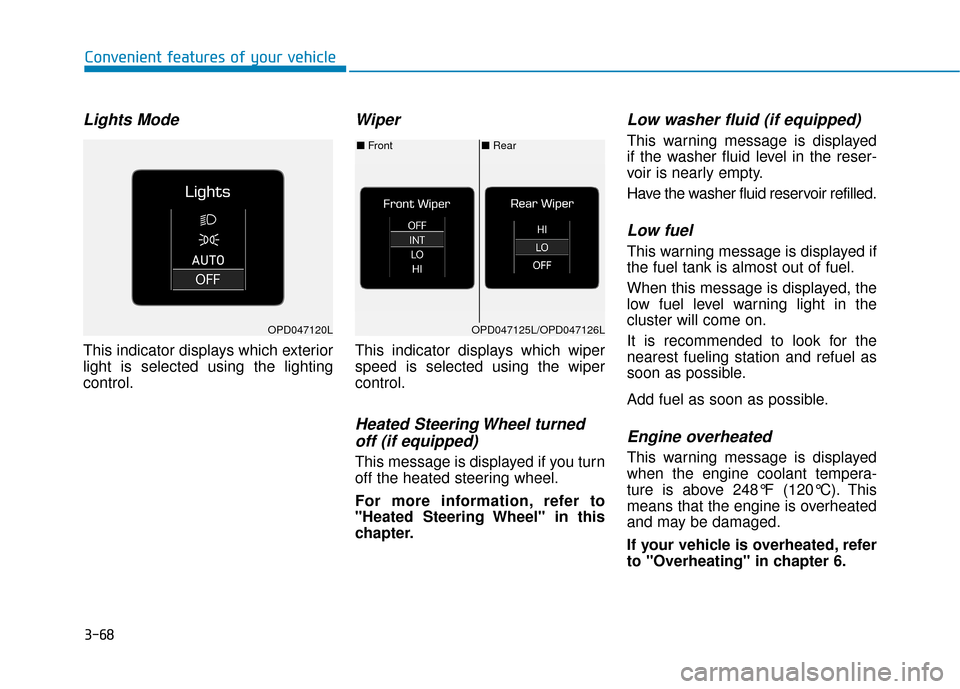
Lights Mode
This indicator displays which exterior
light is selected using the lighting
control.
Wiper
This indicator displays which wiper
speed is selected using the wiper
control.
Heated Steering Wheel turnedoff (if equipped)
This message is displayed if you turn
off the heated steering wheel.
For more information, refer to
"Heated Steering Wheel" in this
chapter.
Low washer fluid (if equipped)
This warning message is displayed
if the washer fluid level in the reser-
voir is nearly empty.
Have the washer fluid reservoir refilled.
Low fuel
This warning message is displayed if
the fuel tank is almost out of fuel.
When this message is displayed, the
low fuel level warning light in the
cluster will come on.
It is recommended to look for the
nearest fueling station and refuel as
soon as possible.
Add fuel as soon as possible.
Engine overheated
This warning message is displayed
when the engine coolant tempera-
ture is above 248°F (120°C). This
means that the engine is overheated
and may be damaged.
If your vehicle is overheated, refer
to "Overheating" in chapter 6.
■ Rear
■ Front
OPD047125L/OPD047126LOPD047120L
Page 156 of 485
3-72
Convenient features of your vehicle
Shift to P to edit settings
This warning message appears if
you try to adjust the User Settings
while driving.
For your safety, change the User
Settings after parking the vehicle,
applying the parking brake and mov-
ing the shift lever to P (Park).
Quick guide help
This mode provides quick guides for
the systems in the User Settings
mode.
Select an item, press and hold the OK
button.
For more information about each
system, refer to this Owner's
Manual.
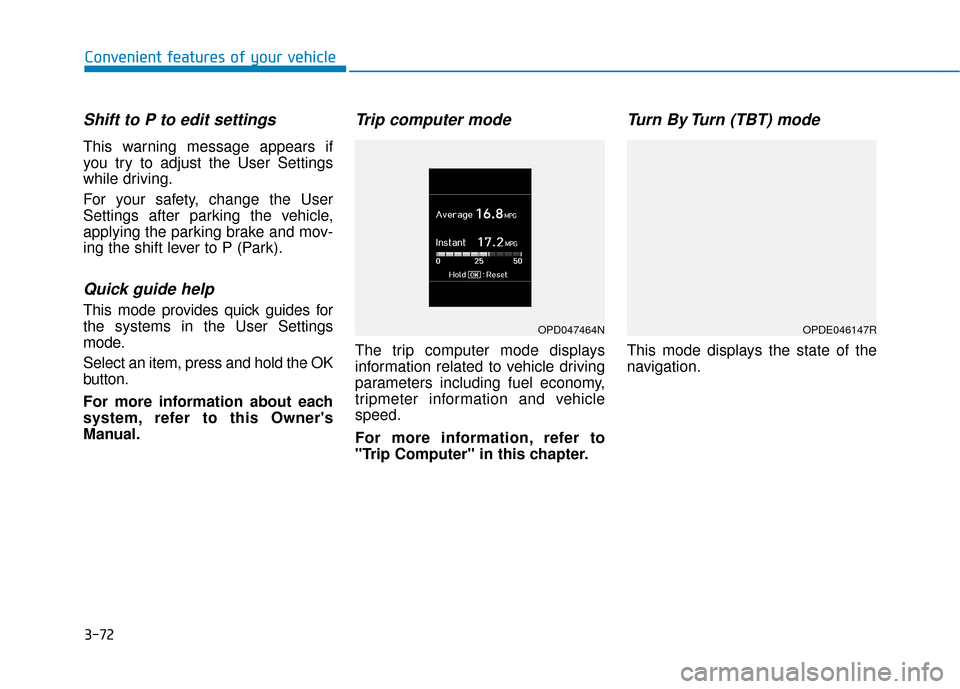
Trip computer mode
The trip computer mode displays
information related to vehicle driving
parameters including fuel economy,
tripmeter information and vehicle
speed.
For more information, refer to
"Trip Computer" in this chapter.
Turn By Turn (TBT) mode
This mode displays the state of the
navigation.
OPD047464NOPDE046147R
Page 158 of 485
3-74
Convenient features of your vehicle
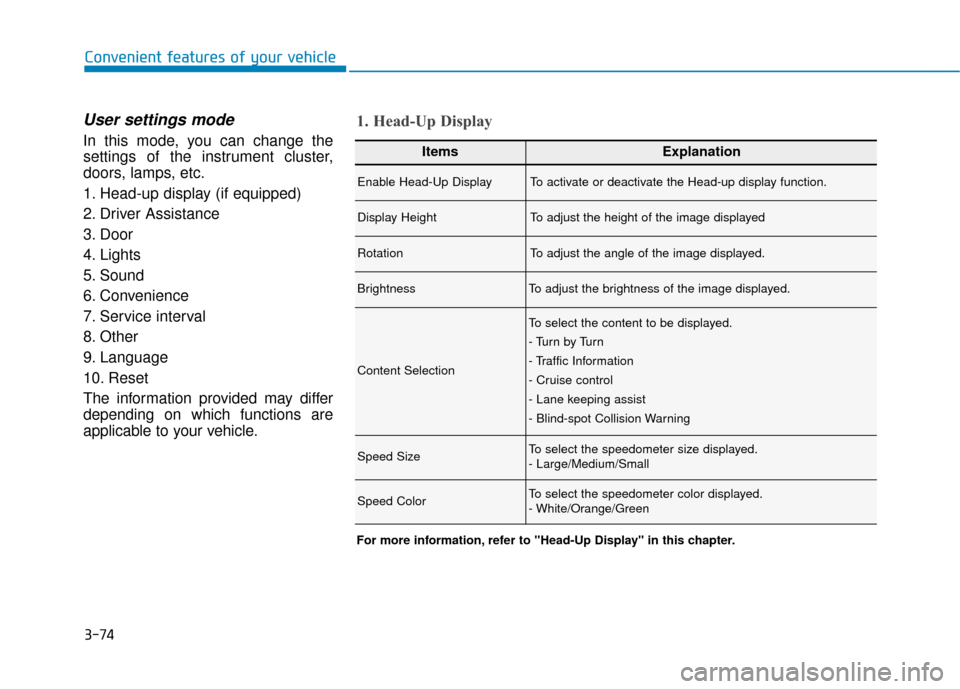
User settings mode
In this mode, you can change the
settings of the instrument cluster,
doors, lamps, etc.
1. Head-up display (if equipped)
2. Driver Assistance
3. Door
4. Lights
5. Sound
6. Convenience
7. Service interval
8. Other
9. Language
10. Reset
The information provided may differ
depending on which functions are
applicable to your vehicle.ItemsExplanation
Enable Head-Up DisplayTo activate or deactivate the Head-up display function.
Display HeightTo adjust the height of the image displayed
RotationTo adjust the angle of the image displayed.
BrightnessTo adjust the brightness of the image displayed.
Content Selection
To select the content to be displayed.
- Tu r n b y Tu r n
- Traffic Information
- Cruise control
- Lane keeping assist
- Blind-spot Collision Warning
Speed SizeTo select the speedometer size displayed.
- Large/Medium/Small
Speed ColorTo select the speedometer color displayed.
- White/Orange/Green
1. Head-Up Display
For more information, refer to "Head-Up Display" in this chapter.
Page 165 of 485
3-81
Convenient features of your vehicle
3
The trip computer is a microcomput-
er-controlled driver information sys-
tem that displays information related
to driving.
Information
Some driving information stored in the
trip computer (for example Average
Vehicle Speed) resets if the battery is
disconnected.
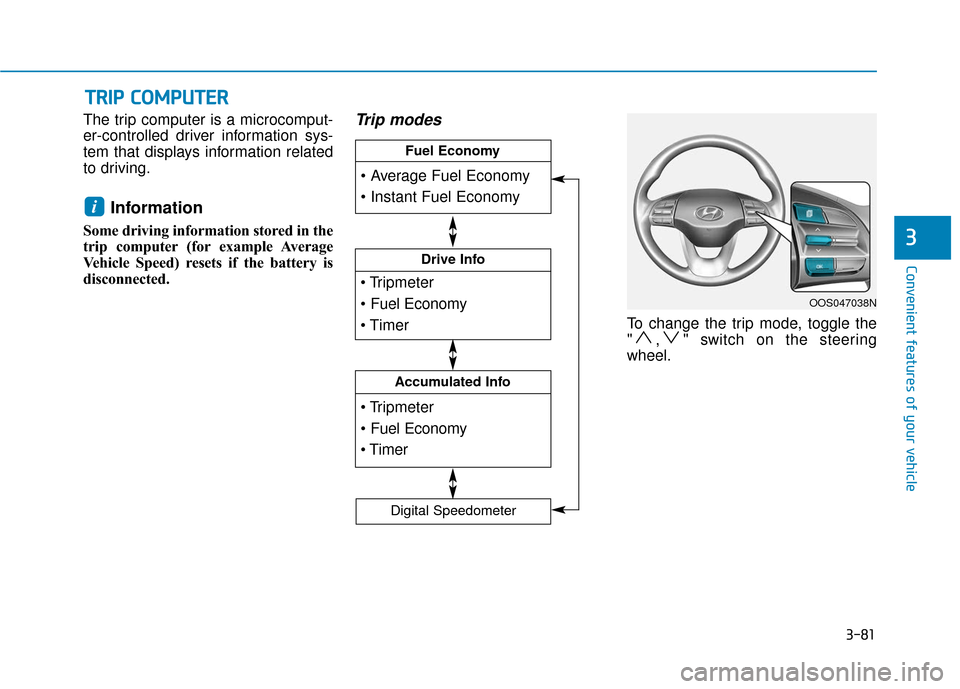
Trip modes
To change the trip mode, toggle the
" , " switch on the steering
wheel.
i
T
TR
R I
IP
P
C
C O
O M
M P
PU
U T
TE
ER
R
OOS047038N
Drive Info
Accumulated Info
Fuel Economy
Digital Speedometer
Page 166 of 485
3-82
Convenient features of your vehicle
Average fuel economy/Instant fuel economy
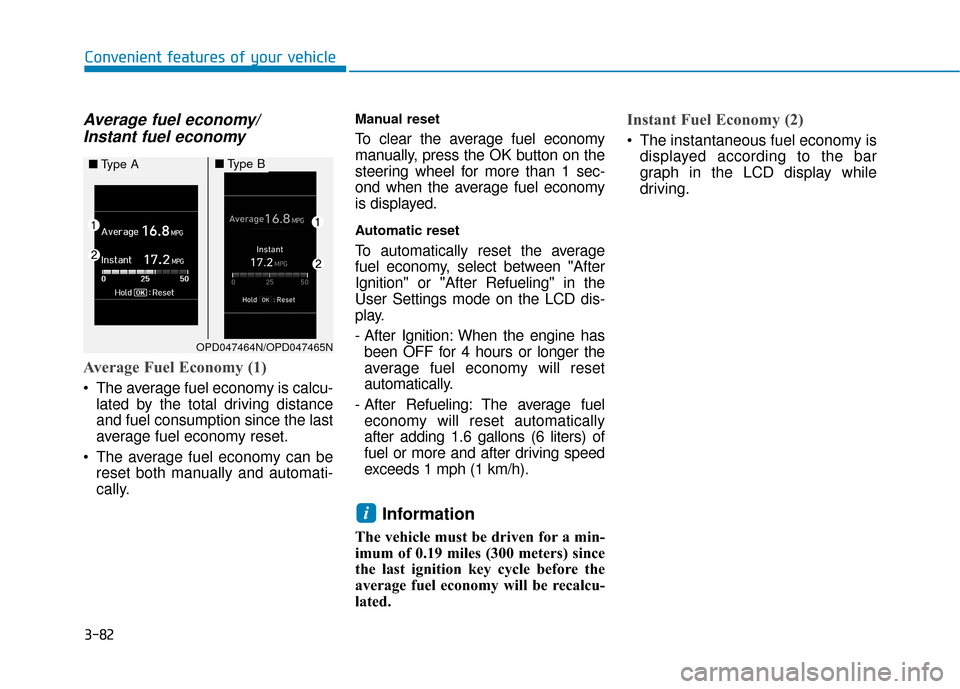
Average Fuel Economy (1)
The average fuel economy is calcu-
lated by the total driving distance
and fuel consumption since the last
average fuel economy reset.
The average fuel economy can be reset both manually and automati-
cally.
Manual reset
To clear the average fuel economy
manually, press the OK button on the
steering wheel for more than 1 sec-
ond when the average fuel economy
is displayed.
Automatic reset
To automatically reset the average
fuel economy, select between "After
Ignition" or "After Refueling" in the
User Settings mode on the LCD dis-
play.
- After Ignition: When the engine hasbeen OFF for 4 hours or longer the
average fuel economy will reset
automatically.
- After Refueling: The average fuel economy will reset automatically
after adding 1.6 gallons (6 liters) of
fuel or more and after driving speed
exceeds 1 mph (1 km/h).
Information
The vehicle must be driven for a min-
imum of 0.19 miles (300 meters) since
the last ignition key cycle before the
average fuel economy will be recalcu-
lated.
Instant Fuel Economy (2)
The instantaneous fuel economy is displayed according to the bar
graph in the LCD display while
driving.
i
OPD047464N/OPD047465N
■ Type A■Type B
Page 168 of 485
3-84
Convenient features of your vehicle
The driving information will continue to
be counted while the engine is still run-
ning (for example, when the vehicle is
in traffic or stopped at a stop light).
Information
The vehicle must be driven for a mini-
mum of 0.19 miles (300 meters) since the
last ignition key cycle before the average
fuel economy will be recalculated.
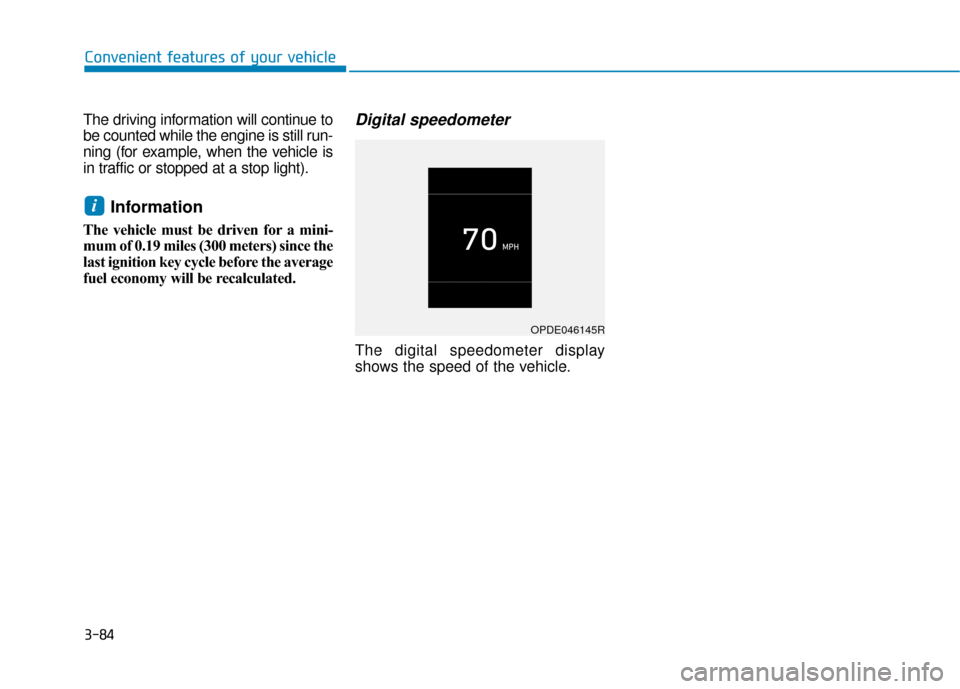
Digital speedometer
The digital speedometer display
shows the speed of the vehicle.
i
OPDE046145R
Page 171 of 485
3-87
Convenient features of your vehicle
3
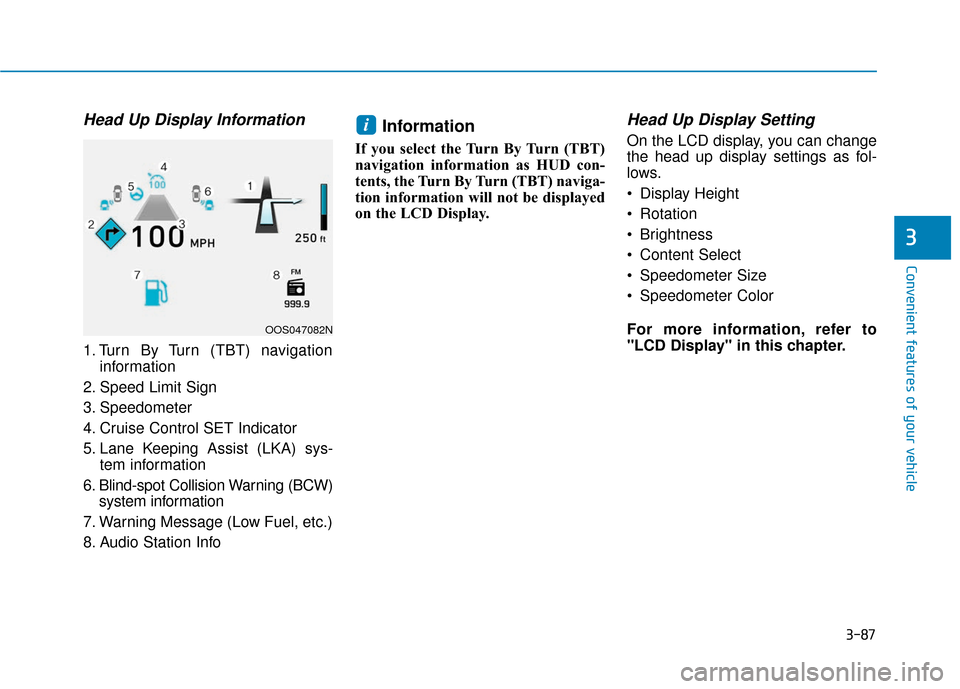
Head Up Display Information
1. Turn By Turn (TBT) navigationinformation
2. Speed Limit Sign
3. Speedometer
4. Cruise Control SET Indicator
5. Lane Keeping Assist (LKA) sys- tem information
6. Blind-spot Collision Warning (BCW) system information
7. Warning Message (Low Fuel, etc.)
8. Audio Station Info
Information
If you select the Turn By Turn (TBT)
navigation information as HUD con-
tents, the Turn By Turn (TBT) naviga-
tion information will not be displayed
on the LCD Display.
Head Up Display Setting
On the LCD display, you can change
the head up display settings as fol-
lows.
Display Height
Rotation
Brightness
Content Select
Speedometer Size
Speedometer Color
For more information, refer to
"LCD Display" in this chapter.i
OOS047082N
Page 179 of 485
3-95
Convenient features of your vehicle
3
Headlamp delay function
If the key is removed from the ignition
switch or placed in the ACC position
or the LOCK/OFF position with the
headlamps ON, the headlamps
(and/or parking lamps) remain on for
about 5 minutes. However, if the dri-
ver’s door is opened and closed, the
headlights are turned off after 15
seconds. Also, with the engine off if
the driver's door is opened and
closed, the headlamps (and/or park-
ing lamps) are turned off after 15
seconds.
The headlamps (and/or parking
lamps) can be turned off by pressing
the lock button on the remote key or
smart key twice or turning the head-
lamp switch to the OFF or AUTO
position.
You can activate or deactivate the
Headlamp Delay function from the
User Settings Mode in the LCD dis-
play.
For more information, refer to the
"LCD Display" section in this
chapter.If the driver exits the vehicle
through another door besides the
driver door, the battery saver func-
tion does not operate and the
headlamp delay function does not
turn OFF automatically.
This may cause the battery to dis-
charge. To avoid battery dis-
charge, turn OFF the headlamps
manually from the headlamp
switch before exiting the vehicle.
Smart cornering lamp
(if equipped)
As an optional safety feature, your
vehicle may be equipped with a
smart cornering lamp. The cornering
lamp turns ON automatically while
driving when the vehicle enters into a
cornering maneuver.
The system will operate under the
following conditions:
When the headlamps are turned
ON
When the steering angle is above 25 to 35 degrees (depending on
vehicle speed)
When the vehicle speed is under 25 mph (40 kph)
When the smart cornering lamp
turns on, the front fog lamp turns off.
(if equipped)
NOTICE