play HYUNDAI PALISADE 2022 Manual PDF
[x] Cancel search | Manufacturer: HYUNDAI, Model Year: 2022, Model line: PALISADE, Model: HYUNDAI PALISADE 2022Pages: 663, PDF Size: 15.74 MB
Page 272 of 663
![HYUNDAI PALISADE 2022 Manual PDF 3-176
Convenience features
Surround View Monitor will assist in
parking by allowing the driver to see
around the vehicle.
Detecting sensor
[1] : Surround-front view camera,
[2],[3] : Surround-side vi](/img/35/41170/w960_41170-271.png "HYUNDAI PALISADE 2022 Manual PDF 3-176
Convenience features
Surround View Monitor will assist in
parking by allowing the driver to see
around the vehicle.
Detecting sensor
[1] : Surround-front view camera,
[2],[3] : Surround-side vi")
3-176
Convenience features
Surround View Monitor will assist in
parking by allowing the driver to see
around the vehicle.
Detecting sensor
[1] : Surround-front view camera,
[2],[3] : Surround-side view camera (under the outside rearview mirror),
[4] : Surround-rear view camera
Refer to the picture above for the
detailed location of the detecting
sensors.
Surround View Monitor set-
tings
Camera settings
You can change Surround View Monitor ‘Display Contents’ or
‘Display Settings’ by touching the
setup icon ( ) on the screen
while Surround View Monitor is
operating, or selecting ‘Driver
Assistance →Parking Safety →
Camera Settings’ from the Settings
menu while the engine is on.
In the Display Contents, you can change settings for ‘Top View
Parking Guidance’, ‘Rear View
Parking Guidance’ and ‘Parking
Distance Warning’.
In the Display Settings, you can change the screen’s ‘Brightness’
and ‘Contrast’.
S SU U R RR RO O U UN ND D V V I IE E W W M M O ON NI IT T O O R R ( ( S S V V M M ) ) ( ( I IF F E E Q Q U UI IP P P PE ED D ) )
OLX2048060
OTM070213L
OLX2051135L
OLX2041432L
OLX2041431L
Page 273 of 663
3-177
Convenience features
3
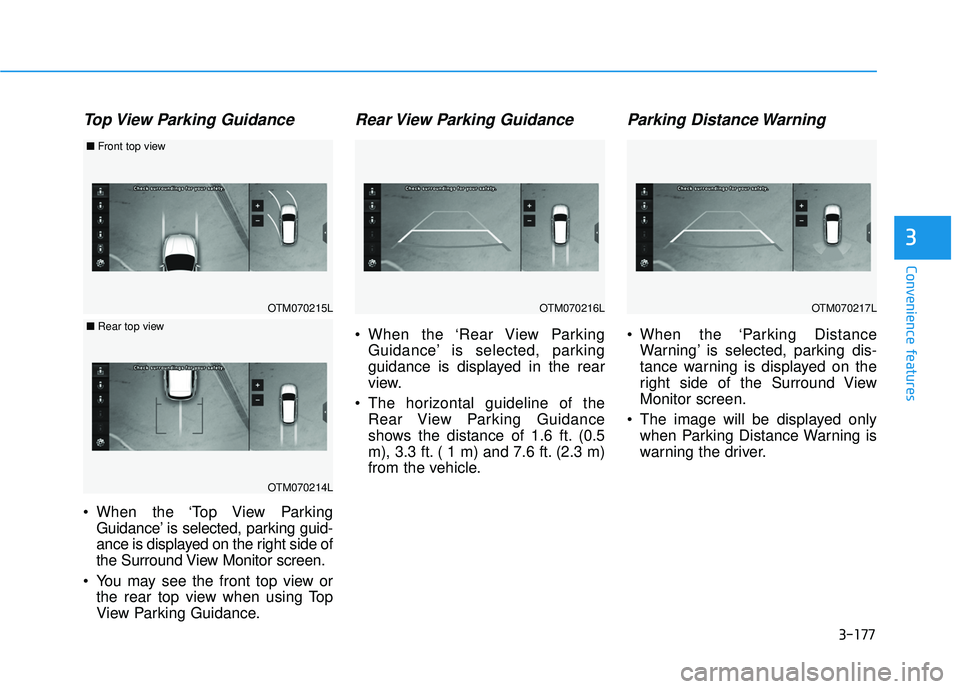
Top View Parking Guidance
When the ‘Top View ParkingGuidance’ is selected, parking guid-
ance is displayed on the right side of
the Surround View Monitor screen.
You may see the front top view or the rear top view when using Top
View Parking Guidance.
Rear View Parking Guidance
When the ‘Rear View ParkingGuidance’ is selected, parking
guidance is displayed in the rear
view.
The horizontal guideline of the Rear View Parking Guidance
shows the distance of 1.6 ft. (0.5
m), 3.3 ft. ( 1 m) and 7.6 ft. (2.3 m)
from the vehicle.
Parking Distance Warning
When the ‘Parking DistanceWarning’ is selected, parking dis-
tance warning is displayed on the
right side of the Surround View
Monitor screen.
The image will be displayed only when Parking Distance Warning is
warning the driver.
OTM070215L
■ Front top view
■Rear top view
OTM070214L
OTM070216LOTM070217L
Page 274 of 663
3-178
Convenience features
Surround View Monitor opera-
tion
Operating button
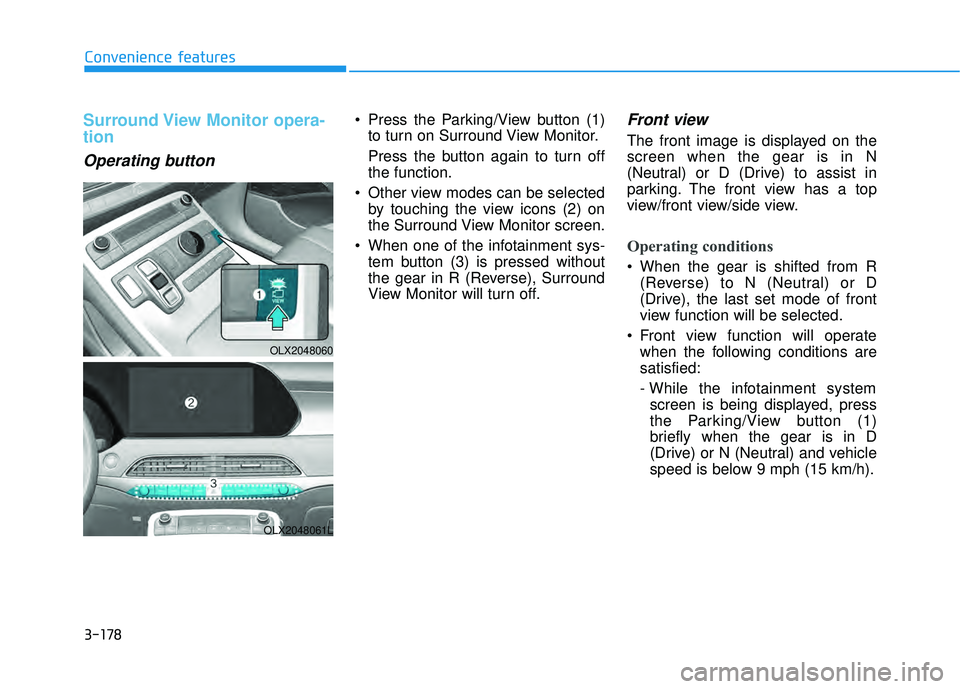
Press the Parking/View button (1)to turn on Surround View Monitor.
Press the button again to turn off
the function.
Other view modes can be selected by touching the view icons (2) on
the Surround View Monitor screen.
When one of the infotainment sys- tem button (3) is pressed without
the gear in R (Reverse), Surround
View Monitor will turn off.Front view
The front image is displayed on the
screen when the gear is in N
(Neutral) or D (Drive) to assist in
parking. The front view has a top
view/front view/side view.
Operating conditions
When the gear is shifted from R(Reverse) to N (Neutral) or D
(Drive), the last set mode of front
view function will be selected.
Front view function will operate when the following conditions are
satisfied:
- While the infotainment systemscreen is being displayed, press
the Parking/View button (1)
briefly when the gear is in D
(Drive) or N (Neutral) and vehicle
speed is below 9 mph (15 km/h).
OLX2048060
OLX2048061L
Page 275 of 663
3-179
Convenience features
3
Surround View Monitor Auto Onfunction will operate when the fol-
lowing conditions are satisfied:
- With ‘Driver Assistance →
Parking Safety → Surround View
Monitor Auto On’ selected from
the Settings menu, the front park-
ing assist view screen is dis-
played when Parking Distance
Warning warns the driver while
driving in D (Drive).Off conditions
Press the Parking/View button (1) again, the image will turn off.
When vehicle speed is above 9 mph (15 km/h) with the gear in D
(Drive), Surround View Monitor will
turn off and the screen will change
back to the previous infotainment
system screen. Although you drive
below 9 mph (15 km/h) again,
Surround View Monitor will not turn
on.
Press one of the infotainment sys- tem button (3), the screen will
change to the infotainment system
screen.
Shift the gear to P (Park), the image will turn off.
Rear view
The rear image is displayed on the
screen when the gear is in P (Park)
to assist in parking. The rear view
has a top view/rear view/side view.
Operating conditions
Shift the gear to R (Reverse), theimage will appear on the screen.
Press the Parking/View button (1) while the gear is in P (Park), the
image will appear on the screen.
Off conditions
The image cannot be turned offwhen the gear is in R (Reverse).
Shift the gear from R (Reverse) to P (Park), the image will turn off.
Press the Parking/View button (1) again while the gear is in P (Park)
with the image on the screen.
Page 276 of 663
3-180
Convenience features
Rear View while driving
The driver is able to check the rear
view on the screen while driving, it is
to assist with safe driving.
Operating conditions
The engine is ON.
Press the Parking/View button (1)when vehicle speed is above 9
mph (15 km/h), Rear View while
driving will appear on the screen.
The ( ) icon is touched on the Surround View Monitor screen
when vehicle speed is below 9
mph (15 km/h), Rear View while
driving will appear on the screen.
Off conditions
Press the Parking/View button (1)again, the screen will change back
to the previous infotainment sys-
tem screen.
Select other view modes from the Surround View Monitor screen
when vehicle speed is below 9
mph (15 km/h), Rear View while
driving will turn off.
Press one of the infotainment sys- tem button (3), the screen will
change to the infotainment system
screen.
Shift the gear to P (Park), Rear View while driving will turn off.
Surround View Monitor mal-
function and limitations
Surround View Monitor malfunc-tion
When Surround View Monitor is not
working properly, or the screen flick-
ers, or the camera image does not
display normally, have the vehicle
inspected by an authorized
HYUNDAI dealer.
Limitations of Surround ViewMonitor
When the vehicle is stopped for a
long time in winter or when the
vehicle is parked in an indoor park-
ing lot, the exhaust fumes may
temporarily blur the image.
The screen may be displayed abnormally, and an icon will appear
at the top left side of the screen
under the following circumstances:
- The tailgate is opened
- The driver or front passengerdoor is opened
- The outside rearview mirror is folded
Page 278 of 663
![HYUNDAI PALISADE 2022 Manual PDF 3-182
Convenience features
Blind-Spot View Monitor displays the
rear blind spot area of the vehicle in
the cluster when the turn signal is
turned on to help safely change
lanes.
Detecting sensor
[1],](/img/35/41170/w960_41170-277.png "HYUNDAI PALISADE 2022 Manual PDF 3-182
Convenience features
Blind-Spot View Monitor displays the
rear blind spot area of the vehicle in
the cluster when the turn signal is
turned on to help safely change
lanes.
Detecting sensor
[1],")
3-182
Convenience features
Blind-Spot View Monitor displays the
rear blind spot area of the vehicle in
the cluster when the turn signal is
turned on to help safely change
lanes.
Detecting sensor
[1], [2]: Surround-side view camera (camera located at bottom of the mirror)
Refer to the picture above for the
detailed location of the detecting
sensors.
Blind-Spot View Monitor set-
tings
Setting features
Blind-Spot View
With the engine on, select ‘Driver
Assistance →Blind-Spot Safety →
Blind- Spot View’ from the Settings
menu to turn on Blind-Spot View
Monitor and deselect to turn off the
function.
B B L LI IN N D D- -S S P P O O T T V V I IE E W W M M O ON NI IT T O O R R ( ( B B V V M M ) ) ( ( I IF F E E Q Q U UI IP P P PE ED D ) )
OLX2051136L
OLX2041433L/OLX2041434L
■ Left side ■Right side
Page 279 of 663
3-183
Convenience features
3
Blind-Spot View Monitor oper-
ation
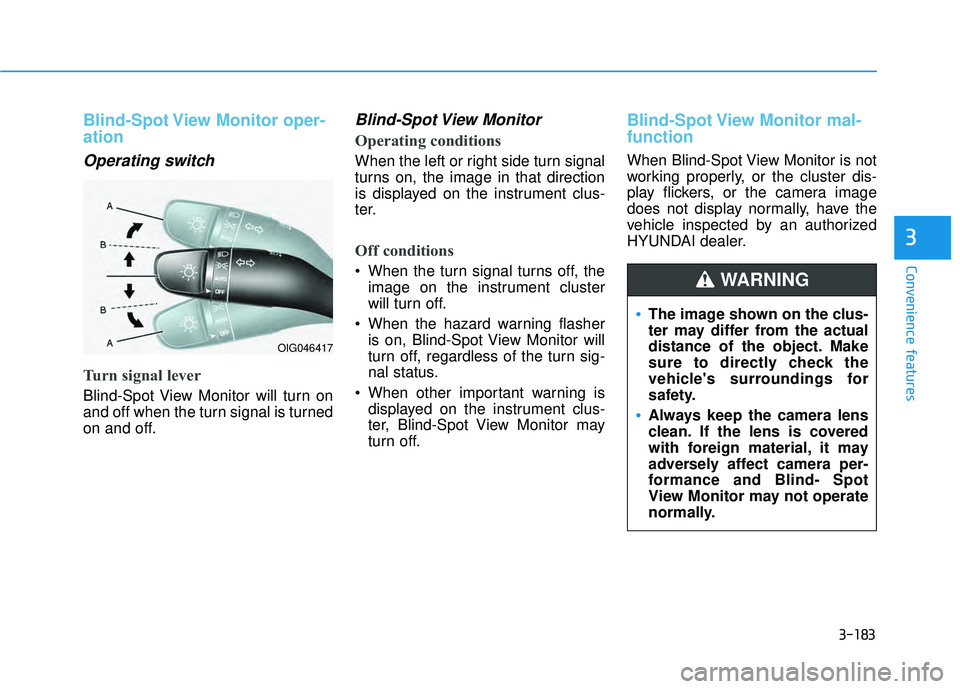
Operating switch
Turn signal lever
Blind-Spot View Monitor will turn on
and off when the turn signal is turned
on and off.
Blind-Spot View Monitor
Operating conditions
When the left or right side turn signal
turns on, the image in that direction
is displayed on the instrument clus-
ter.
Off conditions
When the turn signal turns off, theimage on the instrument cluster
will turn off.
When the hazard warning flasher is on, Blind-Spot View Monitor will
turn off, regardless of the turn sig-
nal status.
When other important warning is displayed on the instrument clus-
ter, Blind-Spot View Monitor may
turn off.
Blind-Spot View Monitor mal-
function
When Blind-Spot View Monitor is not
working properly, or the cluster dis-
play flickers, or the camera image
does not display normally, have the
vehicle inspected by an authorized
HYUNDAI dealer.
OIG046417
The image shown on the clus-
ter may differ from the actual
distance of the object. Make
sure to directly check the
vehicle's surroundings for
safety.
Always keep the camera lens
clean. If the lens is covered
with foreign material, it may
adversely affect camera per-
formance and Blind- Spot
View Monitor may not operate
normally.
WARNING
Page 293 of 663
3-197
Convenience Features
3
Automatic Temperature
Control Mode
The Automatic Climate Control
System is controlled by setting the
desired temperature.
For your convenience and to improve
the efficiency of the climate control,
use the AUTO button and set the
temperature to 72°F (22°C).
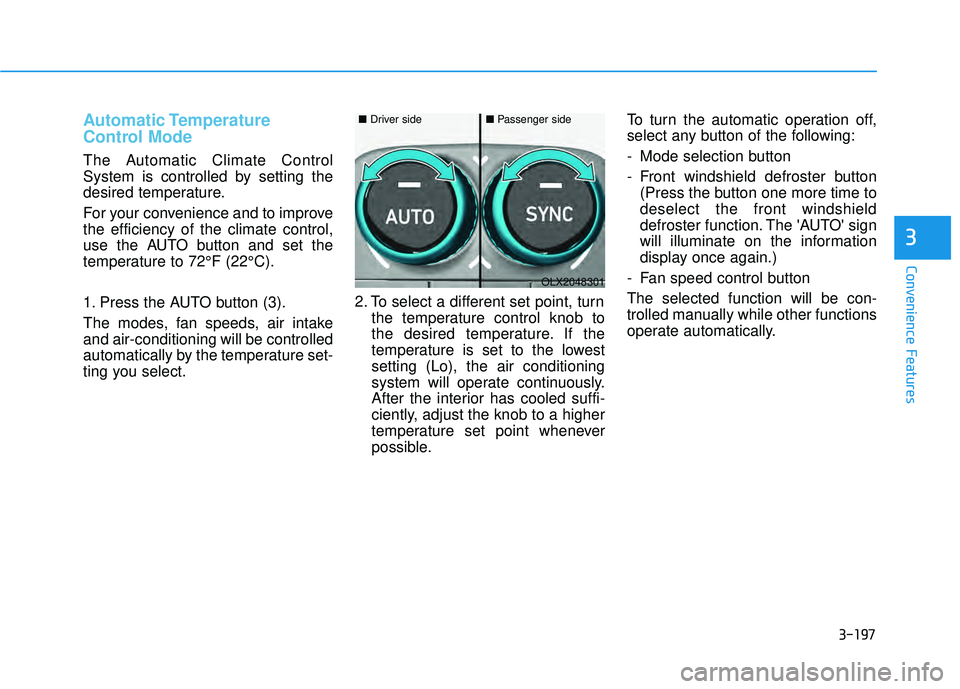
1. Press the AUTO button (3).
The modes, fan speeds, air intake
and air-conditioning will be controlled
automatically by the temperature set-
ting you select.2. To select a different set point, turn
the temperature control knob to
the desired temperature. If the
temperature is set to the lowest
setting (Lo), the air conditioning
system will operate continuously.
After the interior has cooled suffi-
ciently, adjust the knob to a higher
temperature set point whenever
possible. To turn the automatic operation off,
select any button of the following:
- Mode selection button
- Front windshield defroster button
(Press the button one more time to
deselect the front windshield
defroster function. The 'AUTO' sign
will illuminate on the information
display once again.)
- Fan speed control button
The selected function will be con-
trolled manually while other functions
operate automatically.
OLX2048301
■ Driver side■Passenger side
Page 297 of 663
3-201
Convenience Features
3
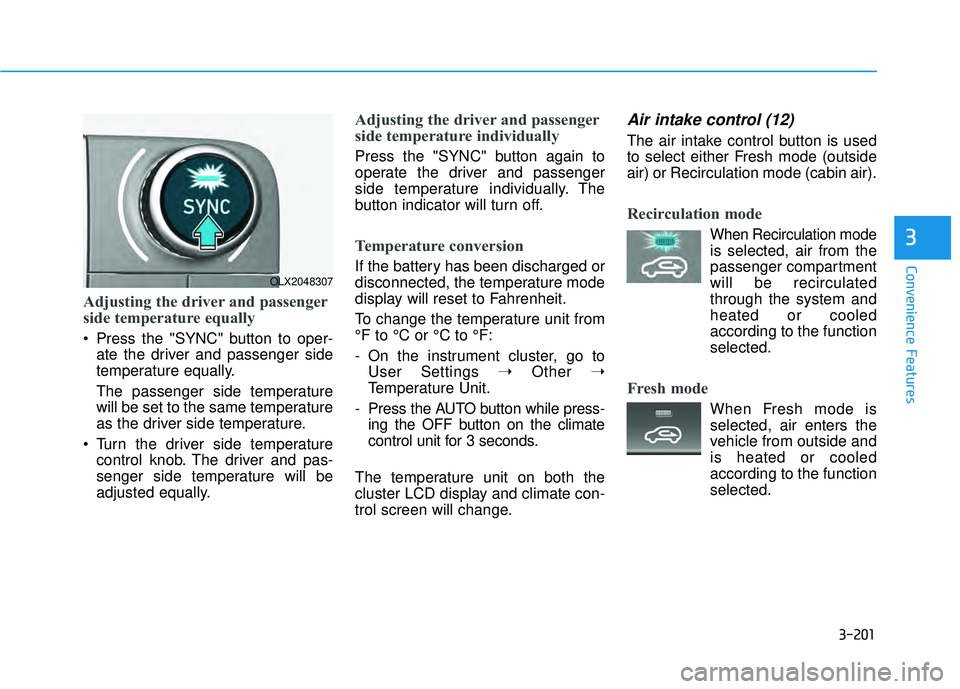
Adjusting the driver and passenger
side temperature equally
Press the "SYNC" button to oper-ate the driver and passenger side
temperature equally.
The passenger side temperature
will be set to the same temperature
as the driver side temperature.
Turn the driver side temperature control knob. The driver and pas-
senger side temperature will be
adjusted equally.
Adjusting the driver and passenger
side temperature individually
Press the "SYNC" button again to
operate the driver and passenger
side temperature individually. The
button indicator will turn off.
Temperature conversion
If the battery has been discharged or
disconnected, the temperature mode
display will reset to Fahrenheit.
To change the temperature unit from
°F to °C or °C to °F:
- On the instrument cluster, go toUser Settings ➝ Other ➝
Temperature Unit.
- Press the AUTO button while press- ing the OFF button on the climate
control unit for 3 seconds.
The temperature unit on both the
cluster LCD display and climate con-
trol screen will change.
Air intake control (12)
The air intake control button is used
to select either Fresh mode (outside
air) or Recirculation mode (cabin air).
Recirculation mode
When Recirculation mode
is selected, air from the
passenger compartment
will be recirculated
through the system and
heated or cooled
according to the function
selected.
Fresh mode
When Fresh mode is selected, air enters the
vehicle from outside and
is heated or cooled
according to the function
selected.
OLX2048307
Page 310 of 663
3-214
Convenience FeaturesWhen the Auto Defogging
System operates, the indi-
cator will illuminate.
If a high amount of humidity is
detected in the vehicle, the Auto
Defogging System will be enabled.
The following steps will be performed
automatically:
Step 1) The A/C button will turn ON.
Step 2) The air intake control will change to Fresh mode.
Step 3) The mode will be changed to defrost to direct airflow to the
windshield.
Step 4) The fan speed will be set to MAX.
If the air conditioning is off or recircu-
lated air position is manually select-
ed while Auto Defogging System is
ON, the Auto Defogging System
Indicator will blink 3 times to signal
that the manual operation has been
canceled.
To cancel or reset the
Auto Defogging System
Press the front windshield defroster
button for 3 seconds when the igni-
tion switch is in the ON position.
When the Auto Defogging System is
canceled, the ADS OFF symbol will
blink 3 times and ADS OFF will be
displayed on the climate control
information screen.
When the Auto Defogging System is
reset, the ADS OFF symbol will blink
6 times without a signal.
Information
• When the air conditioning is turned on by Auto defogging system, if you
try to turn off the air conditioning, the
indicator will blink 3 times and the air
conditioning will not be turned off.
• To maintain the effectiveness and efficiency of the Auto Defogging
System, do not select Recirculation
mode while the system is operating.
• When the Auto Defogging System is operating, the fan speed adjustment
button, the temperature adjustment
knob, and the air intake control but-
ton are all disabled.
Do not remove the sensor cover
located on the upper end of the
windshield glass.
Damage to system parts could
occur and may not be covered by
your vehicle warranty.
NOTICE
i