buttons Hyundai Santa Fe 2007 User Guide
[x] Cancel search | Manufacturer: HYUNDAI, Model Year: 2007, Model line: Santa Fe, Model: Hyundai Santa Fe 2007Pages: 355, PDF Size: 13.03 MB
Page 169 of 355
1157157157157157157
FEATURES OF YOUR HYUNDAI
B445E02CM-AAT1. SCAN buttonStation scan function
Press the SCAN button for the tuner to
scan for radio signals in the selected fre-
quency band (AM or FM). Once the tuner
locks onto the signal of a transmitting sta-
tion, it plays that station for 5 seconds
before scanning for the next available sta-
tion in the selected frequency band.
If you want to keep listening to a particular
station and want to stop the scanning,
press the SCAN button again.
This function is useful for providing you
with a good overview of all the radio sta-
tions within range of your tuner.
Preset scan function
Press and hold the SCAN button for more
than 2 seconds. Each preset radio stations
will be automatically played for 5 seconds.
If you want to keep listening to a particular
preset station and want to stop the scan-
ning, press the SCAN button again.
2. SEEK '
∧ ∧∧ ∧
∧' and '
∨ ∨∨ ∨
∨' buttons
Automatic Station Selection function
Press the '
∧ ∧∧ ∧
∧' and '
∨ ∨∨ ∨
∨' buttons to scan up
and down the frequency range for the next
available radio station and automatically
lock on to that frequency.
The LCD screen displays the frequency of
the radio station transmitting a clear and
strong signal.
Use this function to search for a radio
station you want. If you like a particular
station, you can store it as one of 6 presets
using the Preset buttons described later.
NOTE:This function is not effective if you are
experiencing poor reception in your vi-
cinity.
3. TUNE KnobManual Station Selection
Rotate the knob clockwise or counter-clock-
wise to manually advance up or down the
frequency range. The Tune knob also gives
you fine-grain control which you can use to
manually fine-tune your frequency selec-
tion. This is useful if you are searching for
a radio signal which is not strong enough
for you to use the Automatic Station Selec-
tion functionNOTE:The speed at which you advance up or
down the frequency range depends on
how fast you turn the knob.
Page 170 of 355
1FEATURES OF YOUR HYUNDAI
158
4. Station Preset buttons (1~6)There are 6 Station Preset buttons which
you can use to store the frequencies of
your 6 favorite radio stations. Saving a
station as a preset gives you one-touch
access to the station you want. Remember
that the 6 presets stations you store are for
the specific radio band mode you are in.
That means that you can store up to 6
stations in AM mode, 6 in FM1 mode, and
6 in FM2 mode. This means that you can
store up to 18 of your favorite stations in the
preset memory.NOTE:o For Model D445S, use FM1 and FM2
buttons to switch between FM1 and
FM2 modes.
o For Model D465S, use FM button to
switch between FM1 and FM2 modes.
o For Model D466S, use AM/FM button
to switch between AM, FM1 and FM2
modes.
o Remember that if you store a station
as preset 1 in FM2 mode, you must
first select FM2 mode before you can
use that preset button.
o This function is not effective if you are
experiencing poor reception in your
vicinity.
Using PresetsTo save a radio station as a preset:
1. Take note of the band selection dis-
played on the LCD screen (AM, FM1 or
FM2)
2. Tune in to the radio station you want
using either the SEEK UP and DOWN
buttons or the TUNE Knob.
3. Choose the preset button (1~6) you
want to use to store the radio station.
4. Press and hold the Preset button for
more than 2 seconds.
The system beeps to indicate that it has
saved the new station and displays the
frequency and preset number on the
LCD screen.NOTE:Saving a new station erases the previ-
ous setting saved in that preset.To tune in to a preset station:
1. Select the band (AM, FM1 or FM2) you
want using the band selector buttons.
2. Press the preset button corresponding
to the radio station you want.
The system automatically jumps to the
preset station. The frequency and pre-
set number is displayed on the LCD
screen.
Buttons not in use in tuner mode
The following buttons and functions are
not used in tuner mode.
-<< button
->> button
-RPT button
-RDM button
-MARK button
-INFO button
Page 171 of 355
1159159159159159159
FEATURES OF YOUR HYUNDAI
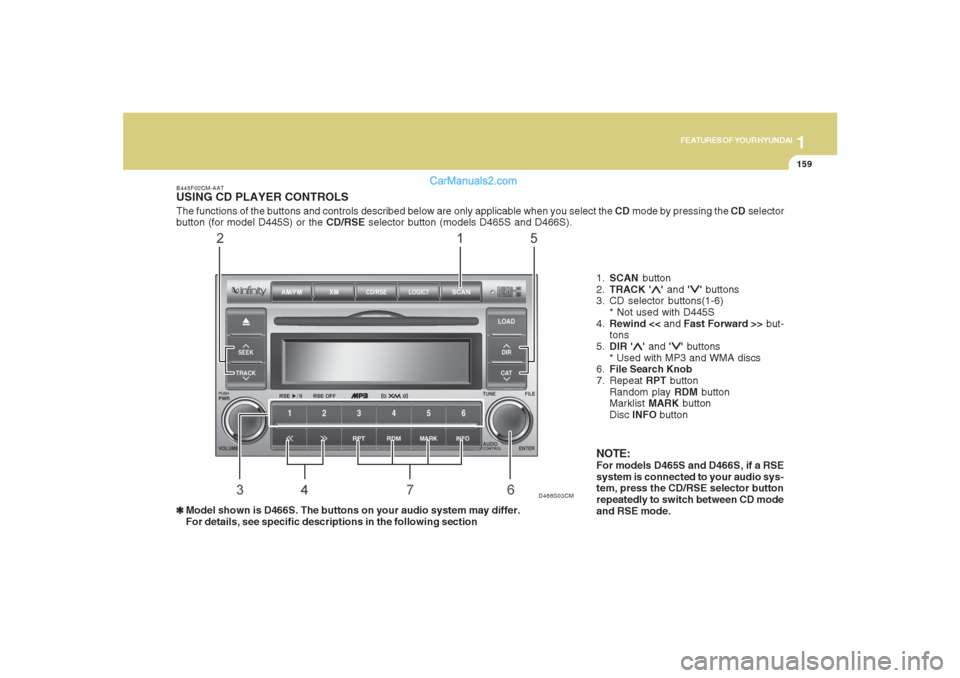
The functions of the buttons and controls described below are only applicable when you select the CD mode by pressing the CD selector
button (for model D445S) or the CD/RSE selector button (models D465S and D466S).B445F02CM-AATUSING CD PLAYER CONTROLS❃ ❃❃ ❃
❃Model shown is D466S. The buttons on your audio system may differ.
For details, see specific descriptions in the following section1.SCAN button
2.TRACK '
∧ ∧∧ ∧
∧' and '
∨ ∨∨ ∨
∨' buttons
3. CD selector buttons(1-6)
* Not used with D445S
4.Rewind << and Fast Forward >> but-
tons
5.DIR '
∧ ∧∧ ∧
∧' and '
∨ ∨∨ ∨
∨' buttons
* Used with MP3 and WMA discs
6.File Search Knob
7. Repeat RPT button
Random play RDM button
Marklist MARK button
Disc INFO button
NOTE:For models D465S and D466S, if a RSE
system is connected to your audio sys-
tem, press the CD/RSE selector button
repeatedly to switch between CD mode
and RSE mode.
D466S03CM
Page 172 of 355
1FEATURES OF YOUR HYUNDAI
160
B445G02CM-AAT1. SCAN buttonDisc Scan function
During CD playback, press the SCAN
button to play the first 10 seconds (pre-
view) of all tracks on the current CD.
Once you hear a track you want, press the
SCAN button again to resume normal play-
back2. Track UP '
∧ ∧∧ ∧
∧' and DOWN '
∨ ∨∨ ∨
∨' but-
tons
During CD playback, press the
∧ and
∨
buttons to select and play the next or pre-
vious track on the current disc. The LCD
screen displays the track number as you
press the buttons. You can press the but-
ton several times to select the track you
want.
3. CD selector buttons (1~6)Model D445S:
The CD selector buttons are not used with
Model D445.
Models D465S and D466S:
Press the CD selector button correspond-
ing to the CD you want. The CD player
automatically interrupts playback and loads
the selected CD.NOTE:If no CD is loaded in the selected posi-
tion, the LCD screen displays the No
Disc indicator.4. Rewind << and Fast Forward >>
buttonsDuring CD playback, press and hold the
<< or >> buttons to rewind or fast-forward
playback of the current track. The LCD
screen displays the elapsed time of the
track you are rewinding or fast-forwarding.
Release the << or >> button when you
have reached the point you want. Play-
back resumes automatically at the selected
point.
5. DIR '
∧ ∧∧ ∧
∧' and '
∨ ∨∨ ∨
∨' buttons (MP3 and
WMA discs)
During MP3/WMA CD playback, press the
DIR '
∧ ∧∧ ∧
∧' or '
∨ ∨∨ ∨
∨' buttons to switch to the next
or previous directory on the CD. The LCD
screen displays the name of the directory
you have switched to. You can press the
button several times to search for the direc-
tory you want. The directories are dis-
played in sequence (i.e. ascending or
descending alphabetical order).
To access the directory displayed, press
the File Search knob to ENTER your se-
lection.
NOTE:The Directory UP and DOWN buttons
can only be used when you are playing a
CD which has organized its tracks in the
form of directories. Normally, only MP3
or WMA CDs will contain a directory tree
which you can navigate using these but-
tons.
Page 173 of 355
1161161161161161161
FEATURES OF YOUR HYUNDAI
6. File Search KnobRotate the knob clockwise or counter-clock-
wise to manually advance up or down the
track list of the CD currently played. This
function allows you to quickly scroll to a
specific track number. It is especially use-
ful if you are playing an MP3 or WMA CD
which contains many directories and
tracks. The LCD screen displays the track
number you have scrolled to.
Once the track number you want is dis-
played, press the File Search knob to
ENTER your selection and begin play-
back of the selected track.
NOTE:You must push the File Search knob to
select the track for playback. Other-
wise, the CD player will not jump to the
track number displayed in the number
counter.
Use the File Search knob and the DIR '
∧ ∧∧ ∧
∧'
and '
∨ ∨∨ ∨
∨' buttons in together to quickly
search for a track you want on an MP3
CD with many directories and tracks.
7. RPT, RDM, MARK & INFO buttonsThese buttons correspond to the Repeat,
Random Playback, Marklist and Disc In-
formation functions.
Turn to the next section of your handbook
for detailed instructions.
Page 174 of 355
1FEATURES OF YOUR HYUNDAI
162
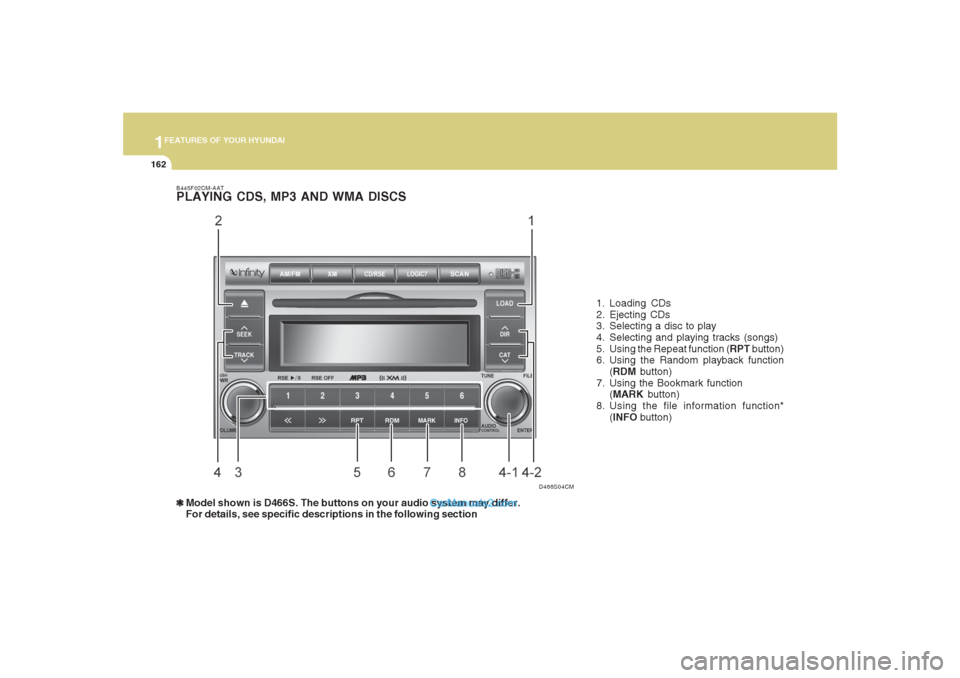
B445F02CM-AATPLAYING CDS, MP3 AND WMA DISCS❃ ❃❃ ❃
❃Model shown is D466S. The buttons on your audio system may differ.
For details, see specific descriptions in the following section1. Loading CDs
2. Ejecting CDs
3. Selecting a disc to play
4. Selecting and playing tracks (songs)
5. Using the Repeat function (RPT button)
6. Using the Random playback function
(RDM button)
7. Using the Bookmark function
(MARK button)
8. Using the file information function*
(INFO button)
D466S04CM
Page 177 of 355
1165165165165165165
FEATURES OF YOUR HYUNDAI
3. Selecting a disc to playModel D445S
Only the CD loaded in the player can be
played.
Models D465S and D466S
You can select any disc loaded in the CD
changer for playback.
To do so:
Press the corresponding CD selector
button (1 – 6).
The CD changer automatically loads the
selected CD and begins playback of the
first track.
The LCD screen displays the selected CD
as a flashing number.
4. Selecting and playing tracks
(songs)To select tracks, you can use one of 3
methods:
Method 1:
Press the Track Up or Track Down
button repeatedly until you find the track
you want.
Method 2:
Rotate the File Search knob to scroll to
the track you want. The number counter
in the LCD screen shows you the track
number.
Press the File Search knob to ENTER
your selection and begin playback.
Method 3 (only for MP3 and WMA CDs):
Press the DIR Up or Down buttons re-
peatedly to switch to the directory you
want on the CD.
The LCD screen displays the name of
the directory you have switched to.Rotate the File Search knob to scroll to the
track you want in the selected directory.
The number counter in the LCD screen
shows you the track number. Press the File
Search knob to ENTER your selection and
begin playback.
NOTE:You may notice that the track number
counter on the LCD screen matches the
track list on audio CDs exactly while that
may not be the case for MP3 or WMA
CDs. This is because WMA and MP3 CDs
typically contain multiple tracks (files)
that are organized on the CD as directo-
ries. The number counter displays the
track number of the track being played
in relation to the numbering system on
the MP3 or WMA CD. Depending on the
sequence in which the files and directo-
ries were added to the CD, the track
number sequence displayed on the
screen may not match the playback
sequence. This is due to the MP3 and
WMA encoding process and does not
mean that your CD player is defective.
Page 180 of 355
1FEATURES OF YOUR HYUNDAI
168
D466S05CM B466A02CM-AAT
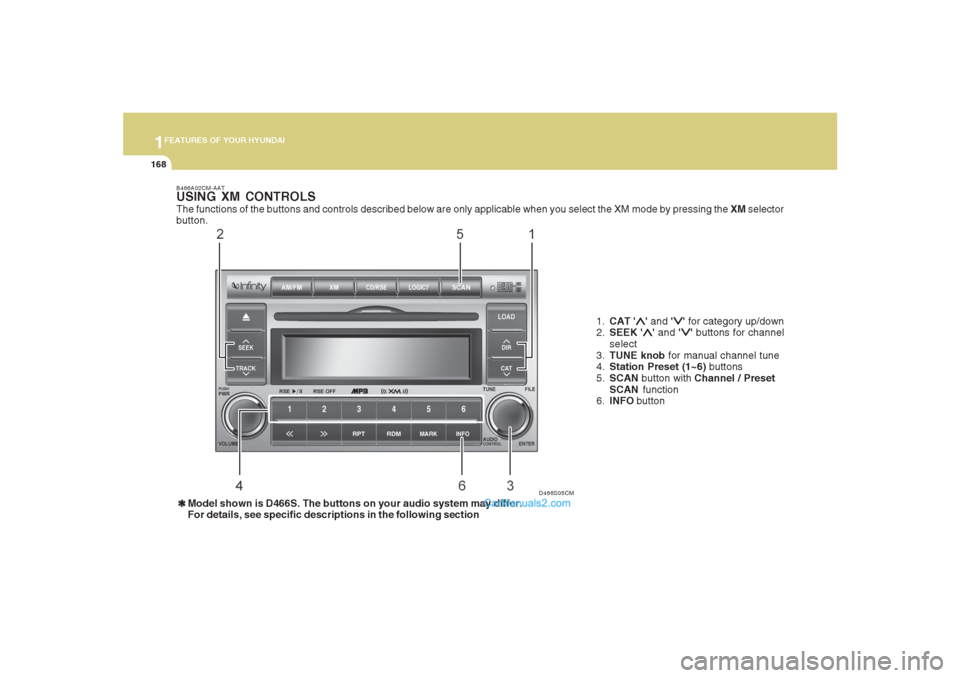
USING XM CONTROLSThe functions of the buttons and controls described below are only applicable when you select the XM mode by pressing the XM selector
button.
1.CAT '
∧ ∧∧ ∧
∧' and '
∨ ∨∨ ∨
∨' for category up/down
2.SEEK '
∧ ∧∧ ∧
∧' and '
∨ ∨∨ ∨
∨' buttons for channel
select
3.TUNE knob for manual channel tune
4.Station Preset (1~6) buttons
5.SCAN button with Channel / Preset
SCAN function
6.INFO button
❃ ❃❃ ❃
❃Model shown is D466S. The buttons on your audio system may differ.
For details, see specific descriptions in the following section
Page 181 of 355
1169169169169169169
FEATURES OF YOUR HYUNDAI
1. CAT UP '
∧ ∧∧ ∧
∧' / DOWN '
∨ ∨∨ ∨
∨' buttons
Press CAT UP '
∧ ∧∧ ∧
∧' / DOWN '
∨ ∨∨ ∨
∨' buttons to
go to next/previous categories. Once
reached the desired category, press the
ENTER knob to select the category. The
audio system will play the first channel of
the new category. If there is no ENTER
carried out 5 seconds after the last CAT UP
'
∧ ∧∧ ∧
∧' / DOWN '
∨ ∨∨ ∨
∨' button, the category up/
down is canceled and the audio system
reverts the display back to current active
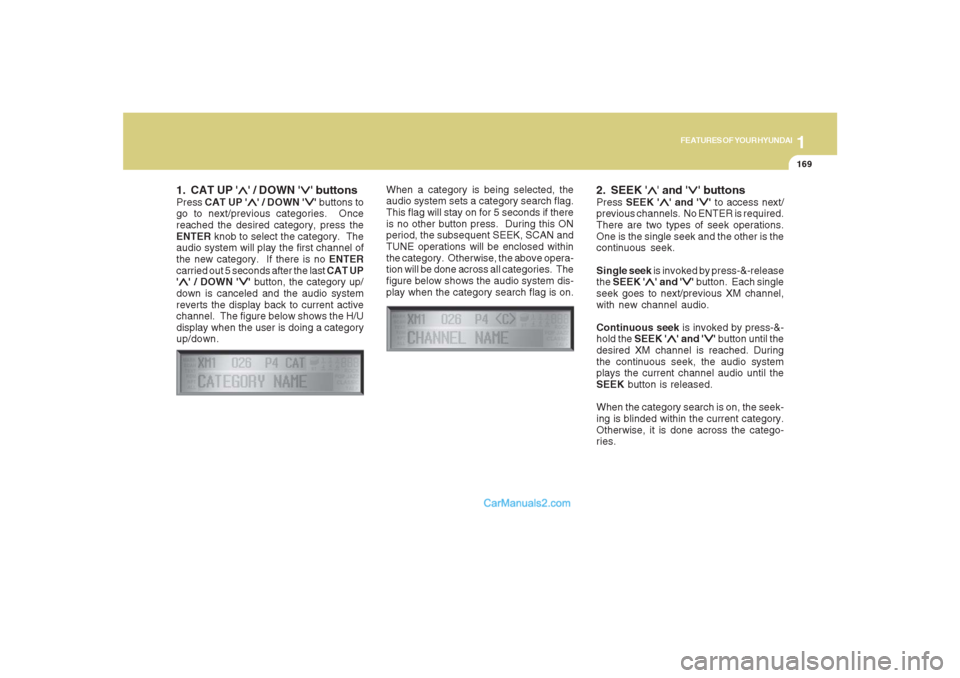
channel. The figure below shows the H/U
display when the user is doing a category
up/down.When a category is being selected, the
audio system sets a category search flag.
This flag will stay on for 5 seconds if there
is no other button press. During this ON
period, the subsequent SEEK, SCAN and
TUNE operations will be enclosed within
the category. Otherwise, the above opera-
tion will be done across all categories. The
figure below shows the audio system dis-
play when the category search flag is on.
2. SEEK '
∧ ∧∧ ∧
∧' and '
∨ ∨∨ ∨
∨' buttons
Press SEEK '
∧ ∧∧ ∧
∧' and '
∨ ∨∨ ∨
∨' to access next/
previous channels. No ENTER is required.
There are two types of seek operations.
One is the single seek and the other is the
continuous seek.
Single seek is invoked by press-&-release
the SEEK '
∧ ∧∧ ∧
∧' and '
∨ ∨∨ ∨
∨' button. Each single
seek goes to next/previous XM channel,
with new channel audio.
Continuous seek is invoked by press-&-
hold the SEEK '
∧ ∧∧ ∧
∧' and '
∨ ∨∨ ∨
∨' button until the
desired XM channel is reached. During
the continuous seek, the audio system
plays the current channel audio until the
SEEK button is released.
When the category search is on, the seek-
ing is blinded within the current category.
Otherwise, it is done across the catego-
ries.
Page 182 of 355
1FEATURES OF YOUR HYUNDAI
170
3. TUNE KnobTurn the TUNE knob to scroll through the
XM channels. This is called manual tun-
ing. Upon reaching the desired channel,
press the knob (ENTER) to make a selec-
tion. During manual tuning, the audio sys-
tem plays the current channel audio until
a selection is made.
If there is no ENTER being pressed 5
seconds after stopped turning the TUNE
knob, the manual tune will be canceled.
The audio system then reverts the display
back to its current channel.
When the category search is on, the manual
tuning is blinded within the current cat-
egory. Otherwise, it is done across the
categories.
4. Channel Preset buttons (1~6)There are 6 Preset buttons in each XM
band you can use to store your favorite XM
channels. Saving a channel as a preset
gives you one-touch access to the channel
you want. Remember that the 6 presets
channels you stored are for the specific XM
band mode you are in. There are a total of
3 XM bands. That means you can store up
to 18 of your favorite channels in the preset
memory.NOTE:Remember that if you store a channel as
preset 3 in XM2 mode, you must first
select XM2 mode before you can use
that preset button.
Using PresetsTo save a XM channel as a preset:
1. Take note of the band selection dis-
played on the LCD screen (XM1, XM2
or XM3)
2. Select a XM channel you want using
either the SEEK '
∧ ∧∧ ∧
∧' and '
∨ ∨∨ ∨
∨' buttons or
the TUNE Knob.
3. Choose the preset button (1 – 6) you
want to store that channel.
4. Press and hold the Preset button for
more than 2 seconds.
The system beeps to indicate that it has
saved the new channel and displays
the preset number on the LCD screen.
NOTE:Saving a new channel erases the previ-
ous setting saved in that preset.