display Hyundai Santa Fe 2007 User Guide
[x] Cancel search | Manufacturer: HYUNDAI, Model Year: 2007, Model line: Santa Fe, Model: Hyundai Santa Fe 2007Pages: 355, PDF Size: 13.03 MB
Page 117 of 355
1
FEATURES OF YOUR HYUNDAI
105
1. Press and hold the
button for more
than 6 seconds. When the compass
memory is cleared a "C" will appear in
the display.
2. To calibrate the compass, drive the
vehicle in 2 complete circles at less than
5 MPH (8 Km/h) or until the compass
heading appears.
!
Integrated HomeLink
® Wireless
Control System
The HomeLink
® Wireless Control System
provides a convenient way to replace up to
three hand-held radio-frequency (RF)
transmitters with a single built-in device.
This innovative feature will learn the radio
frequency codes of most current transmit-
ters to operate devices such as gate op-
erators, garage door openers, entry door
locks, security systems, even home light-
ing. Both standard and rolling code-
equipped transmitters can be programmed
by following the outlined procedures.
CAUTION:
Before programming HomeLink
® to a
garage door opener or gate operator,
make sure that people and objects are
out of the way of the device to prevent
potential harm or damage. Do not use
HomeLink
® with any garage door opener
that lacks the safety stop and reverse
features as required by U.S. federal
safety standards (this includes any ga-
rage door opener model manufactured
before April 1, 1982). A garage door that
cannot detect an object - signaling the
door to stop and reverse - does not meet
current U.S. federal safety standards.
Using a garage door opener without these
features increases the risk of serious
injury or death.Programming HomeLink
®
NOTE:o When programming a garage door
opener, it is advised to park the ve-
hicle outside of the garage.
o It is recommended that a new battery
be placed in the hand-held transmit-
ter of the device being programmed
to HomeLink
® for quicker training and
accurate transmission of the radio-
frequency signal.
o Some vehicles may require the igni-
tion switch to be turned to the second
(or "accessories") position for pro-
gramming and/or operation of
HomeLink.
o In the event that there are still pro-
gramming difficulties or questions
after following the programming steps
listed below, contact HomeLink
® at:
www.homelink.com or 1-800-355-
3515.
Retain the original transmitter of the RF
device you are programming for use in
other vehicles as well as for future
HomeLink
® programming. It is also sug-
gested that upon the sale of the vehicle, the
programmed HomeLink
® buttons be
erased for security purposes.
CAUTION:
Be sure the area is free of traffic, pedes-
trians, and obstructions.
!
Additional HomeLink
® information can be
found at: www.homelink.com or by calling
1-800-355-3515.
Page 146 of 355
1FEATURES OF YOUR HYUNDAI
134
AUTOMATIC HEATING AND COOLING CONTROL SYSTEMB970A01Y-AAT(If installed)Your Hyundai is equipped with an auto-
matic heating and cooling control system
controlled by simply setting the desired
temperature.
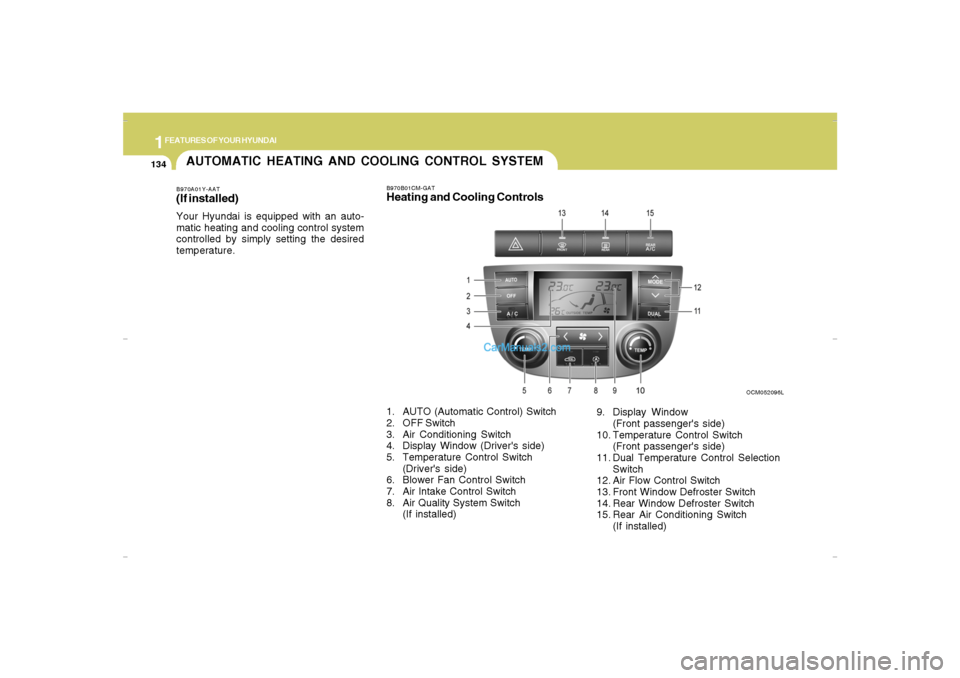
B970B01CM-GATHeating and Cooling Controls
OCM052096L
1. AUTO (Automatic Control) Switch
2. OFF Switch
3. Air Conditioning Switch
4. Display Window (Driver's side)
5. Temperature Control Switch
(Driver's side)
6. Blower Fan Control Switch
7. Air Intake Control Switch
8. Air Quality System Switch
(If installed)9. Display Window
(Front passenger's side)
10. Temperature Control Switch
(Front passenger's side)
11. Dual Temperature Control Selection
Switch
12. Air Flow Control Switch
13. Front Window Defroster Switch
14. Rear Window Defroster Switch
15. Rear Air Conditioning Switch
(If installed)
Cmhma-1b.p653/20/2006, 4:59 PM 134
Page 147 of 355
1
FEATURES OF YOUR HYUNDAI
135
FEATURES OF YOUR HYUNDAI
135135135135
B970C01CM-AATAutomatic OperationThe FATC (Full Automatic Temperature
Control) system automatically controls
heating and cooling by doing as follows:
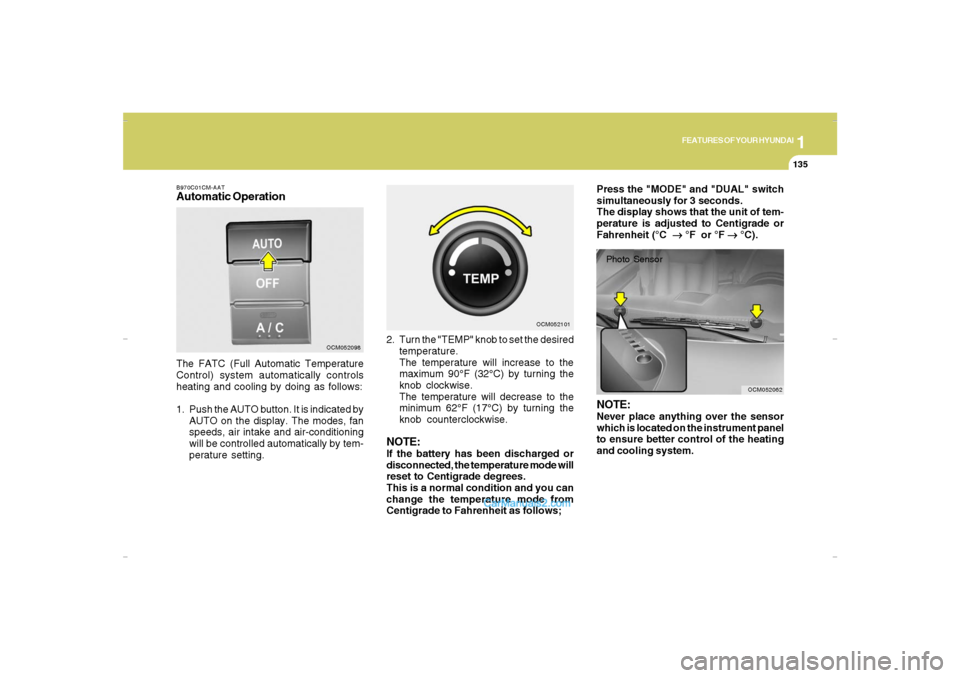
1. Push the AUTO button. It is indicated by
AUTO on the display. The modes, fan
speeds, air intake and air-conditioning
will be controlled automatically by tem-
perature setting.2. Turn the "TEMP" knob to set the desired
temperature.
The temperature will increase to the
maximum 90°F (32°C) by turning the
knob clockwise.
The temperature will decrease to the
minimum 62°F (17°C) by turning the
knob counterclockwise.
NOTE:If the battery has been discharged or
disconnected, the temperature mode will
reset to Centigrade degrees.
This is a normal condition and you can
change the temperature mode from
Centigrade to Fahrenheit as follows;
OCM052098OCM052101
OCM052062
Photo SensorPress the "MODE" and "DUAL" switch
simultaneously for 3 seconds.
The display shows that the unit of tem-
perature is adjusted to Centigrade or
Fahrenheit (°C
→ →→ →
→ °F or °F
→ →→ →
→ °C).NOTE:Never place anything over the sensor
which is located on the instrument panel
to ensure better control of the heating
and cooling system.
Cmhma-1b.p653/20/2006, 4:59 PM 135
Page 160 of 355
1FEATURES OF YOUR HYUNDAI
148
B445B02CM-AATCONTROLLING HOW YOUR
AUDIO SYSTEM SOUNDSOperating your Audio system
Your audio system comprises a factory-
installed amplifier, an AM/FM digital tuner
(radio) and a CD player (single disc or 6-
disc changer). Use the CD player to play
discs encoded in the CD Audio, MP3, and
WMA formats. This audio system also
comes with an external Satellite Digital
Audio Receiver (SDAR) in providing the
XM service.
If your audio system is the D465S or D466S
model and it is connected to a factory-
installed Rear Seat Entertainment (RSE)
system*, you can control some playback
functions of the RSE system using the
audio system’s front panel controls (for
example, CD player controls).Your audio system has 5 different types of
controls. These controls are used either
independently or in combination with your
audio system’s radio, CD player, SDAR or
optional RSE system*.
NOTE:Your audio system’s factory-installed
amplifier is pre-configured for optimum
performance. You will not be able to
make any adjustments. If there is a prob-
lem with the audio system’s amplifier,
please consult a professional audio en-
gineer or the dealer where you purchased
your vehicle.1. General Controls:
These controls are used to operate the
entire audio system. (e.g. Power ON-OFF
control knob)
Use these controls independently or in
combination to control how the audio sys-
tem sounds. (e.g. Volume control, Bass
and Treble controls)
The sound settings you make are appli-
cable to all audio reproduction sources
(radio, CD, SDAR or auxiliary RSE* de-
vices).
2. AM/FM tuner controls:
Use these controls to operate, navigate
the menu options and change settings
when you are using the AM/FM digital
tuner.
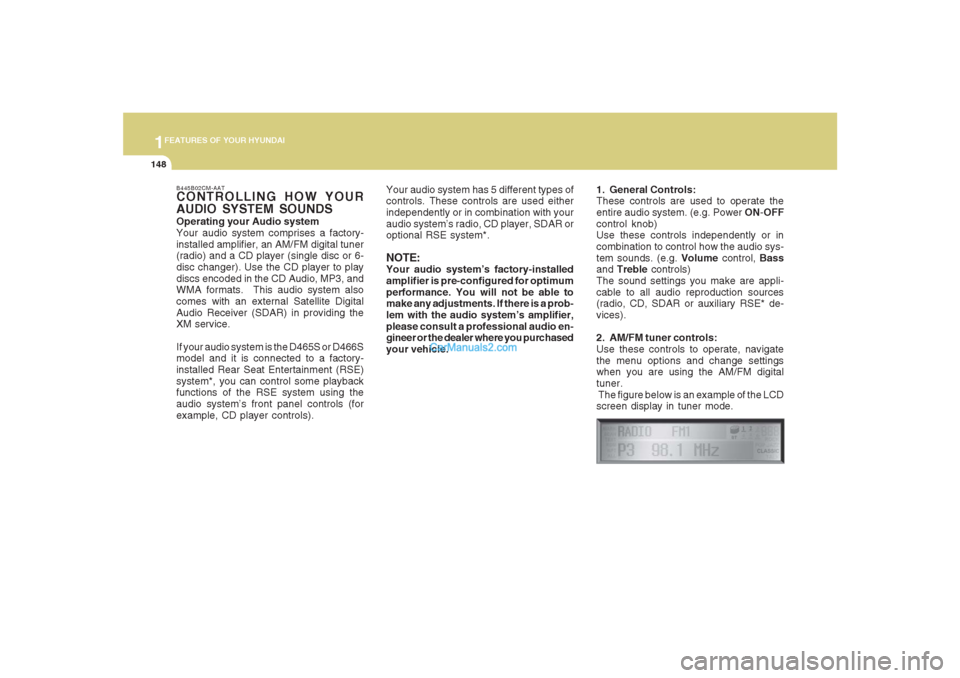
The figure below is an example of the LCD
screen display in tuner mode.
Page 161 of 355
1149149149149149149
FEATURES OF YOUR HYUNDAI
3. CD controls:
Use these controls to operate the CD
player/changer, navigate the discs menu
options and change playback settings
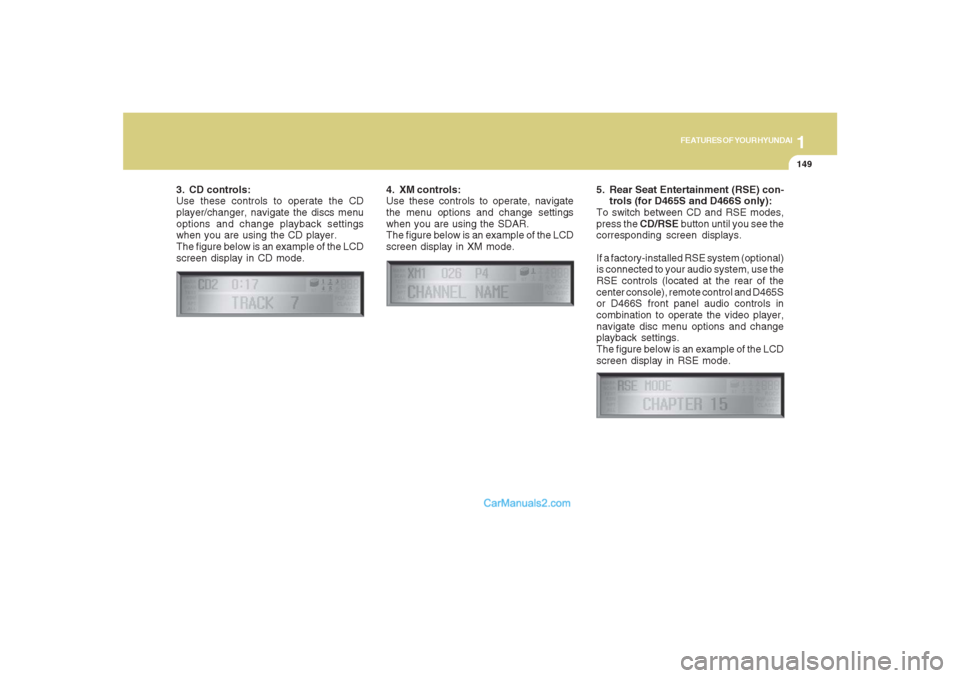
when you are using the CD player.
The figure below is an example of the LCD
screen display in CD mode.4. XM controls:
Use these controls to operate, navigate
the menu options and change settings
when you are using the SDAR.
The figure below is an example of the LCD
screen display in XM mode.
5. Rear Seat Entertainment (RSE) con-
trols (for D465S and D466S only):
To switch between CD and RSE modes,
press the CD/RSE button until you see the
corresponding screen displays.
If a factory-installed RSE system (optional)
is connected to your audio system, use the
RSE controls (located at the rear of the
center console), remote control and D465S
or D466S front panel audio controls in
combination to operate the video player,
navigate disc menu options and change
playback settings.
The figure below is an example of the LCD
screen display in RSE mode.
Page 165 of 355
1153153153153153153
FEATURES OF YOUR HYUNDAI
3. CD EJECT ( ) ButtonModel D445S :
Press the button once to eject the CD
from the CD player.
Models D465S and D466S :
Press the button once to eject the last
CD played.
Press and hold button for more than 2
seconds to eject all the CDs in the changer
in sequence beginning with the last CD
played.NOTE:You can eject discs even if the audio
system is switched off.
4. Audio Control knobUse the audio control knob to change how
music playback sounds and also to control
how sound is distributed to the speaker
system.
Sound properties
Press the knob repeatedly to display the
corresponding audio control settings
(Bass, Middle, Treble, Fader, Balance,
EQ).
The LCD screen displays the audio control
settings in sequence. Once the audio con-
trol setting you want is displayed, rotate the
knob clockwise/anti-clockwise to change
the level of that audio setting.Bass– increases/decreases Bass re-
sponse of audio reproduction
Middle– increases/decreases Mid-
range response of audio re-
production
Treble– increases/decreases Treble
response of audio reproduc-
tion
Fader– sets front/rear balance level
for your speaker system
Balance– sets left/right balance level for
your speaker system
EQ– selects one of the 6 equalizer-
settings: ROCK, POP, JAZZ,
CLASSIC, TALK and equal-
izer off by turning the audio
control knob once in the EQ
mode. If no icon is displayed in
the LCD screen, the equalizer
is switched off.
Page 166 of 355
1FEATURES OF YOUR HYUNDAI
154
The 5 preset equalizer settings have been
optimized for the 5 common genres of
music. For example, the ROCK setting
enhances bass reproduction with rock
music whereas the CLASSIC setting en-
hances the clarity of string instruments
during audio reproduction of classical
music. You may want to experiment with
the different settings to confirm your per-
sonal preferences.
If you store an AM/FM station or a XM
channel Preset (1-6) with a specific equal-
izer setting, that setting is automatically
used when you select that preset again.
EQ is not available for Model D466S.NOTE:To return all audio control settings (ex-
cept for EQ) to the default (centered)
positions, press and hold the audio con-
trol knob for more than 2 seconds. An
audible beep indicates that all audio con-
trols have been returned to the default
setting.
5. AM, FM, FM1, FM2, XM, CD, CD/
RSE selector buttonsModel D445S: AM, FM1, FM2, XM, CD
Model D465S: AM, FM, XM, CD/RSE
Model D466S: AM/FM, XM, CD/RSE
Use the input source selector buttons to
select the desired operation mode be-
tween the AM mode, the FM mode, the XM
mode, the CD mode and the RSE mode.
Pressing any of these buttons when the
audio system is at off state automatically
switches the audio system on and goes
into the selected operation mode.
The LCD screen displays the operation
mode you currently selected.
NOTE:o Remember that station Presets (1-6)
stored in FM1 mode can only be ac-
cessed in FM1 mode. Similarly, FM2
presets can only be accessed in FM2
mode. That also applies to the pre-
sets (1-6) for XM1, XM2 and XM3
modes.
o For Model D465S:
Press the FM band selector button
repeatedly to switch between the FM1
and FM2 modes.
o For Model D466S:
Press the AM/FM band selector but-
ton repeatedly to switch between the
AM, FM1 and FM2 modes.
o For all models:
Press the XM button repeatedly to
switch between the XM1, XM2 and
XM3.
o For Models D465S and D466S:
If a Rear Seat Entertainment (RSE)
system is connected to your audio
system, press the CD/RSE player se-
lector button repeatedly to switch be-
tween CD and RSE modes.
Page 169 of 355
1157157157157157157
FEATURES OF YOUR HYUNDAI
B445E02CM-AAT1. SCAN buttonStation scan function
Press the SCAN button for the tuner to
scan for radio signals in the selected fre-
quency band (AM or FM). Once the tuner
locks onto the signal of a transmitting sta-
tion, it plays that station for 5 seconds
before scanning for the next available sta-
tion in the selected frequency band.
If you want to keep listening to a particular
station and want to stop the scanning,
press the SCAN button again.
This function is useful for providing you
with a good overview of all the radio sta-
tions within range of your tuner.
Preset scan function
Press and hold the SCAN button for more
than 2 seconds. Each preset radio stations
will be automatically played for 5 seconds.
If you want to keep listening to a particular
preset station and want to stop the scan-
ning, press the SCAN button again.
2. SEEK '
∧ ∧∧ ∧
∧' and '
∨ ∨∨ ∨
∨' buttons
Automatic Station Selection function
Press the '
∧ ∧∧ ∧
∧' and '
∨ ∨∨ ∨
∨' buttons to scan up
and down the frequency range for the next
available radio station and automatically
lock on to that frequency.
The LCD screen displays the frequency of
the radio station transmitting a clear and
strong signal.
Use this function to search for a radio
station you want. If you like a particular
station, you can store it as one of 6 presets
using the Preset buttons described later.
NOTE:This function is not effective if you are
experiencing poor reception in your vi-
cinity.
3. TUNE KnobManual Station Selection
Rotate the knob clockwise or counter-clock-
wise to manually advance up or down the
frequency range. The Tune knob also gives
you fine-grain control which you can use to
manually fine-tune your frequency selec-
tion. This is useful if you are searching for
a radio signal which is not strong enough
for you to use the Automatic Station Selec-
tion functionNOTE:The speed at which you advance up or
down the frequency range depends on
how fast you turn the knob.
Page 170 of 355
1FEATURES OF YOUR HYUNDAI
158
4. Station Preset buttons (1~6)There are 6 Station Preset buttons which
you can use to store the frequencies of
your 6 favorite radio stations. Saving a
station as a preset gives you one-touch
access to the station you want. Remember
that the 6 presets stations you store are for
the specific radio band mode you are in.
That means that you can store up to 6
stations in AM mode, 6 in FM1 mode, and
6 in FM2 mode. This means that you can
store up to 18 of your favorite stations in the
preset memory.NOTE:o For Model D445S, use FM1 and FM2
buttons to switch between FM1 and
FM2 modes.
o For Model D465S, use FM button to
switch between FM1 and FM2 modes.
o For Model D466S, use AM/FM button
to switch between AM, FM1 and FM2
modes.
o Remember that if you store a station
as preset 1 in FM2 mode, you must
first select FM2 mode before you can
use that preset button.
o This function is not effective if you are
experiencing poor reception in your
vicinity.
Using PresetsTo save a radio station as a preset:
1. Take note of the band selection dis-
played on the LCD screen (AM, FM1 or
FM2)
2. Tune in to the radio station you want
using either the SEEK UP and DOWN
buttons or the TUNE Knob.
3. Choose the preset button (1~6) you
want to use to store the radio station.
4. Press and hold the Preset button for
more than 2 seconds.
The system beeps to indicate that it has
saved the new station and displays the
frequency and preset number on the
LCD screen.NOTE:Saving a new station erases the previ-
ous setting saved in that preset.To tune in to a preset station:
1. Select the band (AM, FM1 or FM2) you
want using the band selector buttons.
2. Press the preset button corresponding
to the radio station you want.
The system automatically jumps to the
preset station. The frequency and pre-
set number is displayed on the LCD
screen.
Buttons not in use in tuner mode
The following buttons and functions are
not used in tuner mode.
-<< button
->> button
-RPT button
-RDM button
-MARK button
-INFO button
Page 172 of 355
1FEATURES OF YOUR HYUNDAI
160
B445G02CM-AAT1. SCAN buttonDisc Scan function
During CD playback, press the SCAN
button to play the first 10 seconds (pre-
view) of all tracks on the current CD.
Once you hear a track you want, press the
SCAN button again to resume normal play-
back2. Track UP '
∧ ∧∧ ∧
∧' and DOWN '
∨ ∨∨ ∨
∨' but-
tons
During CD playback, press the
∧ and
∨
buttons to select and play the next or pre-
vious track on the current disc. The LCD
screen displays the track number as you
press the buttons. You can press the but-
ton several times to select the track you
want.
3. CD selector buttons (1~6)Model D445S:
The CD selector buttons are not used with
Model D445.
Models D465S and D466S:
Press the CD selector button correspond-
ing to the CD you want. The CD player
automatically interrupts playback and loads
the selected CD.NOTE:If no CD is loaded in the selected posi-
tion, the LCD screen displays the No
Disc indicator.4. Rewind << and Fast Forward >>
buttonsDuring CD playback, press and hold the
<< or >> buttons to rewind or fast-forward
playback of the current track. The LCD
screen displays the elapsed time of the
track you are rewinding or fast-forwarding.
Release the << or >> button when you
have reached the point you want. Play-
back resumes automatically at the selected
point.
5. DIR '
∧ ∧∧ ∧
∧' and '
∨ ∨∨ ∨
∨' buttons (MP3 and
WMA discs)
During MP3/WMA CD playback, press the
DIR '
∧ ∧∧ ∧
∧' or '
∨ ∨∨ ∨
∨' buttons to switch to the next
or previous directory on the CD. The LCD
screen displays the name of the directory
you have switched to. You can press the
button several times to search for the direc-
tory you want. The directories are dis-
played in sequence (i.e. ascending or
descending alphabetical order).
To access the directory displayed, press
the File Search knob to ENTER your se-
lection.
NOTE:The Directory UP and DOWN buttons
can only be used when you are playing a
CD which has organized its tracks in the
form of directories. Normally, only MP3
or WMA CDs will contain a directory tree
which you can navigate using these but-
tons.