ECO mode Hyundai Santa Fe 2007 Owner's Guide
[x] Cancel search | Manufacturer: HYUNDAI, Model Year: 2007, Model line: Santa Fe, Model: Hyundai Santa Fe 2007Pages: 355, PDF Size: 13.03 MB
Page 179 of 355
1167167167167167167
FEATURES OF YOUR HYUNDAI
Playing tracks on the playlist (marklist):
1. Press the MARK button once. The LCD
screen displays MARK to indicate that
it is in bookmark mode and automati-
cally begins playback of the tracks saved
on the playlist (marklist) in sequence.
2. Press the MARK button again to re-
sume normal playback. The MARK in-
dicator is cleared. Normal playback
resumes.
Deleting tracks from the playlist
(marklist):
1. Press the MARK button once. The LCD
screen displays MARK to indicate that
it is in bookmark mode and automati-
cally begins playback of the tracks saved
on the playlist (marklist) in sequence.
2. Select the track you want to remove.
(See Selecting and playing tracks
(songs))
3. Press and hold the MARK button for
more than 2 seconds. The LCD screen
displays TRACK DELETED to confirm
that the bookmark has been deleted.Deleting all tracks from the playlist
(marklist):
1. Press the MARK button once. The LCD
screen displays MARK to indicate that
it is in bookmark mode and automati-
cally begins playback of the tracks saved
on the playlist (marklist) in sequence.
2. Press and hold the MARK button for
more than 4 seconds. The LCD screen
displays MARKLIST EMPTY to confirm
that all the bookmarks in the playlist
(marklist) have been deleted.
8. Using the file information func-
tion* (INFO button)* This function can only be used with
MP3/WMA tracks
Press the INFO button repeatedly to dis-
play information about the track. The LCD
screen displays the File Name, Artiste
Name and Song Title in sequence.
Note:
The information (File Name, Artiste Name
and Song Title) available for display de-
pends on the information the MP3/WMA
file was encoded with. If the relevant infor-
mation was not included when the file was
encoded, you will not be able to see it.
Page 182 of 355
1FEATURES OF YOUR HYUNDAI
170
3. TUNE KnobTurn the TUNE knob to scroll through the
XM channels. This is called manual tun-
ing. Upon reaching the desired channel,
press the knob (ENTER) to make a selec-
tion. During manual tuning, the audio sys-
tem plays the current channel audio until
a selection is made.
If there is no ENTER being pressed 5
seconds after stopped turning the TUNE
knob, the manual tune will be canceled.
The audio system then reverts the display
back to its current channel.
When the category search is on, the manual
tuning is blinded within the current cat-
egory. Otherwise, it is done across the
categories.
4. Channel Preset buttons (1~6)There are 6 Preset buttons in each XM
band you can use to store your favorite XM
channels. Saving a channel as a preset
gives you one-touch access to the channel
you want. Remember that the 6 presets
channels you stored are for the specific XM
band mode you are in. There are a total of
3 XM bands. That means you can store up
to 18 of your favorite channels in the preset
memory.NOTE:Remember that if you store a channel as
preset 3 in XM2 mode, you must first
select XM2 mode before you can use
that preset button.
Using PresetsTo save a XM channel as a preset:
1. Take note of the band selection dis-
played on the LCD screen (XM1, XM2
or XM3)
2. Select a XM channel you want using
either the SEEK '
∧ ∧∧ ∧
∧' and '
∨ ∨∨ ∨
∨' buttons or
the TUNE Knob.
3. Choose the preset button (1 – 6) you
want to store that channel.
4. Press and hold the Preset button for
more than 2 seconds.
The system beeps to indicate that it has
saved the new channel and displays
the preset number on the LCD screen.
NOTE:Saving a new channel erases the previ-
ous setting saved in that preset.
Page 183 of 355
1171171171171171171
FEATURES OF YOUR HYUNDAI
To call back a preset channel:
1. Select the band (XM1, XM2 or XM3) you
want using the XM button.
2. Press the preset button you want.
The system automatically jumps to the
preset channel. The channel informa-
tion and preset number are displayed
on the LCD screen.5. SCAN buttonChannel scan function
Press the SCAN button to scan all the
channels in XM. The audio system plays
the audio of a channel for 10 seconds
before scanning for the next channel. When
the category search is on, the channel
scan is blinded within the current category.
Otherwise, it is done across the catego-
ries.
If you want to keep listening to a particular
channel and want to stop the scanning,
press the SCAN button again.
This function is useful for providing you
with a good overview of all the radio sta-
tions within range of your tuner.Preset scan function
Press and hold the SCAN button for more
than 2 seconds. Each preset channel will
be automatically played for 10 seconds. If
you want to keep listening to a particular
preset channel and want to stop the scan-
ning, press the SCAN button again.
6. INFO buttonINFO button brings out the extra channel
info of the current played channel. The
audio system shows the following extra
channel info in sequence when the INFO
is pressed several times. First, it shows the
song/program title. Then, it follows by the
name of the artist/feature. The last one is
the category name. Another press of INFO
button brings the display back to the status
of the current played channel.Checking RADIO IDEvery SDAR box comes with one unique
RADIO ID. You need ID to make subscrip-
tion with XM service provider. Do single
seek to channel 0 using SEEK '
∧ ∧∧ ∧
∧' and '
∨ ∨∨ ∨
∨'
buttons. The audio system will then dis-
play the RADIO ID of the SDAR box.
Buttons not in use in tuner modeThe following buttons and functions are
not used in XM mode.
-<< button
->> button
-RPT button
-RDM button
-MARK button
Page 185 of 355
1173173173173173173
FEATURES OF YOUR HYUNDAI
B466B02CM-AAT1. CD/RSE button (Switching to RSE
mode)Switch between RSE mode and CD mode
by pressing the CD/RSE selector button
until you see RSE mode displayed in the
LCD screen. In RSE mode, you can control
the RSE system from the controls on the
front panel of the audio system.NOTE:o If you are in Radio mode, press the
CD/RSE selector button once to switch
to CD mode and then press the CD/
RSE selector button again to switch to
RSE mode.
o If the CD changer does not contain
any CDs, you must press the CD/RSE
selector button a second time within
5 seconds of the first. Otherwise, the
audio system will automatically switch
back to radio mode.
2. RSE Lock buttonIn any mode, press and hold the CD/RSE
selector button for more than 2 seconds to
lock or release the RSE from the LOCK
mode. The LCD screen displays LOCK to
indicate that the system is in LOCK mode.
When the LOCK mode is engaged, only
the POWER ON/OFF button and the EJECT
button on the RSE system will be func-
tional.
This function is useful if you do not want
rear-seat passengers (e.g. children) to play
with the controls or otherwise interrupt disc
playback.
3. Track '
∧ ∧∧ ∧
∧' and '
∨ ∨∨ ∨
∨' buttons
If the RSE system is playing a disc and the
audio system is in RSE mode, press the
TRACK '
∧ ∧∧ ∧
∧' and '
∨ ∨∨ ∨
∨' buttons to select and
play the next or previous track on the disc
being played in the RSE.
The LCD screen displays the track status
as you press the buttons. You can press
the button several times to select the track
you want.
Page 187 of 355
1175175175175175175
FEATURES OF YOUR HYUNDAI
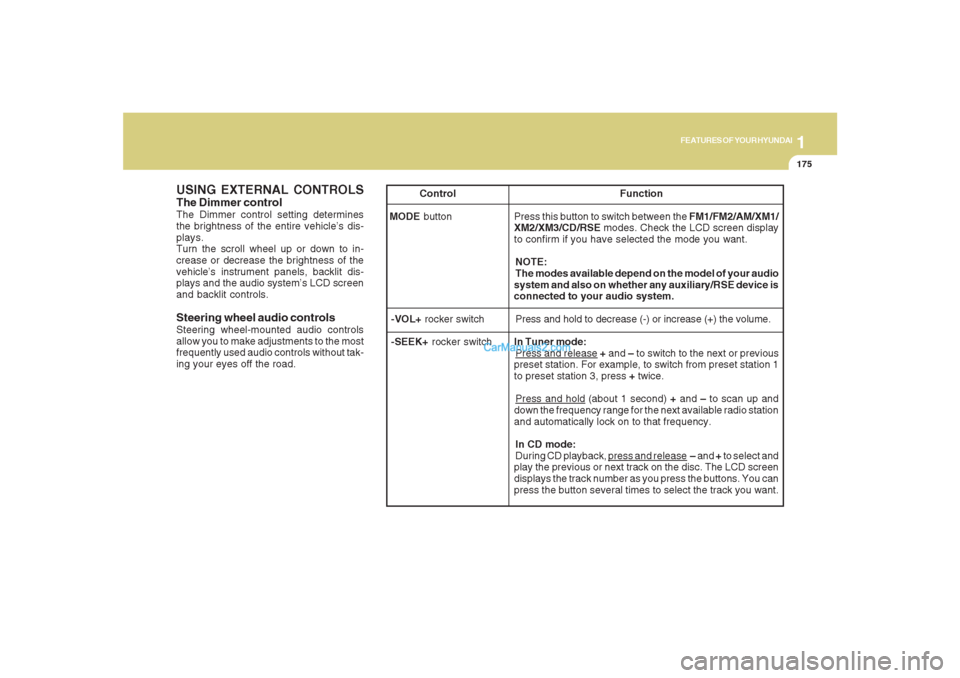
USING EXTERNAL CONTROLSThe Dimmer controlThe Dimmer control setting determines
the brightness of the entire vehicle’s dis-
plays.
Turn the scroll wheel up or down to in-
crease or decrease the brightness of the
vehicle’s instrument panels, backlit dis-
plays and the audio system’s LCD screen
and backlit controls.
Steering wheel audio controlsSteering wheel-mounted audio controls
allow you to make adjustments to the most
frequently used audio controls without tak-
ing your eyes off the road. Control Function
MODE button Press this button to switch between the FM1/FM2/AM/XM1/
XM2/XM3/CD/RSE modes. Check the LCD screen display
to confirm if you have selected the mode you want.
NOTE:
The modes available depend on the model of your audio
system and also on whether any auxiliary/RSE device is
connected to your audio system.
-VOL+ rocker switchPress and hold to decrease (-) or increase (+) the volume.
-SEEK+ rocker switchIn Tuner mode:
Press and release + and – to switch to the next or previous
preset station. For example, to switch from preset station 1
to preset station 3, press + twice.Press and hold (about 1 second) + and – to scan up and
down the frequency range for the next available radio station
and automatically lock on to that frequency.
In CD mode:
During CD playback,
press and release – and + to select and
play the previous or next track on the disc. The LCD screen
displays the track number as you press the buttons. You can
press the button several times to select the track you want.
Page 188 of 355
1FEATURES OF YOUR HYUNDAI
176
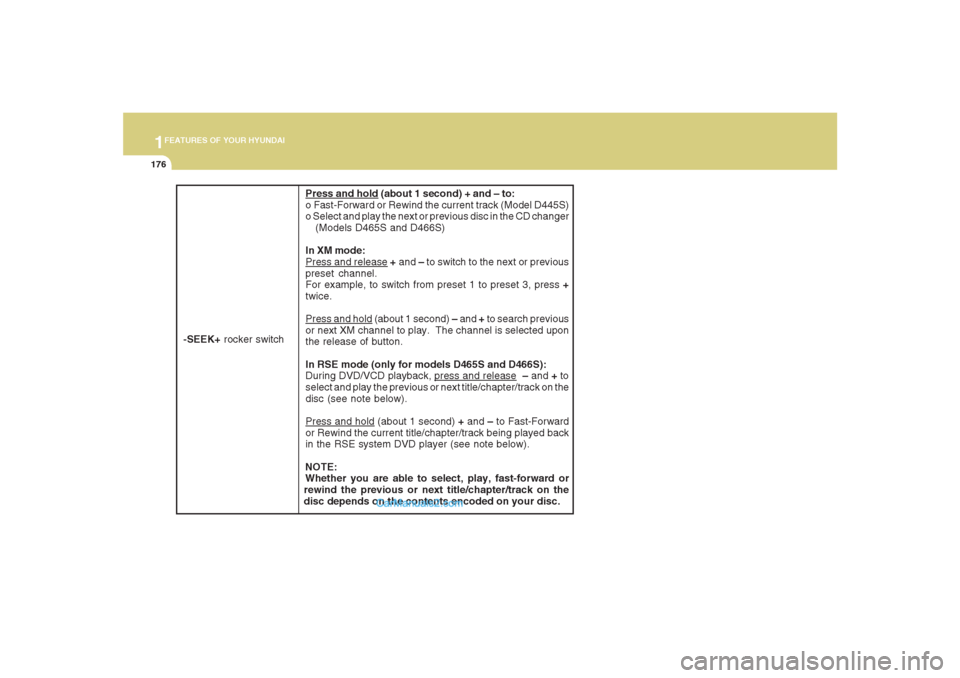
Press and hold (about 1 second) + and – to:
o Fast-Forward or Rewind the current track (Model D445S)
o Select and play the next or previous disc in the CD changer
(Models D465S and D466S)
In XM mode:Press and release + and – to switch to the next or previous
preset channel.
For example, to switch from preset 1 to preset 3, press +
twice.Press and hold (about 1 second) – and + to search previous
or next XM channel to play. The channel is selected upon
the release of button.
In RSE mode (only for models D465S and D466S):
During DVD/VCD playback,
press and release – and + to
select and play the previous or next title/chapter/track on the
disc (see note below).
Press and hold (about 1 second) + and – to Fast-Forward
or Rewind the current title/chapter/track being played back
in the RSE system DVD player (see note below).
NOTE:
Whether you are able to select, play, fast-forward or
rewind the previous or next title/chapter/track on the
disc depends on the contents encoded on your disc.
-SEEK+ rocker switch
Page 191 of 355
1
FEATURES OF YOUR HYUNDAI
179
FEATURES OF YOUR HYUNDAI
179179179179
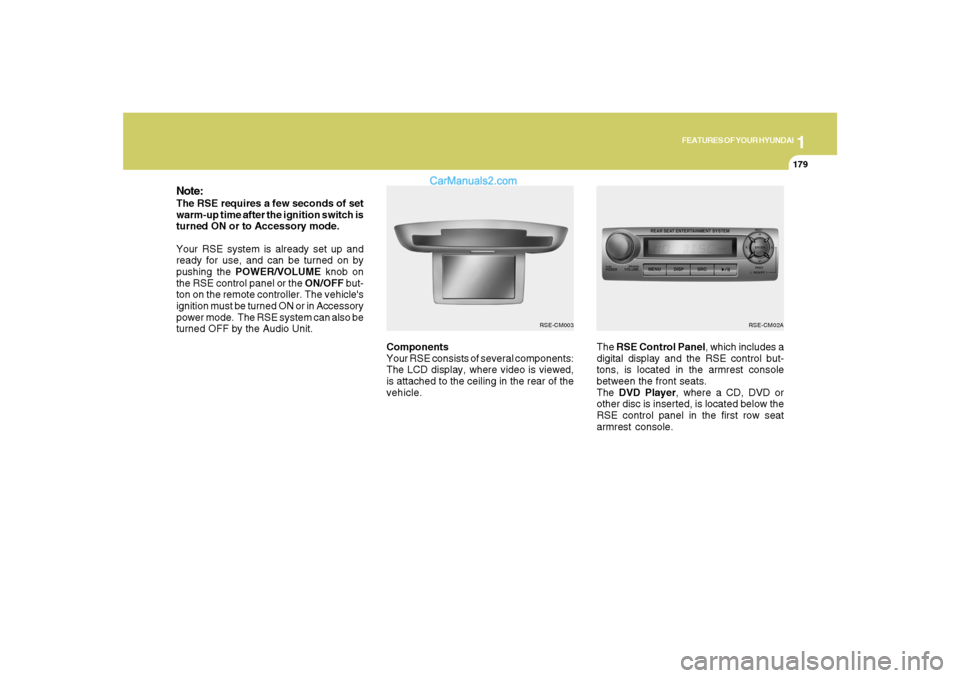
Components
Your RSE consists of several components:
The LCD display, where video is viewed,
is attached to the ceiling in the rear of the
vehicle.The RSE Control Panel, which includes a
digital display and the RSE control but-
tons, is located in the armrest console
between the front seats.
The DVD Player, where a CD, DVD or
other disc is inserted, is located below the
RSE control panel in the first row seat
armrest console.
Note:The RSE requires a few seconds of set
warm-up time after the ignition switch is
turned ON or to Accessory mode.
Your RSE system is already set up and
ready for use, and can be turned on by
pushing the POWER/VOLUME knob on
the RSE control panel or the ON/OFF but-
ton on the remote controller. The vehicle's
ignition must be turned ON or in Accessory
power mode. The RSE system can also be
turned OFF by the Audio Unit.
RSE-CM02A
RSE-CM003
Page 194 of 355
1FEATURES OF YOUR HYUNDAI
182
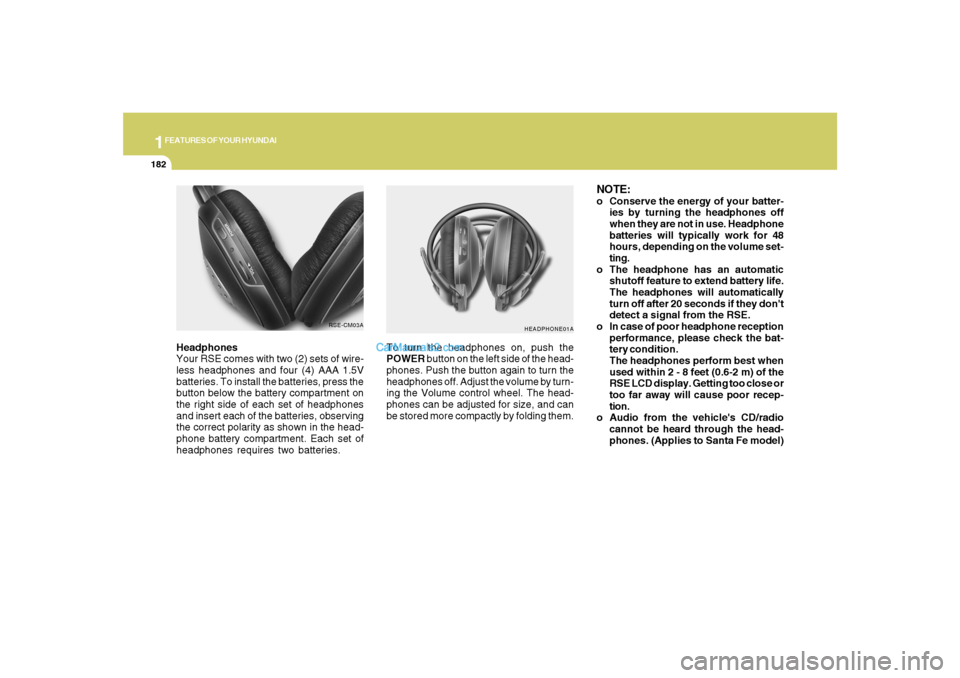
Headphones
Your RSE comes with two (2) sets of wire-
less headphones and four (4) AAA 1.5V
batteries. To install the batteries, press the
button below the battery compartment on
the right side of each set of headphones
and insert each of the batteries, observing
the correct polarity as shown in the head-
phone battery compartment. Each set of
headphones requires two batteries.
HEADPHONE01A
To turn the headphones on, push the
POWER button on the left side of the head-
phones. Push the button again to turn the
headphones off. Adjust the volume by turn-
ing the Volume control wheel. The head-
phones can be adjusted for size, and can
be stored more compactly by folding them.
NOTE:o Conserve the energy of your batter-
ies by turning the headphones off
when they are not in use. Headphone
batteries will typically work for 48
hours, depending on the volume set-
ting.
o The headphone has an automatic
shutoff feature to extend battery life.
The headphones will automatically
turn off after 20 seconds if they don't
detect a signal from the RSE.
o In case of poor headphone reception
performance, please check the bat-
tery condition.
The headphones perform best when
used within 2 - 8 feet (0.6-2 m) of the
RSE LCD display. Getting too close or
too far away will cause poor recep-
tion.
o Audio from the vehicle's CD/radio
cannot be heard through the head-
phones. (Applies to Santa Fe model)
RSE-CM03A
Page 198 of 355
1FEATURES OF YOUR HYUNDAI
186
B470C01CM-AAT1. ON/OFF and Speaker Volume
Press the POWER/VOLUME knob to turn
the RSE On or Off.
Rotate the knob to adjust the speaker
volume. Note that changing the volume by
using the POWER/VOLUME knob affects
only the vehicle speakers. The wireless
headset volume is not affected. See the
"Headphones" section of this manual for
more information.
2. RSE Display
This RSE control panel display indicates
the current selected source, mode of op-
eration in the current disc, and other infor-
mation. It will display FRONT to indicate
that the selected source is the front vehicle
radio and REAR to indicate that the RSE
player is the current source. The display
will indicate DISC IN when a disc is in
loaded the RSE player.DVD can be controlled, and any special
programming or features accessed, by
using the DVD menu. To access the menu
while playing a DVD, press the MENU
button. Press the button a second time to
exit the menu and return to the DVD pro-
gram at the point it was being viewed.
While viewing the menu, press the
∧ ∧∧ ∧
∧ NEXT
button to move the cursor up and the
∨ ∨∨ ∨
∨
PREV button to move the cursor down the
menu. Press the < FWD button to move the
cursor to the right, and the < REW button to
move the cursor to the left.
For more details, see the "DVD – Menu"
section of this manual. 3. MENU Button
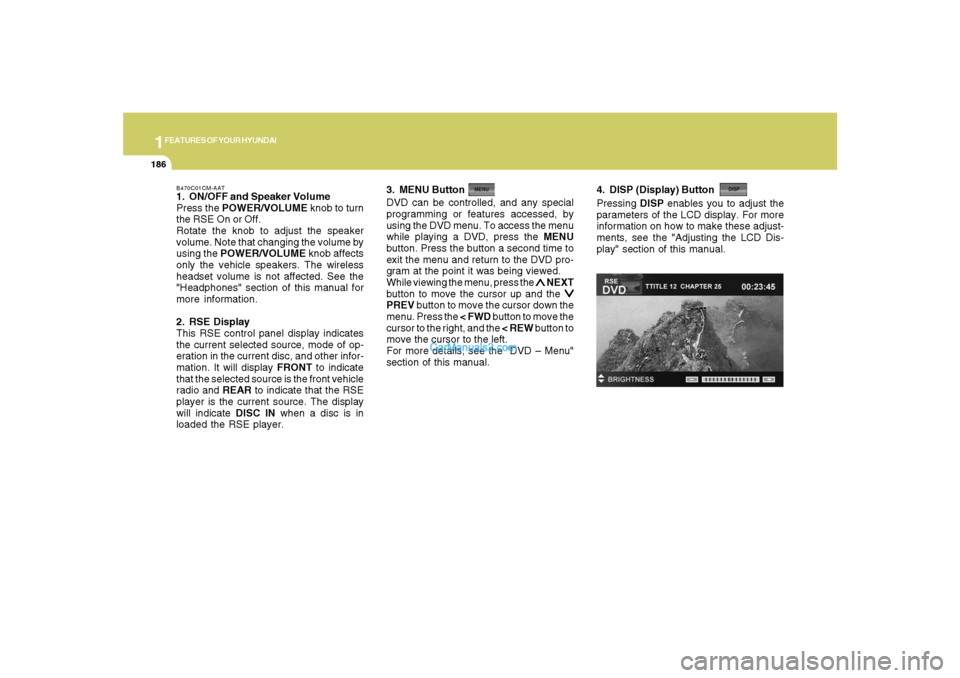
4. DISP (Display) ButtonPressing DISP enables you to adjust the
parameters of the LCD display. For more
information on how to make these adjust-
ments, see the "Adjusting the LCD Dis-
play" section of this manual.
Page 199 of 355
1
FEATURES OF YOUR HYUNDAI
187
FEATURES OF YOUR HYUNDAI
187187187187
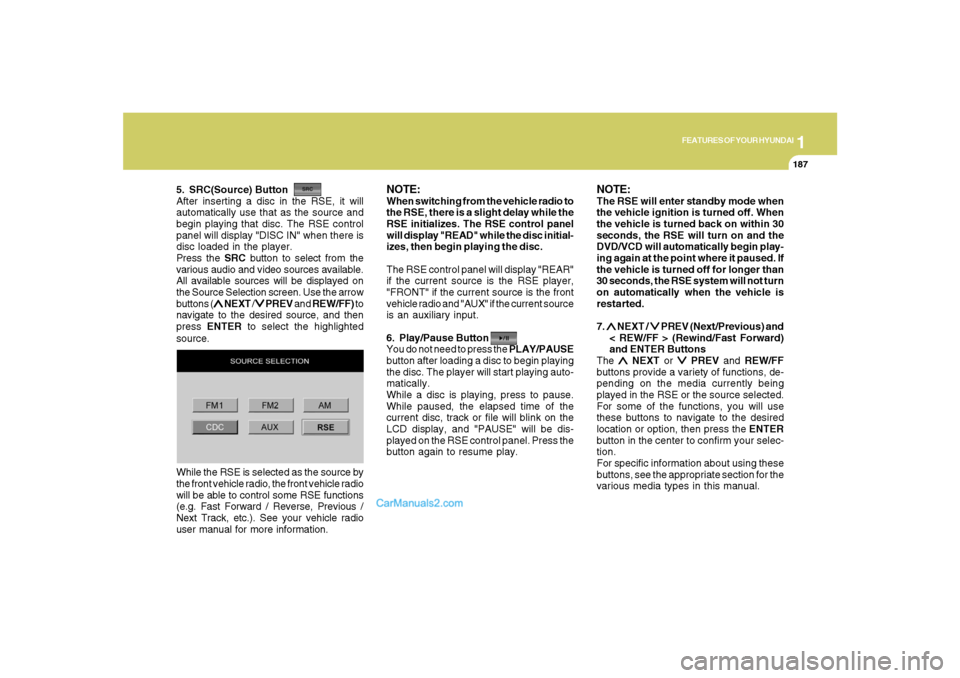
5. SRC(Source) Button
After inserting a disc in the RSE, it will
automatically use that as the source and
begin playing that disc. The RSE control
panel will display "DISC IN" when there is
disc loaded in the player.
Press the SRC button to select from the
various audio and video sources available.
All available sources will be displayed on
the Source Selection screen. Use the arrow
buttons (
∧ ∧∧ ∧
∧ NEXT /
∨ ∨∨ ∨
∨ PREV and REW/FF) to
navigate to the desired source, and then
press ENTER to select the highlighted
source.
NOTE:When switching from the vehicle radio to
the RSE, there is a slight delay while the
RSE initializes. The RSE control panel
will display "READ" while the disc initial-
izes, then begin playing the disc.
The RSE control panel will display "REAR"
if the current source is the RSE player,
"FRONT" if the current source is the front
vehicle radio and "AUX" if the current source
is an auxiliary input.
6. Play/Pause Button
You do not need to press the PLAY/PAUSE
button after loading a disc to begin playing
the disc. The player will start playing auto-
matically.
While a disc is playing, press to pause.
While paused, the elapsed time of the
current disc, track or file will blink on the
LCD display, and "PAUSE" will be dis-
played on the RSE control panel. Press the
button again to resume play.
NOTE:The RSE will enter standby mode when
the vehicle ignition is turned off. When
the vehicle is turned back on within 30
seconds, the RSE will turn on and the
DVD/VCD will automatically begin play-
ing again at the point where it paused. If
the vehicle is turned off for longer than
30 seconds, the RSE system will not turn
on automatically when the vehicle is
restarted.
7. ∧ ∧∧ ∧
∧ NEXT /
∨ ∨∨ ∨
∨ PREV (Next/Previous) and
< REW/FF > (Rewind/Fast Forward)
and ENTER Buttons
The
∧ ∧∧ ∧
∧ NEXT or
∨ ∨∨ ∨
∨ PREV and REW/FF
buttons provide a variety of functions, de-
pending on the media currently being
played in the RSE or the source selected.
For some of the functions, you will use
these buttons to navigate to the desired
location or option, then press the ENTER
button in the center to confirm your selec-
tion.
For specific information about using these
buttons, see the appropriate section for the
various media types in this manual. While the RSE is selected as the source by
the front vehicle radio, the front vehicle radio
will be able to control some RSE functions
(e.g. Fast Forward / Reverse, Previous /
Next Track, etc.). See your vehicle radio
user manual for more information.