Radio Hyundai Santa Fe 2012 Owner's Guide
[x] Cancel search | Manufacturer: HYUNDAI, Model Year: 2012, Model line: Santa Fe, Model: Hyundai Santa Fe 2012Pages: 419, PDF Size: 5.61 MB
Page 231 of 419
Features of your vehicle
152
4
Stop a Disc
The disc will automatically stop when any
other source (e.g. the vehicle radio or an
external game) is selected. When you
switch back to the DVD, it will begin play-
ing at the point where it stopped.
While the player is running, press the
RSE control panel POWER/VOLUME
knob, or the POWER ON/OFF button
on the remote control, to stop a
disc and turn off the RSE system and the
DVD player. When the RSE is turned on
again, the disc will begin playing at the
point where it stopped.
Eject a Disc
To eject a disc press the button. A
disc can be ejected even when the unit is
not turned on.
✽ ✽ NOTICE
The player has an Auto-Reload Disc
Protection feature to protect discs from
accidental damage. If a disc is not
removed within 12 seconds after being
ejected, it will be pulled back into the
player.
CD Player Operation
The RSE will play audio CDs in both
standard (12 cm) and mini-disc (8 cm)
format.
✽ ✽NOTICE
While the player will accept DVD ROM
and CD ROM discs, the RSE cannot
play discs in these formats.
Page 232 of 419
4153
Features of your vehicle
Volume Control
You can adjust the volume of the audio
heard in the vehicle speakers from the
RSE control panel or the remote control.
From the RSE control panel, rotate the
POWER/VOLUMEknob. From the
remote control, press "VOL +" to
increase and "VOL -" to decrease the
volume.
Adjusting the volume in this way will not
adjust the wireless headphone volume.
To adjust the headphones, roll the VOL
control wheel.
Play/Pause
When a CD is inserted, the RSE will
automatically begin playing the first track.
Press the PLAY/PAUSE button to
pause the CD. Press the button again to
resume play. While paused, the elapsed
time in the status display at the top of the
monitor will blink. The RSE control will
display "PAUSE."
When the player reaches the end of the
disc, the player will automatically return
to the first track and continue playing.
Fast Forward / Reverse
Press and hold the FF > or < REW but-
ton and the player will fast forward or
reverse at 10 times the normal speed.
Release the button to return to normal
speed play.
The audio is muted while the player fast
forwards or fast reverses.
Previous/Next Track
While a CD is playing, press the
PREV button to jump to the beginning of
the current track. If less than 10 seconds
has elapsed on the current track, press-
ing PREVwill go to the previous
track. Press the button repeatedly to con-
tinue moving through previous tracks.
Press the NEXTbutton to jump to the
beginning of the next track. Press the
button repeatedly to continue moving
through the following tracks.
Instead of using the PREV /
NEXT buttons, you can also enter the
track number using the numbers on the
remote control. While a CD is playing,
press the number button(s) that corre-
spond to the desired track and press
ENTER.
The current track number is shown in the
Status Display at the top of the monitor.
Stop
The CD will automatically stop when any
other source (e.g. the vehicle radio or an
external game) is selected. When you
switch back to the CD, it will begin play-
ing at the point where it stopped.
While a CD is playing, you can stop the
CD by pressing the POWER ON/OFF
button on the remote control or the
POWER/VOLUME knob on the RSE
control panel. When the RSE is turned on
again, it will automatically begin playing
the CD at the point where it was stopped.
Turning the vehicle off, or selecting a dif-
ferent RSE Source, will also stop playing
the CD.
Eject
Press the EJECT button to eject the
CD. Discs can be ejected even when the
unit is not turned on.
Page 235 of 419
Features of your vehicle
156
4
Stop
The disc will automatically stop when any
other source (e.g. the vehicle radio or an
external game) is selected. When you
switch back to the disc, it will begin play-
ing at the point where it stopped.
While a disc is playing, you can stop the
disc by pressing the POWER ON/OFF
button on the remote control or the
POWER/VOLUME knob on the RSE
control panel. When the RSE is turned on
again, it will automatically begin playing
the disc at the point where it was
stopped.
Turning the vehicle off, or selecting a dif-
ferent RSE Source, will also stop playing
the disc. When the vehicle is turned on
again, or the disc is again selected as the
source, the disc will begin playing at the
point where it was stopped. The player
will automatically resume play at the
point where it was stopped unless the
disc is ejected.
Eject
Press the EJECT button to eject the
disc. Discs can be ejected even when the
unit is not turned on.
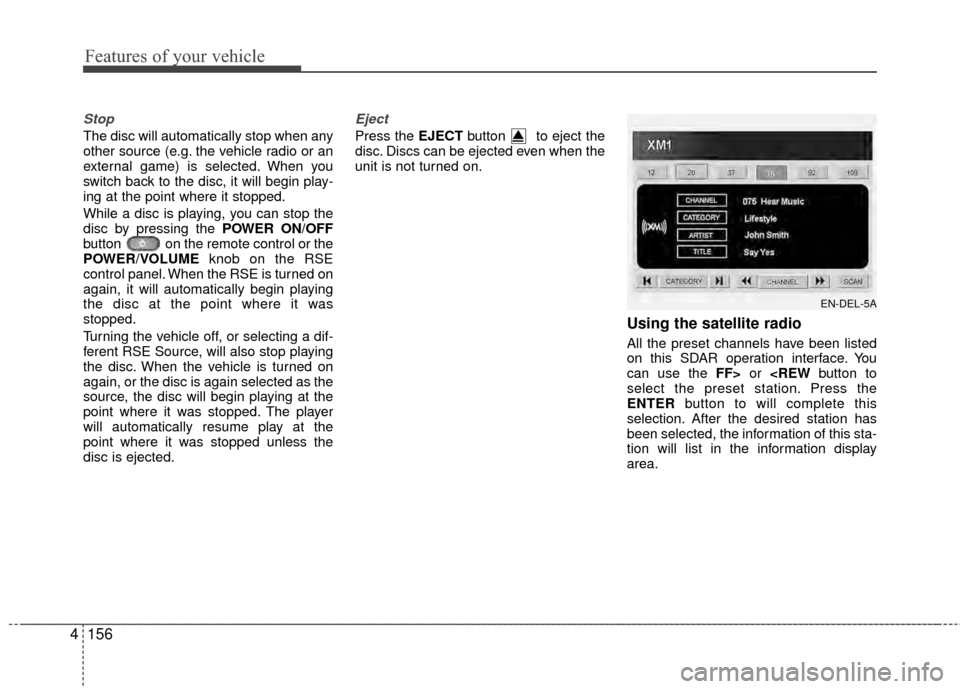
Using the satellite radio
All the preset channels have been listed
on this SDAR operation interface. You
can use the FF> or
ENTER button to will complete this
selection. After the desired station has
been selected, the information of this sta-
tion will list in the information display
area.
EN-DEL-5A
Page 236 of 419
4157
Features of your vehicle
Also you can select the CATEGORYor
CHANNEL function by using FF> and
pressing the NEXTor PREV but-
ton will activate the category up or down,
channel up or down function. When the
focus on the CATEGORY, if you press
the ENTER button and move the focus
on the CHANNEL icon, you can select
the channel up or down function in the
current category by pressing the
NEXT or PREV buttons.
Move the focus on the SCAN icon, you
can activate the scan function by press-
ing the ENTER button. If meantime, the
CATEGORY icon been highlighted,
above operation will activate the scan
function in the current category.Listening to the Vehicle Radio
To control the vehicle radio from the RSE
control panel or remote control, press the
SOURCE button on the remote control or
the SRC button on the RSE control
panel, then select the desired play mode
on the source change operation. Finally,
press the ENTER button to complete the
selection.
The RSE monitor status display and the
RSE control panel will indicate the
selected source.
Tuning a Station
While the vehicle radio is the current
source, press the NEXTor PREV
button on the RSE control panel or
remote control once to search up or
down for the next available station. When
the tuner finds a station it will stop at the
station and start to play.
Press the NEXTor PREV button
to seek up or down through all radio sta-
tions. When the radio finds a station, it
will stop and play that station.
Press the FF > or < REW button to man-
ually tune up or down one channel. Press
and hold the FF > or < REW button to
continue tuning up or down.
Pressing a number on the remote control
keypad will tune to the corresponding
preset station. For example, if 89.7 has
been stored as preset 1 (CH1), then
pressing the 1 button on the keypad will
tune to that station.
Page 237 of 419
Features of your vehicle
158
4
AM, FM1 and FM2 Selection
When you press the SOURCE button,
the Source Selection UI will come out,
along with the current available mode.
You can select the Radio mode by the
remote controller. After pressing the
ENTER button, both RSE and front
Radio will play your selection station at
the same time.
All of the RSE control panel and remote
controller navigation functions can be
used to control the front radio when the
vehicle front radio is also playing the
same radio mode.
Viewing Front CD and MP3
Programs
The RSE can be used to control discs
that are loaded and playing in the vehicle
radio. To control these discs, you must
first select the vehicle radio as the
source. Press the SOURCE button on
the remote control, or the SRCbutton on
the RSE control panel, Meanwhile, the
Source Change UI will bring out. Use the
four direction arrow buttons to select the
source of vehicle radio. And press the
ENTER button for completing the selec-
tion.
CD/CD-MP3 Control
While the vehicle radio is playing a CD or
MP3 audio disc, all of the RSE control
panel and remote control navigation
functions can be used to control the vehi-
cle radio. This includes:
Pause/Play
Fast Forward/Reverse
Previous/Next Track (CD) and Previous/Next File (MP3)
See these sections of the Users Manual
for information on using these functions.
All of the RSE control panel and remote
control navigation functions can be used
to control the front radio when the vehicle
front radio is also playing the CD or CD-
MP3 mode.
AUX Audio and Video Input
Controls
This allows you to display the video out-
put on the RSE monitor, and listen to the
audio through the wireless headsets and
the vehicle speakers.
To switch to an external auxiliary device,
press the SOURCE button on the remote
control or SRC on the RSE control panel,
then select the AUX icon button. And
press the ENTER button for completing.
Page 239 of 419

Features of your vehicle
160
4
1. POWER On/Off
Press the RSE control panel POWER
button or the POWER ON/OFF button
on the remote control to turn the
RSE on or off. If a disc is loaded and
playing when the RSE is turned off, when
the RSE is turned back on the disc will
automatically resume playback at the
point where it was stopped.
2. Mute
Press the MUTE button to mute the
audio in the vehicle speakers. The MUTE
button has no effect on the wireless
headphones.
While muted, the RSE control panel,
vehicle radio and RSE monitor will all dis-
play "MUTE." Press the button again, or
adjust the volume at RSE control panel
or vehicle radio, to un-mute the audio.
3. Number Buttons ~
The number buttons ( 0 through 9) can
be used to directly enter information such
as chapters in a DVD, track or file num-
bers for audio CDs, and preset radio.
To select a DVD or VCD chapter, while a
DVD/VCD is playing, press the number
button(s) that correspond to the desired
chapter and press ENTER.
To select a CD track, while a CD is play-
ing press the number button(s) that cor-
respond to the track and press ENTER.
To select an MP3 file, while an MP3 disc
is playing, press the number button(s)
that correspond to the desired file and
press ENTER.
To select a radio station preset, while the
desired band (AM, FM1 or FM2) is
selected, press the numbered button that
corresponds to the preset on the vehicle
radio. There is no need to press ENTER.
4. Source
Pressing this SOURCE button will bring
out the Source Change selection opera-
tion. You can select any available mode
by using the four direction arrow buttons
and press the ENTER button for com-
pleting the selection.
The RSE control panel will display
"REAR" if the current source is the RSE
player, and will display "FRONT" if the
current source is the vehicle radio.
5. A.LANG - Alternate Language Folder -
Where alternate languages are available
on a DVD, pressing the A.LANG button
will allow you to select your preferred lan-
guage. Press the button repeatedly to
cycle through the available languages.
When the desired language is displayed,
press ENTER.
Pressing the A.LANG (or FOLD-) button
during MP3 normal play will immediately
bring the player to the first file of the pre-
vious folder.
Pressing the A.LANG (or FOLD-) button
during CD or VCD play will do nothing.
Page 311 of 419
69
What to do in an emergency
TPMS (Tire Pressure
Monitoring System)
malfunction indicator
The TPMS malfunction indicator
blinks for 60 seconds then remains
solidly illuminated when there is a
problem with the Tire Pressure
Monitoring System
Have the system checked by an
authorized HYUNDAI dealer as soon
as possible to determine the cause
of the problem.
WARNING - Low pressure damage
Significantly low tire pressure
makes the vehicle unstable and
can contribute to loss of vehicle
control and increased braking
distances.
Continued driving on low pres-
sure tires can cause the tires to
overheat and fail.CAUTION
The TPMS malfunction indica- tor may be illuminated if thevehicle is moving around elec-tric power supply cables orradios transmitter such as atpolice stations, governmentand public offices, broadcast-ing stations, military installa-tions, airports, or transmittingtowers, etc. This can interferewith normal operation of theTire Pressure MonitoringSystem (TPMS).
The TPMS malfunction indica- tor may illuminate if snowchains or some separatelypurchased devices such asnotebook computers, mobilecharger, remote starter, navi-gation etc. are used in thevehicle. This can interfere withnormal operation of the TirePressure Monitoring System(TPMS).