lock Hyundai Santa Fe 2012 Workshop Manual
[x] Cancel search | Manufacturer: HYUNDAI, Model Year: 2012, Model line: Santa Fe, Model: Hyundai Santa Fe 2012Pages: 419, PDF Size: 5.61 MB
Page 176 of 419
497
Features of your vehicle
D280600AUN
Digital clock (if equipped)
Whenever the battery terminals or relat-
ed fuses are disconnected, you must
reset the time.
When the ignition switch is in the ACC or
ON position, the clock buttons operate as
follows:
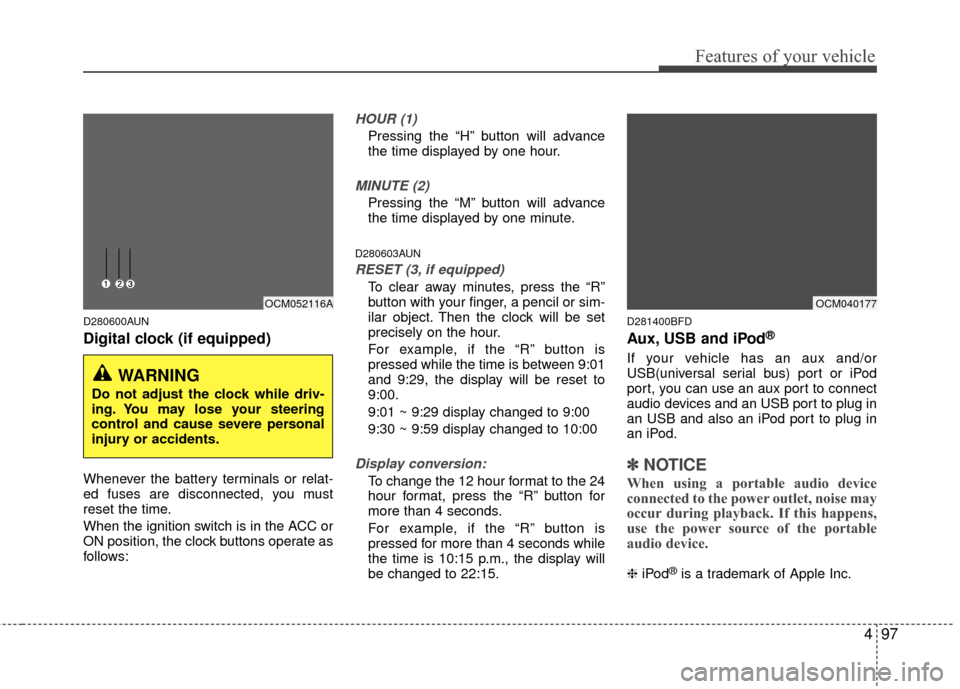
HOUR (1)
Pressing the “H” button will advance
the time displayed by one hour.
MINUTE (2)
Pressing the “M” button will advance
the time displayed by one minute.
D280603AUN
RESET (3, if equipped)
To clear away minutes, press the “R”
button with your finger, a pencil or sim-
ilar object. Then the clock will be set
precisely on the hour.
For example, if the “R” button is
pressed while the time is between 9:01
and 9:29, the display will be reset to
9:00.
9:01 ~ 9:29 display changed to 9:00
9:30 ~ 9:59 display changed to 10:00
Display conversion:
To change the 12 hour format to the 24
hour format, press the “R” button for
more than 4 seconds.
For example, if the “R” button is
pressed for more than 4 seconds while
the time is 10:15 p.m., the display will
be changed to 22:15.
D281400BFD
Aux, USB and iPod®
If your vehicle has an aux and/or
USB(universal serial bus) port or iPod
port, you can use an aux port to connect
audio devices and an USB port to plug in
an USB and also an iPod port to plug in
an iPod.
✽ ✽NOTICE
When using a portable audio device
connected to the power outlet, noise may
occur during playback. If this happens,
use the power source of the portable
audio device.
❈ iPod®is a trademark of Apple Inc.
WARNING
Do not adjust the clock while driv-
ing. You may lose your steering
control and cause severe personal
injury or accidents.
OCM052116AOCM040177
Page 181 of 419
Features of your vehicle
102
4
✽
✽
NOTICE
If you install an aftermarket HID head
lamp, your vehicle’s audio and electron-
ic device may malfunction.
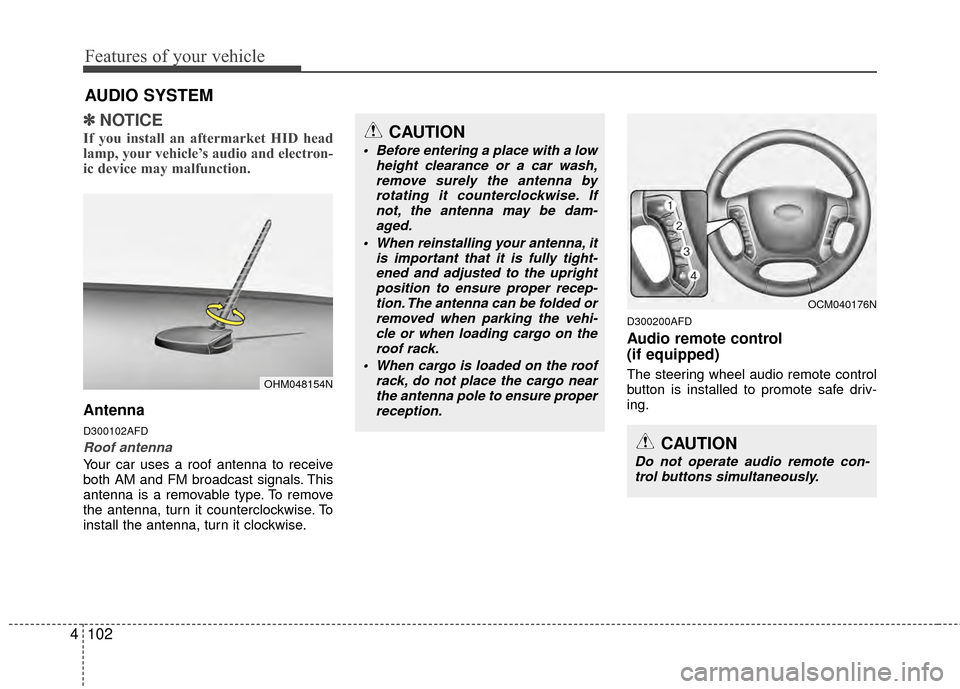
Antenna
D300102AFD
Roof antenna
Your car uses a roof antenna to receive
both AM and FM broadcast signals. This
antenna is a removable type. To remove
the antenna, turn it counterclockwise. To
install the antenna, turn it clockwise.
D300200AFD
Audio remote control
(if equipped)
The steering wheel audio remote control
button is installed to promote safe driv-
ing.
AUDIO SYSTEM
CAUTION
• Before entering a place with a low
height clearance or a car wash,remove surely the antenna byrotating it counterclockwise. Ifnot, the antenna may be dam- aged.
When reinstalling your antenna, it is important that it is fully tight-ened and adjusted to the uprightposition to ensure proper recep-tion. The antenna can be folded orremoved when parking the vehi-cle or when loading cargo on theroof rack.
When cargo is loaded on the roof rack, do not place the cargo nearthe antenna pole to ensure properreception.
OHM048154N
CAUTION
Do not operate audio remote con-trol buttons simultaneously.
OCM040176N
Page 184 of 419
4105
Features of your vehicle
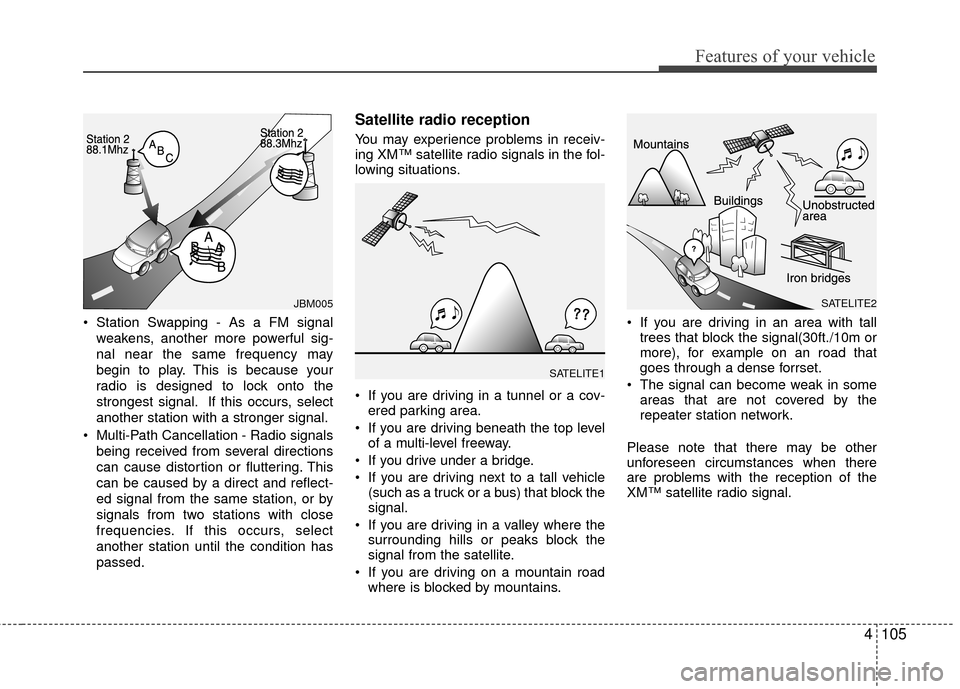
Station Swapping - As a FM signalweakens, another more powerful sig-
nal near the same frequency may
begin to play. This is because your
radio is designed to lock onto the
strongest signal. If this occurs, select
another station with a stronger signal.
Multi-Path Cancellation - Radio signals being received from several directions
can cause distortion or fluttering. This
can be caused by a direct and reflect-
ed signal from the same station, or by
signals from two stations with close
frequencies. If this occurs, select
another station until the condition has
passed.
Satellite radio reception
You may experience problems in receiv-
ing XM™ satellite radio signals in the fol-
lowing situations.
If you are driving in a tunnel or a cov-ered parking area.
If you are driving beneath the top level of a multi-level freeway.
If you drive under a bridge.
If you are driving next to a tall vehicle (such as a truck or a bus) that block the
signal.
If you are driving in a valley where the surrounding hills or peaks block the
signal from the satellite.
If you are driving on a mountain road where is blocked by mountains. If you are driving in an area with tall
trees that block the signal(30ft./10m or
more), for example on an road that
goes through a dense forrset.
The signal can become weak in some areas that are not covered by the
repeater station network.
Please note that there may be other
unforeseen circumstances when there
are problems with the reception of the
XM™ satellite radio signal.
JBM005
SATELITE1
SATELITE2
Page 189 of 419
Features of your vehicle
110
4
This function displays the previous
MODE screen.
VOLUME CONTROL)
This function automatically adjusts the
volume level according to the speed of
the vehicle and can be turned ON/OFF
through the SEARCH/ENTER (AUDIO/
TUNE) button.
Based on psychoacoustic technology,
this technology overcomes BASS limita-
tions which may occur due to the limited
number and size of speakers to offer
dynamic BASS sound quality. It is possi-
ble to adjust in 3 levels of
LOW/MID/HIGH.
OFF
➟LOW ➟MID ➟HIGH
Modes: CD/FM/AUX/IPOD/USB (exclud-
ing MW, LW Mode)
8. Manual Channel Selector & Sound Quality Control Knob
(SEARCH/ENTER, AUDIO/
TUNE)
Turn this control while listening to a radio
channel to manually adjust frequency.
Turn clockwise to increase frequency
and counterclockwise to reduce frequen-
cy.
Pressing the button changes the BASS,
MIDDLE, TREBLE, FADER and BAL-
ANCE TUNE mode. The mode selected
is shown on the display. After selecting
each mode, rotate the Audio control knob
clockwise or counterclockwise.
BASS Control
To increase the BASS, rotate the knob
clockwise, while to decrease the BASS,
rotate the knob counterclockwise.
MIDDLE Control
To increase the MIDDLE, rotate the knob
clockwise, while to decrease the MID-
DLE, rotate the knob counterclockwise.
TREBLE Control
To increase the TREBLE, rotate the knob
clockwise, while to decrease the TRE-
BLE, rotate the knob counterclockwise. FADER Control
Turn the control knob clockwise to
emphasize rear speaker sound (front
speaker sound will be attenuated). When
the control knob is turned counterclock-
wise, front speaker sound will be empha-
sized (rear speaker sound will be attenu-
ated).
BALANCE Control
Rotate the knob clockwise to emphasize
right speaker sound (left speaker sound
will be attenuated). When the control
knob is turned counter clockwise, left
speaker sound will be emphasized (right
speaker sound will be attenuated).
9. FM/AM Selection Button
(RSE Version)
Turns to FM or AM mode, and toggles in
the order of FM1
➟ FM2➟ AM➟ FM1...
when the button is pressed each time.
Page 193 of 419
Features of your vehicle
114
4
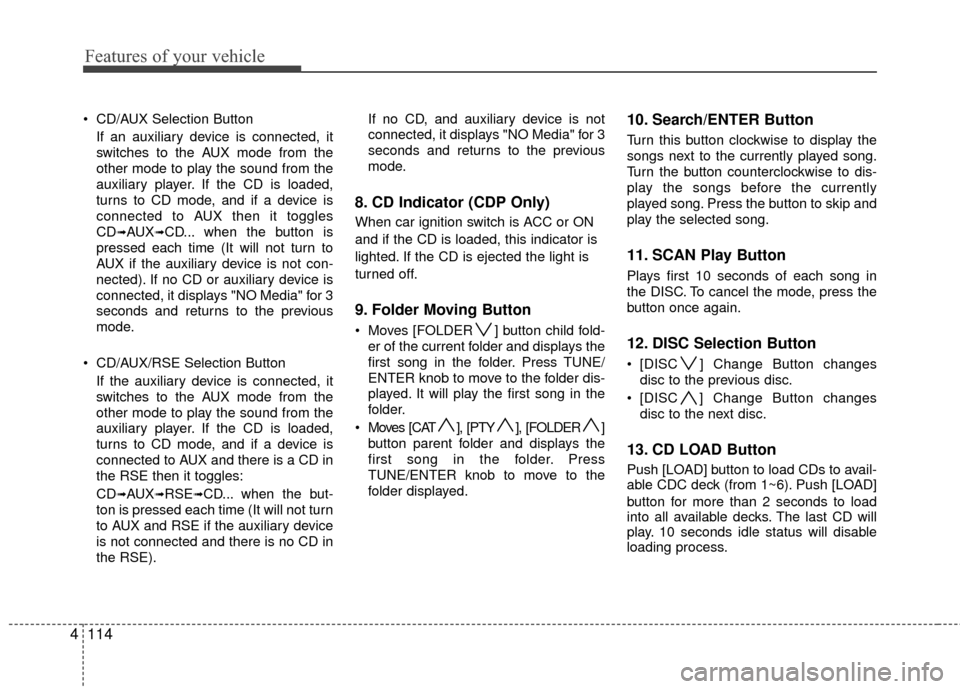
CD/AUX Selection Button
If an auxiliary device is connected, it
switches to the AUX mode from the
other mode to play the sound from the
auxiliary player. If the CD is loaded,
turns to CD mode, and if a device is
connected to AUX then it toggles
CD
➟AUX➟CD... when the button is
pressed each time (It will not turn to
AUX if the auxiliary device is not con-
nected). If no CD or auxiliary device is
connected, it displays "NO Media" for 3
seconds and returns to the previous
mode.
CD/AUX/RSE Selection Button If the auxiliary device is connected, it
switches to the AUX mode from the
other mode to play the sound from the
auxiliary player. If the CD is loaded,
turns to CD mode, and if a device is
connected to AUX and there is a CD in
the RSE then it toggles:
CD
➟AUX➟RSE➟CD... when the but-
ton is pressed each time (It will not turn
to AUX and RSE if the auxiliary device
is not connected and there is no CD in
the RSE). If no CD, and auxiliary device is not
connected, it displays "NO Media" for 3
seconds and returns to the previous
mode.
8. CD Indicator (CDP Only)
When car ignition switch is ACC or ON
and if the CD is loaded, this indicator is
lighted. If the CD is ejected the light is
turned off.
9. Folder Moving Button
Moves [FOLDER ] button child fold-
er of the current folder and displays the
first song in the folder. Press TUNE/
ENTER knob to move to the folder dis-
played. It will play the first song in the
folder.
Moves [CAT ], [PTY ], [FOLDER ] button parent folder and displays the
first song in the folder. Press
TUNE/ENTER knob to move to the
folder displayed.
10. Search/ENTER Button
Turn this button clockwise to display the
songs next to the currently played song.
Turn the button counterclockwise to dis-
play the songs before the currently
played song. Press the button to skip and
play the selected song.
11. SCAN Play Button
Plays first 10 seconds of each song in
the DISC. To cancel the mode, press the
button once again.
12. DISC Selection Button
[DISC ] Change Button changesdisc to the previous disc.
[DISC ] Change Button changes disc to the next disc.
13. CD LOAD Button
Push [LOAD] button to load CDs to avail-
able CDC deck (from 1~6). Push [LOAD]
button for more than 2 seconds to load
into all available decks. The last CD will
play. 10 seconds idle status will disable
loading process.
Page 198 of 419
4119
Features of your vehicle
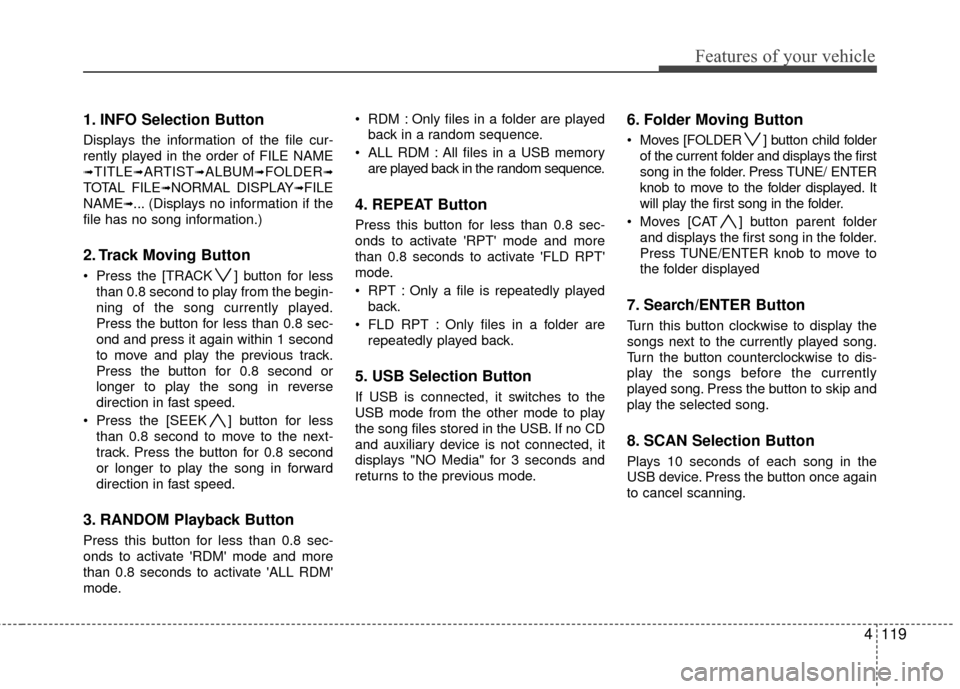
1. INFO Selection Button
Displays the information of the file cur-
rently played in the order of FILE NAME
➟TITLE➟ARTIST➟ALBUM➟FOLDER➟
TOTAL FILE➟NORMAL DISPLAY➟FILE
NAME
➟... (Displays no information if the
file has no song information.)
2. Track Moving Button
Press the [TRACK ] button for less than 0.8 second to play from the begin-
ning of the song currently played.
Press the button for less than 0.8 sec-
ond and press it again within 1 second
to move and play the previous track.
Press the button for 0.8 second or
longer to play the song in reverse
direction in fast speed.
Press the [SEEK ] button for less than 0.8 second to move to the next-
track. Press the button for 0.8 second
or longer to play the song in forward
direction in fast speed.
3. RANDOM Playback Button
Press this button for less than 0.8 sec-
onds to activate 'RDM' mode and more
than 0.8 seconds to activate 'ALL RDM'
mode. RDM : Only files in a folder are played
back in a random sequence.
ALL RDM : All files in a USB memory are played back in the random sequence.
4. REPEAT Button
Press this button for less than 0.8 sec-
onds to activate 'RPT' mode and more
than 0.8 seconds to activate 'FLD RPT'
mode.
RPT : Only a file is repeatedly playedback.
FLD RPT : Only files in a folder are repeatedly played back.
5. USB Selection Button
If USB is connected, it switches to the
USB mode from the other mode to play
the song files stored in the USB. If no CD
and auxiliary device is not connected, it
displays "NO Media" for 3 seconds and
returns to the previous mode.
6. Folder Moving Button
Moves [FOLDER ] button child folderof the current folder and displays the first
song in the folder. Press TUNE/ ENTER
knob to move to the folder displayed. It
will play the first song in the folder.
Moves [CAT ] button parent folder and displays the first song in the folder.
Press TUNE/ENTER knob to move to
the folder displayed
7. Search/ENTER Button
Turn this button clockwise to display the
songs next to the currently played song.
Turn the button counterclockwise to dis-
play the songs before the currently
played song. Press the button to skip and
play the selected song.
8. SCAN Selection Button
Plays 10 seconds of each song in the
USB device. Press the button once again
to cancel scanning.
Page 201 of 419
Features of your vehicle
122
4
When using an iPod with the exclusive
cable: Connect the exclusive cable to the
multiple terminal in the lower center area
to the right hand side of the cigarette
lighter. When the iPod is connected, the
'iPod' icon will be displayed on the top left
corner of the display screen.
❈Exclusive cable : Allows radio system
and iPod to be integrated together.
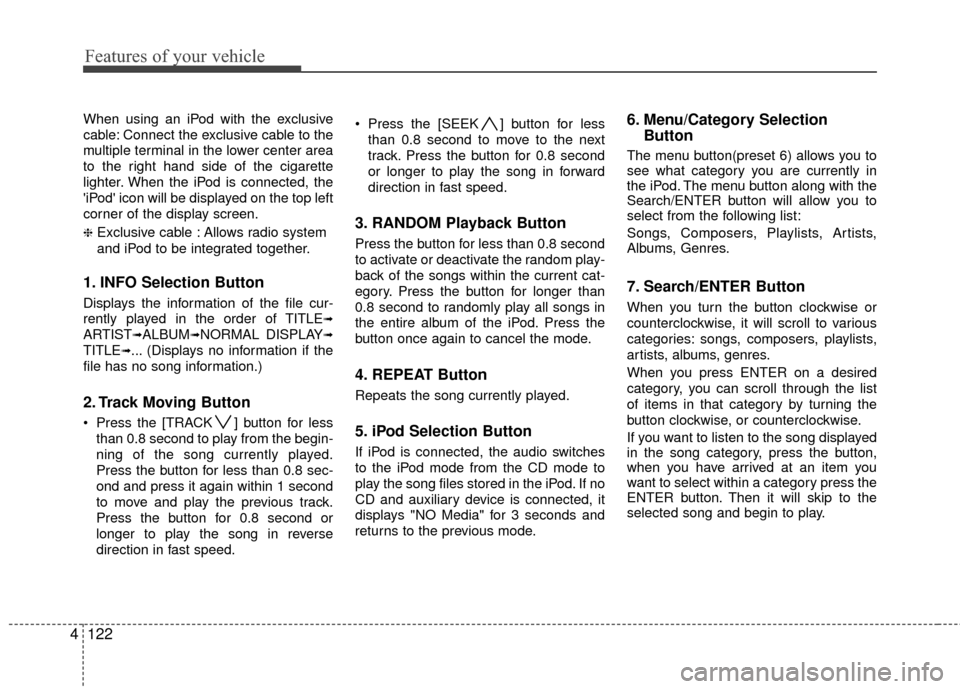
1. INFO Selection Button
Displays the information of the file cur-
rently played in the order of TITLE
➟
ARTIST➟ALBUM➟NORMAL DISPLAY➟
TITLE➟... (Displays no information if the
file has no song information.)
2. Track Moving Button
Press the [TRACK ] button for less than 0.8 second to play from the begin-
ning of the song currently played.
Press the button for less than 0.8 sec-
ond and press it again within 1 second
to move and play the previous track.
Press the button for 0.8 second or
longer to play the song in reverse
direction in fast speed. Press the [SEEK ] button for less
than 0.8 second to move to the next
track. Press the button for 0.8 second
or longer to play the song in forward
direction in fast speed.
3. RANDOM Playback Button
Press the button for less than 0.8 second
to activate or deactivate the random play-
back of the songs within the current cat-
egory. Press the button for longer than
0.8 second to randomly play all songs in
the entire album of the iPod. Press the
button once again to cancel the mode.
4. REPEAT Button
Repeats the song currently played.
5. iPod Selection Button
If iPod is connected, the audio switches
to the iPod mode from the CD mode to
play the song files stored in the iPod. If no
CD and auxiliary device is connected, it
displays "NO Media" for 3 seconds and
returns to the previous mode.
6. Menu/Category Selection Button
The menu button(preset 6) allows you to
see what category you are currently in
the iPod. The menu button along with the
Search/ENTER button will allow you to
select from the following list:
Songs, Composers, Playlists, Artists,
Albums, Genres.
7. Search/ENTER Button
When you turn the button clockwise or
counterclockwise, it will scroll to various
categories: songs, composers, playlists,
artists, albums, genres.
When you press ENTER on a desired
category, you can scroll through the list
of items in that category by turning the
button clockwise, or counterclockwise.
If you want to listen to the song displayed
in the song category, press the button,
when you have arrived at an item you
want to select within a category press the
ENTER button. Then it will skip to the
selected song and begin to play.
Page 205 of 419
Features of your vehicle
126
4
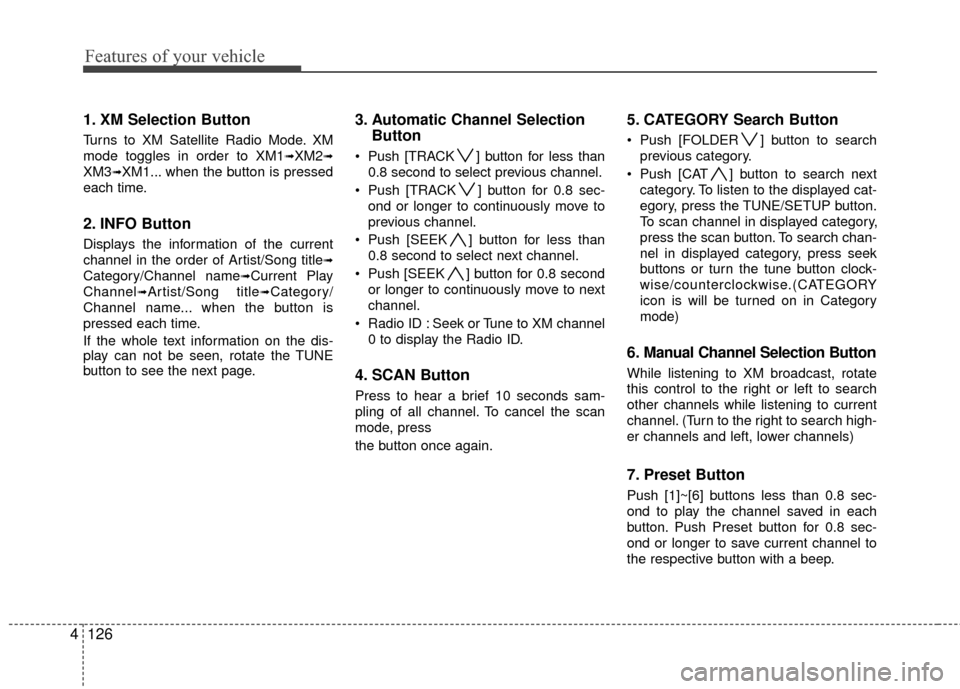
1. XM Selection Button
Turns to XM Satellite Radio Mode. XM
mode toggles in order to XM1
➟XM2➟
XM3➟XM1... when the button is pressed
each time.
2. INFO Button
Displays the information of the current
channel in the order of Artist/Song title
➟
Category/Channel name➟Current Play
Channel
➟Artist/Song title➟Category/
Channel name... when the button is
pressed each time.
If the whole text information on the dis-
play can not be seen, rotate the TUNE
button to see the next page.
3. Automatic Channel Selection Button
Push [TRACK ] button for less than
0.8 second to select previous channel.
Push [TRACK ] button for 0.8 sec- ond or longer to continuously move to
previous channel.
Push [SEEK ] button for less than 0.8 second to select next channel.
Push [SEEK ] button for 0.8 second or longer to continuously move to next
channel.
Radio ID : Seek or Tune to XM channel 0 to display the Radio ID.
4. SCAN Button
Press to hear a brief 10 seconds sam-
pling of all channel. To cancel the scan
mode, press
the button once again.
5. CATEGORY Search Button
Push [FOLDER ] button to searchprevious category.
Push [CAT ] button to search next category. To listen to the displayed cat-
egory, press the TUNE/SETUP button.
To scan channel in displayed category,
press the scan button. To search chan-
nel in displayed category, press seek
buttons or turn the tune button clock-
wise/counterclockwise.(CATEGORY
icon is will be turned on in Category
mode)
6. Manual Channel Selection Button
While listening to XM broadcast, rotate
this control to the right or left to search
other channels while listening to current
channel. (Turn to the right to search high-
er channels and left, lower channels)
7. Preset Button
Push [1]~[6] buttons less than 0.8 sec-
ond to play the channel saved in each
button. Push Preset button for 0.8 sec-
ond or longer to save current channel to
the respective button with a beep.
Page 207 of 419
Features of your vehicle
128
4
RSE (Rear Seat Entertainment)
An auxiliary device must be connected
to, or a DVD loaded into the RSE unit in
rear seat area before the RSE/AUX but-
ton on the radio can be activated.
1. TRACK UP/DOWN Button
Push [TRACK ] button for less than
0.8 second to play from the beginning
of current song.
Push [TRACK ] button for less than 0.8 second and press again within 1
second to play the previous song.
Push [TRACK ] button for 0.8 sec- ond or longer to initiate reverse direc-
tion high speed sound search of cur-
rent song.
Push [SEEK ] button for less than 0.8 second to play the next song.
Push [SEEK ] button for 0.8 second or longer to initiate high speed sound
search of current song.
2. RSE Selection Button
When you press this button, the system
will switch to RSE mode and you will be
able to listen to the source played in the
RSE unit. (If RSE unit has no disc, can
not select)
3. RSE Hold and RSE Power Off
If you press and hold this button for less
than 0.8 second, the LED of the button
will light and RSE unit will be locked. If
you press and hold this button for more
than 0.8 second, RSE unit will be turned
off with a beep and [RSE] will disappear
from LCD.
4. Folder Moving Button
Press [FOLDER ] button to play theprevious track.
Press [CAT ] button to play the next track.
CAUTION IN USING
RSE DEVICE
When listening to the CD on the
H/UNIT in RSE, the mode cannot beconverted to USB on the H/UNIT and will be displayed on the LCD.
Page 221 of 419
Features of your vehicle
142
4
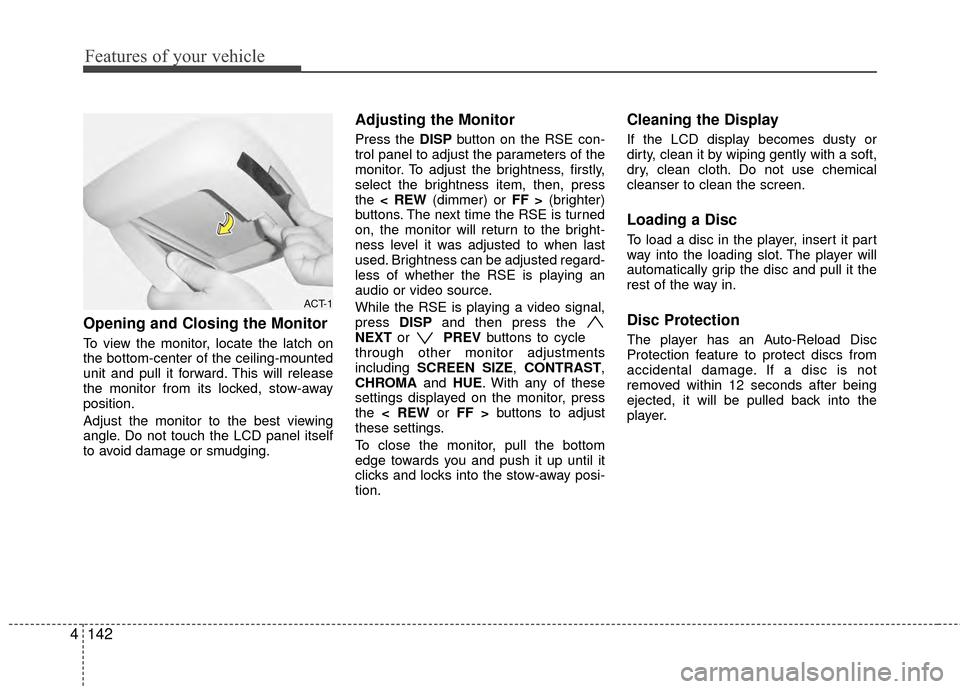
Opening and Closing the Monitor
To view the monitor, locate the latch on
the bottom-center of the ceiling-mounted
unit and pull it forward. This will release
the monitor from its locked, stow-away
position.
Adjust the monitor to the best viewing
angle. Do not touch the LCD panel itself
to avoid damage or smudging.
Adjusting the Monitor
Press the DISP button on the RSE con-
trol panel to adjust the parameters of the
monitor. To adjust the brightness, firstly,
select the brightness item, then, press
the < REW (dimmer) or FF > (brighter)
buttons. The next time the RSE is turned
on, the monitor will return to the bright-
ness level it was adjusted to when last
used. Brightness can be adjusted regard-
less of whether the RSE is playing an
audio or video source.
While the RSE is playing a video signal,
press DISPand then press the
NEXT or PREVbuttons to cycle
through other monitor adjustments
including SCREEN SIZE, CONTRAST,
CHROMA and HUE. With any of these
settings displayed on the monitor, press
the < REW or FF > buttons to adjust
these settings.
To close the monitor, pull the bottom
edge towards you and push it up until it
clicks and locks into the stow-away posi-
tion.
Cleaning the Display
If the LCD display becomes dusty or
dirty, clean it by wiping gently with a soft,
dry, clean cloth. Do not use chemical
cleanser to clean the screen.
Loading a Disc
To load a disc in the player, insert it part
way into the loading slot. The player will
automatically grip the disc and pull it the
rest of the way in.
Disc Protection
The player has an Auto-Reload Disc
Protection feature to protect discs from
accidental damage. If a disc is not
removed within 12 seconds after being
ejected, it will be pulled back into the
player.
ACT-1