Brightness Hyundai Santa Fe 2012 Owner's Manual
[x] Cancel search | Manufacturer: HYUNDAI, Model Year: 2012, Model line: Santa Fe, Model: Hyundai Santa Fe 2012Pages: 419, PDF Size: 5.61 MB
Page 221 of 419
Features of your vehicle
142
4
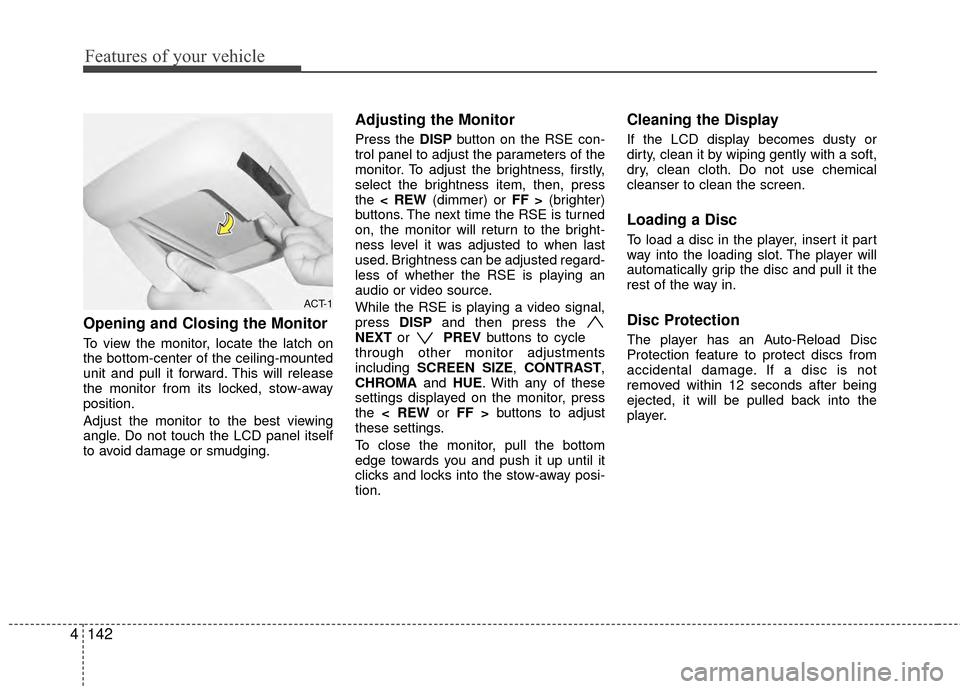
Opening and Closing the Monitor
To view the monitor, locate the latch on
the bottom-center of the ceiling-mounted
unit and pull it forward. This will release
the monitor from its locked, stow-away
position.
Adjust the monitor to the best viewing
angle. Do not touch the LCD panel itself
to avoid damage or smudging.
Adjusting the Monitor
Press the DISP button on the RSE con-
trol panel to adjust the parameters of the
monitor. To adjust the brightness, firstly,
select the brightness item, then, press
the < REW (dimmer) or FF > (brighter)
buttons. The next time the RSE is turned
on, the monitor will return to the bright-
ness level it was adjusted to when last
used. Brightness can be adjusted regard-
less of whether the RSE is playing an
audio or video source.
While the RSE is playing a video signal,
press DISPand then press the
NEXT or PREVbuttons to cycle
through other monitor adjustments
including SCREEN SIZE, CONTRAST,
CHROMA and HUE. With any of these
settings displayed on the monitor, press
the < REW or FF > buttons to adjust
these settings.
To close the monitor, pull the bottom
edge towards you and push it up until it
clicks and locks into the stow-away posi-
tion.
Cleaning the Display
If the LCD display becomes dusty or
dirty, clean it by wiping gently with a soft,
dry, clean cloth. Do not use chemical
cleanser to clean the screen.
Loading a Disc
To load a disc in the player, insert it part
way into the loading slot. The player will
automatically grip the disc and pull it the
rest of the way in.
Disc Protection
The player has an Auto-Reload Disc
Protection feature to protect discs from
accidental damage. If a disc is not
removed within 12 seconds after being
ejected, it will be pulled back into the
player.
ACT-1
Page 229 of 419
Features of your vehicle
150
4
The player is only capable of reading the
bottom side of a disc. When inserting a
single-sided disc, the label side should
be up. When inserting a two-sided disc,
the desired play side should be down.
Press DISP on the RSE control panel or
the remote controller, then press the
NEXT or PREVbuttons to cycle
through monitor adjustments (SCREEN
SIZE, BRIGHTNESS, CONTRAST,
CHROMA, HUE). When the adjustment
for the SCREEN SIZE, use the < REW or
FF > buttons to select the preferred
screen size.Menu
DVDs can be controlled, and any special
programming or features accessed, by
using the menu. To access the menu
while playing a DVD, press the MENU
button. Press the button a second time to
exit the menu and return to the DVD pro-
gram at the point it was being viewed.
The menu is not available during disc ini-
tialization, the beginning credits or any
copyright and FBI warnings.
While viewing the menu, press the
NEXT button to move the cursor up and
the PREVbutton to move the cursor
down the menu. Press the FF > button
to move the cursor to the right, and the
< REW button to move the cursor to the
left.
✽ ✽ NOTICE
You must repeatedly push any button to
move through several items. Pressing
and holding a button will not advance
the cursor beyond the first item.
Press ENTER or Play/Pause to select the
desired menu choice.
Playing a DVD/VCD
You can control your DVD or VCD by
using the buttons on the RSE control
panel or by using the remote control.
Instructions for the controls listed below
are the same whether using the RSE
control panel or the remote control.
However, there are some additional func-
tions that are only available from the
remote control. These buttons and their
functions are discussed in the "Remote
Control" section of this manual.