set button Hyundai Santa Fe 2014 Workshop Manual
[x] Cancel search | Manufacturer: HYUNDAI, Model Year: 2014, Model line: Santa Fe, Model: Hyundai Santa Fe 2014Pages: 711, PDF Size: 14.72 MB
Page 367 of 711
Features of your vehicle
266 4
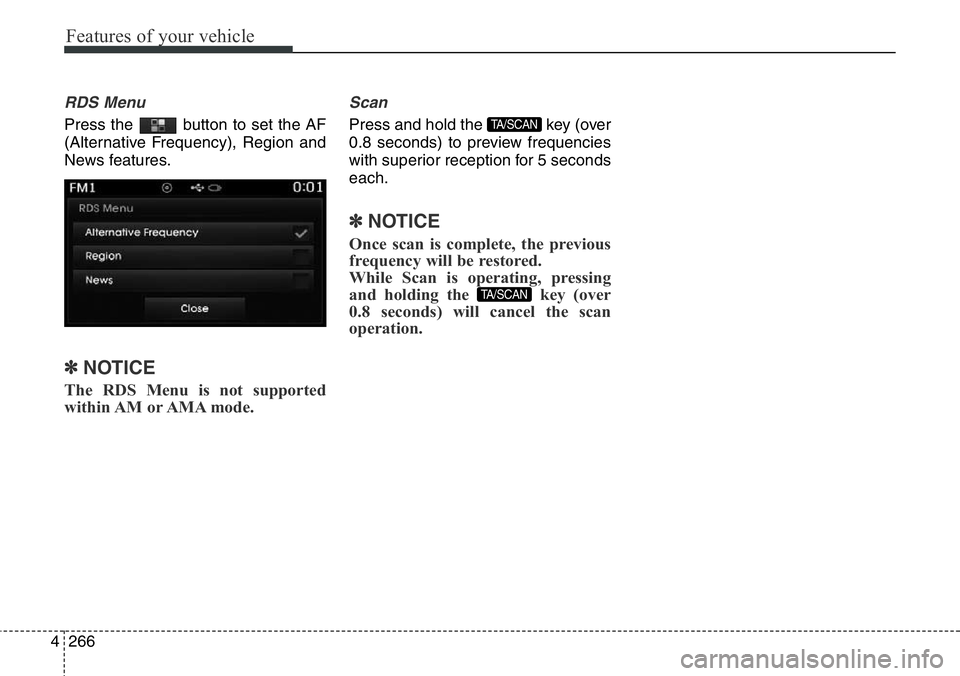
RDS Menu
Press the button to set the AF
(Alternative Frequency), Region and
News features.
✽NOTICE
The RDS Menu is not supported
within AM or AMA mode.
Scan
Press and hold the key (over
0.8 seconds) to preview frequencies
with superior reception for 5 seconds
each.
✽NOTICE
Once scan is complete, the previous
frequency will be restored.
While Scan is operating, pressing
and holding the key (over
0.8 seconds) will cancel the scan
operation.
TA/SCAN
TA/SCAN
Page 369 of 711
Features of your vehicle
268 4
RADIO MODE
- AM900DMMG, AM910DMMG,
AM911DMMG, AM901DMGG,
AM910DMEE, AM911DMEE,
AM912DMEE, AM913DMEE,
AM910DMGL, AM911DMGL,
AM900DMMN, AM910DMMN
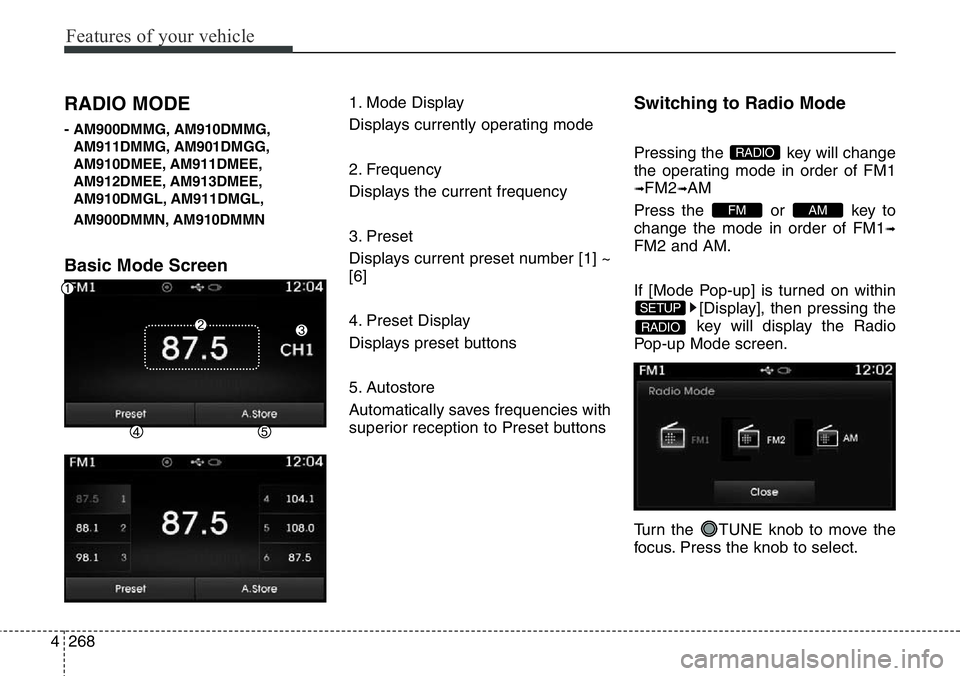
Basic Mode Screen
1. Mode Display
Displays currently operating mode
2. Frequency
Displays the current frequency
3. Preset
Displays current preset number [1] ~
[6]
4. Preset Display
Displays preset buttons
5. Autostore
Automatically saves frequencies with
superior reception to Preset buttonsSwitching to Radio Mode
Pressing the key will change
the operating mode in order of FM1
➟FM2➟AM
Press the or key to
change the mode in order of FM1
➟
FM2 and AM.
If [Mode Pop-up] is turned on within
[Display], then pressing the
key will display the Radio
Pop-up Mode screen.
Turn the TUNE knob to move the
focus. Press the knob to select.
RADIO
SETUP
AMFM
RADIO
Page 370 of 711
4269
Features of your vehicle
Searching Radio Frequencies
Using Seek
Press the key to play the
previous/next frequency.
Using TUNE
Turn the TUNE knob to select the
desired frequency.
• FM : Increases/decreased by 100kHz
• AM : Increases/decreased by 9kHz
Using Radio Mode
Selecting /Saving Presets
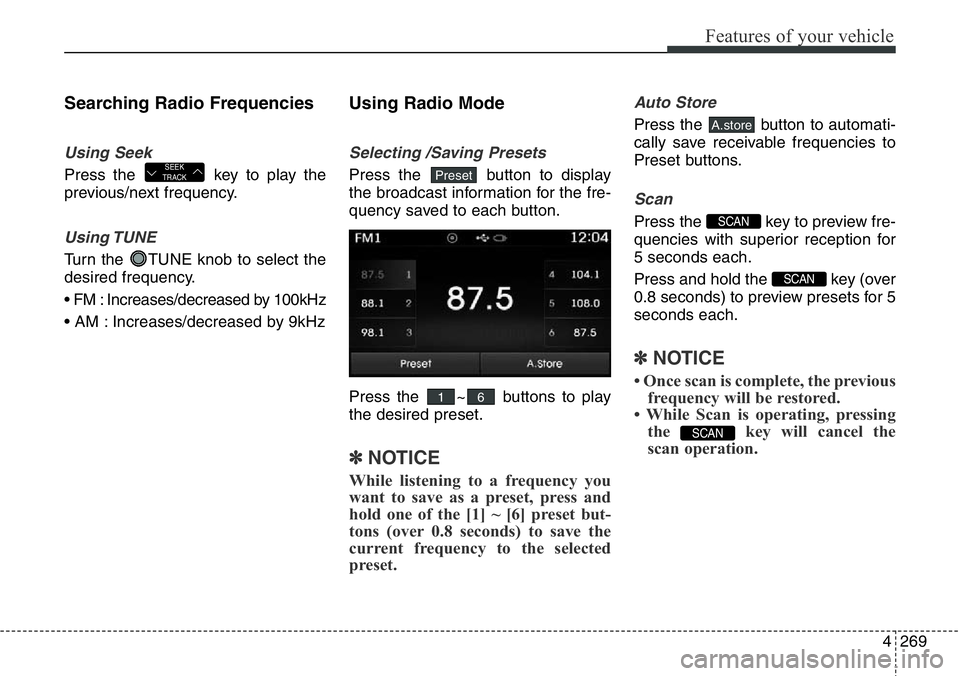
Press the button to display
the broadcast information for the fre-
quency saved to each button.
Press the ~ buttons to play
the desired preset.
✽NOTICE
While listening to a frequency you
want to save as a preset, press and
hold one of the [1] ~ [6] preset but-
tons (over 0.8 seconds) to save the
current frequency to the selected
preset.
Auto Store
Press the button to automati-
cally save receivable frequencies to
Preset buttons.
Scan
Press the key to preview fre-
quencies with superior reception for
5 seconds each.
Press and hold the key (over
0.8 seconds) to preview presets for 5
seconds each.
✽NOTICE
• Once scan is complete, the previous
frequency will be restored.
• While Scan is operating, pressing
the key will cancel the
scan operation.
SCAN
SCAN
SCAN
A.store
61
PresetSEEK
TRACK
Page 382 of 711
4281
Features of your vehicle
Scan
Press the key to play the first
10 seconds of each file.
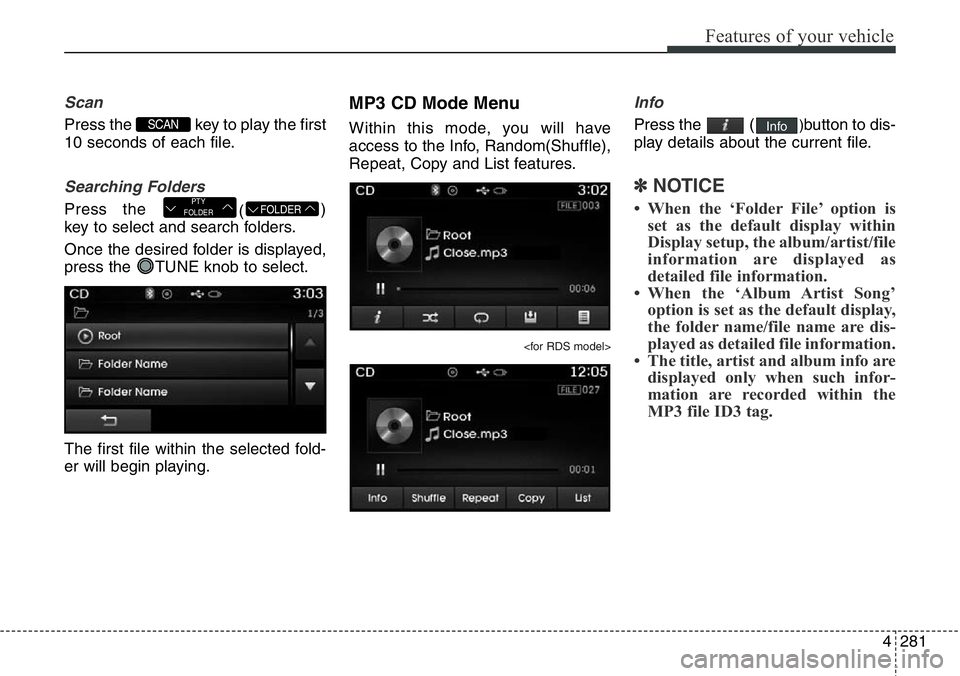
Searching Folders
Press the
()
key to select and search folders.
Once the desired folder is displayed,
press the TUNE knob to select.
The first file within the selected fold-
er will begin playing.
MP3 CD Mode Menu
Within this mode, you will have
access to the Info, Random(Shuffle),
Repeat, Copy and List features.
Info
Press the ()button to dis-
play details about the current file.
✽NOTICE
• When the ‘Folder File’ option is
set as the default display within
Display setup, the album/artist/file
information are displayed as
detailed file information.
• When the ‘Album Artist Song’
option is set as the default display,
the folder name/file name are dis-
played as detailed file information.
• The title, artist and album info are
displayed only when such infor-
mation are recorded within the
MP3 file ID3 tag.
Info
FOLDERPTY
FOLDER
SCAN
Page 389 of 711
Features of your vehicle
288 4
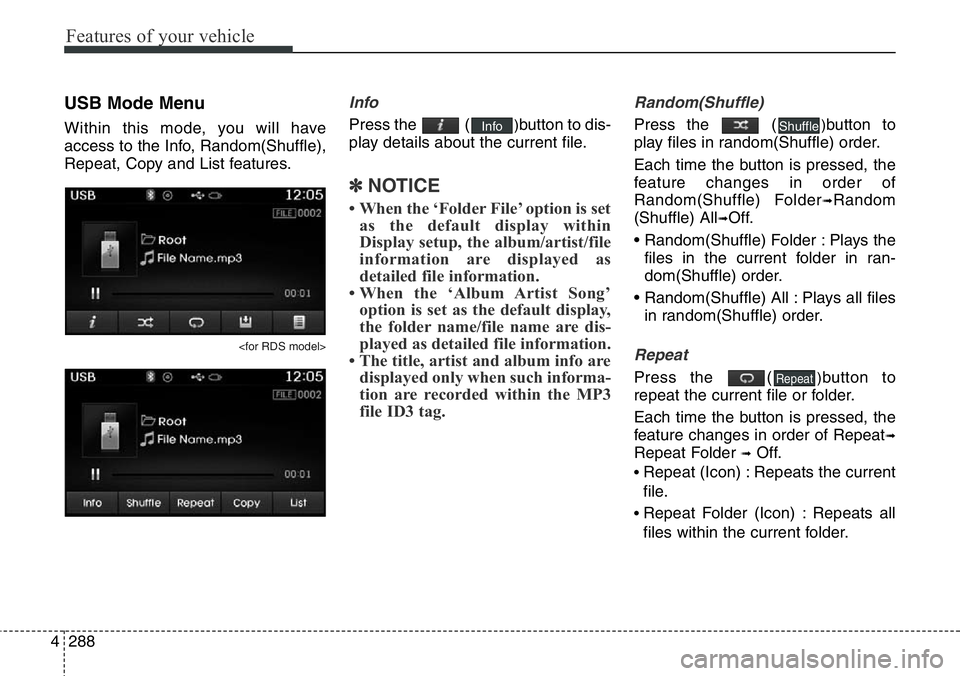
USB Mode Menu
Within this mode, you will have
access to the Info, Random(Shuffle),
Repeat, Copy and List features.
Info
Press the ()button to dis-
play details about the current file.
✽NOTICE
• When the ‘Folder File’ option is set
as the default display within
Display setup, the album/artist/file
information are displayed as
detailed file information.
• When the ‘Album Artist Song’
option is set as the default display,
the folder name/file name are dis-
played as detailed file information.
• The title, artist and album info are
displayed only when such informa-
tion are recorded within the MP3
file ID3 tag.
Random(Shuffle)
Press the ()button to
play files in random(Shuffle) order.
Each time the button is pressed, the
feature changes in order of
Random(Shuffle) Folder
➟Random
(Shuffle) All
➟Off.
• Random(Shuffle) Folder : Plays the
files in the current folder in ran-
dom(Shuffle) order.
• Random(Shuffle) All : Plays all files
in random(Shuffle) order.
Repeat
Press the ()button to
repeat the current file or folder.
Each time the button is pressed, the
feature changes in order of Repeat
➟
Repeat Folder ➟Off.
• Repeat (Icon) : Repeats the current
file.
• Repeat Folder (Icon) : Repeats all
files within the current folder.
Repeat
ShuffleInfo
Page 401 of 711
Features of your vehicle
300 4
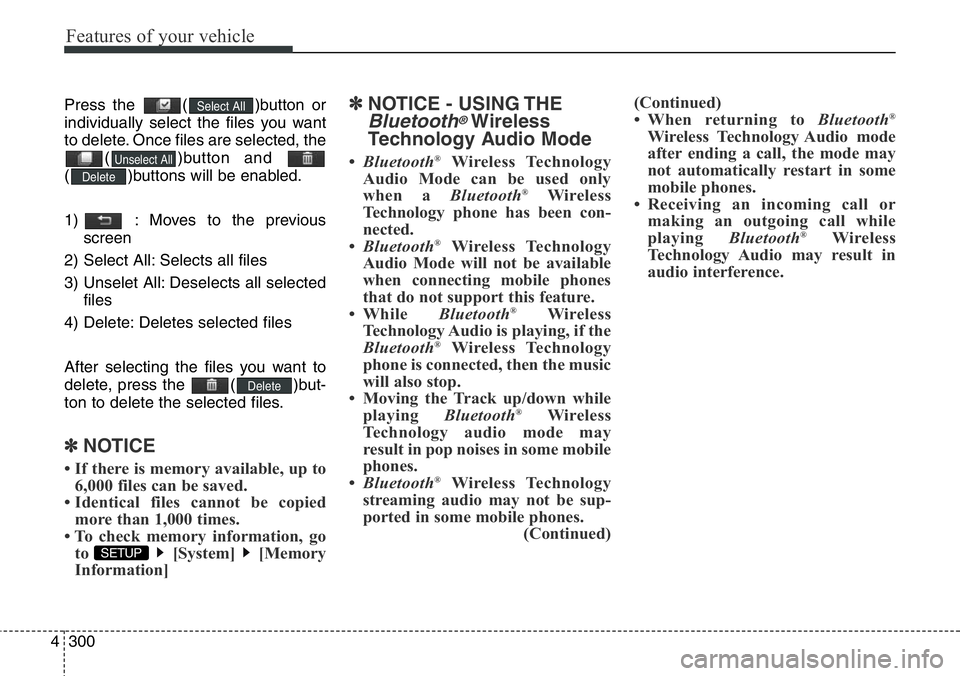
Press the ( )button or
individually select the files you want
to delete. Once files are selected, the
( )button and
( )buttons will be enabled.
1) : Moves to the previous
screen
2) Select All: Selects all files
3) Unselet All: Deselects all selected
files
4) Delete: Deletes selected files
After selecting the files you want to
delete, press the ( )but-
ton to delete the selected files.
✽NOTICE
• If there is memory available, up to
6,000 files can be saved.
• Identical files cannot be copied
more than 1,000 times.
• To check memory information, go
to [System] [Memory
Information]
✽NOTICE - USING THE
Bluetooth®Wireless
Technology Audio Mode
•Bluetooth®Wireless Technology
Audio Mode can be used only
when a Bluetooth
®Wireless
Technology phone has been con-
nected.
•Bluetooth
®Wireless Technology
Audio Mode will not be available
when connecting mobile phones
that do not support this feature.
• While Bluetooth
®Wireless
Technology Audio is playing, if the
Bluetooth
®Wireless Technology
phone is connected, then the music
will also stop.
• Moving the Track up/down while
playing Bluetooth
®Wireless
Technology audio mode may
result in pop noises in some mobile
phones.
•Bluetooth
®Wireless Technology
streaming audio may not be sup-
ported in some mobile phones.
(Continued)(Continued)
• When returning to Bluetooth
®
Wireless Technology Audio mode
after ending a call, the mode may
not automatically restart in some
mobile phones.
• Receiving an incoming call or
making an outgoing call while
playing Bluetooth
®Wireless
Technology Audio may result in
audio interference.
SETUP
Delete
Delete
Unselect All
Select All
Page 402 of 711
4301
Features of your vehicle
Bluetooth®Wireless
Technology AUDIO MODE
(for Bluetooth®Wireless
Technology equipped model)
Using
Bluetooth®Wireless
Technology Audio Mode
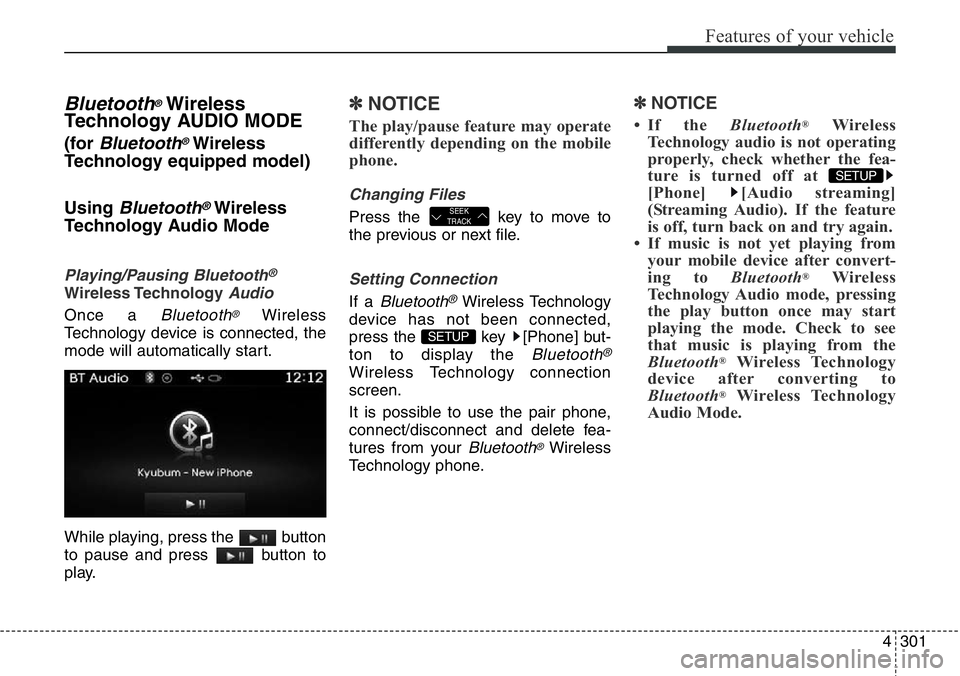
Playing/Pausing Bluetooth®
Wireless TechnologyAudio
Once a Bluetooth®Wireless
Technology device is connected, the
mode will automatically start.
While playing, press the button
to pause and press button to
play.
✽NOTICE
The play/pause feature may operate
differently depending on the mobile
phone.
Changing Files
Press the key to move to
the previous or next file.
Setting Connection
If a Bluetooth®Wireless Technology
device has not been connected,
press the key [Phone] but-
ton to display the
Bluetooth®
Wireless Technology connection
screen.
It is possible to use the pair phone,
connect/disconnect and delete fea-
tures from your
Bluetooth®Wireless
Technology phone.
✽NOTICE
• If the Bluetooth®Wireless
Technology audio is not operating
properly, check whether the fea-
ture is turned off at
[Phone] [Audio streaming]
(Streaming Audio). If the feature
is off, turn back on and try again.
• If music is not yet playing from
your mobile device after convert-
ing to Bluetooth
®Wireless
Technology Audio mode, pressing
the play button once may start
playing the mode. Check to see
that music is playing from the
Bluetooth
®Wireless Technology
device after converting to
Bluetooth
®Wireless Technology
Audio Mode.
SETUP
SETUP
SEEK
TRACK
Page 407 of 711
Features of your vehicle
306 4
✽NOTICE
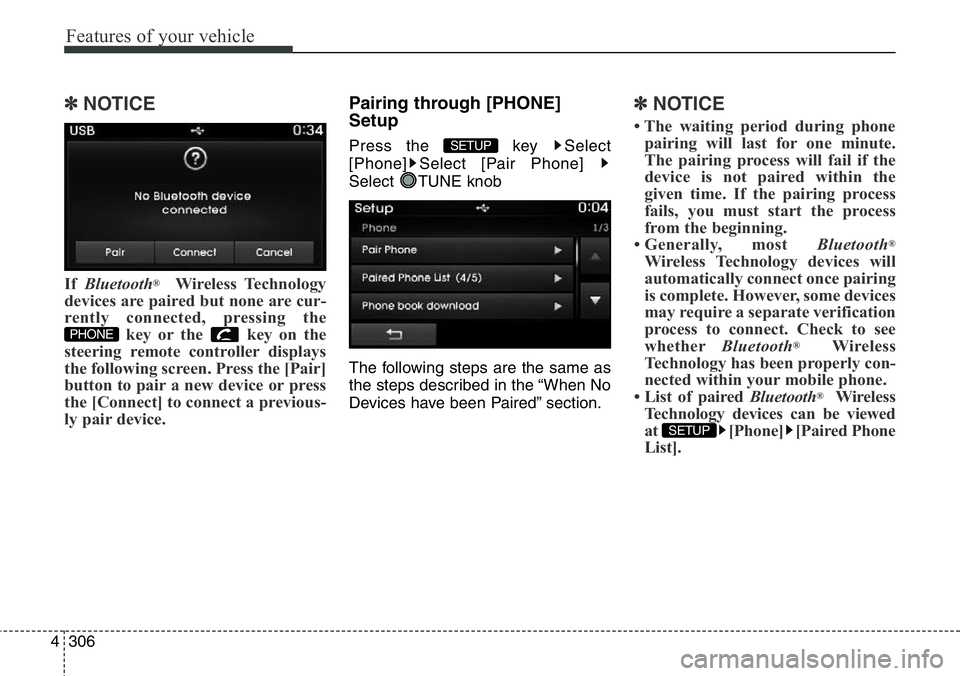
If Bluetooth®Wireless Technology
devices are paired but none are cur-
rently connected, pressing the
key or the key on the
steering remote controller displays
the following screen. Press the [Pair]
button to pair a new device or press
the [Connect] to connect a previous-
ly pair device.
Pairing through [PHONE]
Setup
Press the key Select
[Phone] Select [Pair Phone]
Select TUNE knob
The following steps are the same as
the steps described in the “When No
Devices have been Paired” section.
✽NOTICE
• The waiting period during phone
pairing will last for one minute.
The pairing process will fail if the
device is not paired within the
given time. If the pairing process
fails, you must start the process
from the beginning.
• Generally, most Bluetooth
®
Wireless Technology devices will
automatically connect once pairing
is complete. However, some devices
may require a separate verification
process to connect. Check to see
whetherBluetooth
®Wireless
Technology has been properly con-
nected within your mobile phone.
• List of paired Bluetooth
®Wireless
Technology devices can be viewed
at [Phone] [Paired Phone
List].
SETUP
SETUP
PHONE
Page 408 of 711
![Hyundai Santa Fe 2014 Workshop Manual 4307
Features of your vehicle
Connecting a Device
Press the key Select
[Phone] Select [Paired Phone List]
1) Connected Phone : Device that is
currently connected
2) Paired Phone : Device that is
pai](/img/35/16363/w960_16363-407.png "Hyundai Santa Fe 2014 Workshop Manual 4307
Features of your vehicle
Connecting a Device
Press the key Select
[Phone] Select [Paired Phone List]
1) Connected Phone : Device that is
currently connected
2) Paired Phone : Device that is
pai")
4307
Features of your vehicle
Connecting a Device
Press the key Select
[Phone] Select [Paired Phone List]
1) Connected Phone : Device that is
currently connected
2) Paired Phone : Device that is
paired but not connectedFrom the paired phone list, select the
device you want to connect and
press the button.SETUP
Page 409 of 711
Features of your vehicle
308 4
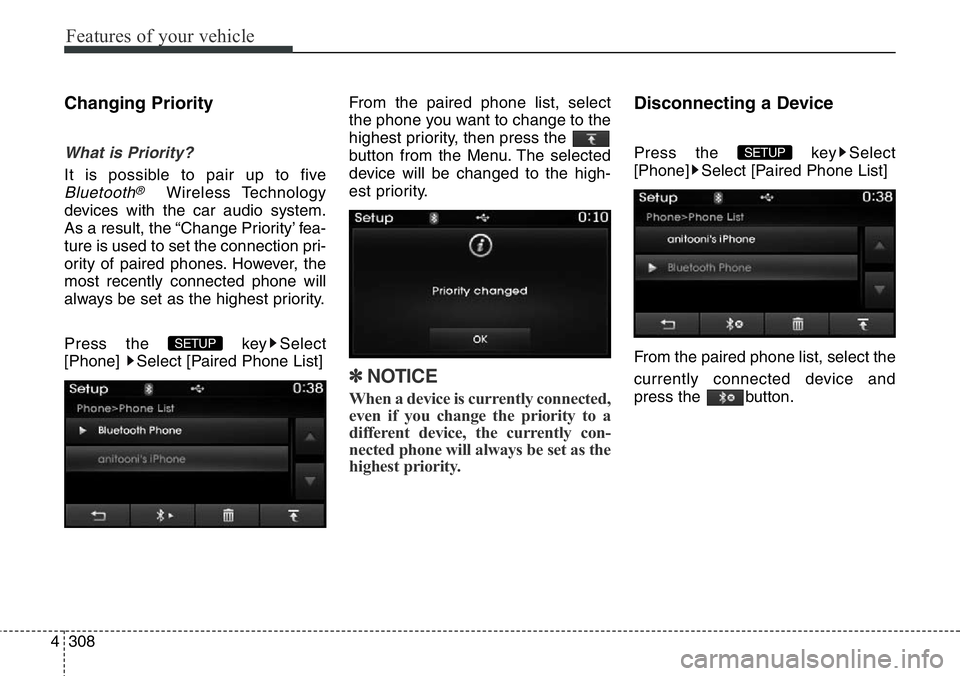
Changing Priority
What is Priority?
It is possible to pair up to five
Bluetooth®Wireless Technology
devices with the car audio system.
As a result, the “Change Priority’ fea-
ture is used to set the connection pri-
ority of paired phones. However, the
most recently connected phone will
always be set as the highest priority.
Press the key Select
[Phone] Select [Paired Phone List]From the paired phone list, select
the phone you want to change to the
highest priority, then press the
button from the Menu. The selected
device will be changed to the high-
est priority.
✽NOTICE
When a device is currently connected,
even if you change the priority to a
different device, the currently con-
nected phone will always be set as the
highest priority.
Disconnecting a Device
Press the key Select
[Phone] Select [Paired Phone List]
From the paired phone list, select the
currently connected device and
press the button.SETUP
SETUP