reset Hyundai Santa Fe 2016 User Guide
[x] Cancel search | Manufacturer: HYUNDAI, Model Year: 2016, Model line: Santa Fe, Model: Hyundai Santa Fe 2016Pages: 759, PDF Size: 29.36 MB
Page 237 of 759
Features of your vehicle
140
4
Temperature control
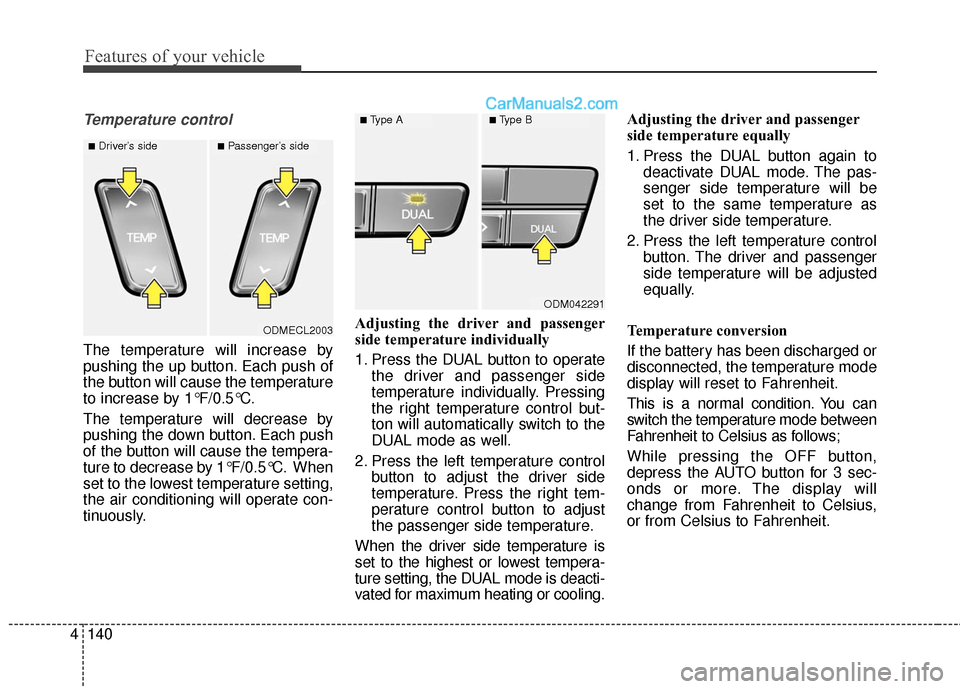
The temperature will increase by
pushing the up button. Each push of
the button will cause the temperature
to increase by 1°F/0.5°C.
The temperature will decrease by
pushing the down button. Each push
of the button will cause the tempera-
ture to decrease by 1°F/0.5°C. When
set to the lowest temperature setting,
the air conditioning will operate con-
tinuously. Adjusting the driver and passenger
side temperature individually
1. Press the DUAL button to operate
the driver and passenger side
temperature individually. Pressing
the right temperature control but-
ton will automatically switch to the
DUAL mode as well.
2. Press the left temperature control button to adjust the driver side
temperature. Press the right tem-
perature control button to adjust
the passenger side temperature.
When the driver side temperature is
set to the highest or lowest tempera-
ture setting, the DUAL mode is deacti-
vated for maximum heating or cooling. Adjusting the driver and passenger
side temperature equally
1. Press the DUAL button again to
deactivate DUAL mode. The pas-
senger side temperature will be
set to the same temperature as
the driver side temperature.
2. Press the left temperature control button. The driver and passenger
side temperature will be adjusted
equally.
Temperature conversion
If the battery has been discharged or
disconnected, the temperature mode
display will reset to Fahrenheit.
This is a normal condition. You can
switch the temperature mode between
Fahrenheit to Celsius as follows;
While pressing the OFF button,
depress the AUTO button for 3 sec-
onds or more. The display will
change from Fahrenheit to Celsius,
or from Celsius to Fahrenheit.
ODM042291
■Type A■Type B
ODMECL2003
■Driver’s side■Passenger’s side
Page 243 of 759
Features of your vehicle
146
4
Auto defogging system
(if equipped)
Auto defogging reduces the probabil-
ity of fogging up the inside of the
windshield by automatically sensing
the moisture of inside the windshield.
The auto defogging system operates
when the heater or air conditioning is
on.
This indicator illuminates
when the auto defogging
system senses the mois-
ture of inside the wind-
shield and operates. If more moisture is in the vehicle, the
automated steps operate as follows:
If auto defogging does not defog the
window at step 1, outside air position,
step 2, blowing air toward the wind-
shield occurs.
Step 1 : Outside air position
Step 2 : Blowing air toward the wind-
shield
Step 3 : Increasing air flow toward the windshield
Step 4 : Operating the air conditioning
Step 5 : Maximizing the air conditioning
The auto defogging system is auto-
matically activated when the condi-
tions are met. However, if you would
like to cancel the auto defogging sys-
tem, press the front defroster button
4 times within 2 seconds while press-
ing the AUTO button. The indicator of
the front defroster button will blink 3
times to notify you that the system is
cancelled. To use the auto defogging
system again, follow the procedures
mentioned above.
If the battery has been disconnected
or discharged, it resets to the auto
defogging status.
✽ ✽ NOTICE
When the air conditioning is turned
on and the outside air position is
selected by the auto defogging sys-
tem, if you try to turn off the air con-
ditioning and select the recirculated
air position, the indicator will blink
3 times and the air conditioning will
not be turned off and recirculated
air position will not be selected.
ONCNCO2038
CAUTION
Do not remove the sensor cover
located on the upper end of thedriver side windshield glass.Damage to system parts couldoccur and may not be coveredby your vehicle warranty.
Page 259 of 759
Features of your vehicle
162
4
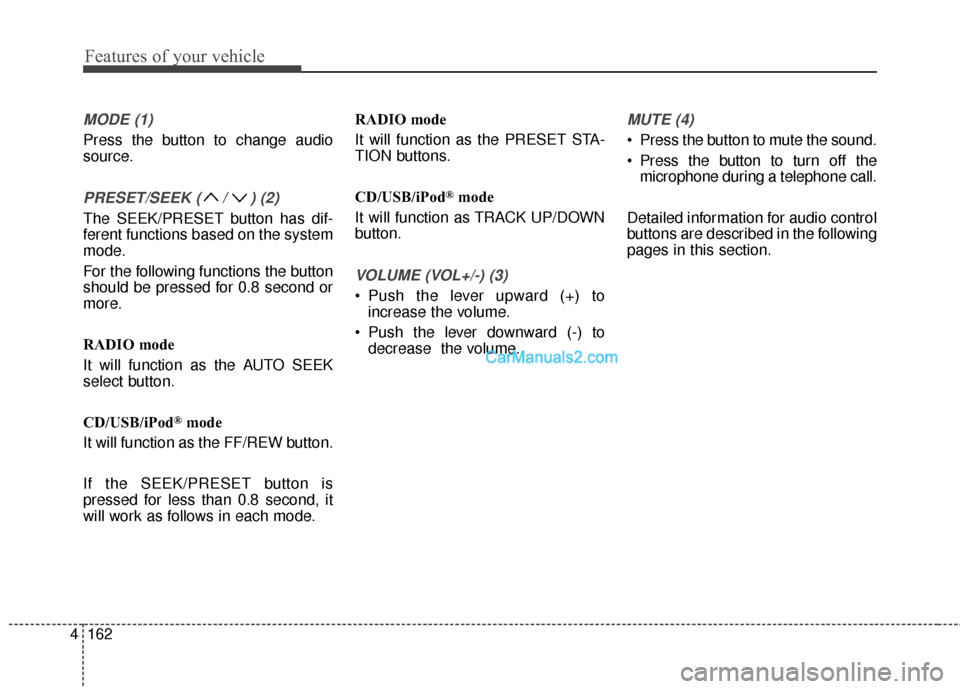
MODE (1)
Press the button to change audio
source.
PRESET/SEEK ( / ) (2)
The SEEK/PRESET button has dif-
ferent functions based on the system
mode.
For the following functions the button
should be pressed for 0.8 second or
more.
RADIO mode
It will function as the AUTO SEEK
select button.
CD/USB/iPod
®mode
It will function as the FF/REW button.
If the SEEK/PRESET button is
pressed for less than 0.8 second, it
will work as follows in each mode. RADIO mode
It will function as the PRESET STA-
TION buttons.
CD/USB/iPod
®mode
It will function as TRACK UP/DOWN
button.
VOLUME (VOL+/-) (3)
• Push the lever upward (+) to increase the volume.
Push the lever downward (-) to decrease the volume.
MUTE (4)
Press the button to mute the sound.
Press the button to turn off themicrophone during a telephone call.
Detailed information for audio control
buttons are described in the following
pages in this section.
Page 267 of 759
Features of your vehicle
170
4
✽
✽
NOTICE - USING THE
iPod®DEVICE
• Some iPod®models may not
support communication proto-
col and files may not properly
play.
Supported iPod
®models:
- iPhone®3GS/4
- iPod®touch 1st~4th generation
- iPod®nano 1st~6th generation
- iPod®classic
• The order of search or playback of songs in the iPod
®can be dif-
ferent from the order searched
in the audio system.
• If the iPod
®is disabled due to its
own malfunction, reset the
iPod
®. (Reset: Refer to iPod®
manual)
• An iPod®may not operate nor-
mally on low battery. (Continued)(Continued)
• Some iPod
®devices, such as the
iPhone®, can be connected
through the Bluetooth®Wireless
Technology interface. The
device must have audio
Bluetooth
®Wireless Technology
capability (such as for stereo
headphone Bluetooth
®Wireless
Technology).
The device can play, but it will
not be controlled by the audio
system.
• To use iPod
®features within the
audio, use the cable provided
upon purchasing an iPod
®
device.
• Skipping or improper operation may occur depending on the
characteristics of your iPod
®/
iPhone®device.
• If your iPhone®is connected to
both the Bluetooth®Wireless
Technology and USB, the sound
may not be properly played. In
your iPhone
®, select the Dock
connector or Bluetooth®
Wireless Technology to change
the sound output (source).
(Continued)(Continued)
• When connecting iPod
®with the
iPod®Power Cable, insert the
connector to the multimedia
socket completely. If not insert-
ed completely, communications
between iPod
®and audio may
be interrupted.
• When adjusting the sound effects of the iPod
®and the
audio system, the sound effects
of both devices will overlap and
might reduce or distort the
quality of the sound.
• Deactivate (turn off) the equal- izer function of an iPod
®when
adjusting the audio system’s
volume, and turn off the equal-
izer of the audio system when
using the equalizer of an iPod
®.
• When not using iPod®with car
audio, detach the iPod®cable
from iPod®. Otherwise, iPod®
may remain in accessory mode,
and may not work properly.
Page 274 of 759
4177
Features of your vehicle
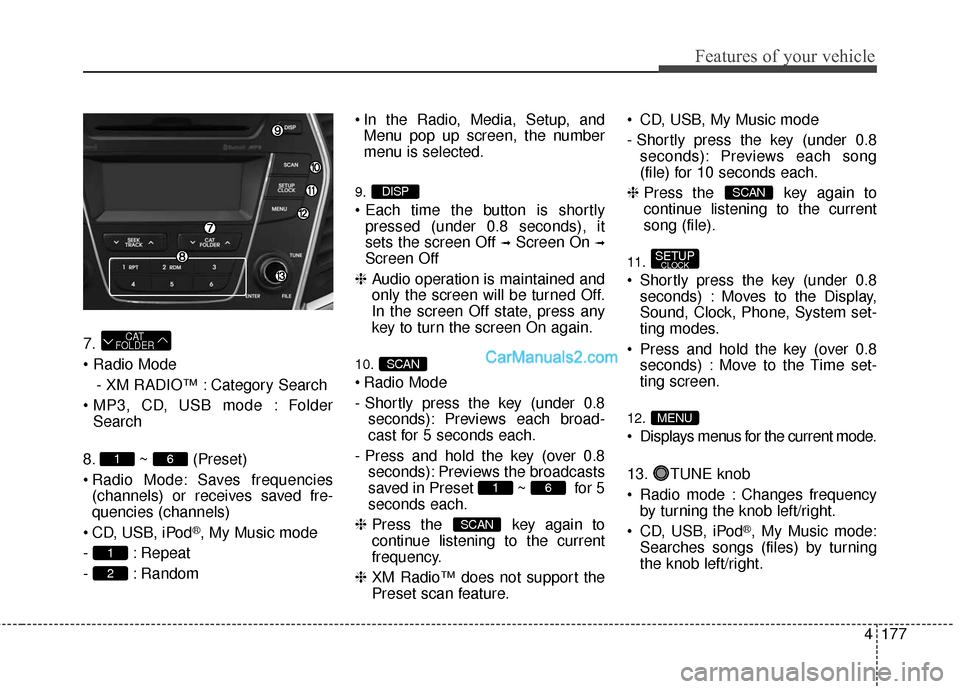
7.
- XM RADIO™ : Category Search
Folder Search
8. ~ (Preset)
Radio Mode: Saves frequencies (channels) or receives saved fre-
quencies (channels)
CD, USB, iPod
®, My Music mode
- : Repeat
- : Random In the Radio, Media, Setup, and
Menu pop up screen, the number
menu is selected.
9.
pressed (under 0.8 seconds), it
sets the screen Off
➟Screen On ➟
Screen Off
❈ Audio operation is maintained and
only the screen will be turned Off.
In the screen Off state, press any
key to turn the screen On again.
10.
Radio Mode
- Shortly press the key (under 0.8
seconds): Previews each broad-
cast for 5 seconds each.
- Press and hold the key (over 0.8 seconds): Previews the broadcasts
saved in Preset ~ for 5
seconds each.
❈ Press the key again to
continue listening to the current
frequency.
❈ XM Radio™ does not support the
Preset scan feature. CD, USB, My Music mode
- Shortly press the key (under 0.8
seconds): Previews each song
(file) for 10 seconds each.
❈ Press the key again to
continue listening to the current
song (file).
11.
Shortly press the key (under 0.8
seconds) : Moves to the Display,
Sound, Clock, Phone, System set-
ting modes.
Press and hold the key (over 0.8 seconds) : Move to the Time set-
ting screen.
12.
Displays menus for the current mode.
13. TUNE knob
Radio mode : Changes frequencyby turning the knob left/right.
CD, USB, iPod
®, My Music mode:
Searches songs (files) by turning
the knob left/right.
MENU
SETUPCLOCK
SCAN
SCAN
61
SCAN
DISP
2
1
61
CAT
FOLDER
Page 281 of 759
Features of your vehicle
184
4
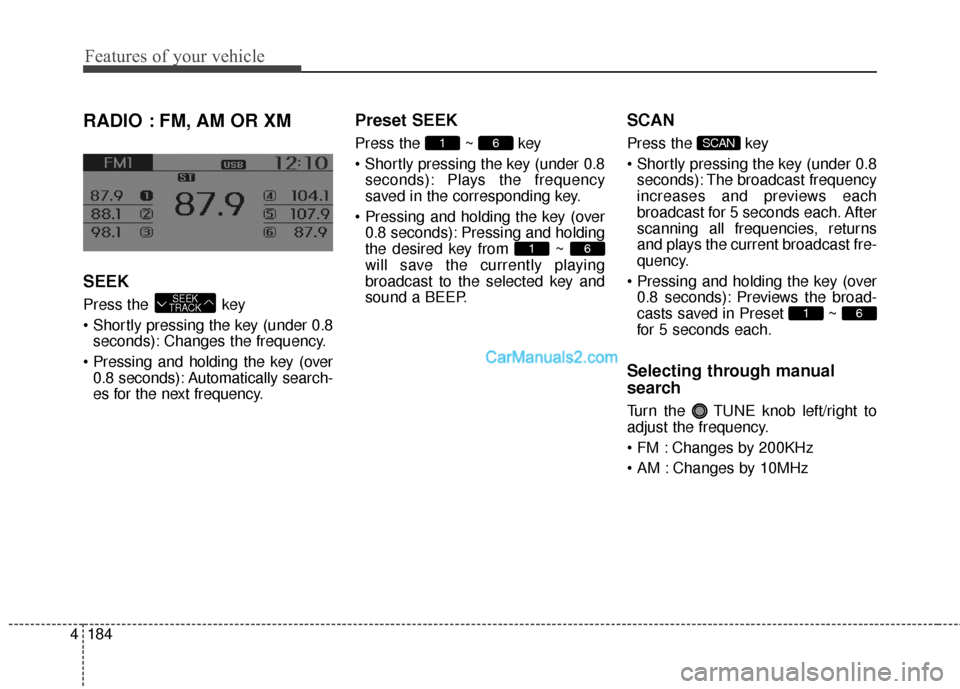
RADIO : FM, AM OR XM
SEEK
Press the key
seconds): Changes the frequency.
0.8 seconds): Automatically search-
es for the next frequency.
Preset SEEK
Press the ~ key
seconds): Plays the frequency
saved in the corresponding key.
0.8 seconds): Pressing and holding
the desired key from ~
will save the currently playing
broadcast to the selected key and
sound a BEEP.
SCAN
Press the key
seconds): The broadcast frequency
increases and previews each
broadcast for 5 seconds each. After
scanning all frequencies, returns
and plays the current broadcast fre-
quency.
0.8 seconds): Previews the broad-
casts saved in Preset ~
for 5 seconds each.
Selecting through manual
search
Turn the TUNE knob left/right to
adjust the frequency.
Changes by 200KHz
Changes by 10MHz
61
SCAN
61
61
SEEK
TRACK
Page 284 of 759
4187
Features of your vehicle
Preset
Press the ~ key
Shortly pressing the key: Plays thefrequency saved in the correspon-
ding key.
Pressing and holding the key (over 0.8 seconds): Pressing and holding
the desired key from ~
will save the current broadcast to
the selected key and sound a
BEEP.
Tune
Rotate TUNE knob : Changesthe channel number or scrolls cate-
gory list.
Press TUNE knob : Selects the menu.
Menu
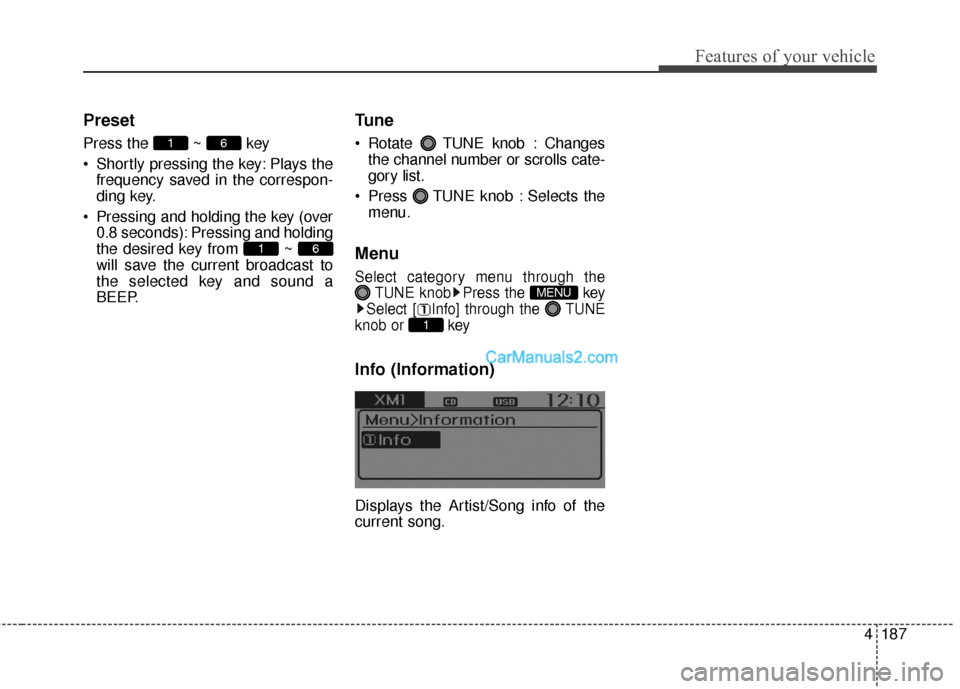
Select category menu through the TUNE knob Press the key
Select [ Info] through the TUNE
knob or key
Info (Information)
Displays the Artist/Song info of the
current song.
1
MENU
61
61
Page 297 of 759
Features of your vehicle
200
4
(Continued)
• Bluetooth related operations are
possible only with devices that
support Handsfree or audio fea-
tures, such as a Bluetooth
®
Wireless Technology mobile phone
or a Bluetooth audio device.
• If a connected Bluetooth
®Wireless
Technology device becomes dis-
connected due to being out of com-
munication range, turning the
device OFF, or a Bluetooth
®
Wireless Technology communica-
tion error, corresponding
Bluetooth
®Wireless Technology
devices are automatically searched
and reconnected.
• If the system becomes unstable due to communication errors
between the car Handsfree and the
Bluetooth
®Wireless Technology
device, reset the device by turning
off and back on again. Upon reset-
ting Bluetooth
®Wireless
Technology device, the system will
be restored. (Continued)(Continued)
• After pairing is complete, a con-
tacts download request is sent
once to the mobile phone. Some
mobile phones may require confir-
mation upon receiving a download
request, ensure your mobile phone
accepts the connection. Refer to
your phones user’s manual for
additional information regarding
phone pairing and connections.
Connecting a Device
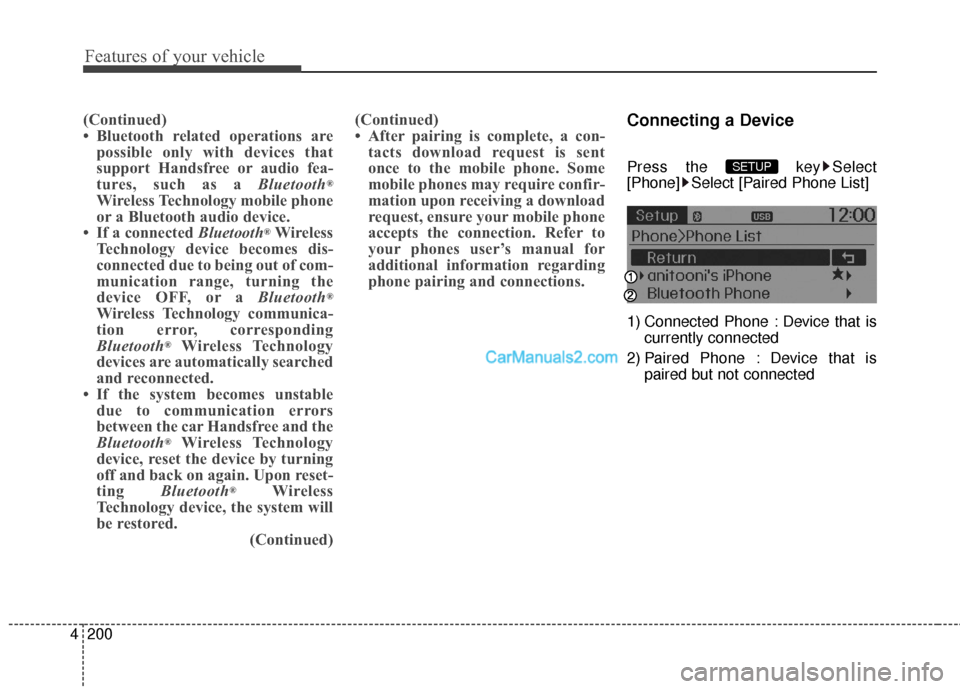
Press the key Select
[Phone] Select [Paired Phone List]
1) Connected Phone : Device that is
currently connected
2) Paired Phone : Device that is paired but not connectedSETUP
Page 311 of 759
Features of your vehicle
214
4
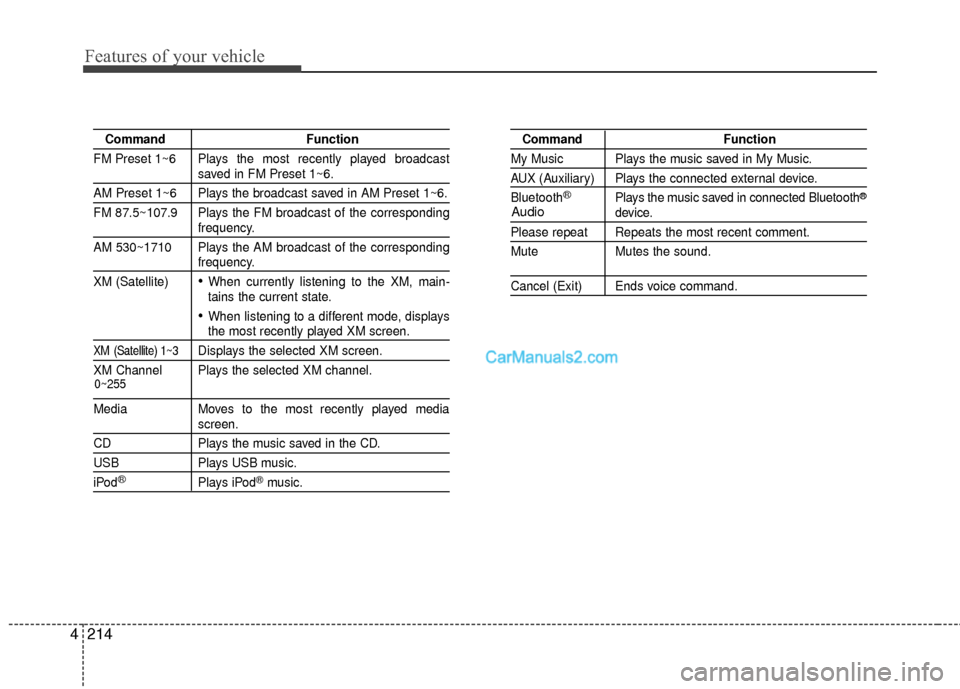
Command Function
FM Preset 1~6 Plays the most recently played broadcast
saved in FM Preset 1~6.
AM Preset 1~6 Plays the broadcast saved in AM Preset 1~6.
FM 87.5~107.9 Plays the FM broadcast of the corresponding
frequency.
AM 530~1710 Plays the AM broadcast of the corresponding
frequency.
XM (Satellite)
When currently listening to the XM, main-
tains the current state.
When listening to a different mode, displaysthe most recently played XM screen.
XM (Satellite) 1~3Displays the selected XM screen.
XM Channel Plays the selected XM channel.
Media Moves to the most recently played mediascreen.
CD Plays the music saved in the CD.
USBPlays USB music.
iPod®Plays iPod®music.
Command Function
My Music Plays the music saved in My Music.
AUX (Auxiliary) Plays the connected external device.
Bluetooth
®Plays the music saved in connected Bluetooth®
device.
Please repeat Repeats the most recent comment.
Mute Mutes the sound.
Cancel (Exit) Ends voice command.
0~255
Audio
Page 312 of 759
4215
Features of your vehicle
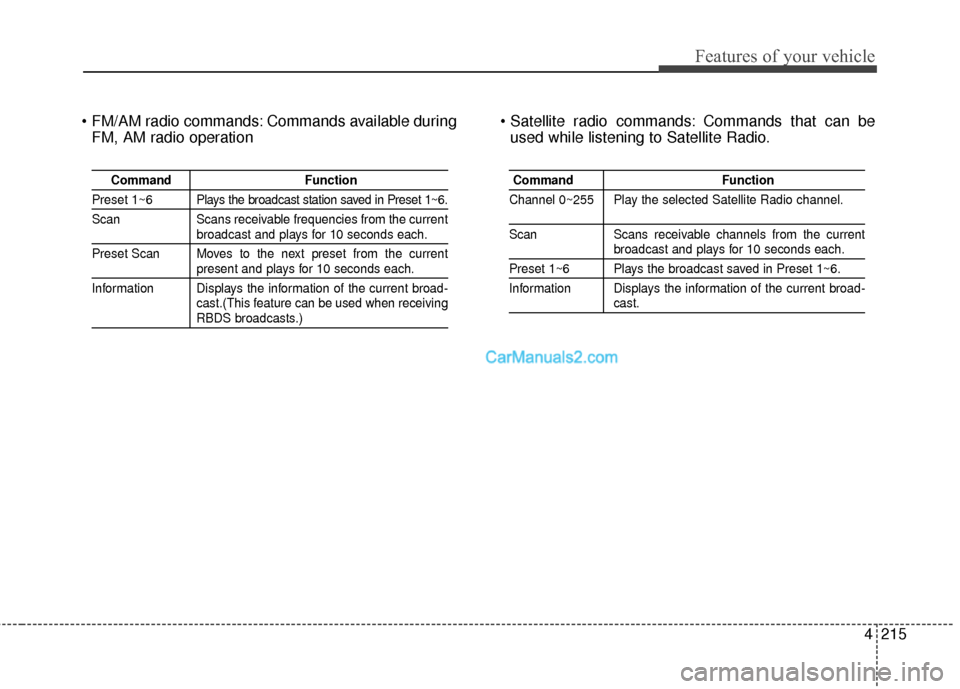
Commands available duringFM, AM radio operation Commands that can be
used while listening to Satellite Radio.
Command Function
Preset 1~6 Plays the broadcast station saved in Preset 1~6.
Scan Scans receivable frequencies from the current
broadcast and plays for 10 seconds each.
Preset Scan Moves to the next preset from the current
present and plays for 10 seconds each.
Information Displays the information of the current broad- cast.(This feature can be used when receiving
RBDS broadcasts.)
Command Function
Channel 0~255 Play the selected Satellite Radio channel.
Scan Scans receivable channels from the currentbroadcast and plays for 10 seconds each.
Preset 1~6 Plays the broadcast saved in Preset 1~6.
Information Displays the information of the current broad-
cast.