bluetooth Hyundai Santa Fe 2016 Owner's Guide
[x] Cancel search | Manufacturer: HYUNDAI, Model Year: 2016, Model line: Santa Fe, Model: Hyundai Santa Fe 2016Pages: 759, PDF Size: 29.36 MB
Page 311 of 759
Features of your vehicle
214
4
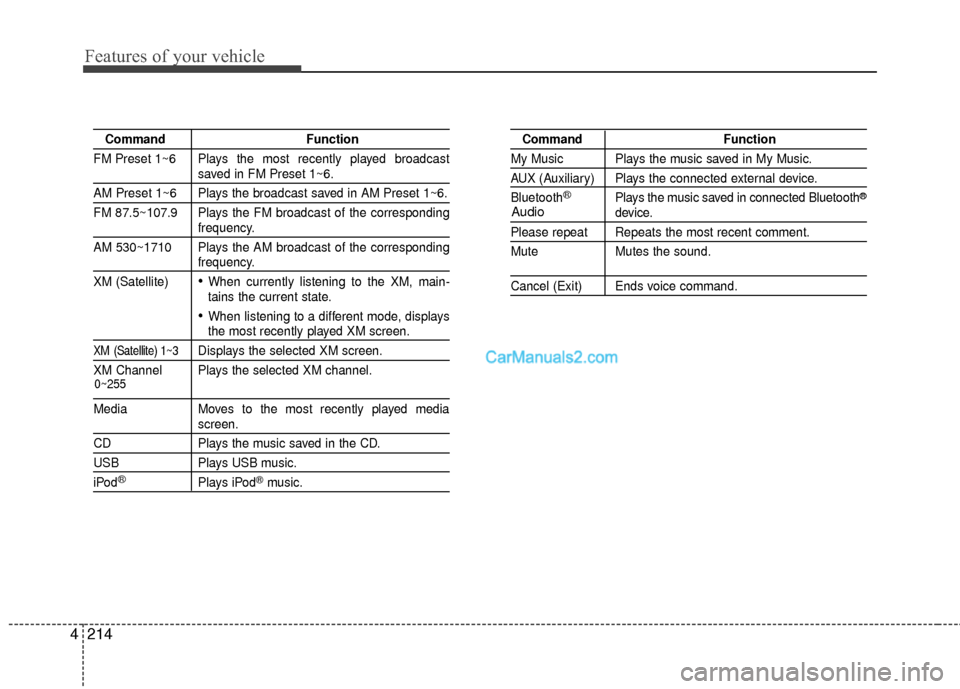
Command Function
FM Preset 1~6 Plays the most recently played broadcast
saved in FM Preset 1~6.
AM Preset 1~6 Plays the broadcast saved in AM Preset 1~6.
FM 87.5~107.9 Plays the FM broadcast of the corresponding
frequency.
AM 530~1710 Plays the AM broadcast of the corresponding
frequency.
XM (Satellite)
When currently listening to the XM, main-
tains the current state.
When listening to a different mode, displaysthe most recently played XM screen.
XM (Satellite) 1~3Displays the selected XM screen.
XM Channel Plays the selected XM channel.
Media Moves to the most recently played mediascreen.
CD Plays the music saved in the CD.
USBPlays USB music.
iPod®Plays iPod®music.
Command Function
My Music Plays the music saved in My Music.
AUX (Auxiliary) Plays the connected external device.
Bluetooth
®Plays the music saved in connected Bluetooth®
device.
Please repeat Repeats the most recent comment.
Mute Mutes the sound.
Cancel (Exit) Ends voice command.
0~255
Audio
Page 315 of 759
Features of your vehicle
218
4
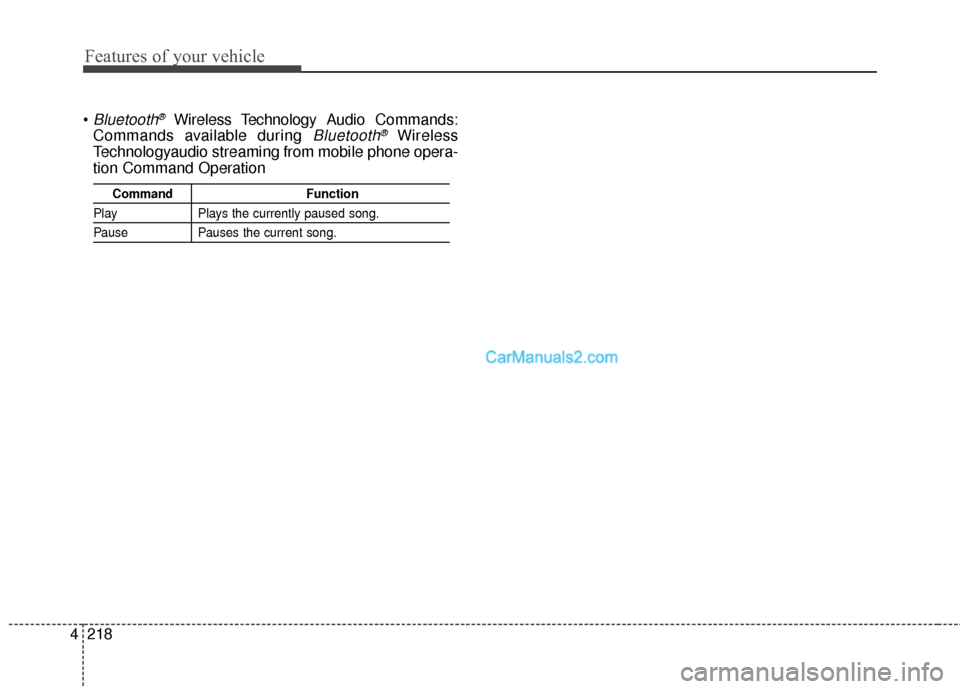
Bluetooth®Wireless Technology A udio Commands:
Commands available during
Bluetooth®Wireless
Technologyaudio streaming from mobile phone opera-
tion Command Operation
Command Function
PlayPlays the currently paused song.
PausePauses the current song.
Page 316 of 759
4219
Features of your vehicle
Blue Link®
Hyundai aims to offer differentiated
customer values through a
‘Connected Car Life,’ which provides
consumers with fast and reliable IT
technology. As consumers’ lifestyles
become more and more mobile in
thanks to remarkable advances in
smart phones, tablet PCs and overall
wireless telecommunication, new
lifestyle patterns demand seamless
connection between one’s office,
home, outdoors and automobiles.
Blue Link
®is Hyundai's innovative
telematics solution that combines
safety, service, and infotainment into
a complete package. It works to both
help simplify Hyundai owners' lives
and reduce distracted driving. The
Blue Link
®" " button offers
access to a voice-response menu of
services. The Blue Link
®button offers
access to enhanced navigation serv-
ices. The " " button offers
immediate contact to SOS
Emergency Assistance. A detailed
list of commands is available in the
Blue Link User's Manual.
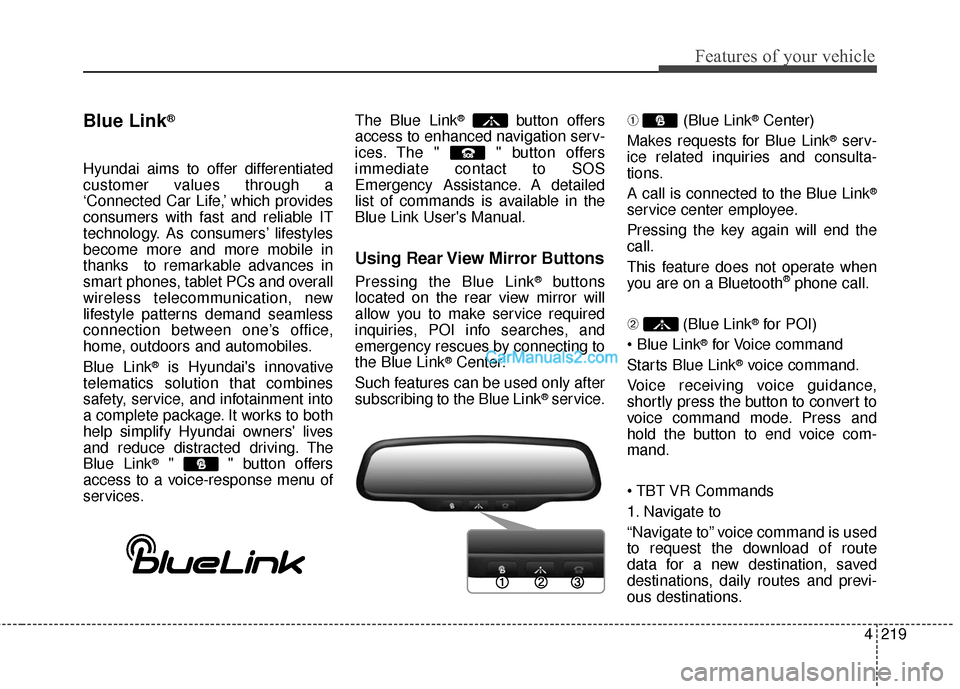
Using Rear View Mirror Buttons
Pressing the Blue Link®buttons
located on the rear view mirror will
allow you to make service required
inquiries, POI info searches, and
emergency rescues by connecting to
the Blue Link
®Center.
Such features can be used only after
subscribing to the Blue Link
®service. ➀
(Blue Link
®Center)
Makes requests for Blue Link
®serv-
ice related inquiries and consulta-
tions.
A call is connected to the Blue Link
®
service center employee.
Pressing the key again will end the
call.
This feature does not operate when
you are on a Bluetooth
®phone call.
\b (Blue Link
®for POI)
®for Voice command
Starts Blue Link
®voice command.
Voice receiving voice guidance,
shortly press the button to convert to
voice command mode. Press and
hold the button to end voice com-
mand.
1. Navigate to
“Navigate to” voice command is used
to request the download of route
data for a new destination, saved
destinations, daily routes and previ-
ous destinations.
Page 317 of 759
Features of your vehicle
220
4
2. Save Destination
“Save Destination” VR command is
used to assign a voice tag to the last
downloaded destination and store it
in a destination directory.
✽ ✽
NOTICE
The Turn by Turn(TBT) feature
supports the store of ten(10) destina-
tions in the TBT destinations direc-
tory.
3. Route Preview
“Route Preview” VR command allows
the user to preview the route instruc-
tions (upcoming maneuver instruc-
tions) at any time during the route
guidance.
4. Destinations List
“Destinations List” VR command
allows the user to preview and delete
the stored destinations with their
associated voice tags in the Turn by
Turn destinations directory. 5. Voice Guidance
“Voice Guidance” VR command
allows the user to mute/unmute the
Turn by Turn(TBT) direction
announcements.
6. Suspend Route
“Suspend Route” VR command
allows the user to suspend and
pause Turn by Turn(TBT) route guid-
ance while in the guidance mode.
7. Resume Route
“Resume Route” VR command
allows the user to resume Turn by
Turn(TBT) route guidance.
➂
(Blue Link
®for SOS)
In the case of an emergency,
requests for help to the Blue Link
®
center.
Call is connected to the Blue Link
®
emergency rescue center. Pressing
the key again will end the call.
If you are already on a Bluetooth
®
phone call, the call will end to connect
you to the Blue Link®Emergency
Rescue Center.
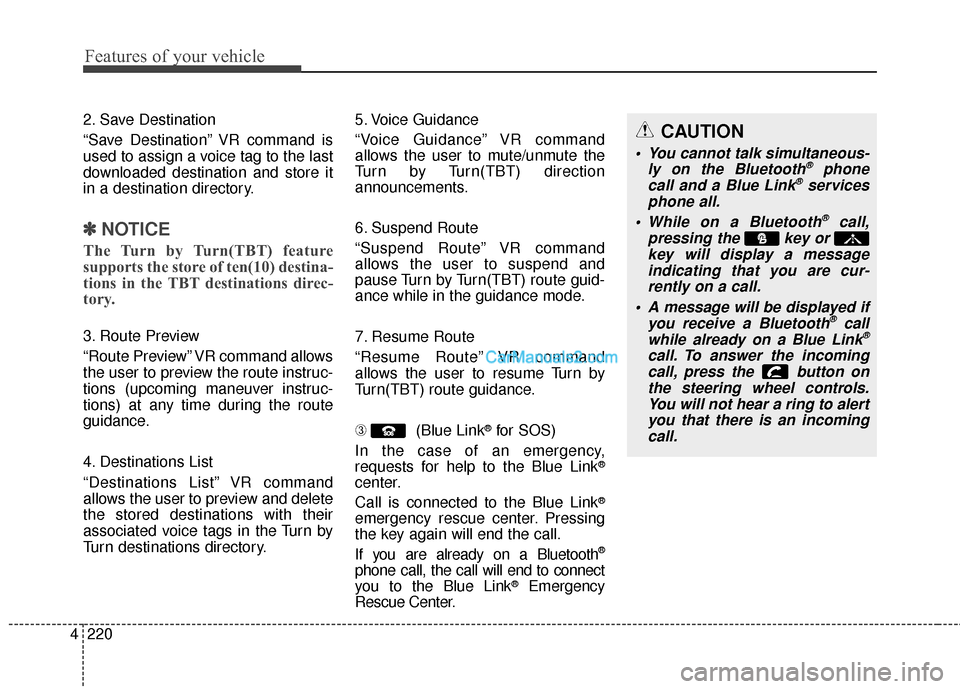
CAUTION
You cannot talk simultaneous-
ly on the Bluetooth®phone
call and a Blue Link®services
phone all.
While on a Bluetooth
®call,
pressing the key or key will display a messageindicating that you are cur-rently on a call.
A message will be displayed if you receive a Bluetooth
®call
while already on a Blue Link®
call. To answer the incoming call, press the button onthe steering wheel controls.You will not hear a ring to alertyou that there is an incomingcall.
Page 321 of 759
Features of your vehicle
224
4
SYSTEM CONTROLLERS
AND FUNCTIONS
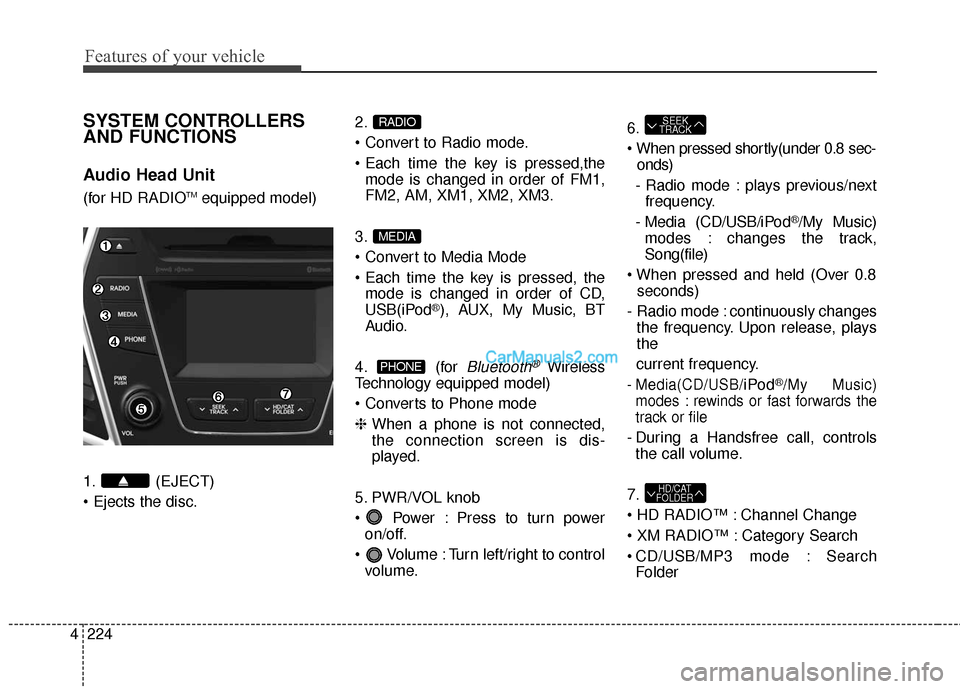
Audio Head Unit
(for HD RADIOTMequipped model)
1. (EJECT)
2.
mode is changed in order of FM1,
FM2, AM, XM1, XM2, XM3.
3.
mode is changed in order of CD,
USB(iPod
®), AUX, My Music, BT
Audio.
4. (for
Bluetooth®Wireless
Technology equipped model)
❈ When a phone is not connected,
the connection screen is dis-
played.
5. PWR/VOL knob
Power : Press to turn power on/off.
Volume : Turn left/right to control volume. 6.
onds)
- Radio mode : plays previous/next frequency.
- Media (CD/USB/iPod
®/My Music)
modes : changes the track,
Song(file)
seconds)
- Radio mode : continuously changes the frequency. Upon release, plays
the
current frequency.
- Media(CD/USB/iPod®/My Music)
modes : rewinds or fast forwards the
track or file
- During a Handsfree call, controls the call volume.
7.
Channel Change
Category Search
CD/USB/MP3 mode : Search Folder
HD/CAT
FOLDER
SEEK
TRACK
PHONE
MEDIA
RADIO
Page 324 of 759
4227
Features of your vehicle
6.
- When pressed in the phone screen,displays call history screen
- When pressed in the dial screen, makes a call
- When pressed in the incoming call screen, answers the call
- When pressed during call waiting, switches to waiting call (Call
Waiting)
onds)
- When pressed in the
Bluetooth®
Wireless Technology Handsfree
wait mode, redials the last call
- When pressed during a
Bluetooth®
Wireless Technology Handsfree
call, switches call back to mobile
phone (Private)
- When pressed while calling on the mobile phone, switches call back to
Bluetooth®Wireless Technology
Handsfree (Operates only when
Bluetooth®Wireless Technology
Handsfree is connected) 7.
Page 334 of 759
![Hyundai Santa Fe 2016 Owners Guide 4237
Features of your vehicle
MEDIA MODE
Pressing the key will change
the operating mode in order of
CD
➟USB(iPod®)➟AUX➟My Music ➟
BT Audio.
If [Mode Pop up] is turned on within[Display], th](/img/35/16331/w960_16331-333.png "Hyundai Santa Fe 2016 Owners Guide 4237
Features of your vehicle
MEDIA MODE
Pressing the key will change
the operating mode in order of
CD
➟USB(iPod®)➟AUX➟My Music ➟
BT Audio.
If [Mode Pop up] is turned on within[Display], th")
4237
Features of your vehicle
MEDIA MODE
Pressing the key will change
the operating mode in order of
CD
➟USB(iPod®)➟AUX➟My Music ➟
BT Audio.
If [Mode Pop up] is turned on within[Display], then pressing the
key will display the Media
Pop-up Mode screen.
Turn the TUNE knob to move the
focus. Press the knob to select.
✽ ✽ NOTICE
The media mode pop up screen can
be displayed only when there are
two or more media modes turned
on.
Title Icon
When a Bluetooth®Wireless
Technology, iPod®, USB, or AUX
device is connected or a CD is
inserted, the corresponding mode
icon will be displayed.
Icon Title
Bluetooth®Wireless Technology
CD
iPod®
USB
AUX
MEDIA
SETUP
MEDIA
Page 348 of 759
4251
Features of your vehicle
✽
✽NOTICE - USING THE
iPod®DEVICE
• iPod®is a registered trademark
of Apple Inc.
• In order to use the iPod
®while
operating the keys, you must use
a dedicated iPod
®cable. (the
cable that is supplied when pur-
chasing iPod
®/iPhone®prod-
ucts)
• If the iPod
®is connected to the
vehicle while it is playing, a high
pitch sound could occur for
approximately 1-2 seconds
immediately after connecting. If
possible, connect the iPod
®to
the vehicle with the iPod®
stopped/paused.
• During ACC ON state, connect- ing the iPod
®through the iPod®
cable will charge the iPod®
through the car audio system.
• When connecting with the iPod®
cable, make sure to fully insert
the jack to prevent communica-
tion interference. (Continued)(Continued)
• When the EQ features of an
external device, such as the
iPod
®, and the audio system are
both active, EQ effects could
overlap and cause sound deteri-
oration and distortion.
Whenever possible, turn off the
EQ feature within the external
device upon use by connecting
with the audio system.
• Noise may occur when an iPod
®
or AUX device is connected.
When such devices are not
being used, disconnect the
device for storage.
• When the iPod
®or AUX device
power is connected to the power
jack, playing the external device
may result in noise. In such
cases, disconnect the power con-
nection before use.
• Skipping or improper operation may occur depending on the
characteristics of your iPod
®
/iPhone®device. (Continued) (Continued)
• If your iPhone
®is connected to
both the Bluetooth®Wireless
Technology and USB, the sound
may not be properly played. In
your iPhone
®, select the Dock
connector or Bluetooth®
Wireless Technology to change
the sound output (source).
• iPod
®mode cannot be operated
when the iPod®cannot be recog-
nized due to versions that do not
support communication proto-
cols.
• For fifth generation iPod
®Nano
devices, the iPod®may not be
recognized when the battery
level is low. Please charge the
iPod
®for use.
• Search/play orders shown within the iPod
®device may differ with
the orders shown within the
audio system.
• If the iPod
®malfunctions due to
an iPod®device defect, reset the
iPod®and try again. (To learn
more, refer to your iPod®manu-
al) (Continued)
Page 358 of 759
4261
Features of your vehicle
✽
✽NOTICE - USING THE
Bluetooth®Wireless
Technology Audio Mode
• Bluetooth®Wireless Technology
Audio Mode can be used only
when a Bluetooth
®Wireless
Technology phone has been con-
nected.
• Bluetooth
®Wireless Technology
Audio Mode will not be available
when connecting mobile phones
that do not support this feature.
• While Bluetooth
®Wireless
Technology Audio is playing, if the
Bluetooth
®Wireless Technology
phone is connected, then the music
will also stop.
• Moving the Track up/down while playing Bluetooth
®Wireless
Technology audio mode may
result in pop noises in some mobile
phones.
• Bluetooth
®Wireless Technology
streaming audio may not be sup-
ported in some mobile phones. (Continued)(Continued)
• When returning to Bluetooth
®
Wireless Technology Audio mode
after ending a call, the mode may
not automatically restart in some
mobile phones.
• Receiving an incoming call or mak- ing an outgoing call while playing
Bluetooth
®Wireless Technology
Audio may result in audio interfer-
ence.
Page 359 of 759
Features of your vehicle
262
4
Bluetooth®Wireless
Technology A UDIO MODE
Using Bluetooth®Wireless
Technology Audio Mode
Playing/Pausing Bluetooth®
Wireless TechnologyAudio
Once a Bluetooth®Wireless
Technology device is connected, the
mode will automatically start.
While playing, press the button
to pause and press button to
play.
✽ ✽ NOTICE
The play/pause feature may operate
differently depending on the mobile
phone.
Changing Files
Press the key to move to
the previous or next file.
Setting Connection
If a Bluetooth®Wireless Technology
device has not been connected, press
the key [Phone] button to
display the
Bluetooth®Wireless
Technology connection screen.
It is possible to use the pair phone,
connect/disconnect and delete fea-
tures from your
Bluetooth®Wireless
Technology phone.
SETUP
SEEK
TRACK