bluetooth Hyundai Santa Fe 2016 Repair Manual
[x] Cancel search | Manufacturer: HYUNDAI, Model Year: 2016, Model line: Santa Fe, Model: Hyundai Santa Fe 2016Pages: 759, PDF Size: 29.36 MB
Page 435 of 759
![Hyundai Santa Fe 2016 Repair Manual Features of your vehicle
338
4
Contacts
Press the key Select
[Contacts]
The list of saved phone book entries
is displayed.
✽ ✽
NOTICE
Find a contact in an alphabetical
order, press the key.
✽](/img/35/16331/w960_16331-434.png "Hyundai Santa Fe 2016 Repair Manual Features of your vehicle
338
4
Contacts
Press the key Select
[Contacts]
The list of saved phone book entries
is displayed.
✽ ✽
NOTICE
Find a contact in an alphabetical
order, press the key.
✽")
Features of your vehicle
338
4
Contacts
Press the key Select
[Contacts]
The list of saved phone book entries
is displayed.
✽ ✽
NOTICE
Find a contact in an alphabetical
order, press the key.
✽ ✽NOTICE
• Up to 1,000 contacts saved in your
Bluetooth®Wireless Technology
phone can be downloaded into the
car contacts. Contacts that have
been downloaded to the car cannot
be edited or deleted on the phone.
• Mobile phone contacts are man- aged separately for each paired
Bluetooth
®Wireless Technology
device (max 5 devices x 1,000 con-
tacts each). Previously down-
loaded data is maintained even if
the Bluetooth
®Wireless
Technology device has been dis-
connected. (However, the contacts
and call history saved to the phone
will be deleted if a paired phone is
deleted.)
• It is possible to download contacts during Bluetooth streaming audio.
• When downloading contacts, the icon will be displayed within the
status bar. (Continued)(Continued)
• It is not possible to begin down-
loading a contact list when the
contact download feature has been
turned off within the Bluetooth
®
Wireless Technology device. In
addition, some devices may
require device authorization upon
attempting to download contacts.
If downloading does not normally
occur, check the Bluetooth
®
Wireless Technology device set-
tings or the screen state.
• The contacts download feature may not be supported in some
mobile phones. For more informa-
tion of supported Bluetooth
®
devices and function support,
refer to your phone’s user manual.
MENU
PHONE
Page 436 of 759
![Hyundai Santa Fe 2016 Repair Manual 4339
Features of your vehicle
Bluetooth®Wireless
Technology Setting
Pairing a New Device
Press the key Select
[Phone] Select [Pair Phone]
Bluetooth®Wireless Technology
devices can be paired with th](/img/35/16331/w960_16331-435.png "Hyundai Santa Fe 2016 Repair Manual 4339
Features of your vehicle
Bluetooth®Wireless
Technology Setting
Pairing a New Device
Press the key Select
[Phone] Select [Pair Phone]
Bluetooth®Wireless Technology
devices can be paired with th")
4339
Features of your vehicle
Bluetooth®Wireless
Technology Setting
Pairing a New Device
Press the key Select
[Phone] Select [Pair Phone]
Bluetooth®Wireless Technology
devices can be paired with the audio
system.
For more information, refer to the
“Pairing through Phone Setup” sec-
tion within
Bluetooth®Wireless
Technology.
Viewing Paired Phone List
Press the key Select
[Phone] Select [Paired Phone List]
This feature is used to view mobile
phones that have been paired with
the audio system. Upon selecting a
paired phone, the setup menu is dis-
played.
For more information, refer to the
“Setting
Bluetooth®Wireless
Technology Connection” section with-
in
Bluetooth®Wireless Technology. 1) Connect/Disconnect Phone :
Connect/ disconnects currently
selected phone
2) Change Priority : Sets currently selected phone to highest connec-
tion priority
3) Delete : Deletes the currently selected phone
4) Return : Moves to the previous screen
SETUPCLOCK
SETUPCLOCK
Page 438 of 759
![Hyundai Santa Fe 2016 Repair Manual 4341
Features of your vehicle
Turning Bluetooth System Off
Press the key Select
[Phone] Select [Bluetooth System
Off]
Once
Bluetooth®Wireless Technology
is turned off,
Bluetooth®Wireless
Technolo](/img/35/16331/w960_16331-437.png "Hyundai Santa Fe 2016 Repair Manual 4341
Features of your vehicle
Turning Bluetooth System Off
Press the key Select
[Phone] Select [Bluetooth System
Off]
Once
Bluetooth®Wireless Technology
is turned off,
Bluetooth®Wireless
Technolo")
4341
Features of your vehicle
Turning Bluetooth System Off
Press the key Select
[Phone] Select [Bluetooth System
Off]
Once
Bluetooth®Wireless Technology
is turned off,
Bluetooth®Wireless
Technology related features will not be
supported within the audio system.
✽ ✽ NOTICE
To turn Bluetooth®Wireless
Technology back on, go to
[Phone] and select "Yes".SETUPCLOCK
SETUPCLOCK
Page 442 of 759
4345
Features of your vehicle
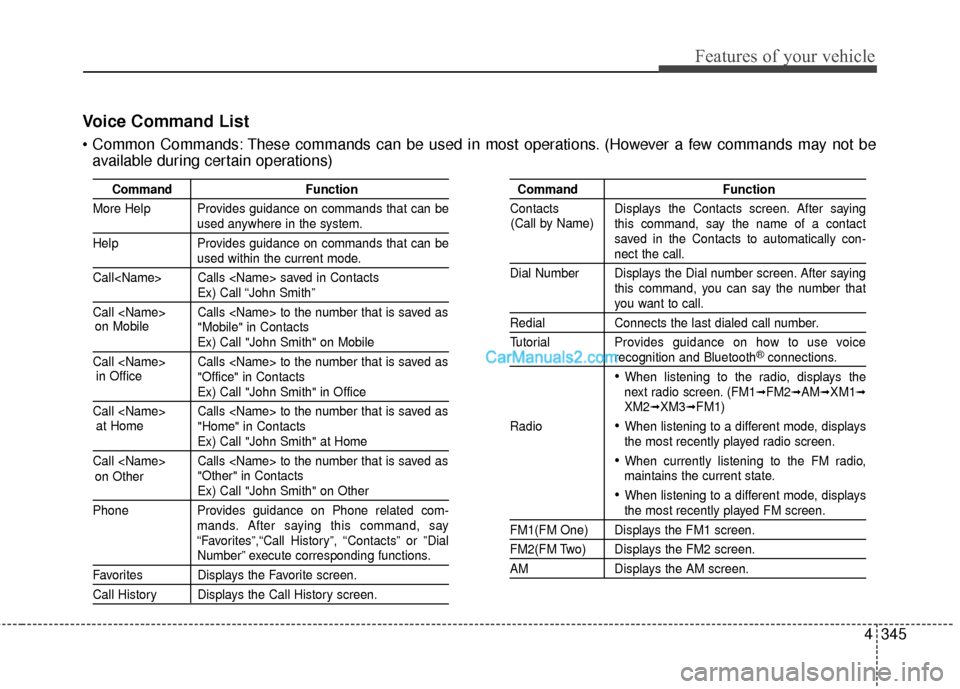
Voice Command List
These commands can be used in most operations. (However a few commands may not beavailable during certain operations)
Command Function
More Help Provides guidance on commands that can be
used anywhere in the system.
Help Provides guidance on commands that can be
used within the current mode.
Call
Ex) Call “John Smith”
Call
Ex) Call "John Smith" on Mobile
Call
Ex) Call "John Smith" in Office
Call
Ex) Call "John Smith" at Home
Call
Ex) Call "John Smith" on Other
Phone Provides guidance on Phone related com- mands. After saying this command, say
“Favorites”,“Call History”, “Contacts” or ”Dial
Number” execute corresponding functions.
Favorites Displays the Favorite screen.
Call History Displays the Call History screen.
Command Function
Contacts Displays the Contacts screen. After saying this command, say the name of a contact
saved in the Contacts to automatically con-
nect the call.
Dial Number Displays the Dial number screen. After saying this command, you can say the number that
you want to call.
RedialConnects the last dialed call number.
Tutorial Provides guidance on how to use voice
recognition and Bluetooth®connections.
When listening to the radio, displays the
next radio screen. (FM1➟FM2➟AM➟XM1➟XM2➟XM3➟FM1)
Radio
When listening to a different mode, displays
the most recently played radio screen.
When currently listening to the FM radio,
maintains the current state.
When listening to a different mode, displaysthe most recently played FM screen.
FM1(FM One) Displays the FM1 screen.
FM2(FM Two) Displays the FM2 screen.
AM Displays the AM screen.
(Call by Name)
on Mobile
in Officeat Home
on Other
Page 443 of 759
Features of your vehicle
346
4
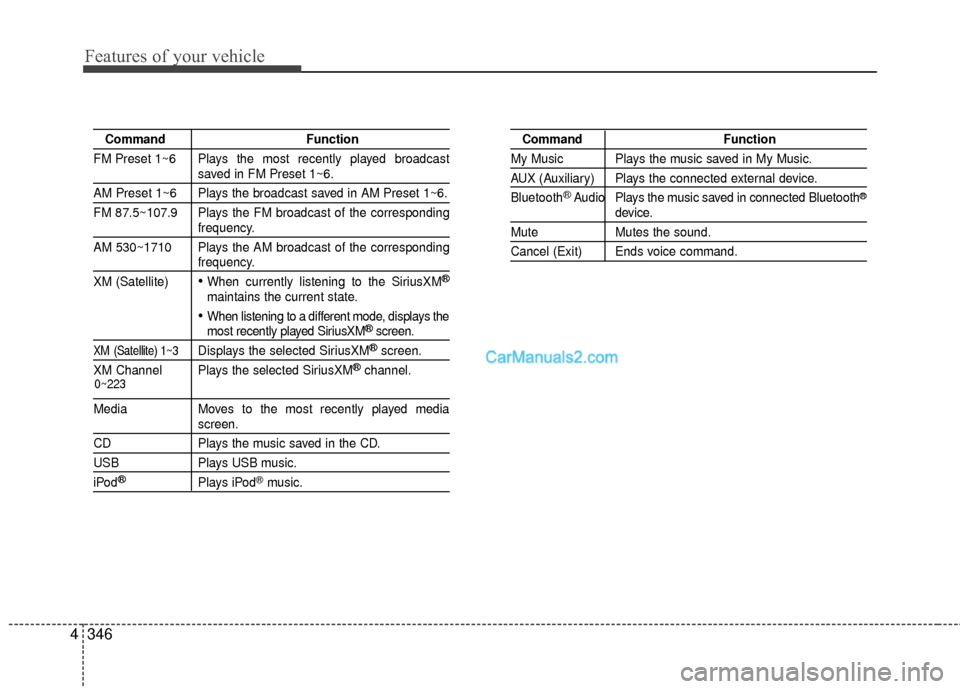
Command Function
FM Preset 1~6 Plays the most recently played broadcast
saved in FM Preset 1~6.
AM Preset 1~6 Plays the broadcast saved in AM Preset 1~6.
FM 87.5~107.9 Plays the FM broadcast of the corresponding
frequency.
AM 530~1710 Plays the AM broadcast of the corresponding
frequency.
XM (Satellite)
When currently listening to the SiriusXM®
maintains the current state.
When listening to a different mode, displays themost recently played SiriusXM®screen.
XM (Satellite) 1~3Displays the selected SiriusXM®screen.
XM Channel Plays the selected SiriusXM
®channel.
Media Moves to the most recently played mediascreen.
CD Plays the music saved in the CD.
USBPlays USB music.
iPod®Plays iPod®music.
Command Function
My Music Plays the music saved in My Music.
AUX (Auxiliary) Plays the connected external device.
Bluetooth
®Audio Plays the music saved in connected Bluetooth®
device.
Mute Mutes the sound.
Cancel (Exit) Ends voice command.
0~223
Page 447 of 759
Features of your vehicle
350
4
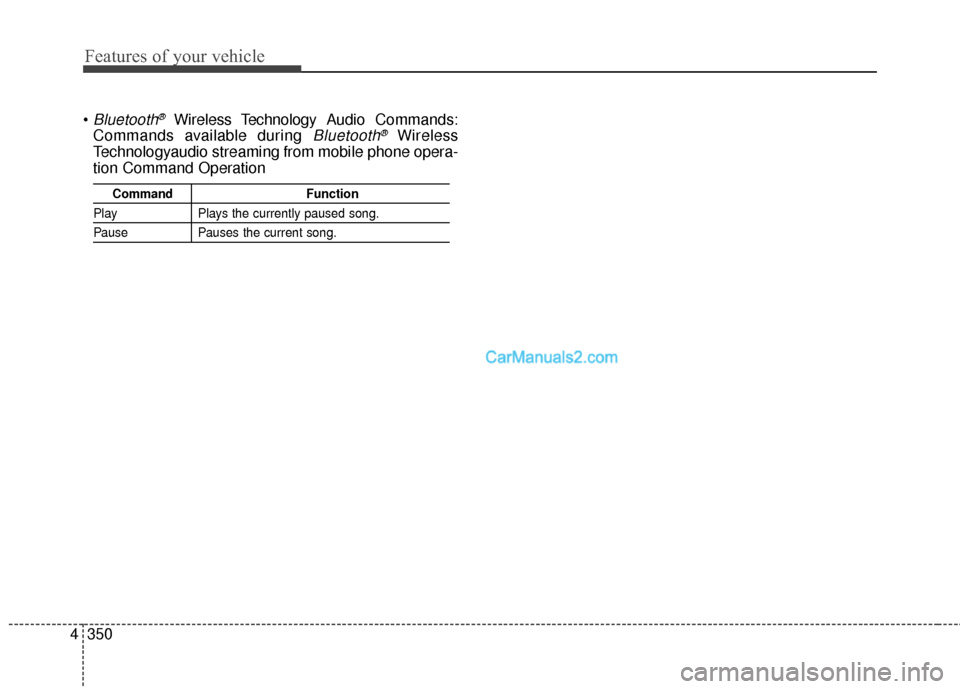
Bluetooth®Wireless Technology A udio Commands:
Commands available during
Bluetooth®Wireless
Technologyaudio streaming from mobile phone opera-
tion Command Operation
Command Function
PlayPlays the currently paused song.
PausePauses the current song.
Page 448 of 759
4351
Features of your vehicle
Blue Link®
Hyundai aims to offer differentiated
customer values through a
‘Connected Car Life,’ which provides
consumers with fast and reliable IT
technology. As consumers’ lifestyles
become more and more mobile in
thanks to remarkable advances in
smart phones, tablet PCs and overall
wireless telecommunication, new
lifestyle patterns demand seamless
connection between one’s office,
home, outdoors and automobiles.
Blue Link
®is Hyundai's innovative
telematics solution that combines
safety, service, and infotainment into
a complete package. It works to both
help simplify Hyundai owners' lives
and reduce distracted driving. The
Blue Link
®" " button offers
access to a voice-response menu of
services. The Blue Link
®button offers
access to enhanced navigation serv-
ices. The " " button offers
immediate contact to SOS
Emergency Assistance. A detailed
list of commands is available in the
Blue Link User's Manual.
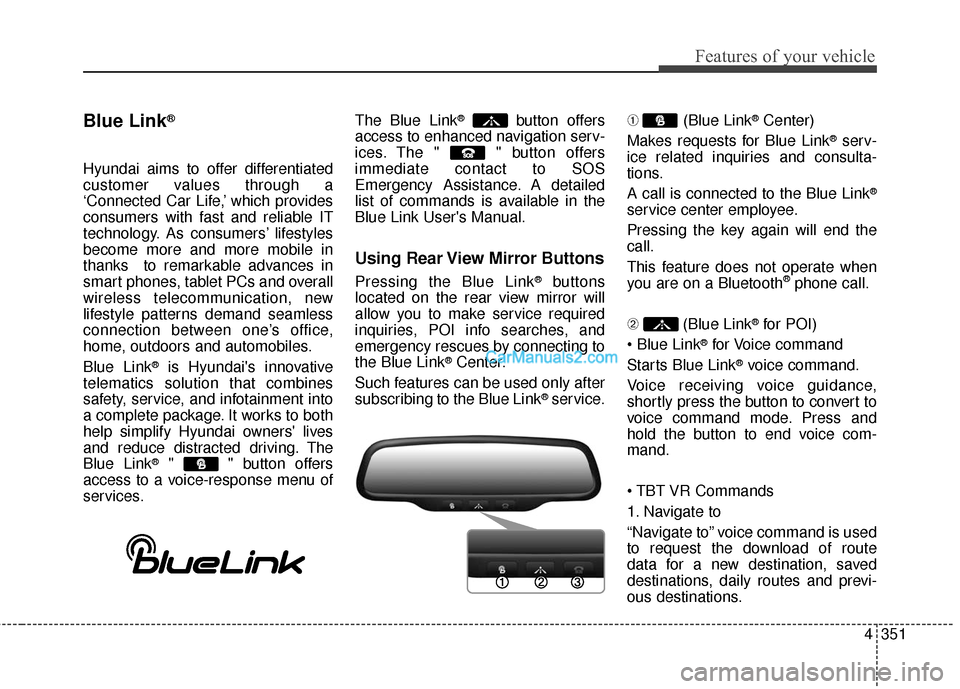
Using Rear View Mirror Buttons
Pressing the Blue Link®buttons
located on the rear view mirror will
allow you to make service required
inquiries, POI info searches, and
emergency rescues by connecting to
the Blue Link
®Center.
Such features can be used only after
subscribing to the Blue Link
®service. ➀
(Blue Link
®Center)
Makes requests for Blue Link
®serv-
ice related inquiries and consulta-
tions.
A call is connected to the Blue Link
®
service center employee.
Pressing the key again will end the
call.
This feature does not operate when
you are on a Bluetooth
®phone call.
\b (Blue Link
®for POI)
®for Voice command
Starts Blue Link
®voice command.
Voice receiving voice guidance,
shortly press the button to convert to
voice command mode. Press and
hold the button to end voice com-
mand.
1. Navigate to
“Navigate to” voice command is used
to request the download of route
data for a new destination, saved
destinations, daily routes and previ-
ous destinations.
Page 449 of 759
Features of your vehicle
352
4
2. Save Destination
“Save Destination” VR command is
used to assign a voice tag to the last
downloaded destination and store it
in a destination directory.
✽ ✽
NOTICE
The Turn by Turn(TBT) feature
supports the store of ten(10) destina-
tions in the TBT destinations direc-
tory.
3. Route Preview
“Route Preview” VR command allows
the user to preview the route instruc-
tions (upcoming maneuver instruc-
tions) at any time during the route
guidance.
4. Destinations List
“Destinations List” VR command
allows the user to preview and delete
the stored destinations with their
associated voice tags in the Turn by
Turn destinations directory. 5. Voice Guidance
“Voice Guidance” VR command
allows the user to mute/unmute the
Turn by Turn(TBT) direction
announcements.
6. Suspend Route
“Suspend Route” VR command
allows the user to suspend and
pause Turn by Turn(TBT) route guid-
ance while in the guidance mode.
7. Resume Route
“Resume Route” VR command
allows the user to resume Turn by
Turn(TBT) route guidance.
➂
(Blue Link
®for SOS)
In the case of an emergency,
requests for help to the Blue Link
®
center.
Call is connected to the Blue Link
®
emergency rescue center. Pressing
the key again will end the call.
If you are already on a Bluetooth
®
phone call, the call will end to connect
you to the Blue Link®Emergency
Rescue Center.
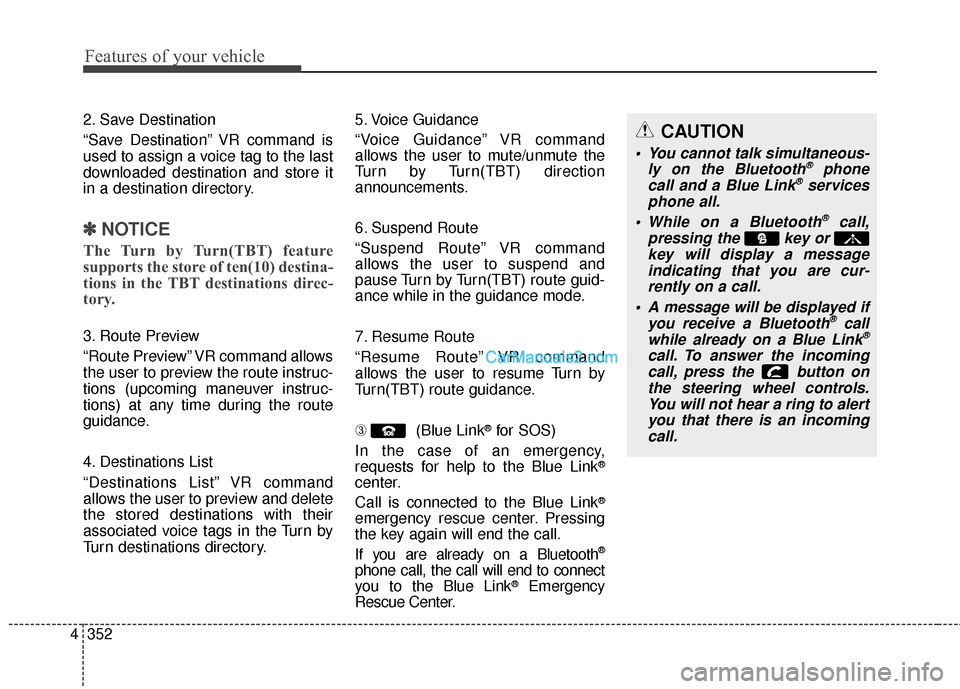
CAUTION
You cannot talk simultaneous-
ly on the Bluetooth®phone
call and a Blue Link®services
phone all.
While on a Bluetooth
®call,
pressing the key or key will display a messageindicating that you are cur-rently on a call.
A message will be displayed if you receive a Bluetooth
®call
while already on a Blue Link®
call. To answer the incoming call, press the button onthe steering wheel controls.You will not hear a ring to alertyou that there is an incomingcall.
Page 451 of 759
Features of your vehicle
354
4
iPod®is a registered trademark of Apple Inc. iPod®
mobile digital device sold separately. The Bluetooth®
word mark and logos are registered trademarks
owned by Bluetooth SIG, Inc. and any use of such
marks by Hyundai is under license. SiriusXM servic-
es require a subscription sold separately, or as a
package, by Sirius XM Radio Inc. If you decide to con-
tinue service after your trial, the subscription plan
you choose will automatically renew thereafter and
you will be charged according to your chosen pay-
ment method at then-current rates. Fees and taxes
apply. To cancel you must call SiriusXM at 1-866-635-
2349. See SiriusXM Customer Agreement for com-
plete terms at www.siriusxm.com. SiriusXM U.S.
satellite and data services are available only in the 48
contiguous USA, DC and PR (with coverage limita-
tions). SiriusXM satellite service is also available in
Canada; see www.siriusxm.ca. All fees and program-
ming subject to change. Sirius, XM and all related
marks and logos are trademarks of Sirius XM Radio
Inc. Android™ is a trademark of Google, Inc.
BlackBerry is a registered trademark of Research In
Motion Limited (RIM). All other marks, channel
names and logos are the property of their respective
owners. All rights reserved.
Page 453 of 759
Features of your vehicle
356
4
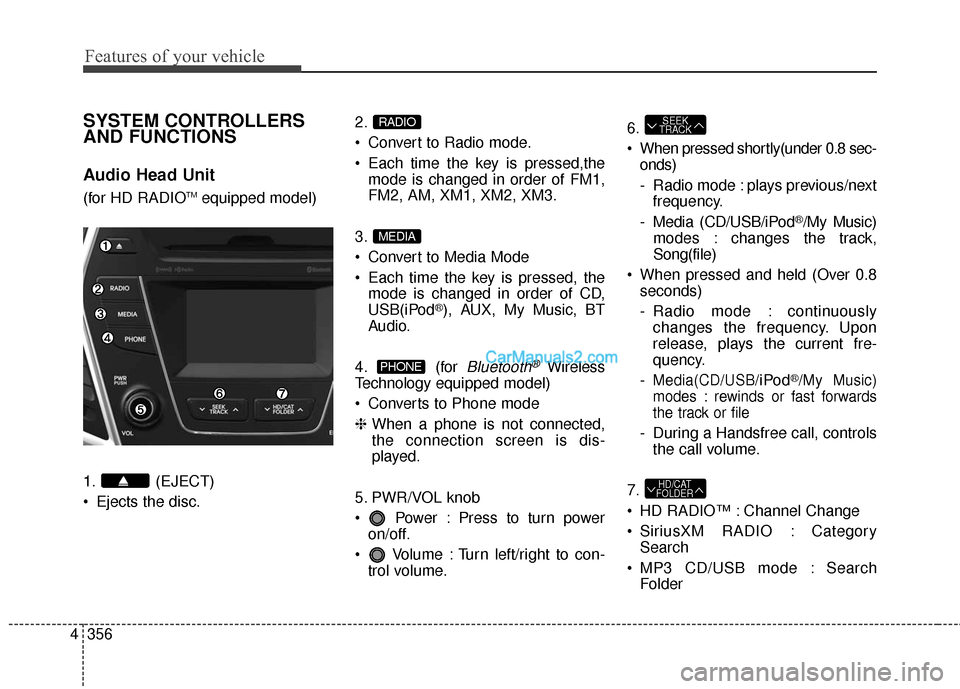
SYSTEM CONTROLLERS
AND FUNCTIONS
Audio Head Unit
(for HD RADIOTMequipped model)
1. (EJECT)
Ejects the disc. 2.
Convert to Radio mode.
Each time the key is pressed,the
mode is changed in order of FM1,
FM2, AM, XM1, XM2, XM3.
3.
Convert to Media Mode
Each time the key is pressed, the mode is changed in order of CD,
USB(iPod
®), AUX, My Music, BT
Audio.
4. (for
Bluetooth®Wireless
Technology equipped model)
Converts to Phone mode
❈ When a phone is not connected,
the connection screen is dis-
played.
5. PWR/VOL knob
Power : Press to turn power on/off.
Volume : Turn left/right to con- trol volume. 6.
When pressed shortly(under 0.8 sec-
onds)
- Radio mode : plays previous/nextfrequency.
- Media (CD/USB/iPod
®/My Music)
modes : changes the track,
Song(file)
When pressed and held (Over 0.8 seconds)
- Radio mode : continuouslychanges the frequency. Upon
release, plays the current fre-
quency.
-
Media(CD/USB/iPod®/My Music)
modes : rewinds or fast forwards
the track or file
- During a Handsfree call, controls the call volume.
7.
HD RADIO™ : Channel Change
SiriusXM RADIO : Category Search
MP3 CD/USB mode : Search Folder
HD/CAT
FOLDER
SEEK
TRACK
PHONE
MEDIA
RADIO