ad blue Hyundai Santa Fe 2016 Workshop Manual
[x] Cancel search | Manufacturer: HYUNDAI, Model Year: 2016, Model line: Santa Fe, Model: Hyundai Santa Fe 2016Pages: 759, PDF Size: 29.36 MB
Page 384 of 759
![Hyundai Santa Fe 2016 Workshop Manual 4287
Features of your vehicle
Touch Screen Beep
Press the key Select
[Sound] Select [Touch Screen
Beep]
This feature is used to turn the touch
screen beep on/off.
Blue Link Voice Volume
Press the k](/img/35/16331/w960_16331-383.png "Hyundai Santa Fe 2016 Workshop Manual 4287
Features of your vehicle
Touch Screen Beep
Press the key Select
[Sound] Select [Touch Screen
Beep]
This feature is used to turn the touch
screen beep on/off.
Blue Link Voice Volume
Press the k")
4287
Features of your vehicle
Touch Screen Beep
Press the key Select
[Sound] Select [Touch Screen
Beep]
This feature is used to turn the touch
screen beep on/off.
Blue Link Voice Volume
Press the key Select
[Sound] Select [Blue Link Voice
Vol.]
Turn the TUNE knob to adjust the
Blue Link Voice Volume.
❈Blue Link
®may differ depending
on the selected audio.
Clock/Calendar Setting
Clock Setting
Press the key Select
[Clock/Calendar] Select [Clock
Settings]
Use the , buttons to set the
Hour, Minutes setting and select
AM/PM.
✽ ✽ NOTICE
Press and hold the key (over
0.8 seconds) to set the
Clock/Calendar screen.CLOCK
SETUP
SETUP SETUP
Page 388 of 759
4291
Features of your vehicle
Blue Link®
Hyundai aims to offer differentiated
customer values through a
‘Connected Car Life,’ which provides
consumers with fast and reliable IT
technology. As consumers’ lifestyles
become more and more mobile in
thanks to remarkable advances in
smart phones, tablet PCs and overall
wireless telecommunication, new
lifestyle patterns demand seamless
connection between one’s office,
home, outdoors and automobiles.
Blue Link
®is Hyundai's innovative
telematics solution that combines
safety, service, and infotainment into
a complete package. It works to both
help simplify Hyundai owners' lives
and reduce distracted driving. The
Blue Link
®" " button offers
access to a voice-response menu of
services. The Blue Link
®button offers
access to enhanced navigation serv-
ices. The " " button offers imme-
diate contact to SOS Emergency
Assistance. A detailed list of com-
mands is available in the Blue Link
User's Manual.
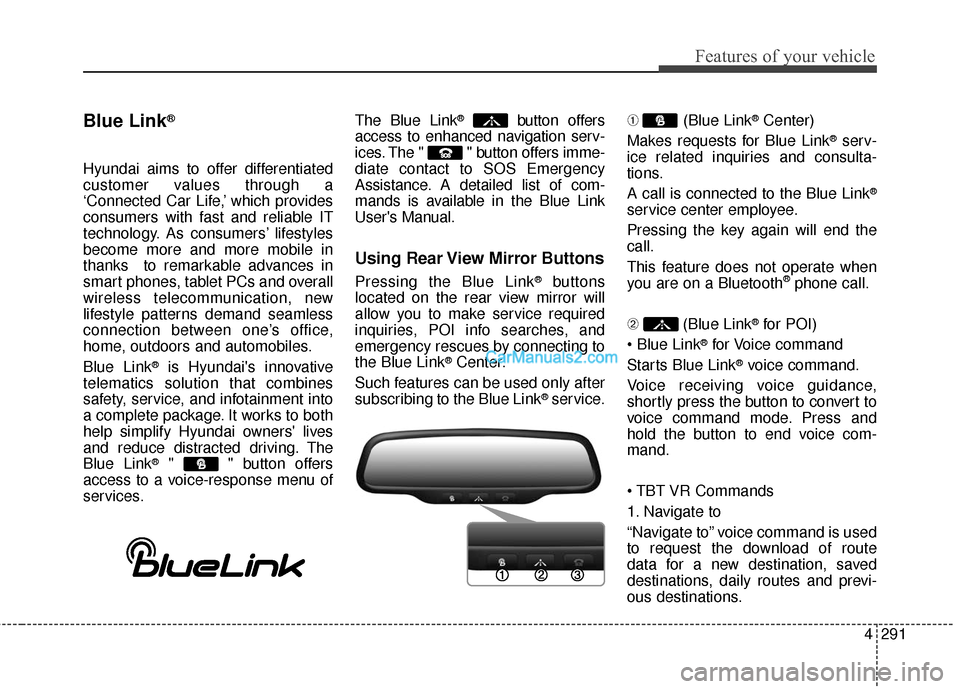
Using Rear View Mirror Buttons
Pressing the Blue Link®buttons
located on the rear view mirror will
allow you to make service required
inquiries, POI info searches, and
emergency rescues by connecting to
the Blue Link
®Center.
Such features can be used only after
subscribing to the Blue Link
®service. ➀
(Blue Link
®Center)
Makes requests for Blue Link
®serv-
ice related inquiries and consulta-
tions.
A call is connected to the Blue Link
®
service center employee.
Pressing the key again will end the
call.
This feature does not operate when
you are on a Bluetooth
®phone call.
\b (Blue Link
®for POI)
®for Voice command
Starts Blue Link
®voice command.
Voice receiving voice guidance,
shortly press the button to convert to
voice command mode. Press and
hold the button to end voice com-
mand.
1. Navigate to
“Navigate to” voice command is used
to request the download of route
data for a new destination, saved
destinations, daily routes and previ-
ous destinations.
Page 389 of 759
Features of your vehicle
292
4
2. Save Destination
“Save Destination” VR command is
used to assign a voice tag to the last
downloaded destination and store it
in a destination directory.
✽ ✽
NOTICE
The Turn by Turn(TBT) feature
supports the store of ten(10) destina-
tions in the TBT destinations direc-
tory.
3. Route Preview
“Route Preview” VR command allows
the user to preview the route instruc-
tions (upcoming maneuver instruc-
tions) at any time during the route
guidance.
4. Destinations List
“Destinations List” VR command
allows the user to preview and delete
the stored destinations with their
associated voice tags in the Turn by
Turn destinations directory. 5. Voice Guidance
“Voice Guidance” VR command
allows the user to mute/unmute the
Turn by Turn(TBT) direction
announcements.
6. Suspend Route
“Suspend Route” VR command
allows the user to suspend and
pause Turn by Turn(TBT) route guid-
ance while in the guidance mode.
7. Resume Route
“Resume Route” VR command
allows the user to resume Turn by
Turn(TBT) route guidance.
➂
(Blue Link
®for SOS)
In the case of an emergency,
requests for help to the Blue Link
®
center.
Call is connected to the Blue Link
®
emergency rescue center. Pressing
the key again will end the call.
If you are already on a Bluetooth
®
phone call, the call will end to connect
you to the Blue Link®Emergency
Rescue Center.
CAUTION
You cannot talk simultaneous-
ly on the Bluetooth®phone
call and a Blue Link®services
phone all.
While on a Bluetooth
®call,
pressing the key or key will display a messageindicating that you are cur-rently on a call.
A message will be displayed if you receive a Bluetooth
®call
while already on a Blue Link®
call. To answer the incoming call, press the button onthe steering wheel controls.You will not hear a ring to alertyou that there is an incomingcall.
Page 391 of 759
Features of your vehicle
294
4
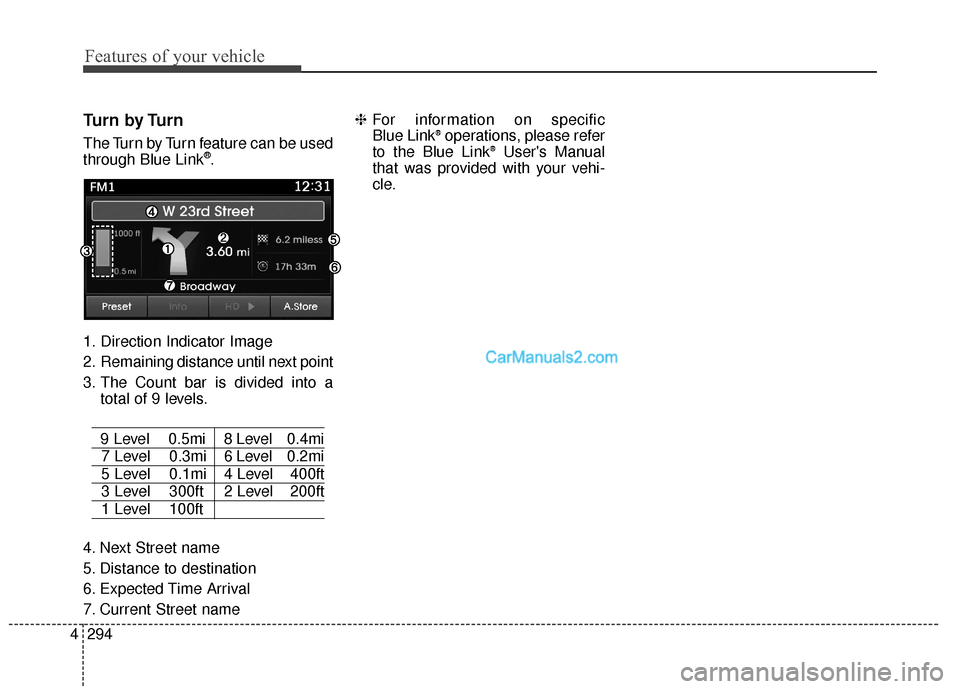
Turn by Turn
The Turn by Turn feature can be used
through Blue Link®.
1. Direction Indicator Image
2. Remaining distance until next point
3. The Count bar is divided into a total of 9 levels.
9 Level 0.5mi 8 Level 0.4mi
7 Level 0.3mi 6 Level 0.2mi
5 Level 0.1mi 4 Level 400ft
3 Level 300ft 2 Level 200ft
1 Level 100ft
4. Next Street name
5. Distance to destination
6. Expected Time Arrival
7. Current Street name ❈
For information on specific
Blue Link
®operations, please refer
to the Blue Link®User's Manual
that was provided with your vehi-
cle.
Page 399 of 759
Features of your vehicle
302
4
✽
✽
NOTICE - USING THE iPod®
DEVICE
• iPhone®is a registered trade-
mark of Apple inc.
• Some iPod
®models may not
support communication proto-
col and files may not play prop-
erly.
Supported iPod
®models:
- iPhone®3GS/4
- iPod®touch 1st~4th generation
- iPod®nano 1st~6th generation
- iPod®classic
• The order of search or playback of songs in the iPod
®can be dif-
ferent from the order searched
in the audio system.
• If the iPod
®is disabled due to its
own malfunction, reset the
iPod
®. (Reset: Refer to iPod®
manual)
• An iPod®may not operate nor-
mally on low battery. (Continued)(Continued)
• Some iPod
®devices, such as the
iPhone®, can be connected
through the Bluetooth®Wireless
Technology interface. The
device must have audio
Bluetooth
®Wireless Technology
capability (such as for stereo
headphone Bluetooth
®Wireless
Technology).
The device can play, but it will
not be controlled by the audio
system.
• To use iPod
®features within the
audio, use the cable provided
upon purchasing an iPod
®
device.
• Skipping or improper operation may occur depending on the
characteristics of your iPod
®/
iPhone®device.
• If your iPhone®is connected to
both the Bluetooth®Wireless
Technology and USB, the sound
may not be properly played. In
your iPhone
®, select the Dock
connector or Bluetooth®
Wireless Technology to change
the sound output (source).
(Continued)(Continued)
• When connecting iPod
®with the
iPod®Power Cable, insert the
connector to the multimedia
socket completely. If not insert-
ed completely, communications
between iPod
®and audio may
be interrupted.
• When adjusting the sound effects of the iPod
®and the
audio system, the sound effects
of both devices will overlap and
might reduce or distort the
quality of the sound.
• Deactivate (turn off) the equal- izer function of an iPod
®when
adjusting the audio system’s
volume, and turn off the equal-
izer of the audio system when
using the equalizer of an iPod
®.
• When not using iPod®with car
audio, detach the iPod®cable
from iPod®. Otherwise, iPod®
may remain in accessory mode,
and may not work properly.
Page 400 of 759
4303
Features of your vehicle
✽
✽NOTICE - Bluetooth®Wireless
Technology
• The Bluetooth®word mark and
logos are registered trademarks
owned by Bluetooth SIG, lnc. and
any use of such marks is under
license.
A Bluetooth
®enabled call phone is
required to use Bluetooth®wire-
less technology.
• Bluetooth
®Wireless Technology
phone compatibility can be checked
by visiting www
. hyundaiusa.com
and under the CARING FOR
YOUR CAR - BLUETOOTH
COMPATIBILITY menu.
✽ ✽ NOTICE - BEFORE USING
THE
Bluetooth®HANDSFREE
What is Bluetooth®?
• Bluetooth®refers to a short-dis-
tance wireless networking technol-
ogy which uses a 2.4GHz ~
2.48GHz frequency to connect
various devices within a certain
distance.
• Supported within PCs, external devices, Bluetooth
®phones, PDAs,
various electronic devices, and
automotive environments,
Bluetooth
®allows data to be trans-
mitted at high speeds without hav-
ing to use a connector cable.
• Bluetooth
®Handsfree refers to a
device which allows the user to
conveniently make phone calls
with Bluetooth
®mobile phones
through the audio system.
• Bluetooth
®Handsfree may not be sup-
ported in some mobile phones. To
learn more about mobile device com-
patibility, visit www
. hyundaiusa.com.
✽ ✽ NOTICE - Precautions for
Safe Driving
• Bluetooth®Handsfree is a feature
that enables drivers to practice
safe driving. Connecting the head
unit with a Bluetooth
®phone
allows the user to conveniently
make and receive calls and use
contacts. Before using Bluetooth
®,
carefully read the contents of this
user’s manual.
• Excessive use or operations while driving may lead to negligent driv-
ing practices and result in acci-
dents. Refrain from excessive
operations while driving.
• Viewing the screen for prolonged periods of time is dangerous and
may lead to accidents. When driv-
ing, view the screen only for short
periods of time.
Page 401 of 759
Features of your vehicle
304
4
✽
✽
NOTICE - WHEN CONNECT-
ING A
Bluetooth®PHONE
• Before connecting the head unit with the mobile phone, check to
see that the mobile phone supports
Bluetooth
®features.
• Even if the phone supports Bluetooth
®, the phone will not be
found during device searches if the
phone has been set to hidden state
or the Bluetooth
®power is turned
off. Disable the hidden state or
turn on the Bluetooth
®power
prior to searching/connecting with
the Head unit.
• After a Bluetooth phone has been successfully paired, the phone will
automatically connect when the
ignition is turned on.
• If you do not want automatic con- nection with your Bluetooth
®
device, turn off the Bluetooth®fea-
ture within your mobile phone.
• The Handsfree call volume and quality may differ depending on
the mobile phone. (Continued)(Continued)
• Park the vehicle when connecting
the head unit with the mobile
phone.
• Bluetooth
®connection may
become intermittently disconnect-
ed in some mobile phones. Follow
these steps to try again.
1. Within the mobile phone, turn the Bluetooth
®function off/on
and try again.
2. Turn the mobile phone power Off/On and try again.
3. Completely remove the mobile phone battery, reboot, and then
again.
4. Reboot the Audio System and try again.
5. Delete all paired devices, pair and try again.
Page 402 of 759
4305
Features of your vehicle
✽
✽NOTICE - USING THE Voice
Recognition
• When using the voice recognition feature, only commands listed
within the user's manual are sup-
ported.
• Be aware that during the opera- tion of the voice recognition sys-
tem, pressing any key other than
the key terminate voice recog-
nition mode.
• For superior voice recognition performance, position the micro-
phone used for voice recognition
above the head of the driver’s seat
and maintain a proper position
when saying commands.
• Within the following situations, voice recognition may not function
properly due to background noises
which may be picked up by the
overhead microphone.
- When the windows and sunroofare open
- When the heating and air condi- tioning fan blower speed is high
- When entering and passing through tunnels (Continued)(Continued)
- When driving on rugged anduneven roads
- During severe rain (heavy rains, windstorms)
• Phone related voice commands can be used only when a
Bluetooth
®Wireless Technology
device is connected.
• When making calls by stating a name, the corresponding contact
must be downloaded and stored
within the audio system.
• After downloading the Bluetooth
®
Wireless Technology phone book,
it takes some times to convert the
phone book data into voice infor-
mation. During this time, voice
recognition may not properly
operate.
• Pronounce the voice commands naturally and clearly as if in a nor-
mal conversation.
Page 409 of 759
![Hyundai Santa Fe 2016 Workshop Manual Features of your vehicle
312
4
Speed Dependent Volume Control
This feature is used to automatically
control the volume level according to
the speed of the vehicle.
Select [Speed Dependent Vol.] Set
[O](/img/35/16331/w960_16331-408.png "Hyundai Santa Fe 2016 Workshop Manual Features of your vehicle
312
4
Speed Dependent Volume Control
This feature is used to automatically
control the volume level according to
the speed of the vehicle.
Select [Speed Dependent Vol.] Set
[O")
Features of your vehicle
312
4
Speed Dependent Volume Control
This feature is used to automatically
control the volume level according to
the speed of the vehicle.
Select [Speed Dependent Vol.] Set
[On/Off]
TUNEknob
Voice Recognition Volume
Adjusts voice recognition volume.
Select [Voice Recognition Vol.] Set
volume of
TUNEknob
Blue Link®Voice Volume
(for Blue Link®equipped model)
Sets the Blue Link
®voice recognition
volume.
❈ While using Blue Link
®voice
recognition, turning the tune knob
will display the volume control
popup screen.
❈ May differ depending on the
selected audio.
Clock Settings
Press the key Select [Clock]
through TUNE knob or key
Select menu through TUNE knob
3
SETUPCLOCK
Page 424 of 759
4327
Features of your vehicle
Bluetooth®Wireless Technology
AUDIO
What is Bluetooth®Wireless
Technology
?
Bluetooth®Wireless Technology allows
devices to be connected in a short dis-
tance, including hands-free devices,
stereo headsets, wireless remote con-
trollers, etc. For more information, visit
the Bluetooth®Wireless Technology
website at www.Bluetooth.com
Before using Bluetooth®Wireless
Technology audio features
Bluetooth®Wireless Technology
audio may not be supported
depending on the compatibility of
your
Bluetooth®Wireless Technology
mobile phone.
Bluetooth®Wireless
Technology audio, you must first
pair and connect the
Bluetooth®
Wireless Technology mobile phone.
Bluetooth®Wireless Technology
audio can be used only when the
[Audio Streaming] of Phone is
turned .
Starting Bluetooth®Wireless
Technology Audio
key to change the
mode in order of CD ➟ USB ➟ AUX
➟ My Music ➟ BT Audio.
Bluetooth®
Wireless Technology audio will start
playing.
❈ Audio may not automatically start
playing in some mobile phones.
Using the Bluetooth®Wireless
Technology audio features
Press the TUNE knob to play and
pause the current song.
❈ The title / artist info may not be
supported in some mobile phone.
When it is not supported, no
title/no artist will be displayed.
Previous / Next song
Press or to play
previous or next song.
❈ The previous song / next song /
play / pause functions may not be
supported in some mobile
phones.
SEEK
TRACKSEEK
TRACK
MEDIA
On