ECO mode Hyundai Santa Fe 2016 Manual PDF
[x] Cancel search | Manufacturer: HYUNDAI, Model Year: 2016, Model line: Santa Fe, Model: Hyundai Santa Fe 2016Pages: 759, PDF Size: 29.36 MB
Page 442 of 759
4345
Features of your vehicle
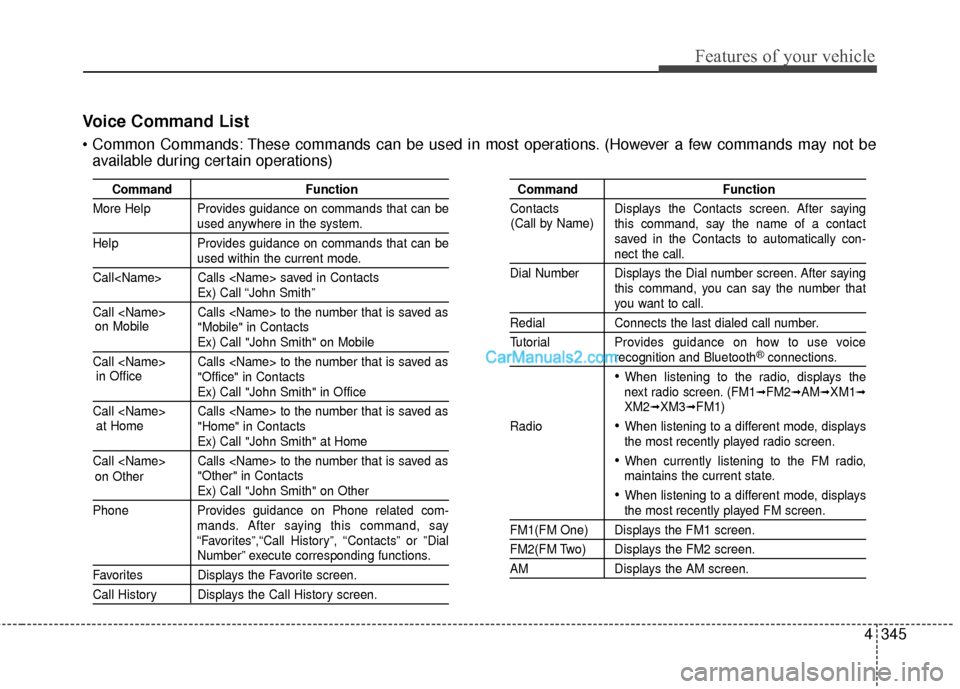
Voice Command List
These commands can be used in most operations. (However a few commands may not beavailable during certain operations)
Command Function
More Help Provides guidance on commands that can be
used anywhere in the system.
Help Provides guidance on commands that can be
used within the current mode.
Call
Ex) Call “John Smith”
Call
Ex) Call "John Smith" on Mobile
Call
Ex) Call "John Smith" in Office
Call
Ex) Call "John Smith" at Home
Call
Ex) Call "John Smith" on Other
Phone Provides guidance on Phone related com- mands. After saying this command, say
“Favorites”,“Call History”, “Contacts” or ”Dial
Number” execute corresponding functions.
Favorites Displays the Favorite screen.
Call History Displays the Call History screen.
Command Function
Contacts Displays the Contacts screen. After saying this command, say the name of a contact
saved in the Contacts to automatically con-
nect the call.
Dial Number Displays the Dial number screen. After saying this command, you can say the number that
you want to call.
RedialConnects the last dialed call number.
Tutorial Provides guidance on how to use voice
recognition and Bluetooth®connections.
When listening to the radio, displays the
next radio screen. (FM1➟FM2➟AM➟XM1➟XM2➟XM3➟FM1)
Radio
When listening to a different mode, displays
the most recently played radio screen.
When currently listening to the FM radio,
maintains the current state.
When listening to a different mode, displaysthe most recently played FM screen.
FM1(FM One) Displays the FM1 screen.
FM2(FM Two) Displays the FM2 screen.
AM Displays the AM screen.
(Call by Name)
on Mobile
in Officeat Home
on Other
Page 448 of 759
4351
Features of your vehicle
Blue Link®
Hyundai aims to offer differentiated
customer values through a
‘Connected Car Life,’ which provides
consumers with fast and reliable IT
technology. As consumers’ lifestyles
become more and more mobile in
thanks to remarkable advances in
smart phones, tablet PCs and overall
wireless telecommunication, new
lifestyle patterns demand seamless
connection between one’s office,
home, outdoors and automobiles.
Blue Link
®is Hyundai's innovative
telematics solution that combines
safety, service, and infotainment into
a complete package. It works to both
help simplify Hyundai owners' lives
and reduce distracted driving. The
Blue Link
®" " button offers
access to a voice-response menu of
services. The Blue Link
®button offers
access to enhanced navigation serv-
ices. The " " button offers
immediate contact to SOS
Emergency Assistance. A detailed
list of commands is available in the
Blue Link User's Manual.
Using Rear View Mirror Buttons
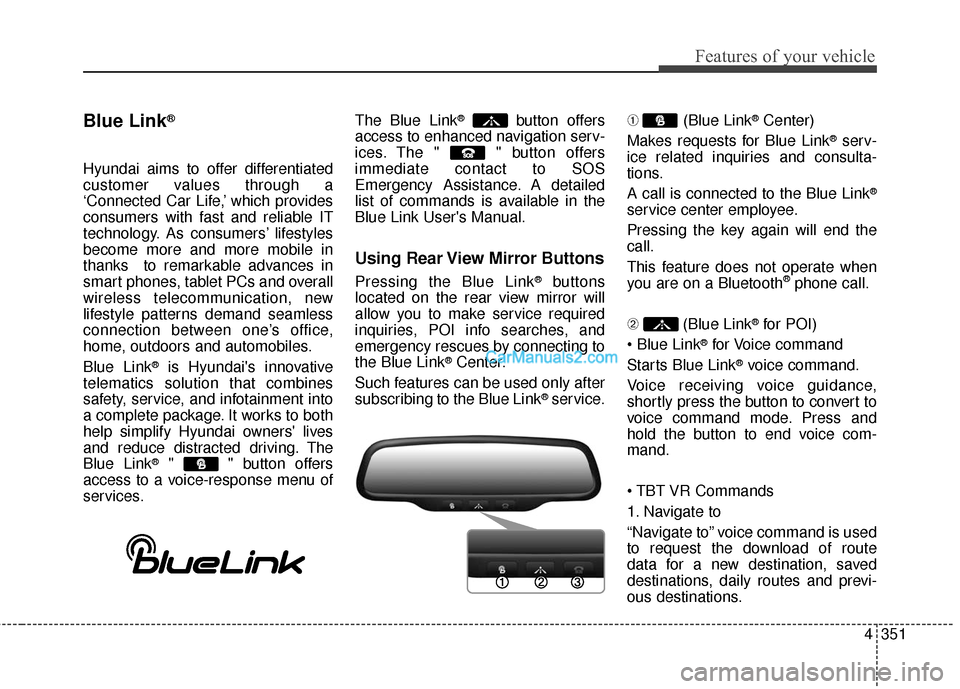
Pressing the Blue Link®buttons
located on the rear view mirror will
allow you to make service required
inquiries, POI info searches, and
emergency rescues by connecting to
the Blue Link
®Center.
Such features can be used only after
subscribing to the Blue Link
®service. ➀
(Blue Link
®Center)
Makes requests for Blue Link
®serv-
ice related inquiries and consulta-
tions.
A call is connected to the Blue Link
®
service center employee.
Pressing the key again will end the
call.
This feature does not operate when
you are on a Bluetooth
®phone call.
\b (Blue Link
®for POI)
®for Voice command
Starts Blue Link
®voice command.
Voice receiving voice guidance,
shortly press the button to convert to
voice command mode. Press and
hold the button to end voice com-
mand.
1. Navigate to
“Navigate to” voice command is used
to request the download of route
data for a new destination, saved
destinations, daily routes and previ-
ous destinations.
Page 453 of 759
Features of your vehicle
356
4
SYSTEM CONTROLLERS
AND FUNCTIONS
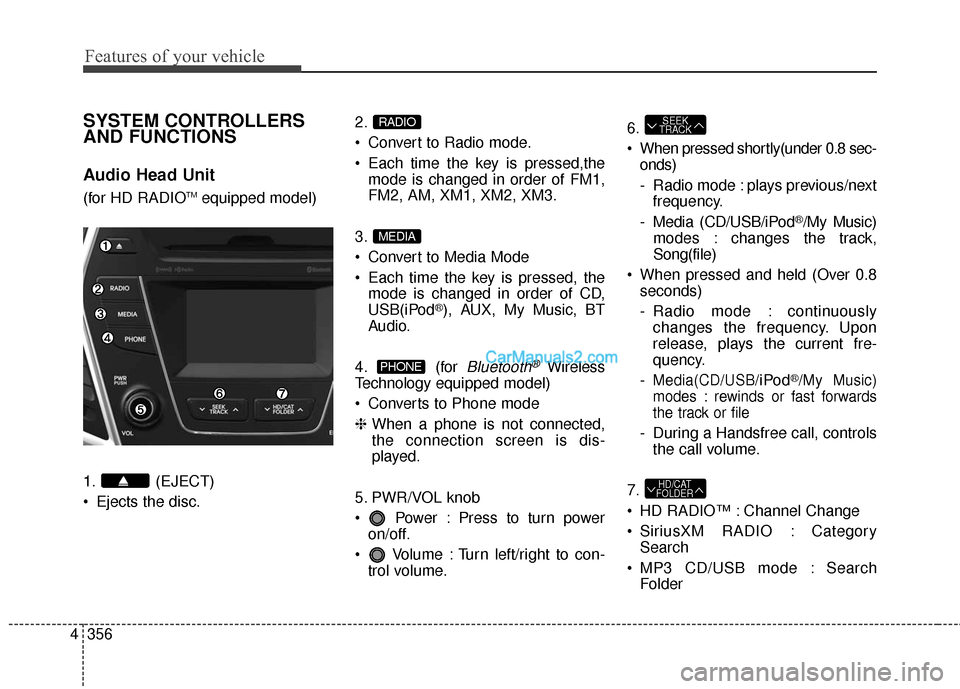
Audio Head Unit
(for HD RADIOTMequipped model)
1. (EJECT)
Ejects the disc. 2.
Convert to Radio mode.
Each time the key is pressed,the
mode is changed in order of FM1,
FM2, AM, XM1, XM2, XM3.
3.
Convert to Media Mode
Each time the key is pressed, the mode is changed in order of CD,
USB(iPod
®), AUX, My Music, BT
Audio.
4. (for
Bluetooth®Wireless
Technology equipped model)
Converts to Phone mode
❈ When a phone is not connected,
the connection screen is dis-
played.
5. PWR/VOL knob
Power : Press to turn power on/off.
Volume : Turn left/right to con- trol volume. 6.
When pressed shortly(under 0.8 sec-
onds)
- Radio mode : plays previous/nextfrequency.
- Media (CD/USB/iPod
®/My Music)
modes : changes the track,
Song(file)
When pressed and held (Over 0.8 seconds)
- Radio mode : continuouslychanges the frequency. Upon
release, plays the current fre-
quency.
-
Media(CD/USB/iPod®/My Music)
modes : rewinds or fast forwards
the track or file
- During a Handsfree call, controls the call volume.
7.
HD RADIO™ : Channel Change
SiriusXM RADIO : Category Search
MP3 CD/USB mode : Search Folder
HD/CAT
FOLDER
SEEK
TRACK
PHONE
MEDIA
RADIO
Page 454 of 759
4357
Features of your vehicle
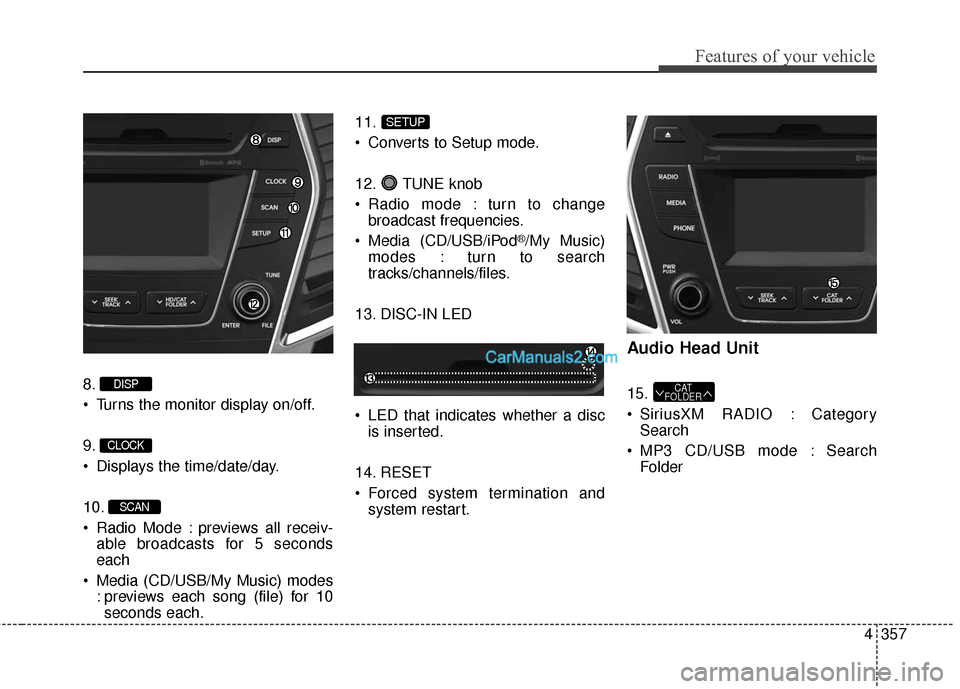
8.
Turns the monitor display on/off.
9.
Displays the time/date/day.
10.
Radio Mode : previews all receiv-able broadcasts for 5 seconds
each
Media (CD/USB/My Music) modes : previews each song (file) for 10seconds each. 11.
Converts to Setup mode.
12. TUNE knob
Radio mode : turn to change
broadcast frequencies.
Media (CD/USB/iPod
®/My Music)
modes : turn to search
tracks/channels/files.
13. DISC-IN LED
LED that indicates whether a disc is inserted.
14. RESET
Forced system termination and system restart.
Audio Head Unit
15.
SiriusXM RADIO : CategorySearch
MP3 CD/USB mode : Search FolderCAT
FOLDER
SETUP
SCAN
CLOCK
DISP
Page 455 of 759
Features of your vehicle
358
4
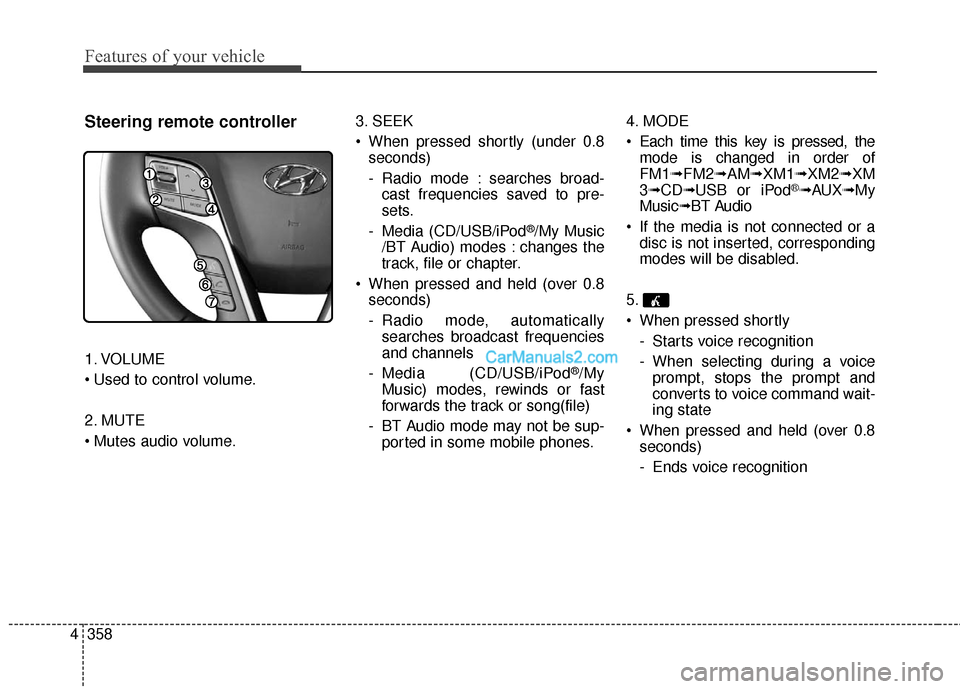
Steering remote controller
1. VOLUME
2. MUTE
3. SEEK
When pressed shortly (under 0.8
seconds)
- Radio mode : searches broad-cast frequencies saved to pre-
sets.
- Media (CD/USB/iPod
®/My Music
/BT Audio) modes : changes the
track, file or chapter.
When pressed and held (over 0.8 seconds)
- Radio mode, automaticallysearches broadcast frequencies
and channels
- Media (CD/USB/iPod
®/My
Music) modes, rewinds or fast
forwards the track or song(file)
- BT Audio mode may not be sup- ported in some mobile phones. 4. MODE
Each time this key is pressed, the
mode is changed in order of
FM1➟ FM2➟AM➟XM1➟ XM2➟XM
3 ➟ CD➟ USB or iPod
®➟AUX ➟My
Music➟ BT Audio
If the media is not connected or a disc is not inserted, corresponding
modes will be disabled.
5.
When pressed shortly - Starts voice recognition
- When selecting during a voiceprompt, stops the prompt and
converts to voice command wait-
ing state
When pressed and held (over 0.8 seconds)
- Ends voice recognition
Page 457 of 759
Features of your vehicle
360
4
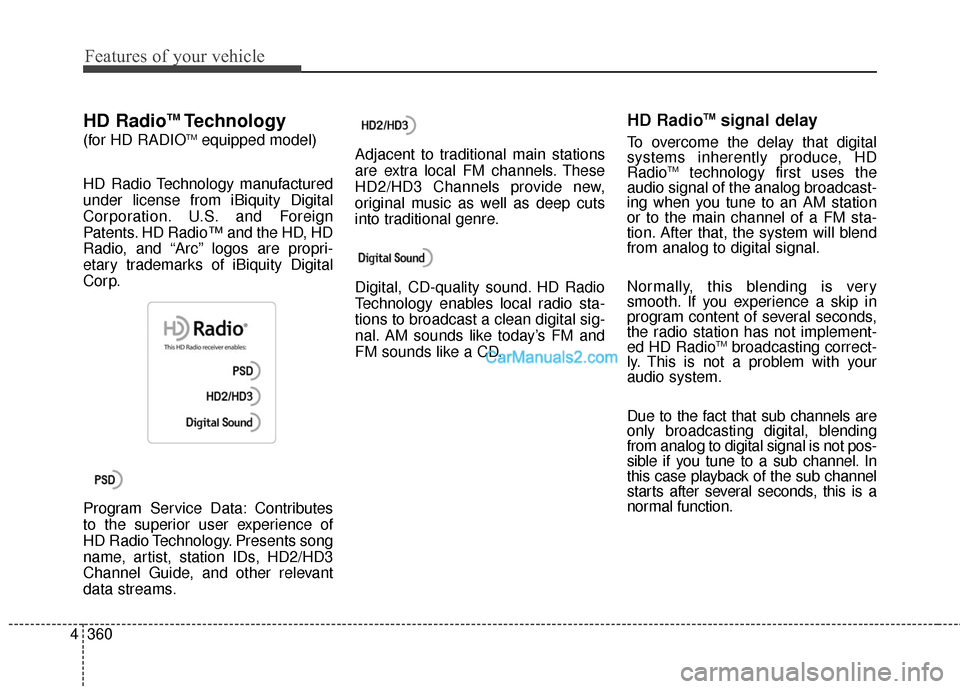
HD RadioTMTechnology
(for HD RADIOTMequipped model)
HD Radio Technology manufactured
under license from iBiquity Digital
Corporation. U.S. and Foreign
Patents. HD Radio™ and the HD, HD
Radio, and “Arc” logos are propri-
etary trademarks of iBiquity Digital
Corp.
Program Service Data: Contributes
to the superior user experience of
HD Radio Technology. Presents song
name, artist, station IDs, HD2/HD3
Channel Guide, and other relevant
data streams. Adjacent to traditional main stations
are extra local FM channels. These
HD2/HD3 Channels provide new,
original music as well as deep cuts
into traditional genre.
Digital, CD-quality sound. HD Radio
Technology enables local radio sta-
tions to broadcast a clean digital sig-
nal. AM sounds like today’s FM and
FM sounds like a CD.
HD RadioTMsignal delay
To overcome the delay that digital
systems inherently produce, HD
Radio
TMtechnology first uses the
audio signal of the analog broadcast-
ing when you tune to an AM station
or to the main channel of a FM sta-
tion. After that, the system will blend
from analog to digital signal.
Normally, this blending is very
smooth. If you experience a skip in
program content of several seconds,
the radio station has not implement-
ed HD Radio
TMbroadcasting correct-
ly. This is not a problem with your
audio system.
Due to the fact that sub channels are
only broadcasting digital, blending
from analog to digital signal is not pos-
sible if you tune to a sub channel. In
this case playback of the sub channel
starts after several seconds, this is a
normal function.
Page 460 of 759
![Hyundai Santa Fe 2016 Manual PDF 4363
Features of your vehicle
Switching to Radio Mode
Pressing the key will change
the operating mode in order of FM1
➟FM2➟AM➟XM1➟XM2➟XM3
If [Mode Pop up] is turned on within [Display], the](/img/35/16331/w960_16331-459.png "Hyundai Santa Fe 2016 Manual PDF 4363
Features of your vehicle
Switching to Radio Mode
Pressing the key will change
the operating mode in order of FM1
➟FM2➟AM➟XM1➟XM2➟XM3
If [Mode Pop up] is turned on within [Display], the")
4363
Features of your vehicle
Switching to Radio Mode
Pressing the key will change
the operating mode in order of FM1
➟FM2➟AM➟XM1➟XM2➟XM3
If [Mode Pop up] is turned on within [Display], then pressing the
key will display the Radio
Pop-up Mode screen.
Turn the TUNE knob to move the
focus. Press the knob to select.
Searching Radio Frequencies
Using Seek
Press the key to play the
previous/next frequency.
Using TUNE
Turn the TUNE knob to select the
desired frequency.
FM : Increases/decreased by 200kHz
AM : Increases/decreased by 10kHz
Using Radio Mode
Selecting Presets/Saving Presets
Press the button to display
the broadcast information for the fre-
quency saved to each button.
Press the ~ buttons to play
the desired preset.
✽ ✽ NOTICE
While listening to a frequency you
want to save as a preset, press and
hold one of the ~ preset
buttons (over 0.8 seconds) to save
the current frequency to the selected
preset.
61
61
PresetSEEK
TRACK
RADIO
SETUP
RADIO
Page 462 of 759
4365
Features of your vehicle
XM RADIO™MODE
Features of your vehicle
Satellite radio reception
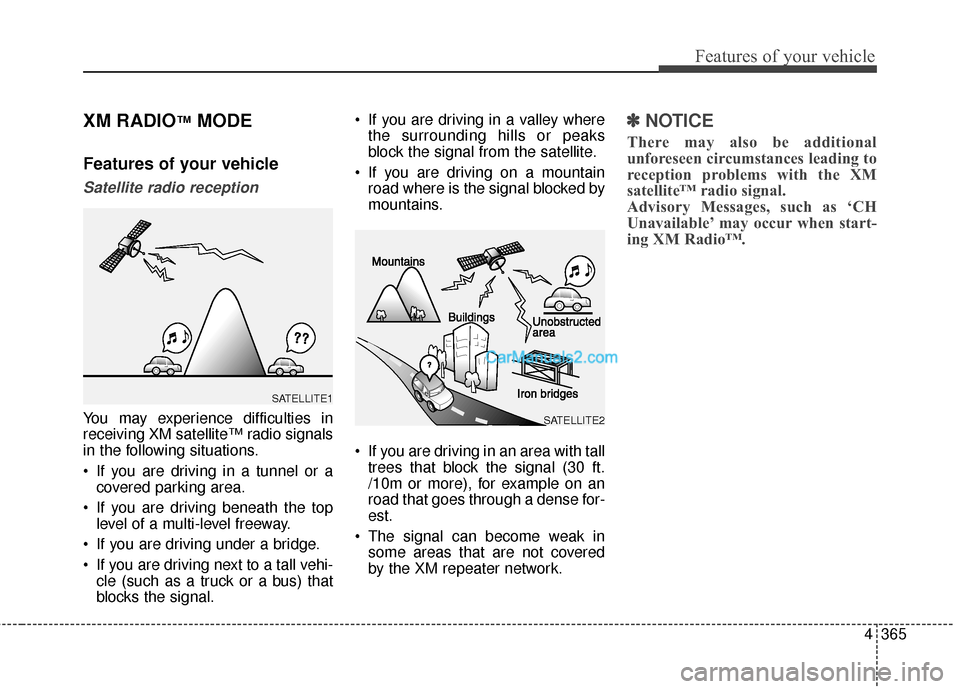
You may experience difficulties in
receiving XM satellite™ radio signals
in the following situations.
If you are driving in a tunnel or acovered parking area.
If you are driving beneath the top level of a multi-level freeway.
If you are driving under a bridge.
If you are driving next to a tall vehi- cle (such as a truck or a bus) that
blocks the signal. If you are driving in a valley where
the surrounding hills or peaks
block the signal from the satellite.
If you are driving on a mountain road where is the signal blocked by
mountains.
If you are driving in an area with tall trees that block the signal (30 ft.
/10m or more), for example on an
road that goes through a dense for-
est.
The signal can become weak in some areas that are not covered
by the XM repeater network.
✽ ✽ NOTICE
There may also be additional
unforeseen circumstances leading to
reception problems with the XM
satellite™ radio signal.
Advisory Messages, such as ‘CH
Unavailable’ may occur when start-
ing XM Radio™.
SATELLITE2
SATELLITE1
Page 470 of 759
4373
Features of your vehicle
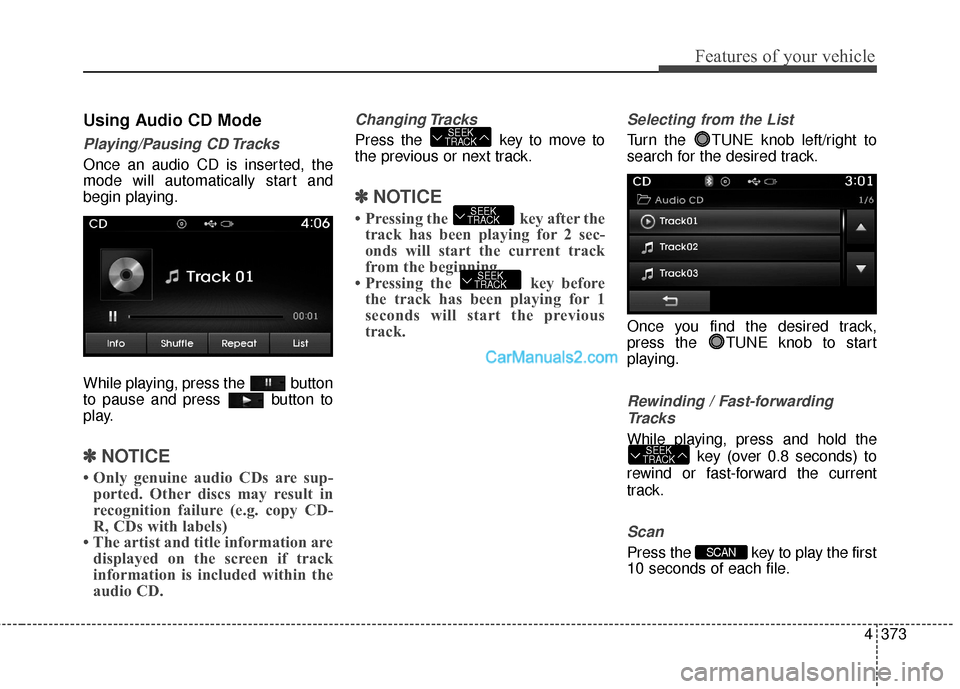
Using Audio CD Mode
Playing/Pausing CD Tracks
Once an audio CD is inserted, the
mode will automatically start and
begin playing.
While playing, press the button
to pause and press button to
play.
✽ ✽NOTICE
• Only genuine audio CDs are sup-
ported. Other discs may result in
recognition failure (e.g. copy CD-
R, CDs with labels)
• The artist and title information are displayed on the screen if track
information is included within the
audio CD.
Changing Tracks
Press the key to move to
the previous or next track.
✽ ✽ NOTICE
• Pressing the key after the
track has been playing for 2 sec-
onds will start the current track
from the beginning.
• Pressing the key before the track has been playing for 1
seconds will start the previous
track.
Selecting from the List
Turn the TUNE knob left/right to
search for the desired track.
Once you find the desired track,
press the TUNE knob to start
playing.
Rewinding / Fast-forwarding
Tracks
While playing, press and hold the key (over 0.8 seconds) to
rewind or fast-forward the current
track.
Scan
Press the key to play the first
10 seconds of each file.SCAN
SEEK
TRACK
SEEK
TRACK
SEEK
TRACK
SEEK
TRACK
Page 473 of 759
Features of your vehicle
376
4
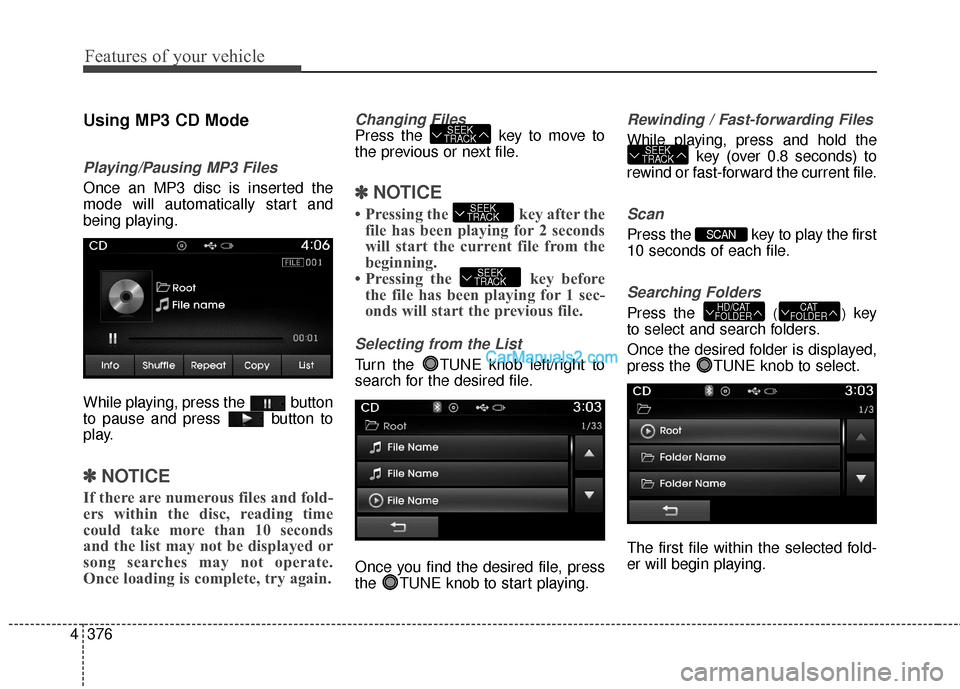
Using MP3 CD Mode
Playing/Pausing MP3 Files
Once an MP3 disc is inserted the
mode will automatically start and
being playing.
While playing, press the button
to pause and press button to
play.
✽ ✽
NOTICE
If there are numerous files and fold-
ers within the disc, reading time
could take more than 10 seconds
and the list may not be displayed or
song searches may not operate.
Once loading is complete, try again.
Changing Files
Press the key to move to
the previous or next file.
✽ ✽NOTICE
• Pressing the key after the
file has been playing for 2 seconds
will start the current file from the
beginning.
• Pressing the key before the file has been playing for 1 sec-
onds will start the previous file.
Selecting from the List
Turn the TUNE knob left/right to
search for the desired file.
Once you find the desired file, press
the TUNE knob to start playing.
Rewinding / Fast-forwarding Files
While playing, press and hold the
key (over 0.8 seconds) to
rewind or fast-forward the current file.
Scan
Press the key to play the first
10 seconds of each file.
Searching Folders
Press the ()key
to select and search folders.
Once the desired folder is displayed,
press the TUNE knob to select.
The first file within the selected fold-
er will begin playing.CAT
FOLDERHD/CAT
FOLDER
SCAN
SEEK
TRACK
SEEK
TRACK
SEEK
TRACK
SEEK
TRACK