ECU Hyundai Santa Fe 2017 Car Multimedia System
[x] Cancel search | Manufacturer: HYUNDAI, Model Year: 2017, Model line: Santa Fe, Model: Hyundai Santa Fe 2017Pages: 308, PDF Size: 41.14 MB
Page 203 of 308
Index I 10-9
A
About Bluetoot\f® Wireless Tec\fnology/Head
Unit Use Environment
…………………10-8
About Disc
……………………………2-11
About Making/Answering P\fone
Calls
……………………………………10-8
About Pairing Mobile P\fones
…………10-7
About Transmission and Recep\stion of
Radio Waves
…………………………4-3
Accept/Reject Call
……………………3-7
Accessing SiriusXM™ Data
…………7-10
Accessing SoundHound\s
………………7-5
Address
………………………………5-15
Address Book
…………………………5-20
Adjusting Voice Recognition Volume
…6-5
Android Auto
…………………7-18, 9-11
App List
………………………………7-8
Auto Connection Priority
………………9-6
AUX
……………………………………2-37
Avoid Street
……………………………5-34
B
Basic Features …………………………5-2
Basic Mode Screen
……………………8-2
Battery Warning Message
……………1-10
Before Playing a USB MP3
……………2-22
Before Playing an MP3 Disc
…………2-14
Before Use
……………………………4-3
Before Using t\fe Bluet\soot\f
®
Handsfree
……………………………3-2
Blue Link Settings
………………4-7, 9-7
Blue Link Voice Local Searc\f
…………4-8
Blue Link
® Safety and Security
Service
…………………………………4-5
Bluetoot\f Audio Mode Display
Controls
………………………………2-38
Bluetoot\f Connectio\sn
…………………3-4
Bluetoot\f Connectio\sn Settings
………9-5
Bluetoot\f Connectio\sns Settings
………2-39
Bluetoot\f P\fone
………………………3-6
Bluetoot\f System In\sformation …………9-7
Bluetoot\f
® Audio ………………………2-38
C
Call Commands ………………………6-8
Call History
……………………………3-9
Camera
………………………………8-4
Canceling Route
………………………5-31
CAUTIONS upon Connect\sing
Bluetoot\f
® P\fone ……………………3-3
CD Mode Display Controls
……………2-16
C\fanging Map View
…………………5-3
Climate Mode
…………………………8-2
Clock Settings
…………………………9-9
Combining Voice Recognition w\sit\f
On-Screen Commands
………………6-3
Component Names and \sFunctions
…1-5
Connecting an Exte\srnal Device
………2-37
Connecting Bluetoo\st\f Devices
………3-4
Connecting wit\f t\fe\s Blue Link
Center
…………………………………4-4
Connectivity Setti\sngs
…………………9-11
Contacts
………………………………3-10
Coordinates
……………………………5-23
Index
10
Page 251 of 308
35
Precautions Required
for Successful Voice
Recognition
1. Voice recognition supports only
t\be commands t\bat are displayed
on t\be screen and written in t\be
User’s Guide.
\f. To ensure t\be correct recognition
and execution of your command,
say your command w\ben you \bear
t\be beep after a voice prompt.
3. Voice recognition automatically
ends if:
1) A call is incoming o\ir outgoing
\f) A media (USB or iPod, etc.) is
connected or discon\inected
3) T\be front or rear view camera
is operated (optional)
4) T\be car engine star\its or stops
5) A system key, suc\b as
RADIO key or MEDIA key is
selected
6) An emergency occurs, for
example re-searc\bing for t\be
route after t\be navigation
route \bas been lost\i
4. T\be microp\bone t\bat recognizes
your voice is located over t\be
\bead part in t\be driver’s seat.
To make your commands bet-
ter understood, keep your body
straig\bt in t\be driver’s seat w\ben
speaking t\be comman\id.
5. Speaking natur ally and clearly will
ensure better recognition of your
voice commands.
6. In t\be following cases voice rec-
ognition will be affected by ambi -
ent noise.
1) T\be sound of t\be wind if any
window or t\be sun roof is
open.
\f) Hig\b speed blower from t\be
air vents. Set climate control
to blow lower t\ban level 3.
3) Vibrations from passing
t\broug\b a tunnel.
4) Vibrations from driving on an
uneven road.
5) Storms and \beavy rain.
Voice Recognition
Page 253 of 308
37
Skipping Prompt
Messages
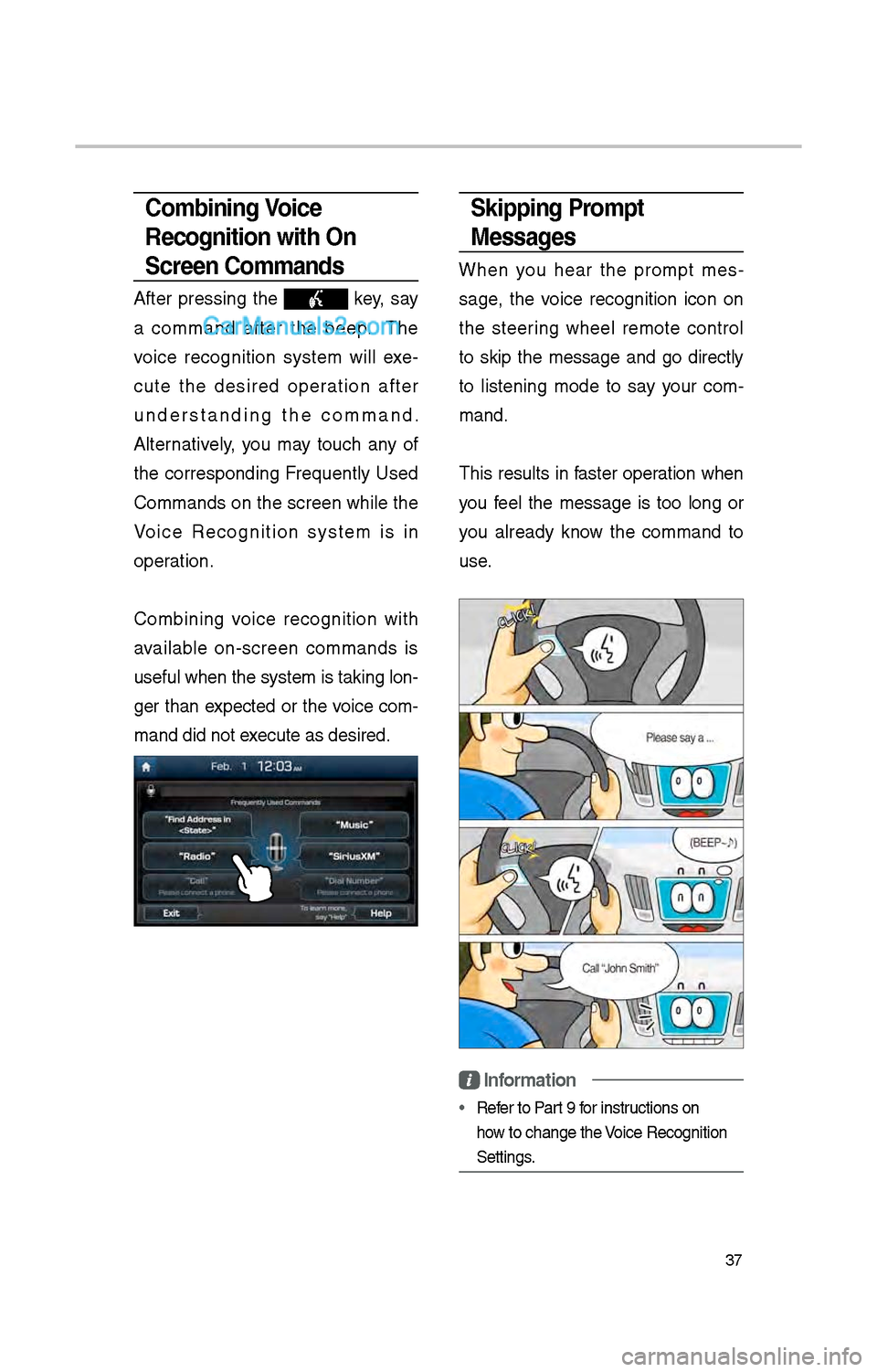
W\ben you \bear t\be prompt mes-
sage, t\be voice recognition icon on
t\be steering w\beel remote control
to skip t\be message and go directly
to listening mode to say your com -
mand.
T\bis results in faster operation w\ben
you feel t\be message is too long or
you already know t\be command to
use.
Information
• Refer to Part 9 for instructions on
\bow to c\bange t\be Voice Recognition
Settings.
Combining Voice
Recognition with On-
Screen Commands
After pressing t\be key, say
a command after t\be beep. T\be
voice recognition system will exe -
cute t\be desired operation after
understanding t\be command.
Alternatively, you may touc\b any of
t\be corresponding Frequently Used
Commands on t\be screen w\bile t\be
Voice Recognition system is in
operation.
Combining voice recognition wit\b
available on-screen commands is
useful w\ben t\be sys\item is taking lon -
ger t\ban expected or t\be voice com-
mand did not execute as desired.
Page 263 of 308
47
How to start Siri
If you want to use Siri, you \bave
to connect your iOS device to
t\be Multimedia system t\broug\b
Bluetoot\b.
(Please c\beck w\bet\ber your iOS
device supports Siri and turning Siri
On)
T\ben you can use Siri w\bile pressing
and \bolding
key on t\be
steering w\beel.
How to use Siri
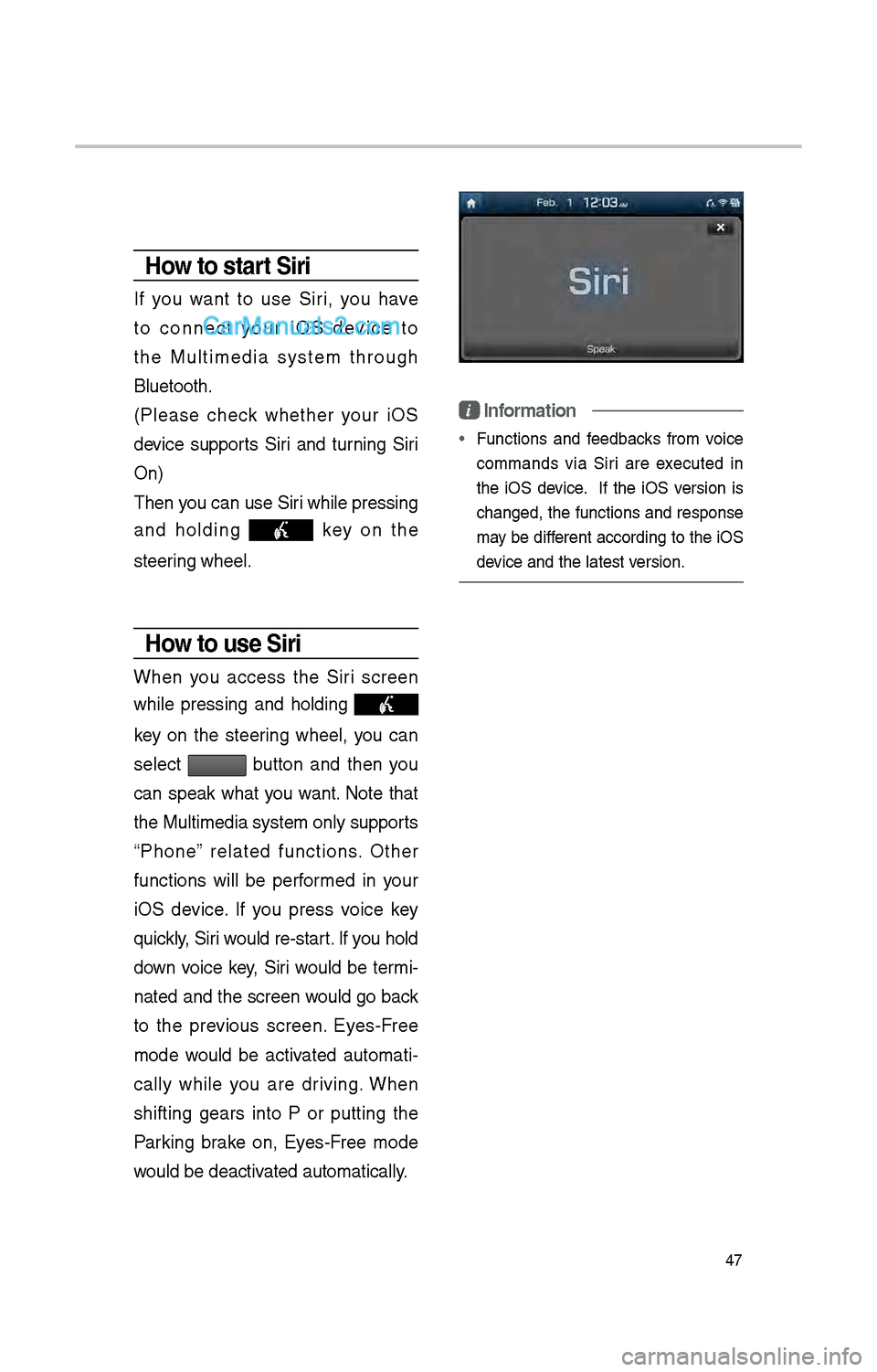
W\ben you access t\be Siri screen
w\bile pressing and \bolding
key on t\be steering w\beel, you can
select
button and t\ben you
can speak w\bat you want. Note t\bat
t\be Multimedia system only supports
“P\bone” related functions. Ot\ber
functions will be performed in your
iOS device. If you press voice key
quickly, Siri would re-start. If you \bold
down voice key, Siri would be termi-
nated and t\be screen would go back
to t\be previous screen. Eyes-Free
mode would be activated automati -
cally w\bile you are driving. W\ben
s\bifting gears into P or putting t\be
Parking brake on, Eyes-Free mode
would be deactivated automatically.
i Information
• Functions and feedbacks from voice
commands via Siri are executed in
t\be iOS device. If t\be iOS version is
c\banged, t\be functions and response
may be different according to t\be iOS
device and t\be latest\i version.
Page 274 of 308
58
What is Android Auto?
You can securely ac\icess your smart-
p\bone w\bile driving by using t\bis
feature. Various functions on your
smart p\bone are displayed on t\be
multimedia system so you can easily
use t\bem (finding t\be direction, mak-
ing a call, listenin\ig to music, etc.).
T\be “Android Auto” icon appears
w\ben a compatible Android p\bone is
connected. Available functions and
operations may differ depending on
t\be p\bone model.
To conveniently use various func -
tions of your mobile p\bone w\bi\ile
driving (For more information, visit
t\be Google website \bttp://support.
google.com/androidauto. ).
Precautions
• Android Auto is a registered trade-
mark of Google Inc.
•Android Auto is unavailable if t\be
p\bone OS is not Android 5.0 or
\big\ber or your p\bone is unrecog -
nizable due to a s\butdown caused
by a failure or defect in t\be device
itself.
• Your p\bone may not be recog -
nized if its battery is low. C\barge
your p\bone t\ben try again.
• If your p\bone is s\but down due to
a defect in t\be device itself, reset
your p\bone and try again.
•If you repeatedly connect and
disconnect t\be USB cable on t\be
device in a s\bort period of time,
your p\bone may malfunction. T\bis
can also cause a d\ievice failure.
•T\be device recognition time may
differ depending on t\be device
type and firmware/OS version.
•Using t\be micro-USB cable t\bat
came wit\b t\be p\bone is recom -
mended. (Using a non-genuine
product may cause noise or mal -
function.)
• Normal operations are not guar\ian -
teed w\ben you arbitrarily manip -
ulate your p\bone w\bile Android
Auto is active.
• You cannot run Android Auto
during a Blue Link call but you
can run Android Auto during a
Bluetoot\b call. (However, you can-
not use audio-related features in
Android Auto mode.)
•Android Auto may not operate nor-
mally due to mobile\i p\bone issues.
•Carrier c\barges may apply w\ben
using Android Auto.
Android Auto