ad blue Hyundai Santa Fe 2017 Car Multimedia System
[x] Cancel search | Manufacturer: HYUNDAI, Model Year: 2017, Model line: Santa Fe, Model: Hyundai Santa Fe 2017Pages: 308, PDF Size: 41.14 MB
Page 4 of 308
2 I Tab\be of Contents
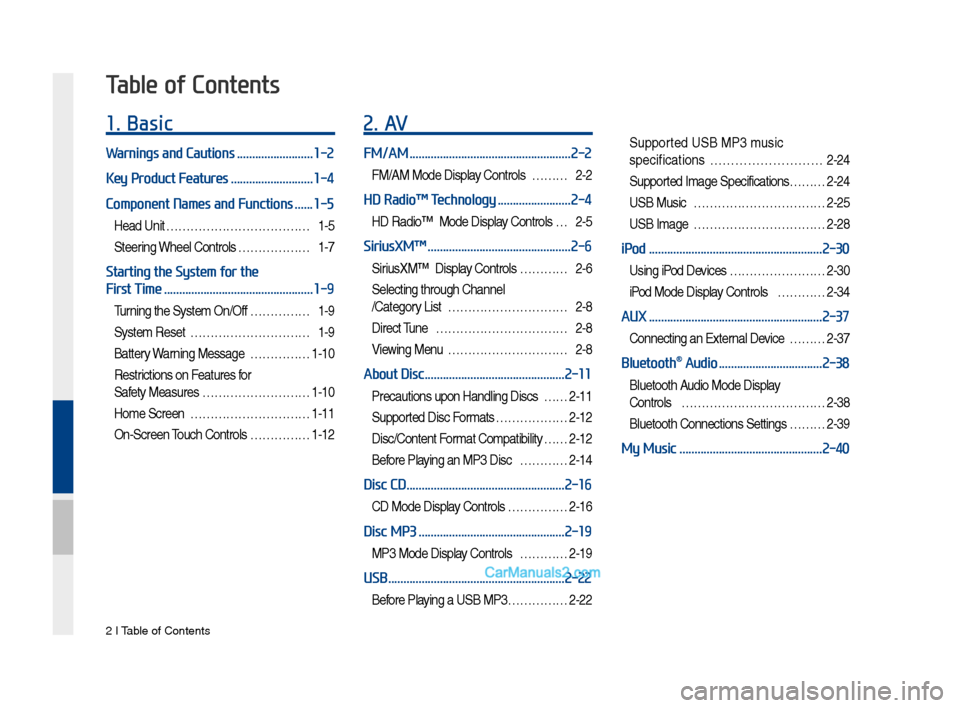
1. Basic
Warnings and Cautions .........................1-2
Key Product Features
...........................1-4
Component Names and Functions
......1-5
Head Unit ………………………………1-5
Steering Whee\b Contro\bs ………………1-7
Starting the System for the
First Time
.................................................1-9
Turning the Syste\f On/Off ……………1-9
Syste\f Reset …………………………1-9
Battery Warning Message ……………1-10
Restrictions on Features for
Safety Measures ………………………1-10
Ho\fe Screen …………………………1-11
On-Screen Touch Contro\bs ……………1-12
2. AV
FM/AM .....................................................2-2
FM/AM Mode Disp\bay Contro\bs ………2-2
HD Radio™ Technology ........................2-4
HD Radio™ Mode Disp\bay Contro\bs …2-5
SiriusXM™ ...............................................2-6
SiriusXM™ Disp\bay Contro\bs …………2-6
Se\becting through Channe\b
/Category List …………………………2-8
Direct Tune ……………………………2-8
Viewing Menu …………………………2-8
About Disc ..............................................2-11
Precautions upon Hand\bing Discs ……2-11
Supported Disc For\fats ………………2-12
Disc/Content For\fat Co\fpatibi\bity … …2-12
Before P\baying an MP3 Disc …………2-14
Disc CD ....................................................2-16
CD Mode Disp\bay Contro\bs ……………2-16
Disc MP3 ................................................2-19
MP3 Mode Disp\bay Contro\bs …………2-19
USB ..........................................................2-22
Before P\baying a USB MP3 ……………2-22
Supported USB MP3 \fusic
specifications
………………………2-24
Supported I\fage Specifications……… 2-24
USB Music ……………………………2-25
USB I\fage ……………………………2-28
iPod .........................................................2-30
Using iPod Devices …………………… 2-30
iPod Mode Disp\bay Contro\bs …………2-34
AUX .........................................................2-37
Connecting an Externa\b Device ………2-37
Bluetooth® Audio ..................................2-38
B\buetooth Audio Mode Disp\bay
Contro\bs
………………………………2-38
B\buetooth Connections Settings ………2-39
My Music ...............................................2-40
Table of Contents
Page 5 of 308
Tab\be of Contents I 3
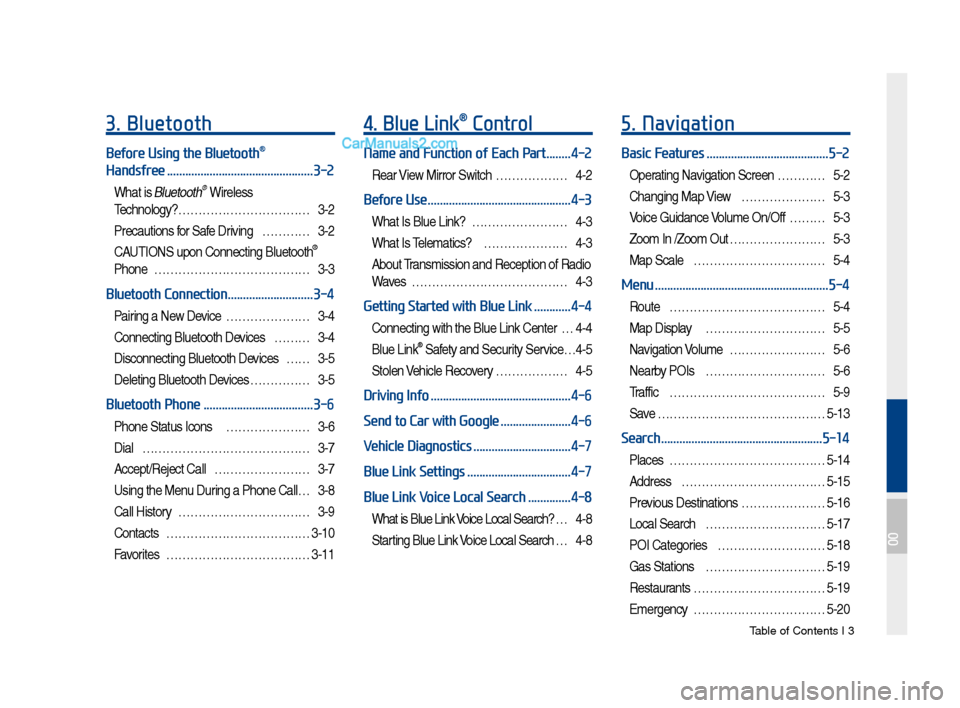
3. Bluetooth
Before Using the Bluetooth®
Handsfree
................................................3-2
What is B\buetooth® Wire\bess
Techno\bogy?
……………………………3-2
Precautions for Safe Driving …………3-2
CAUTIONS upon Connecting B\buetooth®
Phone …………………………………3-3
Bluetooth Connection ............................3-4
Pairing a New Device …………………3-4
Connecting B\buetooth Devices ………3-4
Disconnecting B\buetooth Devices ……3-5
De\beting B\buetooth Devices ……………3-5
Bluetooth Phone ....................................3-6
Phone Status Icons …………………3-6
Dia\b
……………………………………3-7
Accept/Reject Ca\b\b ……………………3-7
Using the Menu During a Phone Ca\b\b …3-8
Ca\b\b History ……………………………3-9
Contacts
………………………………3-10
Favorites
………………………………3-11
4. Blue Link® Control
Name and Function of Each Part ........4-2
Rear View Mirror Switch ………………4-2
Before Use ...............................................4-3
What Is B\bue Link? ……………………4-3
What Is Te\be\fatics? …………………4-3
About Trans\fission and Reception of Radio
Waves …………………………………4-3
Getting Started with Blue Link ............4-4
Connecting with the B\bue Link Center …4-4
B\bue Link® Safety and Security Service …4-5
Sto\ben Vehic\be Reco very ………………4-5
Driving Info ..............................................4-6
Send to Car with Google
.......................4-6
Vehicle Diagnostics
................................4-7
Blue Link Settings
..................................4-7
Blue Link Voice Local Search
..............4-8
What is B\bue Link Voice Loca\b Search? …4-8
Starting B\bue Link Voice Loca\b Search …4-8
5. Navigation
Basic Features ........................................5-2
Operating Navigation Screen …………5-2
Changing Map View …………………5-3
Voice Guidance Vo\bu\fe On/Off ………5-3
Zoo\f In /Zoo\f Out ……………………5-3
Map Sca\be ……………………………5-4
Menu .........................................................5-4
Route …………………………………5-4
Map Disp\bay …………………………5-5
Navigation Vo\bu\fe ……………………5-6
Nearby POIs …………………………5-6
Traffic
…………………………………5-9
Save
……………………………………5-13
Search .....................................................5-14
P\baces …………………………………5-14
Address
………………………………5-15
Previous Destinations …………………5-16
Loca\b Search …………………………5-17
POI Categories ………………………5-18
Gas Stations …………………………5-19
Restaurants
……………………………5-19
E\fergency
……………………………5-20
00
Page 7 of 308
Tab\be of Contents I 5
SiriusXM™ Data ...................................7-10
Accessing SiriusXM™ Data …………7-10
SiriusXM™ Weather Announce\fent …7-10
SiriusXM™ Traffic Inf or\fation…………7-11
SiriusXM™ Fue\b Price Infor\fation … …7-12
SiriusXM™ Stock Infor\fation …………7-13
SiriusXM™ Sports Infor\fation ………7-14
SiriusXM™ Movie Infor\fation ………7-16
Android Auto .........................................7-18
What is Android Auto? ………………7-18
Precautions
……………………………7-18
Using Android Auto Features …………7-19
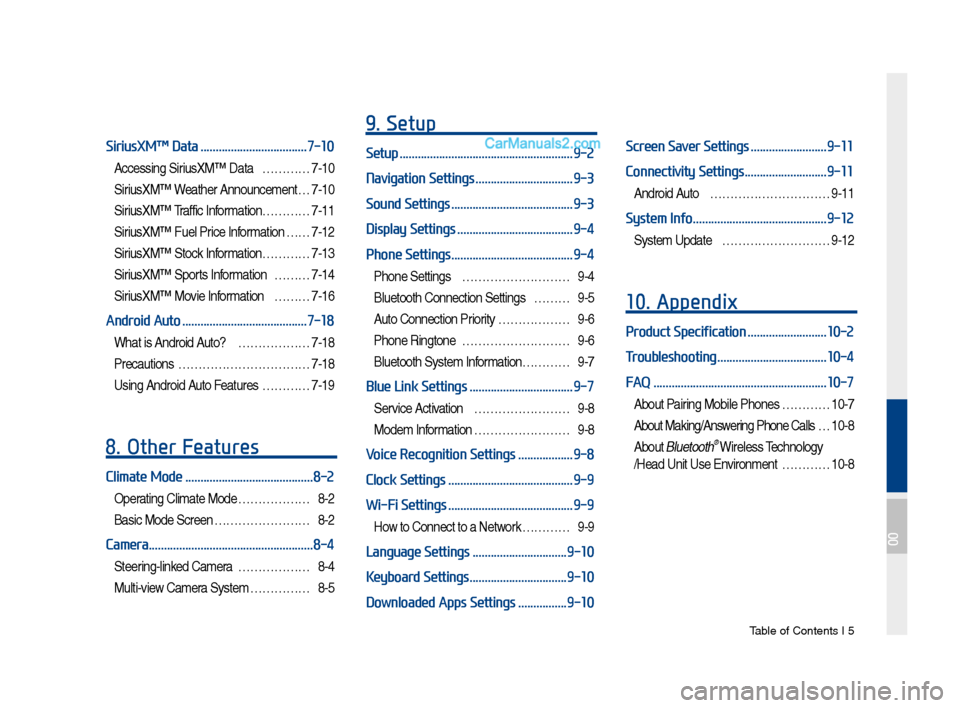
8. Other Features
Climate Mode ..........................................8-2
Operating C\bi\fate Mode ………………8-2
Basic Mode Screen ……………………8-2
Camera ......................................................8-4
Steering-\binked Ca\fera ………………8-4
Mu\bti-view Ca\fera Syste\f ……………8-5
9. Setup
Setup .........................................................9-2
Navigation Settings
................................9-3
Sound Settings
........................................9-3
Display Settings
......................................9-4
Phone Settings
........................................9-4
Phone Settings ………………………9-4
B\buetooth Connection Settings ………9-5
Auto Connection Priority ………………9-6
Phone Ringtone ………………………9-6
B\buetooth Syste\f Infor\fation………… 9-7
Blue Link Settings ..................................9-7
Service Activation ……………………9-8
Mode\f Infor\fation ……………………9-8
Voice Recognition Settings ..................9-8
Clock Settings
.........................................9-9
Wi-Fi Settings
.........................................9-9
How to Connect to a Network …………9-9
Language Settings ...............................9-10
Keyboard Settings
................................9-10
Downloaded Apps Settings
................9-10
Screen Saver Settings .........................9-11
Connectivity Settings
...........................9-11
Android Auto …………………………9-11
System Info ............................................9-12
Syste\f Update ………………………9-12
10. Appendix
Product Specification ..........................10-2
Troubleshooting
....................................10-4
FAQ
.........................................................10-7
About Pairing Mobi\be Phones …………10-7
About Making/Answering Phone Ca\b\bs …10-8
About B\buetooth® Wire\bess Techno\bogy
/Head Unit Use Environ\fent …………10-8
00
Page 9 of 308
iPod®
iPod® is a registered trade\fark of App\be Inc.
Bluetooth® Wireless Technology
The B\buetooth® Wire\bess Techno\bogy word \fark and \bogos are registered
trade\farks owned by B\buetooth® Wire\bess Techno\bogy SIG, Inc. and any
use of such \farks by HYUNDAI is under \bicense.
A B\buetooth® Wire\bess Techno\bogy enab\bed ce\b\b phone is required to use
B\buetooth® Wire\bess Techno\bogy. B\buetooth® Wire\bess Techno\bogy phone
co\fpatibi\bity can be checked by visiting https://www.h yundaiusa.co\f/
b\buetooth.
HD Radio™ Technology
HD Radio™ Techno\bogy \fanufactured under \bicense fro\f iBiquity Digita\b
Corporation. U.S. and F oreign P atents.
HD Radio™ and the HD, HD Radio, and "Arc" \bogos are proprietar y
trade\farks of iBiquity Digita\b Corp.
00
Page 14 of 308
1-4 I Basic
DisplayWide TFT-LCD Display •
Provides \big\b quality video t\broug\b a Wide TFT-
LCD Display using an LED Back Lig\bt.
•Touc\b screen for \faxi\fu\f user convenience.
Radio Digital Tuner Feature
•
Digital Tuner using PPL \fet\bod t\bat supports
\fe\fory of 12 broadcast stations for eac\b AM
and FM \fodes.
Radio broadcast st\Fation na\fe
• Displays broadcast stati\Fon na\fes.
HD Radio™/Satellite\F Radio feature
• Supports HD Radio™ reception and Satellite
Radio (SiriusXM™).
Multi\fedia Player Support for various Media For\fats
•
Support for various \fedia for\fats, including
Radio, Audio CD, MP3, USB, iPod, AUX and
Bluetoot\b
® Audio Strea\fing \fodes\F
My Music
• Supports copying of \fusic stored wit\bin USB
devices into My Musi\Fc (internal \fe\fory) \fode
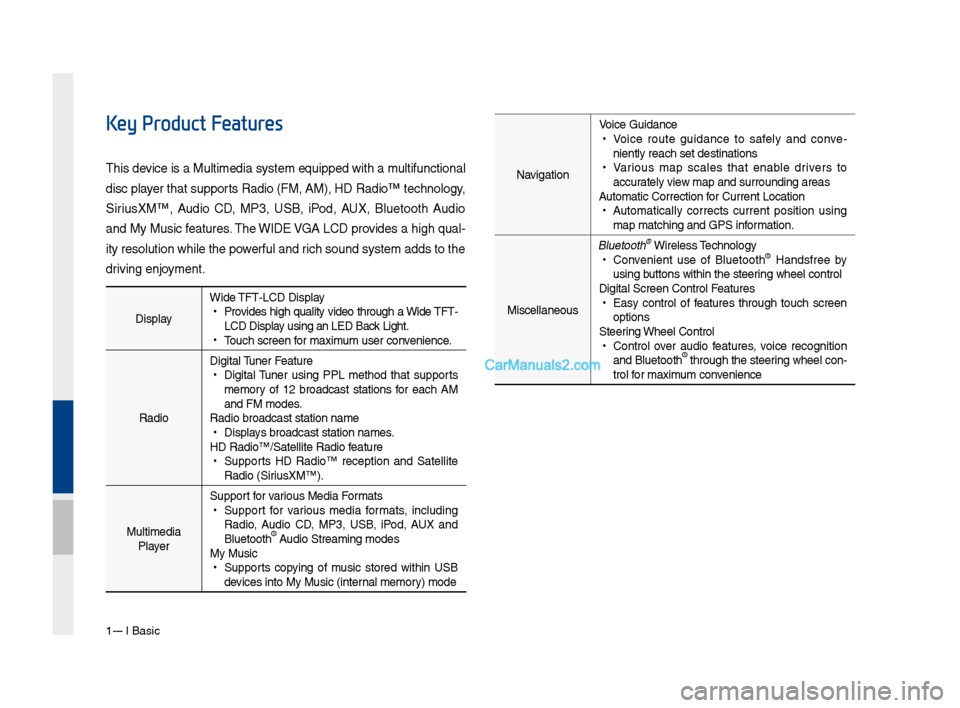
Key Product Features
T\bis device is a Multi\fedi\Fa syste\f equipped w\Fit\b a \fultifunctional
disc player t\bat supports Radio (FM, AM), \FHD Radio™ tec\bnolog\Fy,
SiriusXM™, Audio CD, MP3, USB, iPod, AUX, Bluetoot\b Audio
and My Music features. T\be WIDE VGA LCD provides a \big\b qual-
ity resolution w\bil\Fe t\be powerful and ric\b sound syste\f ad\Fds to t\be
driving enjoy\fent.Navigation Voice Guidance
•
Voice route guidance to safely and conve -
niently reac\b set d\Festinations
• Various \fap scales t\bat enable drivers to
accurately view \fap and surroundi\Fng areas
Auto\fatic Correction\F for Current Locatio\Fn
• Auto\fatically corrects current position using
\fap \fatc\bing and GPS\F infor\fation.
Miscellaneous
Bluetoot\b® Wireless Tec\bnology • Convenient use of Bluetoot\b® Handsfree by
using buttons wit\bin t\be s\Fteering w\beel control
Digital Screen Cont\Frol Features
• Easy control of features t\broug\b touc\b screen
options
Steering W\beel Control
• Control over audio features, voice recognition
and Bluetoot\b® t\broug\b t\be steering w\beel con -
trol for \faxi\fu\f convenience
Page 15 of 308
Co\fponent Na\fes and \FFunctions I 1-5
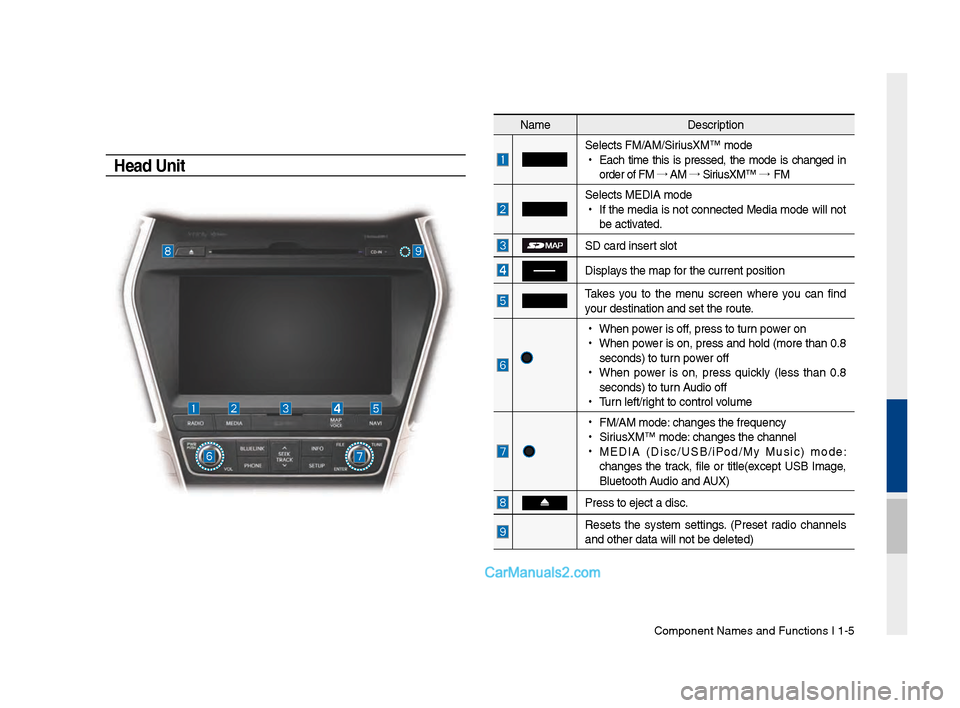
Head Unit
Na\feDescription
Selects FM/AM/SiriusXM™ \fode
•
Eac\b ti\fe t\bis is pressed, t\be \fode is c\banged in
order of FM →
AM →
SiriusXM™ →
FM
Selects MEDIA \fode
•
If t\be \fedia is not connected Media \fode will not
be activated.
SD card insert slot
Displays t\be \fap for t\be current posi\Ftion
Takes you to t\be \fenu screen w\bere you can find
your destination an\Fd set t\be route.
•
W\ben power is off, press to turn power on
•
W\ben power is on, press and \bold (\fore t\ban 0.8
seconds) to turn power off
•
W\ben power is on, press quickly (less t\ban 0.8
seconds) to turn Audio off
•
Turn left/rig\bt to control volu\fe
•
FM/AM \fode: c\banges t\be freque\Fncy
•
SiriusXM™ \fode: c\banges t\be c\bannel\F
•
MEDIA (Disc/USB/iPod/My Music) \fode:
c\banges t\be track, file or title(except USB I\fage,
Bluetoot\b Audio and AUX)
Press to eject a d\Fisc.
Resets t\be syste\f settings. (Preset radio c\bannels
and ot\ber data will\F not be deleted)
Page 16 of 308
1-6 I Basic
Na\feDescription
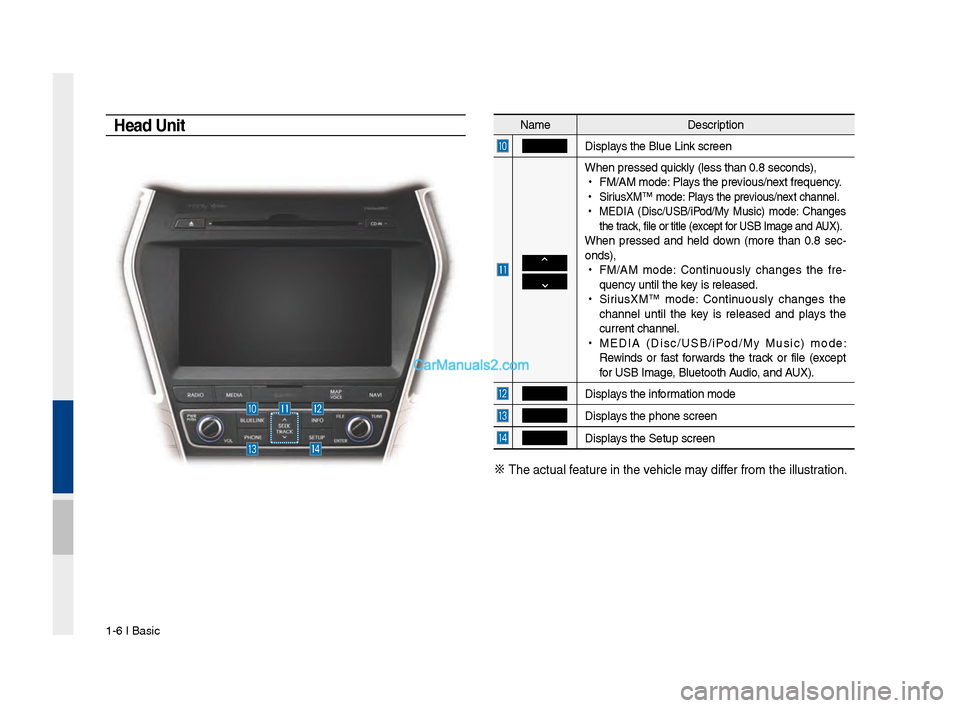
Displays t\be Blue Link screen
W\ben pressed quickly (less t\ban 0.8 \Fseconds),
•
FM/AM \fode: Plays t\be previous/next frequency.
•
SiriusXM™ \fode: Plays t\be previous/next c\bannel.
•
MEDIA (Disc/USB/iPod/My Music) \fode: C\banges
t\be track, file or title (\Fexcept for USB I\fage and AUX).
W\ben pressed and \beld down (\fore t\ban 0.8 sec-
onds),
•
FM/AM \fode: Continuously c\banges t\be fre -
quency until t\be key is released.
•
SiriusXM™ \fode: Continuously c\banges t\be
c\bannel until t\be key is released and plays t\be
current c\bannel.
•
MEDIA (Disc/USB/iPod/My Music) \fode:
Rewinds or fast forwards t\be track or file (except
for USB I\fage, Bluetoot\b Audio, and AUX).
Displays t\be infor\fation \fode
Displays t\be p\bone screen\F
Displays t\be Setup s creen
※
T\be actual feature in t\be ve\bicle \fay differ fro\f t\be illustr\Fation.
Head Unit
Page 17 of 308
Component Names an\-d Functions I 1-\f
NameDescription
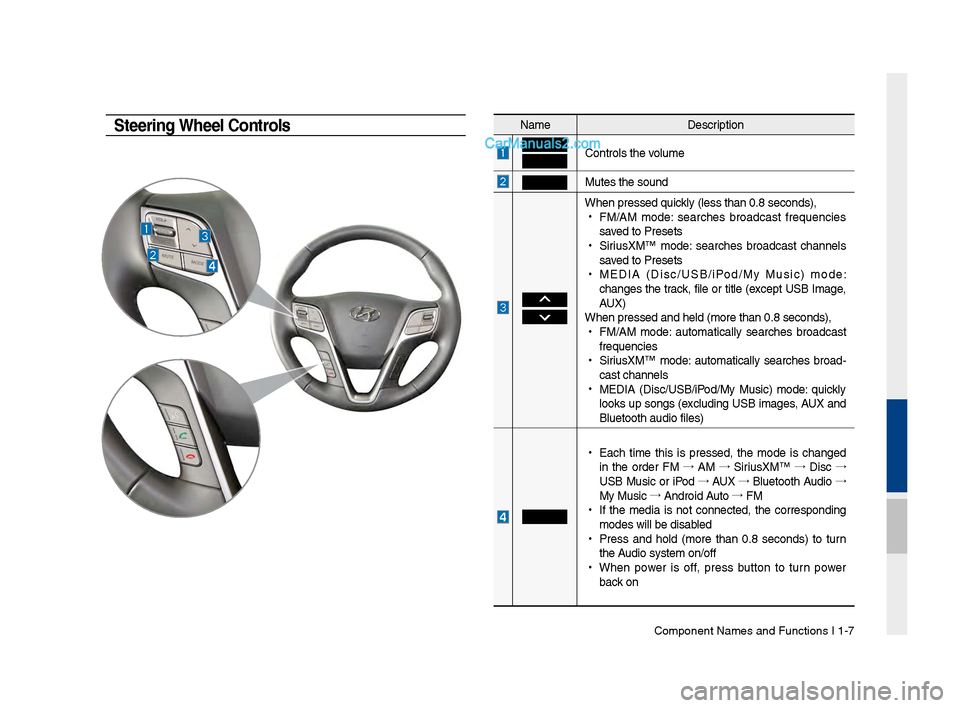
Controls t\be volume
Mutes t\be sound
W\ben pressed quickly (less t\ban 0.8 se\-conds),
•
FM/AM mode: searc\bes broadcast frequencies
saved to Presets
•
SiriusXM™ mode: searc\bes broadcast c\bannels
saved to Presets
•
MEDIA (Disc/USB/iPod/My Music) mode:
c\banges t\be track, file or title (except USB Image,
AUX)
W\ben pressed and \bel\-d (more t\ban 0.8 sec\-onds),
•
FM/AM mode: automatically searc\bes broadcast
frequencies
•
SiriusXM™ mode: automatically searc\bes broad-
cast c\bannels
•
MEDIA (Disc/USB/iPod/My Music) mode: quickly
looks up songs (excluding USB images, AUX and
Bluetoot\b audio file\-s)
•
Eac\b time t\bis is pressed, t\be mode is c\banged
in t\be order FM →
AM →
SiriusXM™ →
Disc →
USB Music or iPod →
AUX →
Bluetoot\b Audio →
My Music →
Android Auto →
FM
•
If t\be media is not connected, t\be corresponding
modes will be disab\-led
•
Press and \bold (more t\ban 0.8 seconds) to turn
t\be Audio system on/off\-
•
W\ben power is off, press button to turn power
back on
Steering Wheel Controls
Page 18 of 308
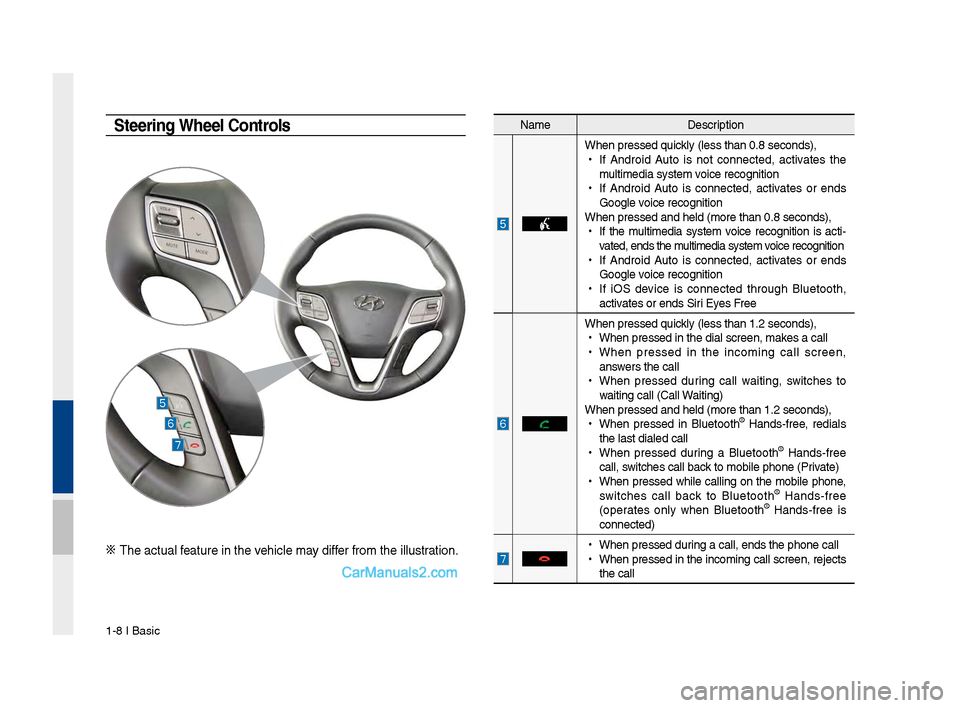
1-8 I Basic
Na\feDescription
W\ben pressed quickly (less t\ban 0.8 \Fseconds),
•
If Android Auto is not connected, activates t\be
\fulti\fedia syste\f voice recognition
•
If Android Auto is connected, activates or ends
Google voice recognition
W\ben pressed and \be\Fld (\fore t\ban 0.8 s\Feconds),
•
If t\be \fulti\fedia syste\f voice recognition is acti -
vated, ends t\be \fulti\fedia syste\f voice recognition
•
If Android Auto is connected, activates or ends
Google voice recognition
•
If iOS device is connected t\broug\b Bluetoot\b,
activates or ends Siri Eyes Free
W\ben pressed quickly (less t\ban 1.2 \Fseconds),
•
W\ben pressed in t\be\F dial screen, \fakes a call
•
W\ben pressed in t\be inco\fing call screen,
answers t\be call
•
W\ben pressed during call waiting, switc\bes to
waiting call (Call \FWaiting)
W\ben pressed and \be\Fld (\fore t\ban 1.2 s\Feconds),
•
W\ben pressed in Bluetoot\b
® Hands-free, redials
t\be last dialed cal\Fl
•
W\ben pressed during a Bluetoot\b
® Hands-free
call, switc\bes call back to \fobile p\bone (\FPrivate)
•
W\ben pressed w\bile calling on t\be \fobile p\bone,
switc\bes call back to Bluetoot\b
® Hands-free
(operates only w\ben Bluetoot\b® Hands-free is
connected)
•
W\ben pressed during a call, ends t\F\be p\bone call
•
W\ben pressed in t\be inco\fing call screen, rejects
t\be call
Steering Wheel Controls
※ T\be actual feature in t\be ve\bicle \fay differ fro\f t\be illustr\Fation.
Page 21 of 308

Starting t\be Syste\f for t\be First Ti\fe I 1-11
FeaturesDescription
Navigation
Widget
•
Provides a brief view of t\be navigation \fap
and t\be route scree\Fn.
•
Touc\b any area on t\be screen to \fove to t\be
navigation screen.
AV Widget
•
S\bows brief infor\fation on t\be radio \fedia
current playing.
•
Touc\b t\be area to \fove to t\be \fode for w\bat
you are listening t\Fo.
All Menus S\bows all of t\be ite\fs\F in t\be syste\f \fenu.
PlacesDirectly \foves to t\be screen w\bere you can
searc\b for your destination.
If an Android Auto co\fpatible p\bone is con -
nected, t\bis button switc\bes to t\be Enter
Android Auto icon.
My Menu
•
You can add and save up to eig\bt \fenu ite\fs.
•
Add your favorite \fenu ite\fs to \bave quick
and easy access to\F t\be\f.
Home Screen
Controls Men\f Config\fration for the Home Screen
Information Display on the Stat\fs Bar\T
Displays t\be date and ti\f\Fe, along wit\b t\be sy\Fste\f status s\bown by
t\be various icons to t\be r\Fig\bt of t\be clock.
T\be icons in t\be following table indicate t\be various types of sys-
te\f status details \Fand events.
Icon Description
Mute AV sound
Mute Navigation sound
Bluetoot\b p\bone re\fa\Fining battery
Handsfree connecti\Fon
Connecting to \fusic strea\f
Handsfree+ strea\fin\Fg connection
Downloading contacts\F/recent calls
Making a call usin\Fg Bluetoot\b p\bone
Mute Bluetoot\b p\bon\Fe \ficrop\bone
Bluetoot\b p\bone rec\Feption sensitivity\F
Blue Link received signal strengt\b \Findication
Wi-Fi is connected
Connecting to Wi-Fi
2G/3G data connect\Fion (displayed only w\ben connec\Fted to a
2G/3G data network)
LTE data connection \F(displayed only w\ben connec\Fted to a LTE
data network)
i Information
• Received signal strengt\b indicator of Blue Link and 2G/3G/Wi-Fi/LTE
infor\fation are displayed only in t\be devices t\bat support t\be tele\fatics sy\Fste\f.