settings Hyundai Santa Fe 2020 Owner's Guide
[x] Cancel search | Manufacturer: HYUNDAI, Model Year: 2020, Model line: Santa Fe, Model: Hyundai Santa Fe 2020Pages: 557, PDF Size: 19.29 MB
Page 241 of 557
3-152
Convenient features of your vehicle
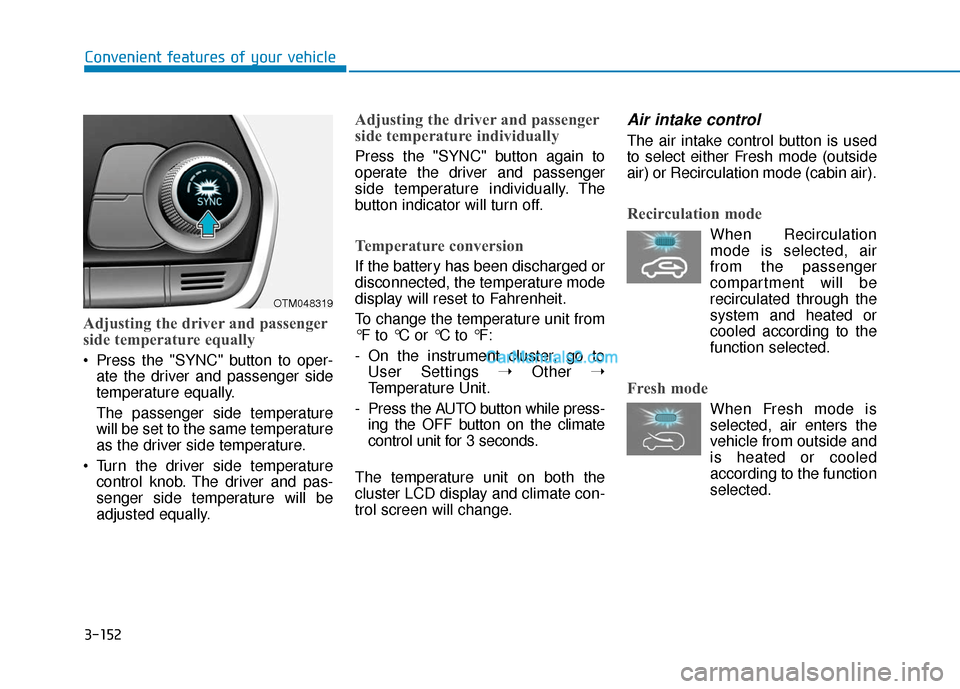
Adjusting the driver and passenger
side temperature equally
Press the "SYNC" button to oper-ate the driver and passenger side
temperature equally.
The passenger side temperature
will be set to the same temperature
as the driver side temperature.
Turn the driver side temperature control knob. The driver and pas-
senger side temperature will be
adjusted equally.
Adjusting the driver and passenger
side temperature individually
Press the "SYNC" button again to
operate the driver and passenger
side temperature individually. The
button indicator will turn off.
Temperature conversion
If the battery has been discharged or
disconnected, the temperature mode
display will reset to Fahrenheit.
To change the temperature unit from
°F to °C or °C to °F:
- On the instrument cluster, go toUser Settings ➝ Other ➝
Temperature Unit.
- Press the AUTO button while press- ing the OFF button on the climate
control unit for 3 seconds.
The temperature unit on both the
cluster LCD display and climate con-
trol screen will change.
Air intake control
The air intake control button is used
to select either Fresh mode (outside
air) or Recirculation mode (cabin air).
Recirculation mode
When Recirculation mode is selected, air
from the passenger
compartment will be
recirculated through the
system and heated or
cooled according to the
function selected.
Fresh mode
When Fresh mode is selected, air enters the
vehicle from outside and
is heated or cooled
according to the function
selected.
OTM048319
Page 253 of 557
3-164
Convenient features of your vehicle
Sunroof Inside Air
Recirculation (if equipped)
When the sunroof is opened, out-
side (fresh) air will be automatically
selected. At this time, if you press the
air intake control button, recirculated
air position will be selected but will
change back to outside (fresh) air
after 3 minutes. When the sunroof is
closed, the air intake position will
return to the original position that
was selected.
Auto comfort control
(for driver's seat) (if equipped)
The temperature of the driver's seat
warmer, seat cooler and heated
steering wheel is automatically con-
trolled depending on the ambient
temperature and the set climate con-
trol temperature of the vehicle when
the engine is running.
To use this function, it must be acti-
vated from the Settings menu in the
AV/AVN system screen. Select:
- All menus →Setup →Vehicle →
Heated/Ventilated Features
For more details on Auto Comfort
Control, refer to "Seat Warmers
and Air ventilation seats" in chap-
ter 2, and "Heated Steering Wheel"
in chapter 3.
Page 263 of 557
3-174
Convenient features of your vehicle
To charge a cellular phone
The wireless cellular phone charging
system charges only the Qi-enabled
cellular phones ( ). Read the label
on the cellular phone accessory
cover or visit your cellular phone
manufacturer's website to check
whether your cellular phone supports
the Qi technology.
The wireless charging process starts
when you put a Qi-enabled cellular
phone on the wireless charging unit.
1. Remove other items, including thesmart key, from the wireless charg-
ing unit. If not, the wireless charg-
ing process may be interrupted.
Place the cellular phone on the
center of the charging pad ( ).
2. The indicator light is orange when the cellular phone is charging. The
indicator light turns green when
phone charging is complete.
3. You can turn ON or OFF the wire- less charging function in the user
settings mode on the instrument
cluster. For further information,
refer to the "LCD Display Modes"
in this chapter. If your cellular phone is not charging:
- Slightly change the position of the
cellular phone on the charging
pad.
- Make sure the indicator light is orange.
The indicator light will blink orange for
10 seconds if there is a malfunction in
the wireless charging system.
In this case, temporarily stop the
charging process, and re-attempt to
charge your cellular phone again.
The system warns you with a mes-
sage on the LCD display if the cellular
phone is still on the wireless charging
unit after the engine is turned OFF
and the front door is opened.
Information
For some manufacturers' cellular
phones, the system may not warn you
even though the cellular phone is left
on the wireless charging unit. This is
due to the particular characteristic of
the cellular phone and not a malfunc-
tion of the wireless charging. The wireless cellular phone
charging system may not sup-
port certain cellular phones,
which are not verified for the Qi
specification ( ).
When placing your cellular phone on the charging mat,
position the phone in the middle
of the mat for optimal charging
performance. If your cellular
phone is off to the side, the
charging rate may be less and in
some cases the cellular phone
may experience higher heat con-
duction.
In some cases, the wireless charging may stop temporarily
when the Remote Key or Smart
Key is used, either when starting
the vehicle or locking/unlocking
the doors, etc.
When charging certain cellular phones, the charging indicator
may not change to green when
the cellular phone is fully
charged.
NOTICE
i
Page 264 of 557
3-175
Convenient features of your vehicle
3
The wireless charging processmay temporarily stop, when tem-
perature abnormally increases
inside the wireless cellular phone
charging system. Stop the charg-
ing cellular phone and wait until
temperature falls to a certain level.
The wireless charging process may temporarily stop when there
is any metallic item, such as a
coin, between the wireless cellular
phone charging system and the
cellular phone.
When charging some cellular phones with a self-protection fea-
ture, the wireless charging speed
may decrease and the wireless
charging may stop.
If the cellular phone has a thick cover, the wireless charging may
not be possible.
If the cellular phone is not com- pletely contacting the charging
pad, wireless charging may not
operate properly.
Some magnetic items like credit cards, phone cards or rail tickets
may be damaged if left with the
cellular phone during the charging
process. When any cellular phone without a
wireless charging function or a
metallic object is placed on the
charging pad, a small noise may
sound. This small sound is due to
the vehicle discerning compatibil-
ity of the object placed on the
charging pad. It does not affect
your vehicle or the cellular phone
in any way.
Information
If the ignition switch is in the OFF
position, the charging also stops.
Information
This device complies with part 15 of
the FCC Rules.
Operation is subject to the following
two conditions:
1. This device may not cause harmful interference, and
2. This device must accept any inter- ference received, including inter-
ference that may cause undesired
operation.
Clock
Vehicles with Audio system
Select the [SETUP] button on the
audio system ➟ Select [Date/Time].
Set time: Set the time displayed on the audio screen.
Time format: Choose between 12- hour and 24-hour time formats.
Vehicles with Navigation system
Select the Settings menu on the
Navigation system ➟Select
[Date/Time].
GPS time: Displays time accord- ing to the received GNSS time.
24-hour: Switches to 12 hour or 24 hour.
i
i
Do not attempt to adjust the
clock while driving. Doing so
may result in distracted driving
which may lead to an accident
involving personal injury or
death.
WARNING
Page 328 of 557
5-54
Driving your vehicle
The Forward Collision-Avoidance
Assist (FCA) system is designed to
help detect and monitor the vehicle
ahead or help detect a pedestrian in
the roadway through radar signals
and camera recognition to warn the
driver that a collision is imminent,
and if necessary, apply emergency
braking.
System Setting and Activation
System setting
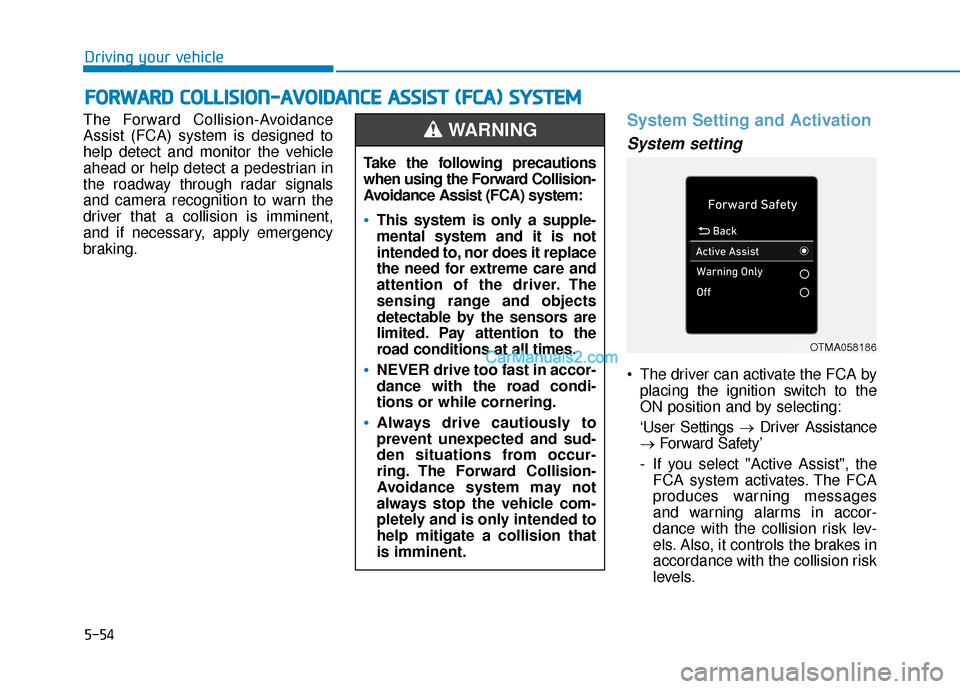
The driver can activate the FCA by placing the ignition switch to the
ON position and by selecting:
‘User Settings → Driver Assistance
→ Forward Safety’
- If you select "Active Assist", the FCA system activates. The FCA
produces warning messages
and warning alarms in accor-
dance with the collision risk lev-
els. Also, it controls the brakes in
accordance with the collision risk
levels.
F FO
O R
RW
W A
AR
RD
D
C
C O
O L
LL
LI
IS
S I
IO
O N
N-
-A
A V
VO
O I
ID
D A
A N
N C
CE
E
A
A S
SS
SI
IS
S T
T
(
( F
F C
C A
A )
)
S
S Y
Y S
ST
T E
EM
M
Take the following precautions
when using the Forward Collision-
Avoidance Assist (FCA) system:
This system is only a supple-
mental system and it is not
intended to, nor does it replace
the need for extreme care and
attention of the driver. The
sensing range and objects
detectable by the sensors are
limited. Pay attention to the
road conditions at all times.
NEVER drive too fast in accor-
dance with the road condi-
tions or while cornering.
Always drive cautiously to
prevent unexpected and sud-
den situations from occur-
ring. The Forward Collision-
Avoidance system may not
always stop the vehicle com-
pletely and is only intended to
help mitigate a collision that
is imminent.
WARNING
OTMA058186
Page 329 of 557
5-55
Driving your vehicle
5
- If you select "Warning Only", theFCA system activates and pro-
duces only warning alarms in
accordance with the collision risk
levels. You should control the
brake directly because the FCA
system do not control the brake.
- If you select "Off", the FCA sys- tem deactivates,
The warning light illu-
minates on the LCD
display, when you can-
cel the FCA system.
The driver can monitor the FCA
ON/OFF status on the LCD dis-
play. Also, the warning light illumi-
nates when the ESC (Electronic
Stability Control) is turned off. If
the warning light remains ON
when the FCA is activated, have
the system checked by an author-
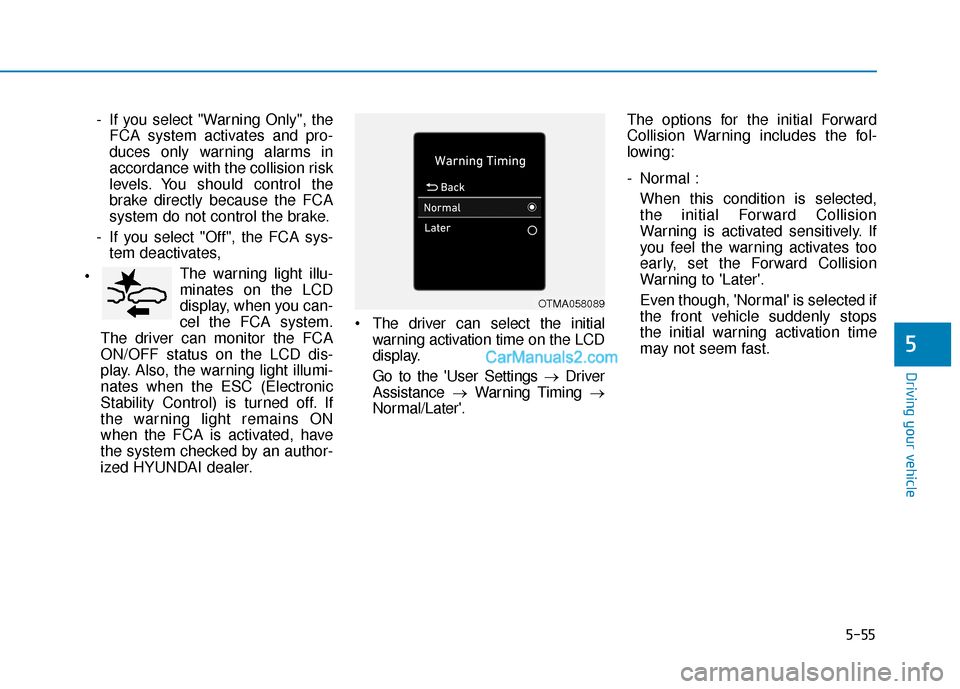
ized HYUNDAI dealer. The driver can select the initial
warning activation time on the LCD
display.
Go to the 'User Settings → Driver
Assistance →Warning Timing →
Normal/Later'. The options for the initial Forward
Collision Warning includes the fol-
lowing:
- Normal :
When this condition is selected,
the initial Forward Collision
Warning is activated sensitively. If
you feel the warning activates too
early, set the Forward Collision
Warning to 'Later'.
Even though, 'Normal' is selected if
the front vehicle suddenly stops
the initial warning activation time
may not seem fast.
OTMA058089
Page 331 of 557
5-57
Driving your vehicle
5
FCA Warning Message and
System Control
The FCA produces warning mes-
sages and warning alarms in accor-
dance with the collision risk levels,
such as abrupt stopping of the vehi-
cle in front, insufficient braking dis-
tance, or pedestrian detection. Also,
it controls the brakes in accordance
with the collision risk levels.
The driver can select the initial warn-
ing activation time in the User
Settings in the LCD display. The
options for the initial Forward Collision
Warning include Early or Later initial
warning time.
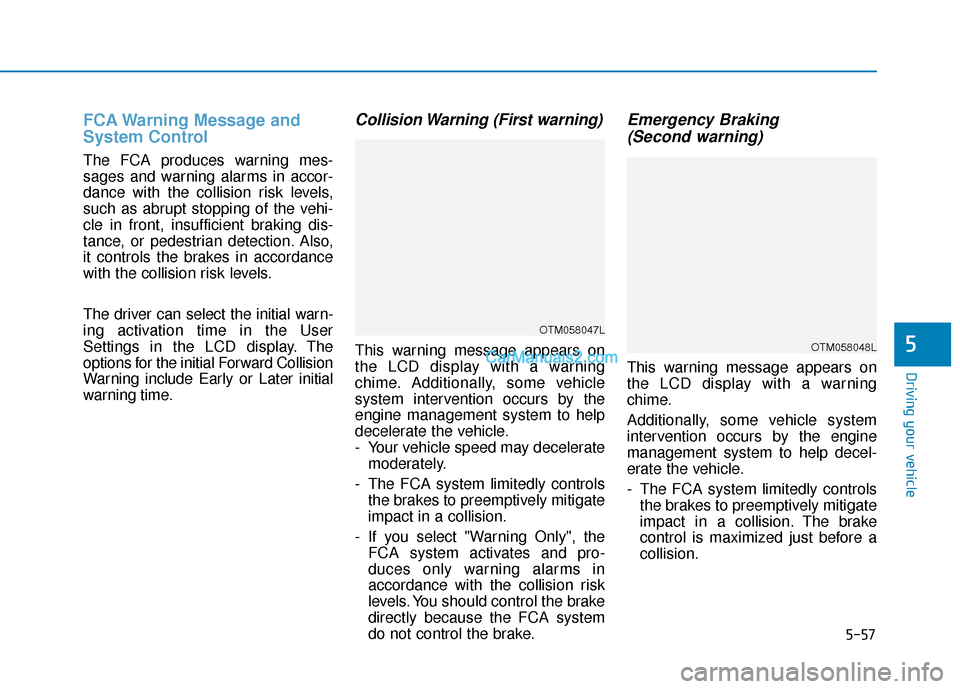
Collision Warning (First warning)
This warning message appears on
the LCD display with a warning
chime. Additionally, some vehicle
system intervention occurs by the
engine management system to help
decelerate the vehicle.
- Your vehicle speed may deceleratemoderately.
- The FCA system limitedly controls the brakes to preemptively mitigate
impact in a collision.
- If you select "Warning Only", the FCA system activates and pro-
duces only warning alarms in
accordance with the collision risk
levels. You should control the brake
directly because the FCA system
do not control the brake.
Emergency Braking(Second warning)
This warning message appears on
the LCD display with a warning
chime.
Additionally, some vehicle system
intervention occurs by the engine
management system to help decel-
erate the vehicle.
- The FCA system limitedly controls
the brakes to preemptively mitigate
impact in a collision. The brake
control is maximized just before a
collision.
OTM058047L
OTM058048L
Page 343 of 557
5-69
Driving your vehicle
5
System Setting and Activation
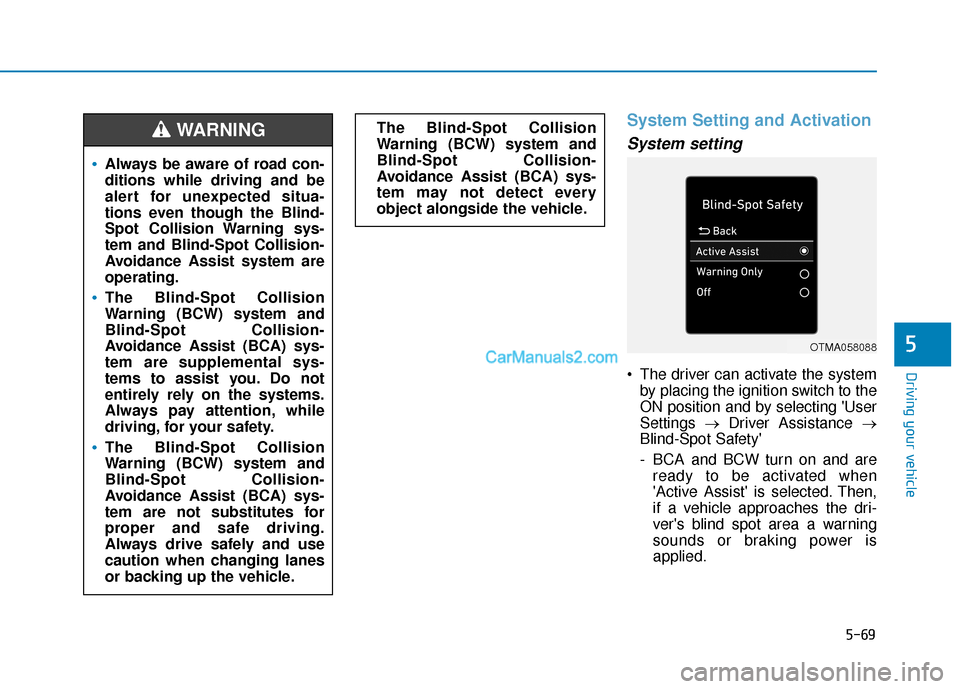
System setting
The driver can activate the systemby placing the ignition switch to the
ON position and by selecting 'User
Settings →Driver Assistance →
Blind-Spot Safety'
- BCA and BCW turn on and are ready to be activated when
'Active Assist' is selected. Then,
if a vehicle approaches the dri-
ver's blind spot area a warning
sounds or braking power is
applied.
The Blind-Spot Collision
Warning (BCW) system and
Blind-Spot Collision-
Avoidance Assist (BCA) sys-
tem may not detect every
object alongside the vehicle.
Always be aware of road con-
ditions while driving and be
alert for unexpected situa-
tions even though the Blind-
Spot Collision Warning sys-
tem and Blind-Spot Collision-
Avoidance Assist system are
operating.
The Blind-Spot Collision
Warning (BCW) system and
Blind-Spot Collision-
Avoidance Assist (BCA) sys-
tem are supplemental sys-
tems to assist you. Do not
entirely rely on the systems.
Always pay attention, while
driving, for your safety.
The Blind-Spot Collision
Warning (BCW) system and
Blind-Spot Collision-
Avoidance Assist (BCA) sys-
tem are not substitutes for
proper and safe driving.
Always drive safely and use
caution when changing lanes
or backing up the vehicle.
WARNING
OTMA058088
Page 344 of 557
5-70
Driving your vehicle- BCW turns on and is ready to be activated when 'Warning Only' is
selected. Then, if a vehicle
approaches the driver's blind
spot area a warning sounds but
braking is not applied.
- The system is deactivated and the indicator on the BCW/BCA
button is turned off when 'Off' is
selected.
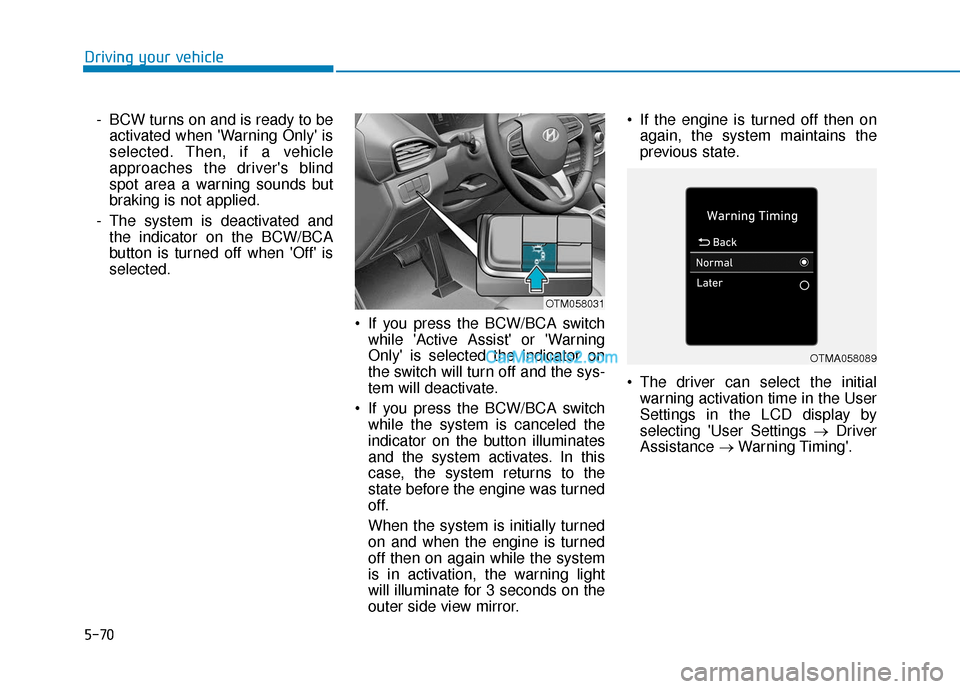
If you press the BCW/BCA switchwhile 'Active Assist' or 'Warning
Only' is selected the indicator on
the switch will turn off and the sys-
tem will deactivate.
If you press the BCW/BCA switch while the system is canceled the
indicator on the button illuminates
and the system activates. In this
case, the system returns to the
state before the engine was turned
off.
When the system is initially turned
on and when the engine is turned
off then on again while the system
is in activation, the warning light
will illuminate for 3 seconds on the
outer side view mirror. If the engine is turned off then on
again, the system maintains the
previous state.
The driver can select the initial warning activation time in the User
Settings in the LCD display by
selecting 'User Settings → Driver
Assistance →Warning Timing'.
OTM058031
OTMA058089
Page 345 of 557
5-71
Driving your vehicle
5
The options for the initial Blind-Spot Collision Warning includes
the following:
- Normal:
When this condition is selected,
the initial Blind-Spot Collision
Warning is activated normally. If
this setting feels sensitive,
change the option to 'Later'.
The warning activation time may
feel late if a vehicle at the side or
rear abruptly accelerates.
- Later: Select this warning activation
time when the traffic is light and
you are driving in a low speed.
Information
If you change the warning timing, the
warning time of other systems may
change. Always be aware before
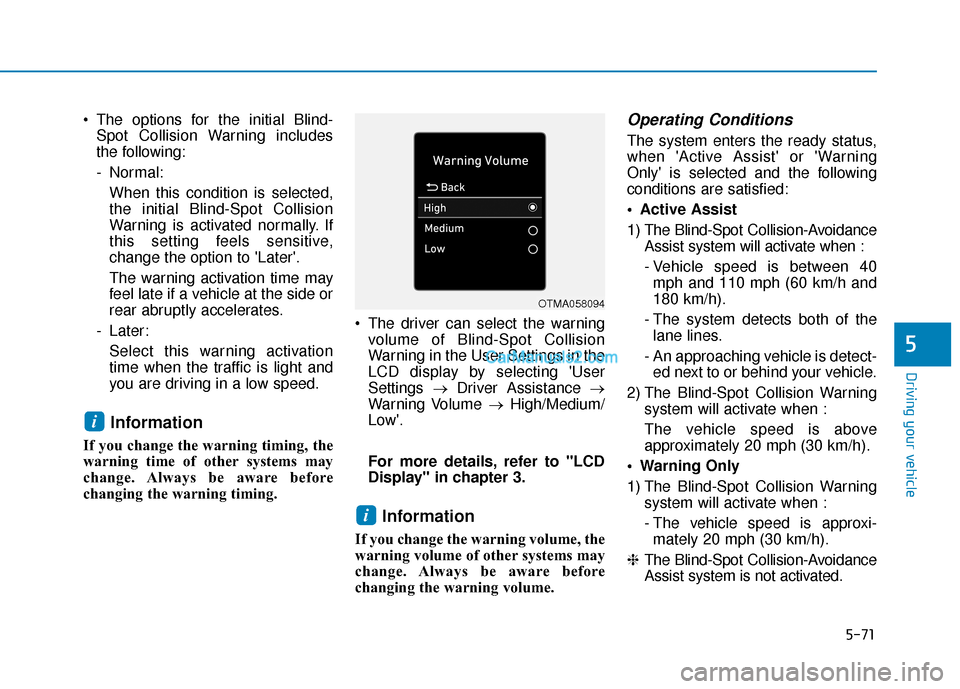
changing the warning timing. The driver can select the warning
volume of Blind-Spot Collision
Warning in the User Settings in the
LCD display by selecting 'User
Settings →Driver Assistance →
Warning Volume →High/Medium/
Low'.
For more details, refer to "LCD
Display" in chapter 3.
Information
If you change the warning volume, the
warning volume of other systems may
change. Always be aware before
changing the warning volume.
Operating Conditions
The system enters the ready status,
when 'Active Assist' or 'Warning
Only' is selected and the following
conditions are satisfied:
Active Assist
1) The Blind-Spot Collision-Avoidance Assist system will activate when :
- Vehicle speed is between 40mph and 110 mph (60 km/h and
180 km/h).
- The system detects both of the lane lines.
- An approaching vehicle is detect- ed next to or behind your vehicle.
2) The Blind-Spot Collision Warning system will activate when :
The vehicle speed is above
approximately 20 mph (30 km/h).
Warning Only
1) The Blind-Spot Collision Warning system will activate when :
- The vehicle speed is approxi-mately 20 mph (30 km/h).
❈ The Blind-Spot Collision-Avoidance
Assist system is not activated.
i
i
OTMA058094