Drive modes Hyundai Santa Fe 2020 Owner's Manual
[x] Cancel search | Manufacturer: HYUNDAI, Model Year: 2020, Model line: Santa Fe, Model: Hyundai Santa Fe 2020Pages: 557, PDF Size: 19.29 MB
Page 48 of 557
2-30
Safety system of your vehicle
Rear Seat Belt – Passenger's 3-point system with convertiblelocking retractor
This type of seat belt combines the
features of both an emergency locking
retractor seat belt and an automatic
locking retractor seat belt. Convertible
retractor type seat belts are installed in
the rear seat positions to help accom-
modate the installation of child
restraint systems. Although a convert-
ible retractor is also installed in the
front passenger seat position, NEVER
place any infant/child restraint system
in the front seat of the vehicle.
To fasten your seat belt:
Pull the seat belt out of the retractor
and insert the metal tab into the buck-
le. There will be an audible "click"
when the tab locks into the buckle.
When not securing a child restraint,
the seat belt operates in the same way
as the driver's seat belt (Emergency
Locking Retractor Type). It automati-
cally adjusts to the proper length only
after the lap belt portion of the seat
belt is adjusted manually so that it fits
snugly across your hips.
When the seat belt is fully extended
from the retractor to allow the installa-
tion of a child restraint system, the
seat belt operation changes to allow
the belt to retract, but not to extend
(Automatic Locking Retractor Type).
Refer to the "Using a Child Restraint
System" section in this chapter. Although the seat belt retractor
provides the same level of protec-
tion for seated passengers in
either emergency or automatic
locking modes, the emergency
locking mode allows seated pas-
sengers to move freely in their
seat while keeping some tension
on the belt. During a collision or
sudden stop, the retractor auto-
matically locks the belt to help
restrain your body.
To deactivate the automatic lock-
ing mode, unbuckle the seat belt
and allow the belt to fully retract.
NOTICE
Page 91 of 557
LCD Display ...........................................................3-91
LCD Display Control ........................................................3-91
LCD Display Modes .........................................................3-92
Trip Computer .....................................................3-106
Head Up Display (HUD).....................................3-110
Lighting................................................................3-112
Exterior Lights ...............................................................3-112
Interior Lights ................................................................3-120
Welcome System ...........................................................3-123
Wipers And Washers .........................................3-124
Front Windshield Wipers .............................................3-124
Front Windshield Washers ..........................................3-126
Rear Window Wiper and Washer..............................3-127
Driver Assist System .........................................3-128
Rear view monitor ........................................................3-128
Surround View Monitoring .........................................3-129
Blind-spot View Monitor system ..............................3-131
Reverse Parking Distance Warning system............3-133
Manual Climate Control System.......................3-137
Heating and Air Conditioning .....................................3-138
System Operation .........................................................3-142
System Maintenance....................................................3-144
Automatic Climate Control System ..................3-146
Automatic Temperature Control Mode ....................3-147
Manual Temperature Control Mode .........................3-148
System Operation .........................................................3-155
System Maintenance....................................................3-156
Windshield Defrosting and Defogging ............3-158
Auto Defogging System ..............................................3-160
Rear Window Defroster ..............................................3-162
Climate Control Additional Features ...............3-163
Cluster ionizer ................................................................3-163
Automatic Ventilation ...................................................3-163
Sunroof Inside Air Recirculation ...............................3-164
Auto comfort control ...................................................3-164
Storage Compartment .......................................3-165
Center Console Storage ..............................................3-165
Glove Box ........................................................................\
3-165
Sunglass Holder.............................................................3-166
Tray......................................................................\
.............3-166
Luggage Tray .................................................................3-167
3
Page 181 of 557
3-92
Convenient features of your vehicle
Modes SymbolExplanation
Trip Computer The Trip Computer mode displays driving information such as the tripmeter, fuel economy,
etc.For details, refer to "Trip Computer" in this chapter.
Turn By Turn (TBT)
(if equipped)This mode displays the state of the navigation.
Assist
The Driver Assist mode displays the status of the following features:
- Smart Cruise Control (SCC) system
- Lane Keeping Assist (LKA) system
- Driver Attention Warning (DAW) system
- Tire pressure
- Traction force distribution status of front-wheels and rear-wheels
For more information, refer to "Smart Cruise Control with Stop & Go)", "Lane
Keeping Assist (LKA) system", "Driver Attention Warning (DAW) system",
"Traction force distribution status of front-wheels and rear-wheels" in chapter 5
and "Tire Pressure Monitoring System (TPMS)" in chapter 6.
User SettingsThe User Settings mode provides user options for a variety of settings including door
lock/unlock features, convenience features, driver assistance settings, etc.
Master WarningThe Master Warning mode displays warning messages related to the vehicle when one
or more systems is not operating normally.
The information provided may differ depending on which functions are applicable to your vehicle.
LCD Display Modes
Page 184 of 557
3-95
Convenient features of your vehicle
3
- Smart Cruise Control with Stop &Go radar blocked (if equipped)
- Lamp malfunction
- High Beam Assist malfunction (if equipped)
- Tire Pressure Monitoring System (TPMS) malfunction
The Master Warning Light illumi-
nates if one or more of the above
warning situations occur. At this time,
the LCD Modes Icon will change
from ( ) to ( ).
If the warning situation is solved, the
master warning light will be turned
off and the LCD Modes Icon will be
changed back to its previous icon
().User settings mode
In this mode, you can change the
settings of the instrument cluster,
doors, lamps, etc.
1. Head-up display
2. Driver Assistance
3. Door
4. Lights
5. Sound
6. Convenience
7. Service interval
8. Other
9. Language
10. Reset The information provided may differ
depending on which functions are
applicable to your vehicle.
OIK047148L
Page 195 of 557
3-106
Convenient features of your vehicle
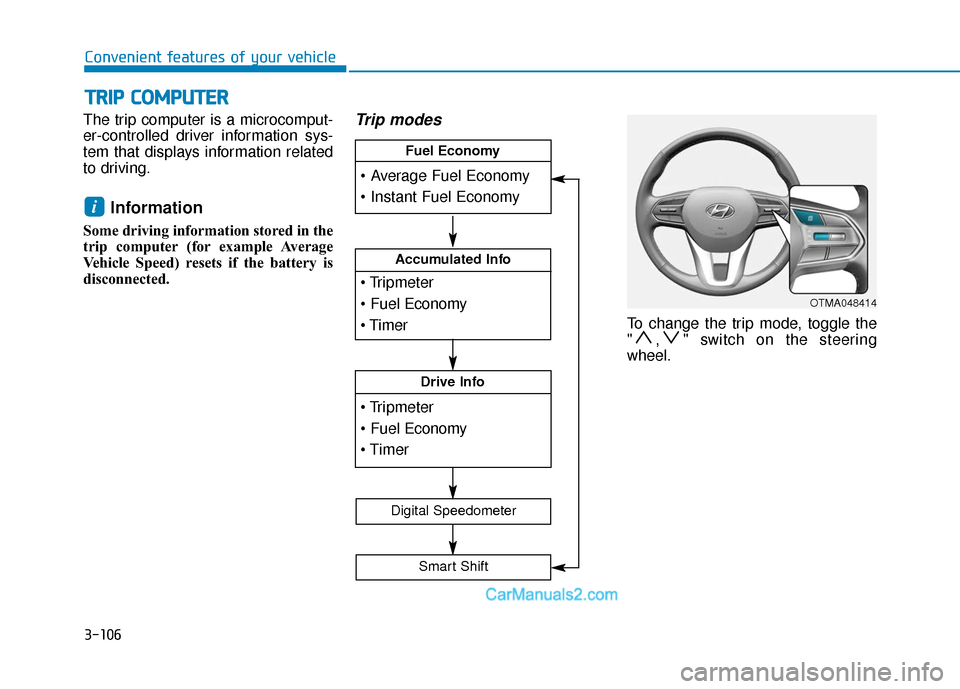
The trip computer is a microcomput-
er-controlled driver information sys-
tem that displays information related
to driving.
Information
Some driving information stored in the
trip computer (for example Average
Vehicle Speed) resets if the battery is
disconnected.
Trip modes
To change the trip mode, toggle the
" , " switch on the steering
wheel.
i
T
T R
R I
IP
P
C
C O
O M
M P
PU
U T
TE
ER
R
OTMA048414
Accumulated Info
Drive Info
Fuel Economy
Digital Speedometer
Smart Shift
Page 219 of 557
3-130
Convenient features of your vehicle
Always keep the camera lens
clean. The camera may not work
normally if the lens is covered
with foreign material.
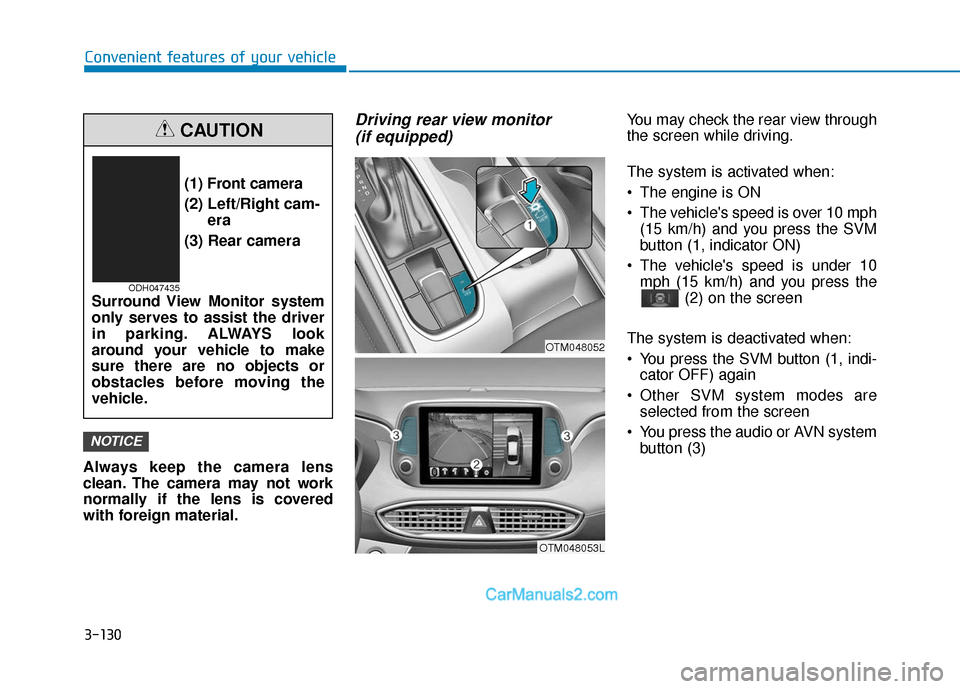
Driving rear view monitor (if equipped)You may check the rear view through
the screen while driving.
The system is activated when:
The engine is ON
The vehicle's speed is over 10 mph
(15 km/h) and you press the SVM
button (1, indicator ON)
The vehicle's speed is under 10 mph (15 km/h) and you press the (2) on the screen
The system is deactivated when:
You press the SVM button (1, indi- cator OFF) again
Other SVM system modes are selected from the screen
You press the audio or AVN system button (3)
NOTICE
(1) Front camera
(2) Left/Right cam- era
(3) Rear camera
Surround View Monitor system
only serves to assist the driver
in parking. ALWAYS look
around your vehicle to make
sure there are no objects or
obstacles before moving the
vehicle.
CAUTION
ODH047435
OTM048053L
OTM048052
Page 220 of 557
3-131
Convenient features of your vehicle
3
Information
• If vehicle speed is over 10 mph (15km/h)
- the rear image stays ON when therear view was on the screen
- screen (top, front wide, front right and front left) of other modes of
SVM system turns OFF and
switches to the original AVN
screen when other modes were on
the screen
• If the SVM system is ON and the vehicle speed is under 10 mph (15
km/h)
- the rear image stays ON when therear view was on the screen
- a pop-up for selecting the SVM mode (top, front wide, front right
and front left) appears when
pressing (2) on the screen • When the vehicle is backing up, the
rear image will appear on the
screen automatically regardless of
vehicle speed or SVM button (1)
status.
- If the rear image was ON, thescreen switches to the parking
assist screen.
- If the screen (top, front wide, front right and front left) of other
modes of SVM system was ON, the
screen for setting the initial rear
view mode appears.
- When the shift lever is moved from R (Reverse) to D (Drive), the
screen of the previous mode is dis-
played.
• A warning appears on the system when:
- The liftgate is opened
- The driver's door is opened
- The passenger's door is opened
- The outer side view mirror is folded
• If the system is not operating nor- mally, the system should be checked
by an authorized HYUNDAI dealer.
For more details, refer to the sep-
arately supplied manual with your
vehicle.
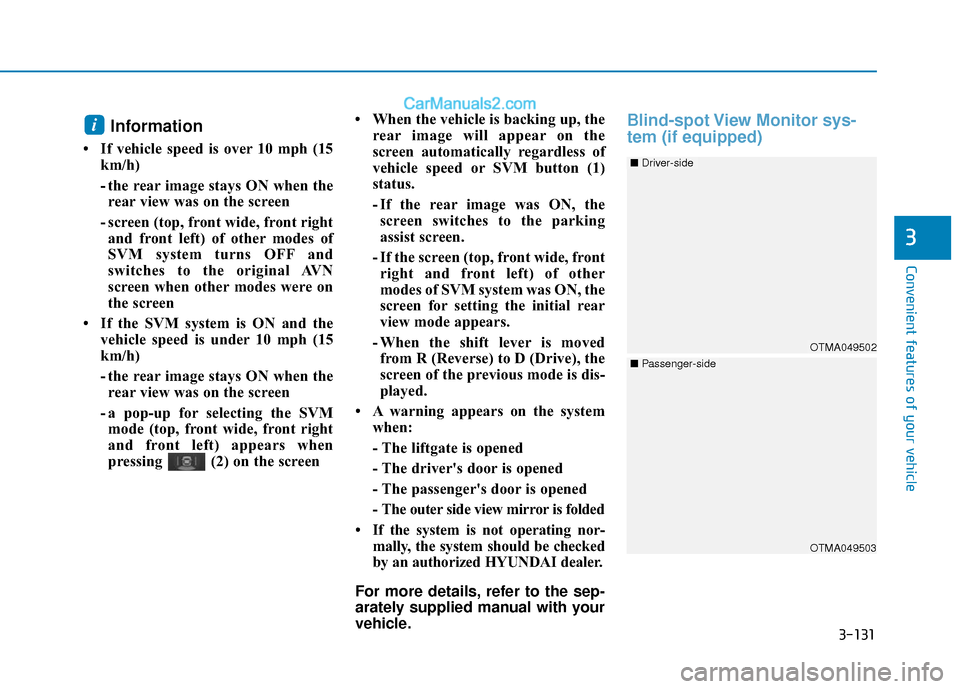
Blind-spot View Monitor sys-
tem (if equipped)i
OTMA049503
OTMA049502
■ Driver-side
■Passenger-side
Page 236 of 557
3-147
Convenient features of your vehicle
3
Automatic Temperature
Control Mode
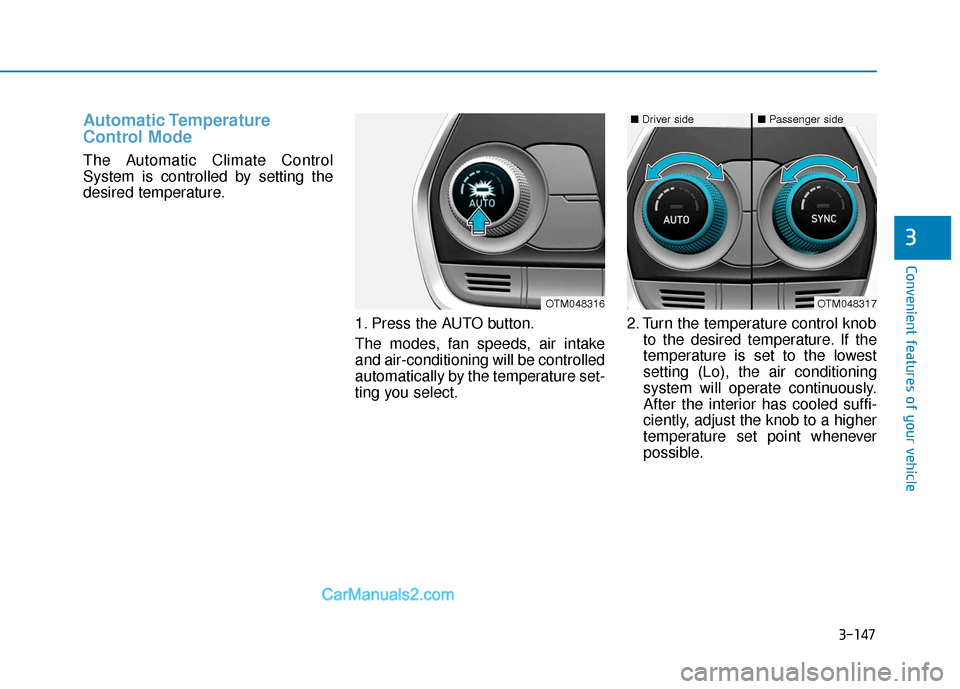
The Automatic Climate Control
System is controlled by setting the
desired temperature.1. Press the AUTO button.
The modes, fan speeds, air intake
and air-conditioning will be controlled
automatically by the temperature set-
ting you select.2. Turn the temperature control knob
to the desired temperature. If the
temperature is set to the lowest
setting (Lo), the air conditioning
system will operate continuously.
After the interior has cooled suffi-
ciently, adjust the knob to a higher
temperature set point whenever
possible.
OTM048316OTM048317
■Driver side■Passenger side
Page 369 of 557
5-95
Driving your vehicle
5
Note that the vehicle
speed must be at least
approximately 40 mph
(64 km/h) to ENABLE the
LKA system. The indicator in the
cluster display will illuminate green.
The color of indicator will change
depending on the condition of LKA
system.
- White : Sensor does not detect
lane markers or vehicle
speed is under 40 mph (64
km/h).
- Green : Sensor detects lane mark- ers and the system is able
to control vehicle steering.
Information
If the indicator (white) is activated
from the previous ignition cycle, the
system will turn ON without any addi-
tional control. If you press the LKA
switch again, the indicator on the clus-
ter goes off.
LKA system activation
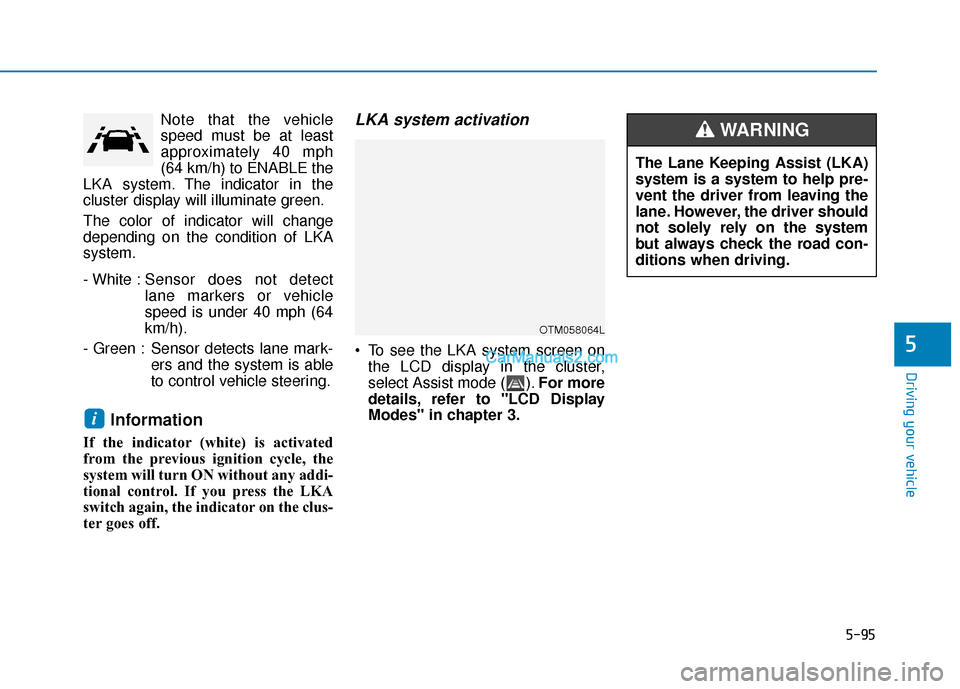
To see the LKA system screen onthe LCD display in the cluster,
select Assist mode ( ). For more
details, refer to "LCD Display
Modes" in chapter 3.
i
OTM058064L
The Lane Keeping Assist (LKA)
system is a system to help pre-
vent the driver from leaving the
lane. However, the driver should
not solely rely on the system
but always check the road con-
ditions when driving.
WARNING
Page 377 of 557
5-103
Driving your vehicle
5
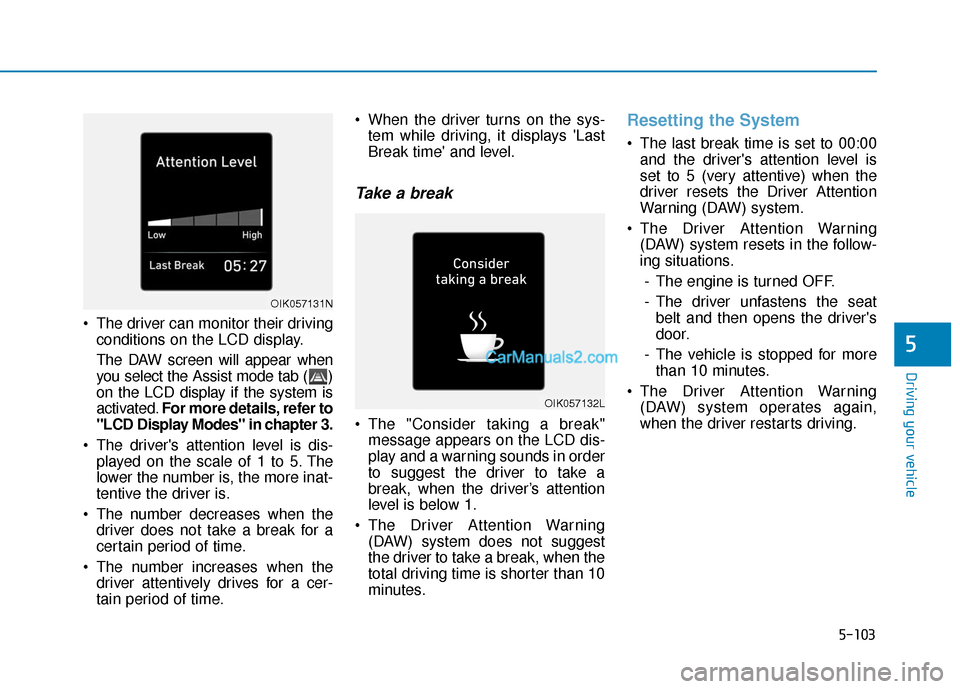
The driver can monitor their drivingconditions on the LCD display.
The DAW screen will appear when
you select the Assist mode tab ( )
on the LCD display if the system is
activated. For more details, refer to
"LCD Display Modes" in chapter 3.
The driver's attention level is dis- played on the scale of 1 to 5. The
lower the number is, the more inat-
tentive the driver is.
The number decreases when the driver does not take a break for a
certain period of time.
The number increases when the driver attentively drives for a cer-
tain period of time. When the driver turns on the sys-
tem while driving, it displays 'Last
Break time' and level.
Take a break
The "Consider taking a break"message appears on the LCD dis-
play and a warning sounds in order
to suggest the driver to take a
break, when the driver’s attention
level is below 1.
The Driver Attention Warning (DAW) system does not suggest
the driver to take a break, when the
total driving time is shorter than 10
minutes.
Resetting the System
The last break time is set to 00:00and the driver's attention level is
set to 5 (very attentive) when the
driver resets the Driver Attention
Warning (DAW) system.
The Driver Attention Warning (DAW) system resets in the follow-
ing situations.
- The engine is turned OFF.
- The driver unfastens the seat belt and then opens the driver's
door.
- The vehicle is stopped for more than 10 minutes.
The Driver Attention Warning (DAW) system operates again,
when the driver restarts driving.
OIK057132L
OIK057131N