ECO mode HYUNDAI SANTA FE 2021 User Guide
[x] Cancel search | Manufacturer: HYUNDAI, Model Year: 2021, Model line: SANTA FE, Model: HYUNDAI SANTA FE 2021Pages: 636, PDF Size: 81.2 MB
Page 138 of 636
Instrument cluster
4-40
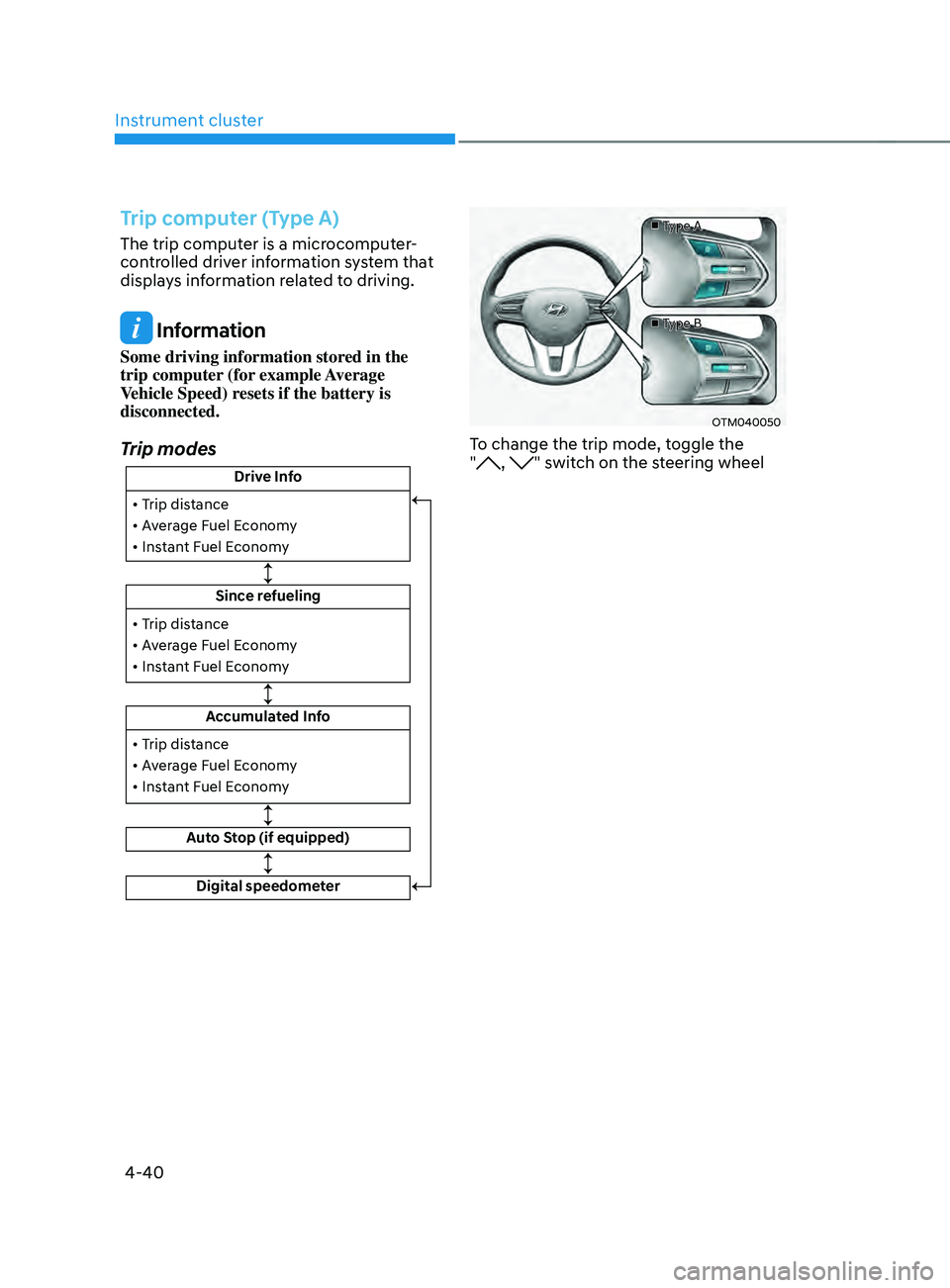
Trip computer (Type A)
The trip computer is a microcomputer-
controlled driver information system that
displays information related to driving.
Information
Some driving information stored in the
trip computer (for example Average
Vehicle Speed) resets if the battery is
disconnected.
Trip modes
Drive Info
Since refueling
Accumulated Info
Auto Stop (if equipped)
• Trip distance
• Average Fuel Economy
• Instant Fuel Economy
• Trip distance
• Average Fuel Economy
• Instant Fuel Economy
Digital speedometer
• Trip distance
• Average Fuel Economy
• Instant Fuel Economy
■
Type A
■ Type B
OTM040050
To change the trip mode, toggle the
", " switch on the steering wheel
Page 141 of 636
04
4-43
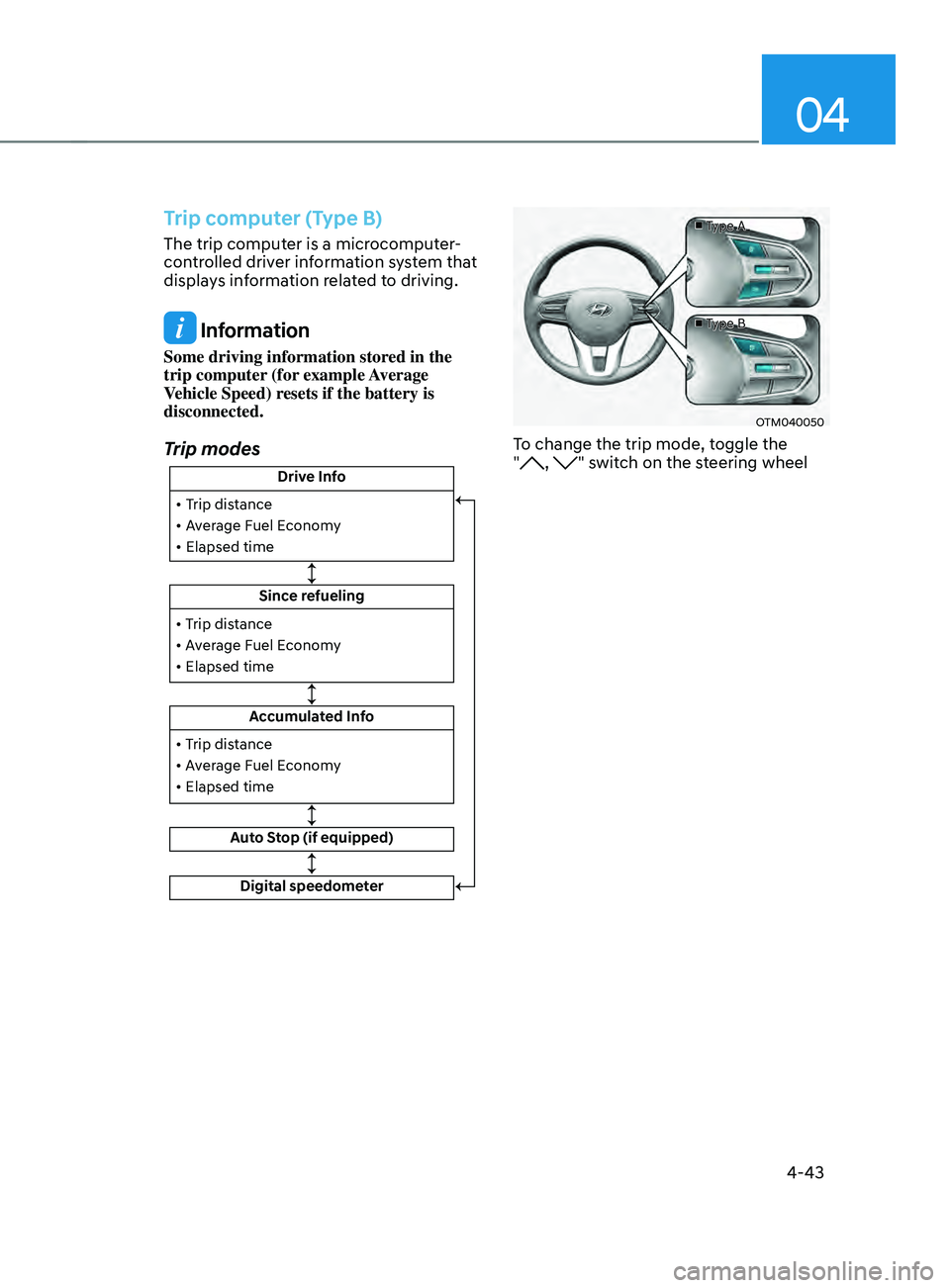
Trip computer (Type B)
The trip computer is a microcomputer-
controlled driver information system that
displays information related to driving.
Information
Some driving information stored in the
trip computer (for example Average
Vehicle Speed) resets if the battery is
disconnected.
Trip modes
Drive Info
Since refueling
Accumulated Info
Auto Stop (if equipped)
• Trip distance
• Average Fuel Economy
• Elapsed time
• Trip distance
• Average Fuel Economy
• Elapsed time
Digital speedometer
• Trip distance
• Average Fuel Economy
• Elapsed time
■
Type A
■ Type B
OTM040050
To change the trip mode, toggle the
", " switch on the steering wheel
Page 149 of 636
05
5-5
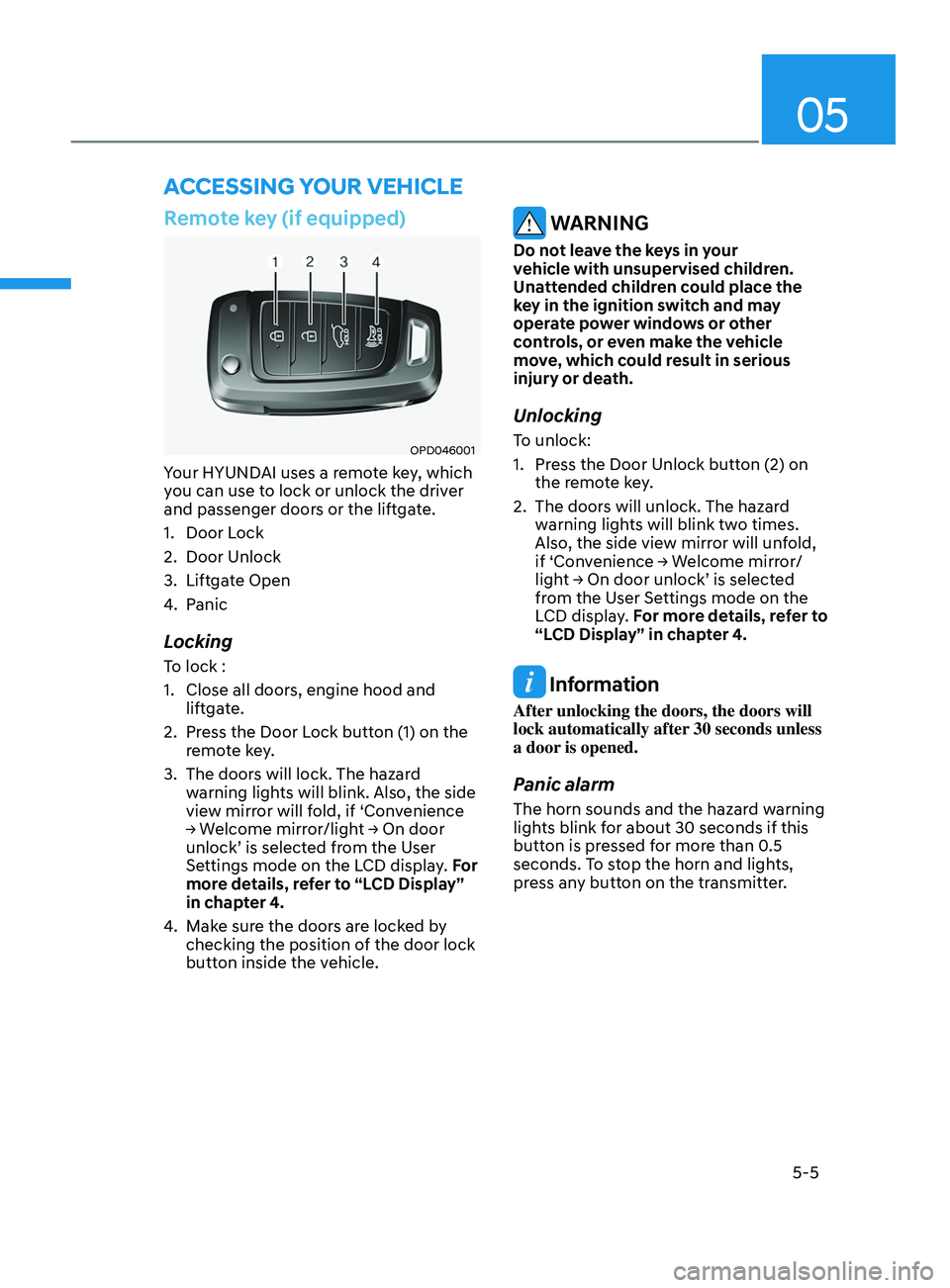
Remote key (if equipped)
OPD046001
Your HYUNDAI uses a remote key, which
you can use to lock or unlock the driver
and passenger doors or the liftgate.
1.
Door Lock
2.
Door Unlock
3.
Liftga
te Open
4.
Panic
Locking
To lock :
1.
Close all doors, engine hood and
lift
gate.
2.
Press the Door L
ock button (1) on the
remote key.
3.
The doors will lock. The hazar
d
warning lights will blink. Also, the side
view mirror will fold, if ‘Convenience
→
W
elcome
mirr
or/light
→ On door unlock’ is selected fr
om the User
Settings mode on the LCD display. For
more details, refer to “LCD Display”
in chapter 4.
4.
Make sur
e the doors are locked by
checking the position of the door lock
button inside the vehicle.
WARNING
Do not leave the keys in your
vehicle with unsupervised children.
Unattended children could place the
key in the ignition switch and may
operate power windows or other
controls, or even make the vehicle
move, which could result in serious
injury or death.
Unlocking
To unlock:
1.
Press the Door Unlock butt
on (2) on
the remote key.
2.
The doors will unlock. The hazar
d
warning lights will blink two times.
Also, the side view mirror will unfold,
if
‘Con
venience
→ W
elcome
mirr
or/
light
→ On door unlock’ is select
ed
from the U
ser Settings mode on the
LCD display. For more details, refer to
“LCD Display” in chapter 4.
Information
After unlocking the doors, the doors will
lock automatically after 30 seconds unless
a door is opened.
Panic alarm
The horn sounds and the hazard warning
lights blink for about 30 seconds if this
button is pressed for more than 0.5
seconds. To stop the horn and lights,
press any button on the transmitter.
ACCESSING Y OUR VEHICLE
Page 153 of 636
05
5-9
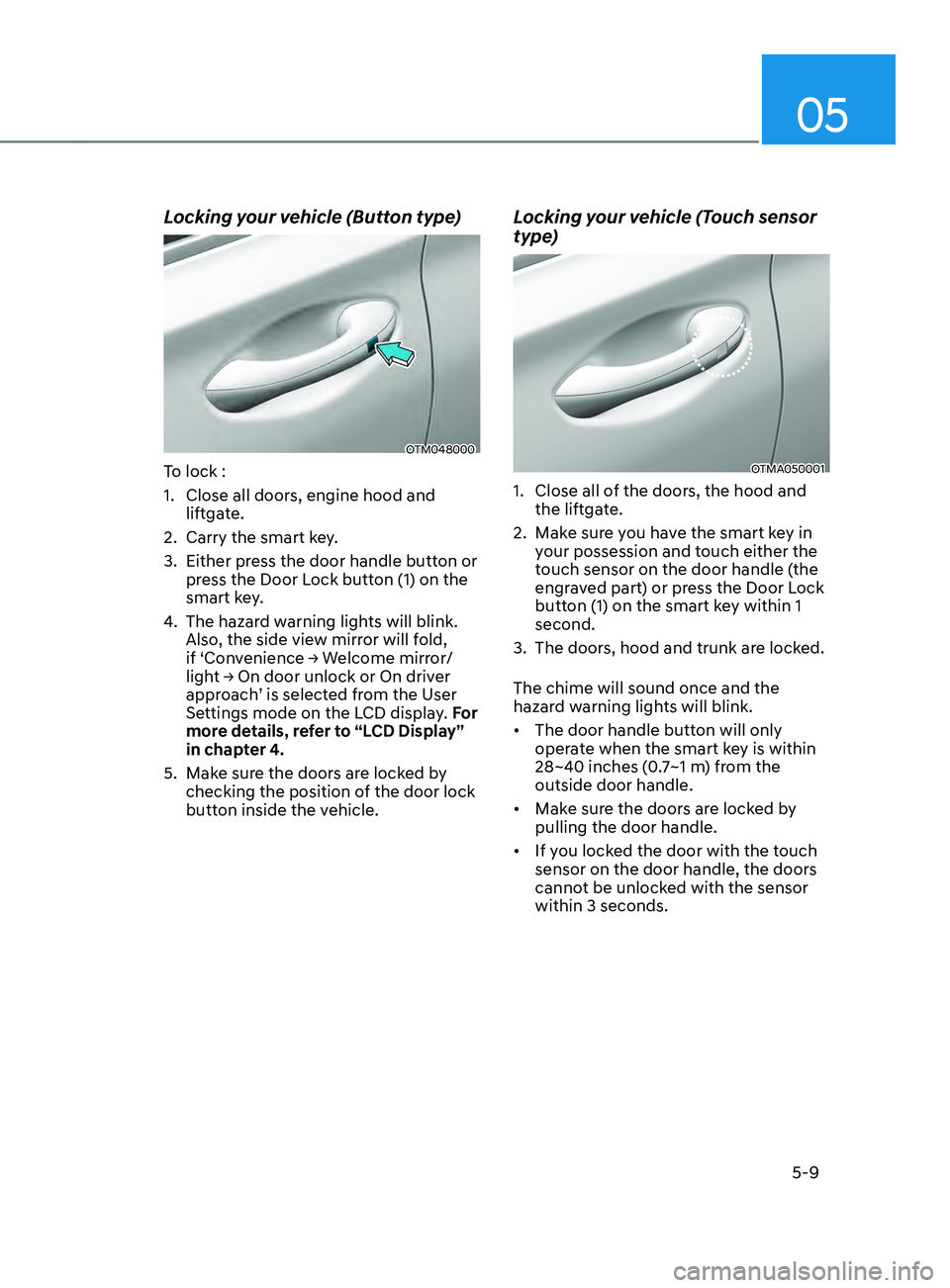
Locking your vehicle (Button type)
OTM048000
To lock :
1.
Close all doors, engine hood and
lift
gate.
2.
Carry the smart ke
y.
3.
Either press the door handle butt
on or
press the Door Lock button (1) on the
smart key.
4.
The hazard w
arning lights will blink.
Also, the side view mirror will fold,
if
‘Con
venience
→ W
elcome
mirr
or/
light
→ On door unlock or On driv
er
approach
’ is selected from the User
Settings mode on the LCD display. For
more details, refer to “LCD Display”
in chapter 4.
5.
Make sur
e the doors are locked by
checking the position of the door lock
button inside the vehicle.
Locking your vehicle (Touch sensor
type)
OTMA050001
1. Close all of the door s, the hood and
the liftgate.
2.
Make sur
e you have the smart key in
your possession and touch either the
touch sensor on the door handle (the
engraved part) or press the Door Lock
button (1) on the smart key within 1
second.
3.
The doors, hood and trunk ar
e locked.
The chime will sound once and the
hazard warning lights will blink.
• The door handle button will only
operate when the smart key is within
28~40 inches (0.7~1 m) from the
outside door handle.
• Make sure the doors are locked by
pulling the door handle.
• If you locked the door with the touch
sensor on the door handle, the doors
cannot be unlocked with the sensor
within 3 seconds.
Page 154 of 636
Convenient features
5-10
Even though you press the outside
door handle button, the doors will not
lock and the chime will sound for three
seconds if any of the following occur:
• The Smart Key is in the vehicle.
• The Engine Start/Stop button is in
ACC or ON position.
• Any door except the liftgate is open.
CAUTION
When you leave your vehicle with
the smart key, make sure to press the
button on the front door handle or
touch the touch sensor on the front
door handle to lock the doors after
close all of the doors, the hood and the
trunk. If you do not press the button
or touch the touch sensor firmly, the
doors might not be locked so please use
caution.
WARNING
Do not leave the Smart Key in your
vehicle with unsupervised children.
Unattended children could press the
Engine Start/ Stop button and may
operate power windows or other
controls, or even make the vehicle
move, which could result in serious
injury or death.
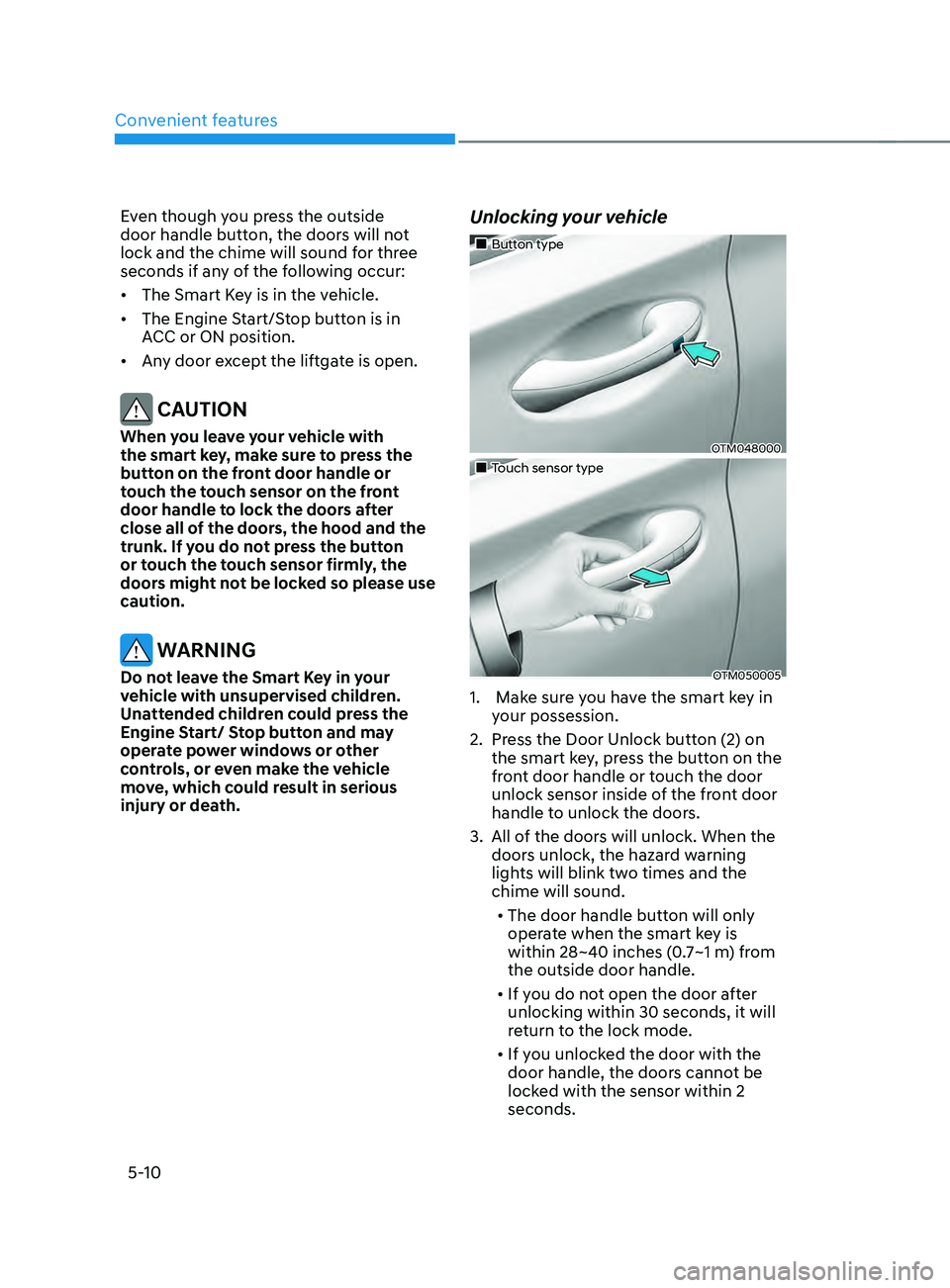
Unlocking your vehicle
„„Button type
OTM048000
„„Touch sensor type
OTM050005
1. Make sure you have the smart key in
y
our possession.
2.
Press the Door Unlock butt
on (2) on
the smart key, press the button on the
front door handle or touch the door
unlock sensor inside of the front door
handle to unlock the doors.
3.
All of the door
s will unlock. When the
doors unlock, the hazard warning
lights will blink two times and the
chime will sound.
• The door handle button will only
operate when the smart key is
within 28~40 inches (0.7~1 m) from
the outside door handle.
• If you do not open the door after
unlocking within 30 seconds, it will
return to the lock mode.
• If you unlocked the door with the
door handle, the doors cannot be
locked with the sensor within 2
seconds.
Page 163 of 636
05
5-19
After unlock the door or start up the
vehicle with digital key, even though
the driver tries to lock the doors by the
central door lock switch, the door lock
will be once locked and immediately
released at the moment of door closed.
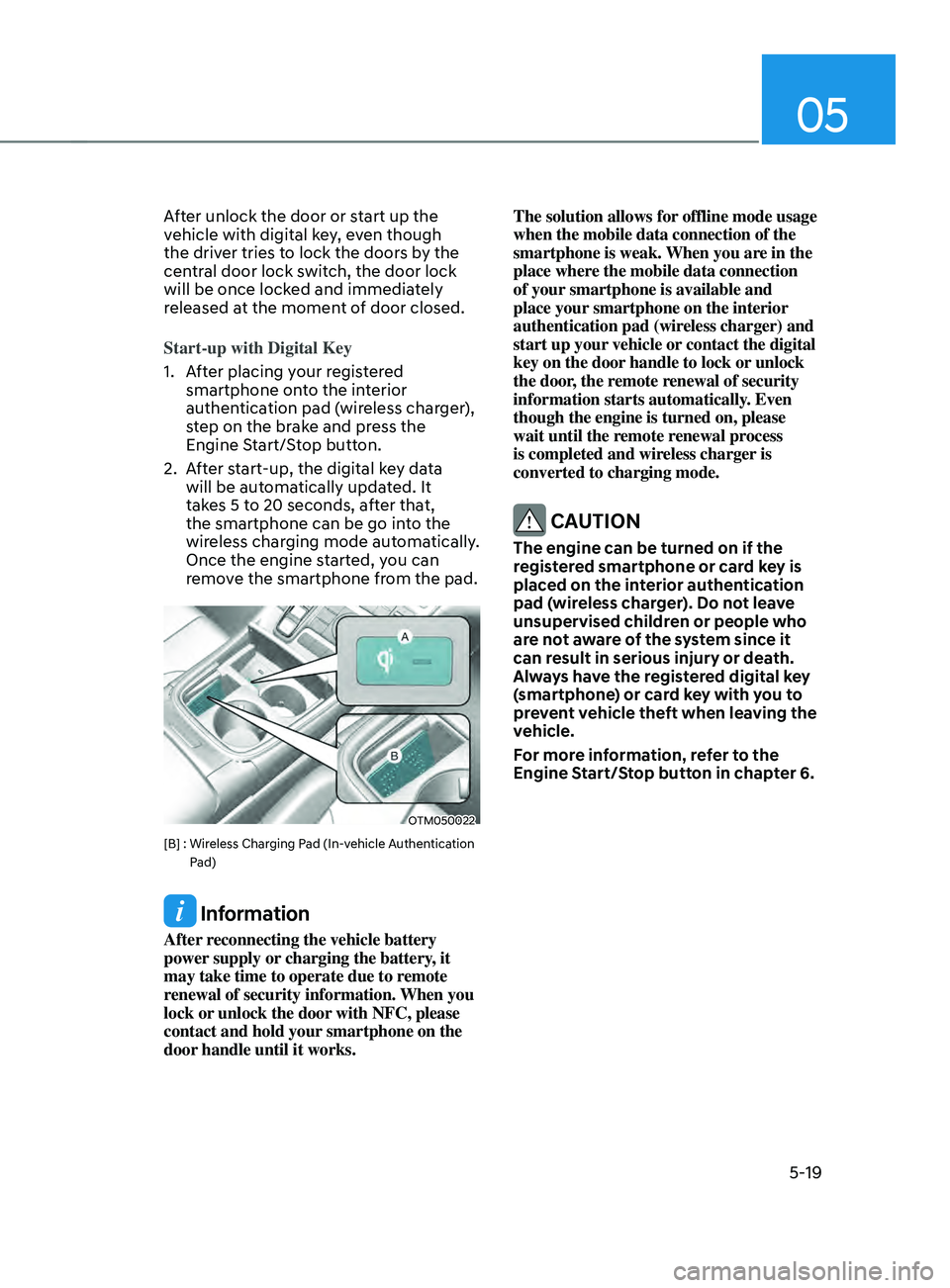
Start-up with Digital Key
1.
Aft
er placing your registered
smartphone onto the interior
authentication pad (wireless charger),
step on the brake and press the
Engine Start/Stop button.
2.
Aft
er start-up, the digital key data
will be automatically updated. It
takes 5 to 20 seconds, after that,
the smartphone can be go into the
wireless charging mode automatically.
Once the engine started, you can
remove the smartphone from the pad.
OTM050022
[B] : Wireless Charging Pad (In-vehicle Authentication
P
ad)
Information
After reconnecting the vehicle battery
power supply or charging the battery, it
may take time to operate due to remote
renewal of security information. When you
lock or unlock the door with NFC, please
contact and hold your smartphone on the
door handle until it works. The solution allows for offline mode usage
when the mobile data connection of the
smartphone is weak. When you are in the
place where the mobile data connection
of your smartphone is available and
place your smartphone on the interior
authentication pad (wireless charger) and
start up your vehicle or contact the digital
key on the door handle to lock or unlock
the door, the remote renewal of security
information starts automatically. Even
though the engine is turned on, please
wait until the remote renewal process
is completed and wireless charger is
converted to charging mode.
CAUTION
The engine can be turned on if the
registered smartphone or card key is
placed on the interior authentication
pad (wireless charger). Do not leave
unsupervised children or people who
are not aware of the system since it
can result in serious injury or death.
Always have the registered digital key
(smartphone) or card key with you to
prevent vehicle theft when leaving the
vehicle.
For more information, refer to the
Engine Start/Stop button in chapter 6.
Page 165 of 636
05
5-21
Remote Start with Digital Key
• When the shift button of your vehicle
is in P (Park) and all of the doors
including trunk and hood is locked
and the vehicle is off, press the Door
Lock button in the Hyundai Digital
Key app then press the Remote Start
button within 4 seconds.
You can confirm the engine is on if the
hazard warning lights blinks two times
and the chime sounds.
• If you want to turn off the engine,
press Remote Engine Stop. Air
Conditioner / Heating system
maintains the same status as when
you last used the vehicle.
• Unless you put the registered digital
key(smartphone) on the interior
authentication pad (wireless charger)
when the remote start function is on,
the engine will turn off.
• If you do not get on the vehicle within
10 minutes after the engine turns on,
the vehicle will turn off.
For more information, refer to the Engine
Start/Stop button in chapter 6.
Vehicle information Display
The digital key application displays
the vehicle information such as
driving or door conditions through the
communication with the vehicle.
• How to check : Select the vehicle
what you want to check and touch
the vehicle image, then vehicle
information display page will be
shown.
• Contents : accumulated odometer,
latest fuel economy, driving range,
fuel remaining, tire pressure, doors
lock/unlock status and last data
updated time.
ÃDisplay
ed vehicle date could be
differed from the current vehicle
condition.
à For mor
e information, please refer to
the ‘Tutorial’ on your Digital key app. Smartphone change/App deletion
If you change your smartphone or delete
the Hyundai Digital Key App, please refer
to the following to set up your Digital
Key:
Smartphone Change/ Reset
If you change or reset the smartphone,
the registered digital key in your previous
smartphone may not be used. Please
refer to following procedure to use the
digital key.
1.
Install the digital k
ey application and
log in.
2.
If you ar
e the owner, retry the Digital
key save process.
3.
If you ar
e the sharer, need to re-share
the key from owner.
App delete & reinstall/ Delete App data
You can re-download the digital key
from server in these cases as follow
procedure.
1.
Reins
tall the application and log in.
2.
Input the PIN number for user
v
erification.
3.
If PIN is correct, digital k
ey data
will be re-downloaded to your
smartphone and you can use it
without any further registration or
sharing.
Smartphone operability with Digital Key
The digital key application may not
be available to old type smartphones.
Please check the available smartphone
models with your dealer. NFC antenna
position on the smartphone can be
confirmed on each smartphone’s manual
or contact to customer service center of
the smartphone manufacture.
Page 191 of 636
05
5-47
Integrated HomeLink® Wireless Control
System
The HomeLink® Wireless Control System
provides a convenient way to replace
up to three hand held radio-frequency
transmitters used to activate compatible
devices such as gate operators, garage
door openers, entry door locks, security
systems, and home lighting.
NOTICE
HomeLink® operates while the ignition
switch is in the ACC or ON position
for safety reasons. It is to prevent
unintentional security problems from
happening when the vehicle is parked
outside the garage.
WARNING
Before programming HomeLink® to a
garage door opener or gate operator,
make sure people and objects are out
of the way of the device to prevent
potential harm or damage. Do not
use the HomeLink® with any garage
door opener that lacks the safety
stop and reverse features required
by U.S. federal safety standards (this
includes any garage door opener model
manufactured before April 1, 1982).
A garage door that cannot detect an
object - signaling the door to stop and
reverse - does not meet current U.S.
federal safety standards. Using a garage
door opener without these features
increases the risk of serious injury or
death.
For more information, contact
HomeLink® at www.homelink.com, or
call Home-Link customer support at
1-800-355-3515.
It is also recommended that a new
battery be replaced in the handheld
transmitter of the device being trained
to HomeLink® for quicker training and
accurate transmission of the radio
frequency. 1. Programming HomeLink
®
The following steps show how to
program HomeLink. If you have any
questions or are having difficulty
programming your HomeLink buttons,
refer to the HomeLink website or call the
HomeLink customer support toll-free
number. Do this before going back to the
dealer who sold you the car.
•
Visit the HomeLink website at: www.
homelink.com. Then at the top of the
page, choose your vehicle make. Then
watch the You Tube video, and/or
access additional website information.
• If you choose to access the website
via your cell phone, scan the QR code.
• Or call HomeLink customer support
at 1-800-355-3515 (Please have the
vehicle make/model and the opener
device make/model readily available.)
Page 217 of 636
05
5-73
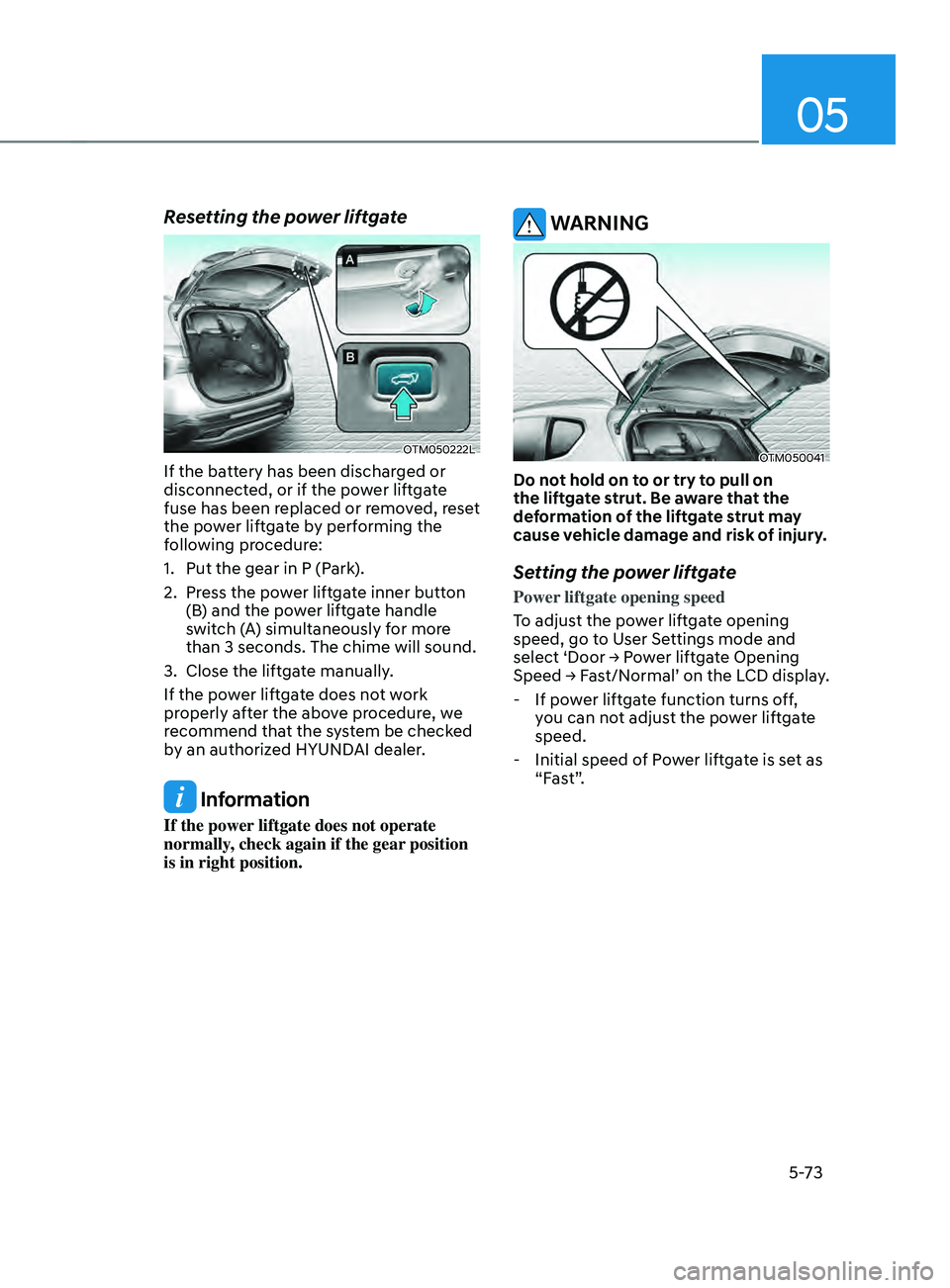
Resetting the power liftgate
OTM050222L
If the battery has been discharged or
disconnected, or if the power liftgate
fuse has been replaced or removed, reset
the power liftgate by performing the
following procedure:
1.
Put the gear in P (Park
).
2.
Press the po
wer liftgate inner button
(B) and the power liftgate handle
switch (A) simultaneously for more
than 3 seconds. The chime will sound.
3.
Close the liftga
te manually.
If the power liftgate does not work
properly after the above procedure, we
recommend that the system be checked
by an authorized HYUNDAI dealer.
Information
If the power liftgate does not operate
normally, check again if the gear position
is in right position.
WARNING
OTM050041
Do not hold on to or try to pull on
the liftgate strut. Be aware that the
deformation of the liftgate strut may
cause vehicle damage and risk of injury.
Setting the power liftgate
Power liftgate opening speed
To adjust the power liftgate opening
speed, go to User Settings mode and
select
‘Door → P
ower
lift
gate
Opening Speed → Fas
t/Normal’
on the LCD display
.
- If pow
er liftgate function turns off,
you can not adjust the power liftgate
speed.
- Initial speed of P
ower liftgate is set as
“Fast”.
Page 219 of 636
05
5-75
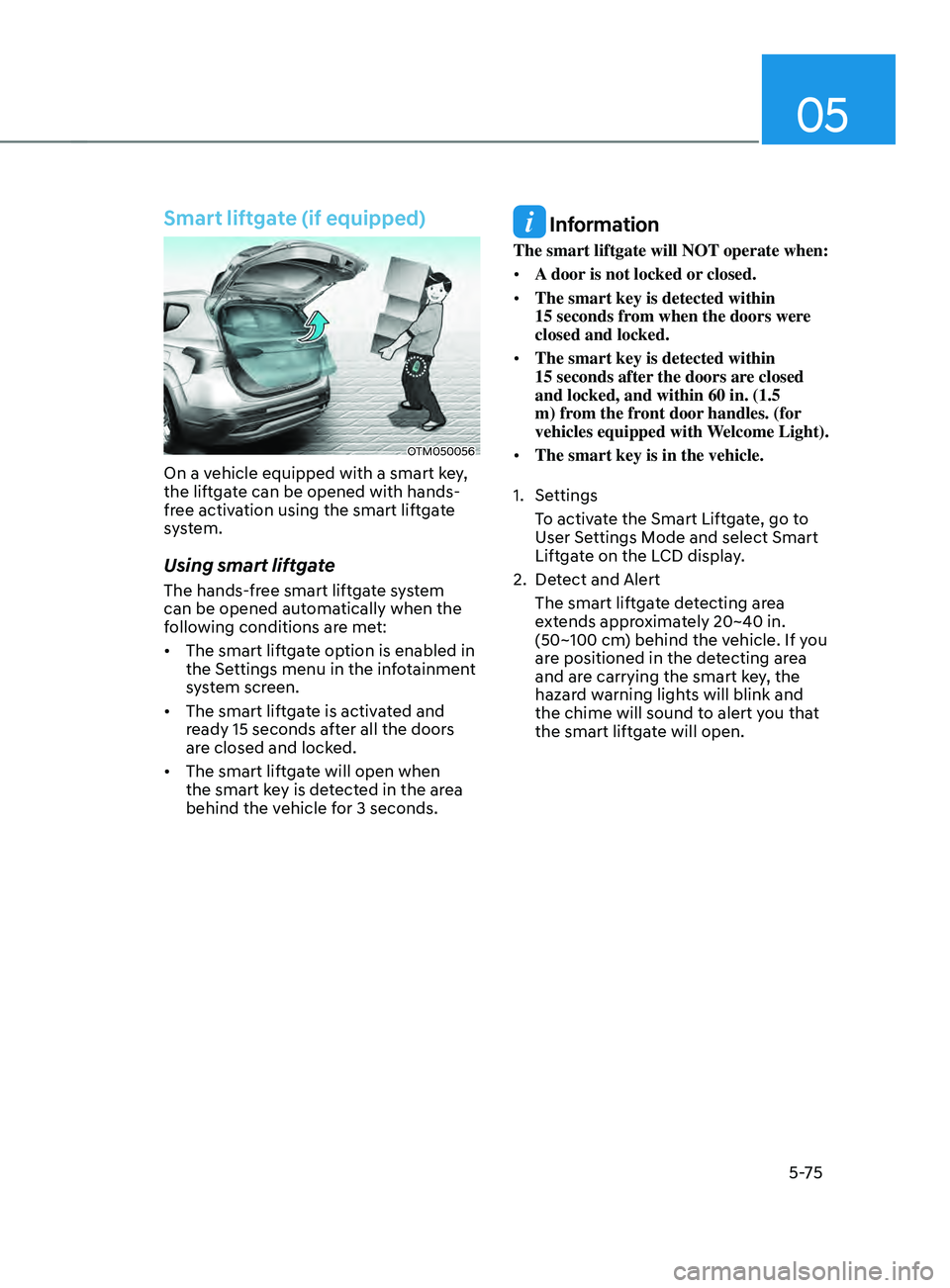
Smart liftgate (if equipped)
OTM050056
On a vehicle equipped with a smart key,
the liftgate can be opened with hands-
free activation using the smart liftgate
system.
Using smart liftgate
The hands-free smart liftgate system
can be opened automatically when the
following conditions are met:
• The smart liftgate option is enabled in
the Settings menu in the infotainment
system screen.
• The smart liftgate is activated and
ready 15 seconds after all the doors
are closed and locked.
• The smart liftgate will open when
the smart key is detected in the area
behind the vehicle for 3 seconds.
Information
The smart liftgate will NOT operate when:
• A door is not locked or closed.
• The smart key is detected within
15
seconds fr
om when the doors were
closed and locked.
• The smart key is detected within
15
seconds after
the doors are closed
and locked, and within 60 in. (1.5
m) from the front door handles. (for
vehicles equipped with Welcome Light).
• The smart key is in the vehicle.
1.
Settings
T
o activate the Smart Liftgate, go to
User Settings Mode and select Smart
Liftgate on the LCD display.
2.
Det
ect and Alert
The smart liftgate detecting area
extends approximately 20~40 in.
(50~100 cm) behind the vehicle. If you
are positioned in the detecting area
and are carrying the smart key, the
hazard warning lights will blink and
the chime will sound to alert you that
the smart liftgate will open.