mode button HYUNDAI SANTA FE 2021 User Guide
[x] Cancel search | Manufacturer: HYUNDAI, Model Year: 2021, Model line: SANTA FE, Model: HYUNDAI SANTA FE 2021Pages: 636, PDF Size: 81.2 MB
Page 149 of 636
05
5-5
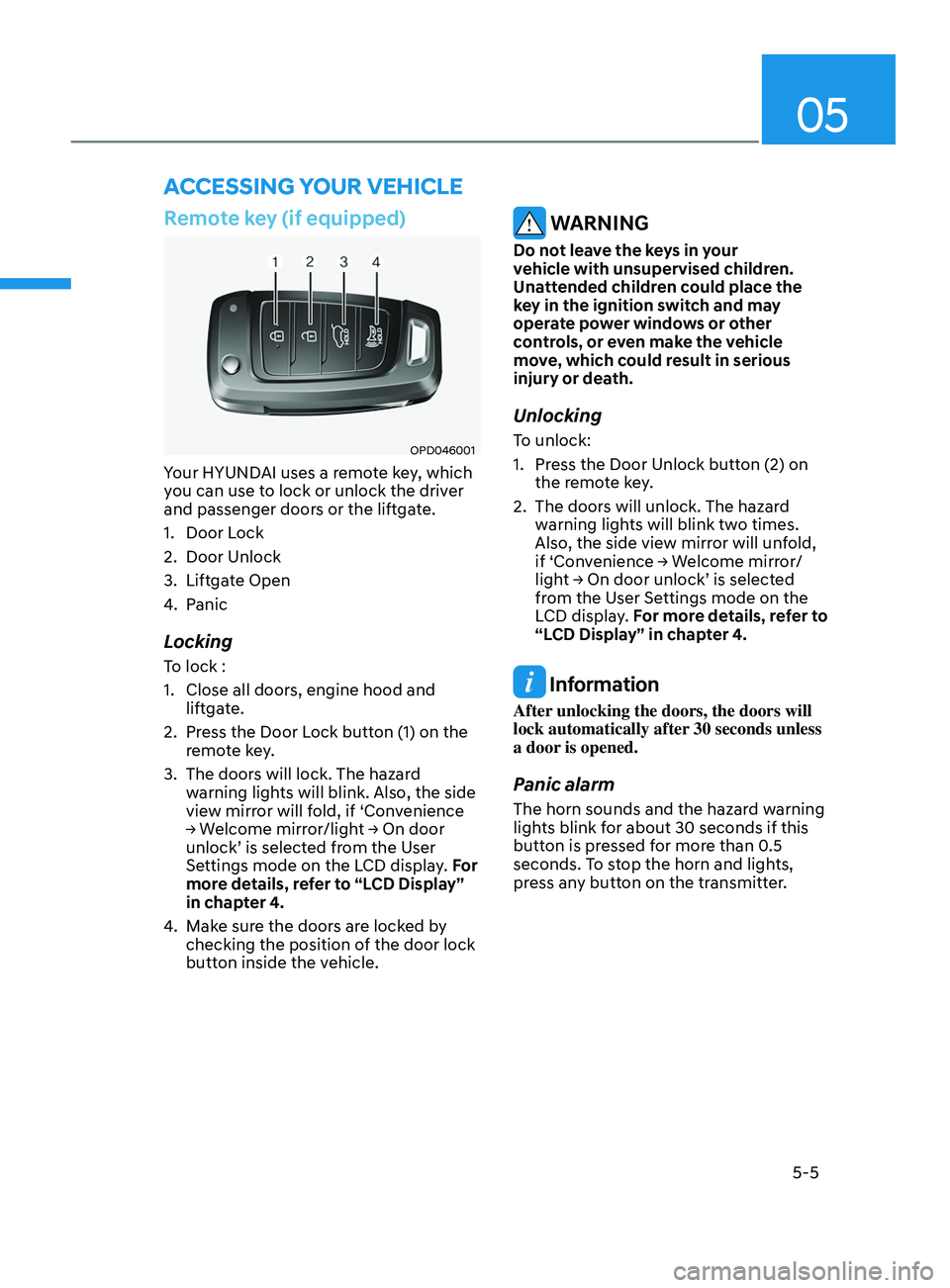
Remote key (if equipped)
OPD046001
Your HYUNDAI uses a remote key, which
you can use to lock or unlock the driver
and passenger doors or the liftgate.
1.
Door Lock
2.
Door Unlock
3.
Liftga
te Open
4.
Panic
Locking
To lock :
1.
Close all doors, engine hood and
lift
gate.
2.
Press the Door L
ock button (1) on the
remote key.
3.
The doors will lock. The hazar
d
warning lights will blink. Also, the side
view mirror will fold, if ‘Convenience
→
W
elcome
mirr
or/light
→ On door unlock’ is selected fr
om the User
Settings mode on the LCD display. For
more details, refer to “LCD Display”
in chapter 4.
4.
Make sur
e the doors are locked by
checking the position of the door lock
button inside the vehicle.
WARNING
Do not leave the keys in your
vehicle with unsupervised children.
Unattended children could place the
key in the ignition switch and may
operate power windows or other
controls, or even make the vehicle
move, which could result in serious
injury or death.
Unlocking
To unlock:
1.
Press the Door Unlock butt
on (2) on
the remote key.
2.
The doors will unlock. The hazar
d
warning lights will blink two times.
Also, the side view mirror will unfold,
if
‘Con
venience
→ W
elcome
mirr
or/
light
→ On door unlock’ is select
ed
from the U
ser Settings mode on the
LCD display. For more details, refer to
“LCD Display” in chapter 4.
Information
After unlocking the doors, the doors will
lock automatically after 30 seconds unless
a door is opened.
Panic alarm
The horn sounds and the hazard warning
lights blink for about 30 seconds if this
button is pressed for more than 0.5
seconds. To stop the horn and lights,
press any button on the transmitter.
ACCESSING Y OUR VEHICLE
Page 153 of 636
05
5-9
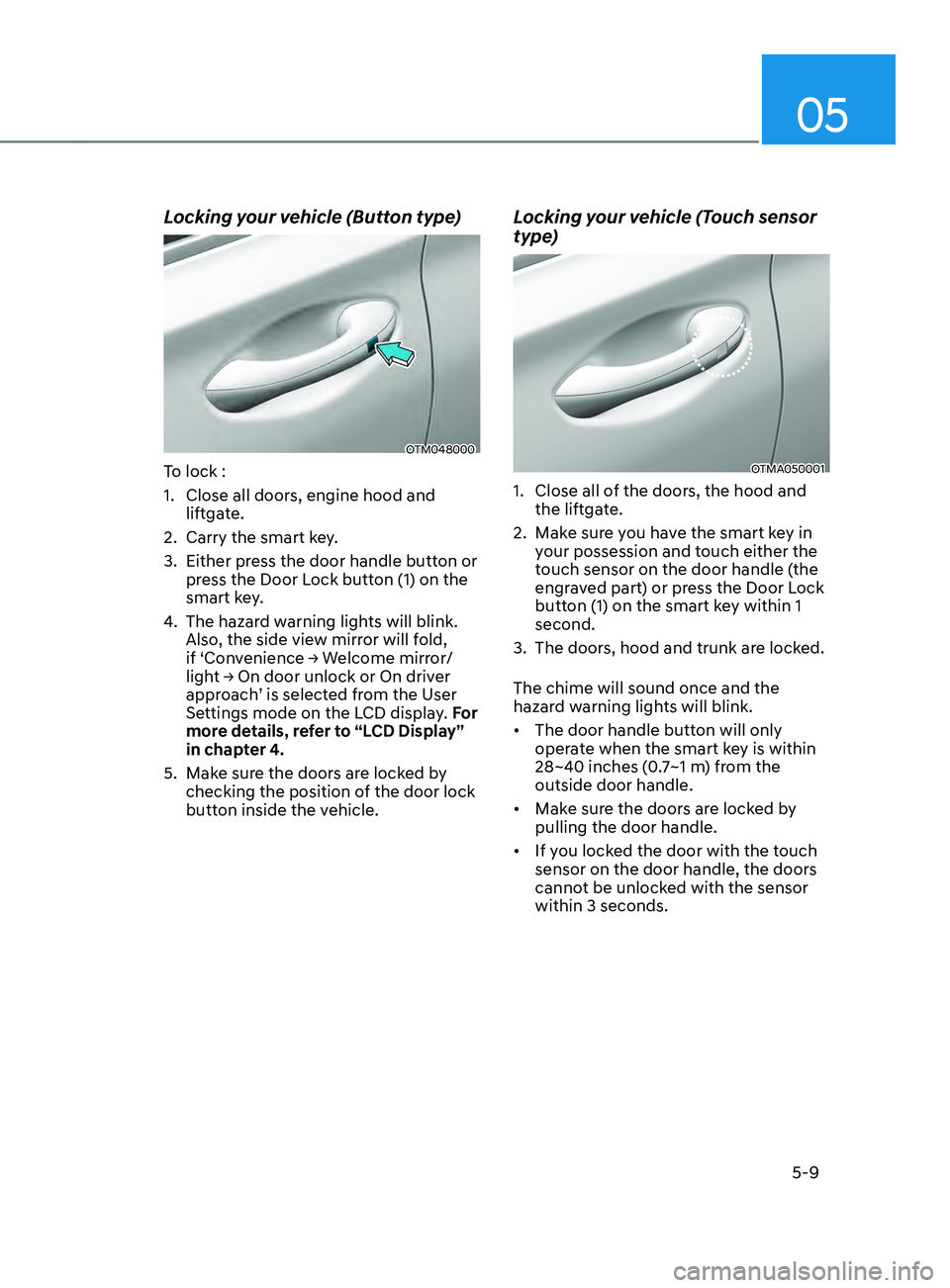
Locking your vehicle (Button type)
OTM048000
To lock :
1.
Close all doors, engine hood and
lift
gate.
2.
Carry the smart ke
y.
3.
Either press the door handle butt
on or
press the Door Lock button (1) on the
smart key.
4.
The hazard w
arning lights will blink.
Also, the side view mirror will fold,
if
‘Con
venience
→ W
elcome
mirr
or/
light
→ On door unlock or On driv
er
approach
’ is selected from the User
Settings mode on the LCD display. For
more details, refer to “LCD Display”
in chapter 4.
5.
Make sur
e the doors are locked by
checking the position of the door lock
button inside the vehicle.
Locking your vehicle (Touch sensor
type)
OTMA050001
1. Close all of the door s, the hood and
the liftgate.
2.
Make sur
e you have the smart key in
your possession and touch either the
touch sensor on the door handle (the
engraved part) or press the Door Lock
button (1) on the smart key within 1
second.
3.
The doors, hood and trunk ar
e locked.
The chime will sound once and the
hazard warning lights will blink.
• The door handle button will only
operate when the smart key is within
28~40 inches (0.7~1 m) from the
outside door handle.
• Make sure the doors are locked by
pulling the door handle.
• If you locked the door with the touch
sensor on the door handle, the doors
cannot be unlocked with the sensor
within 3 seconds.
Page 154 of 636
Convenient features
5-10
Even though you press the outside
door handle button, the doors will not
lock and the chime will sound for three
seconds if any of the following occur:
• The Smart Key is in the vehicle.
• The Engine Start/Stop button is in
ACC or ON position.
• Any door except the liftgate is open.
CAUTION
When you leave your vehicle with
the smart key, make sure to press the
button on the front door handle or
touch the touch sensor on the front
door handle to lock the doors after
close all of the doors, the hood and the
trunk. If you do not press the button
or touch the touch sensor firmly, the
doors might not be locked so please use
caution.
WARNING
Do not leave the Smart Key in your
vehicle with unsupervised children.
Unattended children could press the
Engine Start/ Stop button and may
operate power windows or other
controls, or even make the vehicle
move, which could result in serious
injury or death.
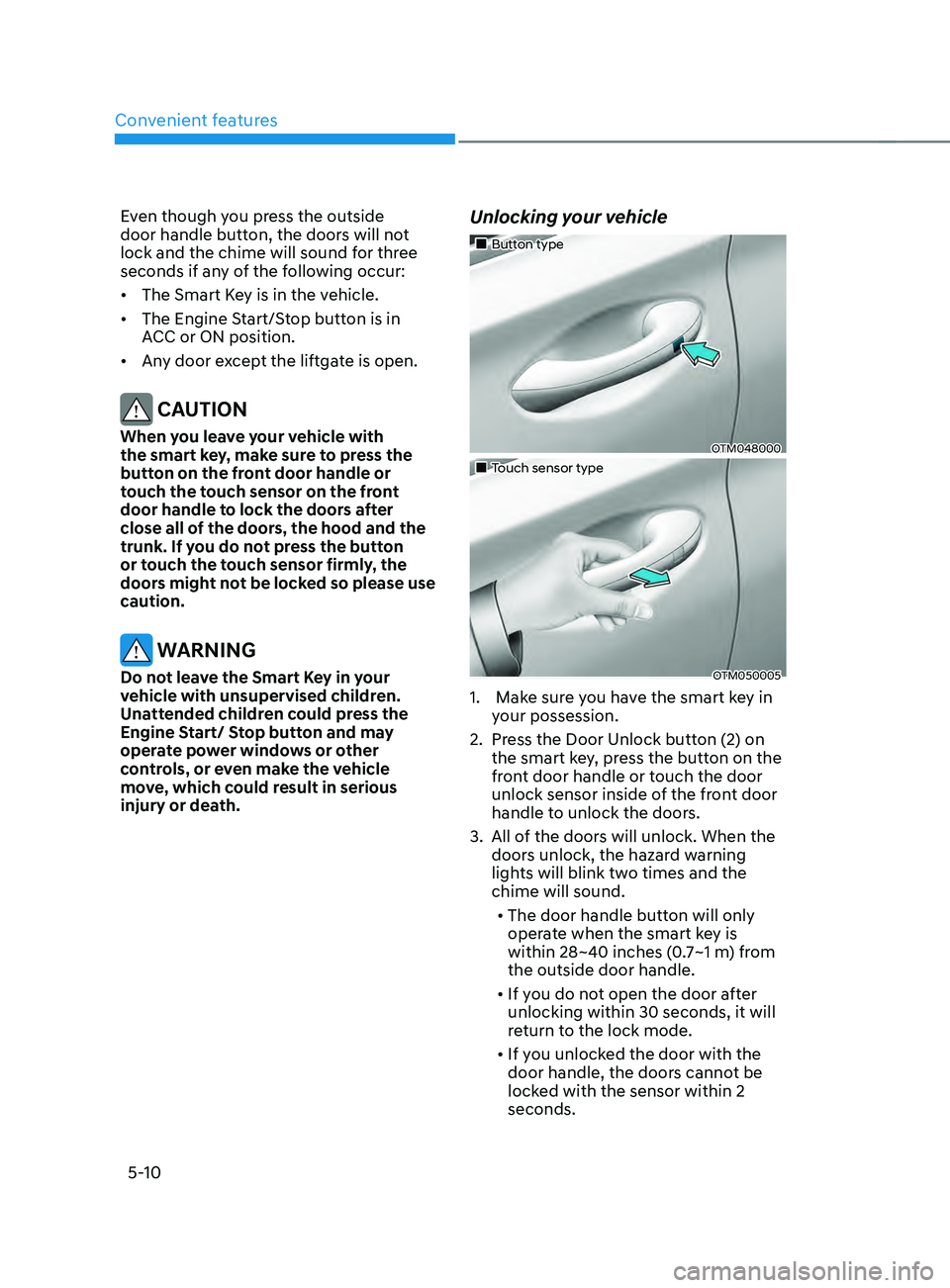
Unlocking your vehicle
„„Button type
OTM048000
„„Touch sensor type
OTM050005
1. Make sure you have the smart key in
y
our possession.
2.
Press the Door Unlock butt
on (2) on
the smart key, press the button on the
front door handle or touch the door
unlock sensor inside of the front door
handle to unlock the doors.
3.
All of the door
s will unlock. When the
doors unlock, the hazard warning
lights will blink two times and the
chime will sound.
• The door handle button will only
operate when the smart key is
within 28~40 inches (0.7~1 m) from
the outside door handle.
• If you do not open the door after
unlocking within 30 seconds, it will
return to the lock mode.
• If you unlocked the door with the
door handle, the doors cannot be
locked with the sensor within 2
seconds.
Page 159 of 636
05
5-15
Hyundai Digital Key
Digital Key Application
To use Hyundai Digital Key mobile app,
you should install Hyundai digital key
application. Search ‘Hyundai digital key’
in the Google Play Store and download
the app. Please refer to the detailed
manual of the digital key app. The option
can be found under the following app
menu:
Menu → Application Info → Tutorial
Please note the manual before using the
app.
ÃThis service is only av
ailable for
Android smartphones. Please confirm
supported/compatible devices on our
website.
WARNING
For used vehicle
If any of the digital key (smartphone key
or card key) is already registered when
you press ON button after unlocking the
doors, the message ‘Digital key(s) active’
appears on the instrument cluster once.
If you buy a used vehicle, you should
confirm the message and delete the
registered smartphone key and card key.
In addition, please notify the Hyundai
Customer Care Center.
If the card key does not work properly,
please delete the card key and register
the smartphone key and re-register the
card key.
For vehicle maintenance
If you need to have your Digital Key
System repaired or replaced please
ensure you Smartphone Key is still active.
You may have to pair your phone again.
In the case, re-initialize your Digital Keys
using the Hyundai Digital Key mobile app.
Digital key (smartphone) NFC
function
You can use the Digital Key NFC (Near
Field Communication) function after turn
your smartphone NFC settings on. And
you should unlock & turn on smartphone
screen to use it.
à To change the NF
C mode of the
smartphone, please refer to the
smartphone manual or contact
to the customer service center of
smartphone manufacturers.
Page 160 of 636
Convenient features
5-16
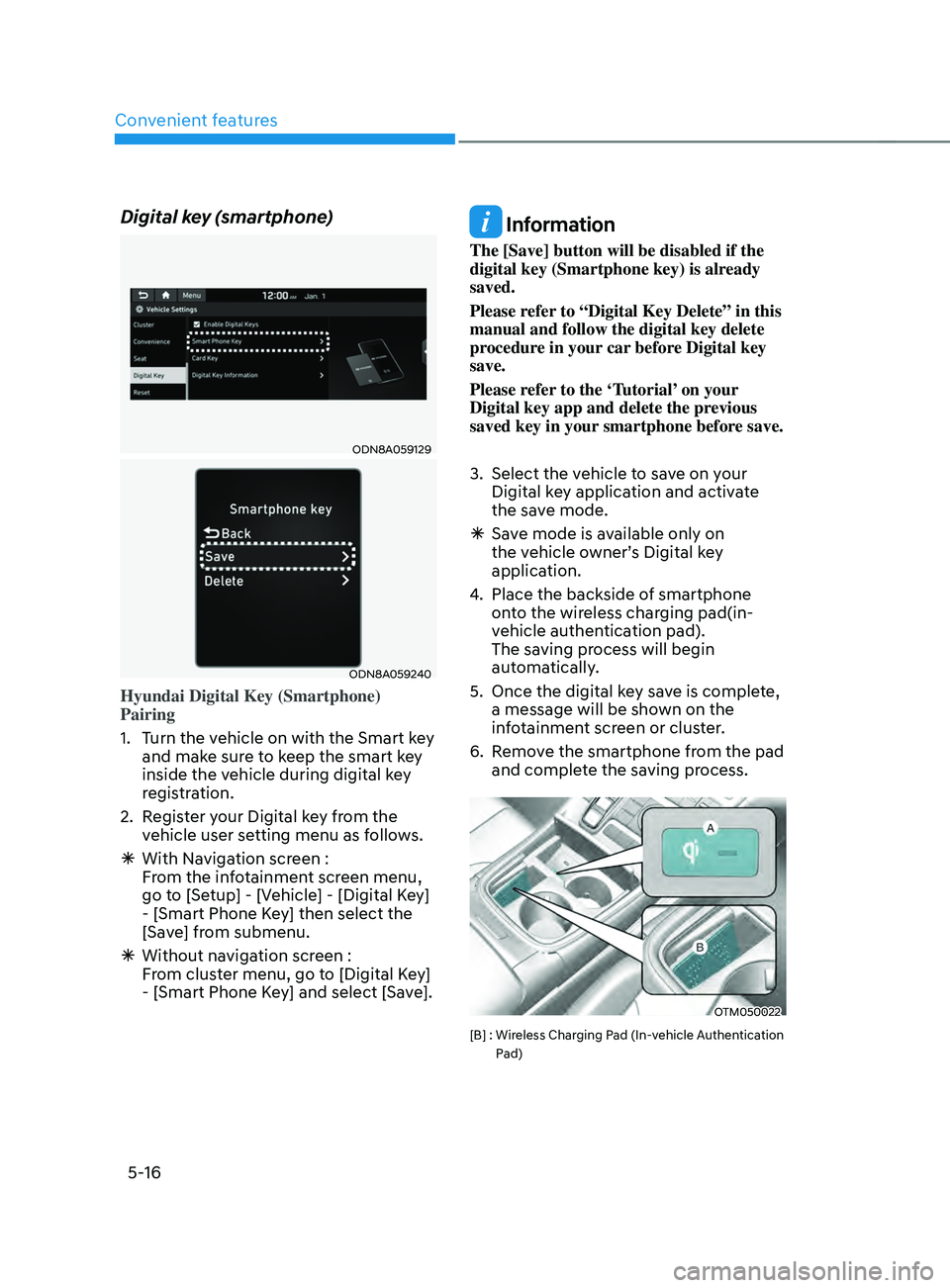
Digital key (smartphone)
ODN8A059129
ODN8A059240
Hyundai Digital Key (Smartphone)
Pairing
1.
Turn the v
ehicle on with the Smart key
and make sure to keep the smart key
inside the vehicle during digital key
registration.
2.
Regis
ter your Digital key from the
vehicle user setting menu as follows.
à With Naviga
tion screen :
From the infotainment screen menu,
go to [Setup] - [Vehicle] - [Digital Key]
- [Smart Phone Key] then select the
[Save] from submenu.
à Without naviga
tion screen :
From cluster menu, go to [Digital Key]
- [Smart Phone Key] and select [Save].
Information
The [Save] button will be disabled if the
digital key (Smartphone key) is already
saved.
Please refer to “Digital Key Delete” in this
manual and follow the digital key delete
procedure in your car before Digital key
save.
Please refer to the ‘Tutorial’ on your
Digital key app and delete the previous
saved key in your smartphone before save.
3.
Select the vehicle t
o save on your
Digital key application and activate
the save mode.
à Sav
e mode is available only on
the vehicle owner’s Digital key
application.
4.
Place the backside o
f smartphone
onto the wireless charging pad(in-
vehicle authentication pad).
The saving process will begin
automatically.
5.
Once the digital ke
y save is complete,
a message will be shown on the
infotainment screen or cluster.
6.
Remo
ve the smartphone from the pad
and complete the saving process.
OTM050022
[B] : Wireless Charging Pad (In-vehicle Authentication
P
ad)
Page 163 of 636
05
5-19
After unlock the door or start up the
vehicle with digital key, even though
the driver tries to lock the doors by the
central door lock switch, the door lock
will be once locked and immediately
released at the moment of door closed.
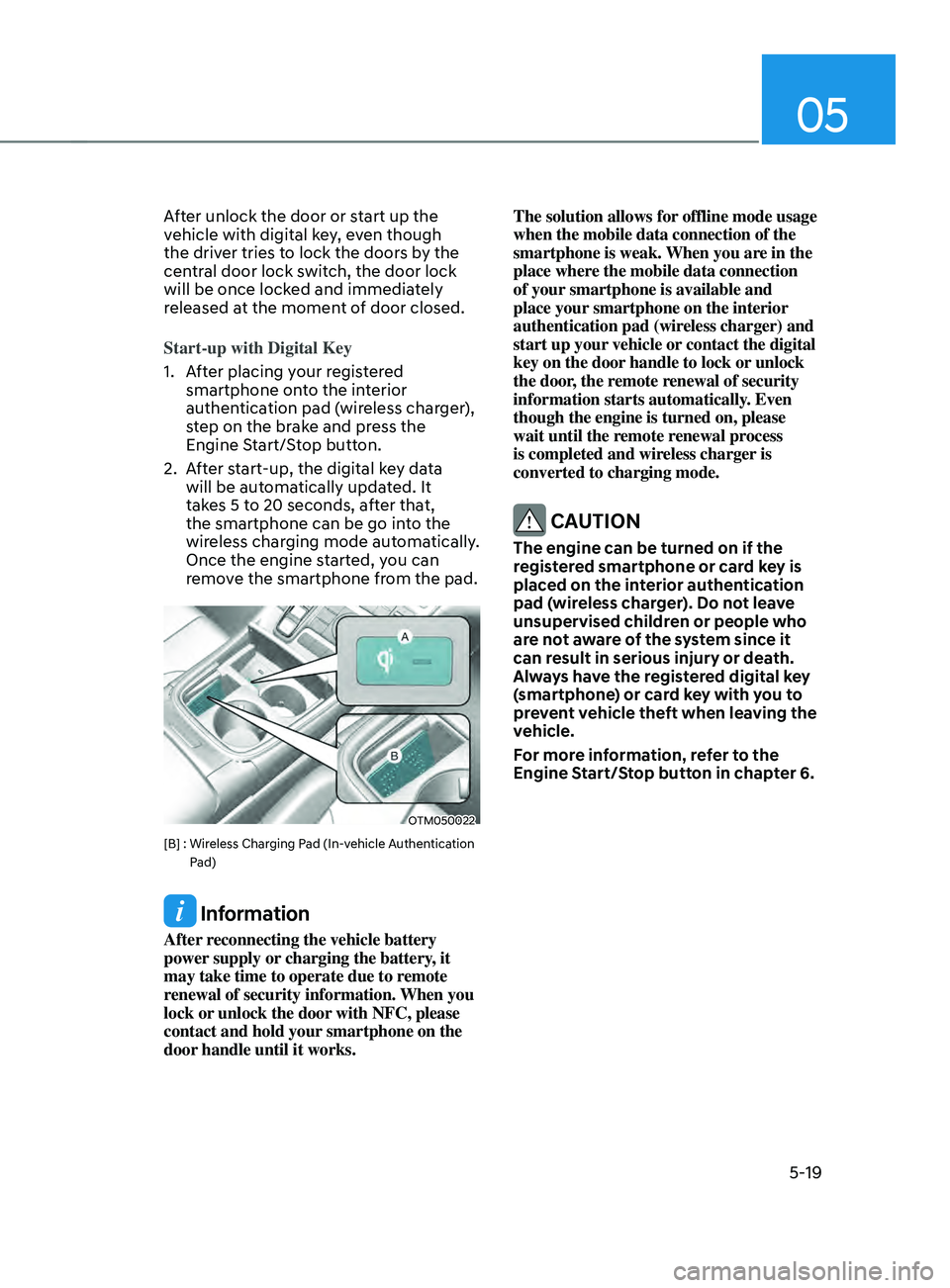
Start-up with Digital Key
1.
Aft
er placing your registered
smartphone onto the interior
authentication pad (wireless charger),
step on the brake and press the
Engine Start/Stop button.
2.
Aft
er start-up, the digital key data
will be automatically updated. It
takes 5 to 20 seconds, after that,
the smartphone can be go into the
wireless charging mode automatically.
Once the engine started, you can
remove the smartphone from the pad.
OTM050022
[B] : Wireless Charging Pad (In-vehicle Authentication
P
ad)
Information
After reconnecting the vehicle battery
power supply or charging the battery, it
may take time to operate due to remote
renewal of security information. When you
lock or unlock the door with NFC, please
contact and hold your smartphone on the
door handle until it works. The solution allows for offline mode usage
when the mobile data connection of the
smartphone is weak. When you are in the
place where the mobile data connection
of your smartphone is available and
place your smartphone on the interior
authentication pad (wireless charger) and
start up your vehicle or contact the digital
key on the door handle to lock or unlock
the door, the remote renewal of security
information starts automatically. Even
though the engine is turned on, please
wait until the remote renewal process
is completed and wireless charger is
converted to charging mode.
CAUTION
The engine can be turned on if the
registered smartphone or card key is
placed on the interior authentication
pad (wireless charger). Do not leave
unsupervised children or people who
are not aware of the system since it
can result in serious injury or death.
Always have the registered digital key
(smartphone) or card key with you to
prevent vehicle theft when leaving the
vehicle.
For more information, refer to the
Engine Start/Stop button in chapter 6.
Page 165 of 636
05
5-21
Remote Start with Digital Key
• When the shift button of your vehicle
is in P (Park) and all of the doors
including trunk and hood is locked
and the vehicle is off, press the Door
Lock button in the Hyundai Digital
Key app then press the Remote Start
button within 4 seconds.
You can confirm the engine is on if the
hazard warning lights blinks two times
and the chime sounds.
• If you want to turn off the engine,
press Remote Engine Stop. Air
Conditioner / Heating system
maintains the same status as when
you last used the vehicle.
• Unless you put the registered digital
key(smartphone) on the interior
authentication pad (wireless charger)
when the remote start function is on,
the engine will turn off.
• If you do not get on the vehicle within
10 minutes after the engine turns on,
the vehicle will turn off.
For more information, refer to the Engine
Start/Stop button in chapter 6.
Vehicle information Display
The digital key application displays
the vehicle information such as
driving or door conditions through the
communication with the vehicle.
• How to check : Select the vehicle
what you want to check and touch
the vehicle image, then vehicle
information display page will be
shown.
• Contents : accumulated odometer,
latest fuel economy, driving range,
fuel remaining, tire pressure, doors
lock/unlock status and last data
updated time.
ÃDisplay
ed vehicle date could be
differed from the current vehicle
condition.
à For mor
e information, please refer to
the ‘Tutorial’ on your Digital key app. Smartphone change/App deletion
If you change your smartphone or delete
the Hyundai Digital Key App, please refer
to the following to set up your Digital
Key:
Smartphone Change/ Reset
If you change or reset the smartphone,
the registered digital key in your previous
smartphone may not be used. Please
refer to following procedure to use the
digital key.
1.
Install the digital k
ey application and
log in.
2.
If you ar
e the owner, retry the Digital
key save process.
3.
If you ar
e the sharer, need to re-share
the key from owner.
App delete & reinstall/ Delete App data
You can re-download the digital key
from server in these cases as follow
procedure.
1.
Reins
tall the application and log in.
2.
Input the PIN number for user
v
erification.
3.
If PIN is correct, digital k
ey data
will be re-downloaded to your
smartphone and you can use it
without any further registration or
sharing.
Smartphone operability with Digital Key
The digital key application may not
be available to old type smartphones.
Please check the available smartphone
models with your dealer. NFC antenna
position on the smartphone can be
confirmed on each smartphone’s manual
or contact to customer service center of
the smartphone manufacture.
Page 166 of 636
Convenient features
5-22
CAUTION
• Do not leave the registered digital
key (smartphone) and card key in
your vehicle. Please carry around
your keys all the times.
• If you happen to lose your digital
key (smartphone) or card key
registered as a main user’s key, you
should immediately delete the key
on the vehicle’s key menu. For more
information, refer to the Digital Key
Deletion in this chapter.
• If you registered your digital key
(smartphone) or card key in the
vehicle, a message appears on the
instrument cluster and let you know
the key is registered.
(Message: Digital key(s) active.)
• If you buy a used vehicle, you should
confirm the message and delete the
registered smartphone key and card
key. In this case, you should carry
your smart key.
• If you keep place the NFC card
of the digital key on the interior
authentication pad (wireless
charger) while driving, it may cause a
malfunction of the NFC card.
• You should remove your NFC card
of the digital key on the interior
authentication pad after turning on
the engine.
• Hyundai digital key app may not
work properly when the NFC or
Bluetooth communication between
smartphone and car is not good.
• If the remote control operation
is executed where the mobile
connection is weak, Bluetooth
connection is poor due to lots of
Bluetooth devices or there is an
object such as metal or concrete, it
might be delayed or the operable
distance might decrease. Especially,
you should not cover the smartphone
with your hand or place other
devices which can cause frequency
interference. It may result in poor
performance. •
If the remote control function is not
activated, please use NFC function to
lock or unlock the doors
• You should be careful not to
press the remote control button
on the digital key (smartphone)
accidentally.
• If the digital key (smartphone) is
discharged or defective or you
cannot use the digital key since the
vehicle battery is discharged, use the
inside door lock button to lock all of
the doors.
CAUTION
• Hyundai digital key app on the
smartphone and card key may not
work if any of the following occurs:
-Hyundai digital ke
y app on the
smartphone is deleted. (Required
to reinstall the app)
- Ac
count log in information of
Hyundai digital key app is expired.
(Required to re-log in)
- When you try t
o log in to another
smartphone instead of the
registered smartphone with same
user account.
- Smartphone roo
ting or app
hacking is detected.
- Smartphone batt
ery or the vehicle
battery is discharged.
- Smartphone’
s screen is off or
locked.
- NFC or Blue
tooth is turned off on
the smartphone settings.
- Smartphone’
s mobile network
setting is off or airplane mode is
activated.
- A credit car
d is overlapped in the
back of your smartphone or metal
or thick case is used.
- Use the car
d key with insert it
into the wallet or card holder or
overlapping with other cards.
Page 167 of 636
05
5-23
-If you use a smart phone cover that
uses wir
eless communication or is
made of metal, the digital key NFC
function may not work properly.
Remove the smart phone cover
before using the digital key NFC
function.
• The vehicle may not be controlled by
the smartphone if any of the following
occurs:
- Basic and necessary functions o f
the smartphone manufacturer are
operating. (General call, urgent
call, audio or NFC payment)
- Wireless earphone is oper
ating.
(General call, urgent call or audio)
- The digital ke
y app function such
as basic setting or app launching
is limited by prior policy according
to the manufacturer while using a
smartphone produced by domestic
and foreign manufactures.
à If y
ou change the smartphone
number, you should modify the user
account information on the HYUNDAI
customer web site to use the digital
key app.
à If the v
ehicle owner changes
the smartphone device, the new
smartphone should be registered in
the car after deleting the registered
digital key(smartphone).
à If a shar
er changes or reset the
smartphone, the key should be re-
shared from owner.
à Some of the old smartphone ma
y
not work properly. Please check the
available smartphone models with
your dealer.
à NFC an
tenna position on the
smartphone can be confirmed
on each smartphone’s manual or
contact to customer service center
of the smartphone manufacture.
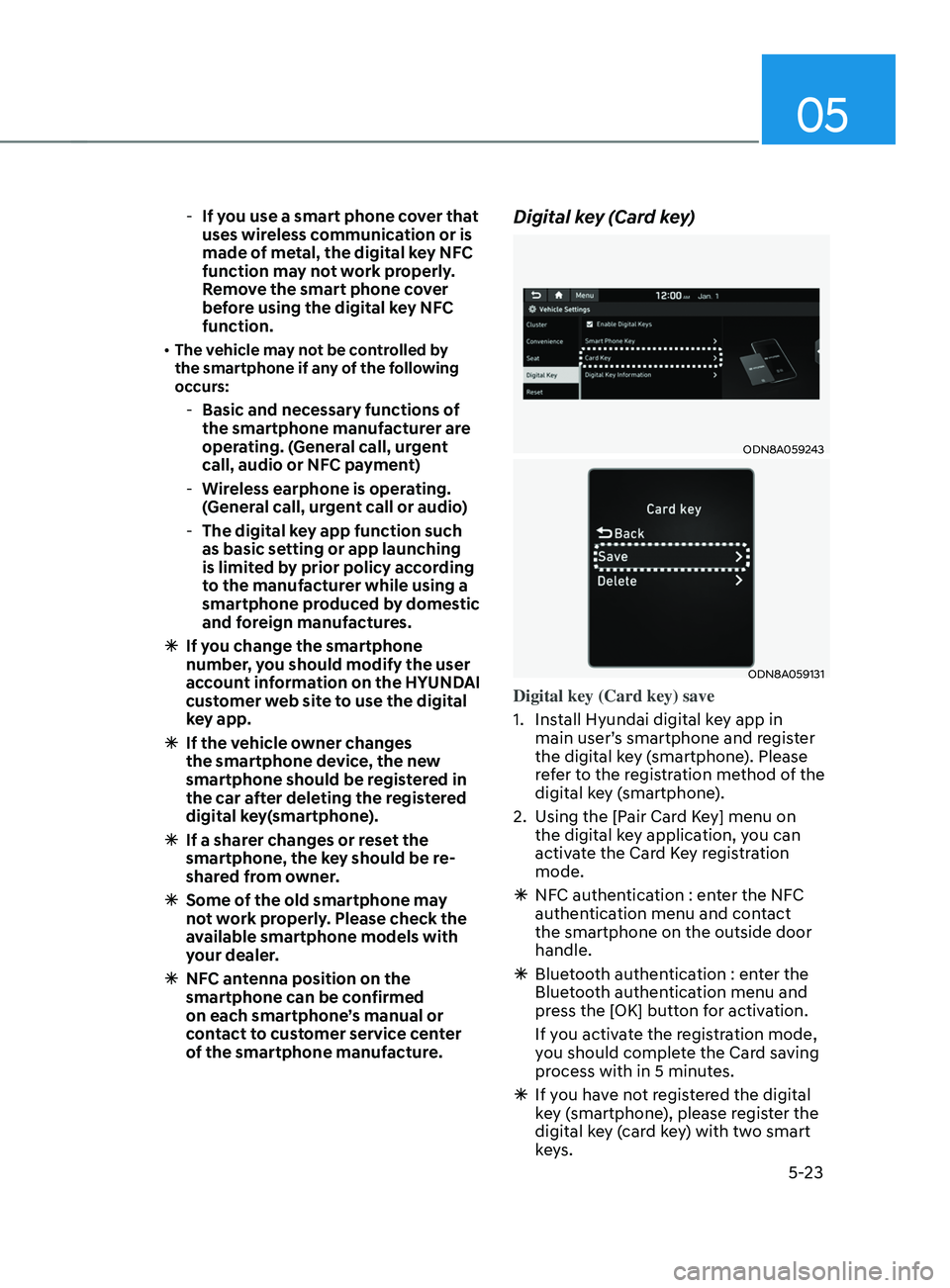
Digital key (Card key)
ODN8A059243
ODN8A059131
Digital key (Card key) save
1.
Install Hyundai digital k
ey app in
main user’s smartphone and register
the digital key (smartphone). Please
refer to the registration method of the
digital key (smartphone).
2.
Using the [P
air Card Key] menu on
the digital key application, you can
activate the Card Key registration
mode.
à NFC authen
tication : enter the NFC
authentication menu and contact
the smartphone on the outside door
handle.
à Bluet
ooth authentication : enter the
Bluetooth authentication menu and
press the [OK] button for activation.
If you activate the registration mode,
you should complete the Card saving
process with in 5 minutes.
à If you ha
ve not registered the digital
key (smartphone), please register the
digital key (card key) with two smart
keys.
Page 168 of 636
Convenient features
5-24
Ã
3.
Regis
ter the NFC card key on the
User’s Settings menu after turning on
the vehicle.
à With Naviga
tion screen : From the
infotainment screen menu, go to
[Setup] - [Vehicle] - [Digital Key] -
[Card Key] then select the [Save] from
submenu.
à Without naviga
tion screen : From
cluster menu, go to [Digital Key] -
[Card Key] and select [Save].
The [Save] button will be disabled if
the digital key (Card key) is already
saved.
Please refer to “Digital Key Delete” in
this manual and follow the digital key
delete procedure in your car before
Digital key save.
4.
Place the NFC car
d key onto the
interior authentication pad (wireless
charger). The saving process will
begin automatically.
5.
If the ke
y is enrolled, the message
will be displayed on the infotainment
screen or instrument cluster.
• Once the card key registration mode
is activated, the process should be
completed within 5 minutes. After
then, you should reactivate once
again for registration.
• For the digital key(card key) saving,
the smart key(fob) must be exist inside
of vehicle.
• Once a Card key is registered, it
cannot be reuse onto another vehicle.
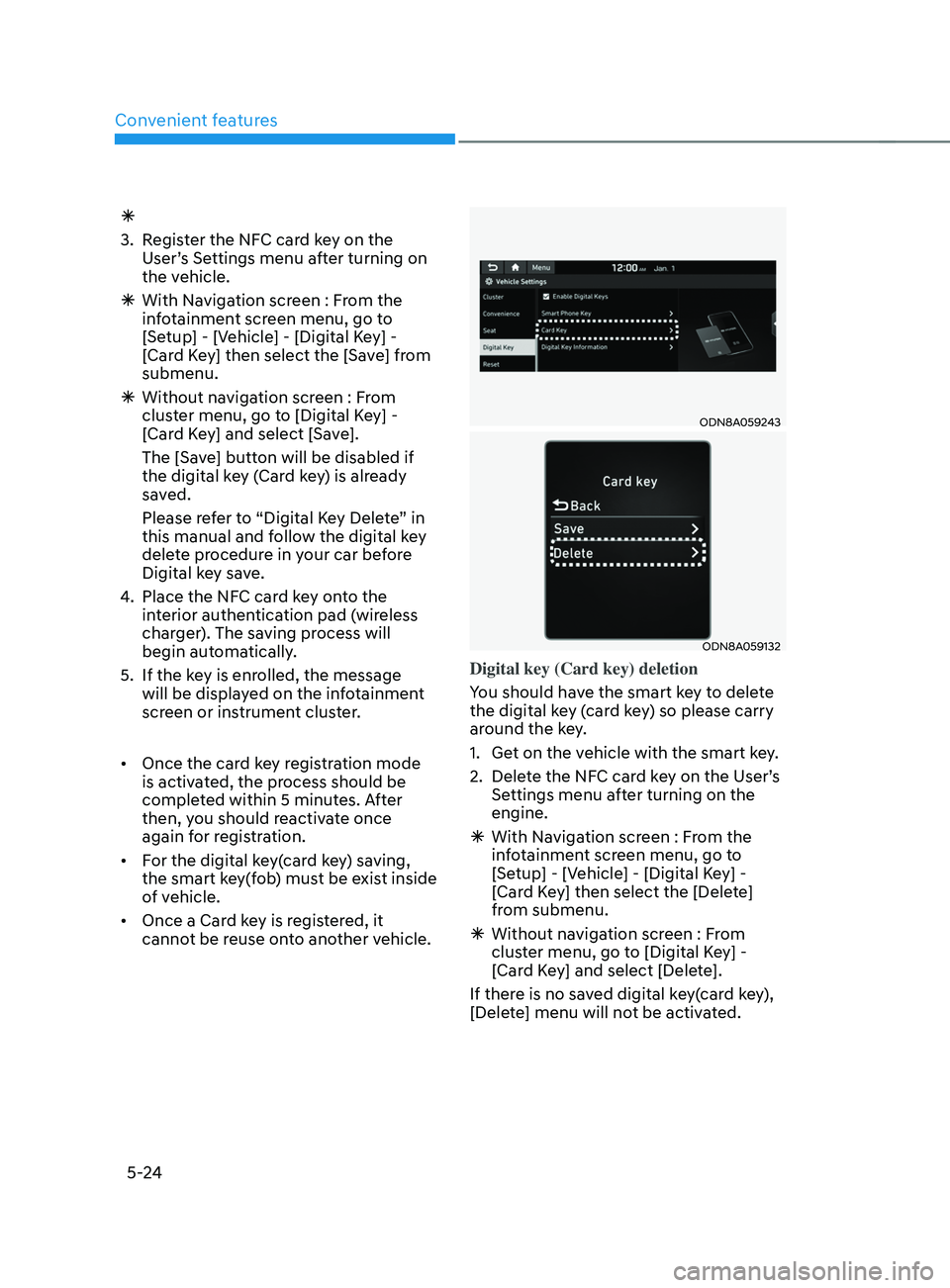
ODN8A059243
ODN8A059132
Digital key (Card key) deletion
You should have the smart key to delete
the digital key (card key) so please carry
around the key.
1.
Get on the v
ehicle with the smart key.
2.
Delet
e the NFC card key on the User’s
Settings menu after turning on the
engine.
à With Naviga
tion screen : From the
infotainment screen menu, go to
[Setup] - [Vehicle] - [Digital Key] -
[Card Key] then select the [Delete]
from submenu.
à Without naviga
tion screen : From
cluster menu, go to [Digital Key] -
[Card Key] and select [Delete].
If there is no saved digital key(card key),
[Delete] menu will not be activated.