phone Hyundai Santa Fe Sport 2015 User Guide
[x] Cancel search | Manufacturer: HYUNDAI, Model Year: 2015, Model line: Santa Fe Sport, Model: Hyundai Santa Fe Sport 2015Pages: 785, PDF Size: 13.38 MB
Page 273 of 785
Features of your vehicle
180 4
(Continued)
• Some USB flash memory read-
ers (such as CF, SD, micro SD,
etc.) or external-HDD type
devices can be unrecognizable.
• Music files protected by DRM
(DIGITAL RIGHTS MANAGE-
MENT) are not recognizable.
• The data in the USB memory
may be lost while using this
audio. Always back up impor-
tant data on a personal storage
device.
• Please avoid using
USB memory prod-
ucts which can be
used as key chains or
cellular phone acces-
sories as they could cause dam-
age to the USB jack. Please
make certain only to use plug
type connector products.(Continued)
• If you use devices such as a USB
hub purchased separately, the
vehicle’s audio system may not
recognize the USB device. In that
case, connect the USB device
directly to the multimedia termi-
nal of the vehicle.
• If the USB device is divided by
logical drives, only the music files
on the highest-priority drive are
recognized by car audio.
• Devices such as MP3 Player/
Cellular phone/Digital camera can
be unrecognizable by standard
USB I/F can be unrecognizable.
• Charging through the USB may
not be supported in some mobile
devices.
• USB HDD or USB types liable to
connection failures due to vehicle
vibrations are not supported.
(i-stick type)
• Some non-standard USB devices
(METAL COVER TYPE USB)
can be unrecognizable.
(Continued)✽NOTICE - USING THE
iPod®DEVICE
• Some iPod®models may not
support communication proto-
col and files may not properly
play.
Supported iPod
®models:
- iPhone®3GS/4
- iPod®touch 1st~4th generation
- iPod®nano 1st~6th generation
- iPod®classic
• The order of search or playback
of songs in the iPod
®can be dif-
ferent from the order searched
in the audio system.
• If the iPod
®is disabled due to its
own malfunction, reset the
iPod
®. (Reset: Refer to iPod®
manual)
• An iPod®may not operate nor-
mally on low battery.
(Continued)
Page 274 of 785
4181
Features of your vehicle
(Continued)
• Some iPod®devices, such as the
iPhone®, can be connected
through the Bluetooth®Wireless
Technology interface. The
device must have audio
Bluetooth
®Wireless Technology
capability (such as for stereo
headphone Bluetooth
®Wireless
Technology).
The device can play, but it will
not be controlled by the audio
system.
• To use iPod
®features within the
audio, use the cable provided
upon purchasing an iPod
®
device.
• Skipping or improper operation
may occur depending on the
characteristics of your iPod
®/
iPhone®device.
• If your iPhone®is connected to
both the Bluetooth®Wireless
Technology and USB, the sound
may not be properly played. In
your iPhone
®, select the Dock
connector orBluetooth®
Wireless Technology to change
the sound output (source).
(Continued)(Continued)
• When connecting iPod
®with the
iPod®Power Cable, insert the
connector to the multimedia
socket completely. If not insert-
ed completely, communications
between iPod
®and audio may
be interrupted.
• When adjusting the sound
effects of the iPod
®and the
audio system, the sound effects
of both devices will overlap and
might reduce or distort the
quality of the sound.
• Deactivate (turn off) the equal-
izer function of an iPod
®when
adjusting the audio system’s
volume, and turn off the equal-
izer of the audio system when
using the equalizer of an iPod
®.
• When not using iPod®with car
audio, detach the iPod®cable
from iPod®. Otherwise, iPod®
may remain in accessory mode,
and may not work properly.
✽NOTICE - Bluetooth®
Wireless Technology
• The Bluetooth®word mark and
logos are registered trademarks
owned by Bluetooth SIG, lnc. and
any use of such marks is under
license.
ABluetooth
®enabled call phone is
required to use Bluetooth®wire-
less technology.
• Bluetooth
®Wirelss Technology
phone compatibility can be checked
by visiting www
. hyundaiusa.com
and under the SERVICE & PARTS
- BLUETOOTH COMPATIBILI-
TY menu.
Page 275 of 785
Features of your vehicle
182 4
✽NOTICE - BEFORE USING
THE
Bluetooth®
HANDSFREE
What is Bluetooth®?
•Bluetooth®refers to a short-dis-
tance wireless networking technol-
ogy which uses a 2.4GHz ~
2.48GHz frequency to connect
various devices within a certain
distance.
• Supported within PCs, external
devices, Bluetooth
®phones, PDAs,
various electronic devices, and
automotive environments,
Bluetooth
®allows data to be trans-
mitted at high speeds without hav-
ing to use a connector cable.
•Bluetooth
®Handsfree refers to a
device which allows the user to
conveniently make phone calls
with Bluetooth
®mobile phones
through the audio system.
•Bluetooth
®Handsfree may not be sup-
ported in some mobile phones. To
learn more about mobile device com-
patibility, visit www
. hyundaiusa.com.
✽NOTICE - PRECAUTIONS
FOR SAFE DRIVING
•Bluetooth®Handsfree is a feature
that enables drivers to practice
safe driving. Connecting the head
unit with a Bluetooth
®phone
allows the user to conveniently
make and receive calls and use
contacts. Before using Bluetooth
®,
carefully read the contents of this
user’s manual.
• Excessive use or operations while
driving may lead to negligent driv-
ing practices and result in acci-
dents. Refrain from excessive
operations while driving.
• Viewing the screen for prolonged
periods of time is dangerous and
may lead to accidents. When driv-
ing, view the screen only for short
periods of time.
✽NOTICE -WHEN CON-
NECTING A
Bluetooth®
PHONE
• Before connecting the head unit
with the mobile phone, check to
see that the mobile phone supports
Bluetooth
®features.
• Even if the phone supports
Bluetooth
®, the phone will not be
found during device searches if the
phone has been set to hidden state
or the Bluetooth
®power is turned
off. Disable the hidden state or
turn on the Bluetooth
®power
prior to searching/connecting with
the Head unit.
• Bluetooth phone is automatically
connected when the ignition on.
• If you do not want automatic con-
nection with yourBluetooth
®
device, turn off the Bluetooth®fea-
ture within your mobile phone.
• The Handsfree call volume and
quality may differ depending on
the mobile phone.
(Continued)
Page 276 of 785
4183
Features of your vehicle
(Continued)
• Park the vehicle when connecting
the head unit with the mobile
phone.
•Bluetooth
®connection may
become intermittently disconnect-
ed in some mobile phones. Follow
these steps to try again.
1. Within the mobile phone, turn
the Bluetooth
®function off/on
and try again.
2. Turn the mobile phone power
Off/On and try again.
3. Completely remove the mobile
phone battery, reboot, and then
again.
4. Reboot the Audio System and
try again.
5. Delete all paired devices, pair
and try again.
• Handsfree call quality and volume
may differ depending on the
model of your mobile phone.
✽NOTICE - USING THE
Voice Recognition
• When using the voice recognition
feature, only commands listed
within the user's manual are sup-
ported.
• Be aware that during the opera-
tion of the voice recognition sys-
tem, pressing any key other than
the key terminate voice recog-
nition mode.
• For superior voice recognition
performance, position the micro-
phone used for voice recognition
above the head of the driver’s seat
and maintain a proper position
when saying commands.
• Within the following situations,
voice recognition may not function
properly due to external sound.
- When the windows and sunroof
are open
- When the wind of the cooling /
heating device is strong
- When entering and passing
through tunnels
(Continued)(Continued)
- When driving on rugged and
uneven roads
- During severe rain (heavy rains,
windstorms)
• Phone related voice commands
can be used only when a
Bluetooth
®Wireless Technology
device is connected.
• When making calls by stating a
name, the corresponding contact
must be downloaded and stored
within the audio system.
• After downloading the Bluetooth
®
Wireless Technology phone book,
it takes some time to convert the
phone book data into voice infor-
mation. During this time, voice
recognition may not properly
operate.
• Pronounce the voice commands
naturally and clearly as if in a nor-
mal conversation.
Page 277 of 785
Features of your vehicle
184 4
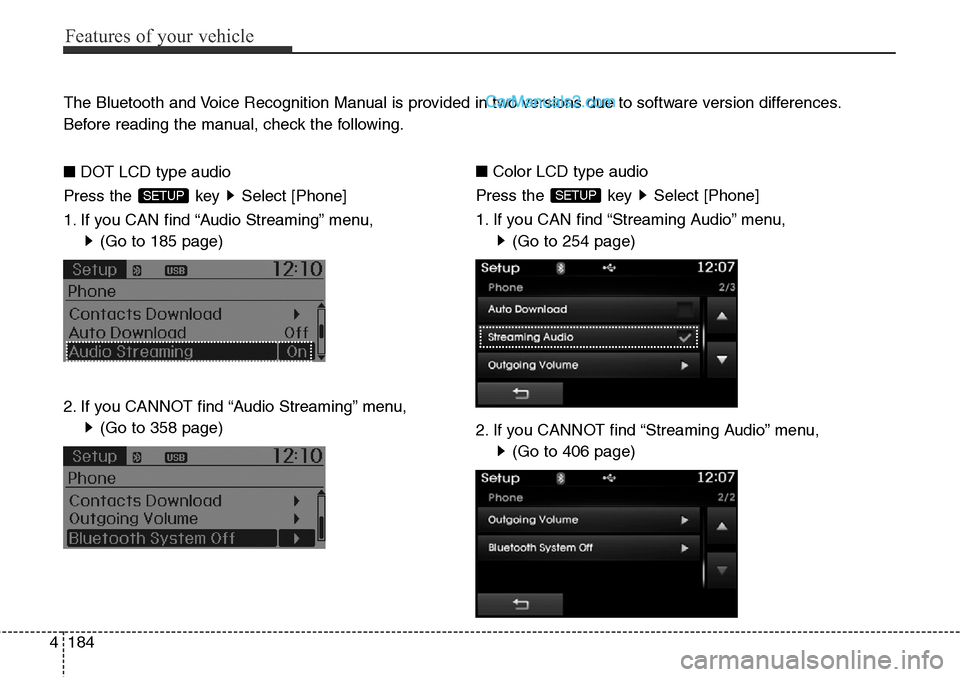
The Bluetooth and Voice Recognition Manual is provided in two versions due to software version differences.
Before reading the manual, check the following.
■DOT LCD type audio
Press the key Select [Phone]
1. If you CAN find “Audio Streaming” menu,
(Go to 185 page)
2. If you CANNOT find “Audio Streaming” menu,
(Go to 358 page)
SETUP
■Color LCD type audio
Press the key Select [Phone]
1. If you CAN find “Streaming Audio” menu,
(Go to 254 page)
2. If you CANNOT find “Streaming Audio” menu,
(Go to 406 page)
SETUP
Page 279 of 785
Features of your vehicle
186 4
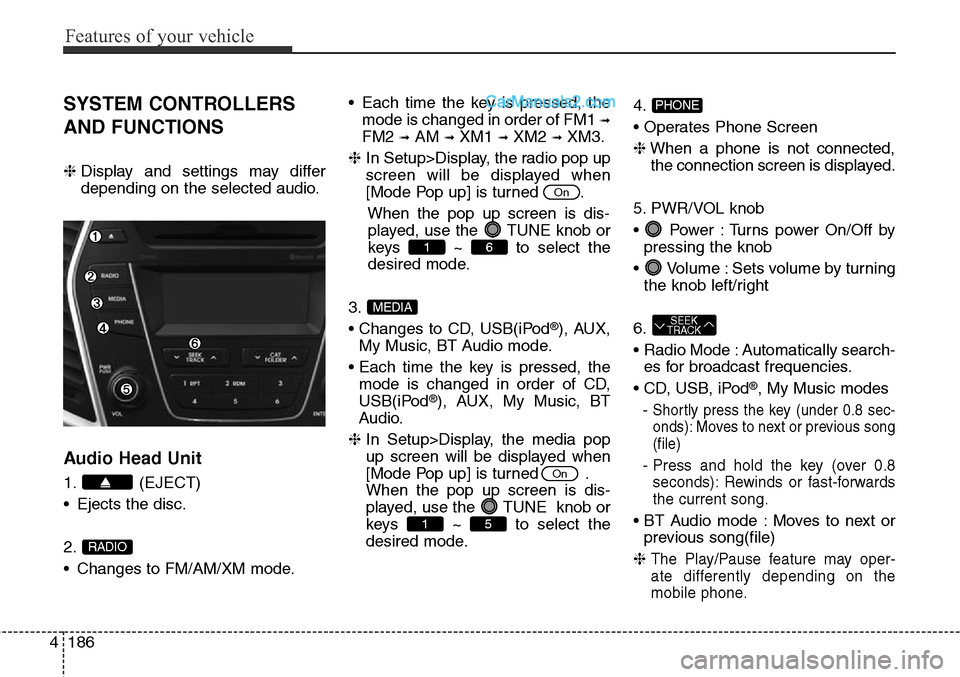
SYSTEM CONTROLLERS
AND FUNCTIONS
❈Display and settings may differ
depending on the selected audio.
Audio Head Unit
1. (EJECT)
• Ejects the disc.
2.
• Changes to FM/AM/XM mode.• Each time the key is pressed, the
mode is changed in order of FM1
➟
FM2 ➟AM ➟XM1 ➟XM2 ➟XM3.
❈In Setup>Display, the radio pop up
screen will be displayed when
[Mode Pop up] is turned .
When the pop up screen is dis-
played, use the TUNE knob or
keys ~ to select the
desired mode.
3.
• Changes to CD, USB(iPod
®), AUX,
My Music, BT Audio mode.
• Each time the key is pressed, the
mode is changed in order of CD,
USB(iPod
®), AUX, My Music, BT
Audio.
❈In Setup>Display, the media pop
up screen will be displayed when
[Mode Pop up] is turned .
When the pop up screen is dis-
played, use the TUNE knob or
keys ~ to select the
desired mode.4.
• Operates Phone Screen
❈When a phone is not connected,
the connection screen is displayed.
5. PWR/VOL knob
• Power : Turns power On/Off by
pressing the knob
• Volume : Sets volume by turning
the knob left/right
6.
• Radio Mode : Automatically search-
es for broadcast frequencies.
• CD, USB, iPod
®, My Music modes
-
Shortly press the key (under 0.8 sec-
onds): Moves to next or previous song
(file)
- Press and hold the key (over 0.8
seconds): Rewinds or fast-forwards
the current song.
• BT Audio mode : Moves to next or
previous song(file)
❈
The Play/Pause feature may oper-
ate differently depending on the
mobile phone.
SEEK
TRACK
PHONE
51
On
MEDIA
61
On
RADIO
Page 280 of 785
4187
Features of your vehicle
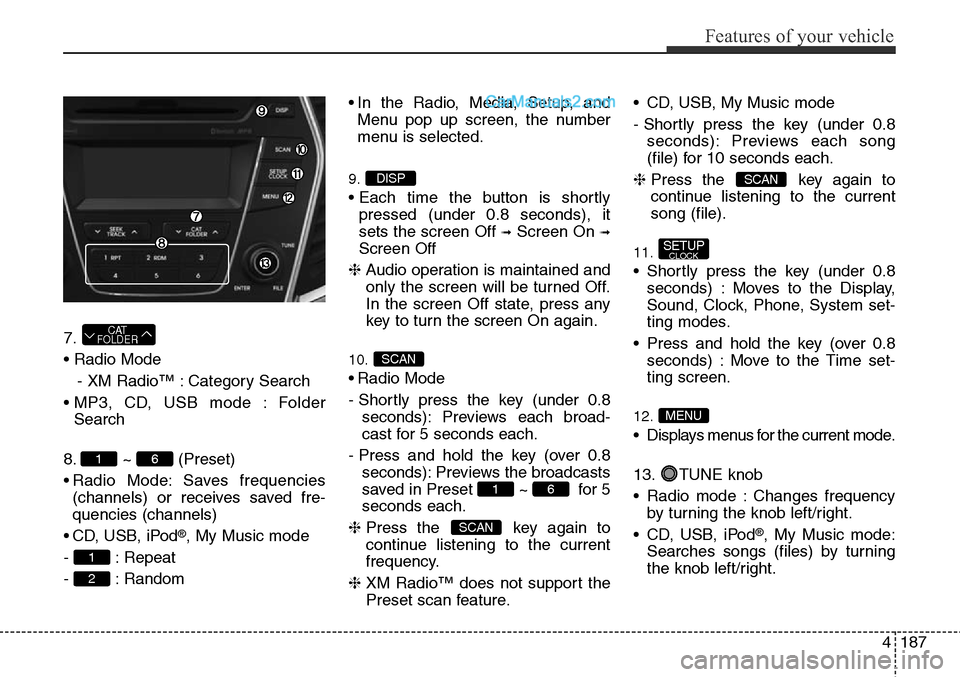
7.
• Radio Mode
- XM Radio™ : Category Search
• MP3, CD, USB mode : Folder
Search
8. ~ (Preset)
• Radio Mode: Saves frequencies
(channels) or receives saved fre-
quencies (channels)
• CD, USB, iPod
®, My Music mode
- : Repeat
- : Random• In the Radio, Media, Setup, and
Menu pop up screen, the number
menu is selected.
9.
• Each time the button is shortly
pressed (under 0.8 seconds), it
sets the screen Off
➟Screen On ➟
Screen Off
❈Audio operation is maintained and
only the screen will be turned Off.
In the screen Off state, press any
key to turn the screen On again.
10.
• Radio Mode
- Shortly press the key (under 0.8
seconds): Previews each broad-
cast for 5 seconds each.
- Press and hold the key (over 0.8
seconds): Previews the broadcasts
saved in Preset ~ for 5
seconds each.
❈Press the key again to
continue listening to the current
frequency.
❈XM Radio™ does not support the
Preset scan feature.• CD, USB, My Music mode
- Shortly press the key (under 0.8
seconds): Previews each song
(file) for 10 seconds each.
❈Press the key again to
continue listening to the current
song (file).
11.
• Shortly press the key (under 0.8
seconds) : Moves to the Display,
Sound, Clock, Phone, System set-
ting modes.
• Press and hold the key (over 0.8
seconds) : Move to the Time set-
ting screen.
12.
• Displays menus for the current mode.
13. TUNE knob
• Radio mode : Changes frequency
by turning the knob left/right.
• CD, USB, iPod
®, My Music mode:
Searches songs (files) by turning
the knob left/right.
MENU
SETUPCLOCK
SCAN
SCAN
61
SCAN
DISP
2
1
61
CAT
FOLDER
Page 298 of 785
4205
Features of your vehicle
Bluetooth®Wireless Technology
AUDIO
What is Bluetooth®Wireless
Technology
?
Bluetooth®Wireless Technology allows
devices to be connected in a short dis-
tance, including hands-free devices,
stereo headsets, wireless remote con-
trollers, etc. For more information, visit
the Bluetooth®Wireless Technology
website at www.Bluetooth.com
Before using Bluetooth®Wireless
Technologyaudio features
•
Bluetooth®Wireless Technology
audio may not be supported
depending on the compatibility of
your
Bluetooth®Wireless
Technologymobile phone.
• In order to use
Bluetooth®Wireless
Technologyaudio, you must first
pair and connect the
Bluetooth®
Wireless Technologymobile phone.
•
Bluetooth®Wireless Technology
audio can be used only when the
[Audio Streaming] of Phone is
turned .
❈Setting
Bluetooth®Wireless
Technology
Audio Streaming : Press
the key Select [Phone]
through the tune knob or key
Select [Audio Streaming] through
the TUNE knob Set
/
Starting Bluetooth®Wireless
Technology Audio
• Press the key to change the
mode in order of CD ➟ USB ➟ AUX
➟ My Music ➟ BT Audio.
• If BT Audio is selected,
Bluetooth®
Wireless Technology audio will start
playing.
❈Audio may not automatically start
playing in some mobile phones.
Using the Bluetooth®Wireless
Technology audio features
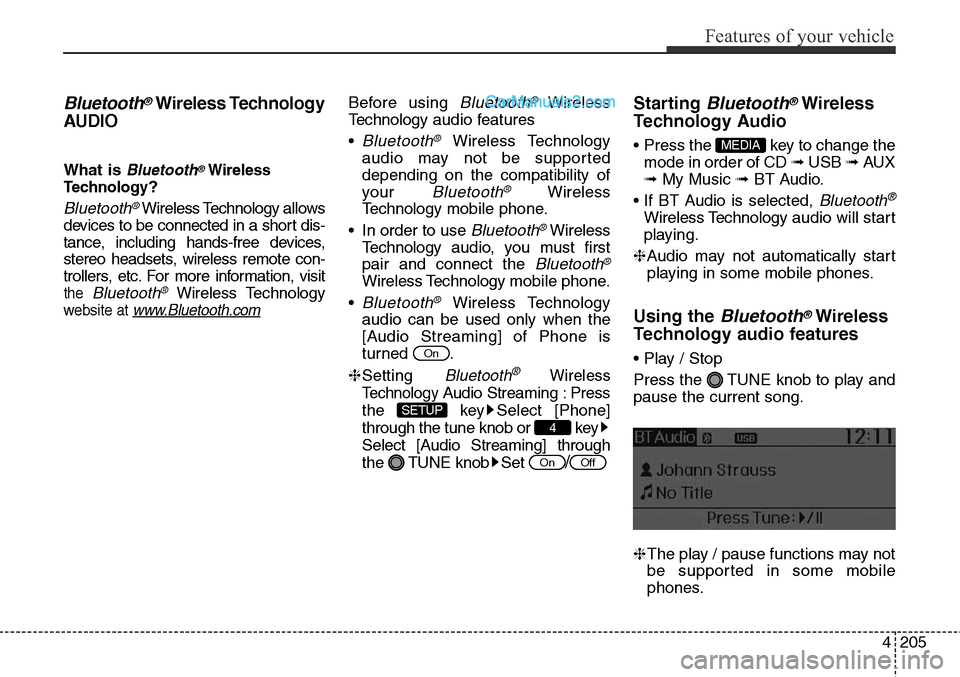
• Play / Stop
Press the TUNE knob to play and
pause the current song.
❈The play / pause functions may not
be supported in some mobile
phones.
MEDIA
OffOn
4
SETUP
On
Page 299 of 785
Features of your vehicle
206 4
PHONE
Before using the Bluetooth®Wireless
Technology phone features
• In order to use
Bluetooth®Wireless
Technology phone, you must first
pair and connect the
Bluetooth®
Wireless Technology mobile phone.
• If the mobile phone is not paired or
connected, it is not possible to
enter Phone mode. Once a phone
is paired or connected, the guid-
ance screen will be displayed.
• If Priority is set upon vehicle igni-
tion(IGN/ACC ON), the
Bluetooth®
Wireless Technology phone will be
automatically connected. Even if
you are outside, the first
Bluetooth®
Wireless Technology phone will be
automatically connected once you
are in the vicinity of the vehicle. If
you do not want automatic
Bluetooth®Wireless Technology
phone connection, set the
Bluetooth®Wireless Technology
power to OFF.
PHONE
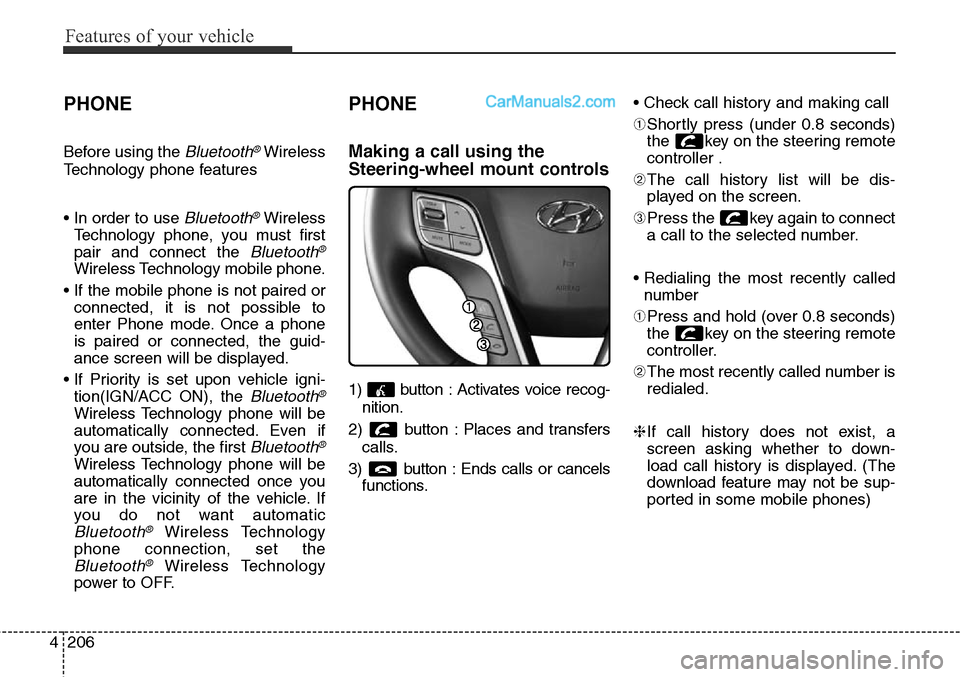
Making a call using the
Steering-wheel mount controls
1) button : Activates voice recog-
nition.
2) button : Places and transfers
calls.
3) button : Ends calls or cancels
functions.• Check call history and making call
➀Shortly press (under 0.8 seconds)
the key on the steering remote
controller .
➁The call history list will be dis-
played on the screen.
➂Press the key again to connect
a call to the selected number.
• Redialing the most recently called
number
➀Press and hold (over 0.8 seconds)
the key on the steering remote
controller.
➁The most recently called number is
redialed.
❈If call history does not exist, a
screen asking whether to down-
load call history is displayed. (The
download feature may not be sup-
ported in some mobile phones)
Page 300 of 785
![Hyundai Santa Fe Sport 2015 User Guide 4 207
Features of your vehicle
✽NOTICE - PAIRING
THROUGH [PHONE]
SETUP
•The Bluetooth®and Voice
Recognition Manual is provided in
two versions due to software ver-
sion differences.
• Before re](/img/35/16759/w960_16759-299.png "Hyundai Santa Fe Sport 2015 User Guide 4 207
Features of your vehicle
✽NOTICE - PAIRING
THROUGH [PHONE]
SETUP
•The Bluetooth®and Voice
Recognition Manual is provided in
two versions due to software ver-
sion differences.
• Before re")
4 207
Features of your vehicle
✽NOTICE - PAIRING
THROUGH [PHONE]
SETUP
•The Bluetooth®and Voice
Recognition Manual is provided in
two versions due to software ver-
sion differences.
• Before reading the manual, check
the following.
• Press the key Select
[Phone] Select [Pair Phone]
• From yourBluetooth
®Wireless
Technology device (i.e. Mobile
Phone), search and select your car
audio system.• If you entered the Passkey within
the Bluetooth
®Wireless Technology
device (Go to page 4-209).
• If the following screen is displayed
and a 6-digit passkey is checked and
confirmed within the Bluetooth
®
Wireless Technology device (Go to
page 4-229).
SETUP