reset Hyundai Santa Fe Sport 2016 Owner's Guide
[x] Cancel search | Manufacturer: HYUNDAI, Model Year: 2016, Model line: Santa Fe Sport, Model: Hyundai Santa Fe Sport 2016Pages: 763, PDF Size: 37.75 MB
Page 316 of 763
Features of your vehicle
224
4
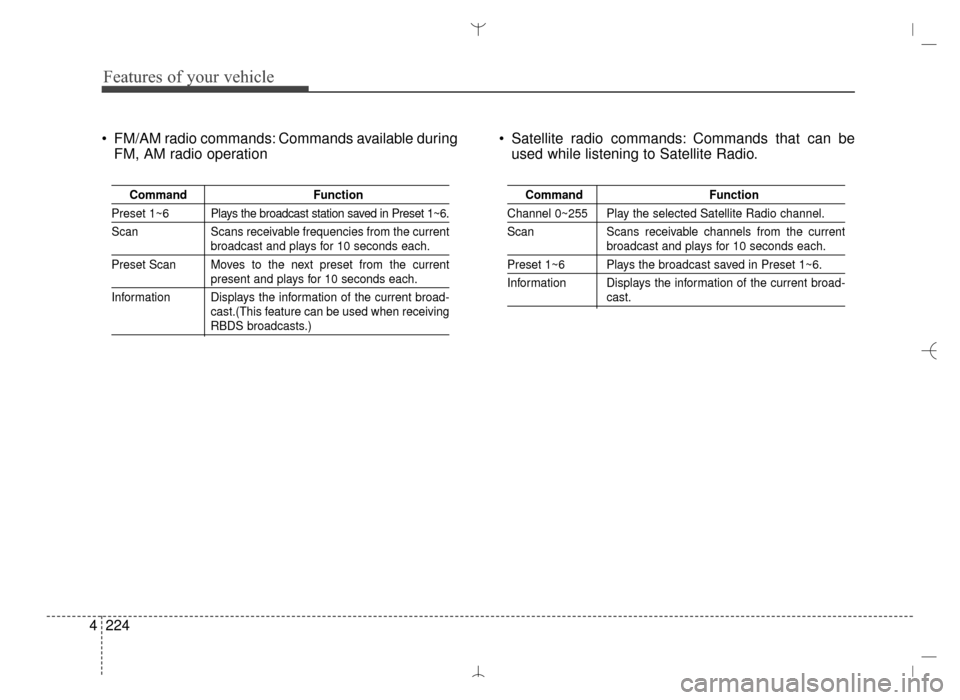
FM/AM radio commands: Commands available during
FM, AM radio operation Satellite radio commands: Commands that can be
used while listening to Satellite Radio.
Command Function
Preset 1~6 Plays the broadcast station saved in Preset 1~6.
Scan Scans receivable frequencies from the current
broadcast and plays for 10 seconds each.
Preset Scan Moves to the next preset from the current
present and plays for 10 seconds each.
Information Displays the information of the current broad- cast.(This feature can be used when receiving
RBDS broadcasts.)
Command Function
Channel 0~255 Play the selected Satellite Radio channel.
Scan Scans receivable channels from the current
broadcast and plays for 10 seconds each.
Preset 1~6 Plays the broadcast saved in Preset 1~6.
Information Displays the information of the current broad-
cast.
AN HMA 4C (169~AUDIO 1).QXP 6/25/2015 2:05 PM Page 224
Page 326 of 763
Features of your vehicle
234
4
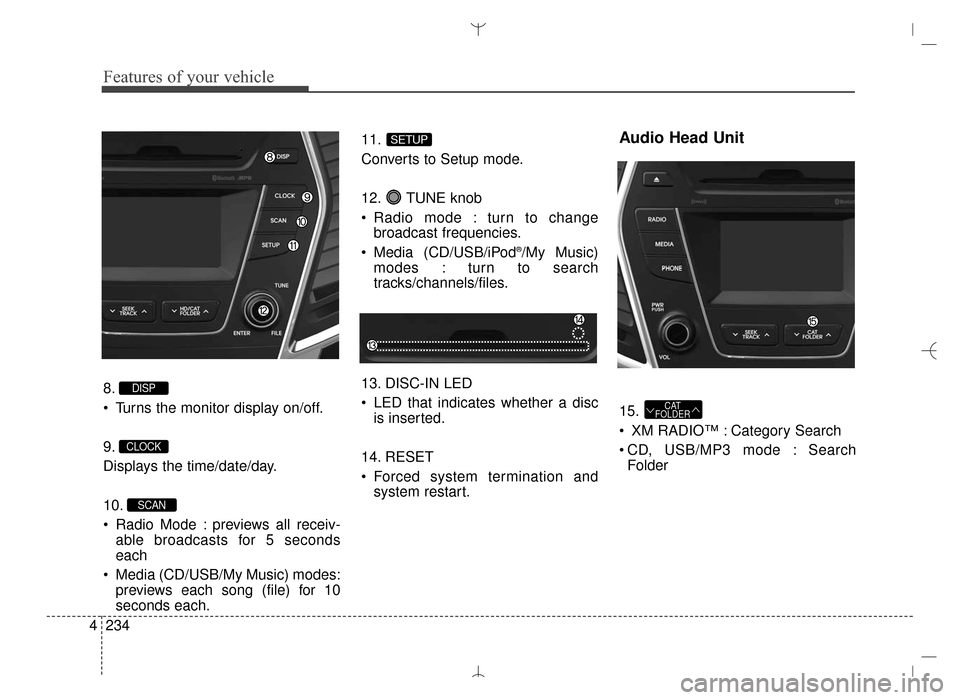
8.
Turns the monitor display on/off.
9.
Displays the time/date/day.
10.
Radio Mode : previews all receiv-
able broadcasts for 5 seconds
each
Media (CD/USB/My Music) modes: previews each song (file) for 10
seconds each. 11.
Converts to Setup mode.
12. TUNE knob
Radio mode : turn to change
broadcast frequencies.
Media (CD/USB/iPod
®/My Music)
modes : turn to search
tracks/channels/files.
13. DISC-IN LED
LED that indicates whether a disc is inserted.
14. RESET
Forced system termination and system restart.
Audio Head Unit
15.
XM RADIO™ : Category Search
CD, USB/MP3 mode : SearchFolderCAT
FOLDER
SETUP
SCAN
CLOCK
DISP
AN HMA 4C (169~AUDIO 1).QXP 6/25/2015 2:05 PM Page 234
Page 330 of 763
![Hyundai Santa Fe Sport 2016 Owners Guide Features of your vehicle
238
4
RADIO MODE
Basic Mode Screen
1. Mode Display
Displays currently operating mode.
2. Frequency
Displays the current frequency.
3. Preset
Displays current preset number [1]](/img/35/16754/w960_16754-329.png "Hyundai Santa Fe Sport 2016 Owners Guide Features of your vehicle
238
4
RADIO MODE
Basic Mode Screen
1. Mode Display
Displays currently operating mode.
2. Frequency
Displays the current frequency.
3. Preset
Displays current preset number [1]")
Features of your vehicle
238
4
RADIO MODE
Basic Mode Screen
1. Mode Display
Displays currently operating mode.
2. Frequency
Displays the current frequency.
3. Preset
Displays current preset number [1] ~
[6].
4. Preset Display
Displays preset buttons.
5. Info
Displays broadcast information.
6. HD
Changes HD Radio channels.
7. A.store
Automatically saves frequencies with
superior reception to Preset buttons.
AN HMA 4C (169~AUDIO 1).QXP 6/25/2015 2:05 PM Page 238
Page 331 of 763
4239
Features of your vehicle
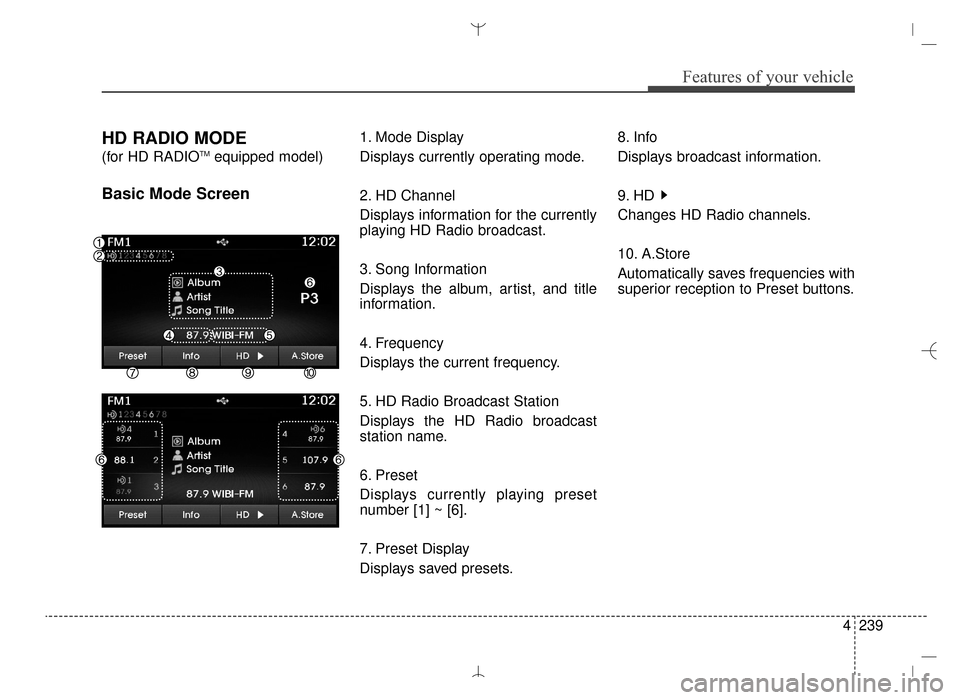
HD RADIO MODE
(for HD RADIOTMequipped model)
Basic Mode Screen
1. Mode Display
Displays currently operating mode.
2. HD Channel
Displays information for the currently
playing HD Radio broadcast.
3. Song Information
Displays the album, artist, and title
information.
4. Frequency
Displays the current frequency.
5. HD Radio Broadcast Station
Displays the HD Radio broadcast
station name.
6. Preset
Displays currently playing preset
number [1] ~ [6].
7. Preset Display
Displays saved presets.8. Info
Displays broadcast information.
9. HD
Changes HD Radio channels.
10. A.Store
Automatically saves frequencies with
superior reception to Preset buttons.
AN HMA 4C (169~AUDIO 1).QXP 6/25/2015 2:05 PM Page 239
Page 332 of 763
![Hyundai Santa Fe Sport 2016 Owners Guide Features of your vehicle
240
4
Switching to Radio Mode
Pressing the key will change
the operating mode in order of FM1
➟ FM2 ➟ AM ➟ XM1 ➟ XM2 ➟ XM3
If [Mode Pop up] is turned on within [Dis](/img/35/16754/w960_16754-331.png "Hyundai Santa Fe Sport 2016 Owners Guide Features of your vehicle
240
4
Switching to Radio Mode
Pressing the key will change
the operating mode in order of FM1
➟ FM2 ➟ AM ➟ XM1 ➟ XM2 ➟ XM3
If [Mode Pop up] is turned on within [Dis")
Features of your vehicle
240
4
Switching to Radio Mode
Pressing the key will change
the operating mode in order of FM1
➟ FM2 ➟ AM ➟ XM1 ➟ XM2 ➟ XM3
If [Mode Pop up] is turned on within [Display], then pressing the
key will display the Radio
Pop-up Mode screen.
Turn the TUNE knob to move the
focus. Press the knob to select.
Searching Radio Frequencies
Using Seek
Press the key to play the
previous/next frequency.
Using TUNE
Turn the TUNE knob to select the
desired frequency.
FM : Increases/decreased by 200kHz
AM : Increases/decreased by 10kHz
Using Radio Mode
Selecting Presets/Saving Presets
Press the button to display
the broadcast information for the fre-
quency saved to each button.
Press the ~ buttons to play
the desired preset.
✽ ✽NOTICE
While listening to a frequency you
want to save as a preset, press and
hold one of the ~ preset
buttons (over 0.8 seconds) to save
the current frequency to the selected
preset.
61
61
PresetSEEK
TRACK
RADIO
SETUP
RADIO
AN HMA 4C (169~AUDIO 1).QXP 6/25/2015 2:05 PM Page 240
Page 333 of 763
![Hyundai Santa Fe Sport 2016 Owners Guide 4241
Features of your vehicle
Auto Store
Press the button to automati-
cally save receivable frequencies to
Preset buttons.
✽ ✽NOTICE
While Auto Store is operating, press-
ing the [Cancel] button](/img/35/16754/w960_16754-332.png "Hyundai Santa Fe Sport 2016 Owners Guide 4241
Features of your vehicle
Auto Store
Press the button to automati-
cally save receivable frequencies to
Preset buttons.
✽ ✽NOTICE
While Auto Store is operating, press-
ing the [Cancel] button")
4241
Features of your vehicle
Auto Store
Press the button to automati-
cally save receivable frequencies to
Preset buttons.
✽ ✽NOTICE
While Auto Store is operating, press-
ing the [Cancel] button again will
cancel Auto Store and restore the
previous frequency.
Scan
Press the key to preview fre-
quencies with superior reception for
5 seconds each.
Press and hold the key (over
0.8 seconds) to preview presets for 5
seconds each.
Once scan is complete, the previous
frequency will be restored.
While Scan is operating, pressing
the key will cancel the scan
operation.
Listening to HD Radio
Stations
HD Radio Technology is a digital
radio technology used by AM and
FM radio station to transmit audio
and data via a digital signal in con-
junction with their analog signals.
While listening to the radio, the HD
Radio icon will become displayed if
receiving an HD Radio broadcast.
Changing HD Radio stations
Press the button to change
HD Radio station.
Viewing Station Information
Press the button to view sta-
tion information.Info
SCAN
SCAN
SCAN
A.Store
AN HMA 4C (169~AUDIO 1).QXP 6/25/2015 2:05 PM Page 241
Page 335 of 763
4243
Features of your vehicle
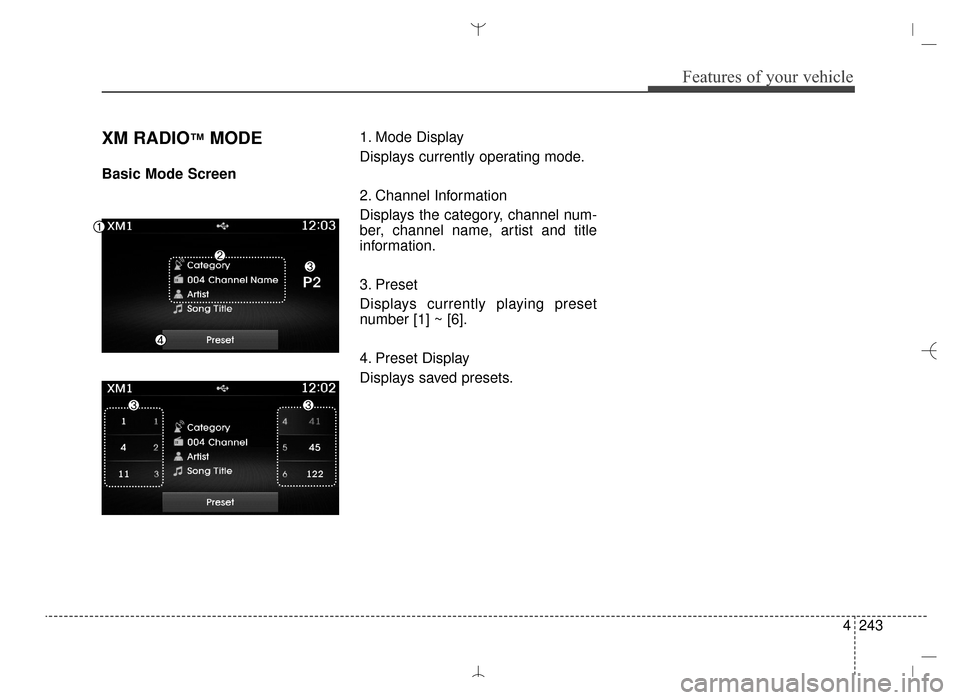
XM RADIO™MODE
Basic Mode Screen1. Mode Display
Displays currently operating mode.
2. Channel Information
Displays the category, channel num-
ber, channel name, artist and title
information.
3. Preset
Displays currently playing preset
number [1] ~ [6].
4. Preset Display
Displays saved presets.
AN HMA 4C (169~AUDIO 1).QXP 6/25/2015 2:05 PM Page 243
Page 336 of 763
Features of your vehicle
244
4
Using SEEK
Press the key to play the
previous/next channel.
❈ If the “Category” icon is displayed,
channels are changed within the
current category.
Using Tune
Turn the TUNE knob to select the
desired channel.
SCAN
Press the key to scan all
channels with superior reception for
10 seconds each.
Once scan is complete, the previous-
ly played channel will be restored.
During Scan, pressing the
key again will cancel the scan opera-
tion and restore the previously
played channel.
If the “Category” icon is displayed,
channels are changed within the cur-
rent category.
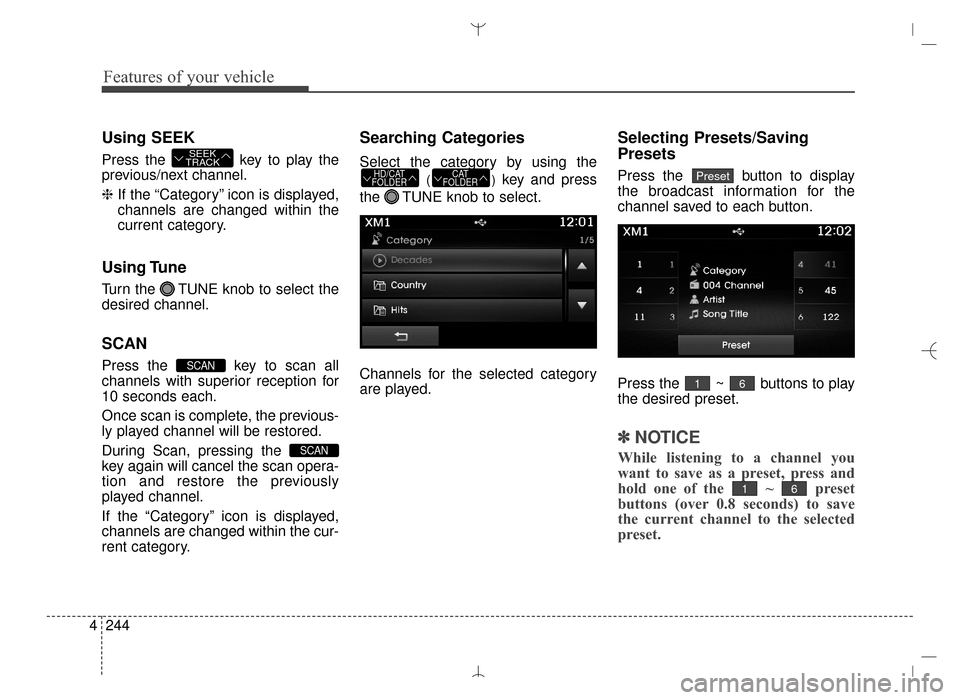
Searching Categories
Select the category by using the
()key and press
the TUNE knob to select.
Channels for the selected category
are played.
Selecting Presets/Saving
Presets
Press the button to display
the broadcast information for the
channel saved to each button.
Press the ~ buttons to play
the desired preset.
✽ ✽ NOTICE
While listening to a channel you
want to save as a preset, press and
hold one of the ~ preset
buttons (over 0.8 seconds) to save
the current channel to the selected
preset.
61
61
PresetCAT
FOLDERHD/CAT
FOLDER
SCAN
SCAN
SEEK
TRACK
AN HMA 4C (169~AUDIO 1).QXP 6/25/2015 2:05 PM Page 244
Page 352 of 763
Features of your vehicle
260
4
✽
✽
NOTICE - USING THE
iPod®DEVICE
• iPod®is a registered trademark
of Apple Inc.
• In order to use the iPod
®while
operating the keys, you must use
a dedicated iPod
®cable. (the
cable that is supplied when pur-
chasing iPod
®/iPhone®prod-
ucts)
• If the iPod
®is connected to the
vehicle while it is playing, a high
pitch sound could occur for
approximately 1-2 seconds
immediately after connecting. If
possible, connect the iPod to the
vehicle with the iPod
®
stopped/paused.
• During ACC ON state, connect- ing the iPod
®through the iPod®
cable will charge the iPod®
through the car audio system.
• When connecting with the iPod®
cable, make sure to fully insert
the jack to prevent communica-
tion interference. (Continued)(Continued)
• When the EQ features of an
external device, such as the
iPod
®, and the audio system are
both active, EQ effects could
overlap and cause sound deteri-
oration and distortion.
Whenever possible, turn off the
EQ feature within the external
device upon use by connecting
with the audio system.
• Noise may occur when an iPod
®
or AUX device is connected.
When such devices are not
being used, disconnect the
device for storage.
• When the iPod
®or AUX device
power is connected to the power
jack, playing the external device
may result in noise. In such
cases, disconnect the power con-
nection before use.
• Skipping or improper operation may occur depending on the
characteristics of your iPod
®
/iPhone®device. (Continued) (Continued)
• If your iPhone
®is connected to
both the Bluetooth®Wireless
Technology and USB, the sound
may not be properly played. In
your iPhone
®, select the Dock
connector or Bluetooth®
Wireless Technology to change
the sound output (source).
• iPod mode cannot be operated when the iPod
®cannot be recog-
nized due to versions that do not
support communication proto-
cols.
• For fifth generation iPod
®Nano
devices, the iPod®may not be
recognized when the battery
level is low. Please charge the
iPod
®for use.
• Search/play orders shown with- in the iPod
®device may differ
with the orders shown within
the audio system.
• If the iPod
®malfunctions due to
an iPod®device defect, reset the
iPod®and try again. (To learn
more, refer to your iPod®manual)
(Continued)
AN HMA 4C (169~AUDIO 1).QXP 6/25/2015 2:05 PM Page 260
Page 366 of 763
Features of your vehicle
274
4
✽
✽
NOTICE
•Bluetooth®Wireless Technology
features supported within the
vehicle are as follows. Some fea-
tures may not be supported
depending on your Bluetooth
®
Wireless Technology device.
- Outgoing/Incoming Handsfree
calls
- Operations during a call (Switch to Private, Switch to call waiting,
MIC on/off)
- Downloading Call History
- Downloading Mobile Contacts
- Bluetooth
®Wireless Technology
device auto connection
- Bluetooth Audio Streaming
• Up to five Bluetooth
®Wireless
Technology devices can be paired
to the Car Handsfree system.
• Only one Bluetooth
®Wireless
Technology device can be connect-
ed at a time.
• Other devices cannot be paired while a Bluetooth
®Wireless
Technology device is connected.
• Only Bluetooth
®Wireless
Technology Handsfree and
Bluetooth audio related features
are supported. (Continued)(Continued)
• Bluetooth related operations are
possible only with devices that
support Handsfree or audio fea-
tures, such as a Bluetooth
®
Wireless Technology mobile phone
or a Bluetooth audio device.
• If a connected Bluetooth
®Wireless
Technology device becomes dis-
connected due to being out of com-
munication range, turning the
device OFF, or a Bluetooth
®
Wireless Technology communica-
tion error, corresponding
Bluetooth
®Wireless Technology
devices are automatically searched
and reconnected.
• If the system becomes unstable due to communication errors
between the car Handsfree and the
Bluetooth
®Wireless Technology
device, reset the device by turning
off and back on again. Upon reset-
ting Bluetooth
®Wireless
Technology device, the system will
be restored. (Continued)(Continued)
• After pairing is complete, a con-
tacts download request is sent
once to the mobile phone. Some
mobile phones may require confir-
mation upon receiving a download
request, ensure your mobile phone
accepts the connection. Refer to
your phones user’s manual for
additional information regarding
phone pairing and connections.
AN HMA 4C (169~AUDIO 1).QXP 6/25/2015 2:05 PM Page 274