reset Hyundai Sonata 2011 User Guide
[x] Cancel search | Manufacturer: HYUNDAI, Model Year: 2011, Model line: Sonata, Model: Hyundai Sonata 2011Pages: 380, PDF Size: 7.97 MB
Page 185 of 380
4 105
Features of your vehicle
1. VOLUME (VOL+/-)• Push the lever upward (+) to increase thevolume.
• Push the lever downward (-) to decrease the volume.2. PRESET/SEEK ( / )The SEEK/PRESET button has different
functions based on the system mode.
For the following functions the button
should be pressed for 0.8 second or
more.
RADIO mode
It will function as the AUTO SEEK select
button.
CD/USB/ iPod mode
It will function as the FF/REW button.
If the SEEK/PRESET button is pressed
for less than 0.8 second, it will work as
follows in each mode. RADIO mode
It will function as the PRESET STATION
buttons.
CD/USB/ iPod mode
It will function as TRACK UP/DOWN
button.
3. MODEPress the button to change audio source.
- FM(1~2)
➟AM
➟SAT(1~3)
➟CD
➟USB
AUX(iPod) FM...
Detailed information for audio control
buttons are described in the following
pages in this section.
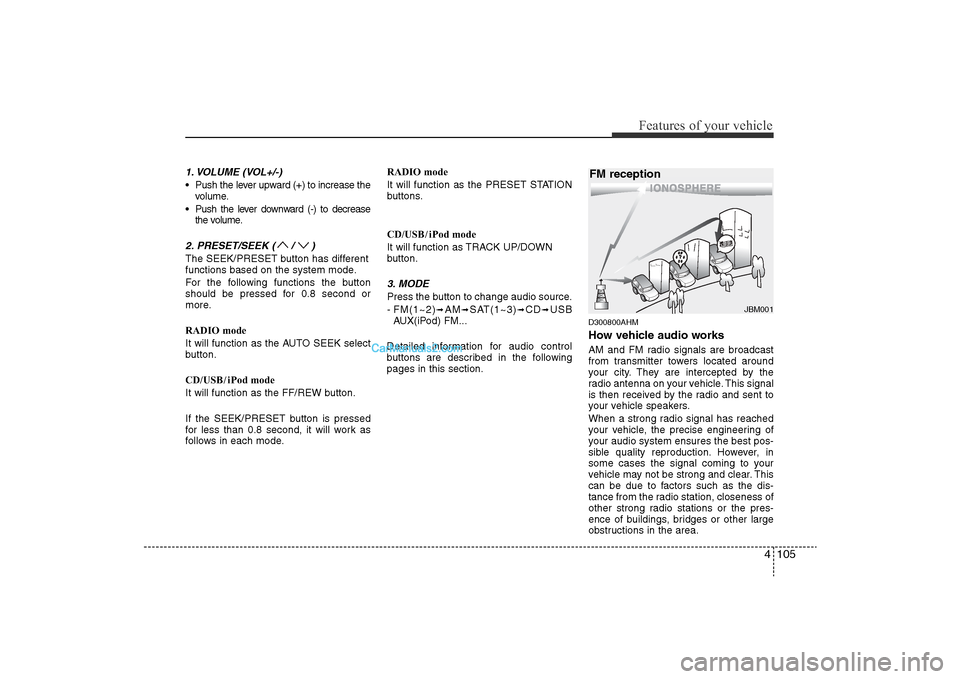
D300800AHMHow vehicle audio worksAM and FM radio signals are broadcast
from transmitter towers located around
your city. They are intercepted by the
radio antenna on your vehicle. This signal
is then received by the radio and sent to
your vehicle speakers.
When a strong radio signal has reached
your vehicle, the precise engineering of
your audio system ensures the best pos-
sible quality reproduction. However, in
some cases the signal coming to your
vehicle may not be strong and clear. This
can be due to factors such as the dis-
tance from the radio station, closeness of
other strong radio stations or the pres-
ence of buildings, bridges or other large
obstructions in the area.
JBM001
FM reception
YF HMA 4-104~(AUDIO).QXP 12/24/2009 5:21 PM Page 105
Page 189 of 380
4 109
Features of your vehicle
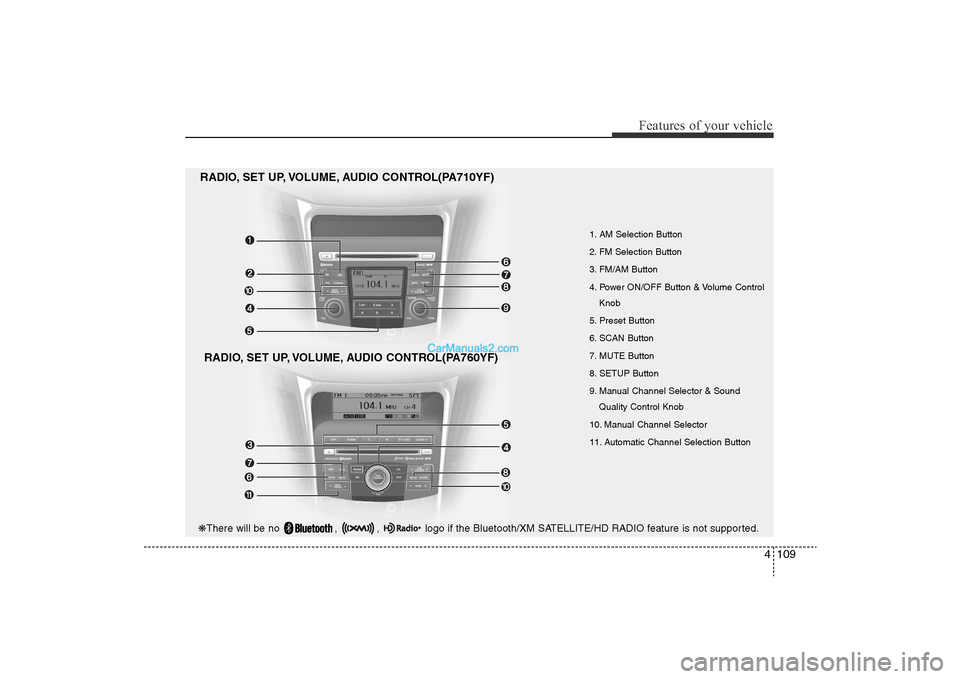
1. AM Selection Button
2. FM Selection Button
3. FM/AM Button
4. Power ON/OFF Button & Volume ControlKnob
5. Preset Button
6. SCAN Button
7. MUTE Button
8. SETUP Button
9. Manual Channel Selector & Sound Quality Control Knob
10. Manual Channel Selector
11. Automatic Channel Selection Button
RADIO, SET UP, VOLUME, AUDIO CONTROL(PA710YF)
RADIO, SET UP, VOLUME, AUDIO CONTROL(PA760YF)
❋ There will be no , , logo if the Bluetooth/XM SATELLITE/HD RADIO feature is not supported.
YF HMA 4-104~(AUDIO).QXP 12/24/2009 5:21 PM Page 109
Page 190 of 380
![Hyundai Sonata 2011 User Guide
Features of your vehicle110
41. AM Selection ButtonPressing the [AM] button selects the AM
band. AM Mode is displayed on the LCD.2. FM Selection ButtonTurns to FM mode and toggles FM1and
FM2 when the](/img/35/16817/w960_16817-189.png "Hyundai Sonata 2011 User Guide
Features of your vehicle110
41. AM Selection ButtonPressing the [AM] button selects the AM
band. AM Mode is displayed on the LCD.2. FM Selection ButtonTurns to FM mode and toggles FM1and
FM2 when the")
Features of your vehicle110
41. AM Selection ButtonPressing the [AM] button selects the AM
band. AM Mode is displayed on the LCD.2. FM Selection ButtonTurns to FM mode and toggles FM1and
FM2 when the button is pressed each
time.3. FM/AM ButtonTurns to FM or AM mode, and toggles in
the order of FM1
➟FM2
➟AM
➟FM1...
when the button is pressed each time.
4.
Power ON/OFF Button & VolumeControl Knob
Turns on/off the set when the IGNITION
SWITCH is on ACC or ON. If the button
is turned to the right, it increases the vol-
ume and left,decreases the volume.
• Adjusts the volume of the car audio system. Rotate clockwise to increase
the volume or counterclockwise to
decrease.
5. Preset ButtonPush [1]~[6] buttons less than 0.8 sec-
ond to play the channel saved in each
button.Push Preset button for 0.8 second
or longer to save current channel to the
respective button with a beep.6. SCAN Button• When the button is pressed, it automat-ically scans the radio stations upwards.
• The SCAN feature steps through each station, starting from the initial station,
for ten seconds.
• press the [SCAN] button again to stop the scan feature and to listen to the cur-
rently selected channel.7. MUTE ButtonPress the button to mute the sound.
8. SETUP Button
Press this button to turn to the XM option
and the other adjustment mode.
If no action is taken for 5 seconds after
pressing the button, it will return to the
play mode.(After entering SEPUP mode,
move between items using the left, right
and PUSH functions of the [TUNE]
knob.)
The setup changes in the order of TEXT
SCROLL
➟AV C
➟BT
➟XM
In case of PA760YF, Using the
[ FOLDER ] and [ENTER] button.
The setup Change in the order of
SOUND
➟XM
➟HD RADIO
➟ AVC
➟ CLOCK
➟SCROLL
➟PHONE
➟RETURN
• SCROLL
ters longer than the LCD text display
and can be turned ON/OFF through the
sound quality control knob.
(For PA760YF, Press the [ FOLDER ]
button.)
YF HMA 4-104~(AUDIO).QXP 12/24/2009 5:21 PM Page 110
Page 201 of 380
4 121
Features of your vehicle
✽NOTICE FOR USING iPod
DEVICE• Some iPod models might not sup- port the communication protocol
and the files will not be played.
Supported iPod models:
- iPod Mini
- iPod 4th(Photo) ~ 6th(Classic)
generation
- iPod Nano 1st~4th generation
- iPod Touch 1st~2nd generation
• The order of search or playback of songs in the iPod can be different
from the order searched in the
audio system.
• If the iPod disabled due to its own malfunction, reset the iPod. (Reset:
Refer to iPod manual)
• An iPod may not operate normally on low battery.
(Continued)
• Deactivate (turn off) the equalizer function of an iPod when adjust-ing the audio system’s volume,and turn off the equalizer of the audio system when using theequalizer of an iPod.
• When the iPod cable is connected, the system can be switched to theAUX mode even without the iPoddevice and may cause noise.Disconnect the iPod cable when you are not using the iPod device.
• When not using an iPod with the car audio, detach the iPod cablefrom iPod. Otherwise, the iPod may remain in accessary mode, andmay not work properly.
CAUTION IN USING
iPod DEVICE
• The Hyundai iPod Power Cable is
needed in order to operate aniPod with the audio buttons on the audio system. The USB cableprovided by Apple may cause a malfunction and should not beused for Hyundai vehicles.❋ The Hyundai iPod Power Cable may be purchased through yourHyundai Dealership.
• When connecting an iPod with the iPod Power Cable, insert the con-nector into the multimedia socketcompletely. If not inserted com-pletely, communications betweenthe iPod and audio may be inter- rupted.
• When adjusting the sound effects of an iPod and the audio system,the sound effects of both devices will overlap and might reduce ordistort the quality of the sound.
(Continued)
YF HMA 4-104~(AUDIO).QXP 12/24/2009 5:21 PM Page 121
Page 203 of 380
4 123
Features of your vehicle
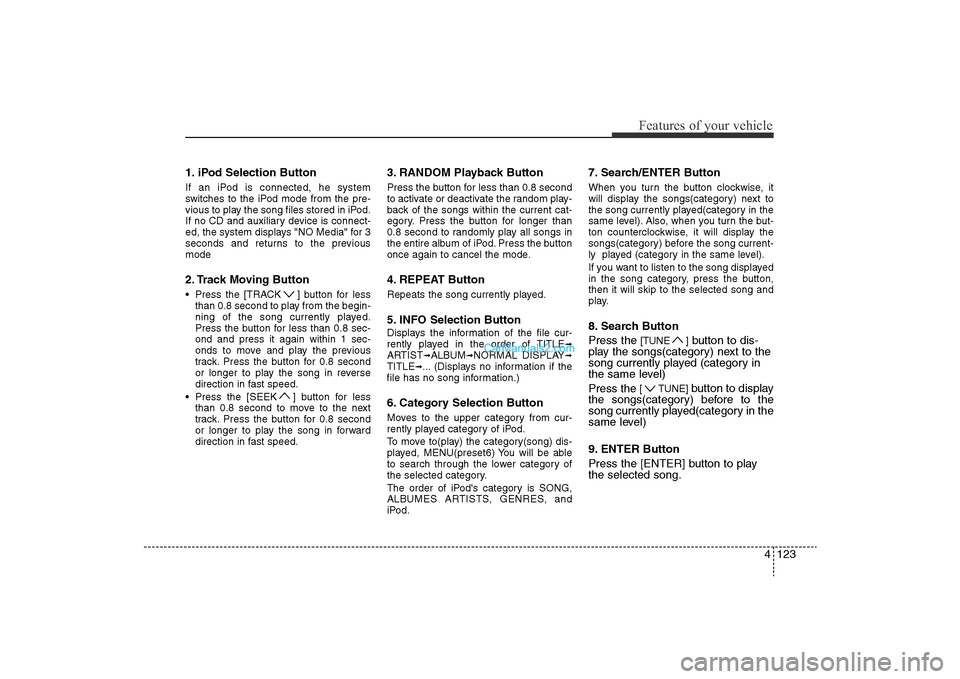
1. iPod Selection ButtonIf an iPod is connected, he system
switches to the iPod mode from the pre-
vious to play the song files stored in iPod.
If no CD and auxiliary device is connect-
ed, the system displays "NO Media" for 3
seconds and returns to the previous
mode2. Track Moving Button• Press the [TRACK ] button for lessthan 0.8 second to play from the begin-
ning of the song currently played.
Press the button for less than 0.8 sec-
ond and press it again within 1 sec-
onds to move and play the previous
track. Press the button for 0.8 second
or longer to play the song in reverse
direction in fast speed.
• Press the [SEEK ] button for less than 0.8 second to move to the next
track. Press the button for 0.8 second
or longer to play the song in forward
direction in fast speed.
3. RANDOM Playback ButtonPress the button for less than 0.8 second
to activate or deactivate the random play-
back of the songs within the current cat-
egory. Press the button for longer than
0.8 second to randomly play all songs in
the entire album of iPod. Press the button
once again to cancel the mode.4. REPEAT ButtonRepeats the song currently played.5. INFO Selection ButtonDisplays the information of the file cur-
rently played in the order of TITLE
➟
ARTIST
➟ALBUM
➟NORMAL DISPLAY
➟
TITLE
➟... (Displays no information if the
file has no song information.)
6. Category Selection ButtonMoves to the upper category from cur-
rently played category of iPod.
To move to(play) the category(song) dis-
played, MENU(preset6) You will be able
to search through the lower category of
the selected category.
The order of iPod's category is SONG,
ALBUMES ARTISTS, GENRES, and
iPod.
7. Search/ENTER ButtonWhen you turn the button clockwise, it
will display the songs(category) next to
the song currently played(category in the
same level). Also, when you turn the but-
ton counterclockwise, it will display the
songs(category) before the song current-
ly played (category in the same level).
If you want to listen to the song displayed
in the song category, press the button,
then it will skip to the selected song and
play.8. Search Button
Press the
[TUNE ]
button to dis-
play the songs(category) next to the
song currently played (category in
the same level)
Press the
[ TUNE]
button to display
the songs(category) before to the
song currently played(category in the
same level)
9. ENTER Button
Press the [ENTER] button to play
the selected song.
YF HMA 4-104~(AUDIO).QXP 12/24/2009 5:22 PM Page 123
Page 204 of 380
Features of your vehicle124
4
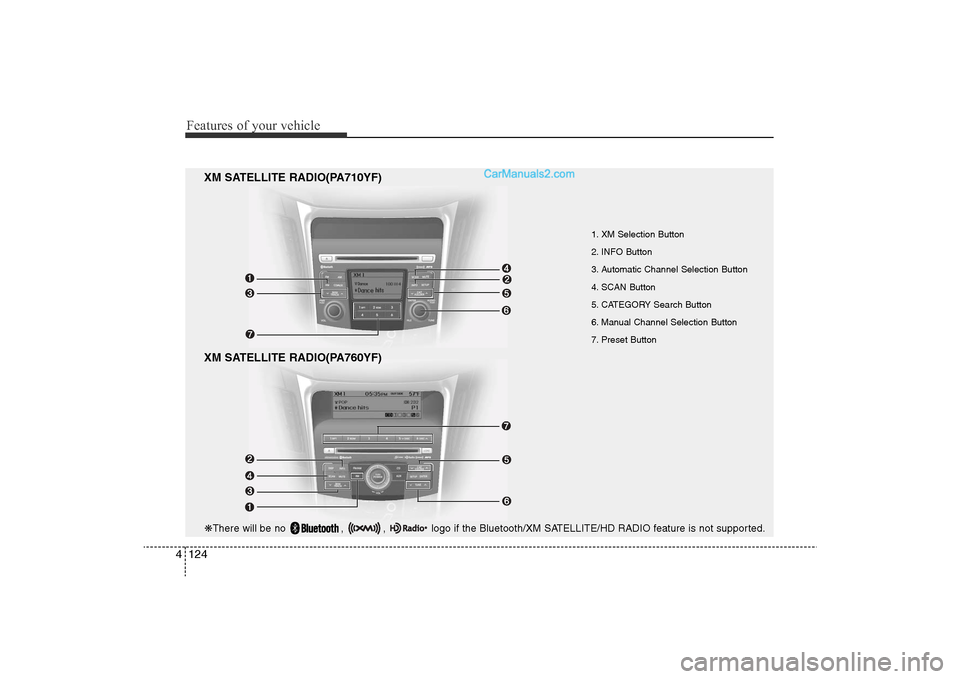
XM SATELLITE RADIO(PA760YF)
1. XM Selection Button
2. INFO Button
3. Automatic Channel Selection Button
4. SCAN Button
5. CATEGORY Search Button
6. Manual Channel Selection Button
7. Preset Button
XM SATELLITE RADIO(PA710YF)
❋ There will be no , , logo if the Bluetooth/XM SATELLITE/HD RADIO feature is not supported.
YF HMA 4-104~(AUDIO).QXP 12/24/2009 5:22 PM Page 124
Page 205 of 380
4 125
Features of your vehicle
Using XM satellite RadioYour vehicle is equipped with 3 months
complimentary period of XM Satellite
Radio. XM provides access to over 130
channels of music, information, and
entertainment programming.1. XM Selection ButtonTurns to XM Satellite Radio Mode. XM
mode toggles in order to XM1
➟XM2
➟
XM3
➟XM1... when the button is pressed
each time.
2. INFO ButtonDisplays the information of the current
channel in the order of Artist/Song title
➟
Category/Channel name
➟Current Play
Channel
➟Artist/Song title
➟Category/
Channel name... when the button is
pressed each time. The complete text
information is not displayed, rotate the
tune button to see the next page.
3. Automatic Channel Selection Button• Push [TRACK ] button for less than
0.8 second to select previous channel.
• Push [TRACK ] button for 0.8 sec- ond or longer to continuously move to
previous channel. • Push [SEEK ] button for less than
0.8 second to select next channel.
• Push [SEEK ] button for 0.8 second or longer to continuously move to next channel.
• Radio ID : Seek or Tune to XM channel 0 to display the Radio ID.
4. SCAN ButtonPress to hear a brief sampling of all
channel. To cancel the scan mode, press
the button once again.5. CATEGORY Search Button• Push [FOLDER ] button to searchprevious category.
• Push [CAT ] button to search next category. To listen to the displayed cat-
egory, press the TUNE/SETUP but-
ton(for PA760YF, press [ENTER] but-
ton). To scan channel in displayed cat-
egory, press the scan button.
To search channel in displayed catego-
ry, press seek buttons or turn the tune
button clockwise/counterclockwise(for
PA760YF, press [ TUNE ]).
(CATEGORY icon is will be turned on
in Category mode)
6. Manual Channel Selection Button
While listening to XM broadcast, rotate
this control to the right or left to search
other channels while listening to current
channel. (Turn to the right to searchhigh-
er channels and left, lower channels)
In case of PA760YF, press the
[TUNE ] button to search higher chan-
nels and the [ TUNE] button, lower
channels.7. Preset ButtonPush [1]~[6] buttons less than 0.8 sec-
ond to play the channel saved in each
button. Push Preset button for 0.8 sec-
ond or longer to save current channel to
the respective button with a beep.
YF HMA 4-104~(AUDIO).QXP 12/24/2009 5:22 PM Page 125
Page 206 of 380
Features of your vehicle126
4
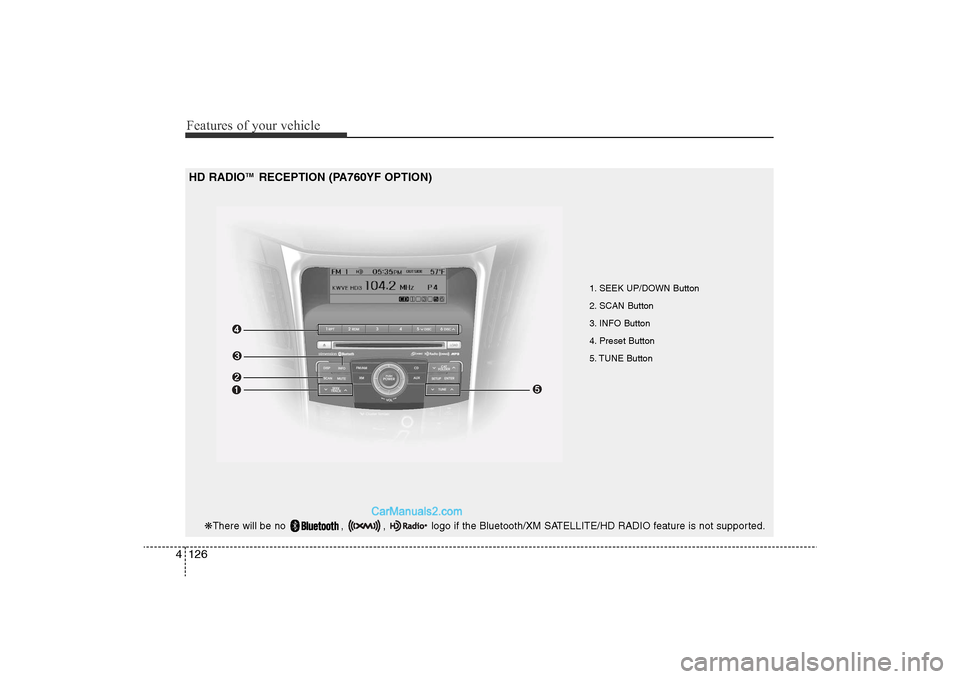
1. SEEK UP/DOWN Button
2. SCAN Button
3. INFO Button
4. Preset Button
5. TUNE Button
HD RADIO
TM
RECEPTION (PA760YF OPTION)
❋ There will be no , , logo if the Bluetooth/XM SATELLITE/HD RADIO feature is not supported.
YF HMA 4-104~(AUDIO).QXP 12/24/2009 5:22 PM Page 126
Page 208 of 380
Features of your vehicle128
4Automatic switching between dig-
ital and analog broadcastingIf the reception of the digital signal is lost,
the system switches automatically to the
analog signal. As soon as the digital sig-
nal is available again it will switch back.
Due to the fact that sub channels are
only broadcasted digital, the system
mutes playback if you have tuned to a
sub channel and the digital signal is lost.
The main line shows the message No
HD signal in place of station name.
After approximately one minute with the
digital signal lost, the system will auto-
matically tune to the analog signal of the
corresponding frequency.Text based informationHD Radio
TM
stations are able to broad-
cast text based information, e.g. station
name, song title and artist name. The
Driver Information System is able to dis-
play this information.
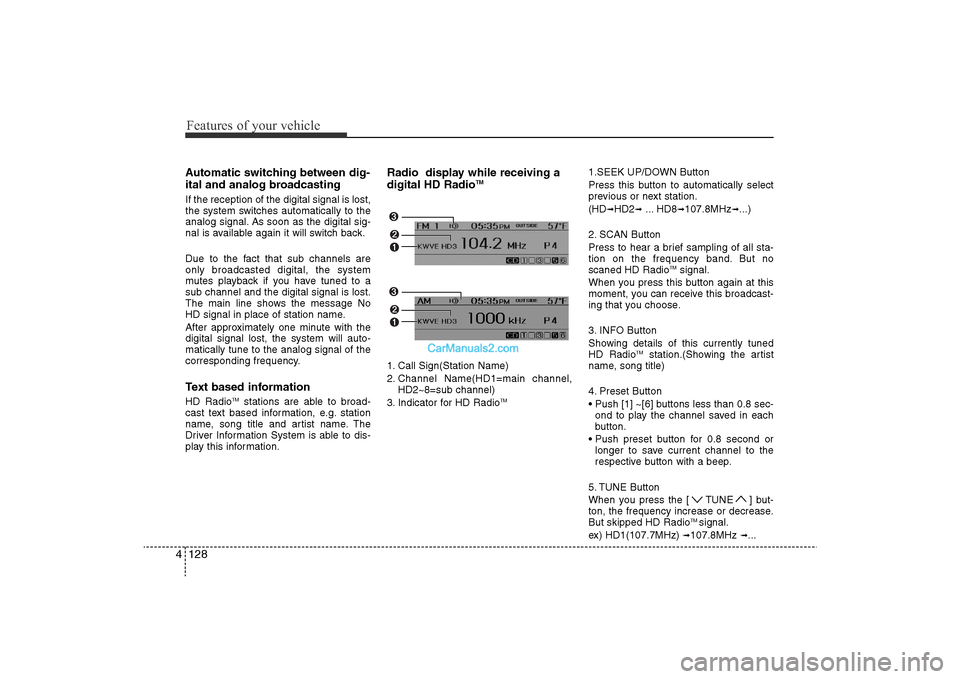
Radio display while receiving a
digital HD Radio
TM
1. Call Sign(Station Name)
2. Channel Name(HD1=main channel, HD2~8=sub channel)
3. Indicator for HD Radio
TM
1.SEEK UP/DOWN Button
Press this button to automatically select
previous or next station.
(HD
➟HD2
➟... HD8
➟107.8MHz
➟...)
2. SCAN Button
Press to hear a brief sampling of all sta-
tion on the frequency band. But no
scaned HD Radio
TMsignal.
When you press this button again at this
moment, you can receive this broadcast-
ing that you choose.
3. INFO Button
Showing details of this currently tuned
HD Radio
TM
station.(Showing the artist
name, song title)
4. Preset Button
• Push [1] ~[6] buttons less than 0.8 sec- ond to play the channel saved in each
button.
• Push preset button for 0.8 second or longer to save current channel to the
respective button with a beep.
5. TUNE Button
When you press the [ TUNE ] but-
ton, the frequency increase or decrease.
But skipped HD Radio
TMsignal.
ex) HD1(107.7MHz)
➟107.8MHz
➟...
YF HMA 4-104~(AUDIO).QXP 12/24/2009 5:22 PM Page 128
Page 250 of 380
Driving your vehicle34
5Each of these actions will cancel cruise
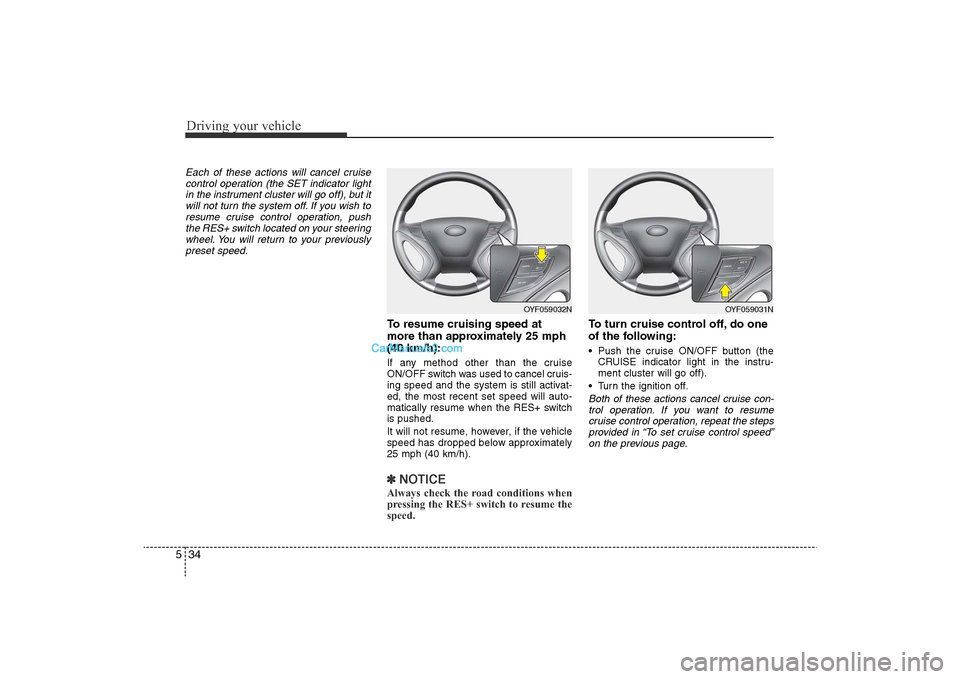
control operation (the SET indicator lightin the instrument cluster will go off), but itwill not turn the system off. If you wish to resume cruise control operation, pushthe RES+ switch located on your steeringwheel. You will return to your previously preset speed.
To resume cruising speed at
more than approximately 25 mph
(40 km/h):If any method other than the cruise
ON/OFF switch was used to cancel cruis-
ing speed and the system is still activat-
ed, the most recent set speed will auto-
matically resume when the RES+ switch
is pushed.
It will not resume, however, if the vehicle
speed has dropped below approximately
25 mph (40 km/h).✽ NOTICEAlways check the road conditions when
pressing the RES+ switch to resume the
speed.
To turn cruise control off, do one
of the following:• Push the cruise ON/OFF button (the
CRUISE indicator light in the instru-
ment cluster will go off).
• Turn the ignition off.Both of these actions cancel cruise con- trol operation. If you want to resume cruise control operation, repeat the stepsprovided in “To set cruise control speed”on the previous page.
OYF059032N
OYF059031N
YF hma 5.qxp 11/25/2009 5:47 PM Page 34