Pa760yf Hyundai Sonata 2011 Owner's Manual
[x] Cancel search | Manufacturer: HYUNDAI, Model Year: 2011, Model line: Sonata, Model: Hyundai Sonata 2011Pages: 380, PDF Size: 7.97 MB
Page 189 of 380
4 109
Features of your vehicle
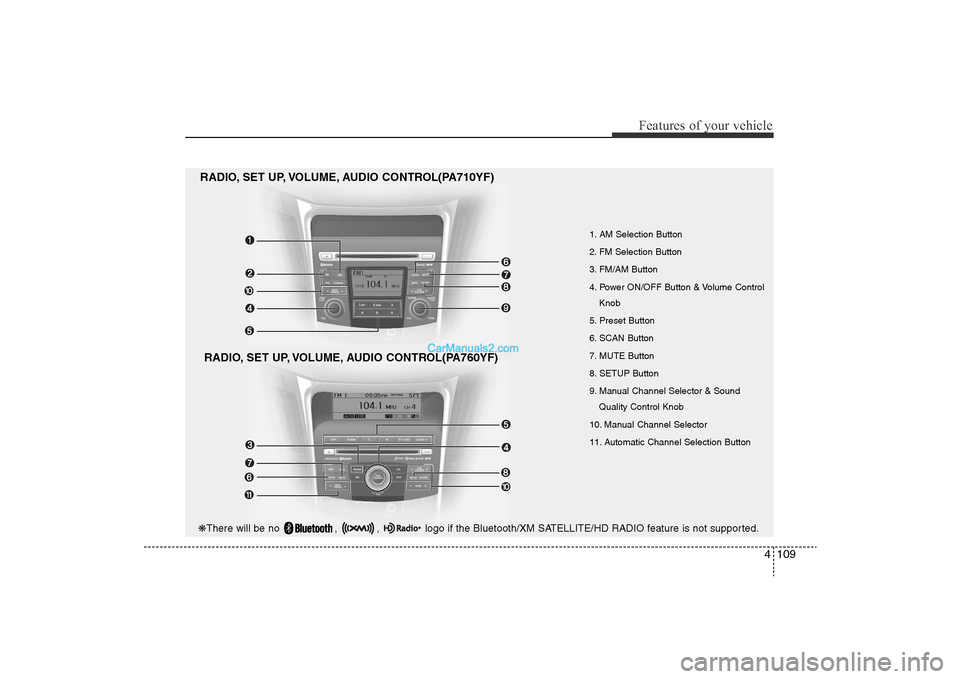
1. AM Selection Button
2. FM Selection Button
3. FM/AM Button
4. Power ON/OFF Button & Volume ControlKnob
5. Preset Button
6. SCAN Button
7. MUTE Button
8. SETUP Button
9. Manual Channel Selector & Sound Quality Control Knob
10. Manual Channel Selector
11. Automatic Channel Selection Button
RADIO, SET UP, VOLUME, AUDIO CONTROL(PA710YF)
RADIO, SET UP, VOLUME, AUDIO CONTROL(PA760YF)
❋ There will be no , , logo if the Bluetooth/XM SATELLITE/HD RADIO feature is not supported.
YF HMA 4-104~(AUDIO).QXP 12/24/2009 5:21 PM Page 109
Page 190 of 380
![Hyundai Sonata 2011 Owners Manual
Features of your vehicle110
41. AM Selection ButtonPressing the [AM] button selects the AM
band. AM Mode is displayed on the LCD.2. FM Selection ButtonTurns to FM mode and toggles FM1and
FM2 when the](/img/35/16817/w960_16817-189.png "Hyundai Sonata 2011 Owners Manual
Features of your vehicle110
41. AM Selection ButtonPressing the [AM] button selects the AM
band. AM Mode is displayed on the LCD.2. FM Selection ButtonTurns to FM mode and toggles FM1and
FM2 when the")
Features of your vehicle110
41. AM Selection ButtonPressing the [AM] button selects the AM
band. AM Mode is displayed on the LCD.2. FM Selection ButtonTurns to FM mode and toggles FM1and
FM2 when the button is pressed each
time.3. FM/AM ButtonTurns to FM or AM mode, and toggles in
the order of FM1
➟FM2
➟AM
➟FM1...
when the button is pressed each time.
4.
Power ON/OFF Button & VolumeControl Knob
Turns on/off the set when the IGNITION
SWITCH is on ACC or ON. If the button
is turned to the right, it increases the vol-
ume and left,decreases the volume.
• Adjusts the volume of the car audio system. Rotate clockwise to increase
the volume or counterclockwise to
decrease.
5. Preset ButtonPush [1]~[6] buttons less than 0.8 sec-
ond to play the channel saved in each
button.Push Preset button for 0.8 second
or longer to save current channel to the
respective button with a beep.6. SCAN Button• When the button is pressed, it automat-ically scans the radio stations upwards.
• The SCAN feature steps through each station, starting from the initial station,
for ten seconds.
• press the [SCAN] button again to stop the scan feature and to listen to the cur-
rently selected channel.7. MUTE ButtonPress the button to mute the sound.
8. SETUP Button
Press this button to turn to the XM option
and the other adjustment mode.
If no action is taken for 5 seconds after
pressing the button, it will return to the
play mode.(After entering SEPUP mode,
move between items using the left, right
and PUSH functions of the [TUNE]
knob.)
The setup changes in the order of TEXT
SCROLL
➟AV C
➟BT
➟XM
In case of PA760YF, Using the
[ FOLDER ] and [ENTER] button.
The setup Change in the order of
SOUND
➟XM
➟HD RADIO
➟ AVC
➟ CLOCK
➟SCROLL
➟PHONE
➟RETURN
• SCROLL
ters longer than the LCD text display
and can be turned ON/OFF through the
sound quality control knob.
(For PA760YF, Press the [ FOLDER ]
button.)
YF HMA 4-104~(AUDIO).QXP 12/24/2009 5:21 PM Page 110
Page 191 of 380
4 111
Features of your vehicle
• AVCThis funtion automatically adjusts the
volume level according to the speed of
the vehicle and can be turned ON/OFF
through the sound quality control knob.
(For PA760YF, Press the [ FOLDER ]
button.)
• SOUND
Pressing the [ FOLDER ] button
to select the sound the following order
: Sound Setup, Variable EQ Select the
Sound Setup and press [ENTER] the
button to set.
Pressing the [ENTER] button to adjust
the Sound Setup the following order :
BASS, MIDDLE, TREBLE, FADER,
BALANCE. Select the BASS and press
the [ FOLDER ] button to set.
Use the same method to adjust MID-
DLE, TREBLE, FADER, BALANCE
and press the button to [ENTER] com-
plete and exit from Sound Setup adjust-
ment mode.
• Variable EQ
to Select the sound the following order
: Sound Setup, Variable EQ Select the
Variable EQ and press the [ENTER]
button to set. Pressing the [ FOLDER ] button
to select the Variable EQ the following
order : Normal, Powerful, Concert
Select and press the [ENTER] button to
complete and exit from Variable EQ set
up mode.
• XM It will be able to change the XM display.
ex) Display by category/channel or
artist/song title.
Select the XM Display through the
[ FOLDER ] button(for PA710YF,
Turn the control knob), and press the
[ENTER] button(for PA710YF, press
[TUNE] knob) to complete and exit
XM setup mode.
• HD RADIO This funtion is used to enable FM/AM
HD RADIO receptions, and detail dis-
play. Press the [ FOLDER ] button
to select the HD RADIO setup the fol-
lowing order : HD RADIO FM, HD
RADIO AM, Details. Press the [ENTER]
button to the HD RADIO setup and can
be turned ON/OFF through the [
FOLDER ] button.
Press the [ENTER] button to complete
and exit HD RADIO setup mode. • CLOCK
Pressing the [ FOLDER ] button
to adjust the clock in the following
order: CLOCK SET, TIME FORMAT,
RETURN. Adjust the CLOCK SET and
press [ENTER] button to set.
Use the same method to adjust TIME
FORMAT and press the [ENTER] but-
ton to complete and exit and from clock
adjustment mode.
9. Manual Channel Selector & Sound Quality Control Knob Turn this control while listening to a radio
channel to manually adjust frequency.
Turn clockwise to increase frequency and
counterclockwise to reduce frequency.
Pressing the button changes the BASS,
MIDDLE, TREBLE, FADER and BAL-
ANCE TUNE mode.
The mode selected is shown on the dis-
play. After selecting each mode, rotate
the Audio control knob clockwise or
counterclockwise.
BASS Control
To increase the BASS, rotate the knob
clockwise, while to decrease the BASS,
rotate the knob counterclockwise.
YF HMA 4-104~(AUDIO).QXP 12/24/2009 5:21 PM Page 111
Page 193 of 380
4 113
Features of your vehicle
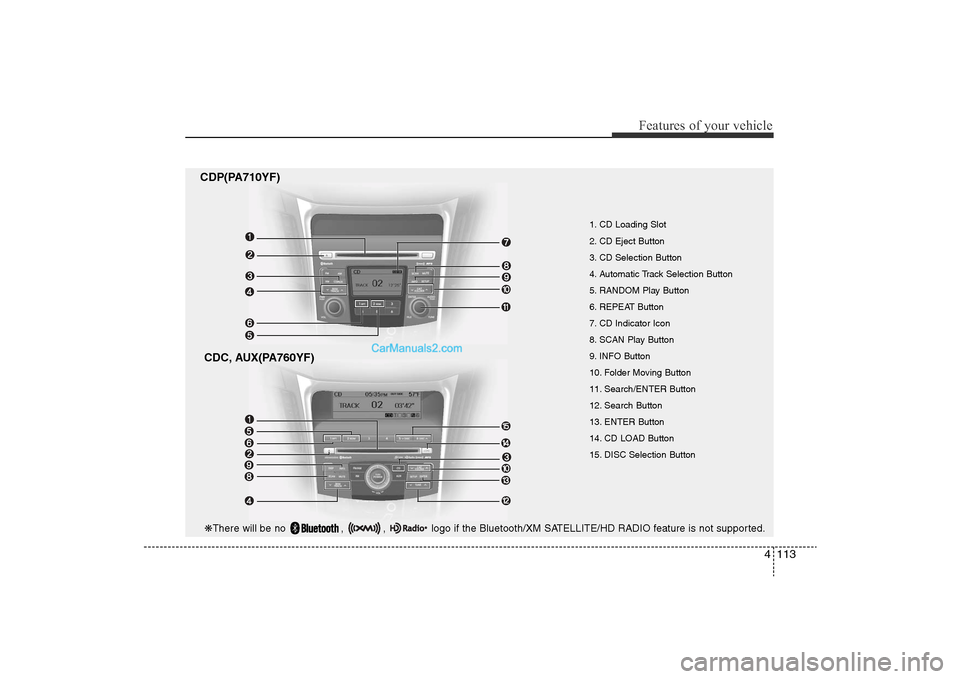
CDP(PA710YF)CDC, AUX(PA760YF)
1. CD Loading Slot
2. CD Eject Button
3. CD Selection Button
4. Automatic Track Selection Button
5. RANDOM Play Button
6. REPEAT Button
7. CD Indicator Icon
8. SCAN Play Button
9. INFO Button
10. Folder Moving Button
11. Search/ENTER Button
12. Search Button
13. ENTER Button
14. CD LOAD Button
15. DISC Selection Button
❋ There will be no , , logo if the Bluetooth/XM SATELLITE/HD RADIO feature is not supported.
YF HMA 4-104~(AUDIO).QXP 12/24/2009 5:21 PM Page 113
Page 195 of 380
4 115
Features of your vehicle
• MP3/WMA : FILE NAME
➟TITLE
➟
ARTIST
➟ALBUM
➟FOLDER
➟TOTAL
FILE... (not displayed if the information
is not available on the DISC.)
10. Folder Moving ButtonPress the [FOLDER ] button to move
to child folder of the current folder and
displays the first song in the folder.
Press TUNE/ENTER Knob(for PA760YF,
Press [ENTER] button) to move to the
folder played. It will play the first song in
the folder.
Press the [FOLDER ] button to move
to parent folder of the current folder and
displays the first song in the folder.
Press TUNE/ENTER knob(for PA760YF,
Press [ENTER] button) to move the fold-
er displayed.11. Search/ENTER Button Turn this button clockwise to display the
songs next to the currently played song.
Turn the button counterclockwise to dis-
play the songs before the current played
song. Press the button to skip and play
the selected song.
12. Search ButtonPress the [TUNE ] button to display
the songs next to the currently played
song.
Press the [ TUNE] button to display
the songs before to the currently played
song.13. ENTER ButtonPress the [ENTER] button to play the
selected song.14. CD LOAD ButtonPush [LOAD] button to load CDs to avail-
able CDC deck (from 1~6). Push [LOAD]
button for more than 2 seconds to load
into all available decks. The last CD will
play. 10 seconds idle status will disable
loading process.15. DISC Selection Button• [DISC ] Change Button Changes disc to the previous disc.
• [DISC ] Change Button Changes disc to the next disc.
YF HMA 4-104~(AUDIO).QXP 12/24/2009 5:21 PM Page 115
Page 198 of 380
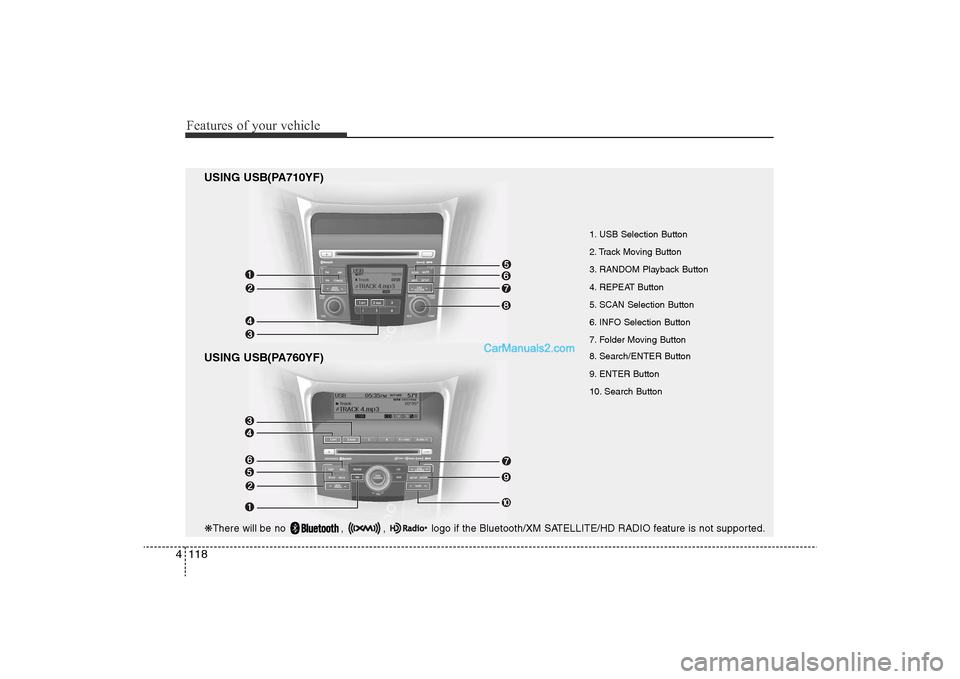
Features of your vehicle118
4
USING USB(PA710YF)
USING USB(PA760YF)
1. USB Selection Button
2. Track Moving Button
3. RANDOM Playback Button
4. REPEAT Button
5. SCAN Selection Button
6. INFO Selection Button
7. Folder Moving Button
8. Search/ENTER Button
9. ENTER Button
10. Search Button
❋ There will be no , , logo if the Bluetooth/XM SATELLITE/HD RADIO feature is not supported.
YF HMA 4-104~(AUDIO).QXP 12/24/2009 5:21 PM Page 118
Page 199 of 380
4 119
Features of your vehicle
1. USB Selection ButtonIf USB is connected, it switches to the
USB mode from the previous mode to
play the song files stored in the USB. If a
CD or auxiliary device is not connected,
it displays "NO Media" for 3 seconds and
returns to the previous mode.2. Track Moving Button• Press the [TRACK ] button for lessthan 0.8 second to play from the begin-
ning of the song currently played.
Press the button for less than 0.8 sec-
ond and press it again within 1 sec-
onds to move and play the previous
track. Press the button for 0.8 second
or longer to play the song in reverse
direction in fast speed.
• Press the [SEEK ] button for less than 0.8 second to move to the next
track. Press the button for 0.8 second
or longer to play the song in forward
direction in fast speed.
3. RANDOM Playback ButtonPress this button for less than 0.8 sec-
onds to activate 'RDM' mode and more
than 0.8 seconds to activate 'ALL RDM'
mode.
• RDM : Only files in a folder are playedback in a random sequence.
• ALL RDM : All files in a USB memory are played back in the random sequence.4. REPEAT ButtonPress this button for less than 0.8 sec-
onds to activate ‘RPT’ mode and more
than 0.8 seconds to activate ‘ RPT’
mode.
• RPT : Only a file is repeatedly playedback.
• RPT : Only files in a folder are repeatedly played back.5. SCAN Selection ButtonPlays 10 seconds of each song in the
USB device. Press the button once again
to cancel scanning.
6. INFO Selection ButtonDisplays the information of the file cur-
rently played in the order of FILE NAME➟TITLE
➟ARTIST
➟ALBUM
➟FOLDER
➟
TOTAL FILE
➟NORMAL DISPLAY
➟FILE
NAME
➟... (Displays no information if the
file has no song information.)
7. Folder Moving Button• Press the [FOLDER ] button to move to child folder of the current fold-
er and displays the first song in the
folder. Press TUNE/ ENTER knob(for
PA760YF, Press [ENTER] button) to
move to the folder It will play the first
song in the folder.
• Press the [FOLDER ] button to
move to parent folder and displays the
first song in the folder.
Press TUNE/ENTER knob(for PA760YF,
press [ENTER] button) to move to the
folder displayed.
YF HMA 4-104~(AUDIO).QXP 12/24/2009 5:21 PM Page 119
Page 202 of 380
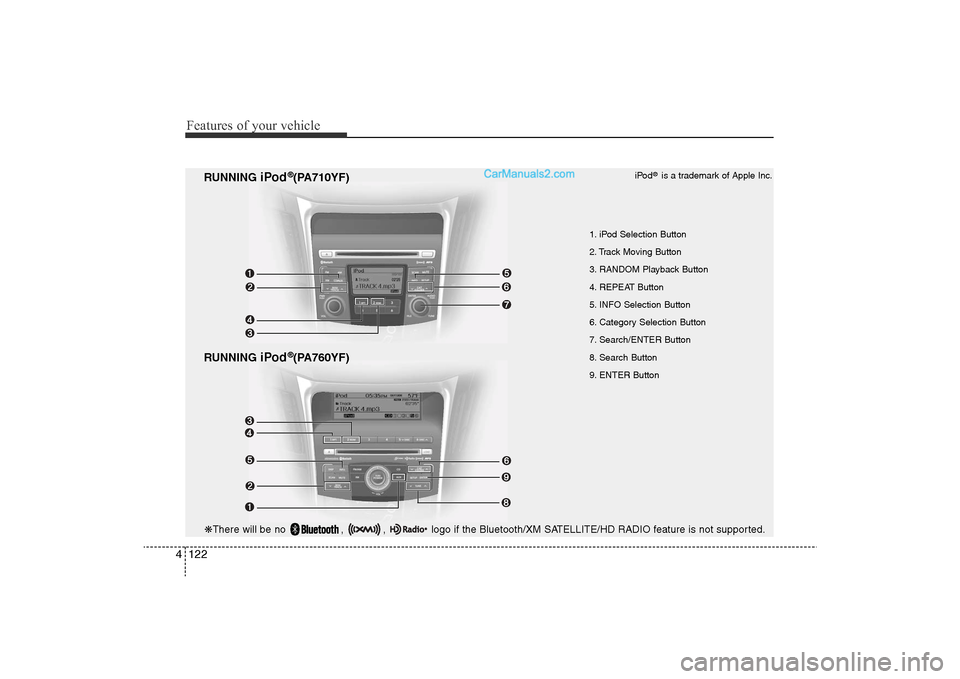
Features of your vehicle122
4
RUNNING
iPod
®(PA760YF)
RUNNING
iPod
®(PA710YF)
1. iPod Selection Button
2. Track Moving Button
3. RANDOM Playback Button
4. REPEAT Button
5. INFO Selection Button
6. Category Selection Button
7. Search/ENTER Button
8. Search Button
9. ENTER Button iPod
®is a trademark of Apple Inc.
❋
There will be no , , logo if the Bluetooth/XM SATELLITE/HD RADIO feature is not supported.
YF HMA 4-104~(AUDIO).QXP 12/24/2009 5:22 PM Page 122
Page 204 of 380
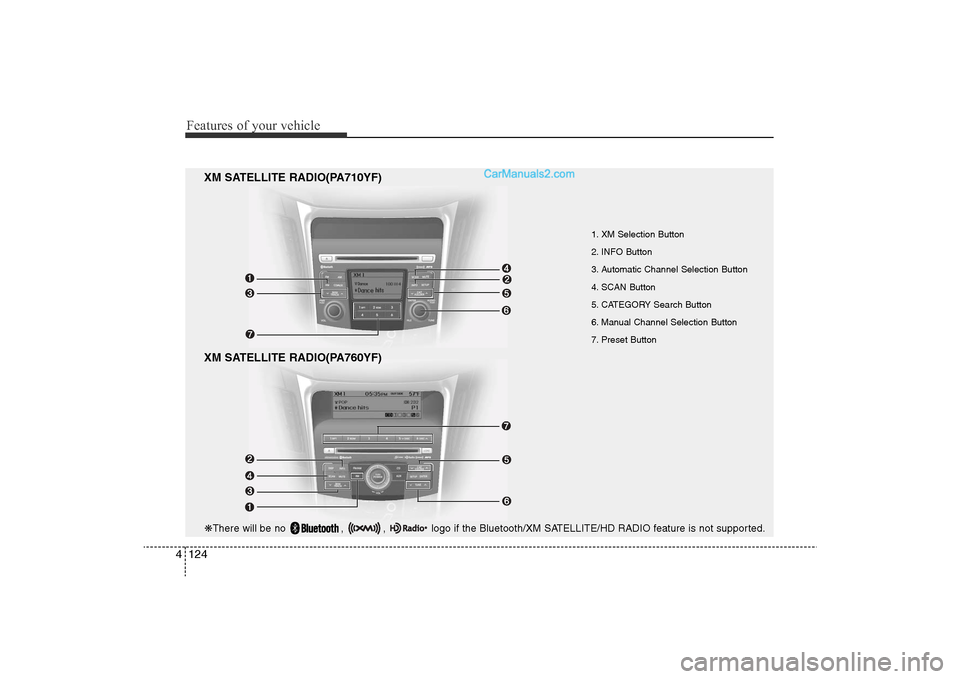
Features of your vehicle124
4
XM SATELLITE RADIO(PA760YF)
1. XM Selection Button
2. INFO Button
3. Automatic Channel Selection Button
4. SCAN Button
5. CATEGORY Search Button
6. Manual Channel Selection Button
7. Preset Button
XM SATELLITE RADIO(PA710YF)
❋ There will be no , , logo if the Bluetooth/XM SATELLITE/HD RADIO feature is not supported.
YF HMA 4-104~(AUDIO).QXP 12/24/2009 5:22 PM Page 124
Page 205 of 380
4 125
Features of your vehicle
Using XM satellite RadioYour vehicle is equipped with 3 months
complimentary period of XM Satellite
Radio. XM provides access to over 130
channels of music, information, and
entertainment programming.1. XM Selection ButtonTurns to XM Satellite Radio Mode. XM
mode toggles in order to XM1
➟XM2
➟
XM3
➟XM1... when the button is pressed
each time.
2. INFO ButtonDisplays the information of the current
channel in the order of Artist/Song title
➟
Category/Channel name
➟Current Play
Channel
➟Artist/Song title
➟Category/
Channel name... when the button is
pressed each time. The complete text
information is not displayed, rotate the
tune button to see the next page.
3. Automatic Channel Selection Button• Push [TRACK ] button for less than
0.8 second to select previous channel.
• Push [TRACK ] button for 0.8 sec- ond or longer to continuously move to
previous channel. • Push [SEEK ] button for less than
0.8 second to select next channel.
• Push [SEEK ] button for 0.8 second or longer to continuously move to next channel.
• Radio ID : Seek or Tune to XM channel 0 to display the Radio ID.
4. SCAN ButtonPress to hear a brief sampling of all
channel. To cancel the scan mode, press
the button once again.5. CATEGORY Search Button• Push [FOLDER ] button to searchprevious category.
• Push [CAT ] button to search next category. To listen to the displayed cat-
egory, press the TUNE/SETUP but-
ton(for PA760YF, press [ENTER] but-
ton). To scan channel in displayed cat-
egory, press the scan button.
To search channel in displayed catego-
ry, press seek buttons or turn the tune
button clockwise/counterclockwise(for
PA760YF, press [ TUNE ]).
(CATEGORY icon is will be turned on
in Category mode)
6. Manual Channel Selection Button
While listening to XM broadcast, rotate
this control to the right or left to search
other channels while listening to current
channel. (Turn to the right to searchhigh-
er channels and left, lower channels)
In case of PA760YF, press the
[TUNE ] button to search higher chan-
nels and the [ TUNE] button, lower
channels.7. Preset ButtonPush [1]~[6] buttons less than 0.8 sec-
ond to play the channel saved in each
button. Push Preset button for 0.8 sec-
ond or longer to save current channel to
the respective button with a beep.
YF HMA 4-104~(AUDIO).QXP 12/24/2009 5:22 PM Page 125