display Hyundai Sonata 2012 Owner's Guide
[x] Cancel search | Manufacturer: HYUNDAI, Model Year: 2012, Model line: Sonata, Model: Hyundai Sonata 2012Pages: 411, PDF Size: 8.68 MB
Page 224 of 411
![Hyundai Sonata 2012 Owners Guide Features of your vehicle142
4MENU : iPodIn iPod mode, press the key to
set the Repeat, Album Random, All
Random, and Information features.Repeat
Press the key Set [ RPT]
through the
TUNE
knob or
k](/img/35/16810/w960_16810-223.png "Hyundai Sonata 2012 Owners Guide Features of your vehicle142
4MENU : iPodIn iPod mode, press the key to
set the Repeat, Album Random, All
Random, and Information features.Repeat
Press the key Set [ RPT]
through the
TUNE
knob or
k")
Features of your vehicle142
4MENU : iPodIn iPod mode, press the key to
set the Repeat, Album Random, All
Random, and Information features.Repeat
Press the key Set [ RPT]
through the
TUNE
knob or
key to repeat the current song.
❈ Press RPT again to turn repeat off.Album RandomPress the key Set [ Alb.RDM]
through the TUNEknob or key.Plays albums within the currently playing
category in random order.
❈ Press Alb.RDM again to turn off.
All RandomPress the key Set [ A.RDM]
through the TUNEknob or
key.Plays all songs within the currently play-
ing category in random order.
❈ Press A.RDM again to turn off.Information
Press the key Set [ Info]
through the
TUNE
knob or
key.
Displays information of the current song.
❈ Press the key to turn off info
display.
MENU
4
MENU
3
MENU
2
MENU
1
MENU
MENU
Page 225 of 411
4 143
Features of your vehicle
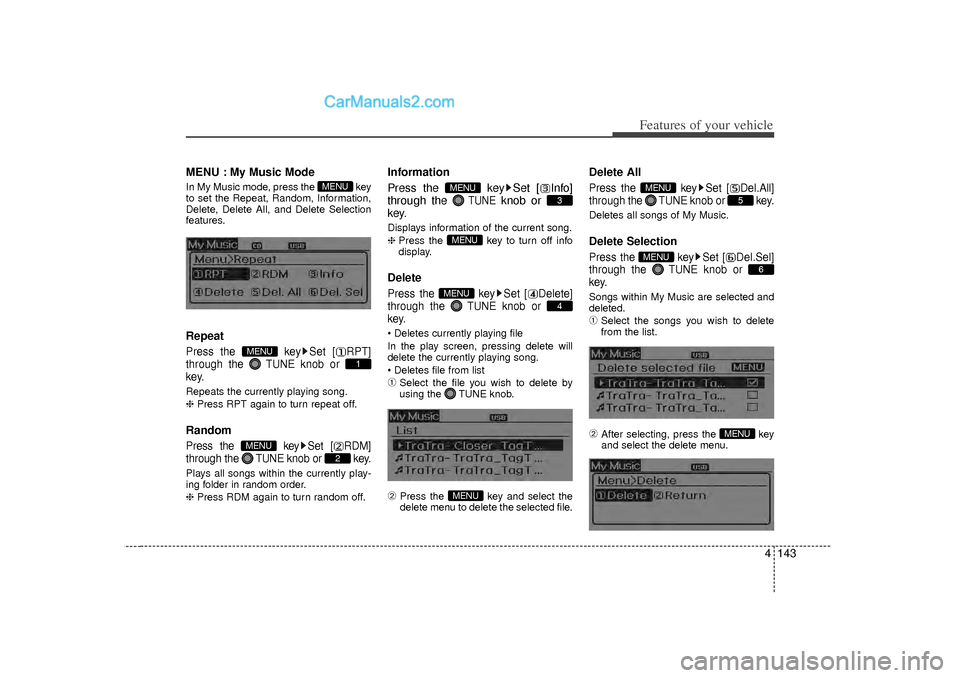
MENU : My Music ModeIn My Music mode, press the key
to set the Repeat, Random, Information,
Delete, Delete All, and Delete Selection
features.RepeatPress the key Set [ RPT]
through the TUNEknob or
key.Repeats the currently playing song.
❈ Press RPT again to turn repeat off.RandomPress the key Set [ RDM]
through the TUNEknob or key.Plays all songs within the currently play-
ing folder in random order.
❈ Press RDM again to turn random off.
Information
Press the key Set [ Info]
through the
TUNE
knob or
key.
Displays information of the current song.
❈ Press the key to turn off info
display.DeletePress the key Set [ Delete]
through the TUNEknob or
key. Deletes currently playing file
In the play screen, pressing delete will
delete the currently playing song.
Deletes file from list➀
Select the file you wish to delete by
using the TUNE knob.
➁
Press the key and select the
delete menu to delete the selected file.
Delete AllPress the key Set [ Del.All]
through the TUNEknob or key.Deletes all songs of My Music.Delete SelectionPress the key Set [ Del.Sel]
through the TUNEknob or
key.Songs within My Music are selected and
deleted.➀
Select the songs you wish to delete
from the list.
➁
After selecting, press the key
and select the delete menu.
MENU
6
MENU
5
MENU
MENU
4
MENUMENU
3
MENU
2
MENU
1
MENU
MENU
Page 227 of 411
4 145
Features of your vehicle
CAUTION IN USING
BLUETOOTH
®CELLULAR
PHONE
Do not use a cellular phone or
perform Bluetooth
®settings (e.g.
pairing a phone) while driving.
Some Bluetooth
®-enabled phones
may not be recognized by the system or fully compatible withthe system.
Before using Bluetooth
®related
features of the audio system, refer your phone’s User’s Manual for phone-side Bluetooth®opera-
tions.
The phone must be paired to the audio system to use Bluetooth
®
related features. You will not be able to use the hands-free feature when yourphone (in the car) is outside ofthe cellular service area (e.g. in atunnel, in a underground, in a mountainous area, etc.).
If the cellular phone signal is poor or the vehicles interior noise istoo loud, it may be difficult to hearthe other person’s voice during a call.
(Continued)
(Continued) Do not place the phone near or inside metallic objects, otherwise
communications with Bluetooth
®
system or cellular service sta-tions can be disturbed.
While a phone is connected through Bluetooth
®
your phone may dis-
charge quicker than usual for addi- tional Bluetooth
®-related operations.
Some cellular phones or other devices may cause interferencenoise or malfunction to audio system. In this case, store thedevice in a different location mayresolve the condition.
Phone contact names should be saved in English or they may notbe displayed correctly.
If Priority is set upon vehicle igni- tion(IGN/ACC ON), the Bluetooth
®
phone will be automatically con-nected. Even if you are outside, theBluetooth
®
phone will be auto-
matically connected once you are in the vicinity of the vehicle.
If you do not want automaticBluetooth
®
connection, turn the
Bluetooth
®feature off.
(Continued)
(Continued) The hands-free call volume and quality may differ depending onthe mobile phone type.
Page 228 of 411
Features of your vehicle146
4NOTE:Bluetooth
®
phone compatibility can
be checked by visiting
www.hyundaiusa.com and under the
SERVICE & PARTS - BLUETOOTH
COMPATIBILITY menu.
The website provides 9 types of infor-
mation, including information on
Pairing, Connection, Handsfree
Calling, Streaming, and more.What is Bluetooth
®?
Bluetooth
®is a wireless technology that
allows multiple devices to be connected
in a short range, low-powered devices
like hands-free, stereo headset, wireless
remote controller, etc. For more information,
visit
the Bluetooth
®
website at
www
.Bluetooth.com
CAUTION
Bluetooth
®features can be used
only when the mobile phone has been paired and connected with the device. For more informationon pairing and connectingBluetooth®mobile phones, refer
to the “Phone Setup” section.
When a Bluetooth
®mobile phone
is connected, a ( ) icon will appear at the top of the screen. Ifa ( ) icon is not displayed, this indicates that a Bluetooth
®device
has not been connected. Your must connect the device beforeuse. For more information onBluetooth
®mobile phones, refer
to the “Phone Setup” section.
Pairing and connecting a Bluetooth®
mobile phone will
work only when the Bluetooth
®
option within your mobile phone has been turned on. (Methods ofturning on the Bluetooth
®feature
may differ depending on the mobile phone.)
(Continued)
(Continued) In some mobile phones, starting the ignition while talking throughBluetooth
®
handsfree call will
result in the call becoming dis- connected. (Switch the call backto your mobile phone when start- ing the ignition.)
Some features may not be sup- ported in some Bluetooth
®mobile
phone and devices.
Bluetooth
®
operation may be
unstable depending on the com- munication state.
Page 230 of 411
Features of your vehicle148
4PHONEBefore using the Bluetooth
®
phone
features
In order to use Bluetooth
®phone, you
must first pair and connect the
Bluetooth
®mobile phone.
If the mobile phone is not paired or con- nected, it is not possible to enter Phone
mode. Once a phone is paired or con-
nected, the guidance screen will be dis-
played.
If Priority is set upon vehicle ignition (IGN/ACC ON), the Bluetooth
®phone
will be automatically connected. Even if
you are outside, the Bluetooth®phone
will be automatically connected once
you are in the vicinity of the vehicle. If
you do not want automatic Bluetooth
®
phone connection, set the Bluetooth
®
power to OFF.
Making a call using the steering
wheel remote controller Check call history and making call➀
Shortly press (under 0.8 seconds) the key on the steering remote con-
troller .
➁
The call history list will be displayed
on the screen.
➂
Press the key again to connect a
call to the selected number.
Redialing the most recently called num- ber
➀
Press and hold (over 0.8 seconds) the key on the steering remote con-
troller.
➁
The most recently called number is
redialed. ❈
If call history does not exist, a screen
asking whether to download call histo-
ry is displayed. (The download feature
may not be supported in some mobile
phones)
Page 231 of 411
![Hyundai Sonata 2012 Owners Guide 4 149
Features of your vehicle
Phone MENUPress the key to display three
menus (Call History, Contacts, Phone
Setup).
Call historyPress the key Set [ Call
History] through the TUNEknob or
key.The cal](/img/35/16810/w960_16810-230.png "Hyundai Sonata 2012 Owners Guide 4 149
Features of your vehicle
Phone MENUPress the key to display three
menus (Call History, Contacts, Phone
Setup).
Call historyPress the key Set [ Call
History] through the TUNEknob or
key.The cal")
4 149
Features of your vehicle
Phone MENUPress the key to display three
menus (Call History, Contacts, Phone
Setup).
Call historyPress the key Set [ Call
History] through the TUNEknob or
key.The call history is displayed and can be
used to select a number and make a call.
If call history does not exist, a screen
asking whether to download call history
is displayed. (The download feature may
not be supported in some mobile
phones) Contacts
Press the key Set [ Contacts]
through the
TUNEknob or key.The Contacts are displayed and can be
used to select a number and make a call.
❈ If more than one number is saved to
one contact, then a screen showing
the mobile phone number, house and
office number are displayed. Select the
desired number to make the call.
❈ If Contacts do not exist, a screen ask-
ing whether to download Contacts is
displayed. (The download feature may
not be supported in some mobile
phones)
Phone SetupPress the key Set [ Phone
Setup] through the TUNEknob or
key.The Bluetooth
®
mobile phone setup
screen is displayed. For more informa-
tion, refer to “Phone Setup”.
3
PHONE
2
PHONE
1
PHONEPHONE
Page 235 of 411
4 153
Features of your vehicle
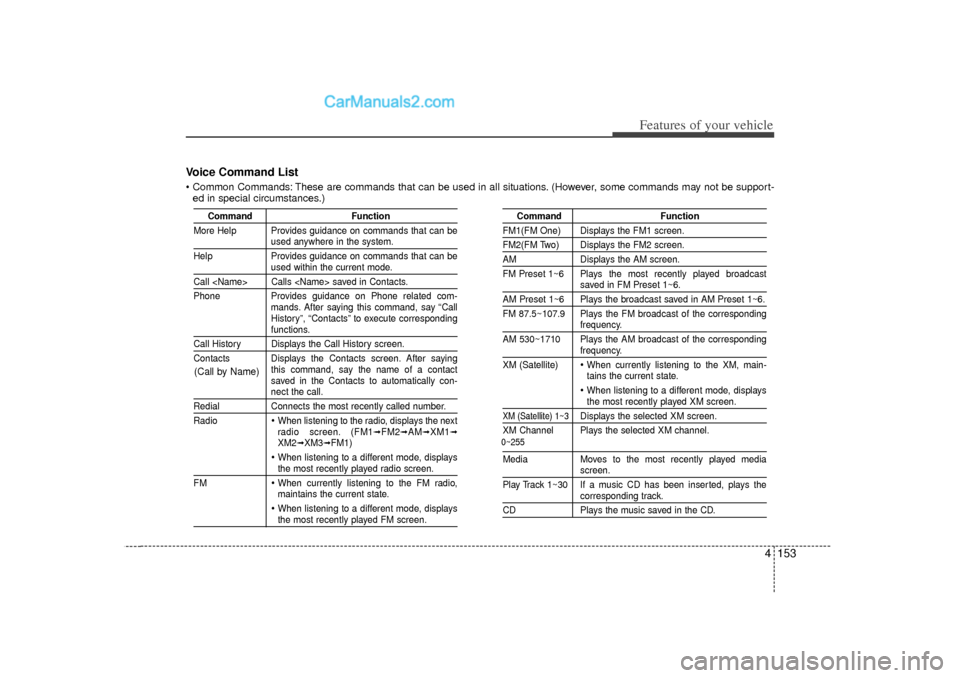
Voice Command List Common Commands: These are commands that can be used in all situations. (However, some commands may not be support-ed in special circumstances.)
Command Function
More Help Provides guidance on commands that can be
used anywhere in the system.
Help Provides guidance on commands that can beused within the current mode.
Call
Phone Provides guidance on Phone related com- mands. After saying this command, say “Call
History”, “Contacts” to execute corresponding
functions.
Call History Displays the Call History screen.
Contacts Displays the Contacts screen. After sayingthis command, say the name of a contact
saved in the Contacts to automatically con-
nect the call.
RedialConnects the most recently called number.
Radio
When listening to the radio, displays the next
radio screen. (FM1
➟FM2
➟AM
➟XM1
➟
XM2
➟XM3
➟FM1)
When listening to a different mode, displaysthe most recently played radio screen.
FM When currently listening to the FM radio,
maintains the current state. When listening to a different mode, displaysthe most recently played FM screen.
Command Function
FM1(FM One) Displays the FM1 screen.FM2(FM Two) Displays the FM2 screen.AMDisplays the AM screen.
FM Preset 1~6 Plays the most recently played broadcast
saved in FM Preset 1~6.
AM Preset 1~6 Plays the broadcast saved in AM Preset 1~6.
FM 87.5~107.9 Plays the FM broadcast of the corresponding
frequency.
AM 530~1710 Plays the AM broadcast of the correspondingfrequency.
XM (Satellite) When currently listening to the XM, main-
tains the current state. When listening to a different mode, displaysthe most recently played XM screen.
XM (Satellite) 1~3
Displays the selected XM screen.
XM Channel Plays the selected XM channel.
Media Moves to the most recently played media
screen.
Play Track 1~30 If a music CD has been inserted, plays thecorresponding track.
CD Plays the music saved in the CD.
(Call by Name)
0~255
Page 237 of 411
4 155
Features of your vehicle
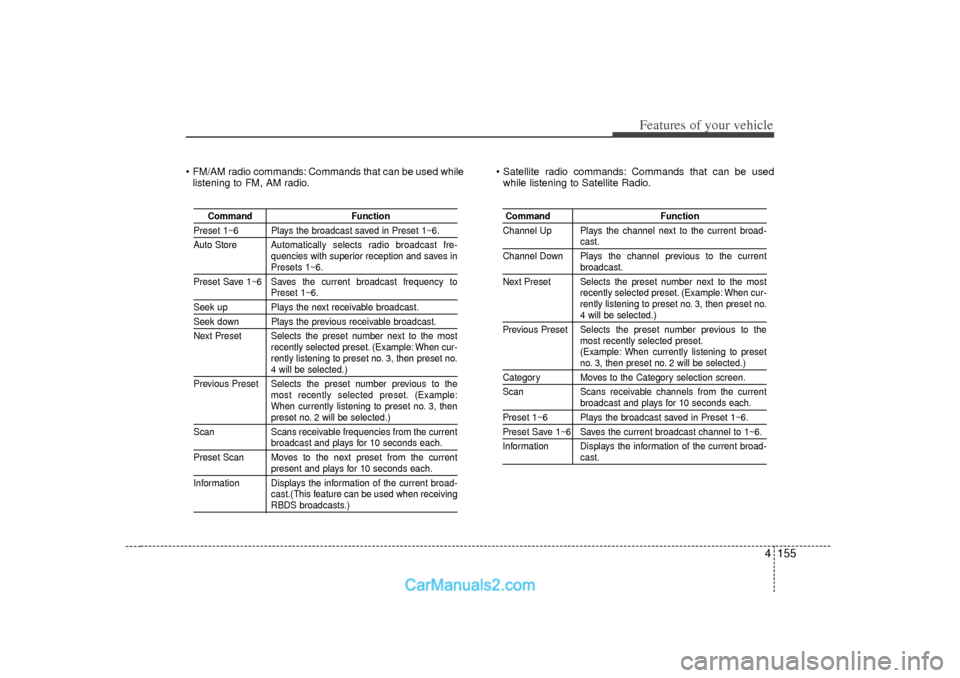
FM/AM radio commands: Commands that can be used whilelistening to FM, AM radio. Satellite radio commands: Commands that can be used
while listening to Satellite Radio.
Command Function
Preset 1~6 Plays the broadcast saved in Preset 1~6.
Auto Store Automatically selects radio broadcast fre-
quencies with superior reception and saves in
Presets 1~6.
Preset Save 1~6 Saves the current broadcast frequency toPreset 1~6.
Seek up Plays the next receivable broadcast.Seek down Plays the previous receivable broadcast.
Next Preset Selects the preset number next to the most recently selected preset. (Example: When cur-
rently listening to preset no. 3, then preset no.
4 will be selected.)
Previous Preset Selects the preset number previous to the most recently selected preset. (Example:
When currently listening to preset no. 3, thenpreset no. 2 will be selected.)
Scan Scans receivable frequencies from the currentbroadcast and plays for 10 seconds each.
Preset Scan Moves to the next preset from the currentpresent and plays for 10 seconds each.
Information Displays the information of the current broad- cast.(This feature can be used when receivingRBDS broadcasts.)
Command Function
Channel Up Plays the channel next to the current broad-
cast.
Channel Down Plays the channel previous to the currentbroadcast.
Next Preset Selects the preset number next to the most recently selected preset. (Example: When cur-
rently listening to preset no. 3, then preset no.4 will be selected.)
Previous Preset Selects the preset number previous to the most recently selected preset.
(Example: When currently listening to presetno. 3, then preset no. 2 will be selected.)
Category Moves to the Category selection screen.
Scan Scans receivable channels from the current
broadcast and plays for 10 seconds each.
Preset 1~6 Plays the broadcast saved in Preset 1~6.Preset Save 1~6 Saves the current broadcast channel to 1~6.
Information Displays the information of the current broad-
cast.
Page 238 of 411
Features of your vehicle156
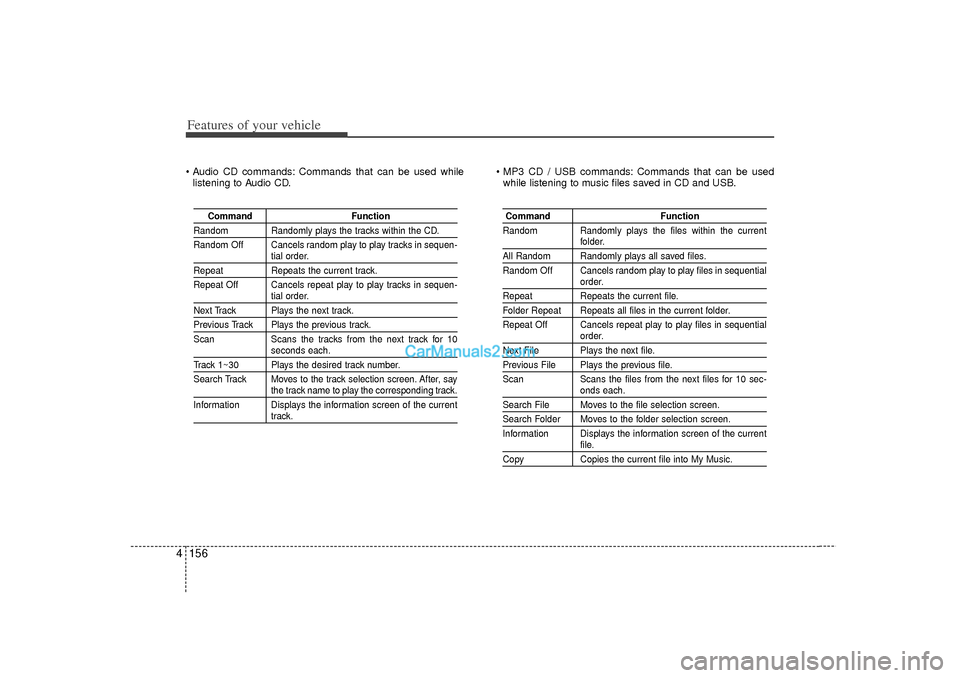
4 Audio CD commands: Commands that can be used while
listening to Audio CD. MP3 CD / USB commands: Commands that can be used
while listening to music files saved in CD and USB.
Command Function
Random Randomly plays the tracks within the CD.
Random Off Cancels random play to play tracks in sequen-
tial order.
RepeatRepeats the current track.
Repeat Off Cancels repeat play to play tracks in sequen-
tial order.
Next Track Plays the next track.Previous Track Plays the previous track.
Scan Scans the tracks from the next track for 10
seconds each.
Track 1~30 Plays the desired track number.
Search Track Moves to the track selection screen. After, say
the track name to play the corresponding track.
Information Displays the information screen of the currenttrack.
Command Function
Random Randomly plays the files within the current
folder.
All Random Randomly plays all saved files.
Random Off Cancels random play to play files in sequential
order.
Repeat Repeats the current file.Folder Repeat Repeats all files in the current folder.
Repeat Off Cancels repeat play to play files in sequential
order.
Next File Plays the next file.Previous File Plays the previous file.
Scan Scans the files from the next files for 10 sec-
onds each.
Search File Moves to the file selection screen.Search Folder Moves to the folder selection screen.
Information Displays the information screen of the current
file.
CopyCopies the current file into My Music.
Page 239 of 411
4 157
Features of your vehicle
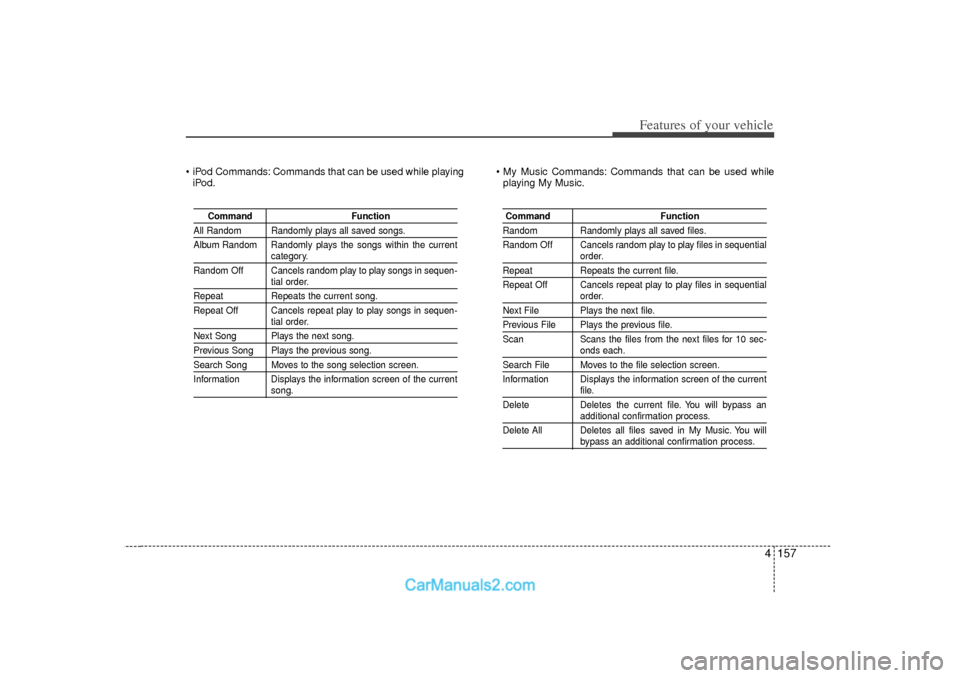
iPod Commands: Commands that can be used while playingiPod. My Music Commands: Commands that can be used while
playing My Music.
Command Function
All Random Randomly plays all saved songs.
Album Random Randomly plays the songs within the current
category.
Random Off Cancels random play to play songs in sequen-tial order.
Repeat Repeats the current song.
Repeat Off Cancels repeat play to play songs in sequen-
tial order.
Next Song Plays the next song.Previous Song Plays the previous song.Search Song Moves to the song selection screen.
Information Displays the information screen of the current
song.
Command FunctionRandom Randomly plays all saved files.
Random Off Cancels random play to play files in sequential
order.
RepeatRepeats the current file.
Repeat Off Cancels repeat play to play files in sequential
order.
Next File Plays the next file.Previous File Plays the previous file.
Scan Scans the files from the next files for 10 sec-
onds each.
Search File Moves to the file selection screen.
Information Displays the information screen of the current
file.
Delete Deletes the current file. You will bypass anadditional confirmation process.
Delete All Deletes all files saved in My Music. You willbypass an additional confirmation process.