ESP Hyundai Sonata 2014 Owner's Guide
[x] Cancel search | Manufacturer: HYUNDAI, Model Year: 2014, Model line: Sonata, Model: Hyundai Sonata 2014Pages: 665, PDF Size: 17.43 MB
Page 242 of 665
3-146
Convenient features of your vehicle
•For maximum defrosting, set the
temperature control to the extreme
right/hot position and the fan speed
control to the highest speed.
•If warm air to the floor is desired
while defrosting or defogging, set the
mode to the floor-defrost position.
•Before driving, clear all snow and
ice from the windshield, rear win-
dow, outside rear view mirrors, and
all side windows.
•Clear all snow and ice from the
hood and air inlet in the cowl grill to
improve heater and defroster effi-
ciency and to reduce the probabili-
ty of fogging up inside of the wind-
shield.
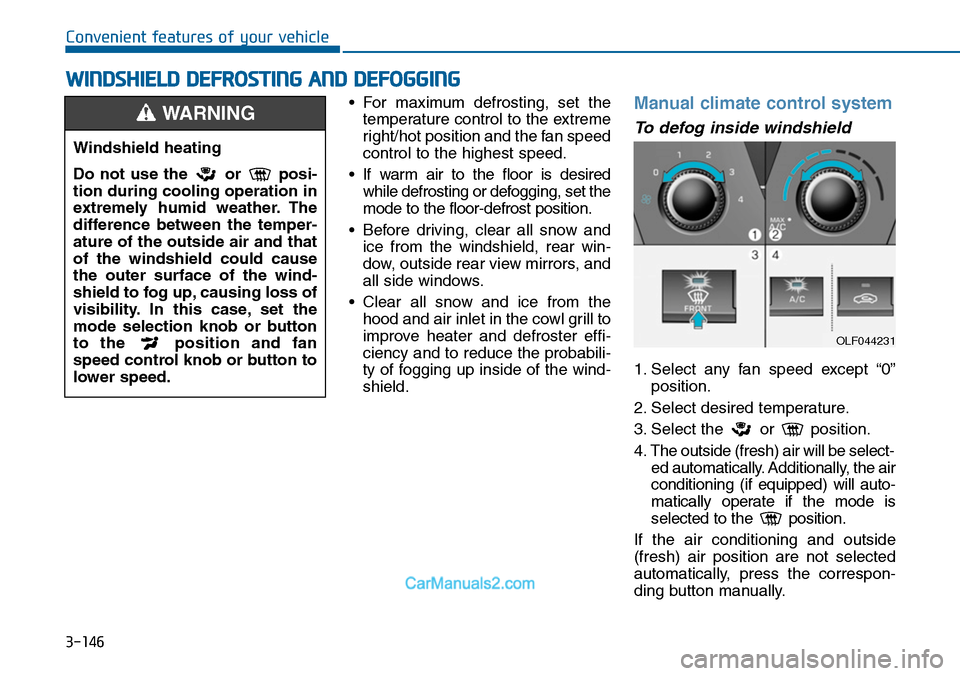
Manual climate control system
To defog inside windshield
1. Select any fan speed except “0”
position.
2. Select desired temperature.
3. Select the or position.
4. The outside (fresh) air will be select-
ed automatically. Additionally, the air
conditioning (if equipped) will auto-
matically operate if the mode is
selected to the position.
If the air conditioning and outside
(fresh) air position are not selected
automatically, press the correspon-
ding button manually.
WWINDSHIELD DEFROSTING AND DEFOGGING
Windshield heating
Do not use the or posi-
tion during cooling operation in
extremely humid weather. The
difference between the temper-
ature of the outside air and that
of the windshield could cause
the outer surface of the wind-
shield to fog up, causing loss of
visibility. In this case, set the
mode selection knob or button
to the position and fan
speed control knob or button to
lower speed.
WARNING
OLF044231
Page 243 of 665
3-147
Convenient features of your vehicle
3
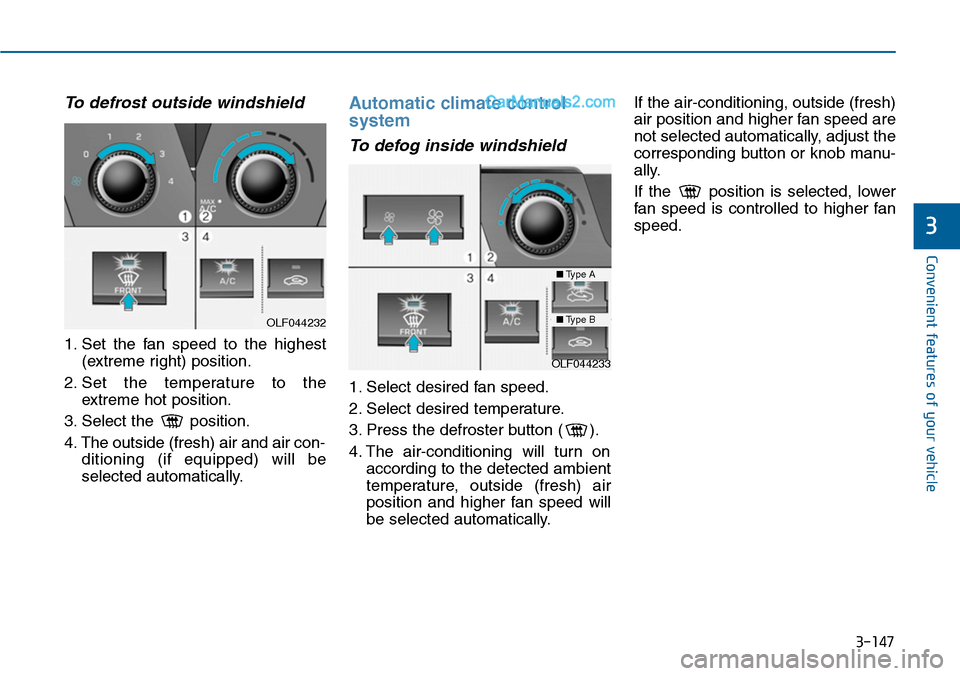
To defrost outside windshield
1. Set the fan speed to the highest
(extreme right) position.
2. Set the temperature to the
extreme hot position.
3. Select the position.
4. The outside (fresh) air and air con-
ditioning (if equipped) will be
selected automatically.
Automatic climate control
system
To defog inside windshield
1. Select desired fan speed.
2. Select desired temperature.
3. Press the defroster button ( ).
4. The air-conditioning will turn on
according to the detected ambient
temperature, outside (fresh) air
position and higher fan speed will
be selected automatically.
If the air-conditioning, outside (fresh)
air position and higher fan speed are
not selected automatically, adjust the
corresponding button or knob manu-
ally.
If the position is selected, lower
fan speed is controlled to higher fan
speed.
OLF044232
OLF044233
■Type A
■Type B
Page 298 of 665
4-40
Multimedia System
RADIO (FOR RDS MODEL) :
FM, AM
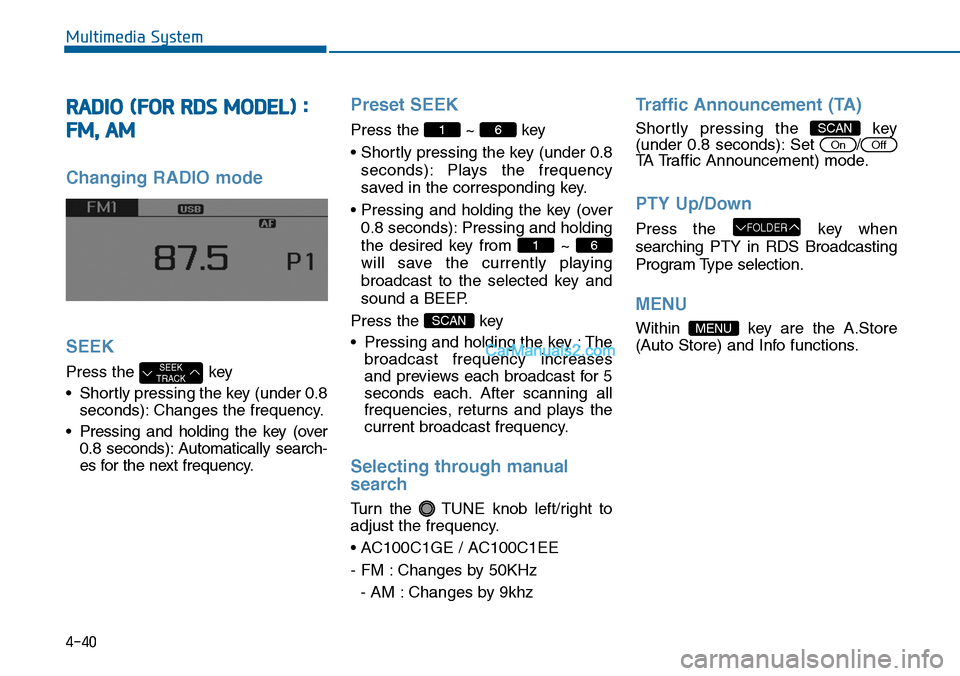
Changing RADIO mode
SEEK
Press the key
•Shortly pressing the key (under 0.8
seconds): Changes the frequency.
•Pressing and holding the key (over
0.8 seconds): Automatically search-
es for the next frequency.
Preset SEEK
Press the ~ key
• Shortly pressing the key (under 0.8
seconds): Plays the frequency
saved in the corresponding key.
• Pressing and holding the key (over
0.8 seconds): Pressing and holding
the desired key from ~
will save the currently playing
broadcast to the selected key and
sound a BEEP.
Press the key
• Pressing and holding the key : The
broadcast frequency increases
and previews each broadcast for 5
seconds each. After scanning all
frequencies, returns and plays the
current broadcast frequency.
Selecting through manual
search
Turn the TUNE knob left/right to
adjust the frequency.
• AC100C1GE / AC100C1EE
- FM : Changes by 50KHz
- AM : Changes by 9khz
Traffic Announcement (TA)
Shortly pressing the key(under 0.8 seconds): Set /
TA Traffic Announcement) mode.
PTY Up/Down
Press the key when
searching PTY in RDS Broadcasting
Program Type selection.
MENU
Within key are the A.Store
(Auto Store) and Info functions.
MENU
FOLDER
OffOn
SCAN
SCAN
61
61
SEEKTRACK
Page 300 of 665
4-42
Multimedia System
RADIO : FM, AM
SEEK
Press the key
•Shortly pressing the key :Changes
the frequency.
•Pressing and holding the key :
Automatically searches for the next
frequency.
Preset SEEK
Press the ~ key
•Shortly pressing the key :Plays the
frequency saved in the correspon-
ding key.
•Pressing and holding the key :
Pressing and holding the desired
key from ~ will save the
currently playing broadcast to the
selected key and sound a BEEP.
SCAN
Press the key
•Shortly pressing the key : The
broadcast frequency increases
and previews each broadcast for 5
seconds each. After scanning all
frequencies, returns and plays the
current broadcast frequency.
•Pressing and holding the key :
Previews the broadcasts saved in
Preset ~ for 5 seconds
each.
Selecting through manual
search
Turn the TUNE knob left/right to
adjust the frequency.
•FM :Changes by 200KHz
•AM :Changes by 10KHz
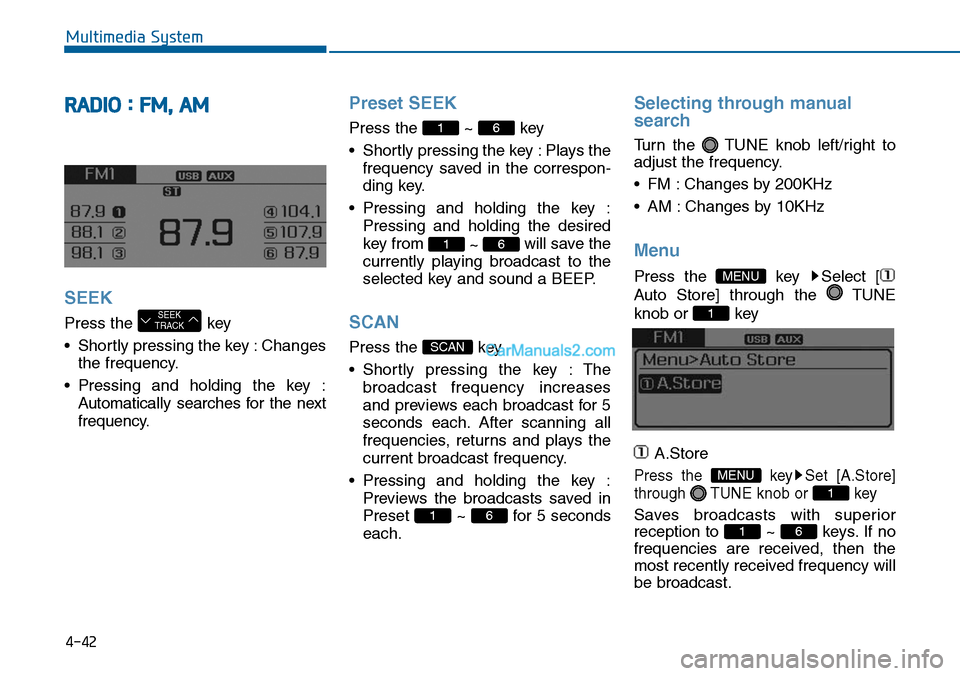
Menu
Press the key Select [
Auto Store] through the TUNE
knob or key
A.Store
Press the key Set [A.Store]
through TUNE knob or key
Saves broadcasts with superior
reception to ~ keys. If no
frequencies are received, then the
most recently received frequency will
be broadcast.
61
1
MENU
1
MENU
61
SCAN
61
61
SEEKTRACK
Page 305 of 665
4-47
Multimedia System
4
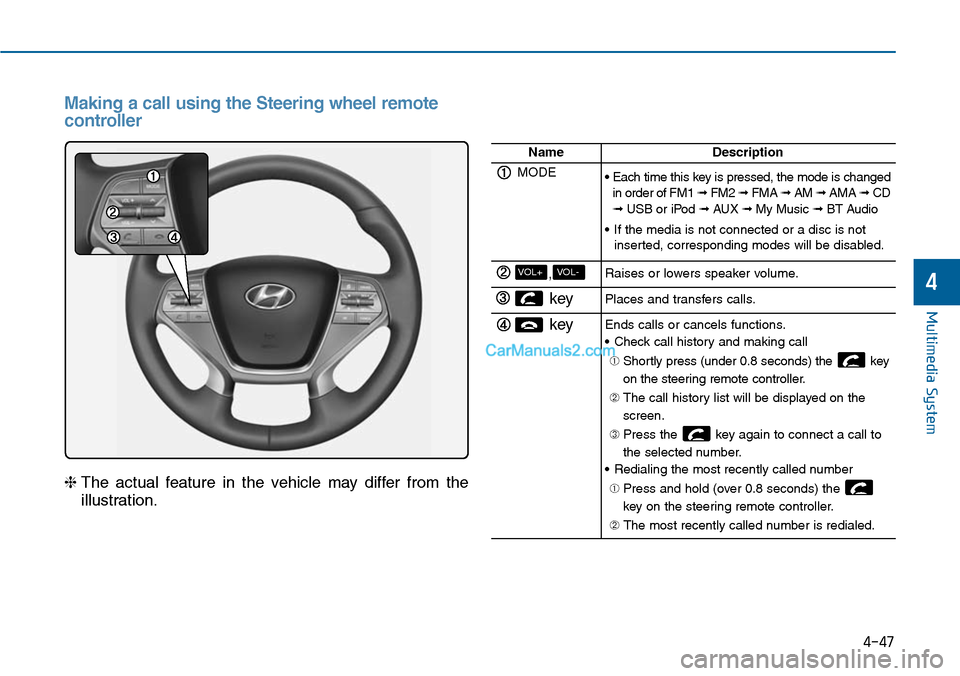
Making a call using the Steering wheel remote
controller
❈The actual feature in the vehicle may differ from the
illustration.
NameDescription
MODE• Each time this key is pressed, the mode is changedin order of FM1 ➟ FM2 ➟ FMA ➟ AM ➟ AMA➟ CD➟ USB or iPod ➟ AUX ➟ My Music ➟ BT Audio
•If the media is not connected or a disc is notinserted, corresponding modes will be disabled.
,VOL-VOL+Raises or lowers speaker volume.
key Places and transfers calls.
keyEnds calls or cancels functions.
•Check call history and making call
➀ Shortly press (under 0.8 seconds) the key
on the steering remote controller.
➁ The call history list will be displayed on the
screen.
➂ Press the key again to connect a call to
the selected number.
•Redialing the most recently called number
➀ Press and hold (over 0.8 seconds) the
key on the steering remote controller.
➁ The most recently called number is redialed.
Page 312 of 665
4-54
Multimedia System
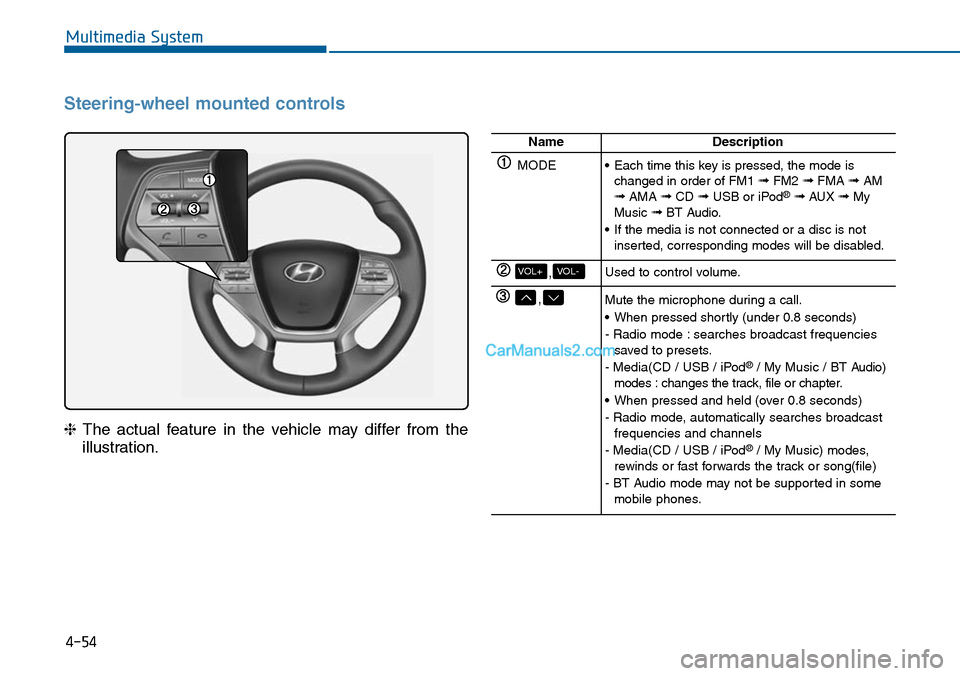
Steering-wheel mounted controls
❈The actual feature in the vehicle may differ from the
illustration.
NameDescription
MODE•Each time this key is pressed, the mode ischanged in order of FM1 ➟FM2 ➟FMA ➟AM➟AMA ➟CD ➟USB or iPod®➟ AUX ➟MyMusic ➟BT Audio.
•If the media is not connected or a disc is notinserted, corresponding modes will be disabled.
,VOL-VOL+Used to control volume.
,Mute the microphone during a call.
•When pressed shortly (under 0.8 seconds)
- Radio mode : searches broadcast frequenciessaved to presets.
- Media(CD / USB / iPod®/ My Music / BT Audio)modes : changes the track, file or chapter.
•When pressed and held (over 0.8 seconds)
- Radio mode, automatically searches broadcastfrequencies and channels
- Media(CD / USB / iPod®/ My Music) modes,rewinds or fast forwards the track or song(file)
- BT Audio mode may not be supported in somemobile phones.
Page 320 of 665
![Hyundai Sonata 2014 Owners Guide 4-62
Multimedia System
MEDIA MODE
Pressing the key will change
the operating mode in order of CD ➟
USB(iPod®) ➟ AUX ➟ My Music ➟BT
Audio.
If [Mode Pop up] is turned on within
[Display](/img/35/16805/w960_16805-319.png "Hyundai Sonata 2014 Owners Guide 4-62
Multimedia System
MEDIA MODE
Pressing the key will change
the operating mode in order of CD ➟
USB(iPod®) ➟ AUX ➟ My Music ➟BT
Audio.
If [Mode Pop up] is turned on within
[Display")
4-62
Multimedia System
MEDIA MODE
Pressing the key will change
the operating mode in order of CD ➟
USB(iPod®) ➟ AUX ➟ My Music ➟BT
Audio.
If [Mode Pop up] is turned on within
[Display], then pressing the
key will display the Media
Pop-up Mode screen.
Turn the TUNE knob to move the
focus. Press the knob to select.
Information
The media mode pop up screen can be
displayed only when there are two or
more media modes turned on.
Title Icon
When a Bluetooth®Wireless
Te c h n o l o g y, i P o d®, USB, or AUX
device is connected or a CD is
inserted, the corresponding mode
icon will be displayed.
Icon Title
Bluetooth®Wireless Technology
CD
iPod®
USB
AUX
i
MEDIA
SETUP
MEDIA
Page 356 of 665
4-98
Information
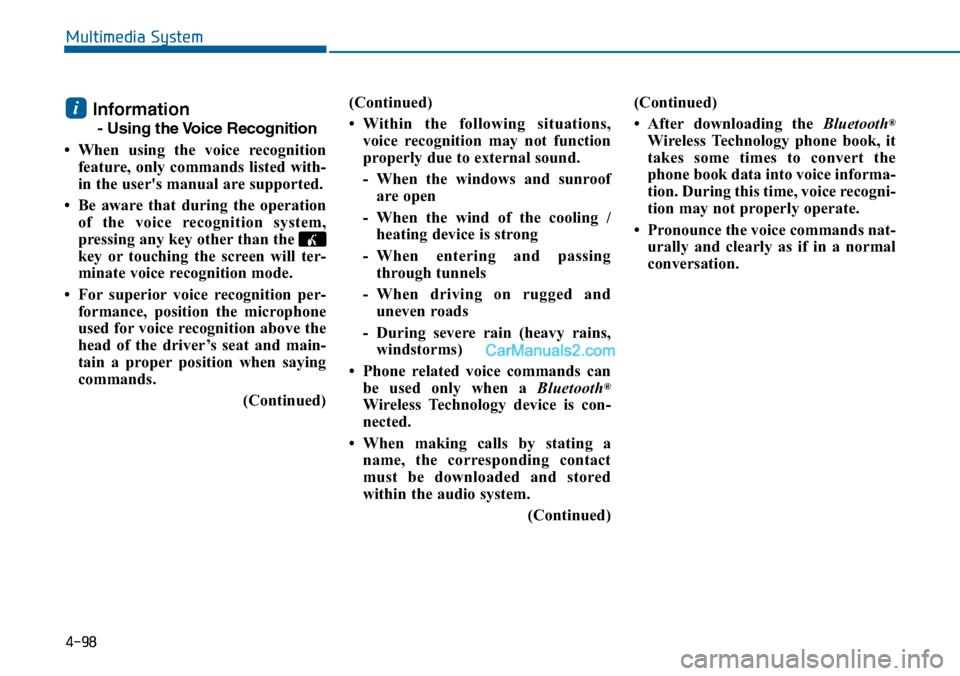
- Using the Voice Recognition
• When using the voice recognition
feature, only commands listed with-
in the user's manual are supported.
• Be aware that during the operation
of the voice recognition system,
pressing any key other than the
key or touching the screen will ter-
minate voice recognition mode.
• For superior voice recognition per-
formance, position the microphone
used for voice recognition above the
head of the driver’s seat and main-
tain a proper position when saying
commands.
(Continued)
(Continued)
•Within the following situations,
voice recognition may not function
properly due to external sound.
- When the windows and sunroof
are open
- When the wind of the cooling /
heating device is strong
-When entering and passing
through tunnels
-When driving on rugged and
uneven roads
- During severe rain (heavy rains,
windstorms)
• Phone related voice commands can
be used only when a Bluetooth®
Wireless Technology device is con-
nected.
•When making calls by stating a
name, the corresponding contact
must be downloaded and stored
within the audio system.
(Continued)
(Continued)
• After downloading the Bluetooth®
Wireless Technology phone book, it
takes some times to convert the
phone book data into voice informa-
tion. During this time, voice recogni-
tion may not properly operate.
• Pronounce the voice commands nat-
urally and clearly as if in a normal
conversation.
i
Multimedia System
Page 360 of 665
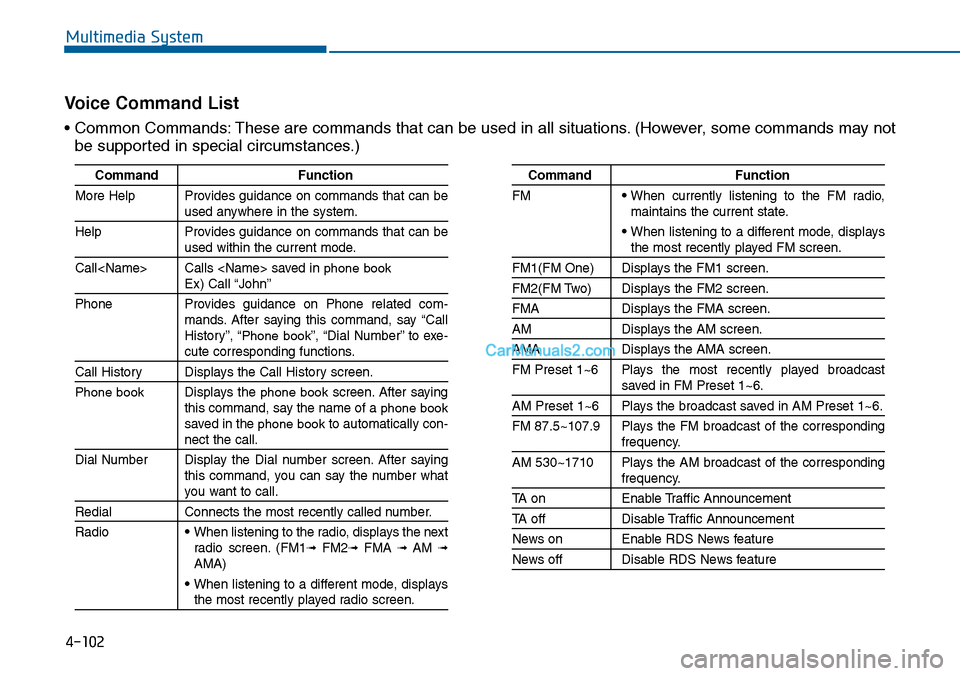
4-102
Multimedia System
Command Function
More Help Provides guidance on commands that can beused anywhere in the system.
Help Provides guidance on commands that can beused within the current mode.
Call
Phone Provides guidance on Phone related com-mands. After saying this command, say “CallHistory”, “Phone book”, “Dial Number” to exe-cute corresponding functions.
Call History Displays the Call History screen.
Phone bookDisplays the phone bookscreen. After sayingthis command, say the name of a phone booksaved in the phone bookto automatically con-nect the call.
Dial Number Display the Dial number screen. After sayingthis command, you can say the number whatyou want to call.
Redial Connects the most recently called number.
Radio• When listening to the radio, displays the nextradio screen. (FM1➟FM2➟FMA ➟ AM ➟AMA)
• When listening to a different mode, displaysthe most recently played radio screen.
Command Function
FM• When currently listening to the FM radio,maintains the current state.
• When listening to a different mode, displaysthe most recently played FM screen.
FM1(FM One) Displays the FM1 screen.
FM2(FM Two) Displays the FM2 screen.
FMA Displays the FMA screen.
AM Displays the AM screen.
AMA Displays the AMA screen.
FM Preset 1~6 Plays the most recently played broadcastsaved in FM Preset 1~6.
AM Preset 1~6 Plays the broadcast saved in AM Preset 1~6.
FM 87.5~107.9 Plays the FM broadcast of the correspondingfrequency.
AM 530~1710 Plays the AM broadcast of the correspondingfrequency.
TA on Enable Traffic Announcement
TA off Disable Traffic Announcement
News on Enable RDS News feature
News off Disable RDS News feature
Vo i c e C o m m a n d L i s t
• Common Commands: These are commands that can be used in all situations. (However, some commands may not
be supported in special circumstances.)
Page 361 of 665
4-103
Multimedia System
4
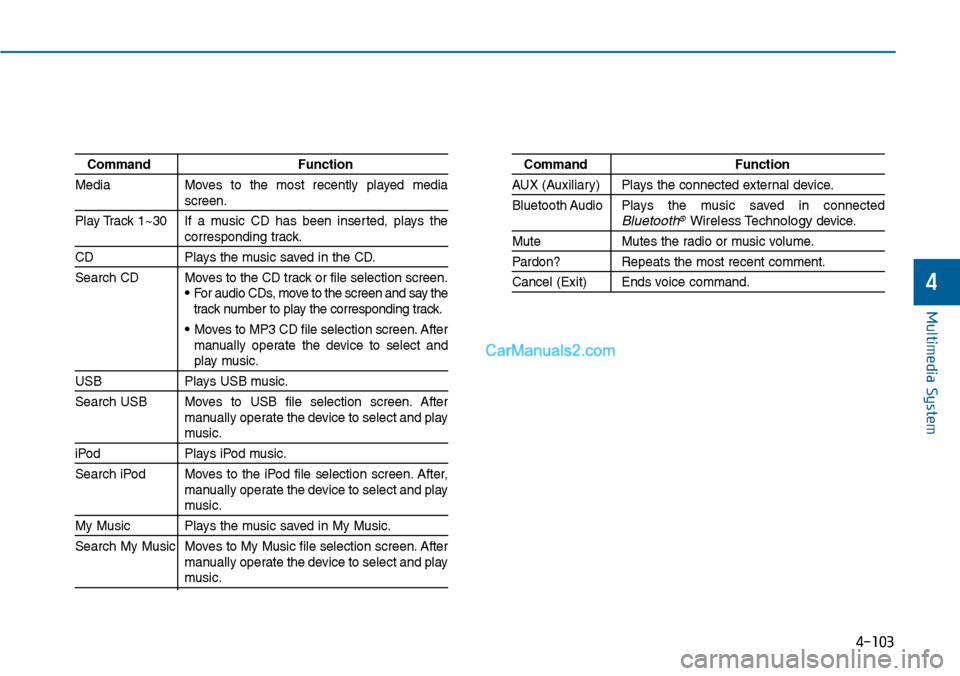
Command Function
Media Moves to the most recently played mediascreen.
Play Track 1~30 If a music CD has been inserted, plays thecorresponding track.
CD Plays the music saved in the CD.
Search CD Moves to the CD track or file selection screen.•For audio CDs, move to the screen and say thetrack number to play the corresponding track.
• Moves to MP3 CD file selection screen. Aftermanually operate the device to select andplay music.
USB Plays USB music.
Search USB Moves to USB file selection screen. Aftermanually operate the device to select and playmusic.
iPod Plays iPod music.
Search iPod Moves to the iPod file selection screen. After,manually operate the device to select and playmusic.
My Music Plays the music saved in My Music.
Search My Music Moves to My Music file selection screen. Aftermanually operate the device to select and playmusic.
Command Function
AUX (Auxiliar y) Plays the connected exter nal device.
Bluetooth Audio Plays the music saved in connectedBluetooth®Wireless Technologydevice.
Mute Mutes the radio or music volume.
Pardon? Repeats the most recent comment.
Cancel (Exit) Ends voice command.