ESP Hyundai Sonata 2014 Owner's Guide
[x] Cancel search | Manufacturer: HYUNDAI, Model Year: 2014, Model line: Sonata, Model: Hyundai Sonata 2014Pages: 665, PDF Size: 17.43 MB
Page 362 of 665
4-104
Multimedia System
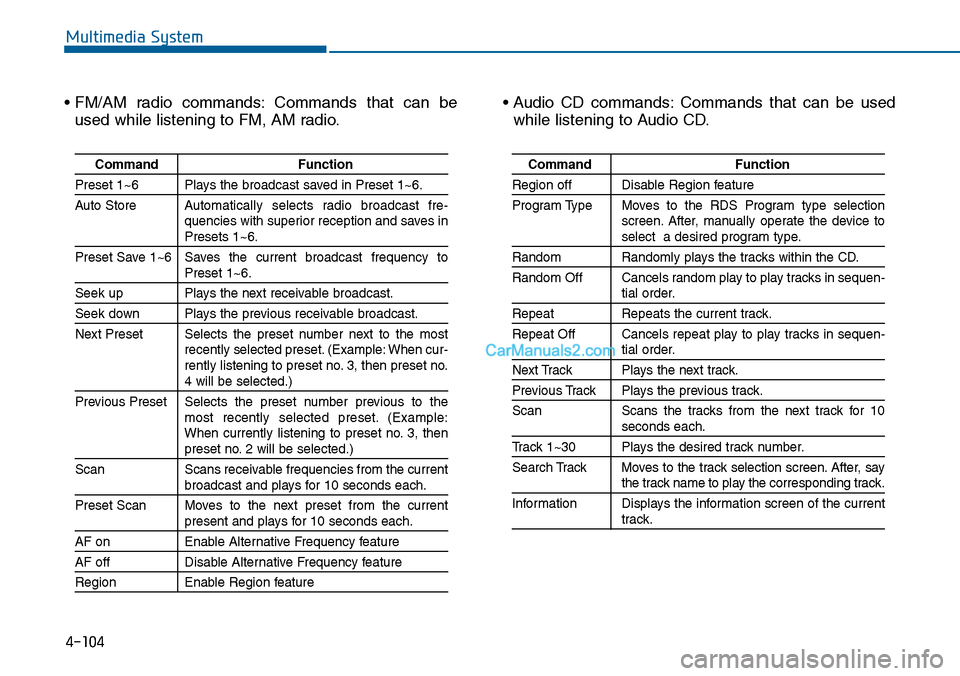
• FM/AM radio commands: Commands that can be
used while listening to FM, AM radio.
• Audio CD commands: Commands that can be used
while listening to Audio CD.
Command Function
Preset 1~6 Plays the broadcast saved in Preset 1~6.
Auto StoreAutomatically selects radio broadcast fre-quencies with superior reception and saves inPresets 1~6.
Preset Save 1~6 Saves the current broadcast frequency toPreset 1~6.
Seek up Plays the next receivable broadcast.
Seek down Plays the previous receivable broadcast.
Next Preset Selects the preset number next to the mostrecently selected preset. (Example: When cur-rently listening to preset no. 3, then preset no.4 will be selected.)
Previous Preset Selects the preset number previous to themost recently selected preset. (Example:When currently listening to preset no. 3, thenpreset no. 2 will be selected.)
Scan Scans receivable frequencies from the currentbroadcast and plays for 10 seconds each.
Preset Scan Moves to the next preset from the currentpresent and plays for 10 seconds each.
AF on Enable Alternative Frequency feature
AF off Disable Alternative Frequency feature
Region Enable Region feature
Command Function
Region off Disable Region feature
Program Type Moves to the RDS Program type selectionscreen. After, manually operate the device toselect a desired program type.
Random Randomly plays the tracks within the CD.
Random Off Cancels random play to play tracks in sequen-tial order.
Repeat Repeats the current track.
Repeat Off Cancels repeat play to play tracks in sequen-tial order.
Next Track Plays the next track.
Previous Track Plays the previous track.
Scan Scans the tracks from the next track for 10seconds each.
Track 1~30 Plays the desired track number.
Search Track Moves to the track selection screen. After, saythe track name to play the corresponding track.
Information Displays the information screen of the currenttrack.
Page 381 of 665
4-123
Multimedia System
4
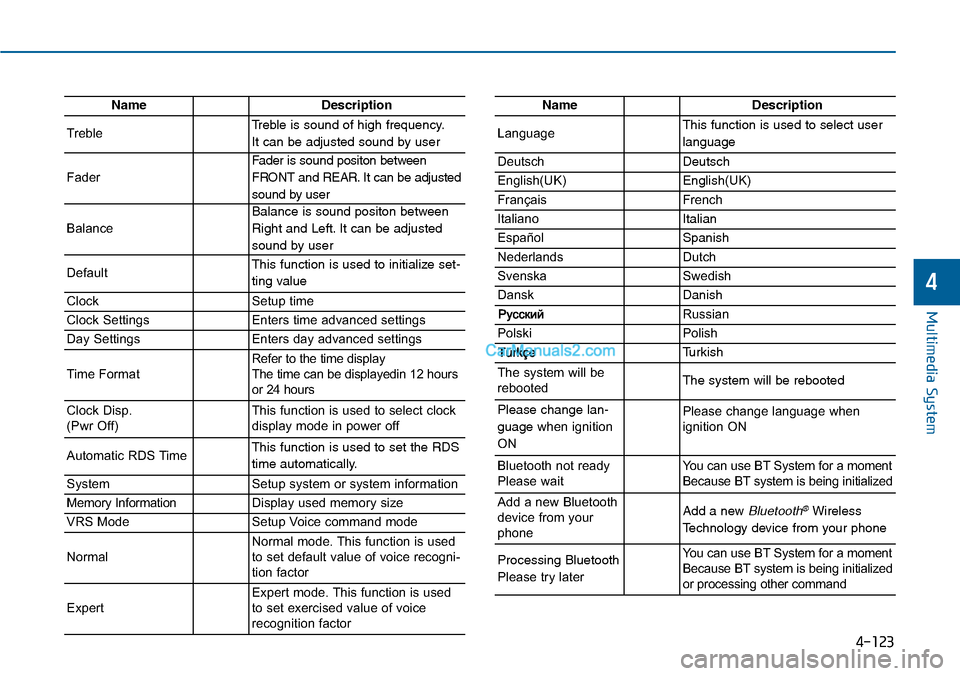
NameDescription
TrebleTreble is sound of high frequency.
It can be adjusted sound by user
Fader
Fader is sound positon between
FRONT and REAR. It can be adjusted
sound by user
Balance
Balance is sound positon between
Right and Left. It can be adjusted
sound by user
DefaultThis function is used to initialize set-
ting value
ClockSetup time
Clock SettingsEnters time advanced settings
Day SettingsEnters day advanced settings
Time FormatRefer to the time display The time can be displayedin 12 hoursor 24 hours
Clock Disp.(Pwr Off)This function is used to select clockdisplay mode in power off
Automatic RDS TimeThis function is used to set the RDS
time automatically.
SystemSetup system or system information
Memory InformationDisplay used memory size
VRS ModeSetup Voice command mode
NormalNormal mode. This function is usedto set default value of voice recogni-tion factor
ExpertExpert mode. This function is usedto set exercised value of voicerecognition factor
NameDescription
LanguageThis function is used to select user
language
DeutschDeutsch
English(UK)English(UK)
FrançaisFrench
Italiano Italian
EspañolSpanish
NederlandsDutch
SvenskaSwedish
DanskDanish
Russian
PolskiPolish
Turkish
The system will berebootedThe system will be rebooted
Please change lan-
guage when ignition
ON
Please change language when ignition ON
Bluetooth not readyPlease waitYo u c a n u s e B T S y s t e m f o r a m o m e n tBecause BT system is being initialized
Add a new Bluetoothdevice from yourphone
Add a new Bluetooth®Wireless
Technology device from your phone
Processing Bluetooth
Please try later
Yo u c a n u s e B T S y s t e m f o r a m o m e n tBecause BT system is being initializedor processing other command
Page 382 of 665
Multimedia System
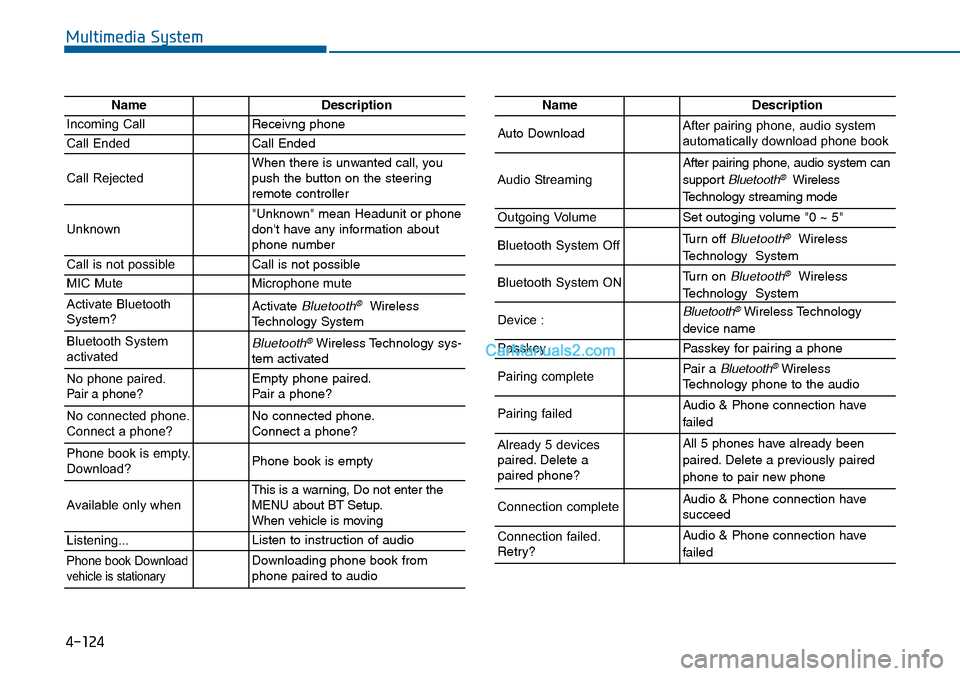
NameDescription
Incoming CallReceivng phone
Call EndedCall Ended
Call RejectedWhen there is unwanted call, youpush the button on the steeringremote controller
Unknown"Unknown" mean Headunit or phonedon't have any information aboutphone number
Call is not possibleCall is not possible
MIC MuteMicrophone mute
Activate BluetoothSystem?Activate Bluetooth®WirelessTechnology System
Bluetooth SystemactivatedBluetooth®Wireless Technology sys-tem activated
No phone paired. Pair a phone?Empty phone paired.Pair a phone?
No connected phone.Connect a phone?No connected phone.Connect a phone?
Phone book is empty.Download?Phone book is empty
Available only when This is a warning, Do not enter theMENU about BT Setup.When vehicle is moving
Listening...Listen to instruction of audio
Phone book Downloadvehicle is stationaryDownloading phone book fromphone paired to audio
NameDescription
Auto DownloadAfter pairing phone, audio systemautomatically download phone book
Audio Streaming
After pairing phone, audio system can
support Bluetooth®Wireless
Te c h n o l o g y s t r e a m i n g m o d e
Outgoing VolumeSet outoging volume "0 ~ 5"
Bluetooth System OffTurn off Bluetooth®Wireless
Technology System
Bluetooth System ONTurn on Bluetooth®Wireless
Technology System
Device : Bluetooth®Wireless Technology
device name
PasskeyPasskey for pair ing a phone
Pairing completePair a Bluetooth®WirelessTechnology phone to the audio
Pairing failedAudio & Phone connection have
failed
Already 5 devicespaired. Delete apaired phone?
All 5 phones have already been
paired. Delete a previously paired
phone to pair new phone
Connection completeAudio & Phone connection have succeed
Connection failed.Retry?
Audio & Phone connection have
failed
4-124
Page 389 of 665
4-131
Multimedia System
4
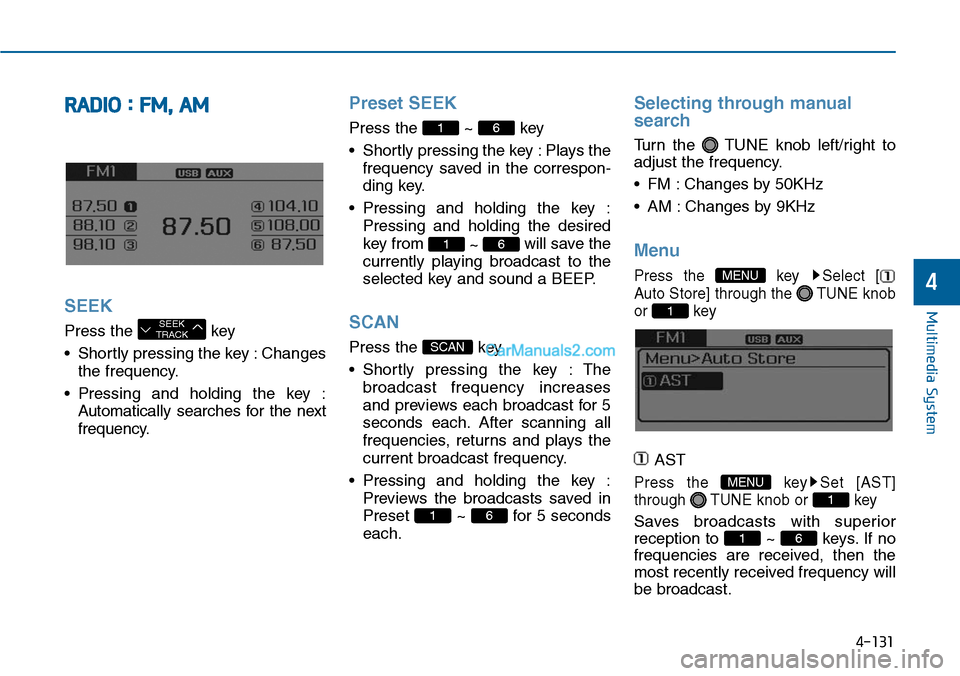
RADIO : FM, AM
SEEK
Press the key
•Shortly pressing the key :Changes
the frequency.
•Pressing and holding the key :
Automatically searches for the next
frequency.
Preset SEEK
Press the ~ key
•Shortly pressing the key :Plays the
frequency saved in the correspon-
ding key.
•Pressing and holding the key :
Pressing and holding the desired
key from ~ will save the
currently playing broadcast to the
selected key and sound a BEEP.
SCAN
Press the key
•Shortly pressing the key : The
broadcast frequency increases
and previews each broadcast for 5
seconds each. After scanning all
frequencies, returns and plays the
current broadcast frequency.
•Pressing and holding the key :
Previews the broadcasts saved in
Preset ~ for 5 seconds
each.
Selecting through manual
search
Turn the TUNE knob left/right to
adjust the frequency.
•FM :Changes by 50KHz
•AM :Changes by 9KHz
Menu
Press the key Select [
Auto Store] through the TUNE knob
or key
AST
Press the key Set [AST]
through TUNE knob or key
Saves broadcasts with superior
reception to ~ keys. If no
frequencies are received, then the
most recently received frequency will
be broadcast.
61
1
MENU
1
MENU
61
SCAN
61
61
SEEKTRACK
Page 396 of 665
4-138
Multimedia System
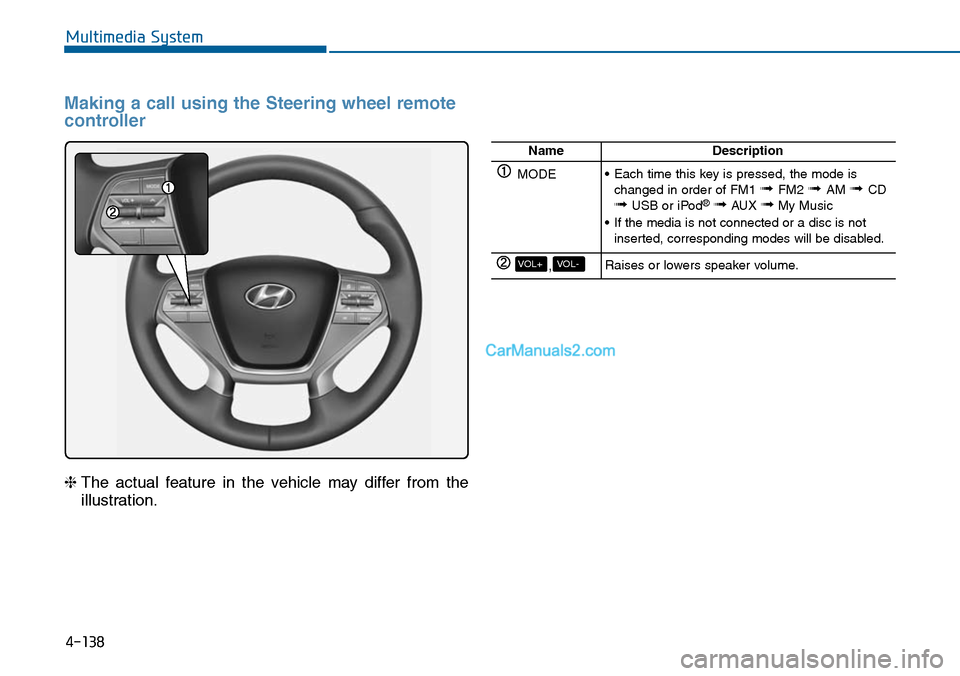
Making a call using the Steering wheel remote
controller
❈The actual feature in the vehicle may differ from the
illustration.
NameDescription
MODE•Each time this key is pressed, the mode ischanged in order of FM1 ➟ FM2 ➟ AM ➟CD➟USB or iPod®➟AUX ➟My Music
•If the media is not connected or a disc is notinserted, corresponding modes will be disabled.
,VOL-VOL+Raises or lowers speaker volume.
Page 399 of 665
4-141
Multimedia System
4
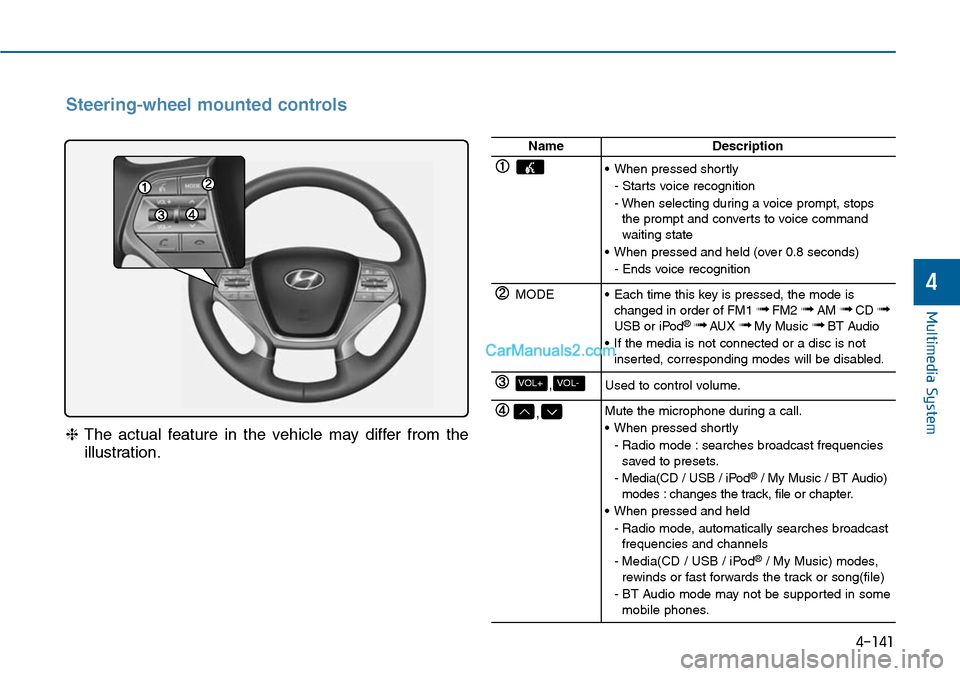
Steering-wheel mounted controls
❈The actual feature in the vehicle may differ from the
illustration.
NameDescription
•When pressed shortly
- Starts voice recognition
- When selecting during a voice prompt, stopsthe prompt and converts to voice commandwaiting state
•When pressed and held (over 0.8 seconds)
- Ends voice recognition
MODE•Each time this key is pressed, the mode ischanged in order of FM1 ➟FM2 ➟AM ➟CD ➟USB or iPod®➟ AUX ➟My Music ➟BT Audio
•If the media is not connected or a disc is notinserted, corresponding modes will be disabled.
,VOL-VOL+Used to control volume.
,Mute the microphone during a call.
•When pressed shortly
- Radio mode : searches broadcast frequenciessaved to presets.
- Media(CD / USB / iPod®/ My Music / BT Audio)modes : changes the track, file or chapter.
•When pressed and held
- Radio mode, automatically searches broadcastfrequencies and channels
- Media(CD / USB / iPod®/ My Music) modes,rewinds or fast forwards the track or song(file)
- BT Audio mode may not be supported in somemobile phones.
Page 403 of 665
![Hyundai Sonata 2014 Owners Guide MEDIA MODE
Pressing the key will change
the operating mode in order of CD ➟
USB(iPod®) ➟ AUX ➟ My Music ➟BT
Audio.
If [Mode Pop up] is turned on within
[Display], then pressing the](/img/35/16805/w960_16805-402.png "Hyundai Sonata 2014 Owners Guide MEDIA MODE
Pressing the key will change
the operating mode in order of CD ➟
USB(iPod®) ➟ AUX ➟ My Music ➟BT
Audio.
If [Mode Pop up] is turned on within
[Display], then pressing the")
MEDIA MODE
Pressing the key will change
the operating mode in order of CD ➟
USB(iPod®) ➟ AUX ➟ My Music ➟BT
Audio.
If [Mode Pop up] is turned on within
[Display], then pressing the
key will display the Media
Pop-up Mode screen.
Turn the TUNE knob to move the
focus. Press the knob to select.
Information
The media mode pop up screen can be
displayed only when there are two or
more media modes turned on.
Title Icon
When a Bluetooth®Wireless
Te c h n o l o g y, i P o d®, USB, or AUX
device is connected or a CD is
inserted, the corresponding mode
icon will be displayed.
Icon Title
Bluetooth®Wireless Technology
CD
iPod®
USB
AUX
i
MEDIA
MEDIA
Multimedia System
4-145
4
Page 429 of 665
4-171
Multimedia System
4
Information
• Up to 1,000 phone book entries can
be copied into car phone book.
• Upon downloading phone book data,
previously saved phone book data
will be deleted.
• Downloading is not possible if the
phone book download feature is
turned off within the Bluetooth®
Wireless Technology device. Also,
some devices may require device
authorization upon attempting to
download. If downloading cannot be
normally conducted, check the
Bluetooth®Wireless Technology
device setting or the screen state.
• Caller ID information will not be
displayed for unsaved callers.
• The download feature may not be
supported in some mobile phones.
Check to see that the Bluetooth®
Wireless Technology device sup-
ports the download feature.
Information
- Using the Voice Recognition
• When using the voice recognition
feature, only commands listed with-
in the user's manual are supported.
• Be aware that during the operation
of the voice recognition system,
pressing any key other than the
key or touching the screen will ter-
minate voice recognition mode.
• For superior voice recognition per-
formance, position the microphone
used for voice recognition above the
head of the driver’s seat and main-
tain a proper position when saying
commands.
•Within the following situations,
voice recognition may not function
properly due to external sound.
- When the windows and sunroof
are open
- When the wind of the cooling /
heating device is strong
- When entering and passing
through tunnels
(Continued)
(Continued)
- When driving on rugged and
uneven roads
- During severe rain (heavy rains,
windstorms)
• Phone related voice commands can
be used only when a Bluetooth®
Wireless Technology device is con-
nected.
•When making calls by stating a
name, the corresponding contact
must be downloaded and stored
within the audio system.
• After downloading the Bluetooth®
Wireless Technology phone book, it
takes some times to convert the
phone book data into voice informa-
tion. During this time, voice recogni-
tion may not properly operate.
• Pronounce the voice commands nat-
urally and clearly as if in a normal
conversation.
ii
Page 433 of 665
4-175
Multimedia System
4
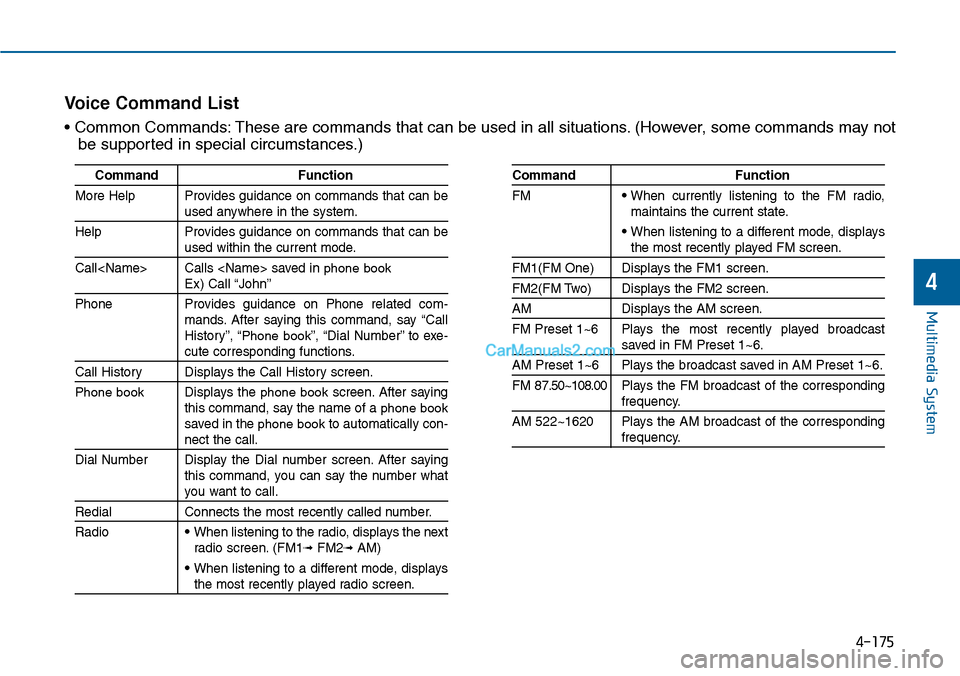
Command Function
More Help Provides guidance on commands that can beused anywhere in the system.
Help Provides guidance on commands that can beused within the current mode.
Call
Phone Provides guidance on Phone related com-mands. After saying this command, say “CallHistory”, “Phone book”, “Dial Number” to exe-cute corresponding functions.
Call History Displays the Call History screen.
Phone bookDisplays the phone bookscreen. After sayingthis command, say the name of a phone booksaved in the phone bookto automatically con-nect the call.
Dial Number Display the Dial number screen. After sayingthis command, you can say the number whatyou want to call.
Redial Connects the most recently called number.
Radio• When listening to the radio, displays the nextradio screen. (FM1➟FM2➟AM)
• When listening to a different mode, displaysthe most recently played radio screen.
Command Function
FM• When currently listening to the FM radio,maintains the current state.
• When listening to a different mode, displaysthe most recently played FM screen.
FM1(FM One) Displays the FM1 screen.
FM2(FM Two) Displays the FM2 screen.
AM Displays the AM screen.
FM Preset 1~6 Plays the most recently played broadcastsaved in FM Preset 1~6.
AM Preset 1~6 Plays the broadcast saved in AM Preset 1~6.
FM 87.50~108.00 Plays the FM broadcast of the correspondingfrequency.
AM 522~1620 Plays the AM broadcast of the correspondingfrequency.
Vo i c e C o m m a n d L i s t
• Common Commands: These are commands that can be used in all situations. (However, some commands may not
be supported in special circumstances.)
Page 434 of 665
4-176
Multimedia System
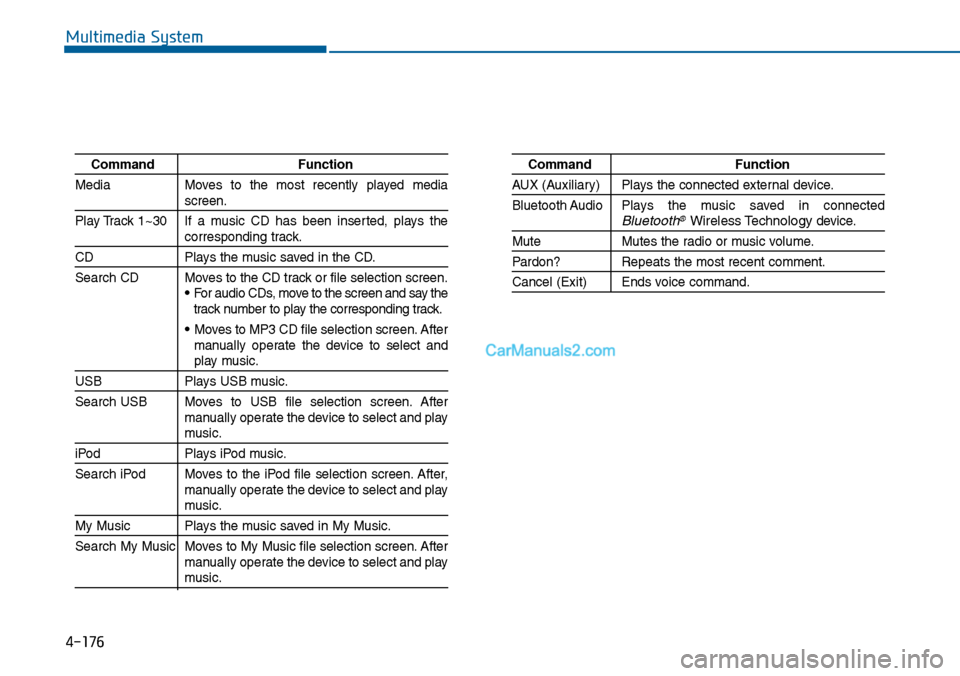
Command Function
Media Moves to the most recently played mediascreen.
Play Track 1~30 If a music CD has been inserted, plays thecorresponding track.
CD Plays the music saved in the CD.
Search CD Moves to the CD track or file selection screen.•For audio CDs, move to the screen and say thetrack number to play the corresponding track.
• Moves to MP3 CD file selection screen. Aftermanually operate the device to select andplay music.
USB Plays USB music.
Search USB Moves to USB file selection screen. Aftermanually operate the device to select and playmusic.
iPod Plays iPod music.
Search iPod Moves to the iPod file selection screen. After,manually operate the device to select and playmusic.
My Music Plays the music saved in My Music.
Search My Music Moves to My Music file selection screen. Aftermanually operate the device to select and playmusic.
Command Function
AUX (Auxiliar y) Plays the connected exter nal device.
Bluetooth Audio Plays the music saved in connectedBluetooth®Wireless Technologydevice.
Mute Mutes the radio or music volume.
Pardon? Repeats the most recent comment.
Cancel (Exit) Ends voice command.