wheel Hyundai Sonata 2014 Owner's Guide
[x] Cancel search | Manufacturer: HYUNDAI, Model Year: 2014, Model line: Sonata, Model: Hyundai Sonata 2014Pages: 665, PDF Size: 17.43 MB
Page 234 of 665
3-138
Convenient features of your vehicle
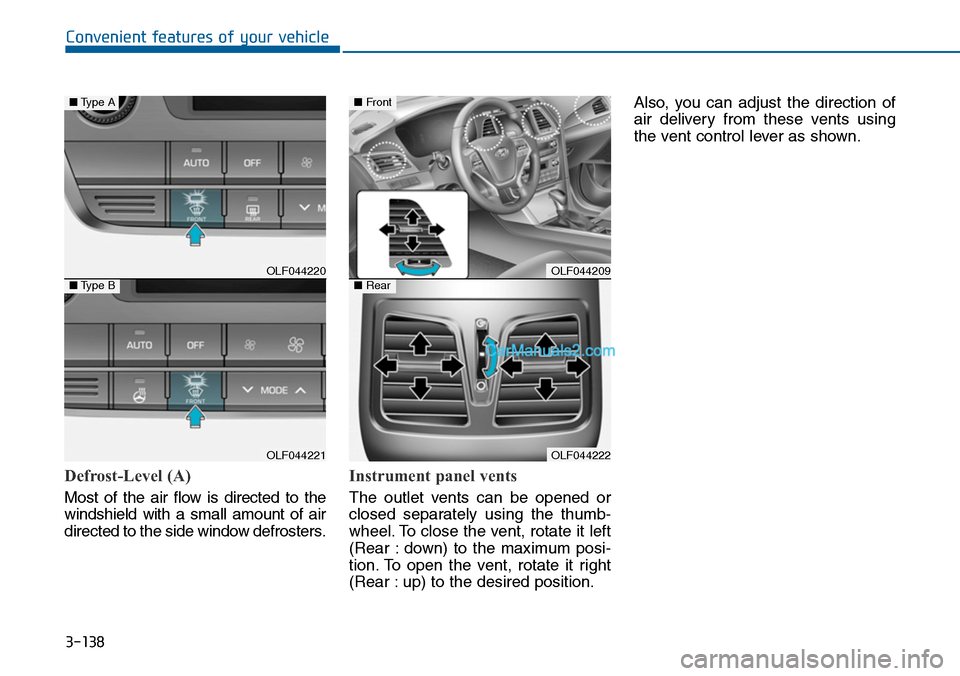
Defrost-Level (A)
Most of the air flow is directed to the
windshield with a small amount of air
directed to the side window defrosters.
Instrument panel vents
The outlet vents can be opened or
closed separately using the thumb-
wheel. To close the vent, rotate it left
(Rear : down) to the maximum posi-
tion. To open the vent, rotate it right
(Rear : up) to the desired position.
Also, you can adjust the direction of
air delivery from these vents using
the vent control lever as shown.
OLF044220
OLF044221
■Type A
■Type BOLF044209
OLF044222
■Front
■Rear
Page 259 of 665
Multimedia System
Multimedia system .................................................4-2
AUX, USB and iPod®port ...............................................4-2
Antenna ...............................................................................4-3
Steering wheel audio control ........................................4-4
Audio / Video / Navigation system (AVN) ..................4-5
Bluetooth®Wireless Technology hands-free ............4-5
How Vehicle Audio Works ...............................................4-6
System controllers and functions
- 3.8 inch MONO TFT (Except Europe)............4-20
Setup (for RDS model) ...................................................4-26
Phone setup (for RDS, Bluetooth®Wireless Technology
equipped model) ..................................................................4-28
System settings ...............................................................4-32
Setup ..................................................................................4-33
RADIO (for RDS model)..................................................4-40
RADIO .................................................................................4-42
System controllers and functions
- 4.3 inch COLOR TFT LCD (Except Europe) ...4-52
Radio mode(for RDS model) .........................................4-56
Radio mode .......................................................................4-60
Media mode ......................................................................4-62
Audio CD mode ................................................................4-63
MP3 CD mode ..................................................................4-66
USB mode ........................................................................4-69
iPod®mode .......................................................................4-72
AUX mode ........................................................................4-75
My music mode................................................................4-76
Bluetooth®Wireless Technology audio mode ..........4-79
Voice recognition ............................................................4-99
Ending voice recognition ............................................4-100
Setup (for RDS, Bluetooth®Wireless Technology
equipped model) ............................................................4-107
Setup (for Bluetooth® WirelessTechnology equipped
model) ..............................................................................4-114
Rear view camera .........................................................4-120
System controllers and functions
- 3.8 inch MONO TFT (For Europe)................4-126
Setup ................................................................................4-128
Radio ................................................................................4-131
Basic method of use : Audio CD / MP3 CD / USB /
iPod®/ My Music .........................................................4-132
System controllers and functions
- 4.3 inch COLOR TFT LCD (For Europe) .......4-139
Radio mode .....................................................................4-143
Media mode ....................................................................4-145
Audio CD mode ..............................................................4-146
MP3 CD mode ................................................................4-148
USB mode ......................................................................4-151
iPod®mode .....................................................................4-154
AUX mode ......................................................................4-156
My music mode .............................................................4-157
Bluetooth® Wireless Technology audio mode ........4-160
Voice recognition ..........................................................4-172
Setup (for Bluetooth®Wireless Technology equipped
model) ..............................................................................4-180
Rear view camera .........................................................4-186
4
Page 262 of 665
Steering wheel audio control
(if equipped)
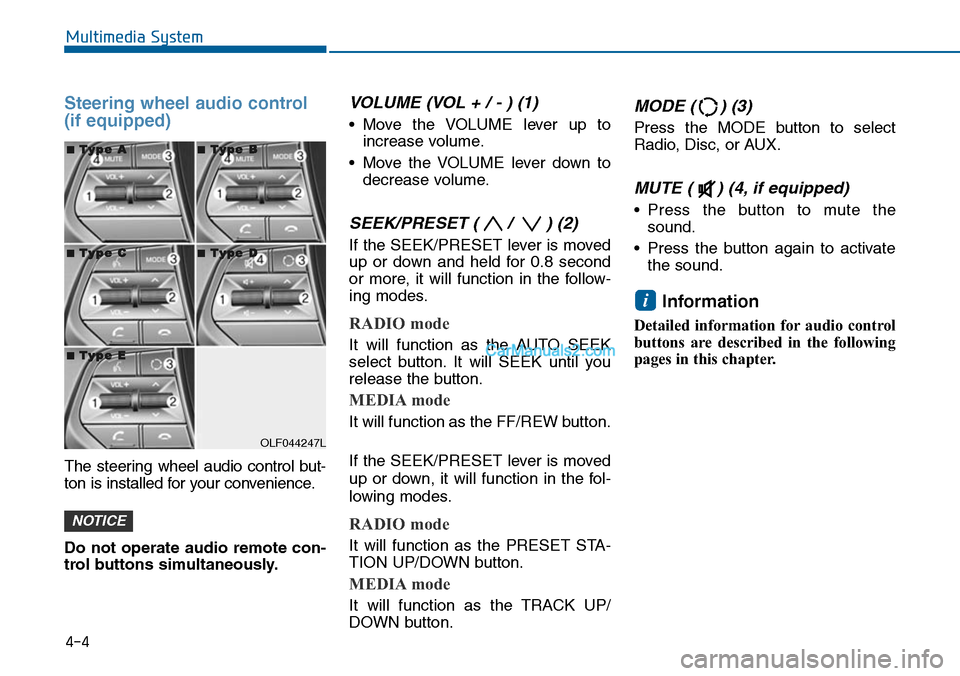
The steering wheel audio control but-
ton is installed for your convenience.
Do not operate audio remote con-
trol buttons simultaneously.
VOLUME (VOL + / - ) (1)
•Move the VOLUME lever up to
increase volume.
•Move the VOLUME lever down to
decrease volume.
SEEK/PRESET ( / ) (2)
If the SEEK/PRESET lever is moved
up or down and held for 0.8 second
or more, it will function in the follow-
ing modes.
RADIO mode
It will function as the AUTO SEEK
select button. It will SEEK until you
release the button.
MEDIA mode
It will function as the FF/REW button.
If the SEEK/PRESET lever is moved
up or down, it will function in the fol-
lowing modes.
RADIO mode
It will function as the PRESET STA-
TION UP/DOWN button.
MEDIA mode
It will function as the TRACK UP/
DOWN button.
MODE ( ) (3)
Press the MODE button to select
Radio, Disc, or AUX.
MUTE ( ) (4, if equipped)
•Press the button to mute the
sound.
•Press the button again to activate
the sound.
Information
Detailed information for audio control
buttons are described in the following
pages in this chapter.
i
NOTICE
4-4
Multimedia System
OLF044247L
■■TTyyppee AA■■TTyyppee BB
■■TTyyppee CC■■TTyyppee DD
■■TTyyppee EE
Page 305 of 665
4-47
Multimedia System
4
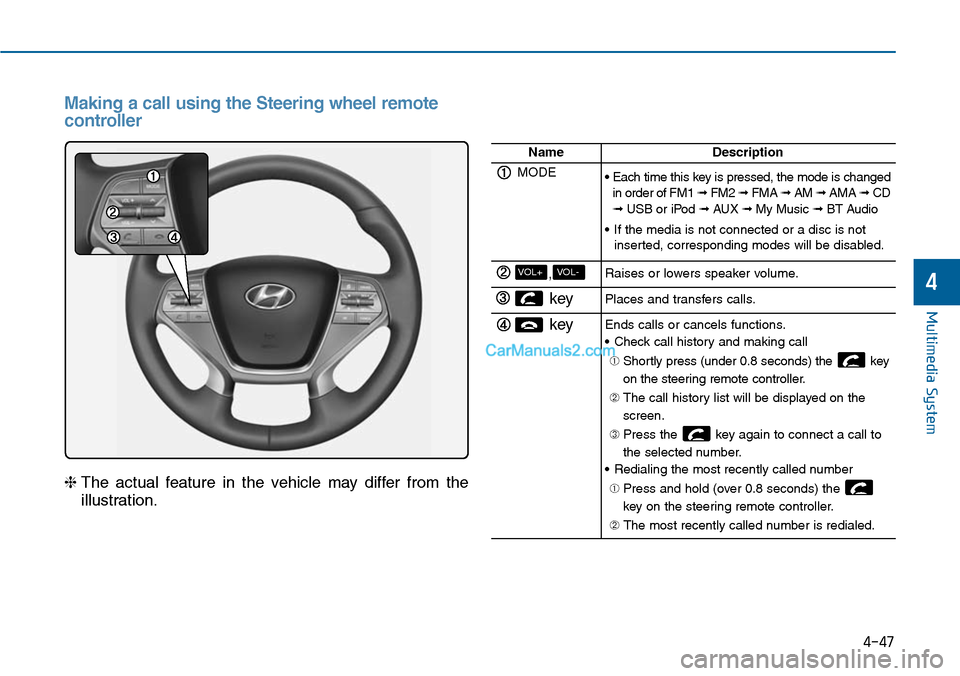
Making a call using the Steering wheel remote
controller
❈The actual feature in the vehicle may differ from the
illustration.
NameDescription
MODE• Each time this key is pressed, the mode is changedin order of FM1 ➟ FM2 ➟ FMA ➟ AM ➟ AMA➟ CD➟ USB or iPod ➟ AUX ➟ My Music ➟ BT Audio
•If the media is not connected or a disc is notinserted, corresponding modes will be disabled.
,VOL-VOL+Raises or lowers speaker volume.
key Places and transfers calls.
keyEnds calls or cancels functions.
•Check call history and making call
➀ Shortly press (under 0.8 seconds) the key
on the steering remote controller.
➁ The call history list will be displayed on the
screen.
➂ Press the key again to connect a call to
the selected number.
•Redialing the most recently called number
➀ Press and hold (over 0.8 seconds) the
key on the steering remote controller.
➁ The most recently called number is redialed.
Page 312 of 665
4-54
Multimedia System
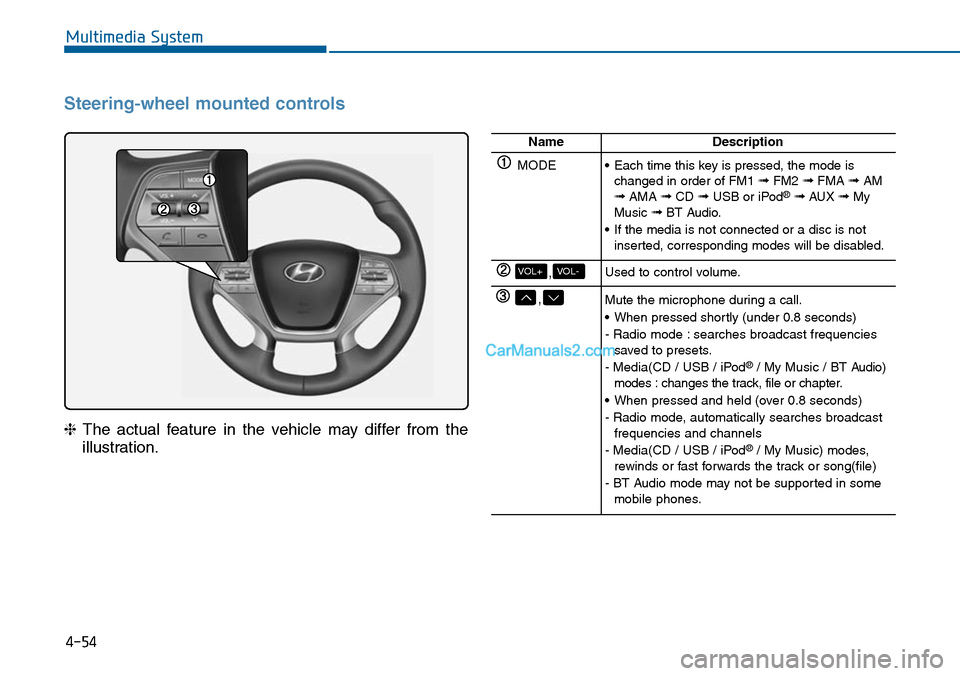
Steering-wheel mounted controls
❈The actual feature in the vehicle may differ from the
illustration.
NameDescription
MODE•Each time this key is pressed, the mode ischanged in order of FM1 ➟FM2 ➟FMA ➟AM➟AMA ➟CD ➟USB or iPod®➟ AUX ➟MyMusic ➟BT Audio.
•If the media is not connected or a disc is notinserted, corresponding modes will be disabled.
,VOL-VOL+Used to control volume.
,Mute the microphone during a call.
•When pressed shortly (under 0.8 seconds)
- Radio mode : searches broadcast frequenciessaved to presets.
- Media(CD / USB / iPod®/ My Music / BT Audio)modes : changes the track, file or chapter.
•When pressed and held (over 0.8 seconds)
- Radio mode, automatically searches broadcastfrequencies and channels
- Media(CD / USB / iPod®/ My Music) modes,rewinds or fast forwards the track or song(file)
- BT Audio mode may not be supported in somemobile phones.
Page 358 of 665
4-100
Multimedia System
ENDING VOICE RECOGNITION
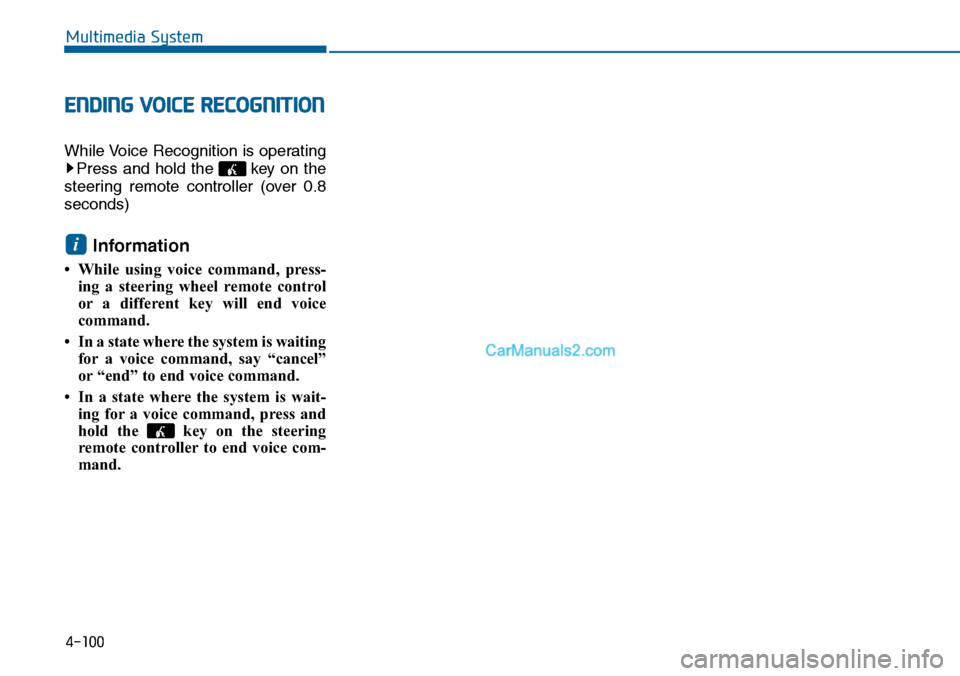
While Voice Recognition is operating
Press and hold the key on the
steering remote controller (over 0.8
seconds)
Information
• While using voice command, press-
ing a steering wheel remote control
or a different key will end voice
command.
•In a state where the system is waiting
for a voice command, say “cancel”
or “end” to end voice command.
• In a state where the system is wait-
ing for a voice command, press and
hold the key on the steering
remote controller to end voice com-
mand.
i
Page 396 of 665
4-138
Multimedia System
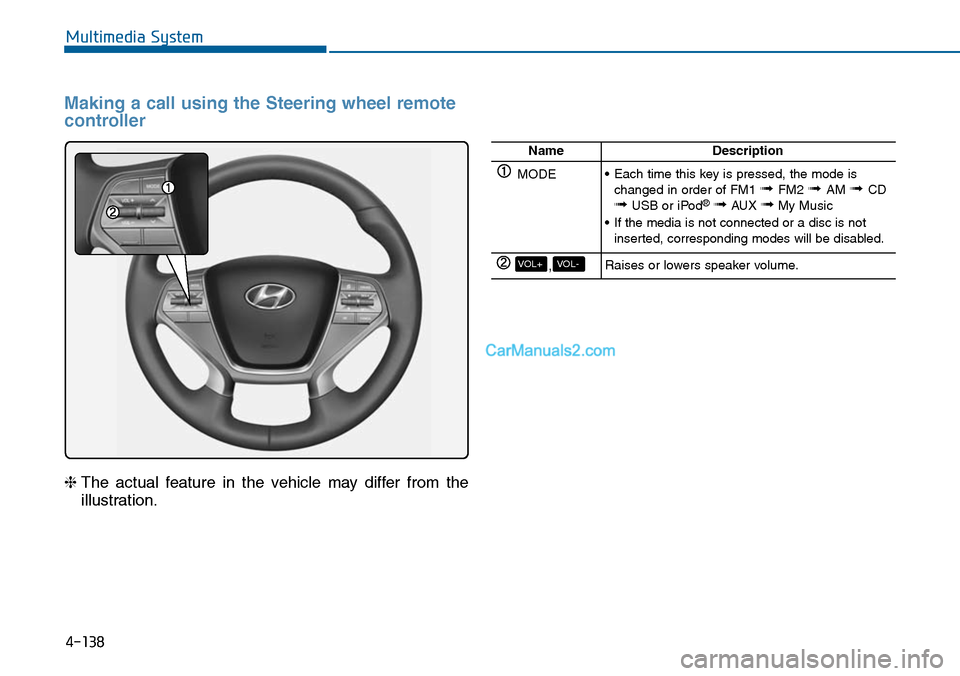
Making a call using the Steering wheel remote
controller
❈The actual feature in the vehicle may differ from the
illustration.
NameDescription
MODE•Each time this key is pressed, the mode ischanged in order of FM1 ➟ FM2 ➟ AM ➟CD➟USB or iPod®➟AUX ➟My Music
•If the media is not connected or a disc is notinserted, corresponding modes will be disabled.
,VOL-VOL+Raises or lowers speaker volume.
Page 399 of 665
4-141
Multimedia System
4
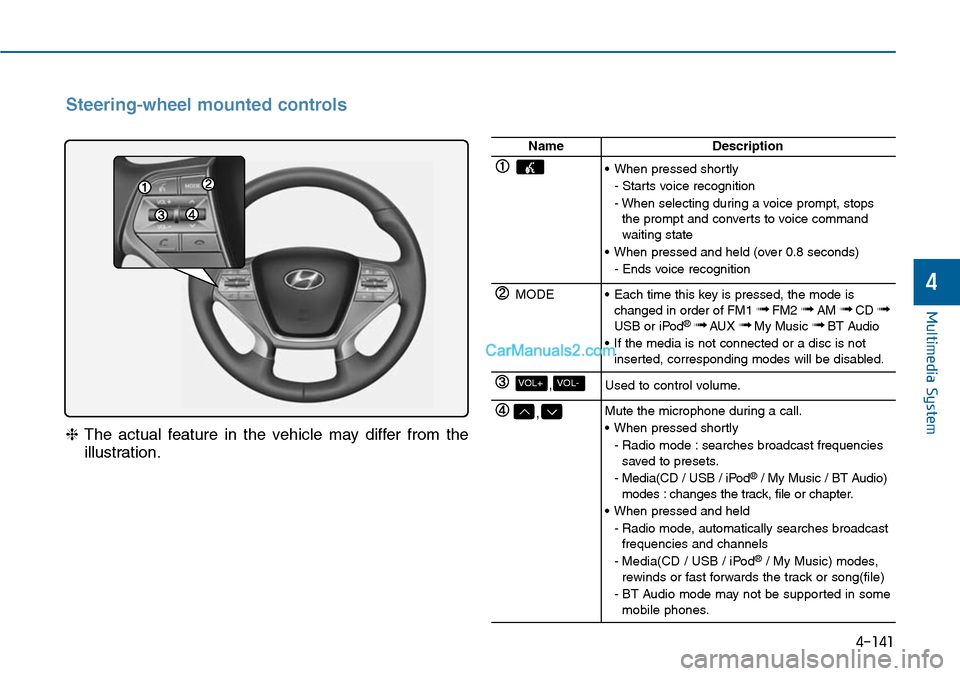
Steering-wheel mounted controls
❈The actual feature in the vehicle may differ from the
illustration.
NameDescription
•When pressed shortly
- Starts voice recognition
- When selecting during a voice prompt, stopsthe prompt and converts to voice commandwaiting state
•When pressed and held (over 0.8 seconds)
- Ends voice recognition
MODE•Each time this key is pressed, the mode ischanged in order of FM1 ➟FM2 ➟AM ➟CD ➟USB or iPod®➟ AUX ➟My Music ➟BT Audio
•If the media is not connected or a disc is notinserted, corresponding modes will be disabled.
,VOL-VOL+Used to control volume.
,Mute the microphone during a call.
•When pressed shortly
- Radio mode : searches broadcast frequenciessaved to presets.
- Media(CD / USB / iPod®/ My Music / BT Audio)modes : changes the track, file or chapter.
•When pressed and held
- Radio mode, automatically searches broadcastfrequencies and channels
- Media(CD / USB / iPod®/ My Music) modes,rewinds or fast forwards the track or song(file)
- BT Audio mode may not be supported in somemobile phones.
Page 431 of 665
ENDING VOICE RECOGNITION
While Voice Recognition is operating
Press and hold the key on the
steering remote controller (over 0.8
seconds)
Information
• While using voice command, press-
ing a steering wheel remote control
or a different key will end voice
command.
• In a state where the system is wait-
ing for a voice command, say “can-
cel” or “end” to end voice com-
mand.
• In a state where the system is wait-
ing for a voice command, press and
hold the key on the steering
remote controller to end voice com-
mand.
i
4-173
Multimedia System
4
Page 452 of 665
5-3
Driving your vehicle
5
Before entering the vehicle
•Be sure all windows, outside mir-
ror(s), and outside lights are clean
and unobstructed.
•Remove frost, snow, or ice.
•Visually check the tires for uneven
wear and damage.
•Check under the vehicle for any
sign of leaks.
•Be sure there are no obstacles
behind you if you intend to back up.
Before starting
•Make sure the hood, the trunk, and
the doors are securely closed and
locked.
•Adjust the position of the seat and
steering wheel.
•Adjust the inside and outside
rearview mirrors.
•Verify all the lights work.
•Fasten your seatbelt.Check that all
passengers have fastened their
seatbelts.
•Check the gauges and indicators in
the instrument panel and the mes-
sages on the instrument display
when the ignition switch is in the
ON position.
•Check that any items you are car-
rying are stored properly or fas-
tened down securely.
BEFORE DRIVING
To reduce the risk of SERIOUS
INJURY or DEATH, take the fol-
lowing precautions:
•ALWAYS wear your seat belt.
All passengers must be prop-
erly belted whenever the vehi-
cle is moving. For more infor-
mation, refer to “Seat Belts” in
chapter 2.
•Always drive defensively.
Assume other drivers or
pedestrians may be careless
and make mistakes.
•Stay focused on the task of
driving. Driver distraction can
cause accidents.
•Leave plenty of space
between you and the vehicle
in front of you.
WARNING