ECO mode Hyundai Sonata 2014 Service Manual
[x] Cancel search | Manufacturer: HYUNDAI, Model Year: 2014, Model line: Sonata, Model: Hyundai Sonata 2014Pages: 665, PDF Size: 17.43 MB
Page 330 of 665
4-72
Multimedia System
iPod®MODE
Using iPod®Mode
Playing/Pausing iPod®Songs
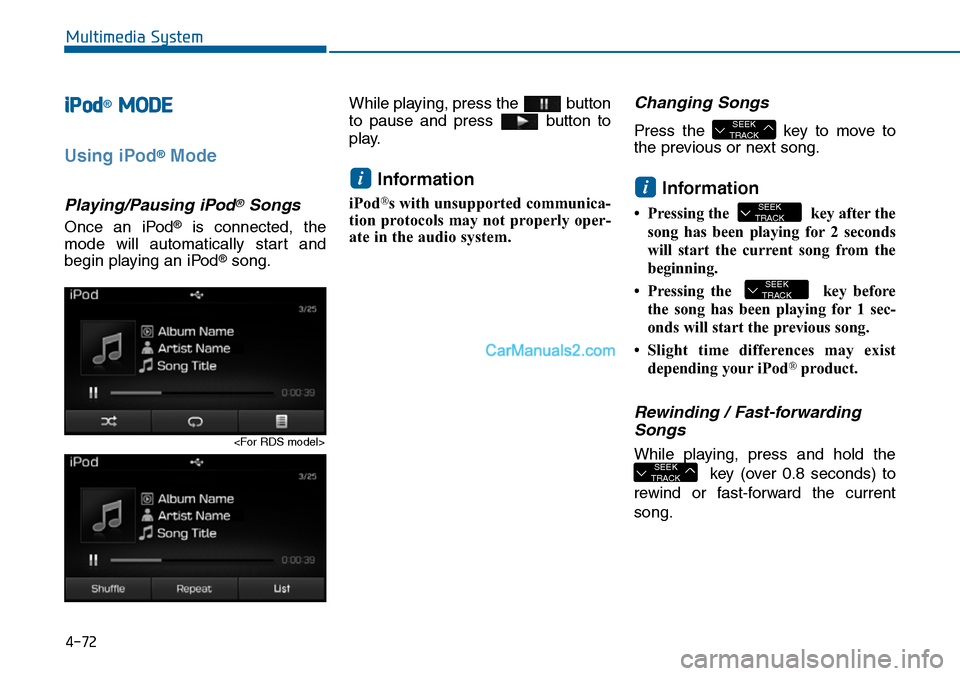
Once an iPod®is connected, the
mode will automatically start and
begin playing an iPod®song.
While playing, press the button
to pause and press button to
play.
Information
iPod®s with unsupported communica-
tion protocols may not properly oper-
ate in the audio system.
Changing Songs
Press the key to move to
the previous or next song.
Information
•Pressing the key afterthe
song has been playing for 2 seconds
will start the current song from the
beginning.
•Pressing the key before
the song has been playing for 1 sec-
onds will start the previous song.
•Slight time differences may exist
depending your iPod®product.
Rewinding / Fast-forwarding
Songs
While playing, press and hold the
key (over 0.8 seconds) to
rewind or fast-forward the current
song.
SEEKTRACK
SEEKTRACK
SEEKTRACK
i
SEEKTRACK
i
Page 334 of 665
4-76
Multimedia System
MY MUSIC MODE
Using My Music Mode
Playing/Pausing My Music Files
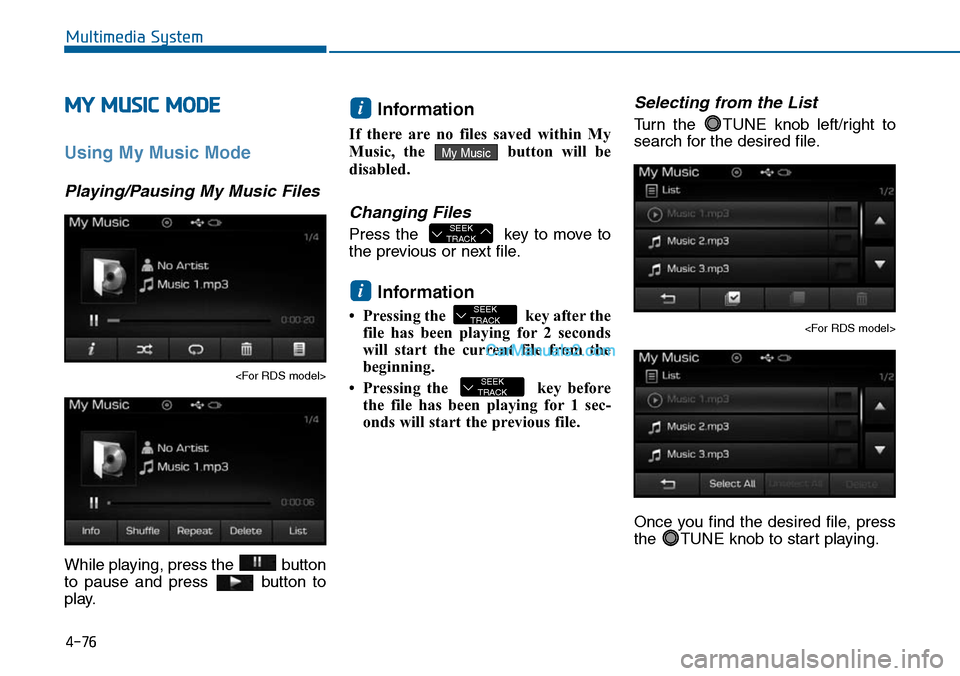
While playing, press the button
to pause and press button to
play.
Information
If there are no files saved within My
Music, the button will be
disabled.
Changing Files
Press the key to move to
the previous or next file.
Information
• Pressing the key after the
file has been playing for 2 seconds
will start the current file from the
beginning.
• Pressing the key before
the file has been playing for 1 sec-
onds will start the previous file.
Selecting from the List
Turn the TUNE knob left/right to
search for the desired file.
Once you find the desired file, press
the TUNE knob to start playing.
SEEKTRACK
SEEKTRACK
i
SEEKTRACK
My Music
i
Page 335 of 665
4-77
Multimedia System
4
Rewinding / Fast-forwarding
Files
While playing, press and hold the
key to rewind or fast-for-
ward the current file.
Scan
Press the key to play the first
10 seconds of each file.
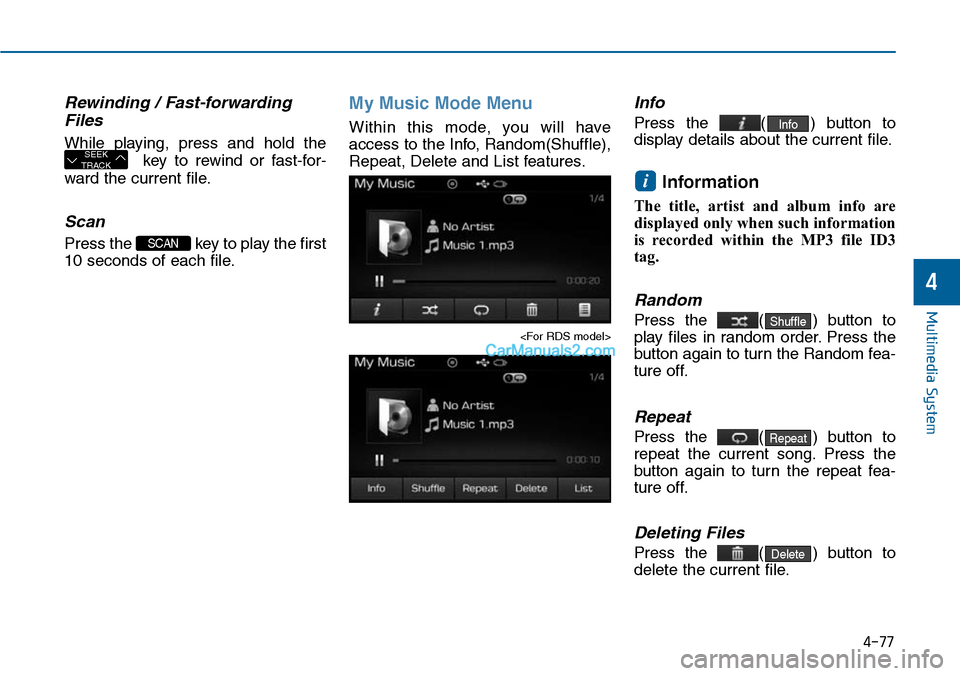
My Music Mode Menu
Within this mode, you will have
access to the Info, Random(Shuffle),
Repeat, Delete and List features.
Info
Press the ( ) button to
display details about the current file.
Information
The title, artist and album info are
displayed only when such information
is recorded within the MP3 file ID3
tag.
Random
Press the ( ) button to
play files in random order. Press the
button again to turn the Random fea-
ture off.
Repeat
Press the ( ) button to
repeat the current song. Press the
button again to turn the repeat fea-
ture off.
Deleting Files
Press the ( ) button to
delete the current file.
Delete
Repeat
Shuffle
i
Info
SCAN
SEEKTRACK
Page 356 of 665
4-98
Information
- Using the Voice Recognition
• When using the voice recognition
feature, only commands listed with-
in the user's manual are supported.
• Be aware that during the operation
of the voice recognition system,
pressing any key other than the
key or touching the screen will ter-
minate voice recognition mode.
• For superior voice recognition per-
formance, position the microphone
used for voice recognition above the
head of the driver’s seat and main-
tain a proper position when saying
commands.
(Continued)
(Continued)
•Within the following situations,
voice recognition may not function
properly due to external sound.
- When the windows and sunroof
are open
- When the wind of the cooling /
heating device is strong
-When entering and passing
through tunnels
-When driving on rugged and
uneven roads
- During severe rain (heavy rains,
windstorms)
• Phone related voice commands can
be used only when a Bluetooth®
Wireless Technology device is con-
nected.
•When making calls by stating a
name, the corresponding contact
must be downloaded and stored
within the audio system.
(Continued)
(Continued)
• After downloading the Bluetooth®
Wireless Technology phone book, it
takes some times to convert the
phone book data into voice informa-
tion. During this time, voice recogni-
tion may not properly operate.
• Pronounce the voice commands nat-
urally and clearly as if in a normal
conversation.
i
Multimedia System
Page 357 of 665
4-99
Multimedia System
4
VOICE RECOGNITION
(if equipped)
Using Voice Recognition
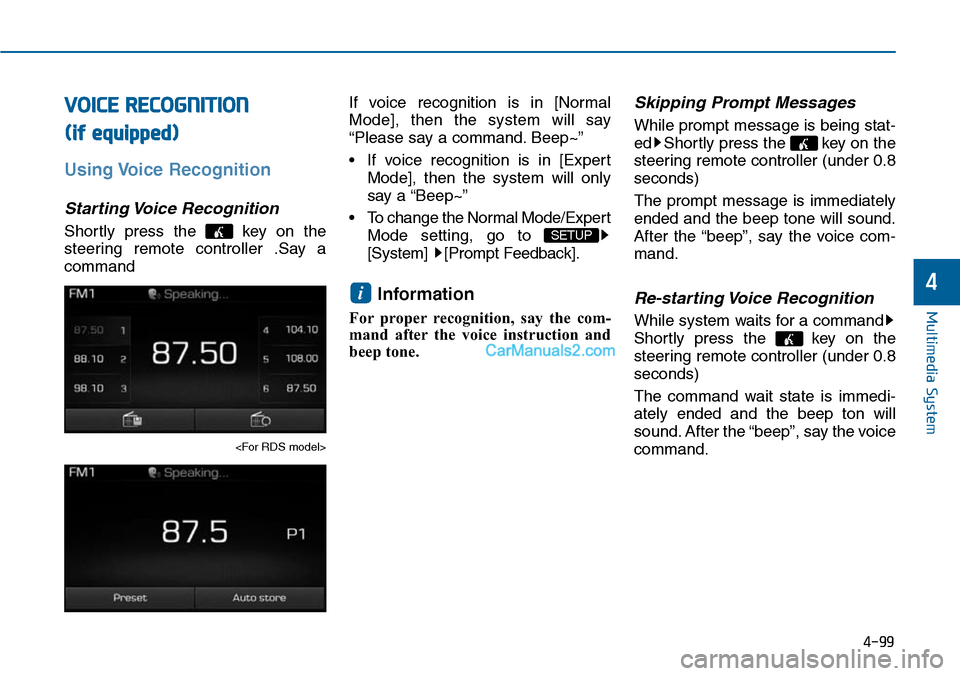
Starting Voice Recognition
Shortly press the key on the
steering remote controller .Say a
command
If voice recognition is in [Normal
Mode], then the system will say
“Please say a command. Beep~”
• If voice recognition is in [Expert
Mode], then the system will only
say a “Beep~”
•To change the Normal Mode/Expert
Mode setting, go to
[System] [Prompt Feedback].
Information
For proper recognition, say the com-
mand after the voice instruction and
beep tone.
Skipping Prompt Messages
While prompt message is being stat-
ed Shortly press the key on the
steering remote controller (under 0.8
seconds)
The prompt message is immediately
ended and the beep tone will sound.
After the “beep”, say the voice com-
mand.
Re-starting Voice Recognition
While system waits for a command
Shortly press the key on the
steering remote controller (under 0.8
seconds)
The command wait state is immedi-
ately ended and the beep ton will
sound. After the “beep”, say the voice
command.
i
SETUP
Page 380 of 665
4-122
Multimedia System
NameDescription
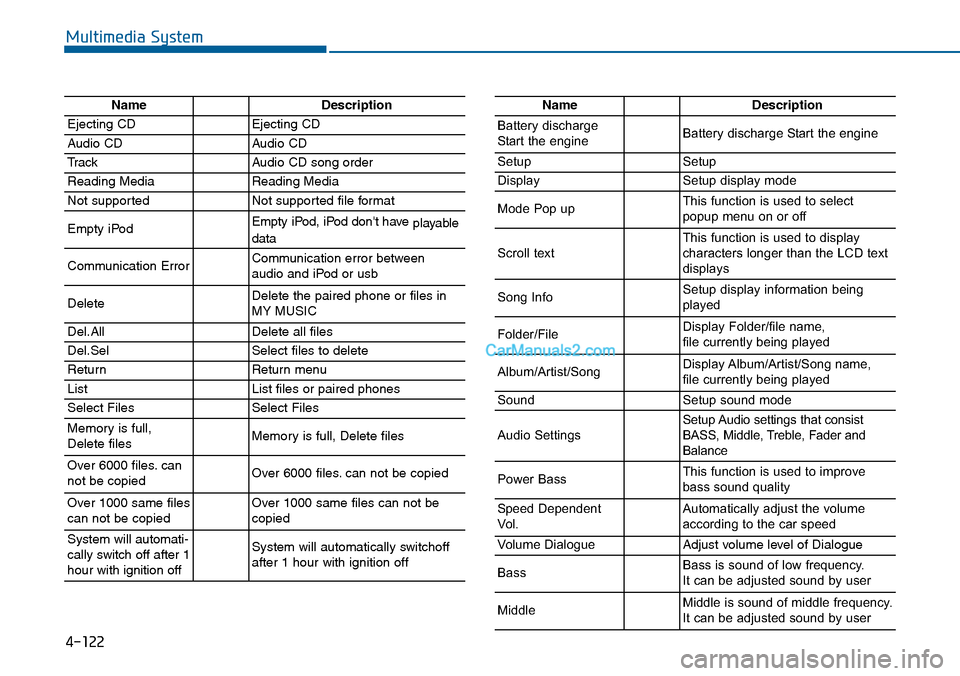
Ejecting CDEjecting CD
Audio CDAudio CD
TrackAudio CD song order
Reading MediaReading Media
Not supportedNot supported file format
Empty iPodEmpty iPod, iPod don't have playabledata
Communication ErrorCommunication error between audio and iPod or usb
DeleteDelete the paired phone or files in MY MUSIC
Del.AllDelete all files
Del.SelSelect files to delete
ReturnReturn menu
ListList files or paired phones
Select FilesSelect Files
Memory is full,Delete files Memory is full, Delete files
Over 6000 files. cannot be copied Over 6000 files. can not be copied
Over 1000 same filescan not be copied Over 1000 same files can not becopied
System will automati-cally switch off after 1hour with ignition off
System will automatically switchoffafter 1 hour with ignition off
NameDescription
Battery dischargeStart the engineBattery discharge Start the engine
SetupSetup
DisplaySetup display mode
Mode Pop upThis function is used to selectpopup menu on or off
Scroll textThis function is used to display characters longer than the LCD textdisplays
Song InfoSetup display information beingplayed
Folder/FileDisplay Folder/file name, file currently being played
Album/Artist/SongDisplay Album/Artist/Song name, file currently being played
SoundSetup sound mode
Audio SettingsSetup Audio settings that consistBASS, Middle, Treble, Fader andBalance
Power BassThis function is used to improvebass sound quality
Speed DependentVo l .Automatically adjust the volume according to the car speed
Vo l u m e D i a l o g u eAdjust volume level of Dialogue
BassBass is sound of low frequency. It can be adjusted sound by user
MiddleMiddle is sound of middle frequency. It can be adjusted sound by user
Page 381 of 665
4-123
Multimedia System
4
NameDescription
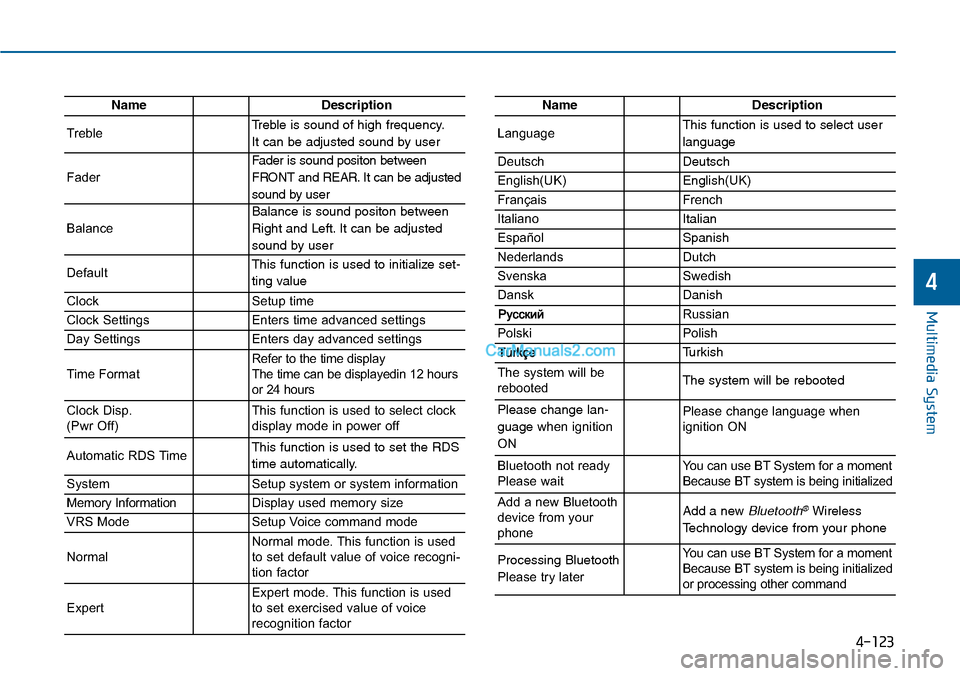
TrebleTreble is sound of high frequency.
It can be adjusted sound by user
Fader
Fader is sound positon between
FRONT and REAR. It can be adjusted
sound by user
Balance
Balance is sound positon between
Right and Left. It can be adjusted
sound by user
DefaultThis function is used to initialize set-
ting value
ClockSetup time
Clock SettingsEnters time advanced settings
Day SettingsEnters day advanced settings
Time FormatRefer to the time display The time can be displayedin 12 hoursor 24 hours
Clock Disp.(Pwr Off)This function is used to select clockdisplay mode in power off
Automatic RDS TimeThis function is used to set the RDS
time automatically.
SystemSetup system or system information
Memory InformationDisplay used memory size
VRS ModeSetup Voice command mode
NormalNormal mode. This function is usedto set default value of voice recogni-tion factor
ExpertExpert mode. This function is usedto set exercised value of voicerecognition factor
NameDescription
LanguageThis function is used to select user
language
DeutschDeutsch
English(UK)English(UK)
FrançaisFrench
Italiano Italian
EspañolSpanish
NederlandsDutch
SvenskaSwedish
DanskDanish
Russian
PolskiPolish
Turkish
The system will berebootedThe system will be rebooted
Please change lan-
guage when ignition
ON
Please change language when ignition ON
Bluetooth not readyPlease waitYo u c a n u s e B T S y s t e m f o r a m o m e n tBecause BT system is being initialized
Add a new Bluetoothdevice from yourphone
Add a new Bluetooth®Wireless
Technology device from your phone
Processing Bluetooth
Please try later
Yo u c a n u s e B T S y s t e m f o r a m o m e n tBecause BT system is being initializedor processing other command
Page 385 of 665
4-127
Multimedia System
4
NameDescription
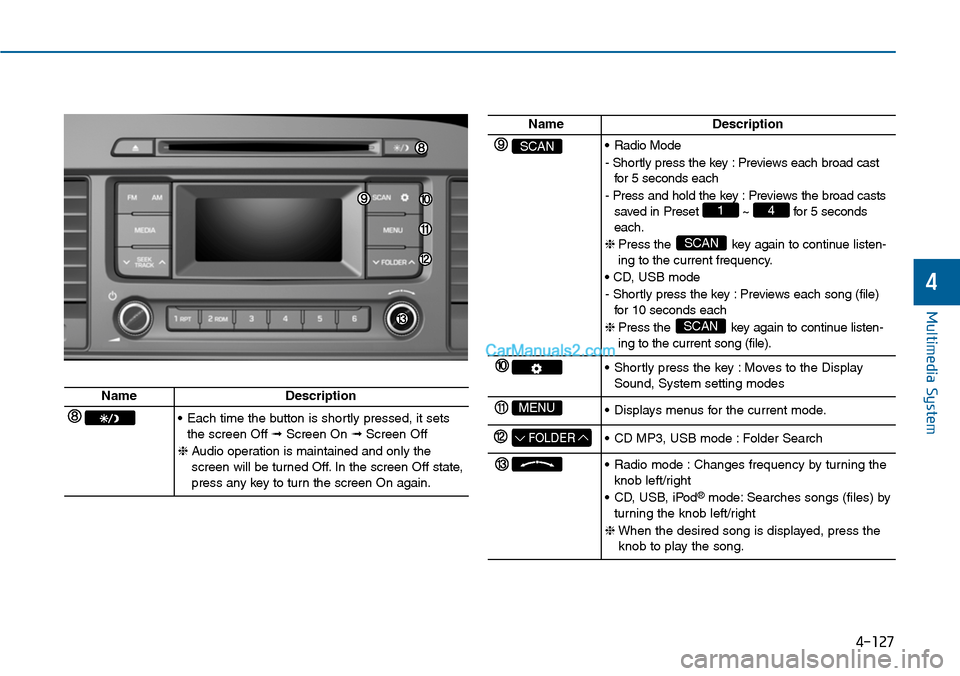
SCAN•Radio Mode
- Shortly press the key : Previews each broad castfor 5 seconds each
- Press and hold the key : Previews the broad castssaved in Preset ~ for 5 secondseach.
❈ Press the key again to continue listen-ing to the current frequency.
• CD, USB mode
- Shortly press the key : Previews each song (file)for 10 seconds each
❈ Press the key again to continue listen-ing to the current song (file).
SCAN
SCAN
41
•Shortly press the key :Moves to the DisplaySound, System setting modes
MENU•Displays menus for the current mode.
FOLDER•CD MP3, USB mode :Folder Search
•Radio mode :Changes frequency by turning theknob left/right
•CD, USB, iPod®mode: Searches songs (files) byturning the knob left/right
❈When the desired song is displayed, press theknob to play the song.
NameDescription
•Each time the button is shortly pressed, it setsthe screen Off ➟Screen On ➟Screen Off
❈Audio operation is maintained and only thescreen will be turned Off. In the screen Off state,press any key to turn the screen On again.
Page 390 of 665
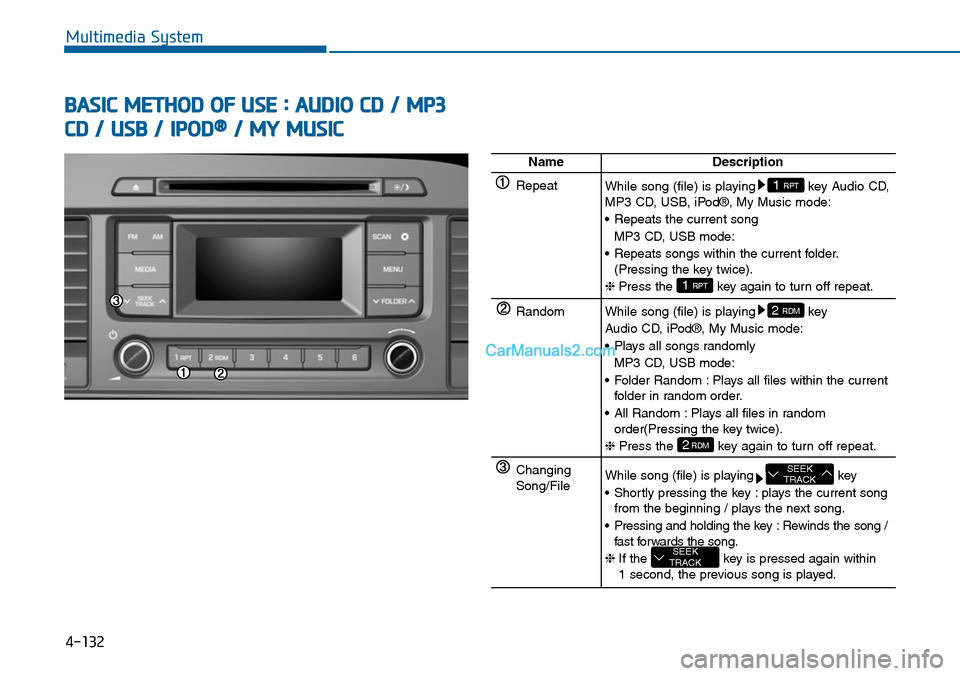
4-132
Multimedia System
BASIC METHOD OF USE : AUDIO CD / MP3
CD / USB / IPOD®/ MY MUSIC
NameDescription
RepeatWhile song (file) is playing key Audio CD,MP3 CD, USB, iPod®, My Music mode:
•Repeats the current song
MP3 CD, USB mode:
•Repeats songs within the current folder.(Pressing the key twice).
❈Press the key again to turn off repeat.1 RPT
1 RPT
RandomWhile song (file) is playing key
Audio CD, iPod®, My Music mode:
•Plays all songs randomly
MP3 CD, USB mode:
•Folder Random :Plays all files within the currentfolder in random order.
•All Random :Plays all files in randomorder(Pressing the key twice).
❈Press the key again to turn off repeat.2RDM
2 RDM
Changing Song/FileWhile song (file) is playing key
•Shortly pressing the key :plays the current songfrom the beginning / plays the next song.
•Pressing and holding the key :Rewinds the song /fast forwards the song.
❈ If the key is pressed again within 1 second, the previous song is played.
SEEKTRACK
SEEKTRACK
Page 391 of 665
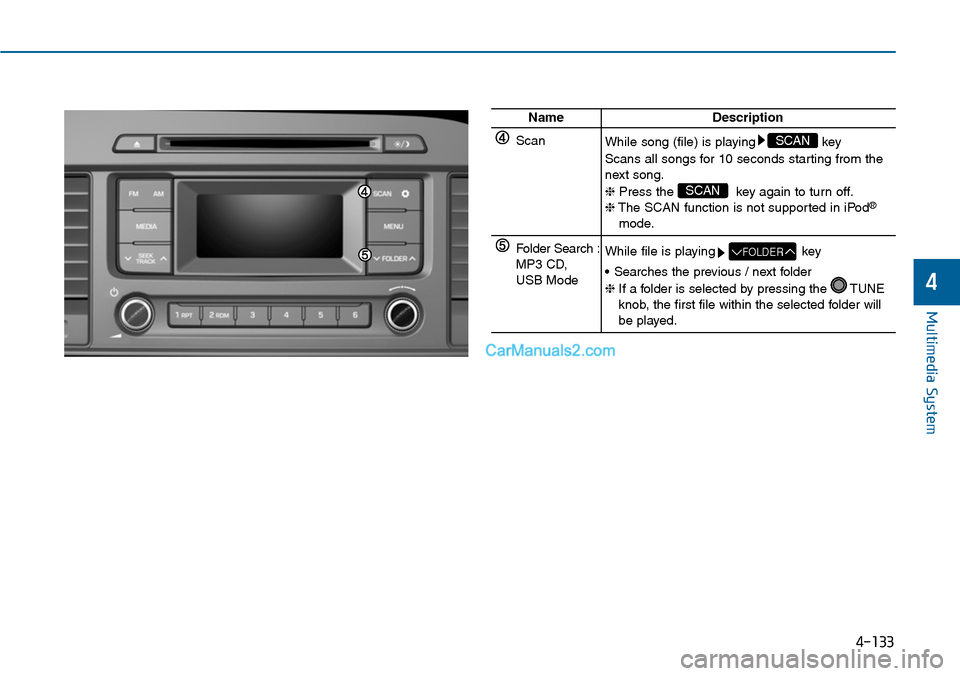
4-133
Multimedia System
NameDescription
ScanWhile song (file) is playing key
Scans all songs for 10 seconds starting from thenext song.
❈Press the key again to turn off.❈The SCAN function is not supported in iPod®
mode.
SCAN
SCAN
Folder Search :MP3 CD, USB Mode
While file is playing key
•Searches the previous / next folder
❈If a folder is selected by pressing the TUNEknob, the first file within the selected folder willbe played.
FOLDER
4