Button Hyundai Sonata 2015 Owner's Manual
[x] Cancel search | Manufacturer: HYUNDAI, Model Year: 2015, Model line: Sonata, Model: Hyundai Sonata 2015Pages: 603, PDF Size: 14.7 MB
Page 335 of 603
![Hyundai Sonata 2015 Owners Manual 4-82
Multimedia System
Deleting a Device
Press the key Select
[Phone] Select [Paired Phone List]
From the paired phone list, select the
device you want to delete and press
the button.
Information
â](/img/35/16796/w960_16796-334.png "Hyundai Sonata 2015 Owners Manual 4-82
Multimedia System
Deleting a Device
Press the key Select
[Phone] Select [Paired Phone List]
From the paired phone list, select the
device you want to delete and press
the button.
Information
â")
4-82
Multimedia System
Deleting a Device
Press the key Select
[Phone] Select [Paired Phone List]
From the paired phone list, select the
device you want to delete and press
the button.
Information
• When deleting the currently con-nected device, the device will auto-
matically be disconnected to pro-
ceed with the deleting process.
• If a paired Bluetooth
®Wireless
Technology device is deleted, the
device’s call history and contacts
data will also be deleted.
• To re-use a deleted device, you must pair the device again.
Phone Menu Screen
Phone Menus
With a Bluetooth®Wireless
Technology device connected, press
the key to display the Phone
menu screen.
(❈ the screen can be different by region.)
1) Favorite : Up to 20 frequently used
contacts saved for easy access
2) Dial Number : Displays the dial screen where numbers can be
dialed to make calls
3) Call History : Device the call histo- ry list screen
PHONE
i
Delete
SETUP
Page 336 of 603
![Hyundai Sonata 2015 Owners Manual 4-83
Multimedia System
4
4) Contacts : Displays the Contactslist screen
5) Setup : Displays Phone related settings
Information
• If you press the [Call History] but-ton but there is no call history](/img/35/16796/w960_16796-335.png "Hyundai Sonata 2015 Owners Manual 4-83
Multimedia System
4
4) Contacts : Displays the Contactslist screen
5) Setup : Displays Phone related settings
Information
• If you press the [Call History] but-ton but there is no call history")
4-83
Multimedia System
4
4) Contacts : Displays the Contactslist screen
5) Setup : Displays Phone related settings
Information
• If you press the [Call History] but-ton but there is no call history data,
a prompt is displayed which asks to
download call history data.
• If you press the [Contacts] button but there is no contacts data stored,
a prompt is displayed which asks to
download contacts data.
• This feature may not be supported in some mobile phones. For more
information on download support,
refer to your mobile phone user’s
manual.
Favorites
Press the key Select
[Favorites]
1) Saved favorite contact : Connects
call upon selection
2) To add favorite : Downloaded con- tacts be saved as favorite.
3) Delete All : Delete all stored favorite contactsInformation
• To save Favorite, contacts should bedownloaded.
• Contact saved in Favorites will not be automatically updated if the contact
has been updated in the phone. To
update Favorites, delete the Favorite
and create a new Favorite.
iPHONE
i
Page 338 of 603
4-85
Multimedia System
4
During a Handsfree Call
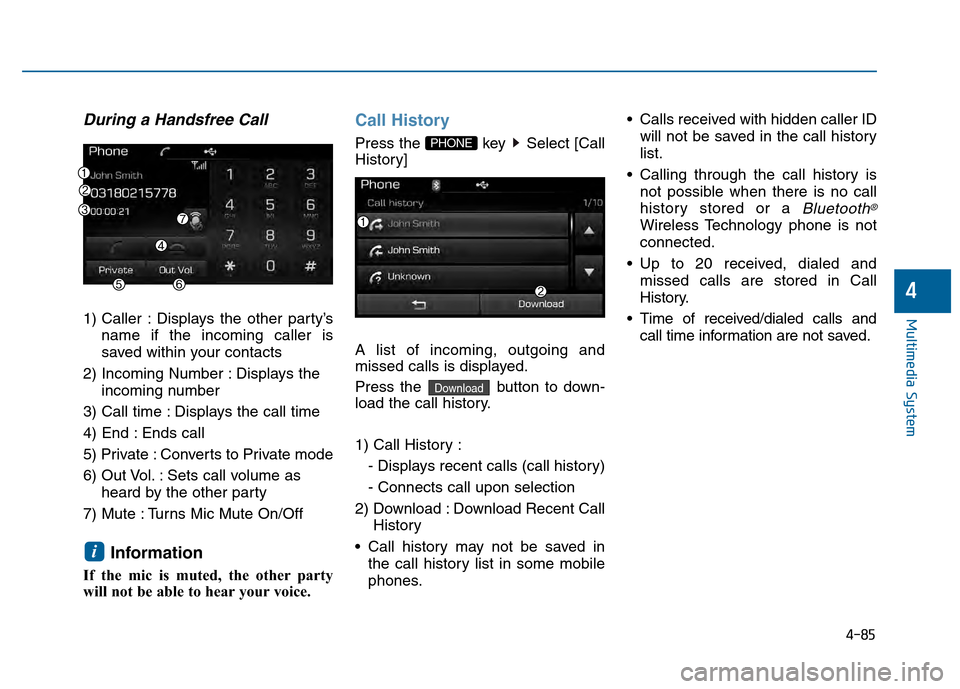
1) Caller : Displays the other party’sname if the incoming caller is
saved within your contacts
2) Incoming Number : Displays the incoming number
3) Call time : Displays the call time
4) End : Ends call
5) Private : Converts to Private mode
6) Out Vol. : Sets call volume as heard by the other party
7) Mute : Turns Mic Mute On/Off
Information
If the mic is muted, the other party
will not be able to hear your voice.
Call History
Press the key Select [Call
History]
A list of incoming, outgoing and
missed calls is displayed.
Press the button to down-
load the call history.
1) Call History : - Displays recent calls (call history)
- Connects call upon selection
2) Download : Download Recent Call History
Call history may not be saved in the call history list in some mobile
phones. Calls received with hidden caller ID
will not be saved in the call history
list.
Calling through the call history is not possible when there is no call
history stored or a
Bluetooth®
Wireless Technology phone is not
connected.
Up to 20 received, dialed and missed calls are stored in Call
History.
Time of received/dialed calls and call time information are not saved.
Download
PHONE
i
Page 342 of 603
4-89
Multimedia System
4
Information
• The Auto Download feature will down-load mobile contacts entries every time
the phone is connected. The download
time may differ depending on the num-
ber of saved contacts entries and the
communication state.
• Before downloading contacts, first check to see that your mobile phone
supports the contacts download fea-
ture.
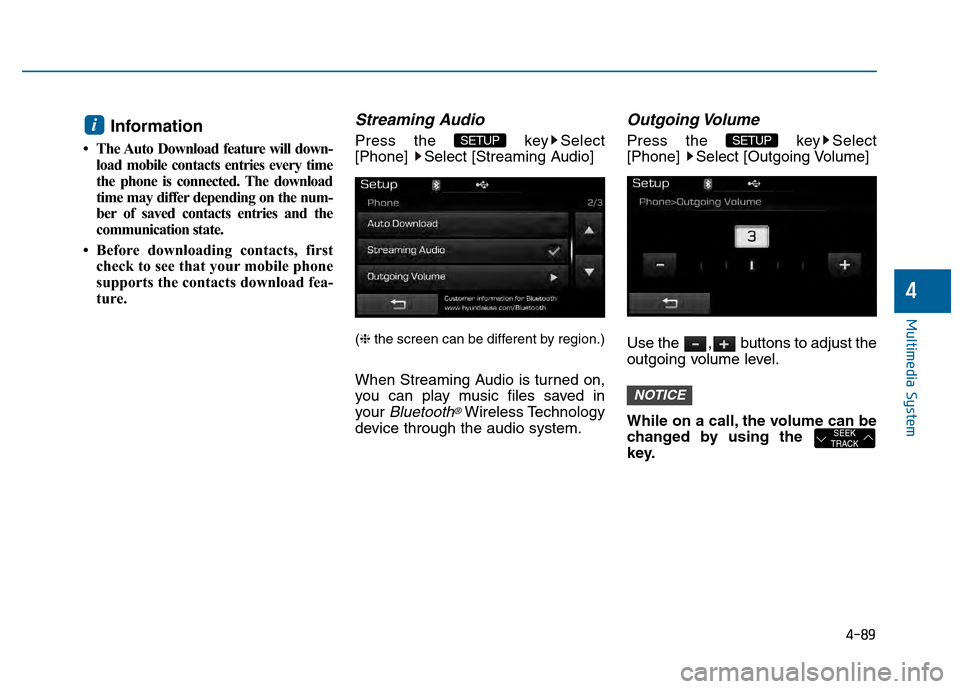
Streaming Audio
Press the key Select
[Phone] Select [Streaming Audio]
(❈ the screen can be different by region.)
When Streaming Audio is turned on,
you can play music files saved in
your
Bluetooth®Wireless Technology
device through the audio system.
Outgoing Volume
Press the key Select
[Phone] Select [Outgoing Volume]
Use the , buttons to adjust the
outgoing volume level.
While on a call, the volume can be
changed by using the
key.
SEEK
TRACK
NOTICE
SETUP SETUP i
Page 350 of 603
![Hyundai Sonata 2015 Owners Manual 4-97
Multimedia System
4
S
SE
E T
T U
U P
P
Starting Mode
Press the key to display the
Setup screen.
You can select and control options
related to [Display], [Sound], [Phone]
and [System].
Display Se](/img/35/16796/w960_16796-349.png "Hyundai Sonata 2015 Owners Manual 4-97
Multimedia System
4
S
SE
E T
T U
U P
P
Starting Mode
Press the key to display the
Setup screen.
You can select and control options
related to [Display], [Sound], [Phone]
and [System].
Display Se")
4-97
Multimedia System
4
S
SE
E T
T U
U P
P
Starting Mode
Press the key to display the
Setup screen.
You can select and control options
related to [Display], [Sound], [Phone]
and [System].
Display Settings
Adjusting the Brightness
Press the key Select
[Display] Select [Brightness]
Use the , buttons to adjust the
screen brightness or set the
Brightness on Automatic, Day, or
Night mode.
Press the button to reset.
1) Automatic : Adjusts the brightness
automatically
2) Day : Always maintains the bright- ness on high
3) Night : Always maintains the
brightness on low
Pop-up Mode
Press the key Select
[Display] Select [Mode Pop up]
This feature is used to display the
Pop-up Mode screen when entering
radio and media modes.
When this feature is turned on,
pressing the or key
will display the Pop-up Mode screen.
Information
The media Pop-up Mode screen can
be displayed only when two or more
media modes have been connected.
i
MEDIA RADIO
SETUP
Default
SETUP SETUP
Page 352 of 603
4-99
Multimedia System
4
Use the , , , buttons to
adjust the Fader/Balance settings.
Use the , buttons to adjust the
Bass/Middle/Treble settings.
Press the button to reset.Variable EQ
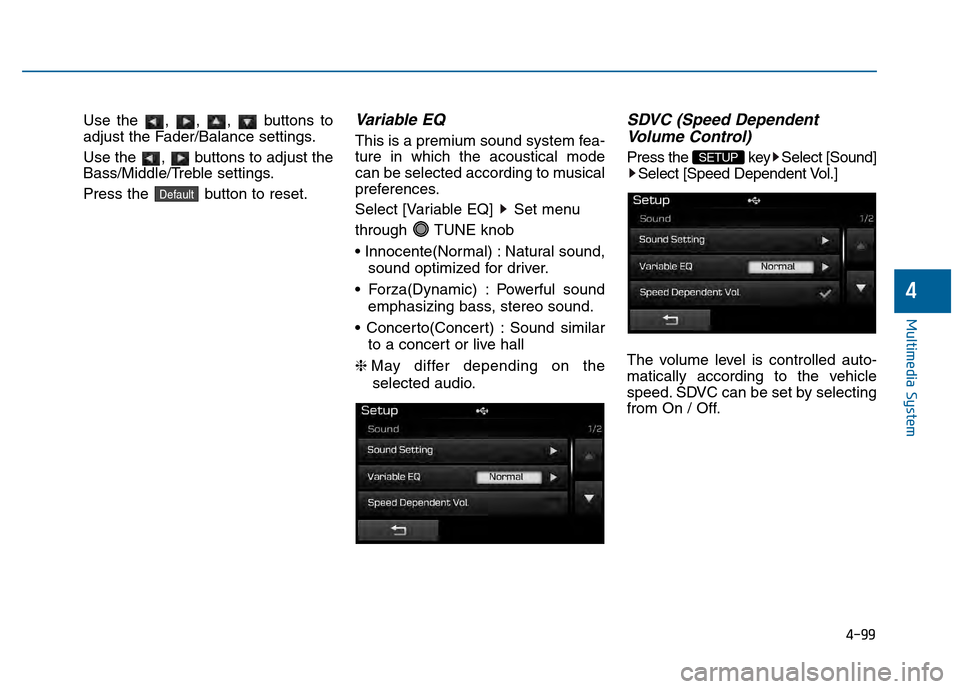
This is a premium sound system fea-
ture in which the acoustical mode
can be selected according to musical
preferences.
Select [Variable EQ] Set menu
through TUNE knob
Natural sound,sound optimized for driver.
Powerful sound emphasizing bass, stereo sound.
Sound similar to a concert or live hall
❈ May differ depending on the
selected audio.
SDVC (Speed Dependent Volume Control)
Press the key Select [Sound]
Select [Speed Dependent Vol.]
The volume level is controlled auto-
matically according to the vehicle
speed. SDVC can be set by selecting
from On / Off.SETUP
Default
Page 356 of 603
4-103
Multimedia System
4
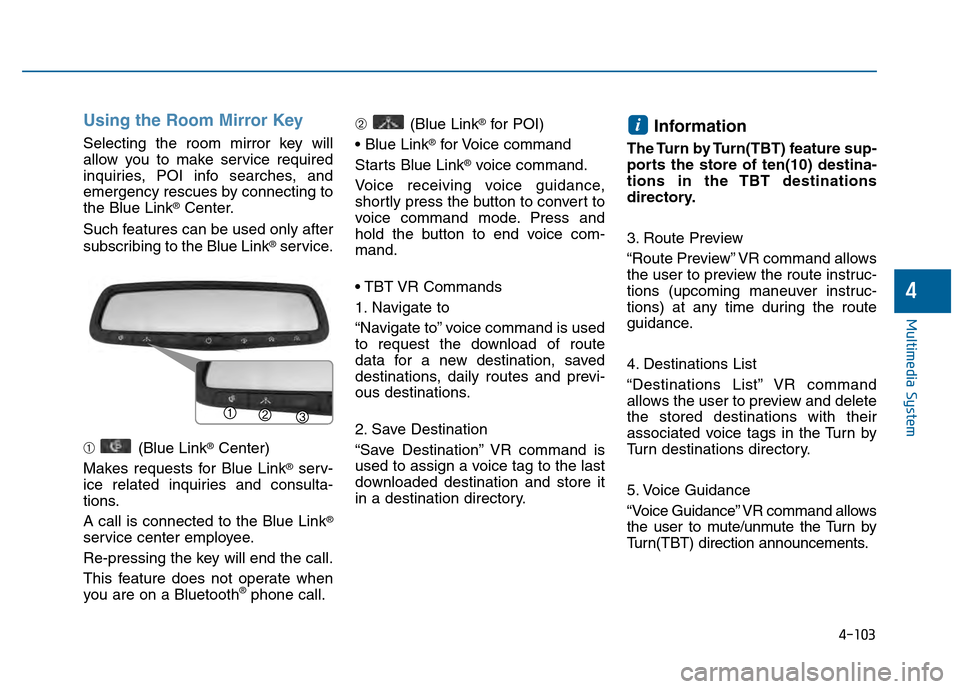
Using the Room Mirror Key
Selecting the room mirror key will
allow you to make service required
inquiries, POI info searches, and
emergency rescues by connecting to
the Blue Link
®Center.
Such features can be used only after
subscribing to the Blue Link
®service.
➀ (Blue Link
®Center)
Makes requests for Blue Link
®serv-
ice related inquiries and consulta-
tions.
A call is connected to the Blue Link
®
service center employee.
Re-pressing the key will end the call.
This feature does not operate when
you are on a Bluetooth
®phone call. ➁
(Blue Link
®for POI)
®for Voice command
Starts Blue Link
®voice command.
Voice receiving voice guidance,
shortly press the button to convert to
voice command mode. Press and
hold the button to end voice com-
mand.
1. Navigate to
“Navigate to” voice command is used
to request the download of route
data for a new destination, saved
destinations, daily routes and previ-
ous destinations.
2. Save Destination
“Save Destination” VR command is
used to assign a voice tag to the last
downloaded destination and store it
in a destination directory.
Information
The Turn by Turn(TBT) feature sup-
ports the store of ten(10) destina-
tions in the TBT destinations
directory.
3. Route Preview
“Route Preview” VR command allows
the user to preview the route instruc-
tions (upcoming maneuver instruc-
tions) at any time during the route
guidance.
4. Destinations List
“Destinations List” VR command
allows the user to preview and delete
the stored destinations with their
associated voice tags in the Turn by
Turn destinations directory.
5. Voice Guidance
“Voice Guidance” VR command allows
the user to mute/unmute the Turn by
Turn(TBT) direction announcements.
i
Page 359 of 603
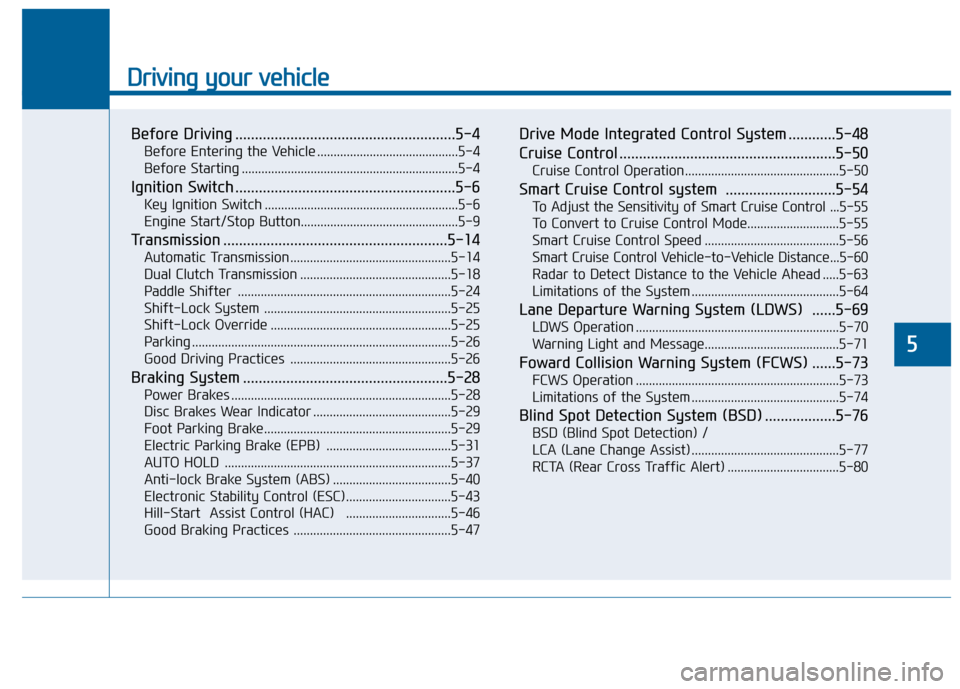
Driving your vehicle
5
Before Driving ........................................................5-4
Before Entering the Vehicle ...........................................5-4
Before Starting ..................................................................5-4
Ignition Switch ........................................................5-6
Key Ignition Switch ...........................................................5-6
Engine Start/Stop Button................................................5-9
Transmission .........................................................5-14
Automatic Transmission .................................................5-14
Dual Clutch Transmission ..............................................5-18
Paddle Shifter .................................................................5-24
Shift-Lock System .........................................................5-25
Shift-Lock Override .......................................................5-25
Parking ........................................................................\
.......5-26
Good Driving Practices .................................................5-26
Braking System ....................................................5-28
Power Brakes ...................................................................5-28
Disc Brakes Wear Indicator ..........................................5-29
Foot Parking Brake.........................................................5-29
Electric Parking Brake (EPB) ......................................5-31
AUTO HOLD .....................................................................5-3\
7
Anti-lock Brake System (ABS) ....................................5-40
Electronic Stability Control (ESC)................................5-43
Hill-Start Assist Control (HAC) ................................5-46
Good Braking Practices ................................................5-47
Drive Mode Integrated Control System ............5-48
Cruise Control .......................................................5-50
Cruise Control Operation...............................................5-50
Smart Cruise Control system ............................5-54
To Adjust the Sensitivity of Smart Cruise Control ...5-55
To Convert to Cruise Control Mode............................5-55
Smart Cruise Control Speed .........................................5-56
Smart Cruise Control Vehicle-to-Vehicle Distance...5-60
Radar to Detect Distance to the Vehicle Ahead .....5-63
Limitations of the System .............................................5-64
Lane Departure Warning System (LDWS) ......5-69
LDWS Operation ..............................................................5-70
Warning Light and Message.........................................5-71
Foward Collision Warning System (FCWS) ......5-73
FCWS Operation ..............................................................5-73
Limitations of the System .............................................5-74
Blind Spot Detection System (BSD) ..................5-76
BSD (Blind Spot Detection) /
LCA (Lane Change Assist) .............................................5-77
RCTA (Rear Cross Traffic Alert) ..................................5-80
Page 367 of 603
5-9
Driving your vehicle
5
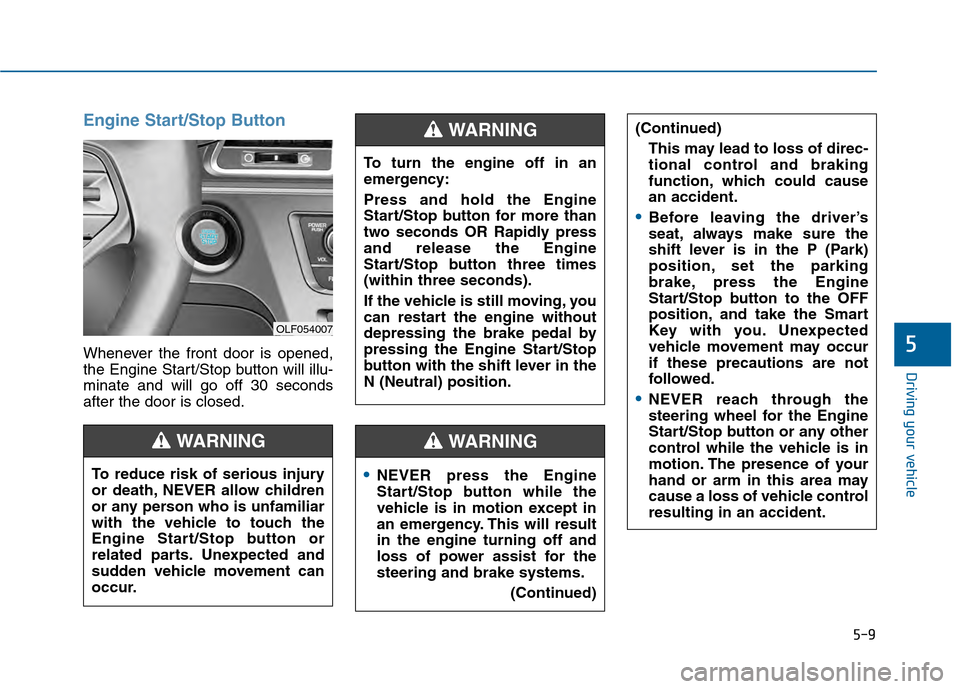
Engine Start/Stop Button
Whenever the front door is opened,
the Engine Start/Stop button will illu-
minate and will go off 30 seconds
after the door is closed.
NEVER press the Engine
Start/Stop button while the
vehicle is in motion except in
an emergency. This will result
in the engine turning off and
loss of power assist for the
steering and brake systems.(Continued)
WARNING
To turn the engine off in an
emergency:
Press and hold the Engine
Start/Stop button for more than
two seconds OR Rapidly press
and release the Engine
Start/Stop button three times
(within three seconds).
If the vehicle is still moving, you
can restart the engine without
depressing the brake pedal by
pressing the Engine Start/Stop
button with the shift lever in the
N (Neutral) position.
(Continued)This may lead to loss of direc-
tional control and braking
function, which could cause
an accident.
Before leaving the driver’s
seat, always make sure the
shift lever is in the P (Park)
position, set the parking
brake, press the Engine
Start/Stop button to the OFF
position, and take the Smart
Key with you. Unexpected
vehicle movement may occur
if these precautions are not
followed.
NEVER reach through the
steering wheel for the Engine
Start/Stop button or any other
control while the vehicle is in
motion. The presence of your
hand or arm in this area may
cause a loss of vehicle control
resulting in an accident.
WARNING
To reduce risk of serious injury
or death, NEVER allow children
or any person who is unfamiliar
with the vehicle to touch the
Engine Start/Stop button or
related parts. Unexpected and
sudden vehicle movement can
occur.
WARNING
OLF054007
Page 368 of 603
5-10
Driving your vehicle
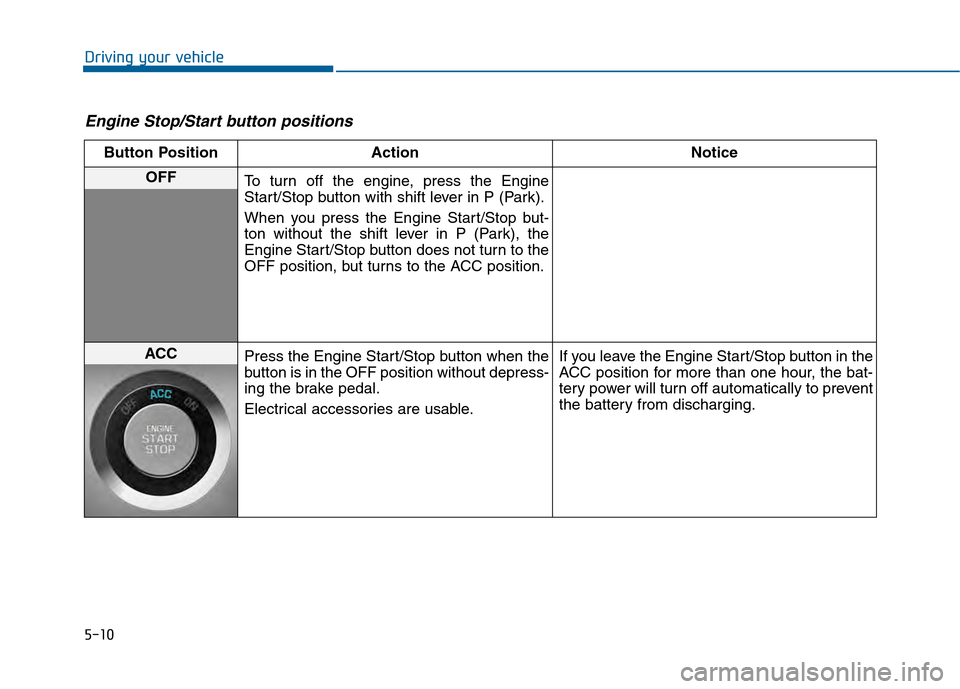
Engine Stop/Start button positions
Button PositionAction Notice
OFF
To turn off the engine, press the Engine
Start/Stop button with shift lever in P (Park).
When you press the Engine Start/Stop but-
ton without the shift lever in P (Park), the
Engine Start/Stop button does not turn to the
OFF position, but turns to the ACC position.
ACC Press the Engine Start/Stop button when the
button is in the OFF position without depress-
ing the brake pedal.
Electrical accessories are usable. If you leave the Engine Start/Stop button in the
ACC position for more than one hour, the bat-
tery power will turn off automatically to prevent
the battery from discharging.